Plans and finance

Plans, promo codes, revenue and refunds

  • A host admin account
  • The prices in Stripe
Back office

Plans

Back office

Plans

1Step 1 of 6

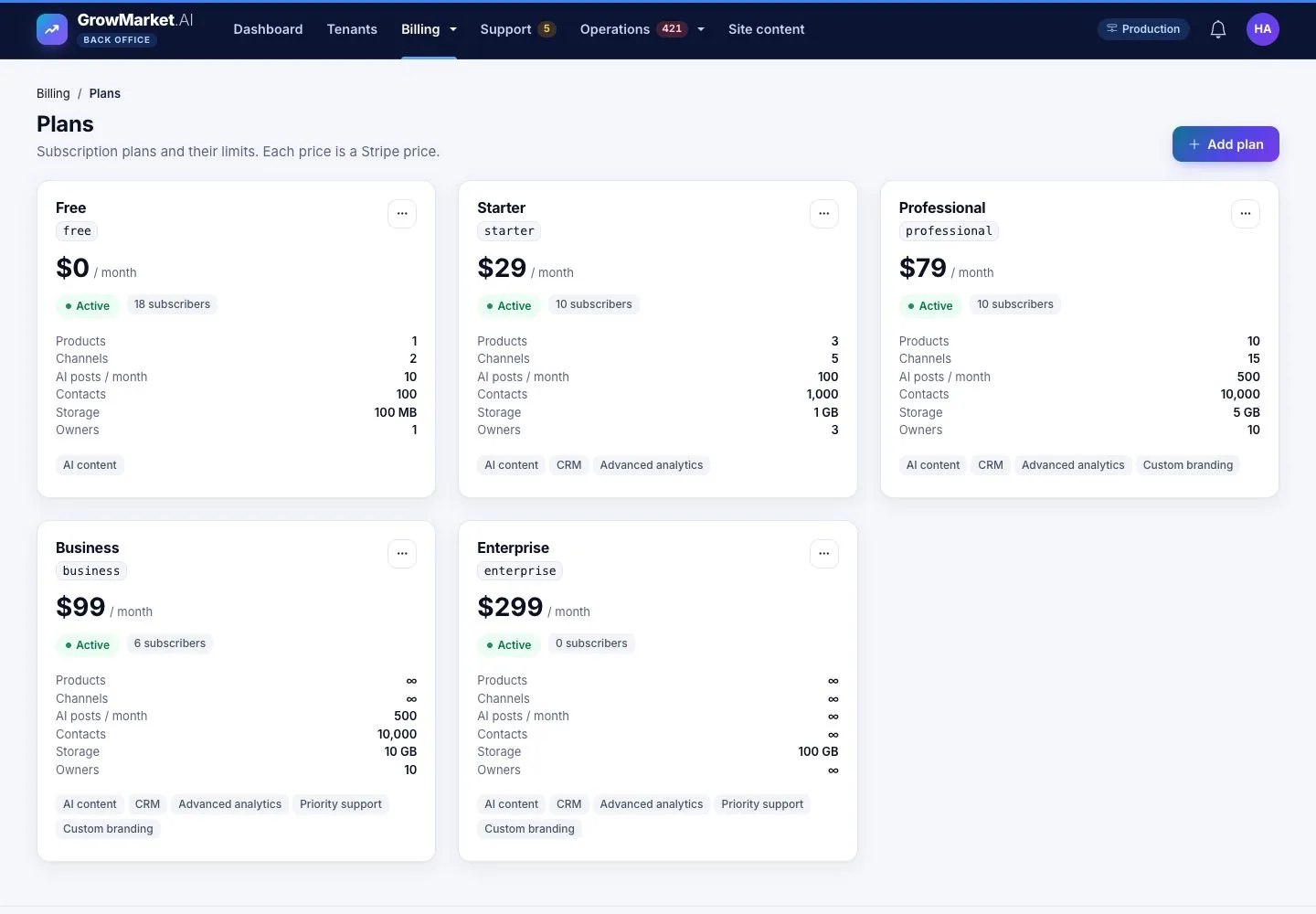
  1. Billing › Plans: each plan with its price, subscribers and limits: products, channels, AI posts, contacts, storage, owners.

Enlarge, then scroll

Open illustrated screen ↗Full image ↗

Back office · Plans and finance01

Add a plan

Back office

Add a plan

2Step 2 of 6

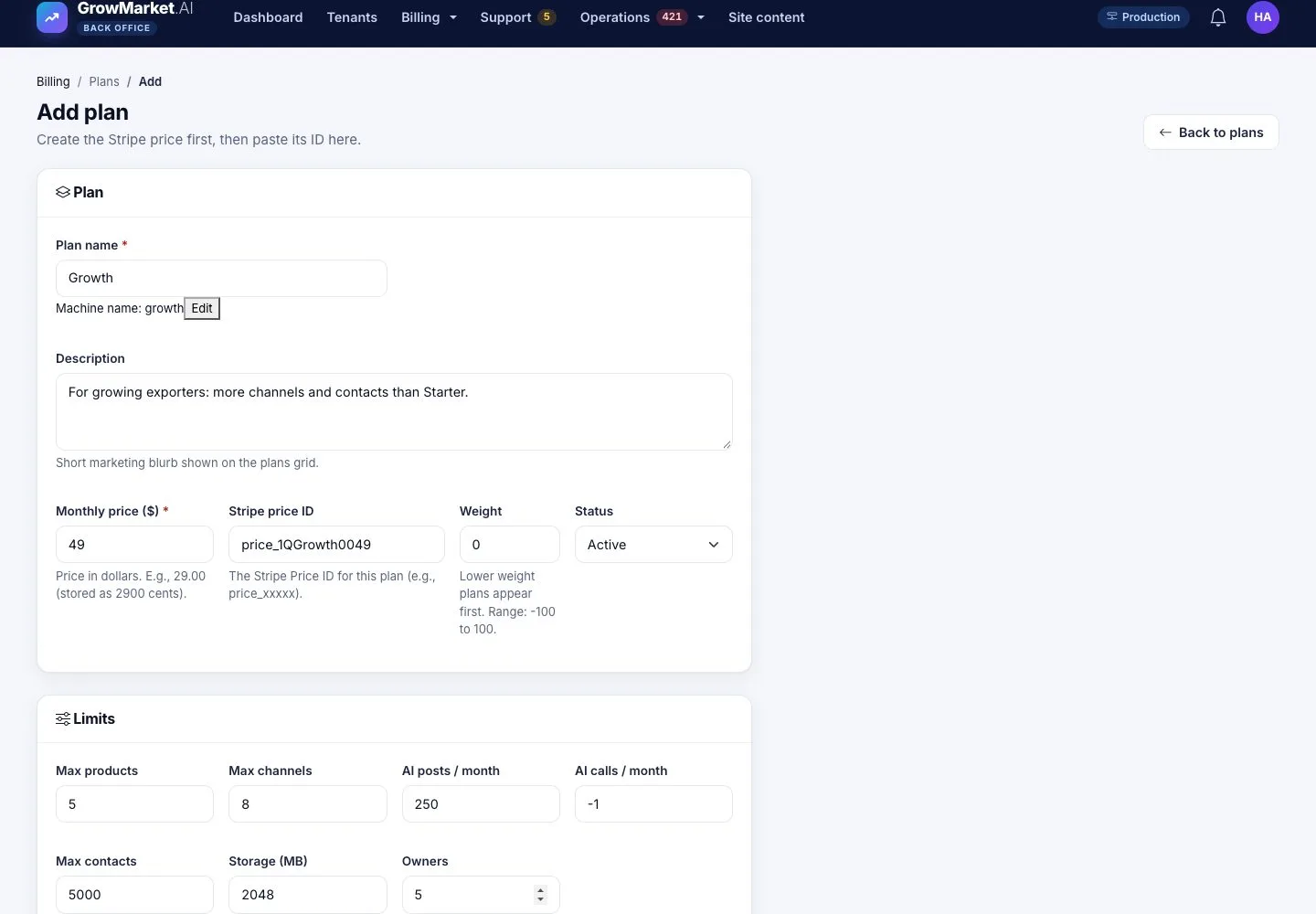
  1. Create the price in Stripe first, then paste its ID here.
  2. Set the monthly price, status, weight and the limits; -1 means unlimited.

Enlarge, then scroll

Open illustrated screen ↗Full image ↗

Back office · Plans and finance02

Promo codes

Back office

Promo codes

3Step 3 of 6

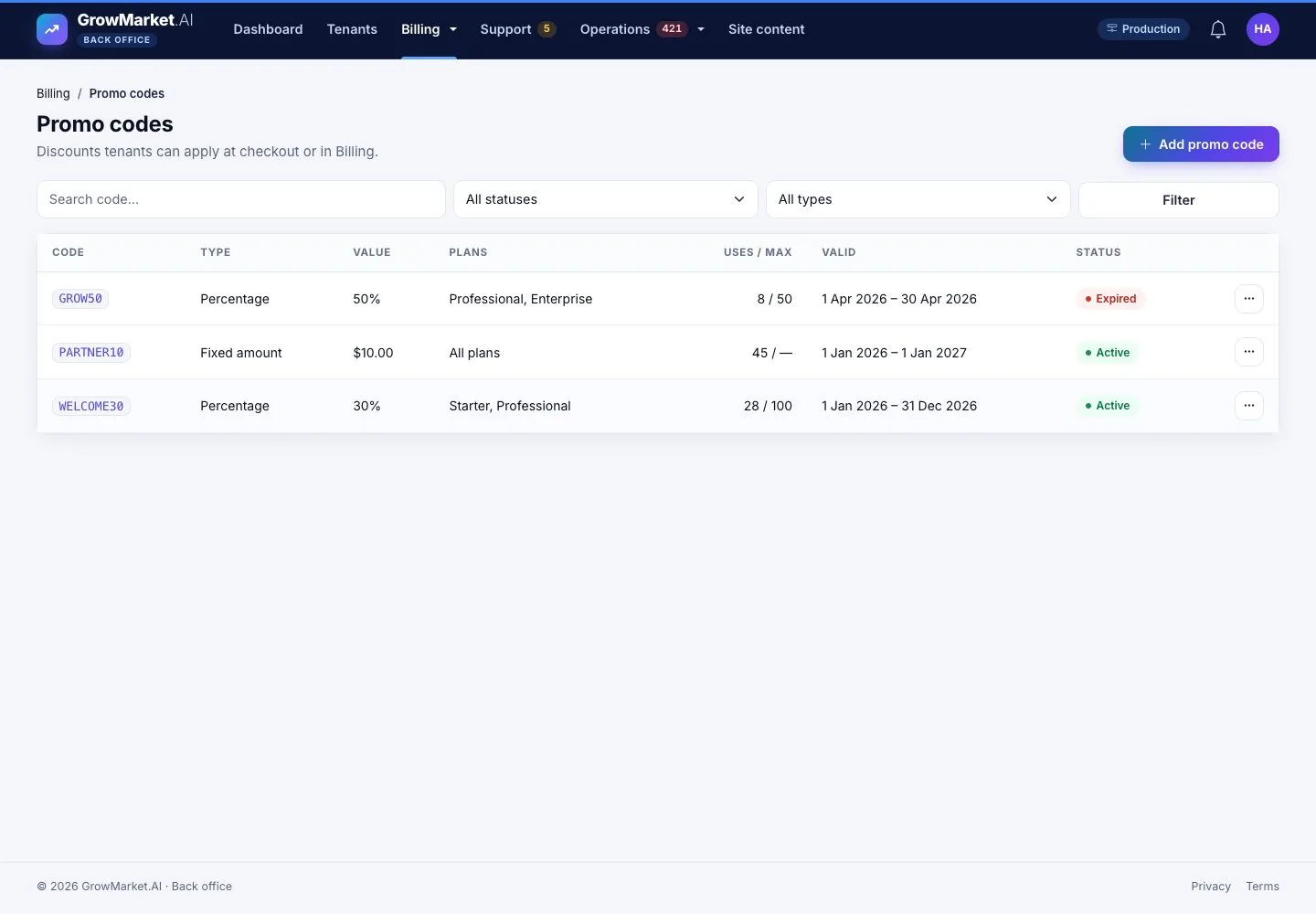
  1. Billing › Promo codes: each code with its type, value, plans, uses and validity.

Open illustrated screen ↗Full image ↗

Back office · Plans and finance03

Add a promo code

Back office

Add a promo code

4Step 4 of 6

  1. Code, percentage or fixed amount, start and end date, maximum uses and the plans it applies to.

Open illustrated screen ↗Full image ↗

Back office · Plans and finance04

Finance

Back office

Finance

5Step 5 of 6

  1. Billing › Finance: MRR, ARR, paid subscriptions, failed payments and refunds pending.
  2. Revenue by plan and recent transactions; Export.

Open illustrated screen ↗Full image ↗

Back office · Plans and finance05

Refunds

Back office

Refunds

6Step 6 of 6

  1. A refund is requested from a transaction with an amount and a reason.
  2. It waits on Finance until a host admin refunds it in Stripe or rejects it.

Enlarge, then scroll

Open illustrated screen ↗Full image ↗

Check

Plans and promo codes match Stripe, and every refund is decided by a host admin

Back office · Plans and finance06
1 / 7
Privacy Terms