Many workspaces

One back office for every tenant

  • A back office account (host admin) with two-step sign-in
Back office
Tenants

Back office

Tenants

1Step 1 of 8

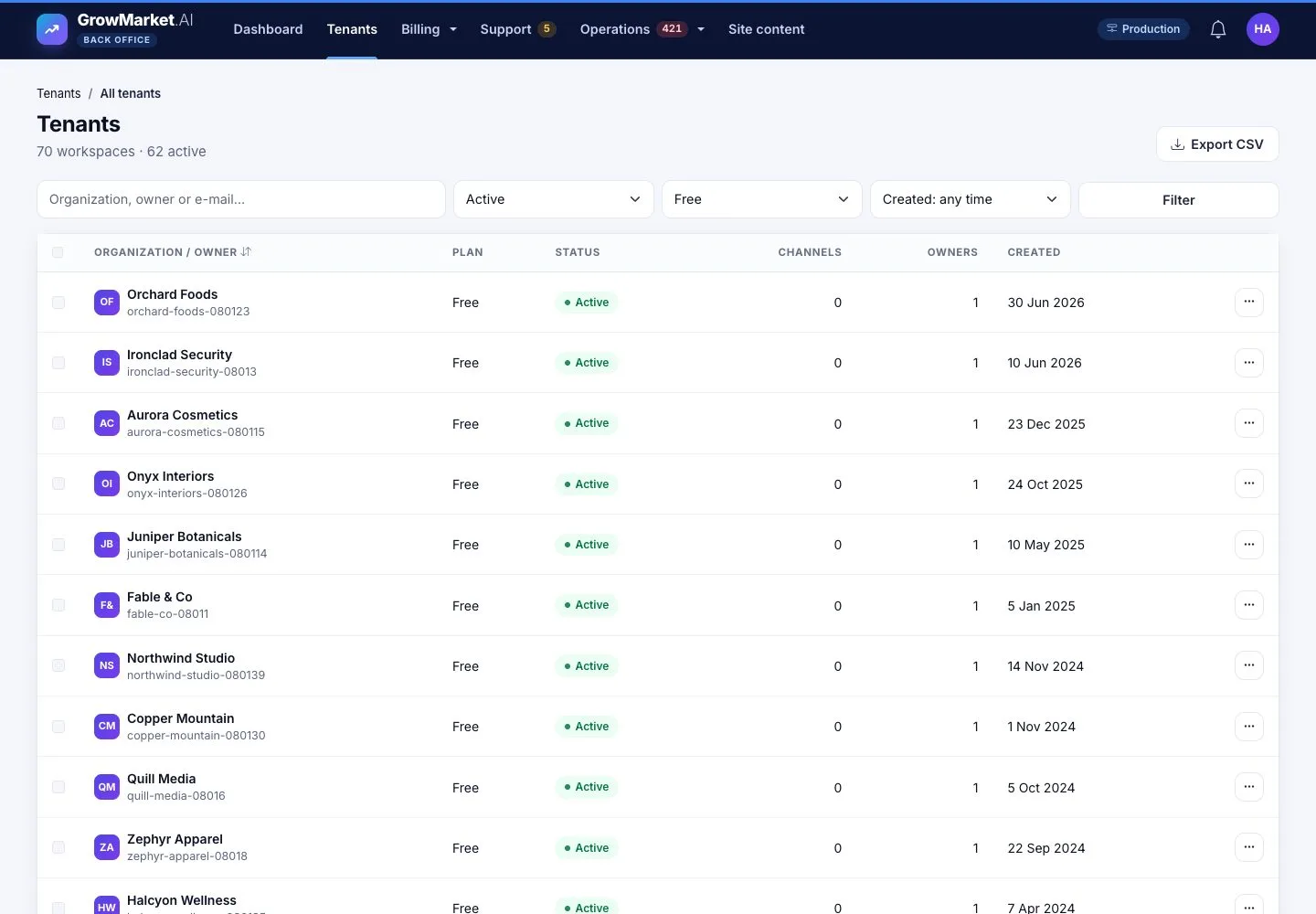
  1. Tenants: every workspace with its plan, status, channels, owners and creation date.
  2. Search, filter by status, plan and date, Export CSV of exactly what is listed.

Enlarge, then scroll

Open illustrated screen ↗Full image ↗

Back office · Many workspaces01

Several at once

Back office

Several at once

2Step 2 of 8

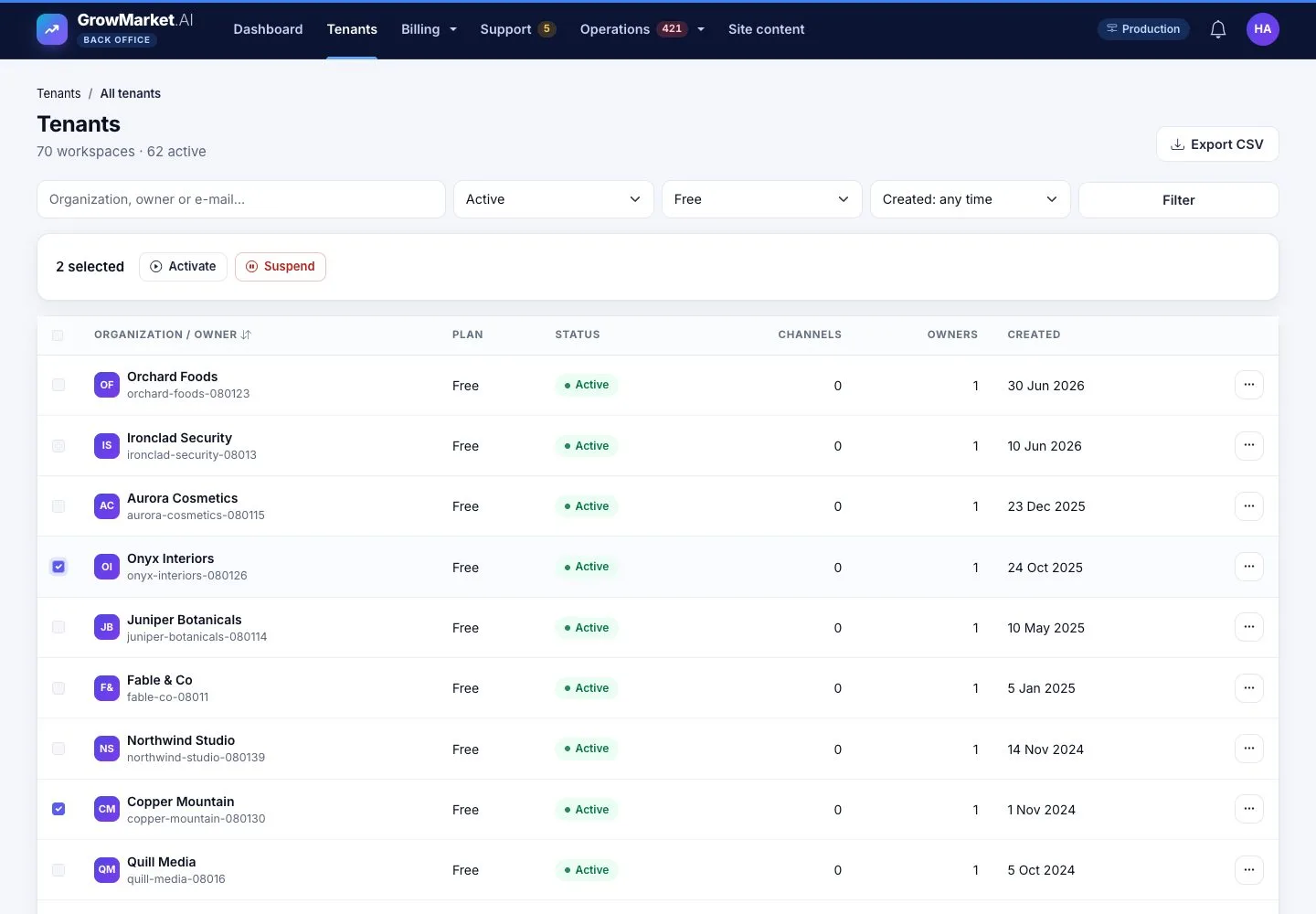
  1. Select several to suspend or activate them together.

Open illustrated screen ↗Full image ↗

Back office · Many workspaces02

A tenant

Back office

A tenant

3Step 3 of 8

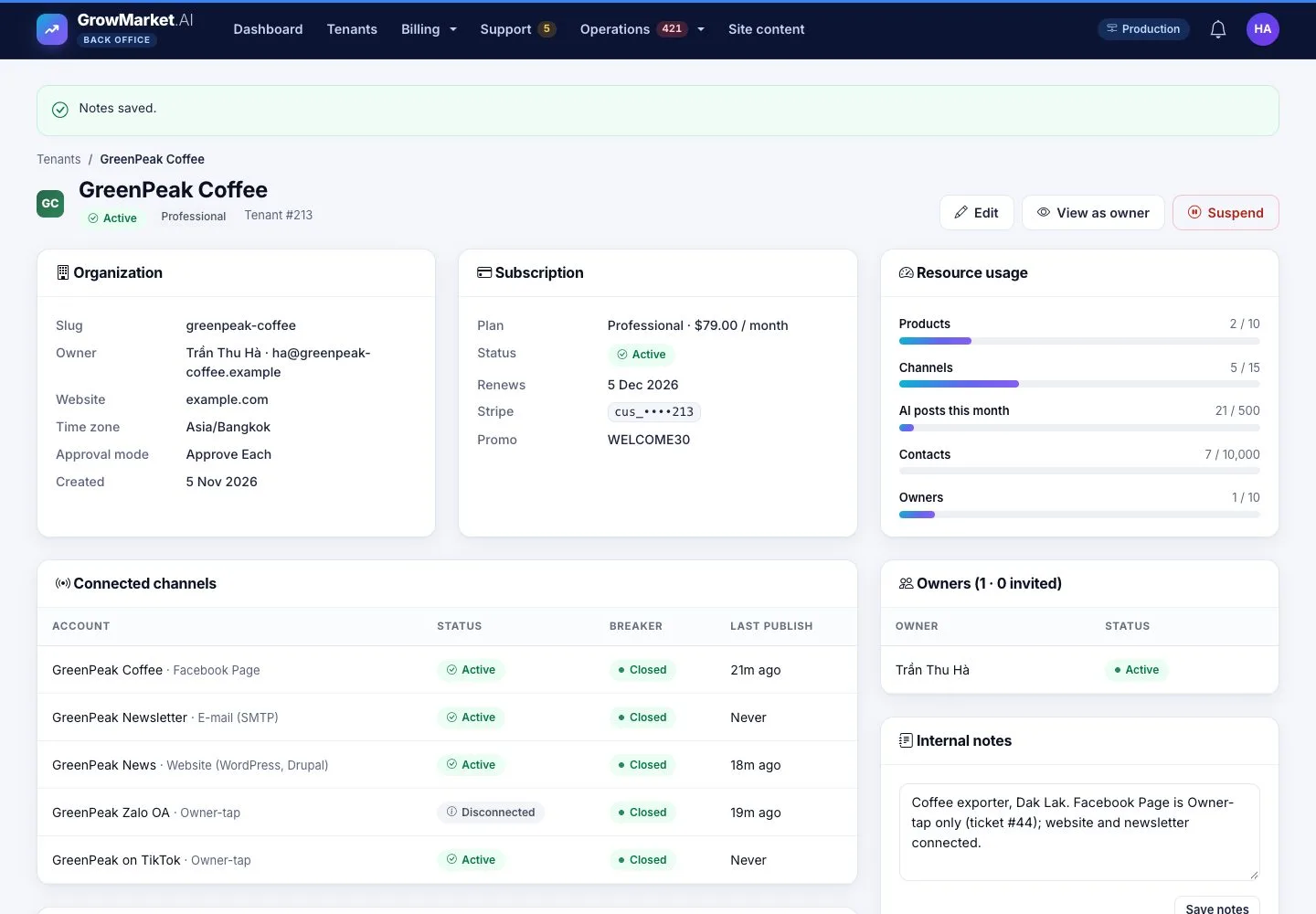
  1. Organization, subscription, resource usage, connected channels, owners, internal notes and AI usage.
  2. Internal notes are never shown to the tenant.

Enlarge, then scroll

Open illustrated screen ↗Full image ↗

Back office · Many workspaces03

Change the plan

Back office

Change the plan

4Step 4 of 8

  1. Edit › Plan: Change plan shows the price from, to and the difference per month before it applies.
  2. A workspace that pays through Stripe changes its subscription there first.

Open illustrated screen ↗Full image ↗

Back office · Many workspaces04

Suspend

Back office

Suspend

5Step 5 of 8

  1. Suspend asks first: the owners can no longer sign in and nothing is published until you activate it again.
  2. The owners are told by e-mail.

Open illustrated screen ↗Full image ↗

Back office · Many workspaces05

What the owner sees

Owner

What the owner sees

6Step 6 of 8

  1. The owners of a suspended workspace see why, can contact you or open another workspace.

Open illustrated screen ↗Full image ↗

Back office · Many workspaces06

View as owner

Back office

View as owner

7Step 7 of 8

  1. View as owner asks for a reason, for example the ticket you are working on.
  2. The view is read-only and recorded in the workspace's activity log, with your name and reason.

Open illustrated screen ↗Full image ↗

Back office · Many workspaces07

Close a workspace

Back office

Close a workspace

8Step 8 of 8

  1. Queue account closure: members lose access, the subscription is cancelled, data is deleted after the retention period.
  2. Type the workspace name to confirm.

Open illustrated screen ↗Full image ↗

Check

Every workspace has the right plan and status, and every look inside one is recorded

Back office · Many workspaces08
1 / 9
Privacy Terms