Find and enroll in a course

Catalogue, categories, wishlist, self-enrollment

  • The catalogue is open to everyone
  • Signing in is needed to enroll
Employee
The home page

Visitor

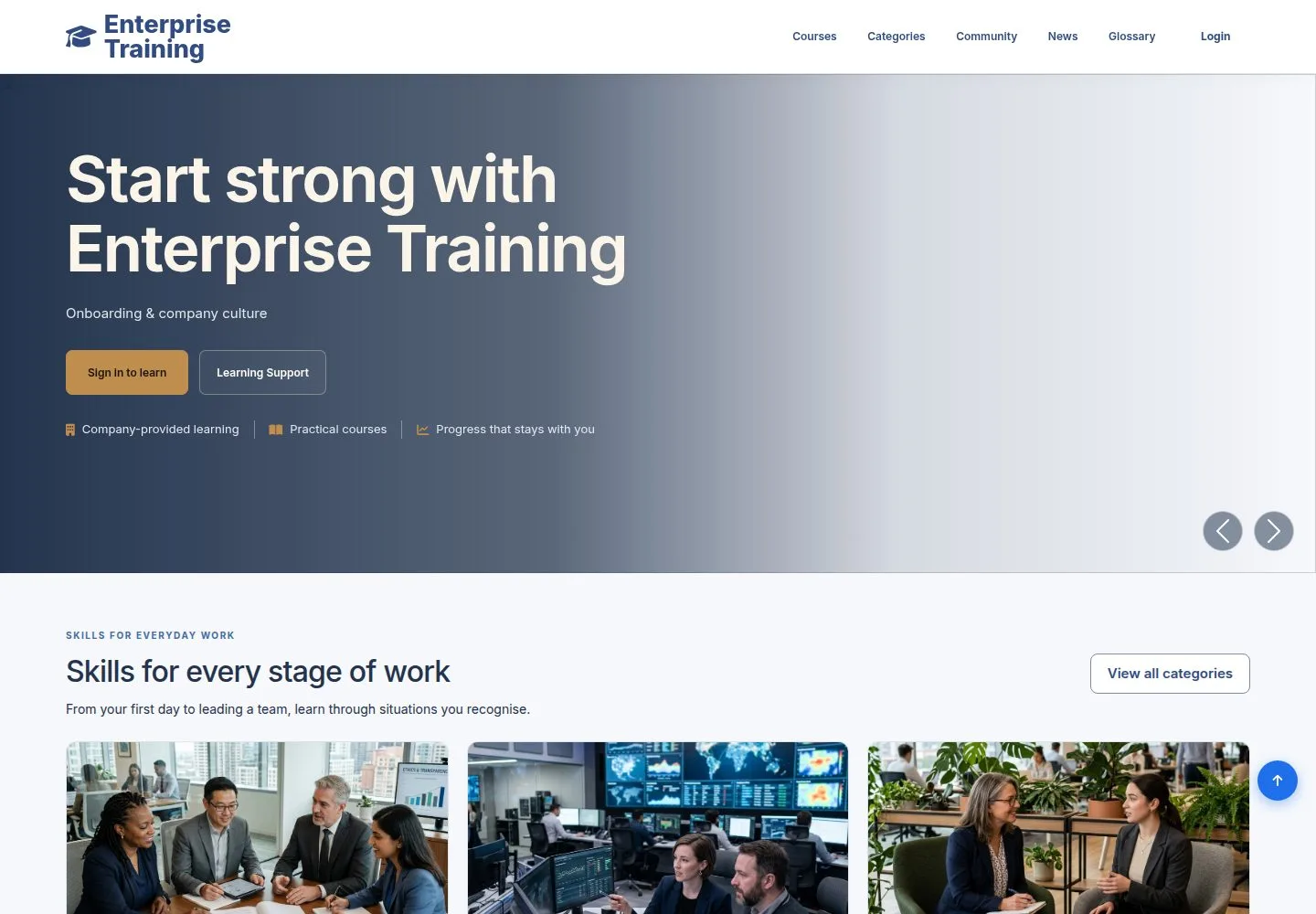
The home page

1Step 1 of 10

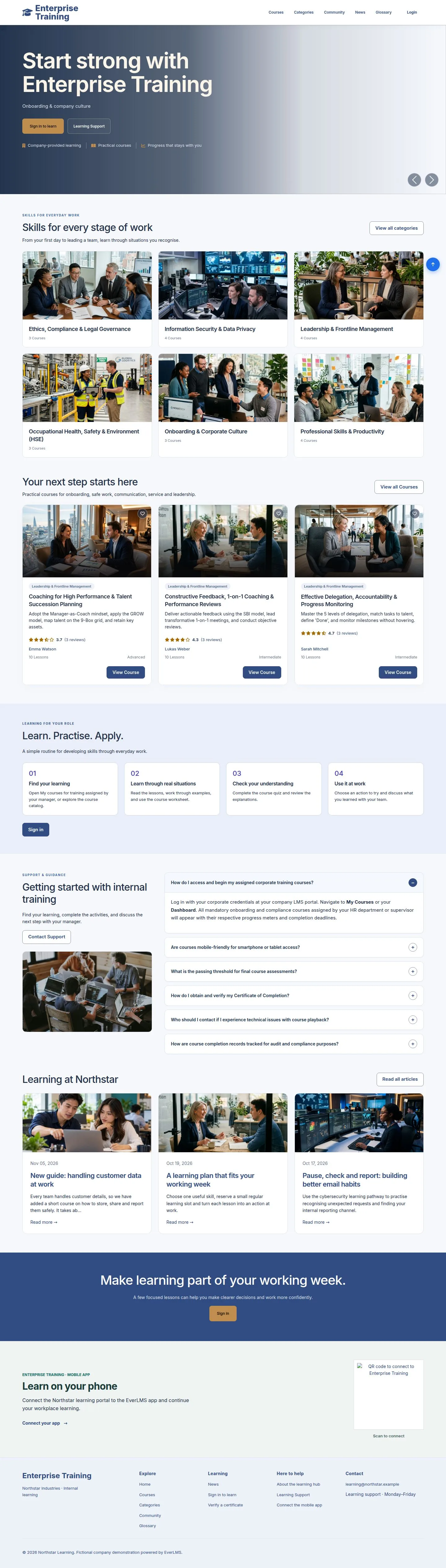
  1. Banners, course categories and suggested courses.
  2. Sign in to learn takes an employee to the sign-in page.

Enlarge, then scroll

Open illustrated screen ↗Full image ↗

Employee · Find and enroll in a course01

The catalogue

Visitor

The catalogue

2Step 2 of 10

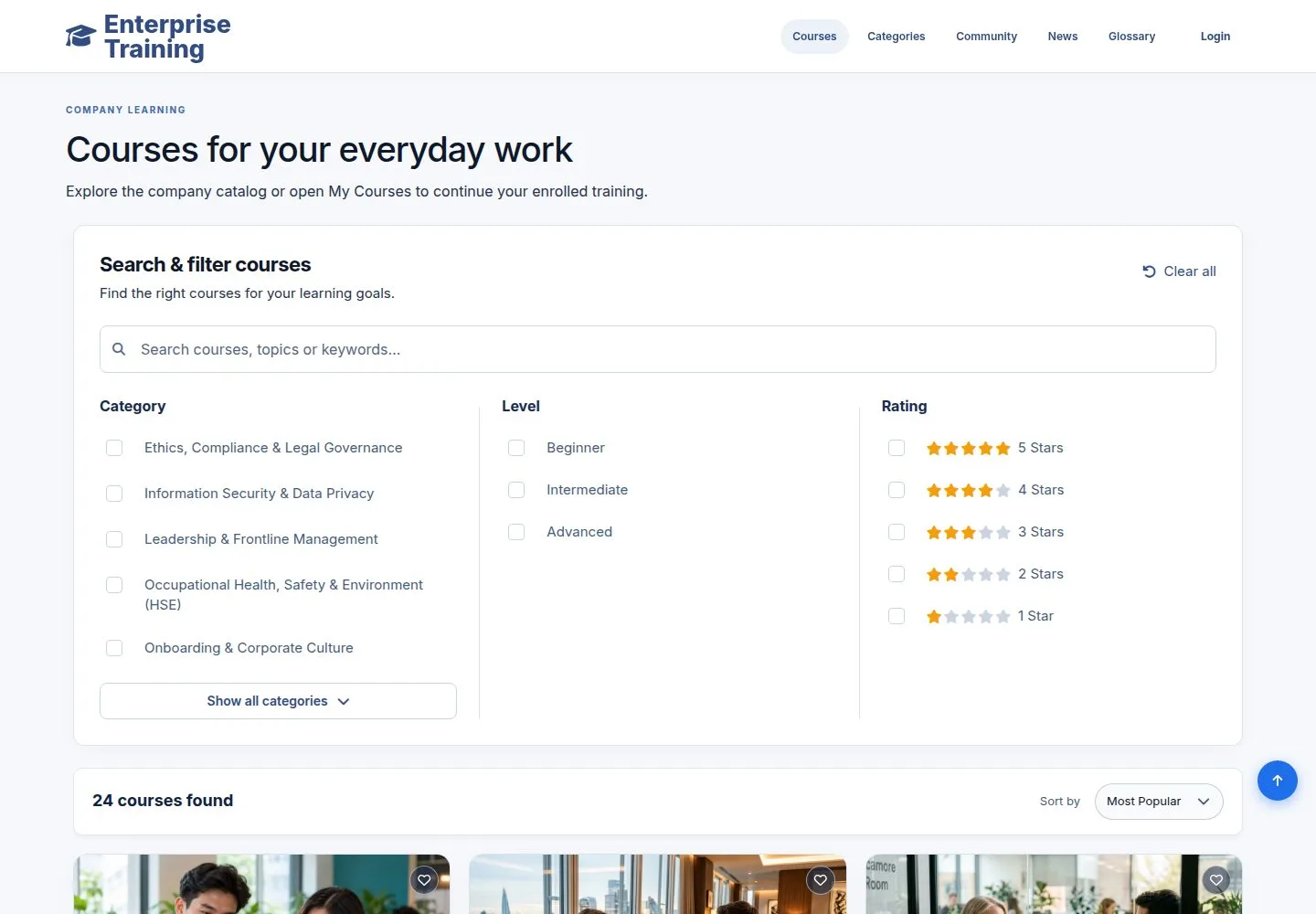
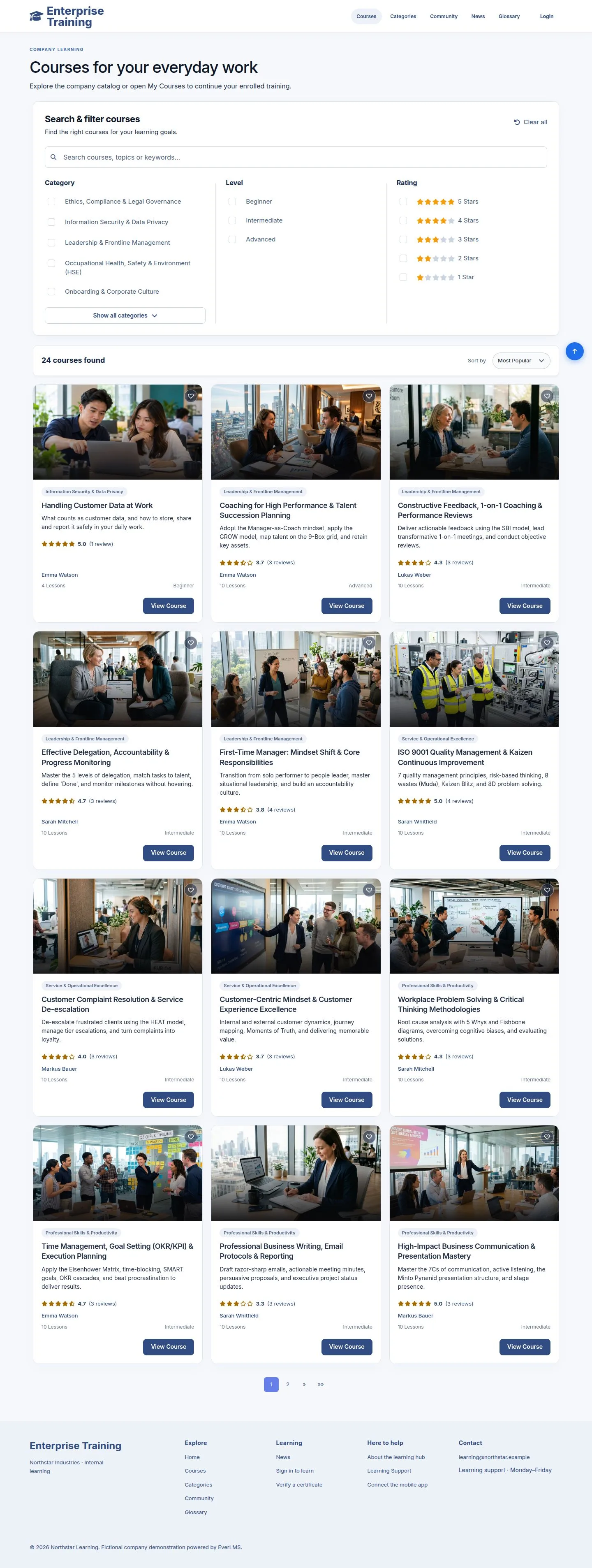
  1. Courses opens every published course.
  2. Search, or filter by Category, Level and Rating.
  3. Sort by popularity, date or rating.

Enlarge, then scroll

Open illustrated screen ↗Full image ↗

Employee · Find and enroll in a course02

Filter

Visitor

Filter

3Step 3 of 10

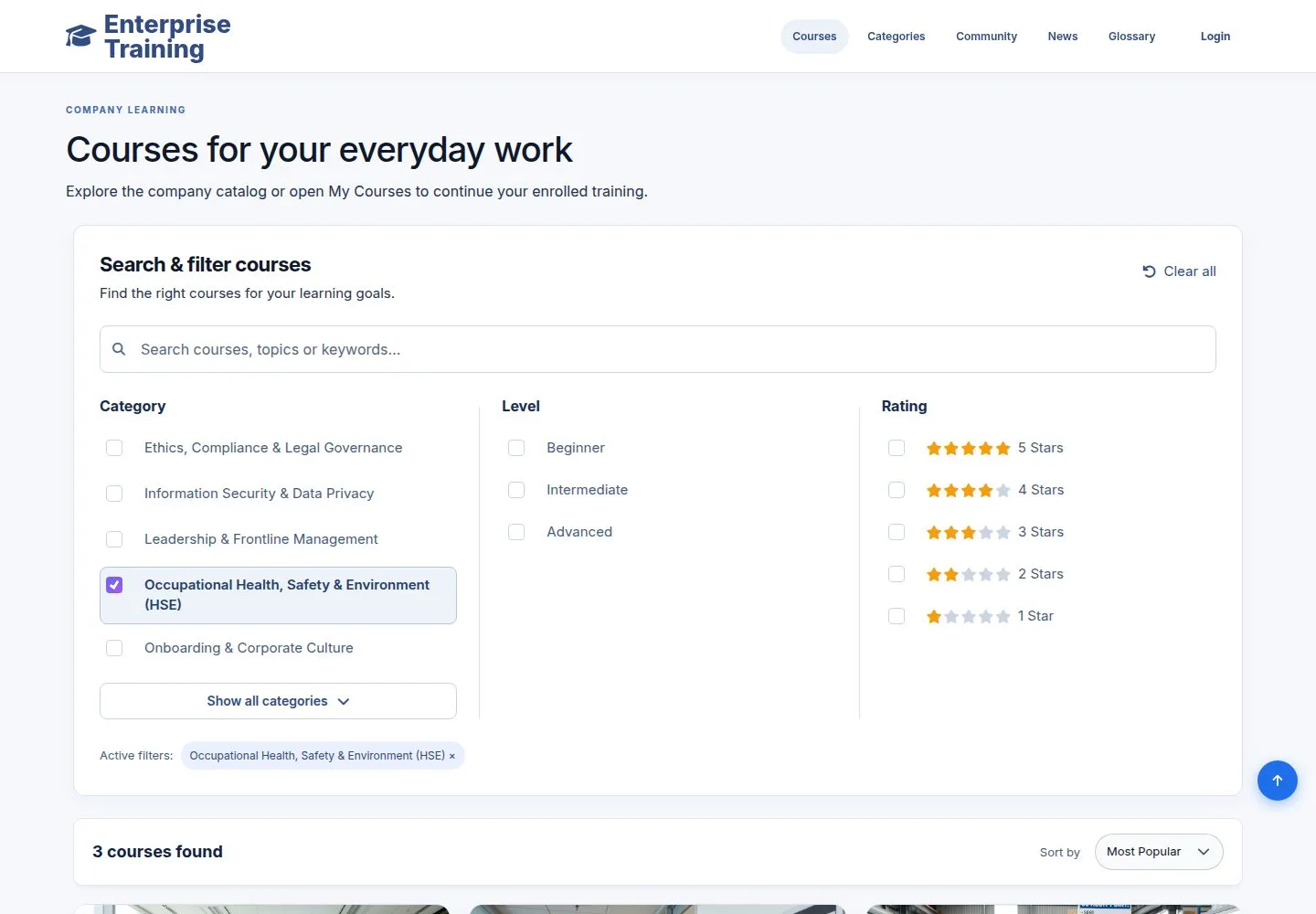
  1. Tick a category; the list and the count update.
  2. Chosen filters show above the list and clear one by one.

Enlarge, then scroll

Open illustrated screen ↗Full image ↗

Employee · Find and enroll in a course03

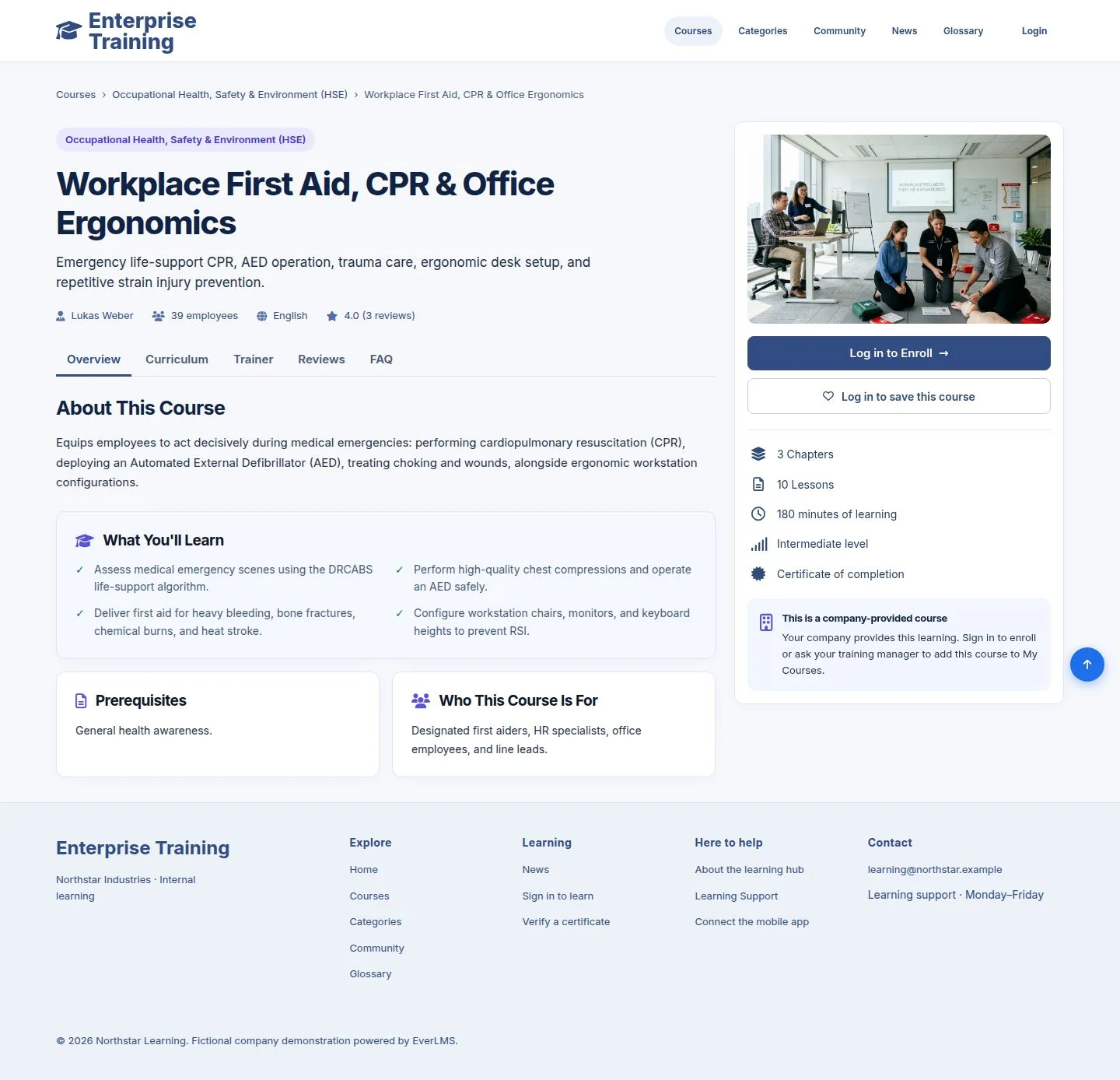
The course page

Visitor

The course page

4Step 4 of 10

  1. What you will learn, prerequisites, who it is for.
  2. The side panel shows chapters, lessons, time, level and the certificate.

No course shows a price: training is provided by the company.

Enlarge, then scroll

Open illustrated screen ↗Full image ↗

Employee · Find and enroll in a course04

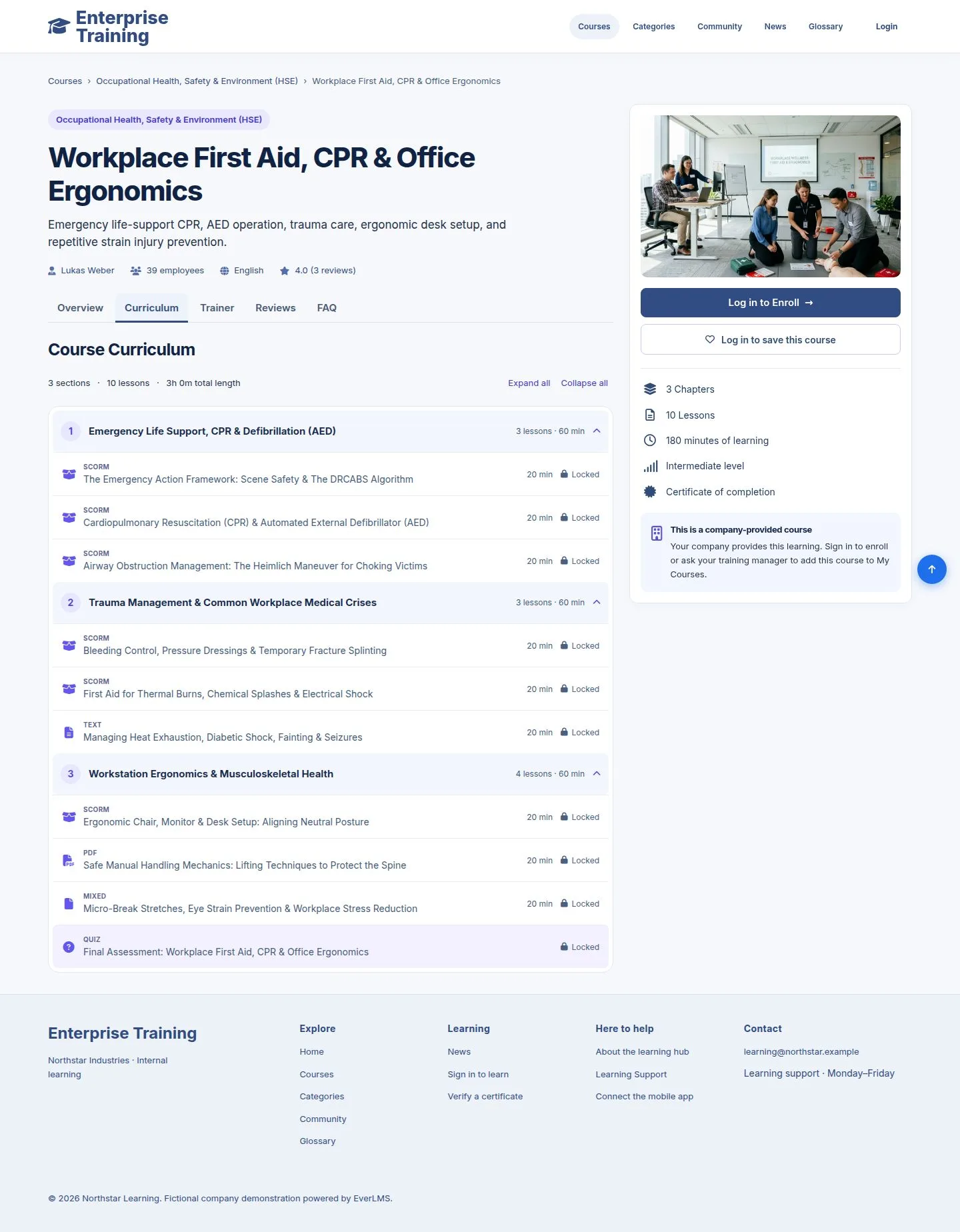
Curriculum

Visitor

Curriculum

5Step 5 of 10

  1. Chapters and lessons, with the type and length of each.

Enlarge, then scroll

Open illustrated screen ↗Full image ↗

Employee · Find and enroll in a course05

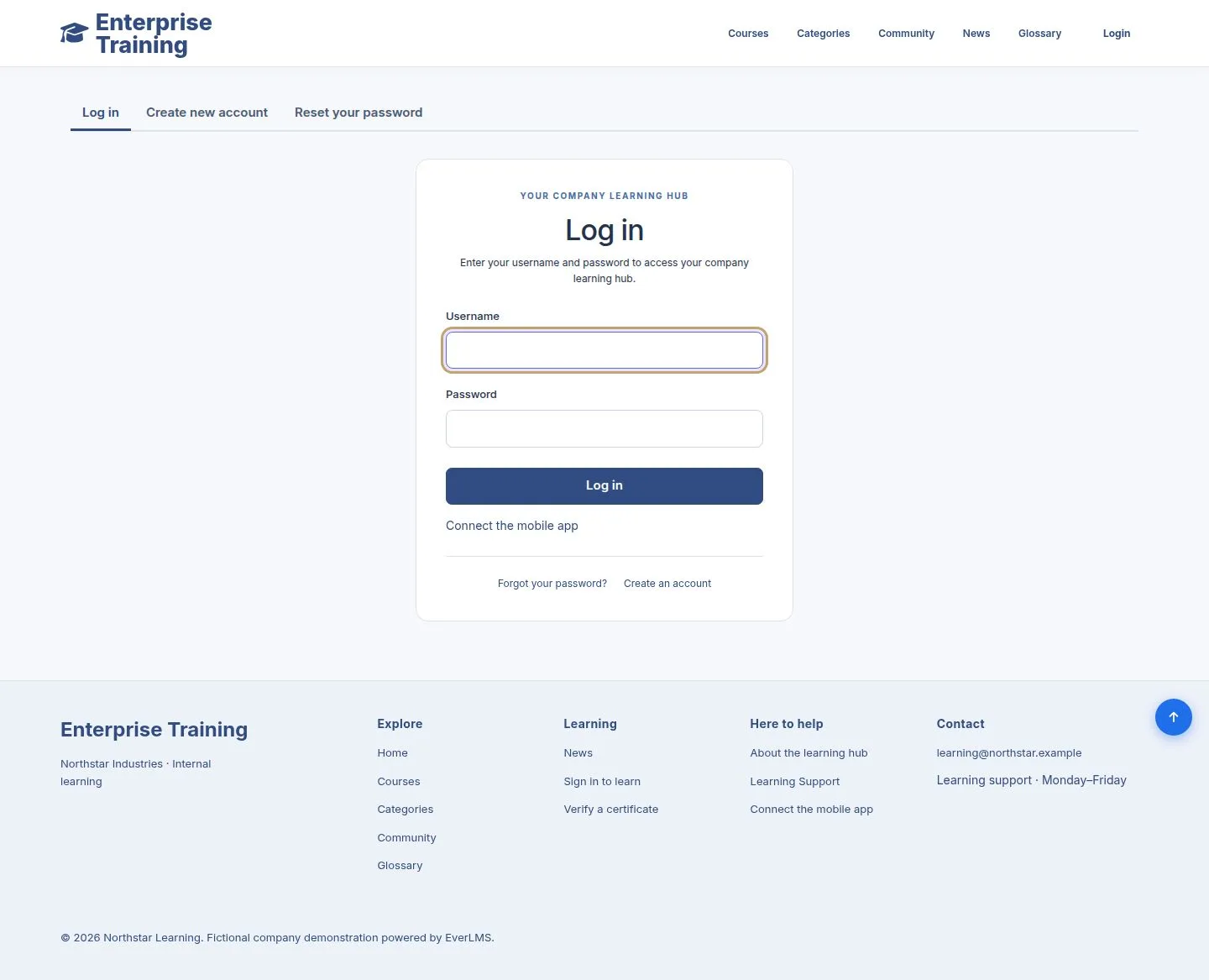
Log in to enroll

Visitor

Log in to enroll

6Step 6 of 10

  1. Log in to Enroll opens the sign-in page.
  2. After signing in you come back to this course.

Enlarge, then scroll

Open illustrated screen ↗Full image ↗

Employee · Find and enroll in a course06

Save for later

Employee

Save for later

7Step 7 of 10

  1. Add to Wishlist keeps the course in My Wishlist.
  2. The heart in the header shows how many you saved.

Enlarge, then scroll

Open illustrated screen ↗Full image ↗

Employee · Find and enroll in a course07

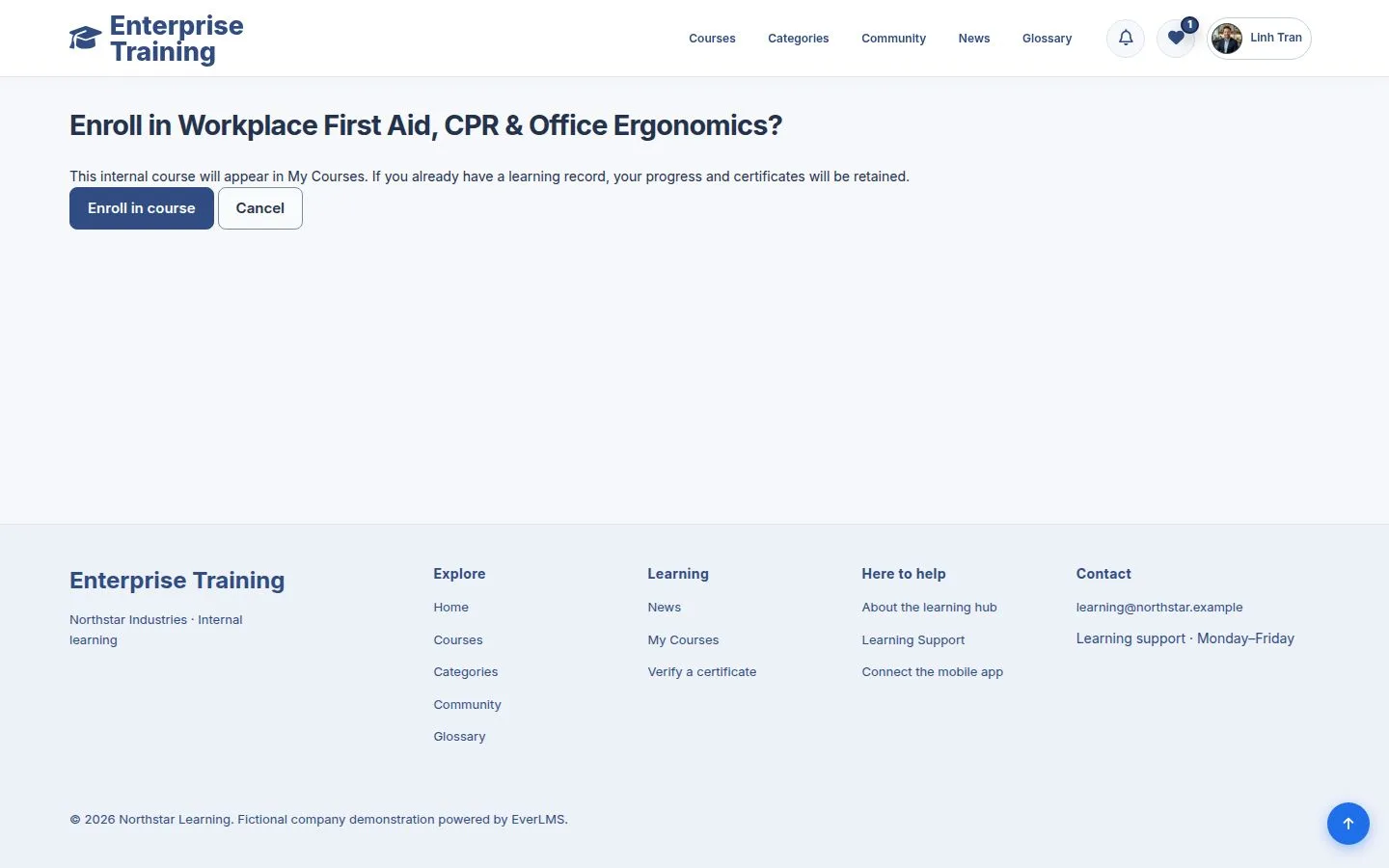
Enroll

Employee

Enroll

8Step 8 of 10

  1. Enroll Now asks you to confirm.
  2. If you already have a learning record, it is kept.

Open illustrated screen ↗Full image ↗

Employee · Find and enroll in a course08

Enrolled

Employee

Enrolled

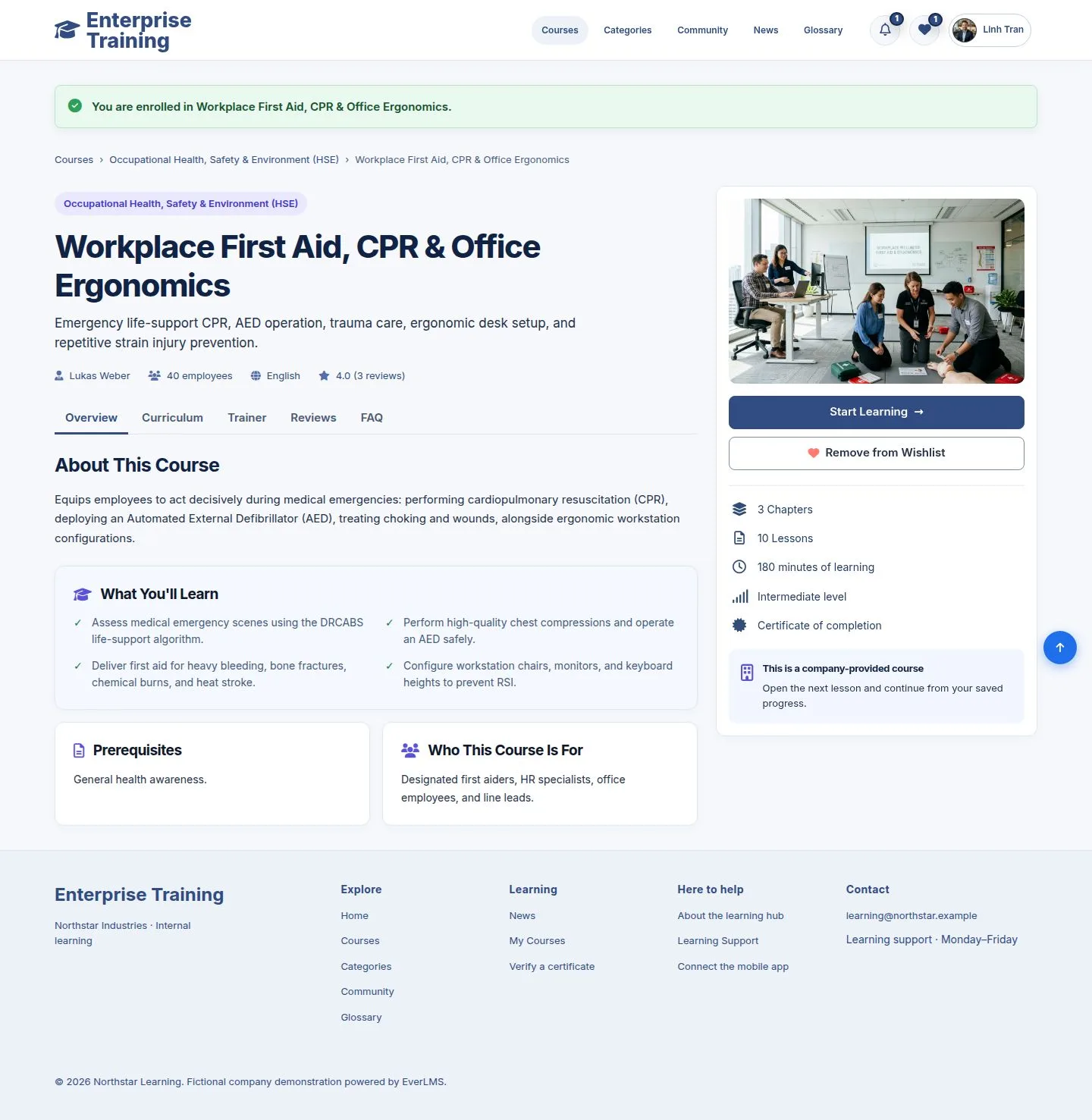
9Step 9 of 10

  1. The course page now offers Start Learning.
  2. Opening the link again goes straight to the course.

Enlarge, then scroll

Open illustrated screen ↗Full image ↗

Employee · Find and enroll in a course09

My Courses

Employee

My Courses

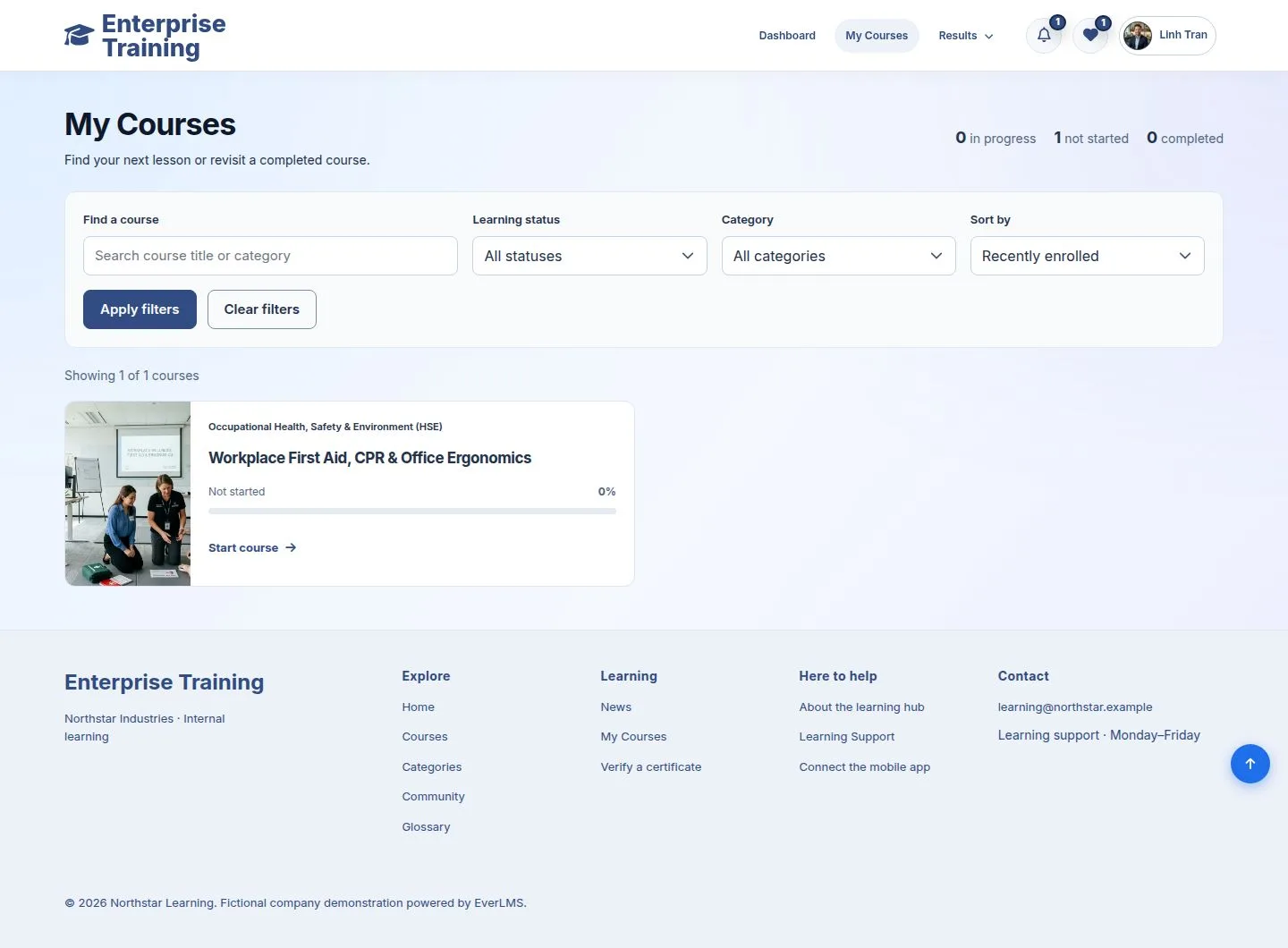
10Step 10 of 10

  1. The course waits here as Not started.

Enlarge, then scroll

Open illustrated screen ↗Full image ↗

Check

The course is in My Courses, with no price and no order

Employee · Find and enroll in a course10
1 / 11
Privacy Terms