





Guide › Student / caregiver learner
 Child development training
User guide · Student / caregiver learner
Take a Quiz and review an attempt
Read the assessment settings, submit when ready and consult your results.
- Your account can open the assessment. Follow any attempt or prerequisite message shown.
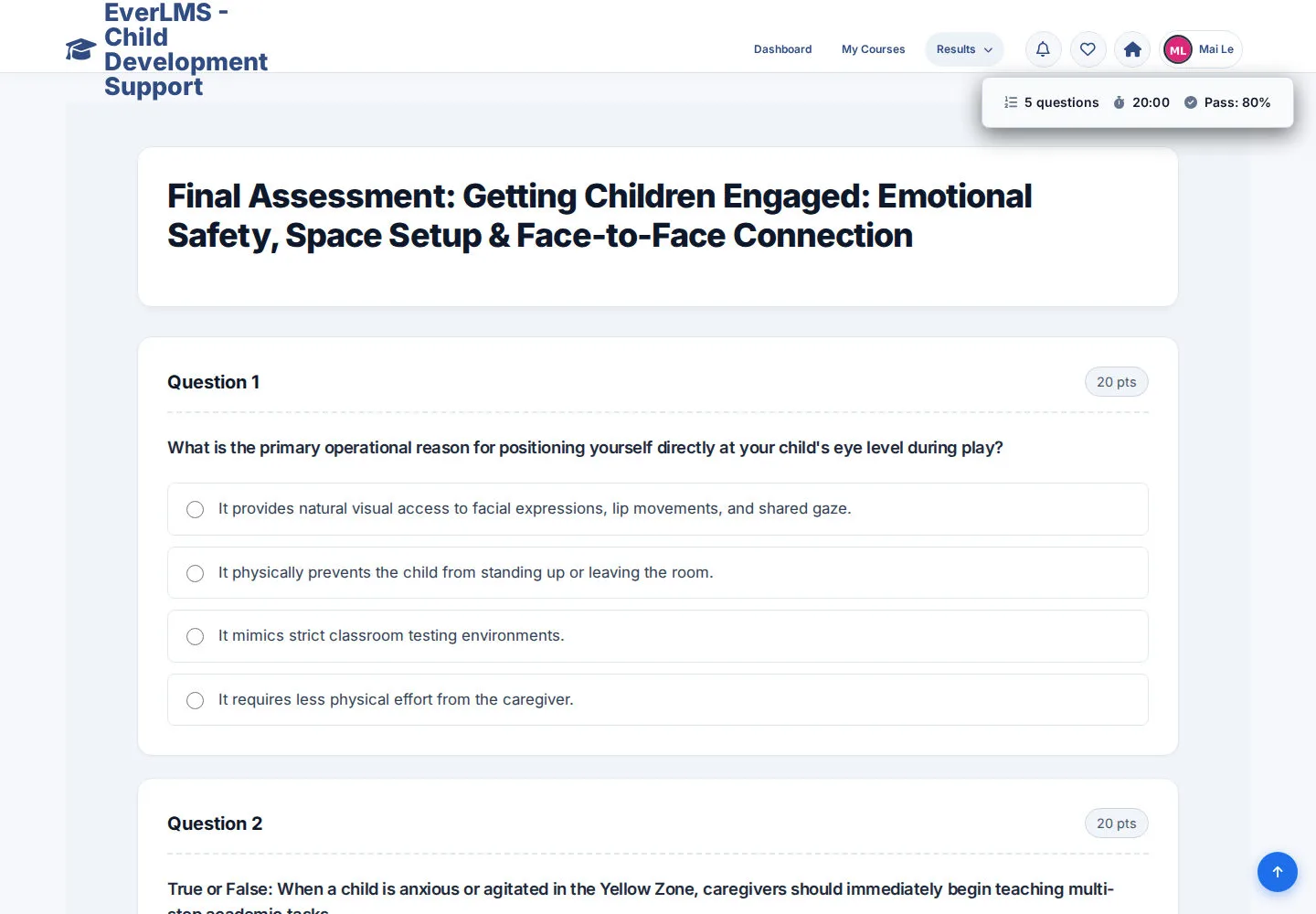
Read the assessment information
Student / caregiver learner
1Step 1 of 4
The Quiz displays questions and the configured time and pass requirements.
- Read the instructions and limits before answering.
- Choose or enter answers using each question's controls.
Open on site ↗sign-inFull-page screenshot ↗
Your answers are ready for review.
Review and submit your answers
Student / caregiver learner
2Step 2 of 4
The page offers Submit Final Answers.
- Check the answers you intend to submit.
- Choose Submit Final Answers when ready and follow the confirmation.
When you choose to save or submit, check the message and the resulting record. A form view alone does not mean the operation has completed.
Open on site ↗sign-inFull-page screenshot ↗
The site records the attempt and presents a result or review state.
Find an attempt in your history
Student / caregiver learner
3Step 3 of 4
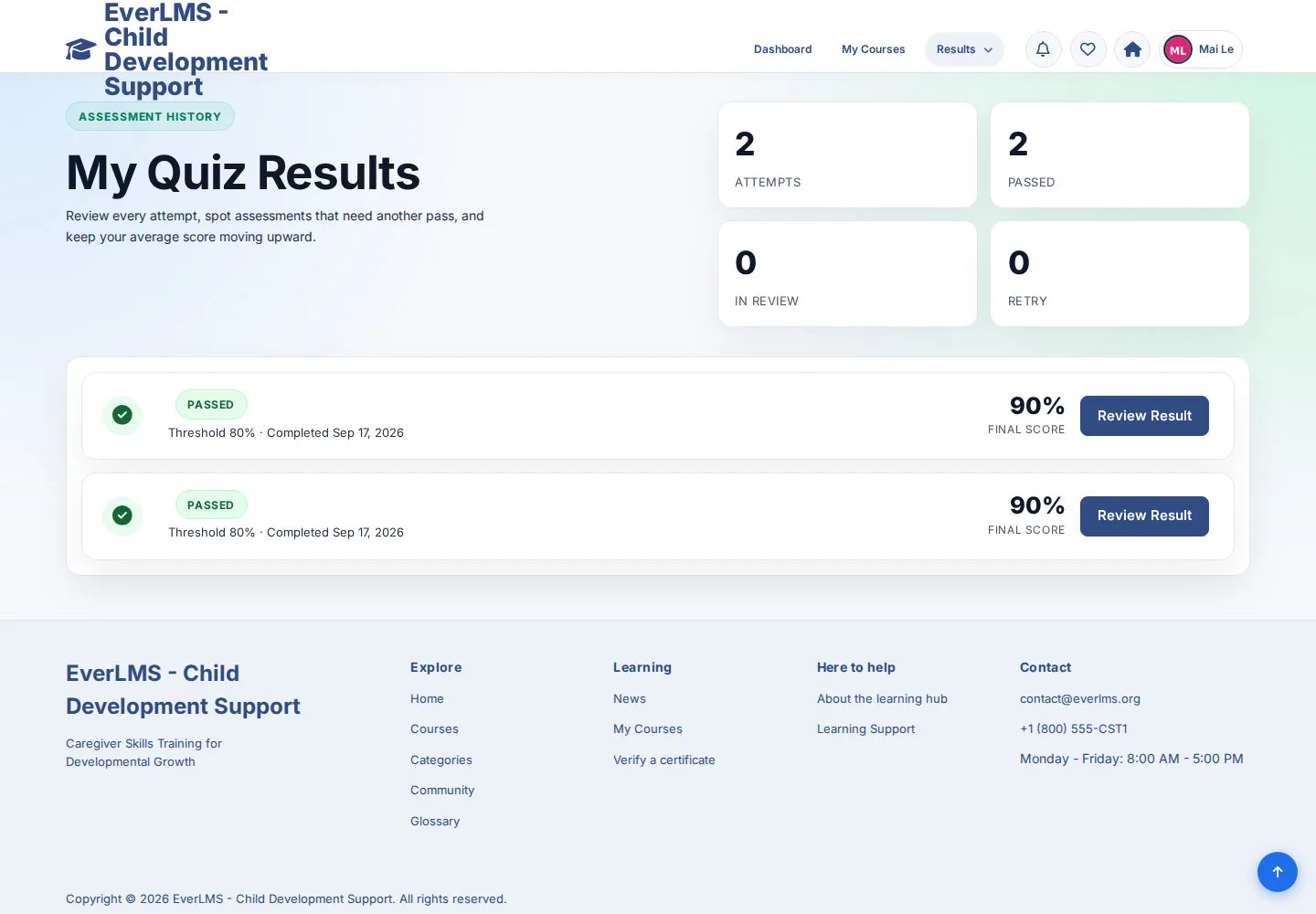
My Quiz Results lists your attempts and their current status.
- Choose Review Result for the attempt you want to inspect.
- Read whether the attempt passed, needs review or is eligible for another try.
Open on site ↗sign-inFull-page screenshot ↗
You reach the selected attempt's result.
Read the result and continue learning
Student / caregiver learner
4Step 4 of 4
The result page displays the outcome stored for the selected attempt.
- Review your own score and status.
- Choose Continue Learning when you want to return to your training.
Open on site ↗sign-inFull-page screenshot ↗
You understand the stored assessment result and the next available action.