





Guide › Student / caregiver learner
 Child development training
User guide · Student / caregiver learner
Read a Lesson and use the learning tools
Move through the curriculum and use the Lesson tabs without losing your place.
- Sign in and open a Course you can study.
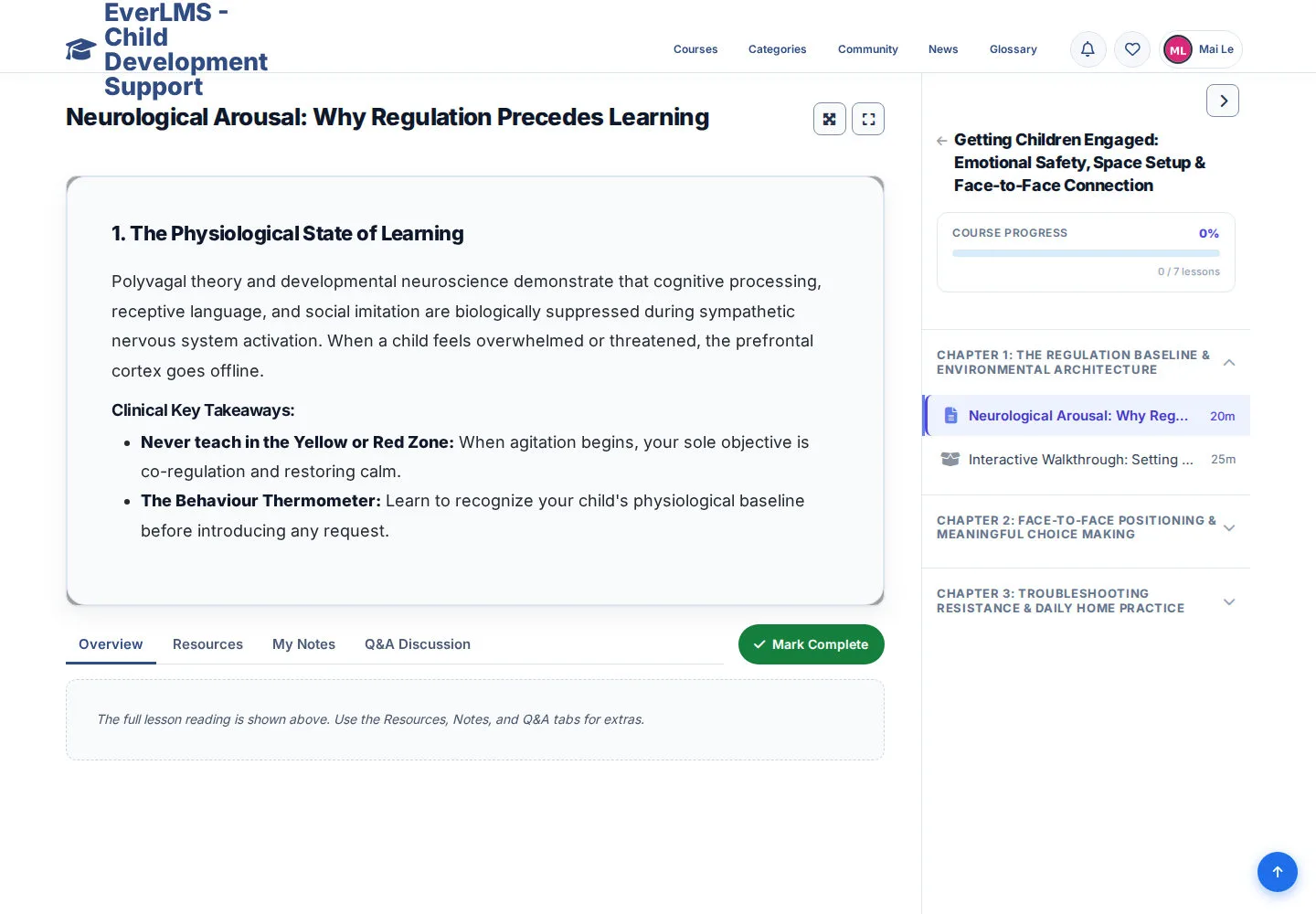
Read the current Lesson
Student / caregiver learner
1Step 1 of 5
The player displays the Lesson content alongside the Course curriculum.
- Read or use the activity presented in the Lesson.
- Check the Lesson title and its place in the Chapter.
Open on site ↗sign-inFull-page screenshot ↗
You are working on the Lesson you selected.
Move through Chapters and Lessons
Student / caregiver learner
2Step 2 of 5
The curriculum lists the Chapters and their Lessons.
- Expand a Chapter and choose a Lesson.
- Use the previous or next Lesson action when it is shown.
Open on site ↗sign-inFull-page screenshot ↗
You open another Lesson within the same Course.
Find resources and personal notes
Student / caregiver learner
3Step 3 of 5
The tabs include Overview, Resources, My Notes and Q&A Discussion.
- Choose Resources for available learning files.
- Choose My Notes to keep a personal learning note using the controls shown.
Open on site ↗sign-inFull-page screenshot ↗
You reach the tools attached to the current Lesson.
Check completion before marking a Lesson
Student / caregiver learner
4Step 4 of 5
Use the completion action after you have finished the Lesson activity.
- Choose Mark Complete when you are ready.
- Check the displayed completion and Course progress afterward.
When you choose to save or submit, check the message and the resulting record. A form view alone does not mean the operation has completed.
If your Course summary and Lesson progress disagree, ask programme support to review the record.
Open on site ↗sign-inFull-page screenshot ↗
The Lesson completion and progress reflect your own learning record.
Open a linked assessment
Student / caregiver learner
5Step 5 of 5
A Quiz Lesson offers a Take Quiz action.
- Read the assessment introduction.
- Choose Take Quiz when you are ready to answer.
Open on site ↗sign-inFull-page screenshot ↗
The assessment opens with its current instructions and limits.