





 Child development training
User guide · Administrator
Manage participant accounts and the Course library
Find the right account or Course before applying an authorised management change.
- You are authorised to manage participant accounts or programme content.
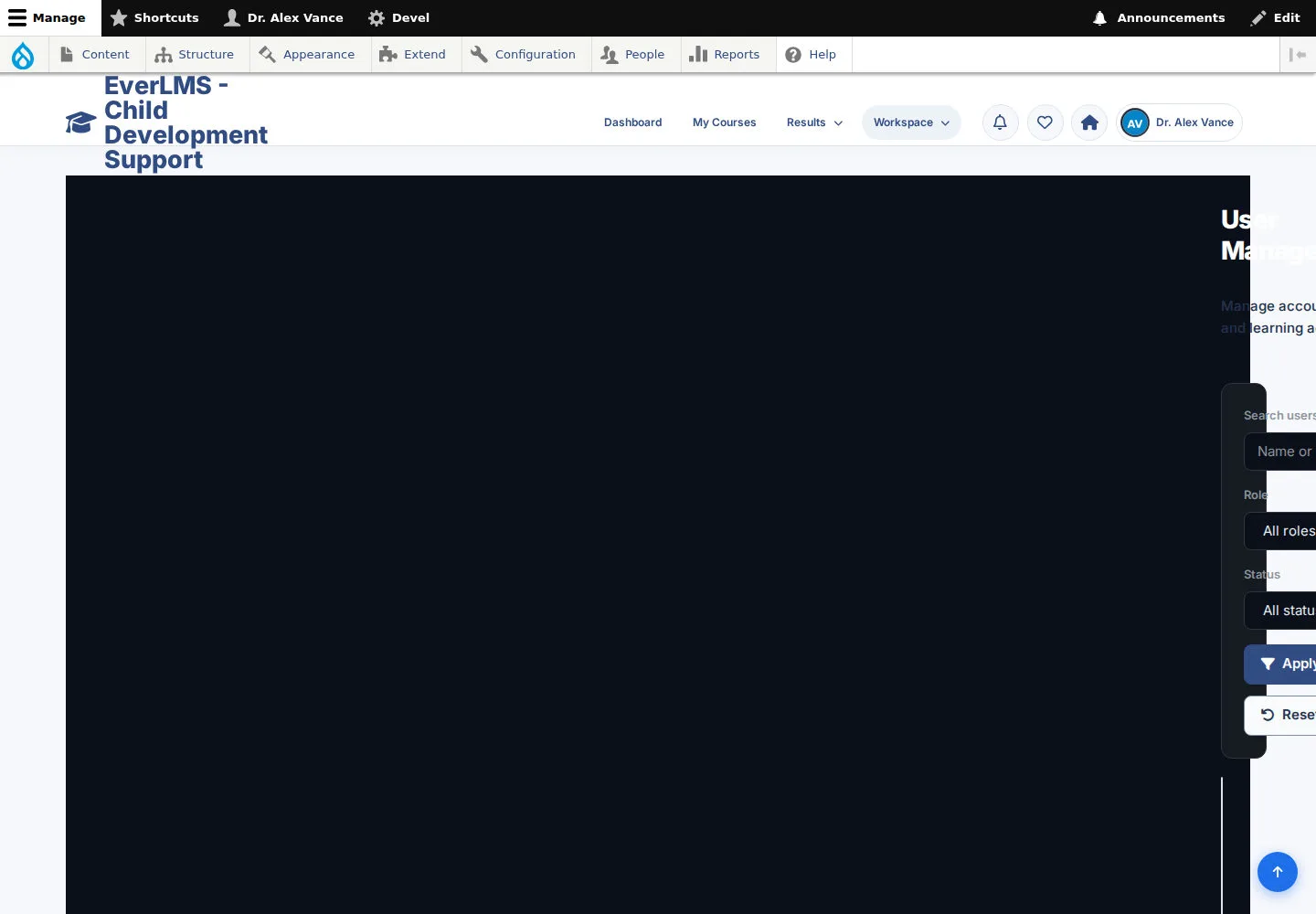
Find a participant account
Administrator
1Step 1 of 3
User Management lets you filter accounts by user details, role and status.
- Search for the participant and confirm their identity before using an action.
- Use Add User only when you need to create an authorised programme account.
If this page shows clipped or unreadable controls, contact programme support before proceeding. The recorded screen shows this display issue; use the procedure once the controls are usable.
Open on site ↗sign-inFull-page screenshot ↗
You select the correct account for the management task.
Review roles and active status
Administrator
2Step 2 of 3
The account list shows roles and active or inactive state.
- Use the permitted account action for the change you intend.
- Review the scope and resulting message before considering the change complete.
Course enrollment is a separate task from changing an account role.
If this page shows clipped or unreadable controls, contact programme support before proceeding. The recorded screen shows this display issue; use the procedure once the controls are usable.
Open on site ↗sign-inFull-page screenshot ↗
The account keeps the role and status intended by the programme.
Review the Course library
Administrator
3Step 3 of 3
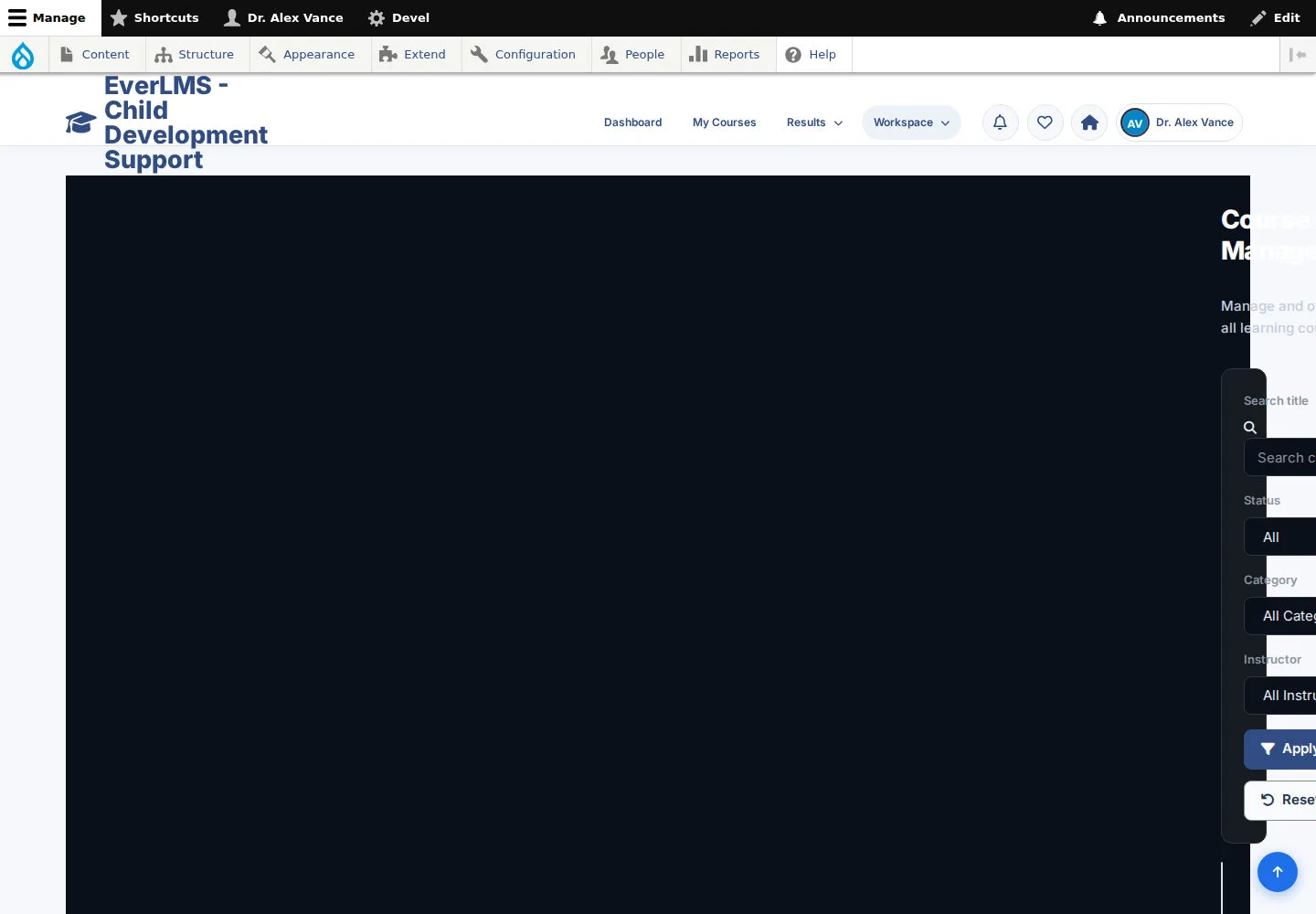
Course Management lists Courses, classifications and publication state.
- Search or filter to find the intended Course.
- Use the available edit action and check the curriculum before publishing a content change.
Edit only content you own or are permitted to maintain. If an action is unavailable, ask your programme coordinator for the appropriate access.
If this page shows clipped or unreadable controls, contact programme support before proceeding. The recorded screen shows this display issue; use the procedure once the controls are usable.
Open on site ↗sign-inFull-page screenshot ↗
You work on the intended Course while retaining its learning references.