





 Child development training
User guide · Administrator
Review progress and issued Certificates
Use current reports, assessment lists and Certificate records for programme follow-up.

Filter the learning report
Administrator
1Step 1 of 4
Reports & Analytics lets you narrow the view by Course, learner and Quiz.
- Enter the filters relevant to your follow-up and choose Apply filters.
- Use Reset to return to the wider view.
If this page shows clipped or unreadable controls, contact programme support before proceeding. The recorded screen shows this display issue; use the procedure once the controls are usable.
Open on site ↗sign-inFull-page screenshot ↗
The visible report reflects the selected filters.
Compare report views
Administrator
2Step 2 of 4
The page has Course Analytics, Learner Analytics and Quiz Analytics.
- Choose the view that answers your follow-up question.
- Read completion and assessment values as learning records for those participants.
If this page shows clipped or unreadable controls, contact programme support before proceeding. The recorded screen shows this display issue; use the procedure once the controls are usable.
Open on site ↗sign-inFull-page screenshot ↗
You can distinguish Course progress from assessment results.
Review the assessment library
Administrator
3Step 3 of 4
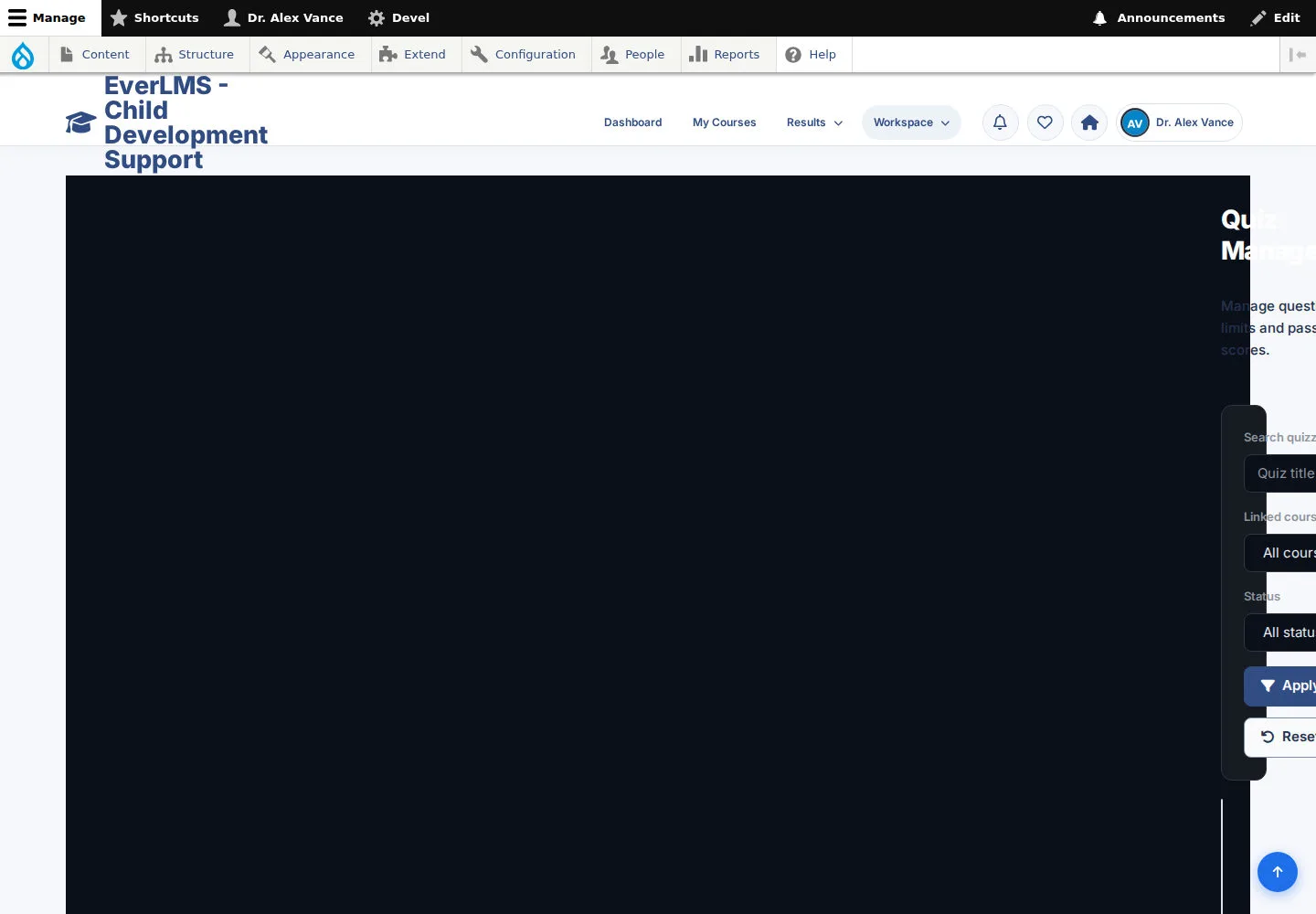
Quiz Management lists assessments available for your management task.
- Find the relevant Quiz.
- Open an available detail, edit or results action according to your permission.
If this page shows clipped or unreadable controls, contact programme support before proceeding. The recorded screen shows this display issue; use the procedure once the controls are usable.
Open on site ↗sign-inFull-page screenshot ↗
You reach the assessment record you need.
Check an issued Certificate
Administrator
4Step 4 of 4
Certificate Management lists recipient, Course, code, issue date and status.
- Use the recipient or code filter to find the issued record.
- Check its status and use the available PDF action when needed.
Template preview and an issued Certificate are different. Use the issued record for a participant's credential.
If this page shows clipped or unreadable controls, contact programme support before proceeding. The recorded screen shows this display issue; use the procedure once the controls are usable.
Open on site ↗sign-inFull-page screenshot ↗
You review the issued Certificate associated with that participant.