





Guide › Student / caregiver learner
 Child development training
User guide · Student / caregiver learner
Find Certificates, Notes and Community
Review issued learning records and use the programme's discussion and support tools.
Find an issued Certificate
Student / caregiver learner
1Step 1 of 4
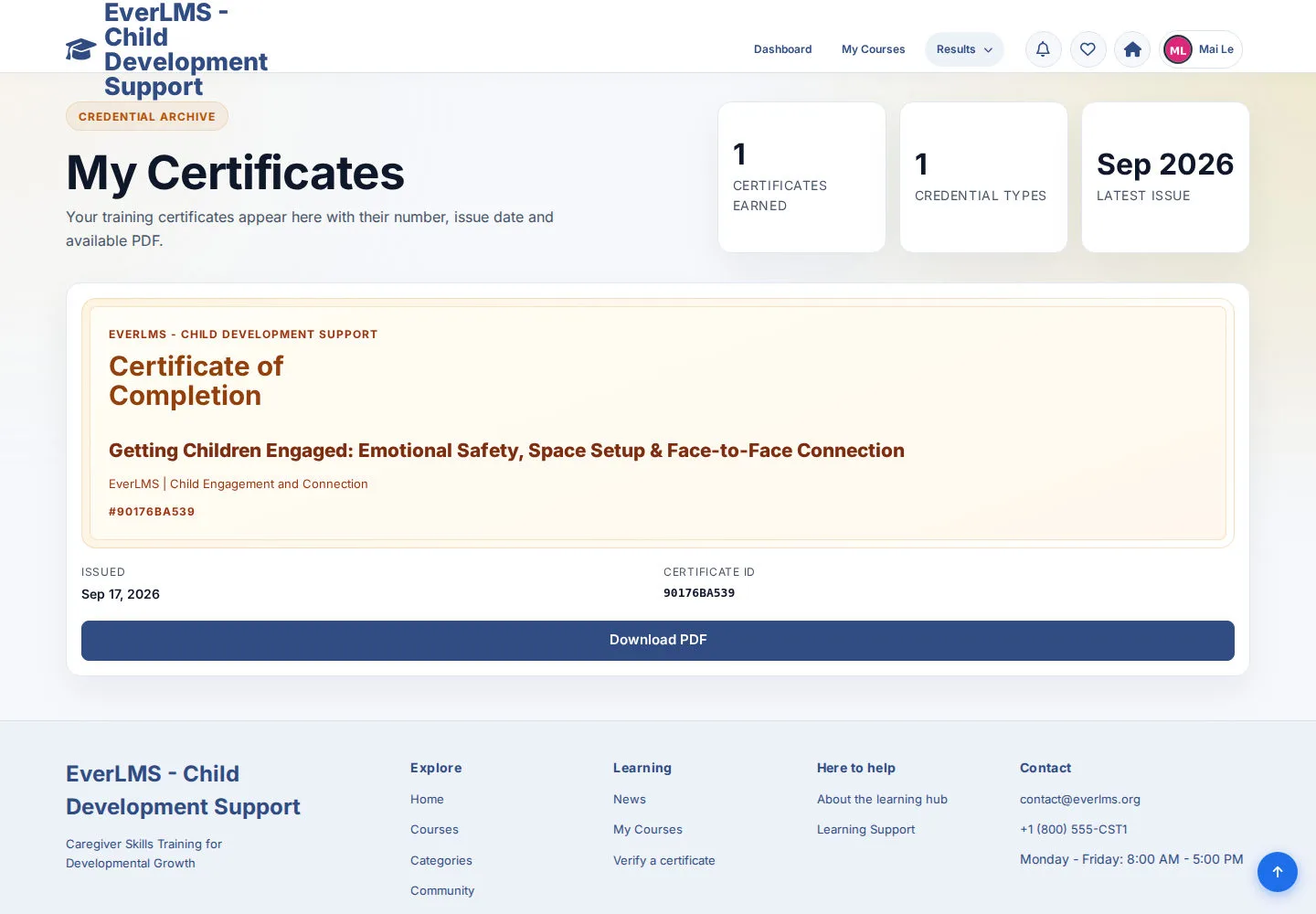
My Certificates shows issued records and their available PDF actions.
- Identify the Course and issue details for your own Certificate.
- Choose Download PDF when available.
An issued Certificate and a Course completion status are different records. If a completed Course has no Certificate, ask your programme team to check the Course setup.
Open on site ↗sign-inFull-page screenshot ↗
You can open the PDF attached to an issued record.
Return to a personal learning note
Student / caregiver learner
2Step 2 of 4
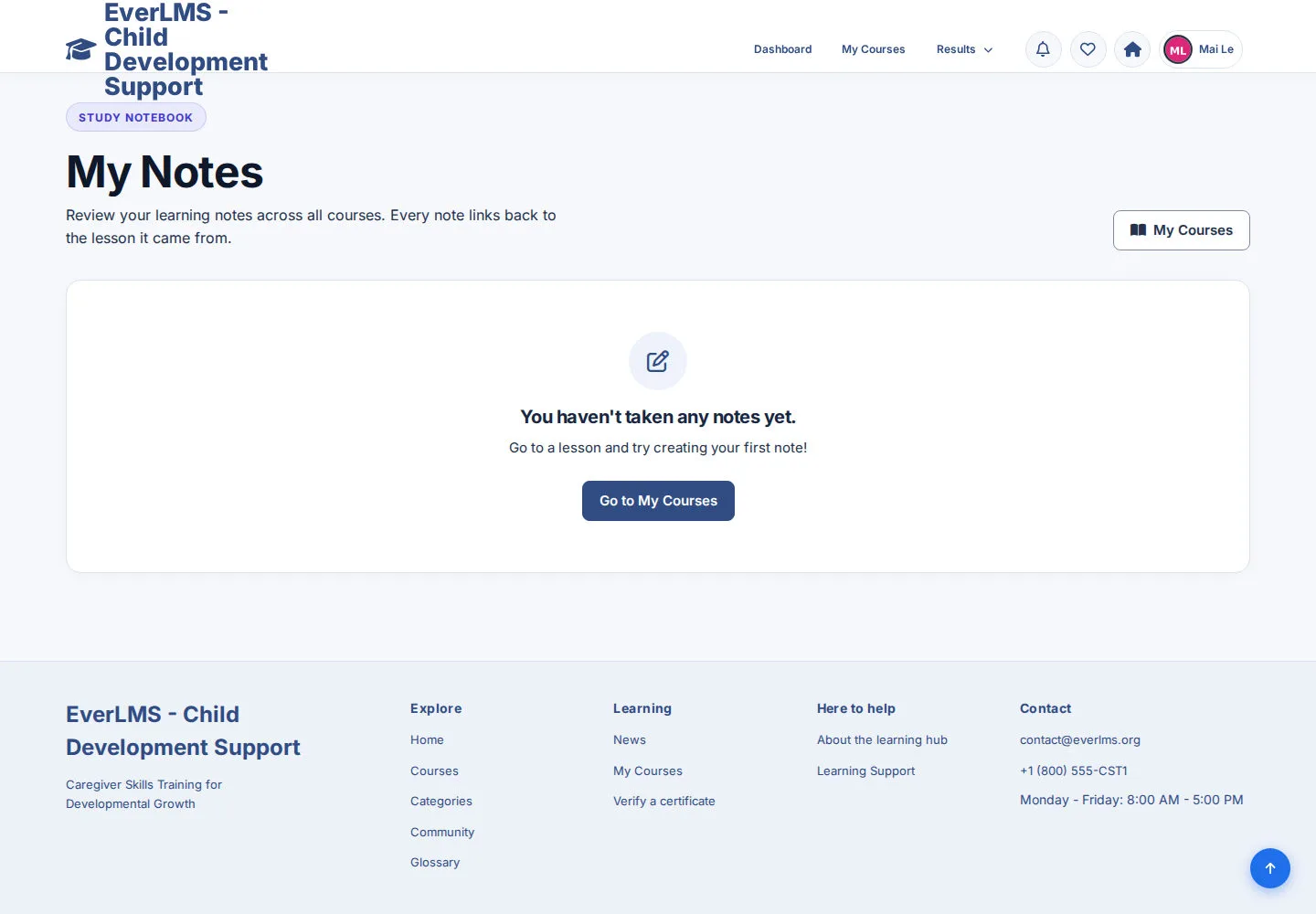
My Notes brings together your Notes from Lessons.
- Open a saved note and follow its Lesson link when one is present.
- If the notebook is empty, choose Go to My Courses and open a Lesson to create a note.
Open on site ↗sign-inFull-page screenshot ↗
You reach the Lesson associated with the note or begin your first note.
Read programme discussions
Student / caregiver learner
3Step 3 of 4
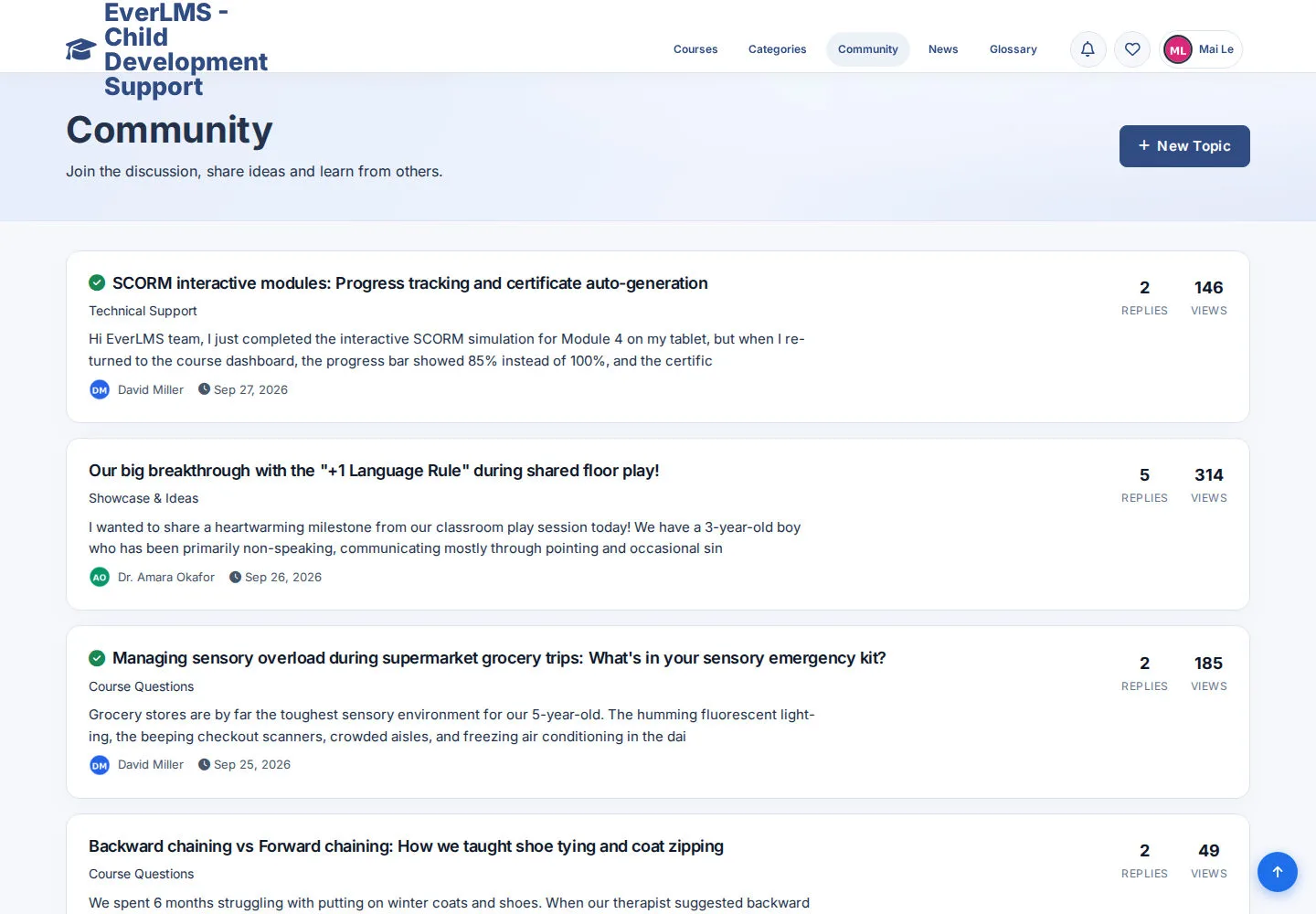
Community contains topics available to your account.
- Choose a topic that relates to your learning.
- Use reply or topic controls only when they are available and you want to contribute.
Keep posts relevant to learning and avoid including private child or family details.
Open on site ↗sign-inFull-page screenshot ↗
You read or contribute within the programme's current Community permissions.
Follow a learning notification
Student / caregiver learner
4Step 4 of 4
Notifications connect your account to relevant programme activity.
- Open a notification and check the destination before following its link.
Open on site ↗sign-inFull-page screenshot ↗
You reach the relevant learning page.