





 Child development training
User guide · Manager
Assign a Course to one participant
Use the permitted Workspace and the individual assignment form.
- You have permission to assign Courses and the participant already has an active account.
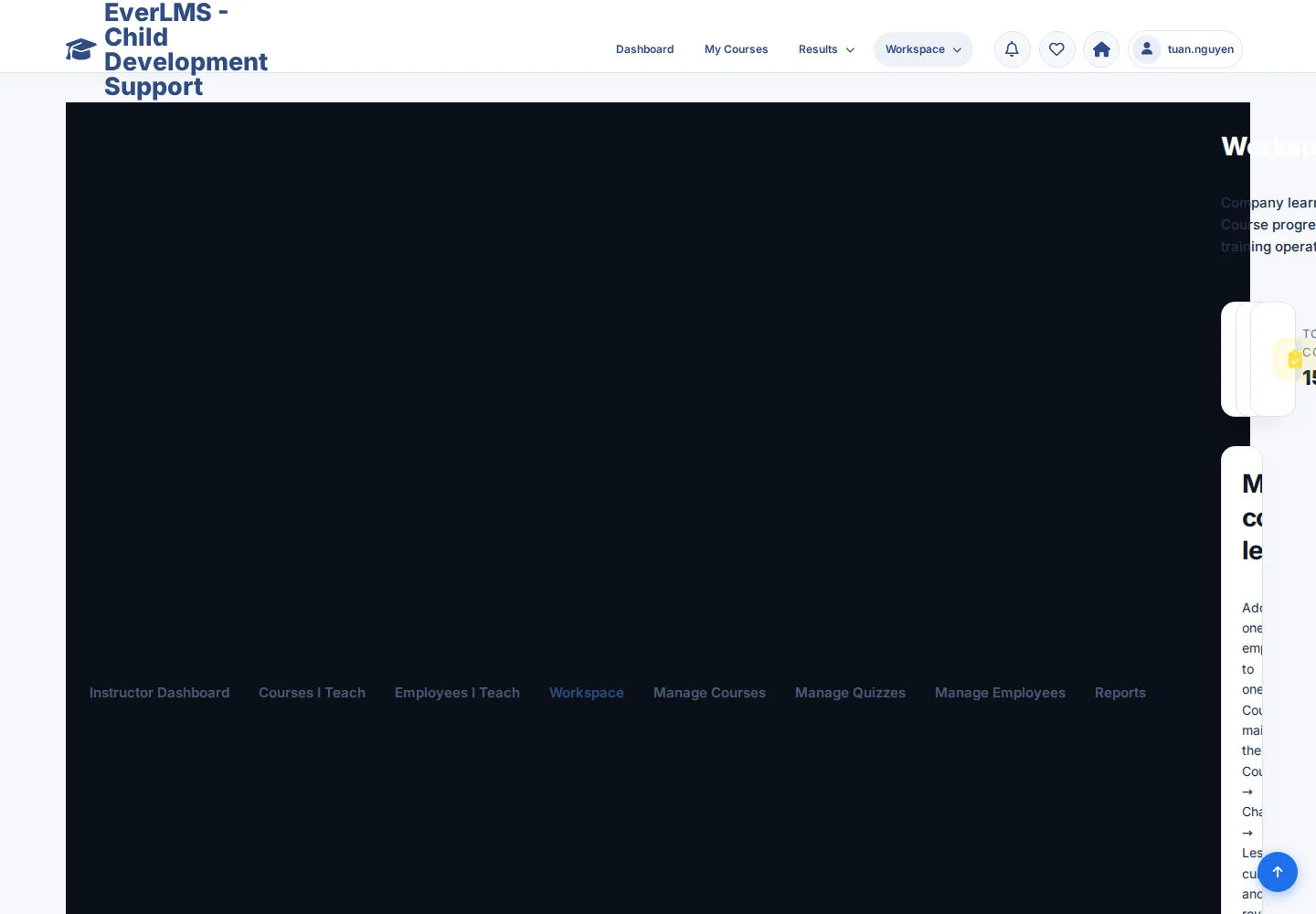
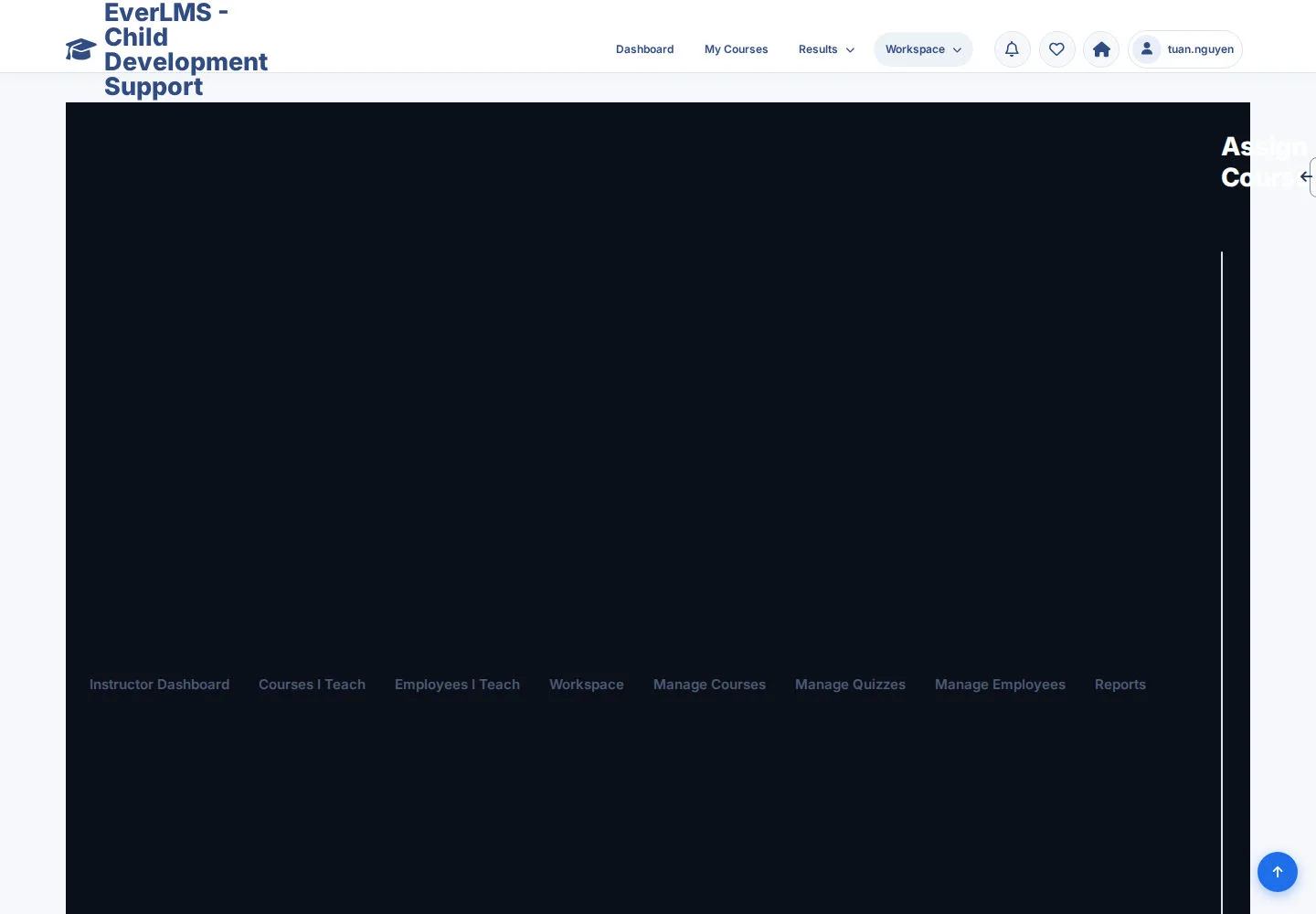
Open the programme Workspace
Manager
1Step 1 of 3
Workspace links to Course, user and reporting tasks.
- Choose Assign Course for an individual enrollment.
If this page shows clipped or unreadable controls, contact programme support before proceeding. The recorded screen shows this display issue; use the procedure once the controls are usable.
Open on site ↗sign-inFull-page screenshot ↗
You reach the assignment form available to your account.
Choose one learner and one Course
Manager
2Step 2 of 3
The current form labels the learner field Employee. It selects an existing account for this programme.
- Select the active participant account in Employee.
- Select the published Course in Course; review both selections.
If this page shows clipped or unreadable controls, contact programme support before proceeding. The recorded screen shows this display issue; use the procedure once the controls are usable.
Open on site ↗sign-inFull-page screenshot ↗
The form identifies the participant and Course you intend to assign.
Confirm when ready and check the response
Manager
3Step 3 of 3
The assignment uses the participant's existing learning record when one is already present.
- Choose Assign course when authorised and ready.
- Read the confirmation or validation error, then ask the participant to open My Courses.
When you choose to save or submit, check the message and the resulting record. A form view alone does not mean the operation has completed.
If this page shows clipped or unreadable controls, contact programme support before proceeding. The recorded screen shows this display issue; use the procedure once the controls are usable.
Open on site ↗sign-inFull-page screenshot ↗
The participant can find the Course; an existing record keeps its progress and issued Certificates.