





 Child development training
User guide · Content Editor
Prepare a Course and its Lessons
Write the training introduction and prepare Lessons for the curriculum.
- You have authoring permission and approved training content.
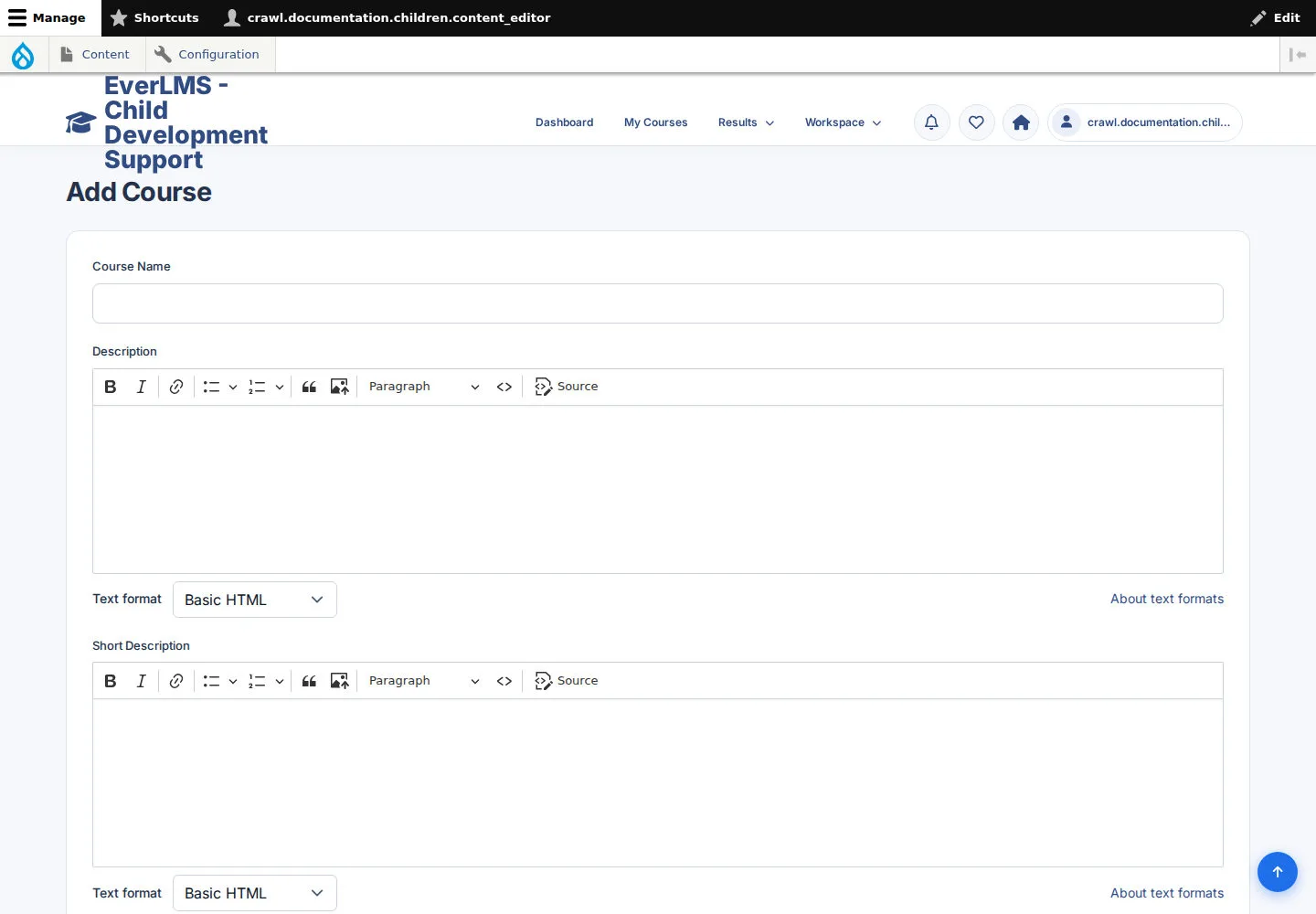
Prepare the Course introduction
Content Editor
1Step 1 of 5
The Course form includes identifying details, descriptions and learning goals.
- Enter Course Name, Description and Short Description.
- Prepare What You'll Learn, Prerequisites and Who This Course Is For for the intended participants.
Edit only content you own or are permitted to maintain. If an action is unavailable, ask your programme coordinator for the appropriate access.
Open on site ↗sign-inFull-page screenshot ↗
The form describes the training you plan to publish.
Review classification and publication
Content Editor
2Step 2 of 5
Course settings include categories, level, language, instructor, Certificate template and Chapters.
- Choose the classifications and Instructor that match your content.
- Review Published and the Chapters before choosing to save.
When you choose to save or submit, check the message and the resulting record. A form view alone does not mean the operation has completed.
Open on site ↗sign-inFull-page screenshot ↗
The Course uses the settings and curriculum you selected.
Prepare a Lesson
Content Editor
3Step 3 of 5
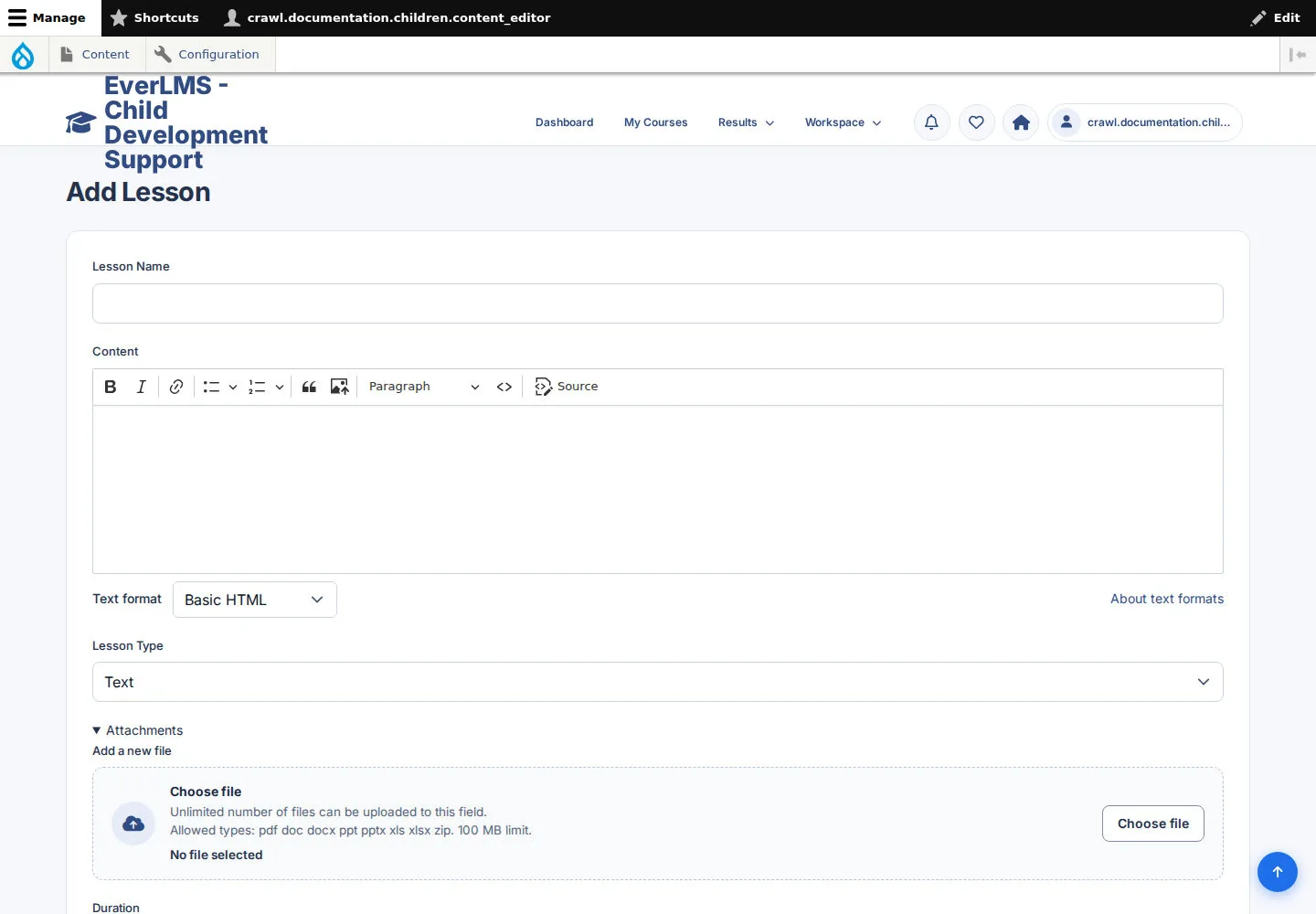
The Lesson form includes Content, Lesson Type, attachments and publication settings.
- Enter Lesson Name and the learning Content.
- Choose Lesson Type and supply the fields and files appropriate to that type.
Open on site ↗sign-inFull-page screenshot ↗
The Lesson form is ready for the supported content you chose.
Place Lessons in the curriculum
Content Editor
4Step 4 of 5
A Lesson becomes part of the learning path through a Chapter in the Course.
- Add the prepared Lesson to the appropriate Chapter using the Course curriculum editor you are allowed to use.
- Check Chapter and Lesson order and publication before saving the Course.
Edit only content you own or are permitted to maintain. If an action is unavailable, ask your programme coordinator for the appropriate access.
Open on site ↗sign-inFull-page screenshot ↗
Learners can reach published Lessons through the intended Course curriculum.
Compare with the learner view
Content Editor
5Step 5 of 5
The public Course page shows the introduction and curriculum visible to learners.
- Review your published Course's description, goals and curriculum.
- Correct content through the authorised editor if the learner view needs a change.
Open on site ↗sign-inFull-page screenshot ↗
The learner-facing view matches the intended training.