



Take a table order

POS floor map · Start table order · Options · Send to kitchen

  • Signed in as a waiter
  • A free table
Waiter

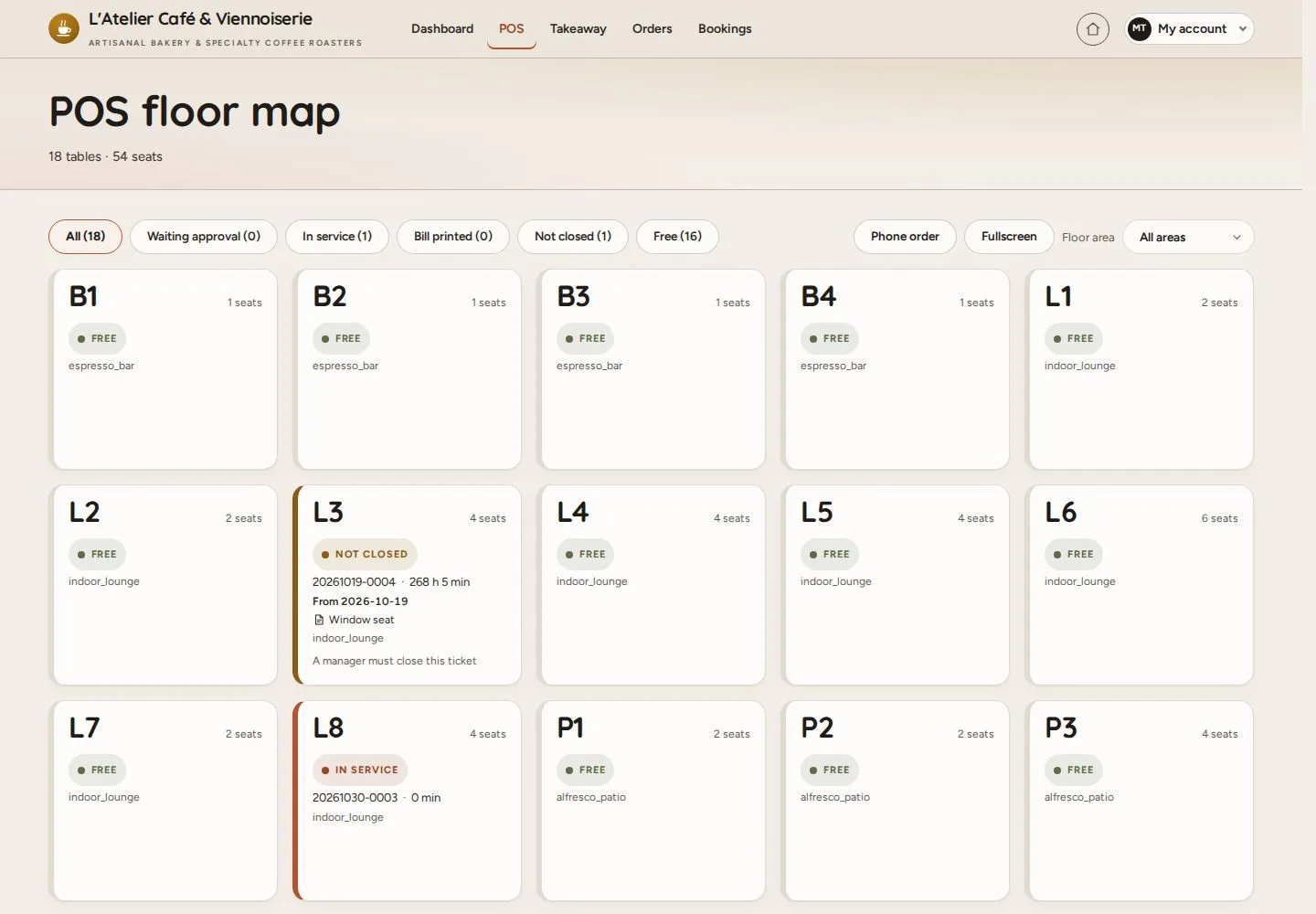
POS floor map

Waiter

POS floor map

1Step 1 of 8

  1. POS
  2. Tables by state: free, in service, waiting approval
  3. Tap a free table

Enlarge, then scroll

Open illustrated screen ↗Full image ↗

Waiter · Take a table order01

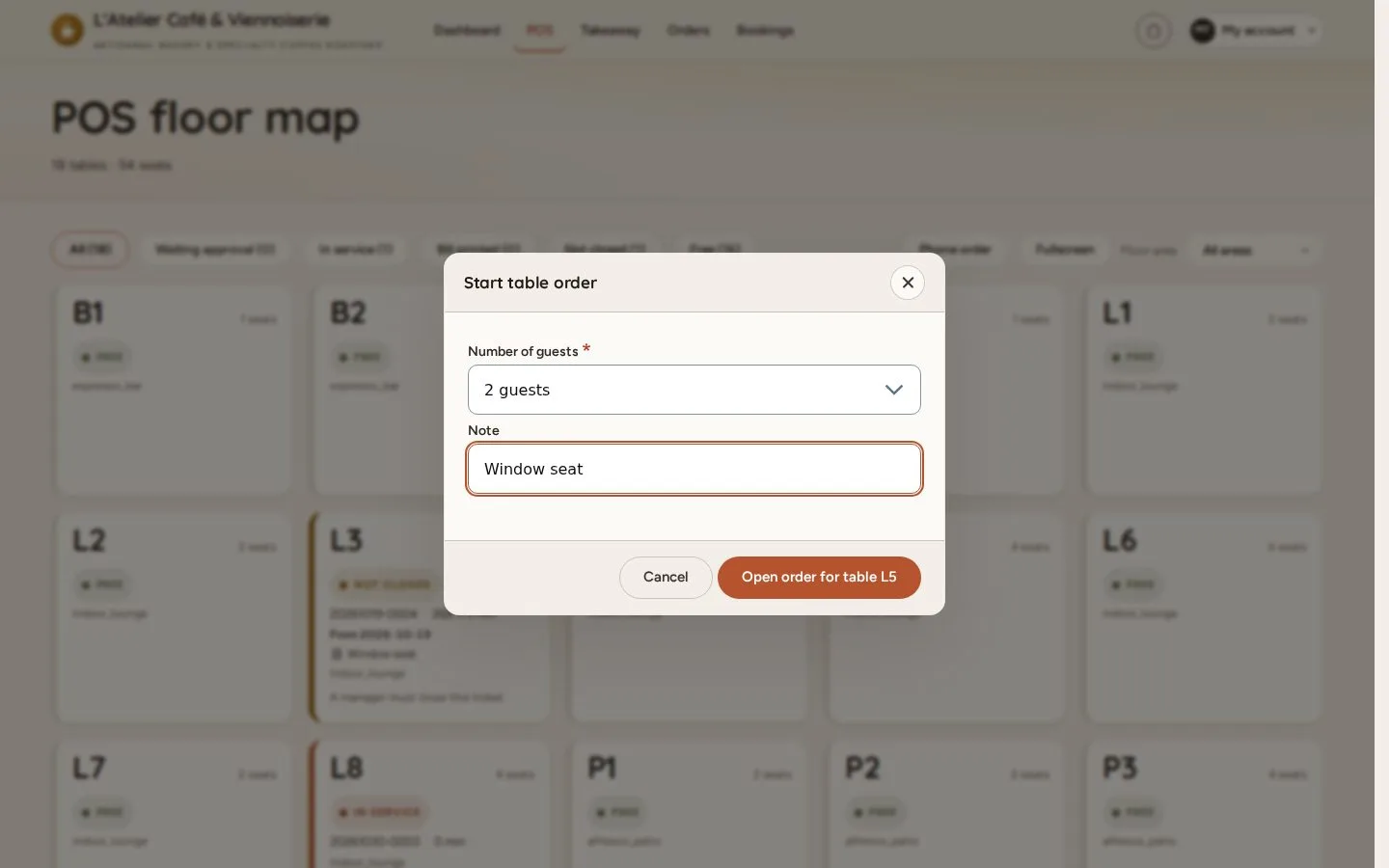
Start table order

Waiter

Start table order

2Step 2 of 8

  1. Number of guests
  2. Note
  3. Open order for table

Open illustrated screen ↗Full image ↗

Waiter · Take a table order02

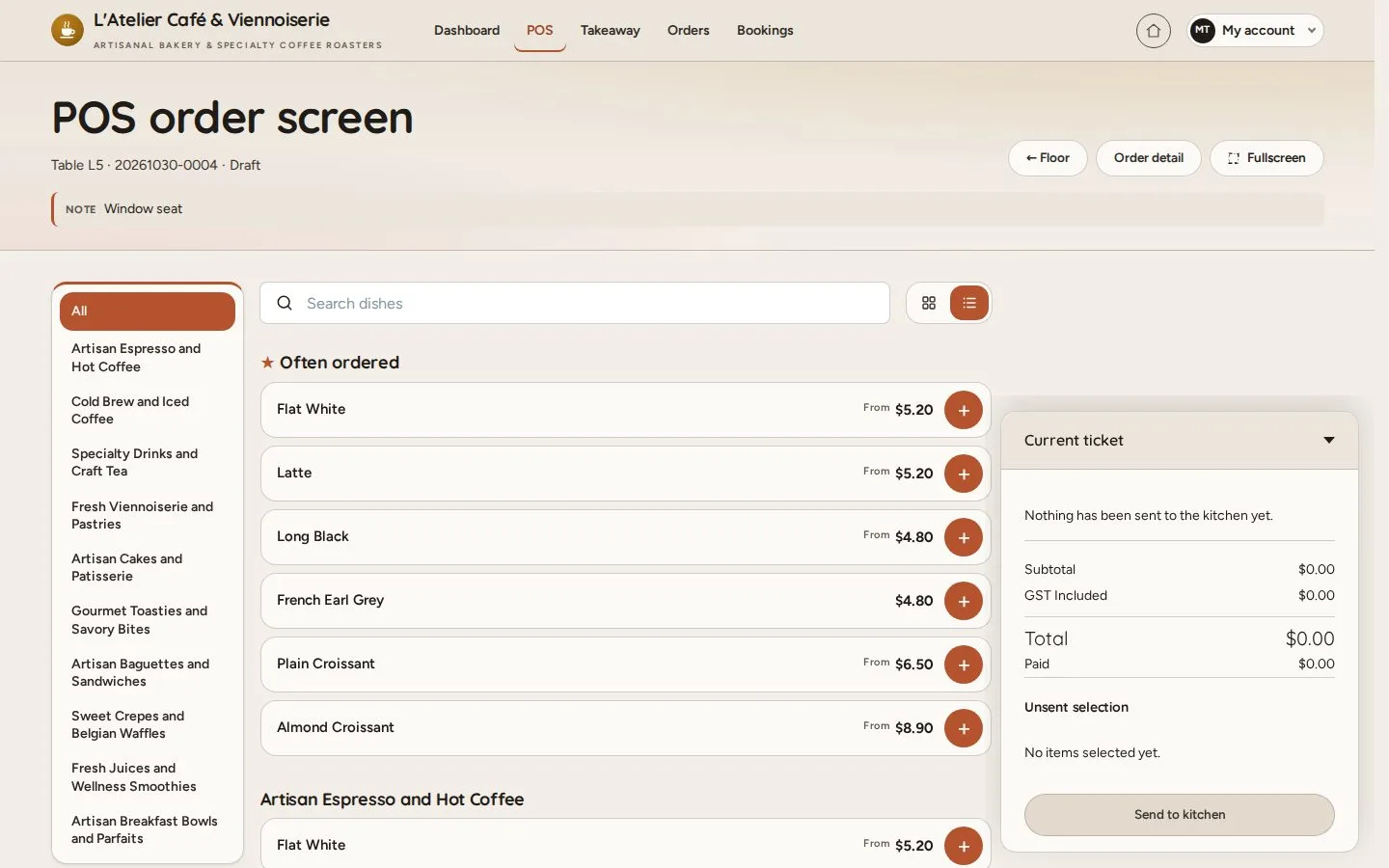
POS order screen

Waiter

POS order screen

3Step 3 of 8

  1. Categories on the left
  2. Often ordered first
  3. Current ticket on the right

Open illustrated screen ↗Full image ↗

Waiter · Take a table order03

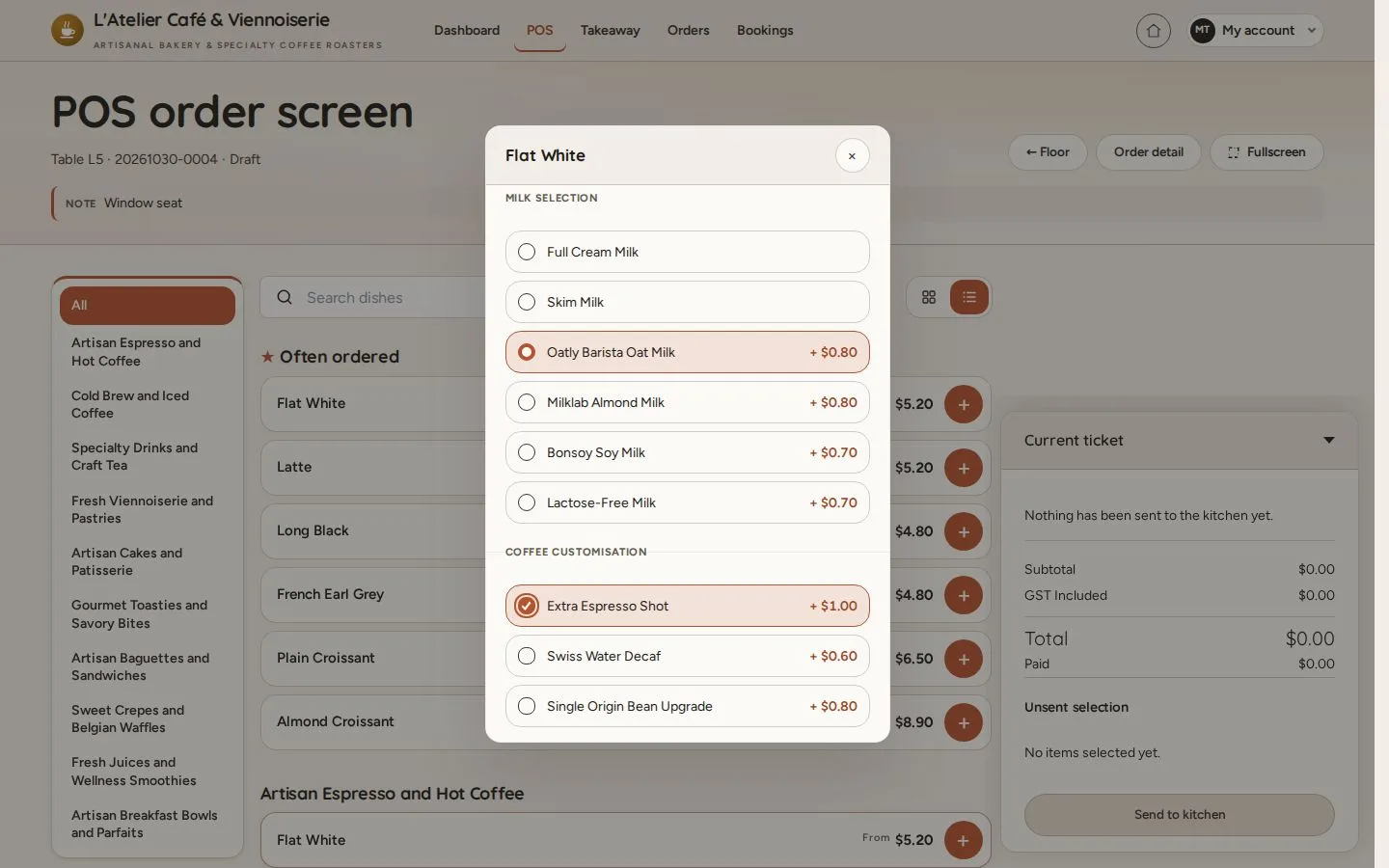
Dish options

Waiter

Dish options

4Step 4 of 8

  1. Tap a dish with options
  2. Choose the options
  3. Add

Open illustrated screen ↗Full image ↗

Waiter · Take a table order04

Unsent selection

Waiter

Unsent selection

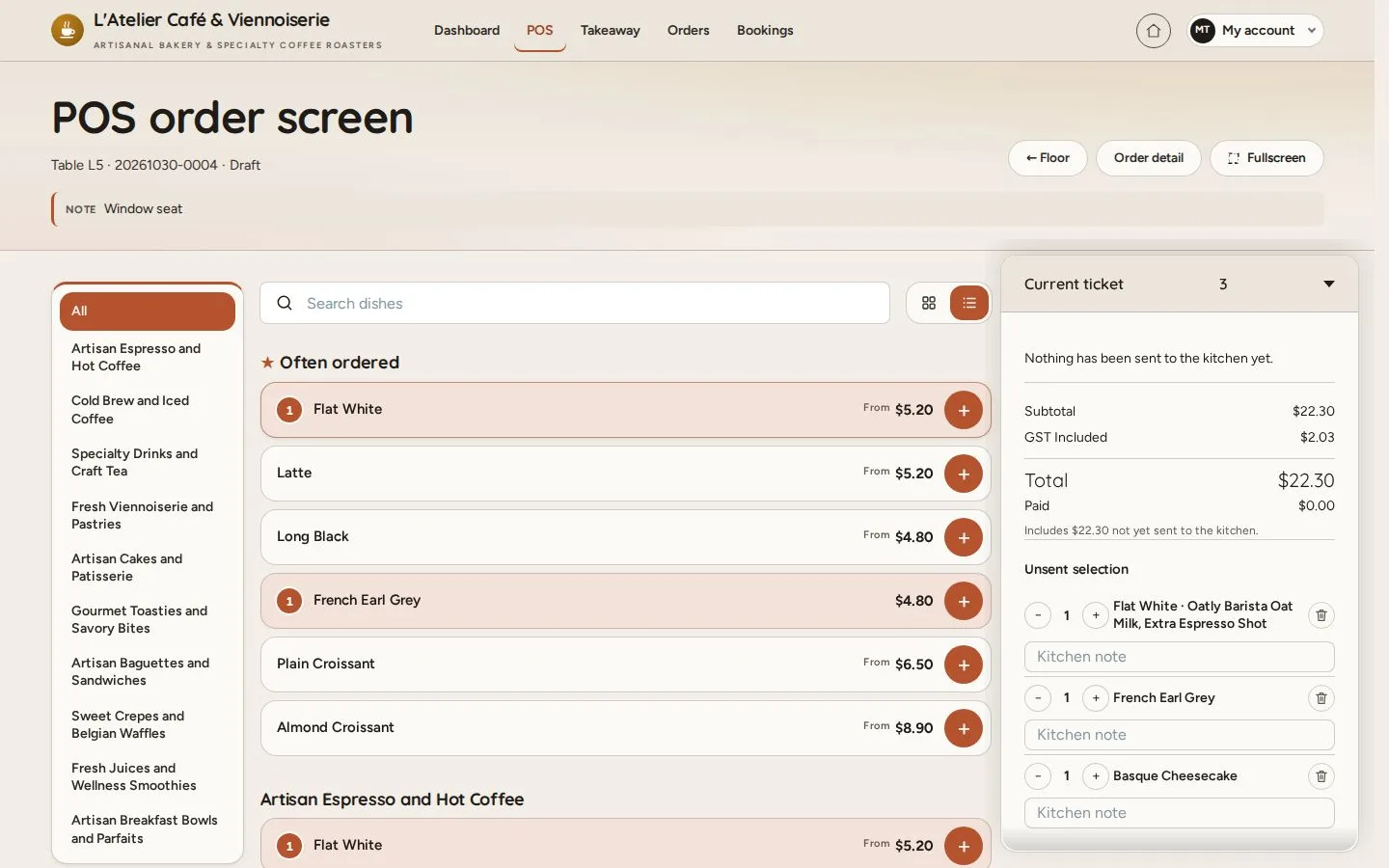
5Step 5 of 8

  1. Tap a dish or + to add it
  2. + / − Quantity · Kitchen note
  3. Check the ticket

The unsent selection stays on this screen until it is sent; nothing reaches the kitchen before Send to kitchen.

Open illustrated screen ↗Full image ↗

Waiter · Take a table order05

Send to kitchen

Waiter

Send to kitchen

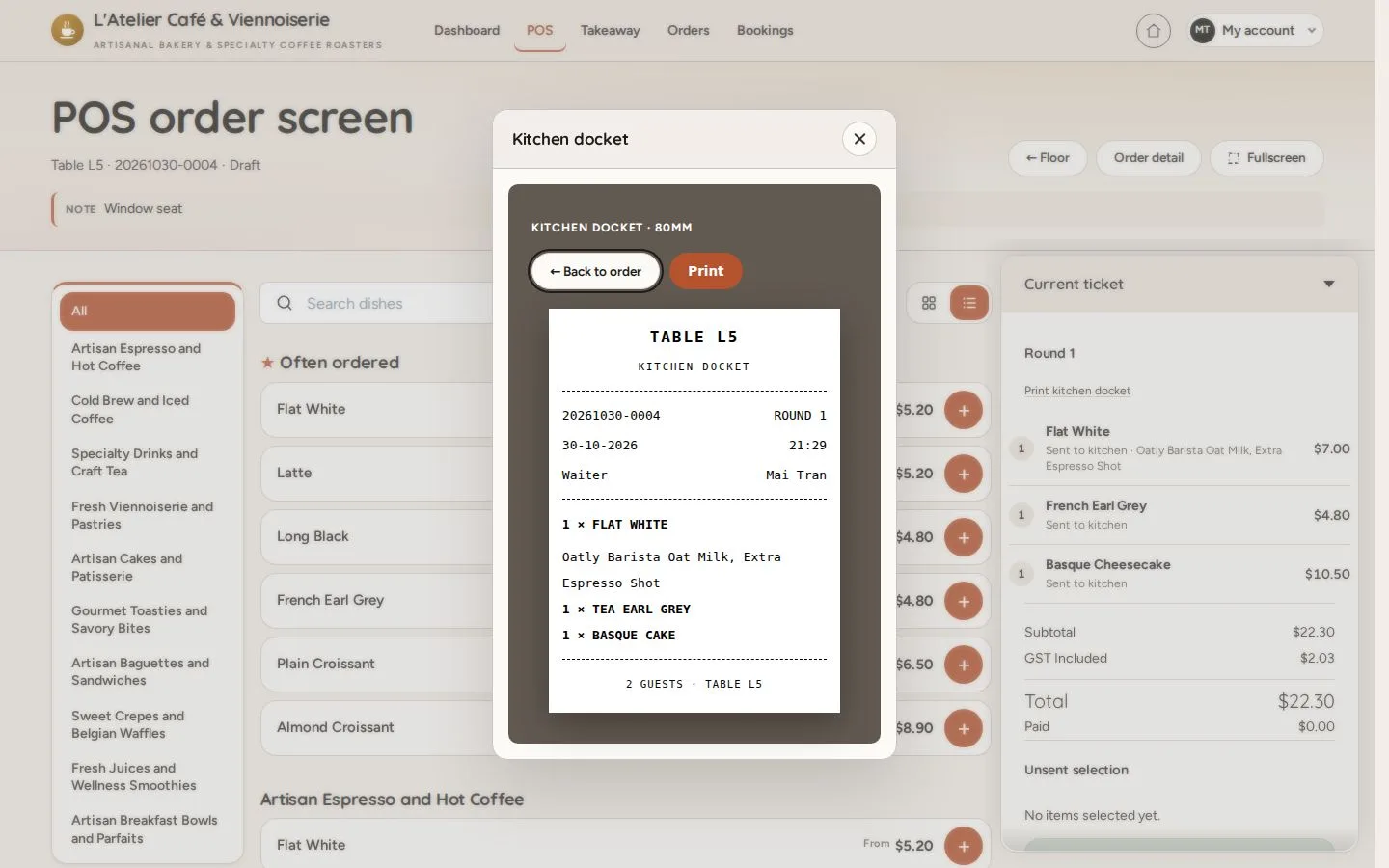
6Step 6 of 8

  1. Send to kitchen
  2. Kitchen docket · Print

Open illustrated screen ↗Full image ↗

Waiter · Take a table order06

Sent to kitchen

Waiter

Sent to kitchen

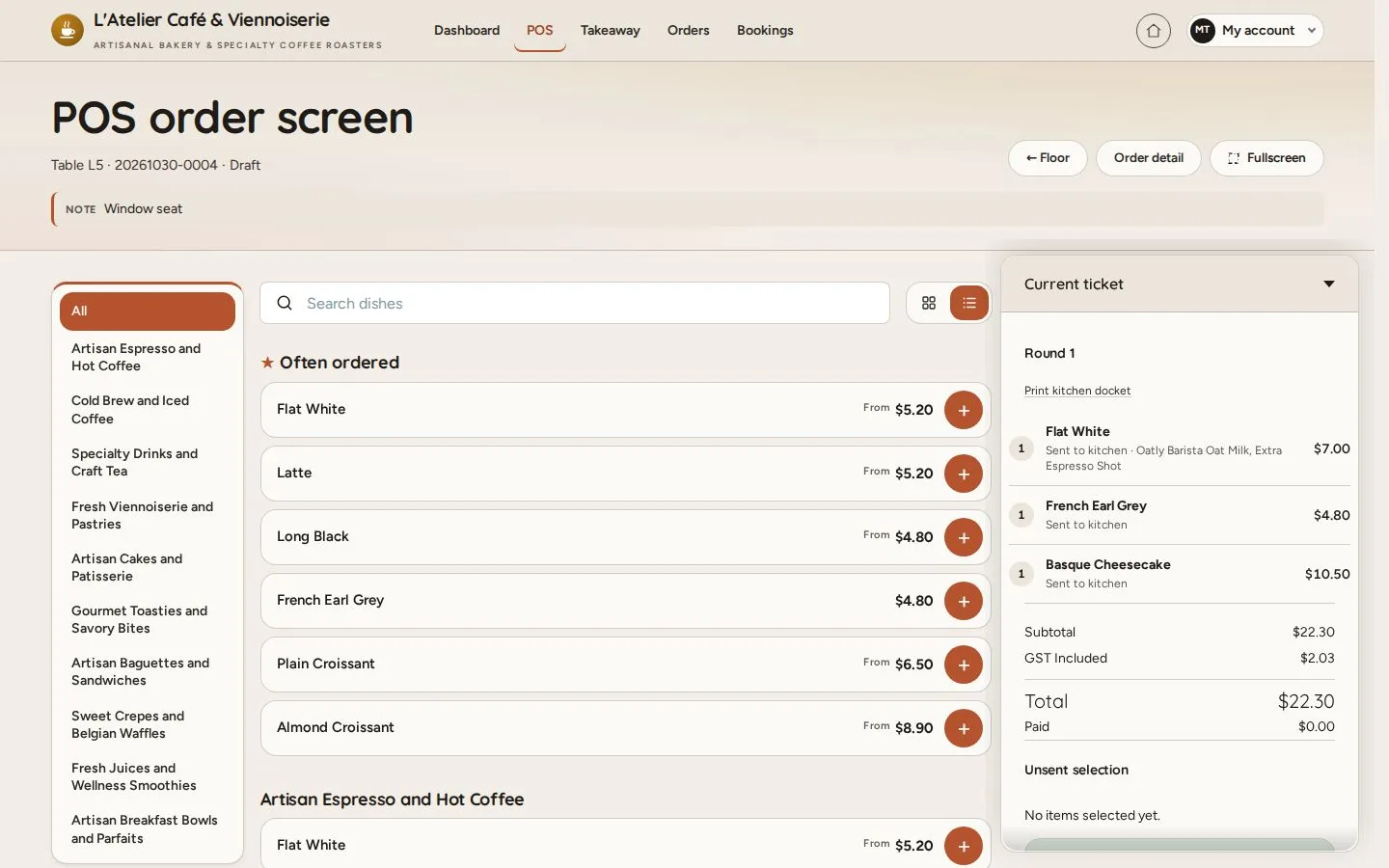
7Step 7 of 8

  1. Round 1 on the ticket
  2. Back to the floor

Open illustrated screen ↗Full image ↗

Waiter · Take a table order07

Table in service

Waiter

Table in service

8Step 8 of 8

  1. The table shows In service
  2. Tap it to open the ticket

Enlarge, then scroll

Open illustrated screen ↗Full image ↗

Check

Round 1 is with the kitchen, its docket printed, and the table is in service

Waiter · Take a table order08
1 / 9
Privacy Terms