






Gift cards and promotions

Gift cards · Gift card amounts · Promotions · Add promotion

  • Signed in as a Manager
Manager

Gift cards

Manager

Gift cards

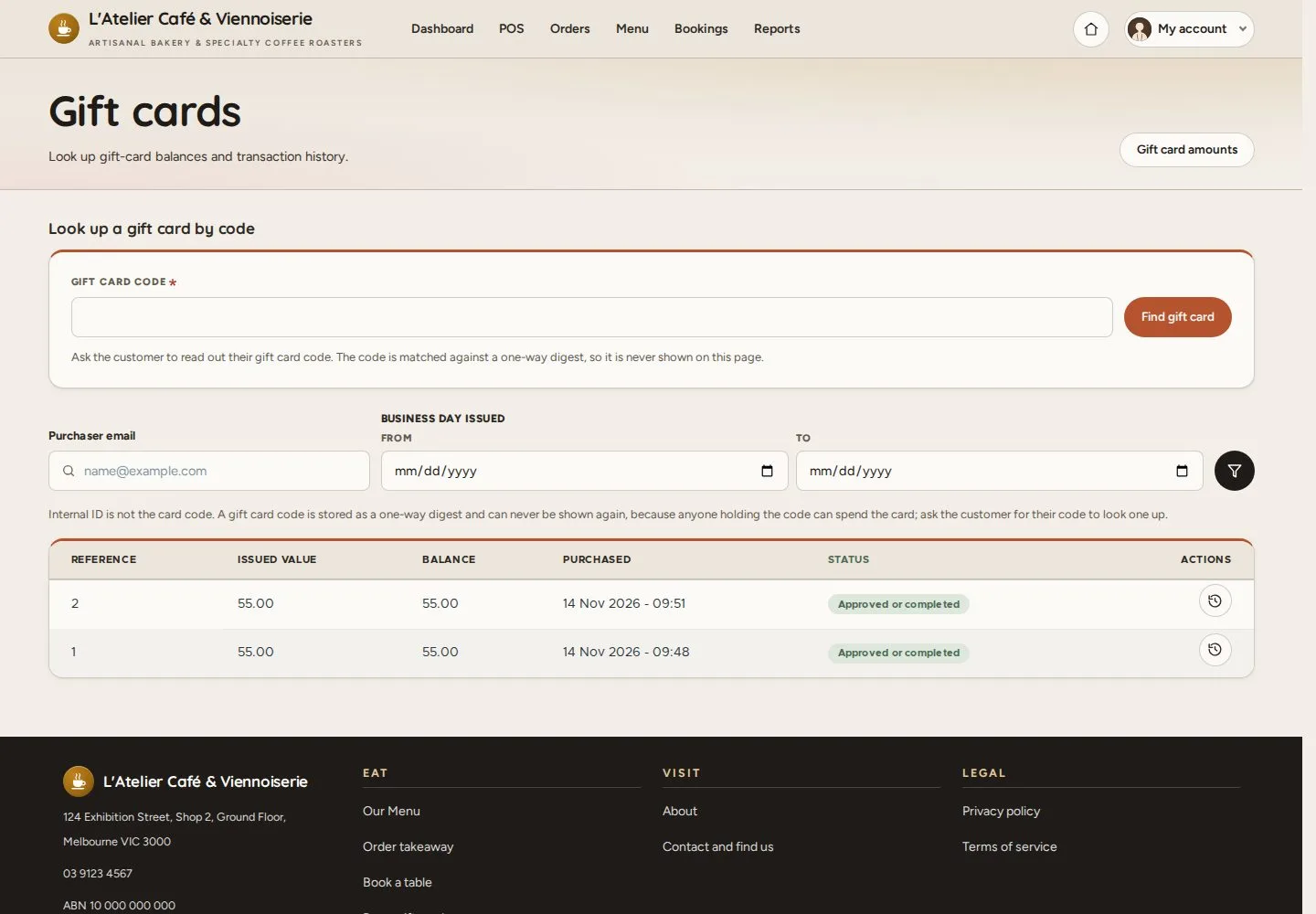
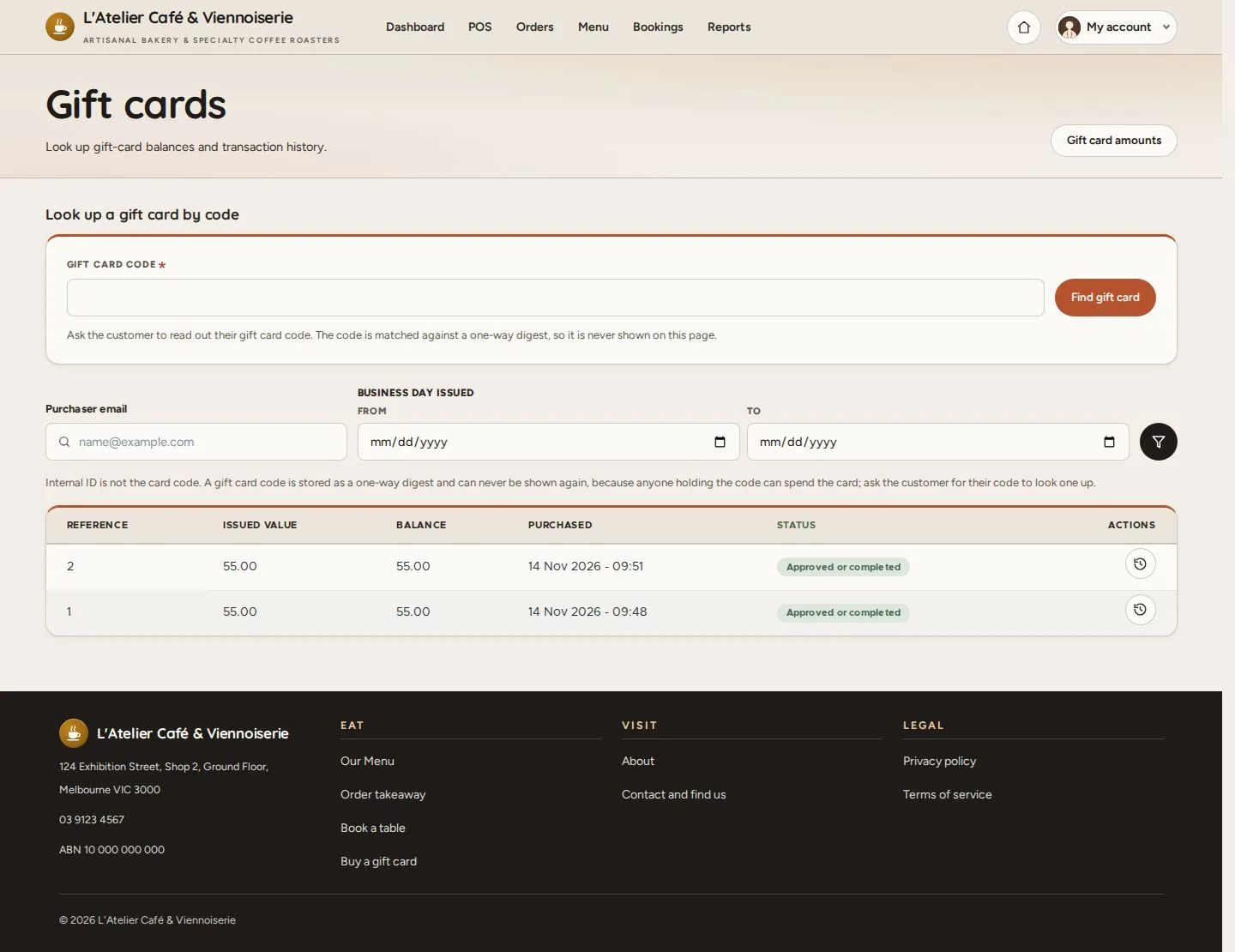
1Step 1 of 5

  1. My account › Gift cards: look up a card by its code
  2. Filter by purchaser email or date issued
  3. Each card shows its value, balance and status

The code is never shown here: ask the customer to read it out.

Enlarge, then scroll

Open illustrated screen ↗Full image ↗

Manager · Gift cards and promotions01

Gift card amounts

Manager

Gift card amounts

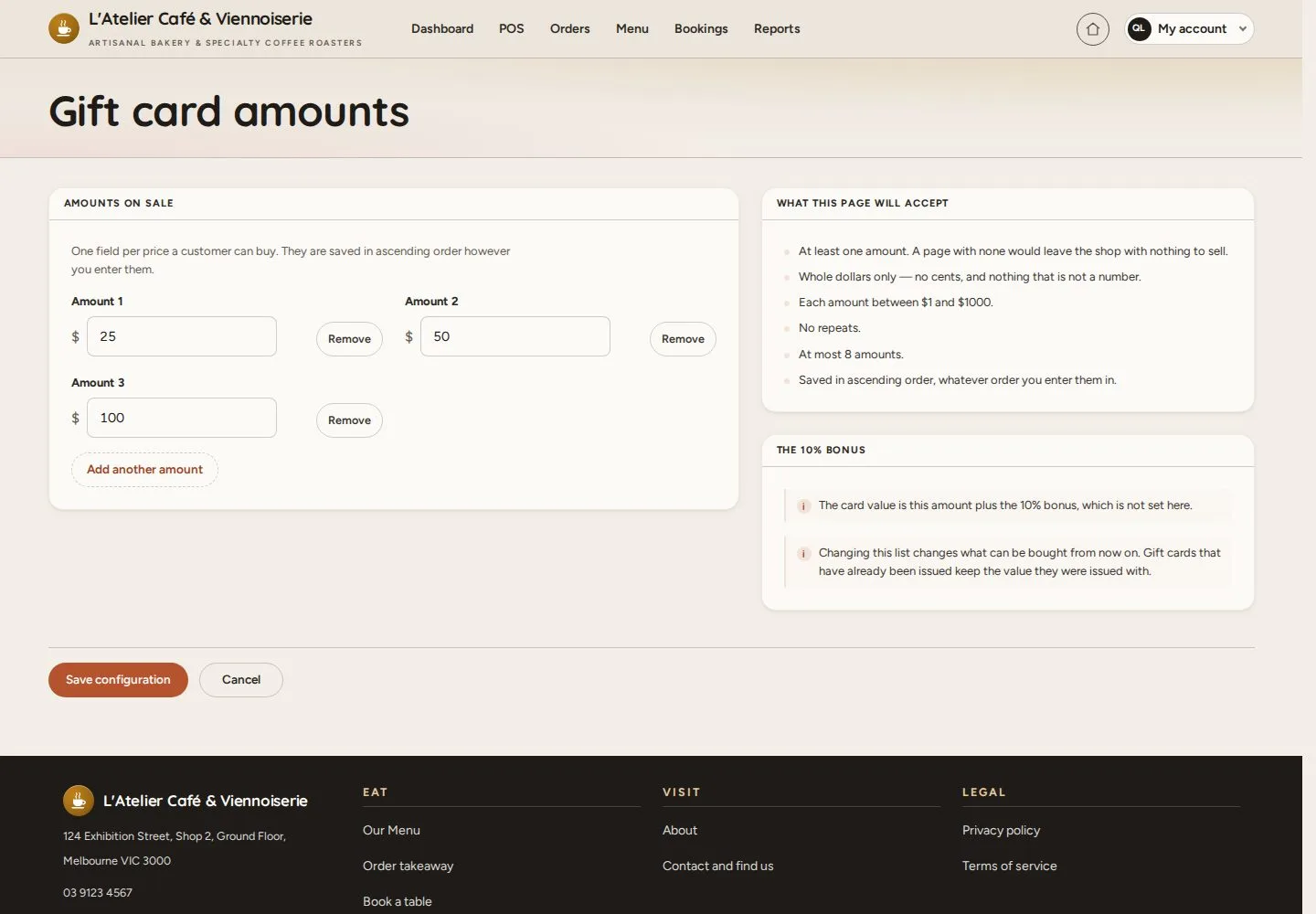
2Step 2 of 5

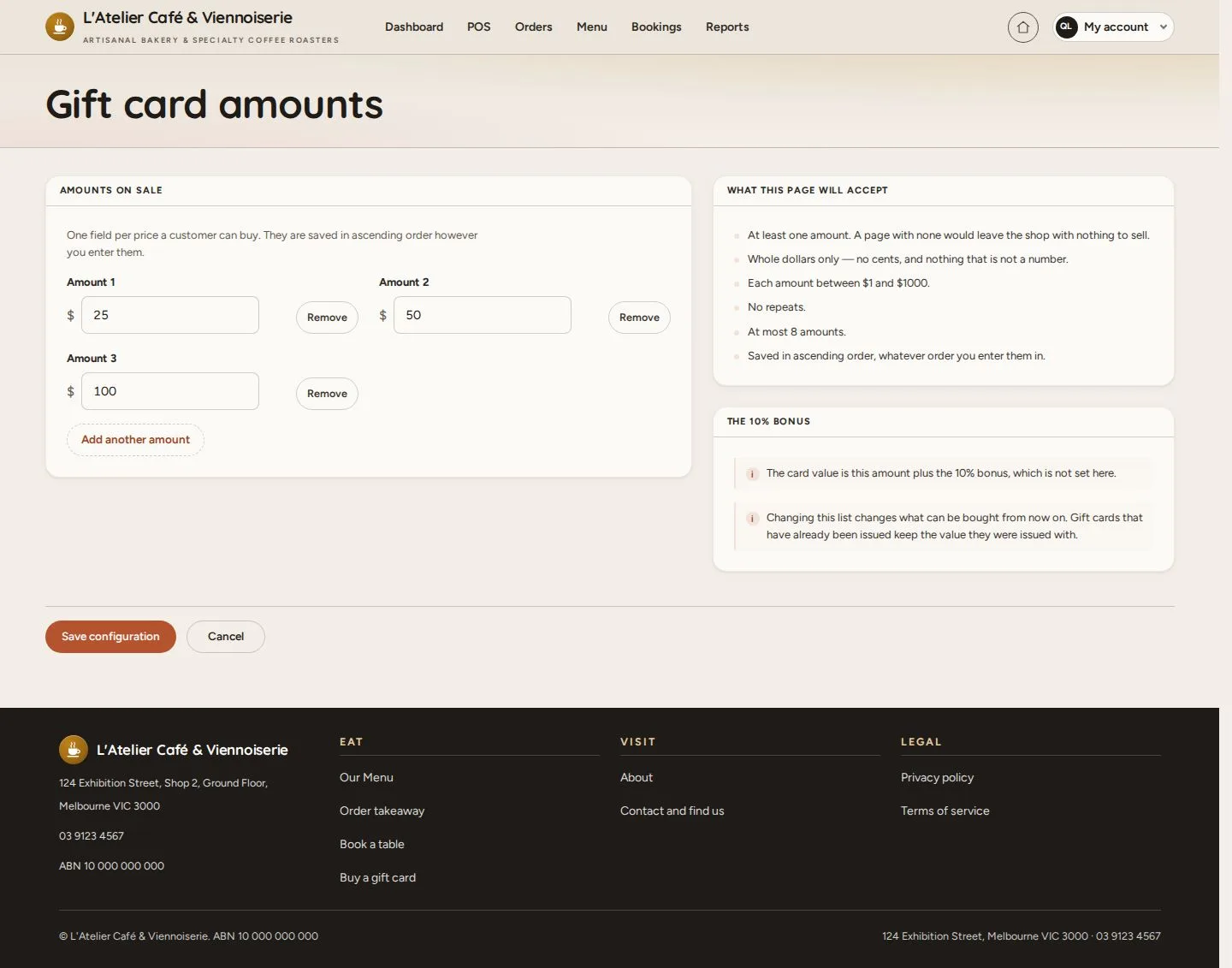
  1. Gift card amounts: the amounts on sale, in whole dollars
  2. Add another amount or Remove one; Save configuration
  3. The 10% bonus is added to each

Enlarge, then scroll

Open illustrated screen ↗Full image ↗

Manager · Gift cards and promotions02

A gift card at payment

Manager

A gift card at payment

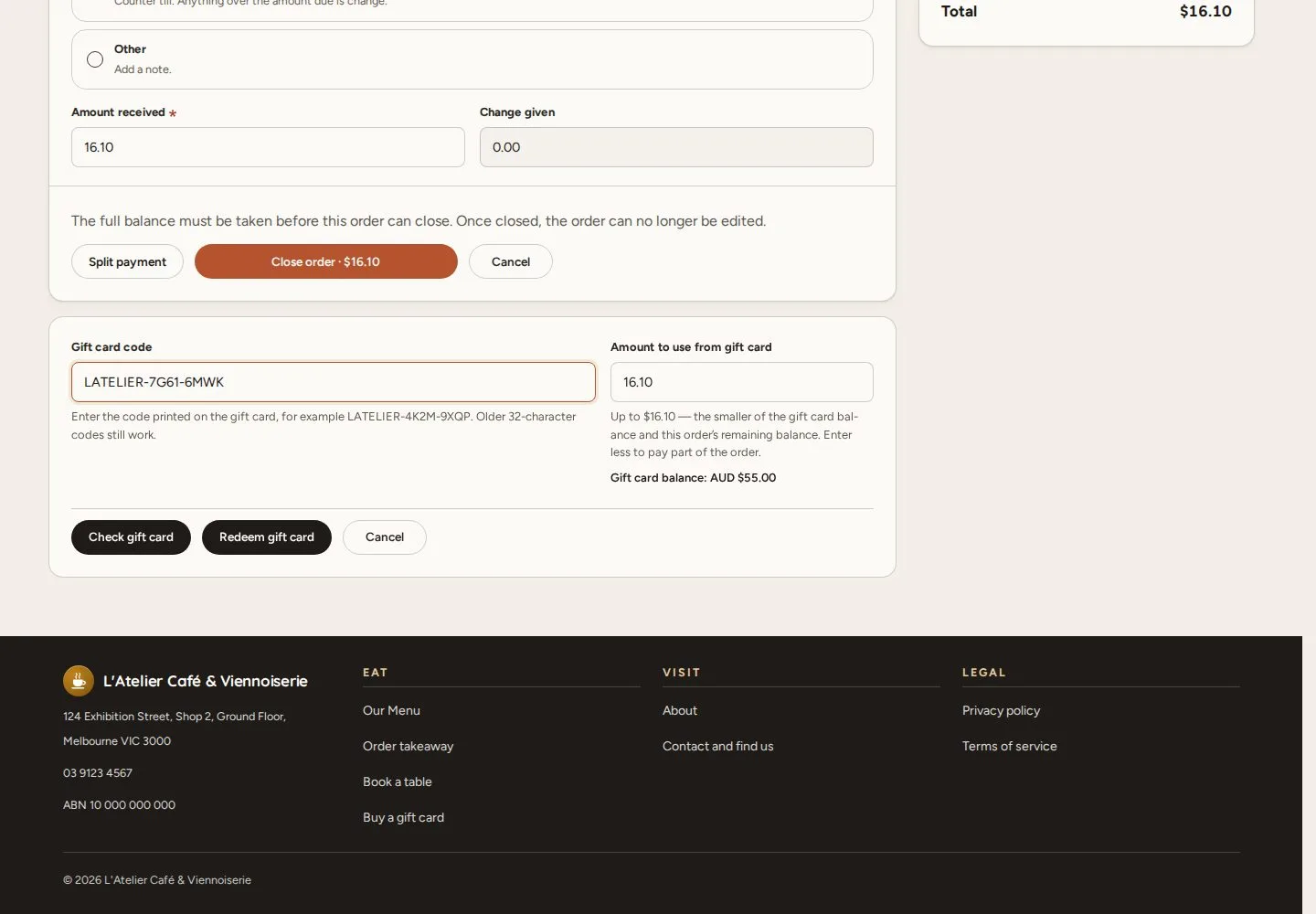
3Step 3 of 5

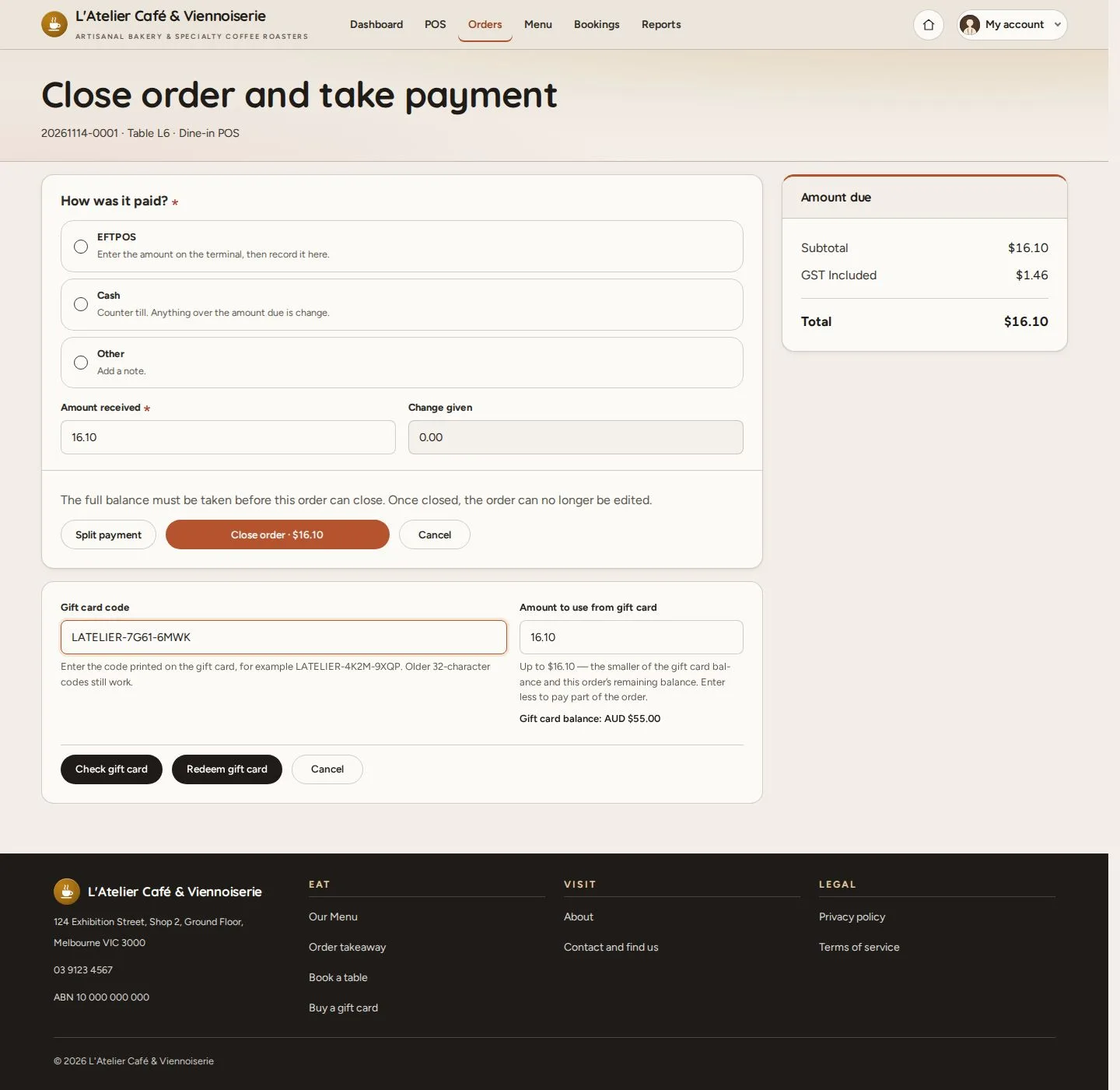
  1. Take payment and close: enter the code, Check gift card
  2. The balance and the amount to use appear
  3. Redeem gift card, then take the rest as usual

Enlarge, then scroll

Open illustrated screen ↗Full image ↗

Manager · Gift cards and promotions03

Promotions

Manager

Promotions

4Step 4 of 5

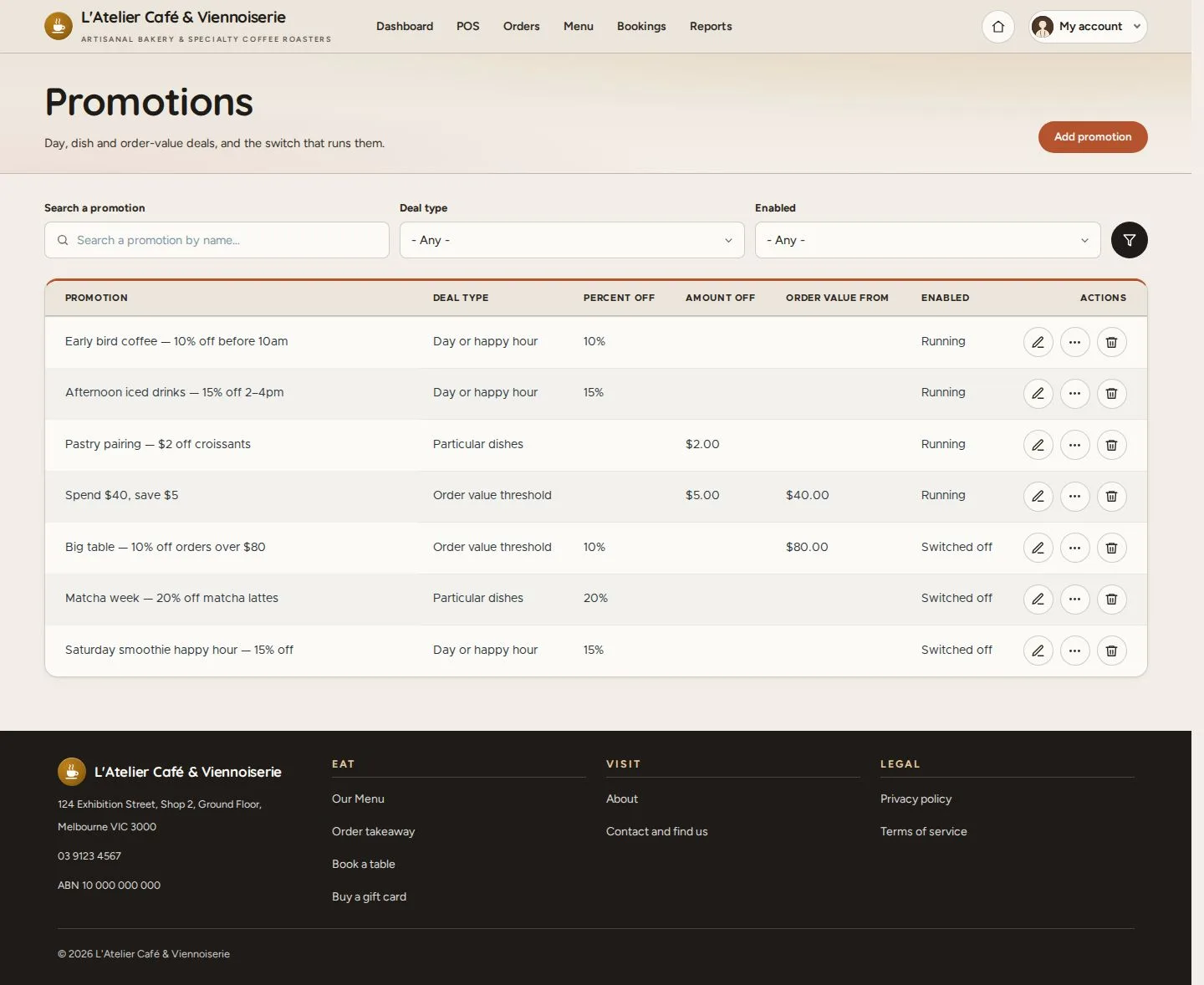
  1. My account › Promotions: each deal, its type and whether it runs
  2. Add promotion

Enlarge, then scroll

Open illustrated screen ↗Full image ↗

Manager · Gift cards and promotions04

Add promotion

Manager

Add promotion

5Step 5 of 5

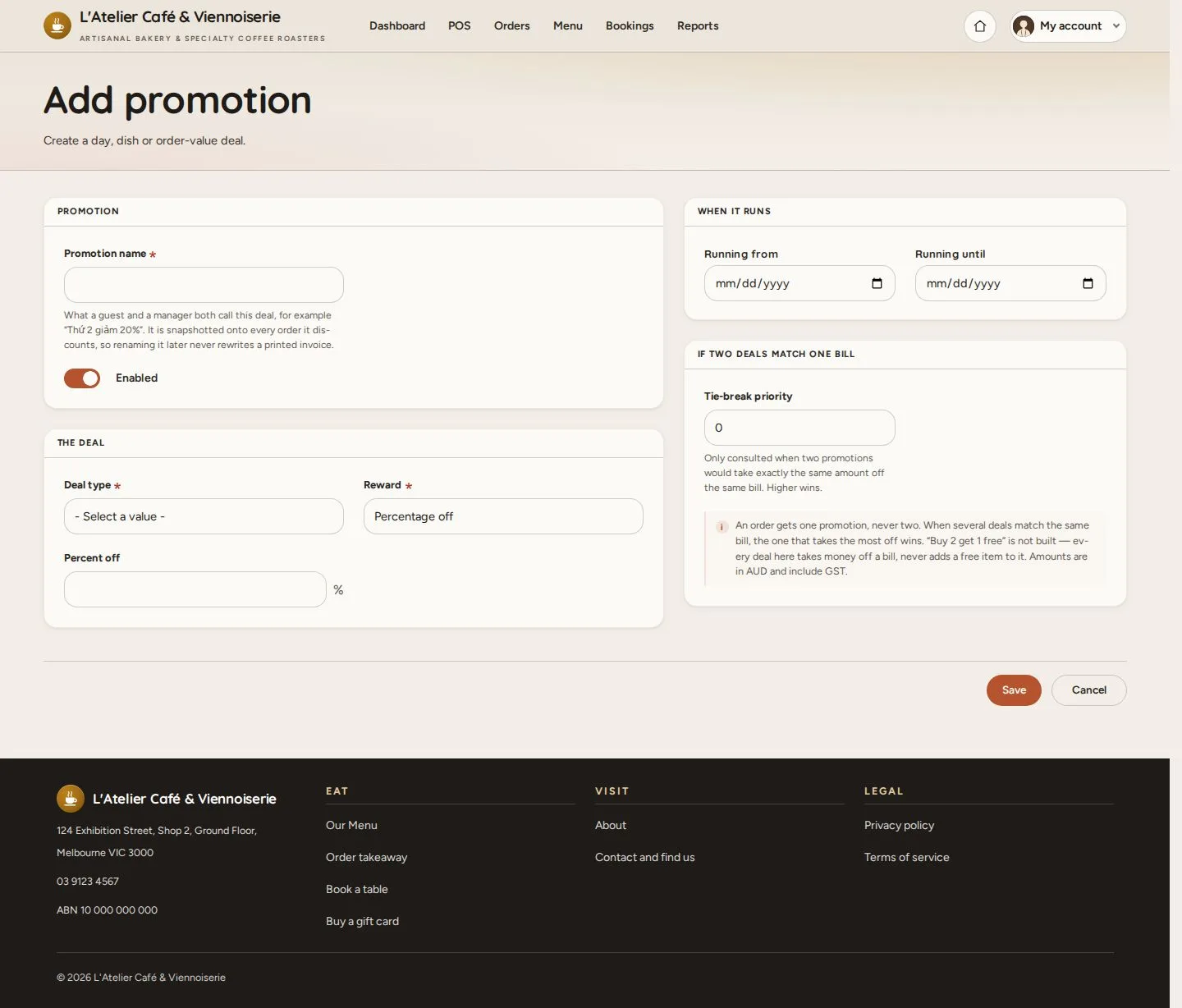
  1. Name, Enabled, deal type and reward
  2. Running from and until
  3. Save

An order gets one promotion: the one that takes the most off.

Enlarge, then scroll

Open illustrated screen ↗Full image ↗

Check

The amounts on sale and the deals are set; gift cards are checked at payment

Manager · Gift cards and promotions05
1 / 6
Privacy Terms