







Counter and phone takeaway

Phone order · Counter takeaway · Docket · Cash · Close order

  • Signed in as a waiter
Waiter

Start counter takeaway

Waiter

Start counter takeaway

1Step 1 of 6

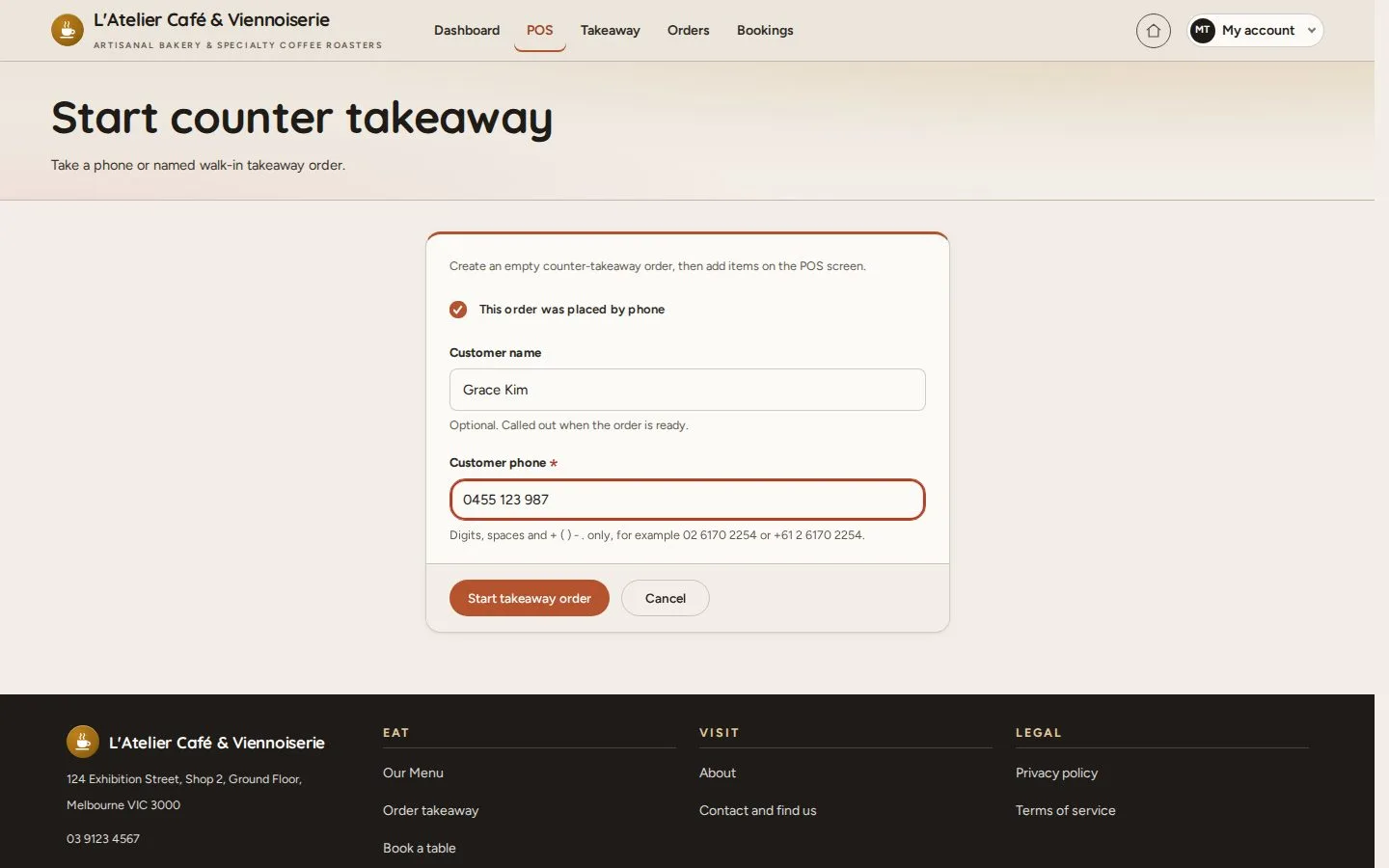
  1. On the POS floor map, press Phone order
  2. This order was placed by phone: enter the name and phone
  3. Start takeaway order

A walk-in needs no phone; the name is called when the order is ready.

Open illustrated screen ↗Full image ↗

Waiter · Counter and phone takeaway01

Counter ticket

Waiter

Counter ticket

2Step 2 of 6

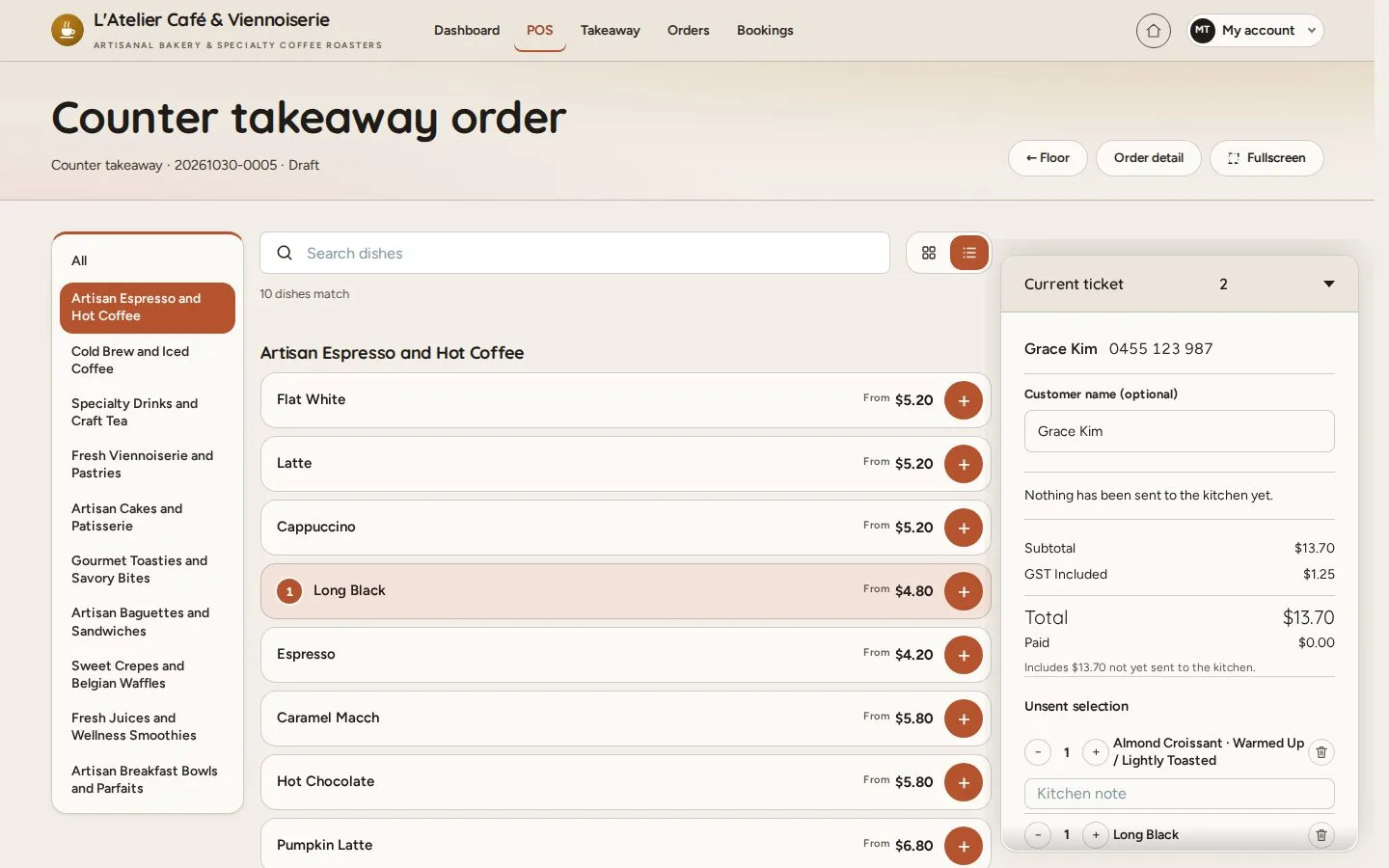
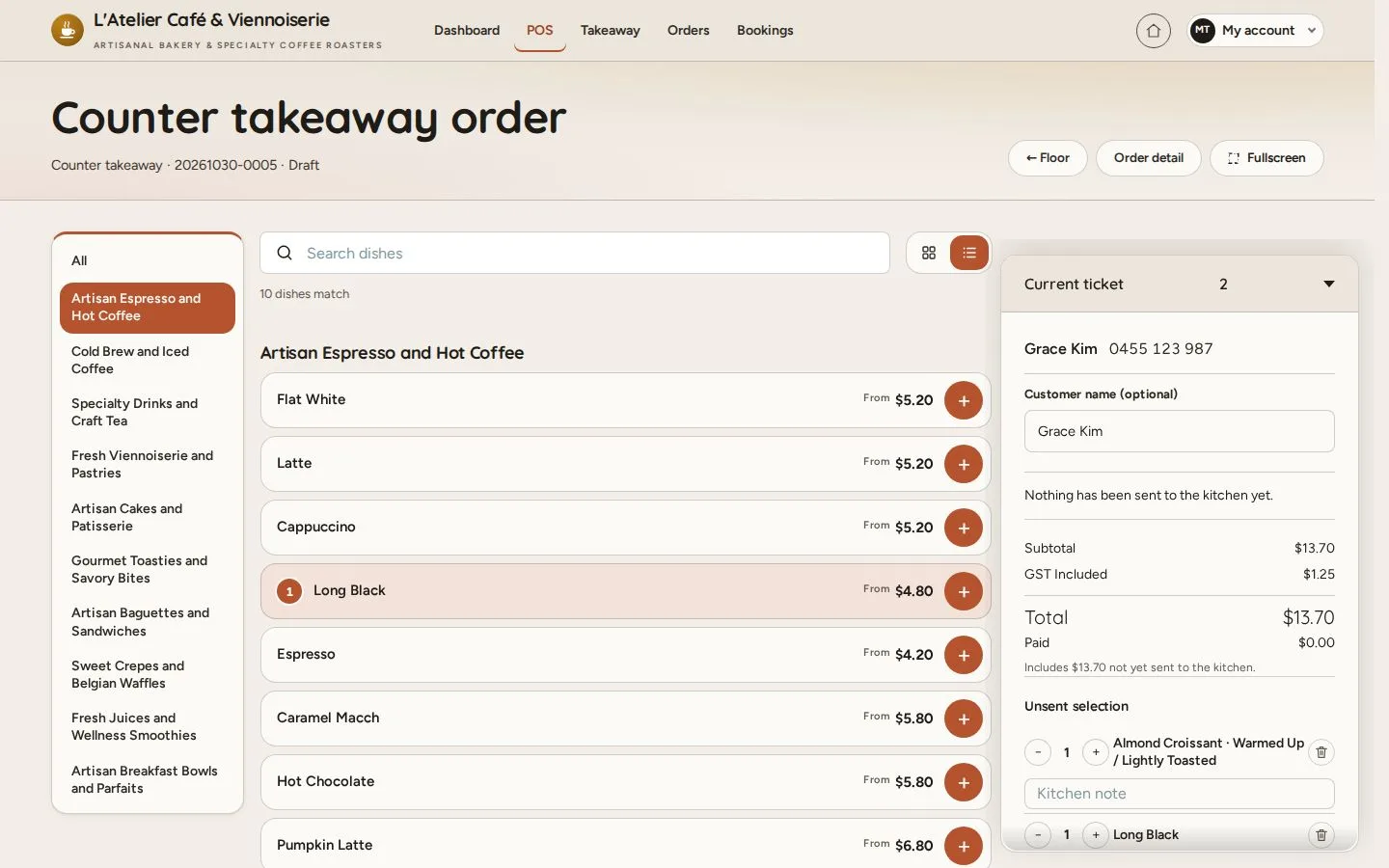
  1. Add the dishes and options as for a table
  2. The ticket shows the customer and the total

Open illustrated screen ↗Full image ↗

Waiter · Counter and phone takeaway02

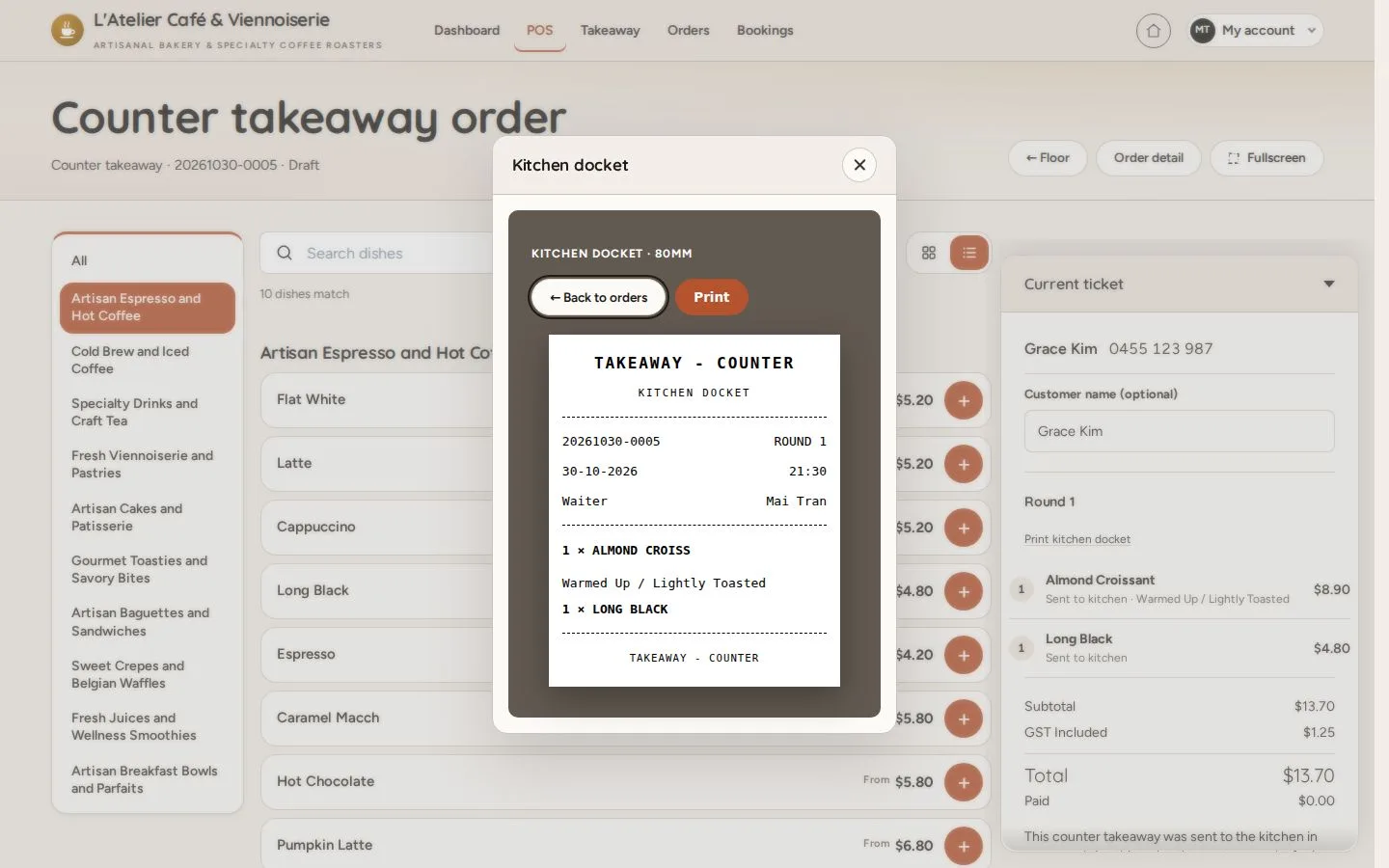
Kitchen docket

Waiter

Kitchen docket

3Step 3 of 6

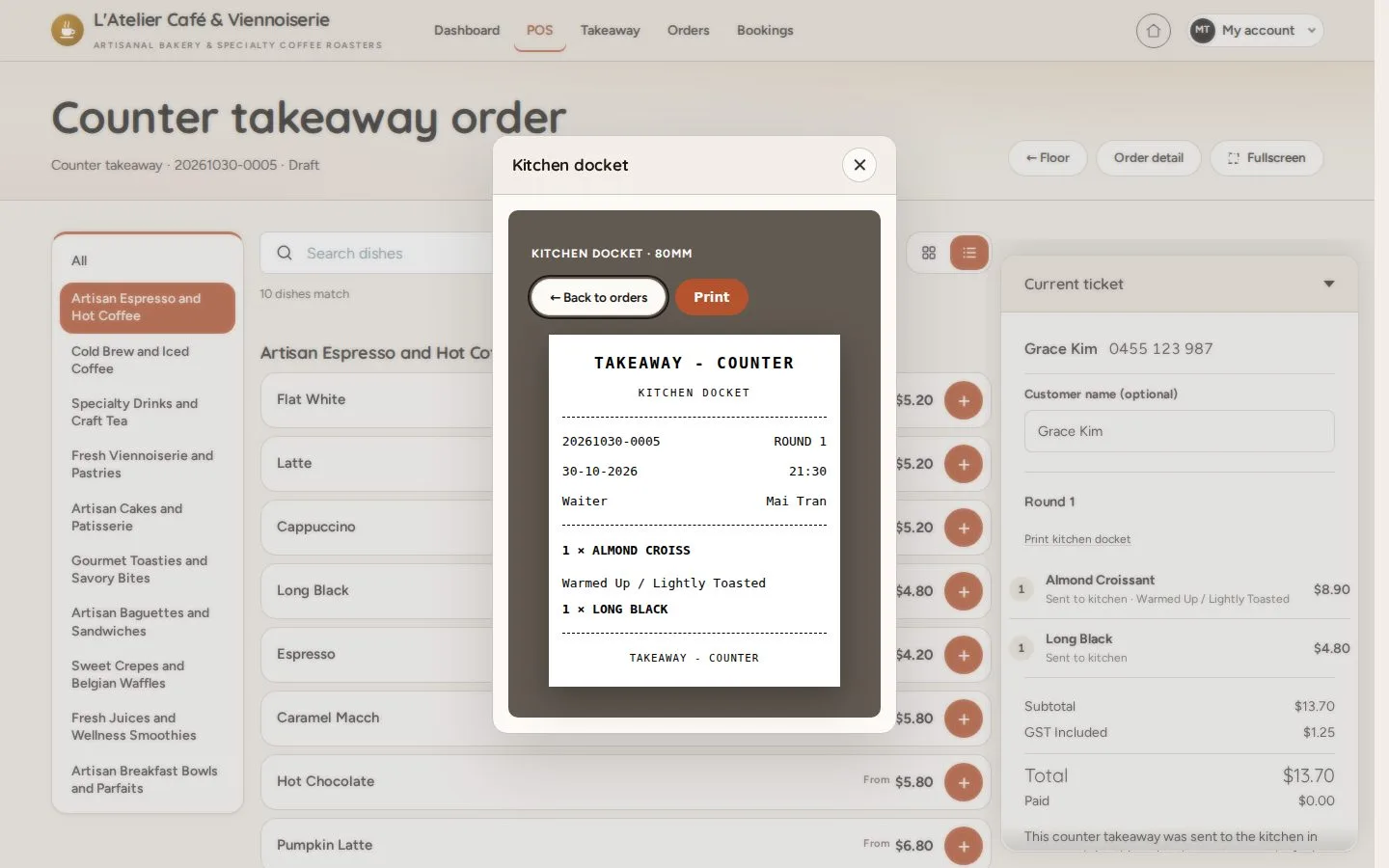
  1. Send to kitchen
  2. Print the docket

Open illustrated screen ↗Full image ↗

Waiter · Counter and phone takeaway03

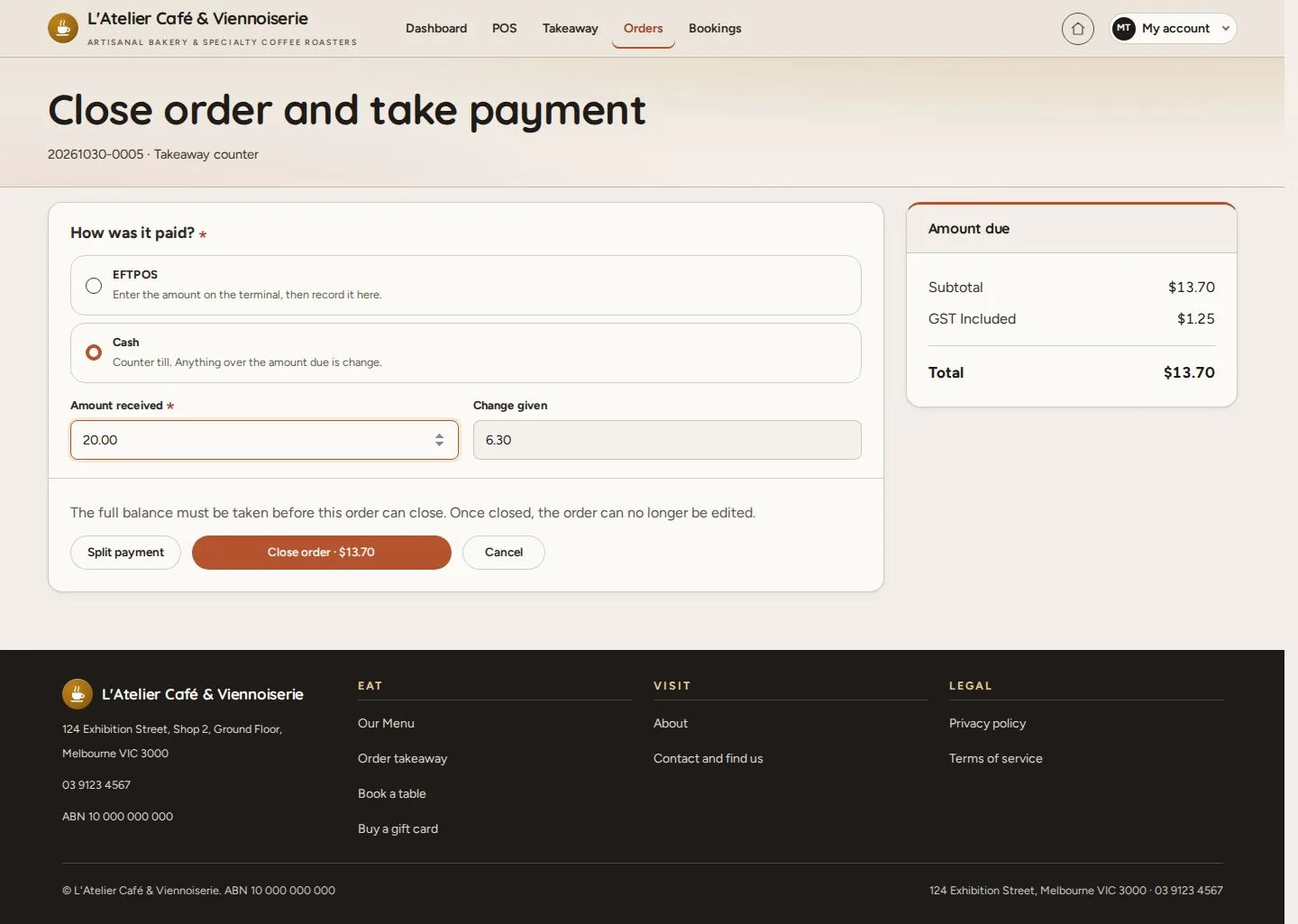
Take payment

Waiter

Take payment

4Step 4 of 6

  1. When the customer pays: Take payment and close order, on the ticket
  2. Cash: enter the amount received; the change is shown
  3. Close order

Enlarge, then scroll

Open illustrated screen ↗Full image ↗

Waiter · Counter and phone takeaway04

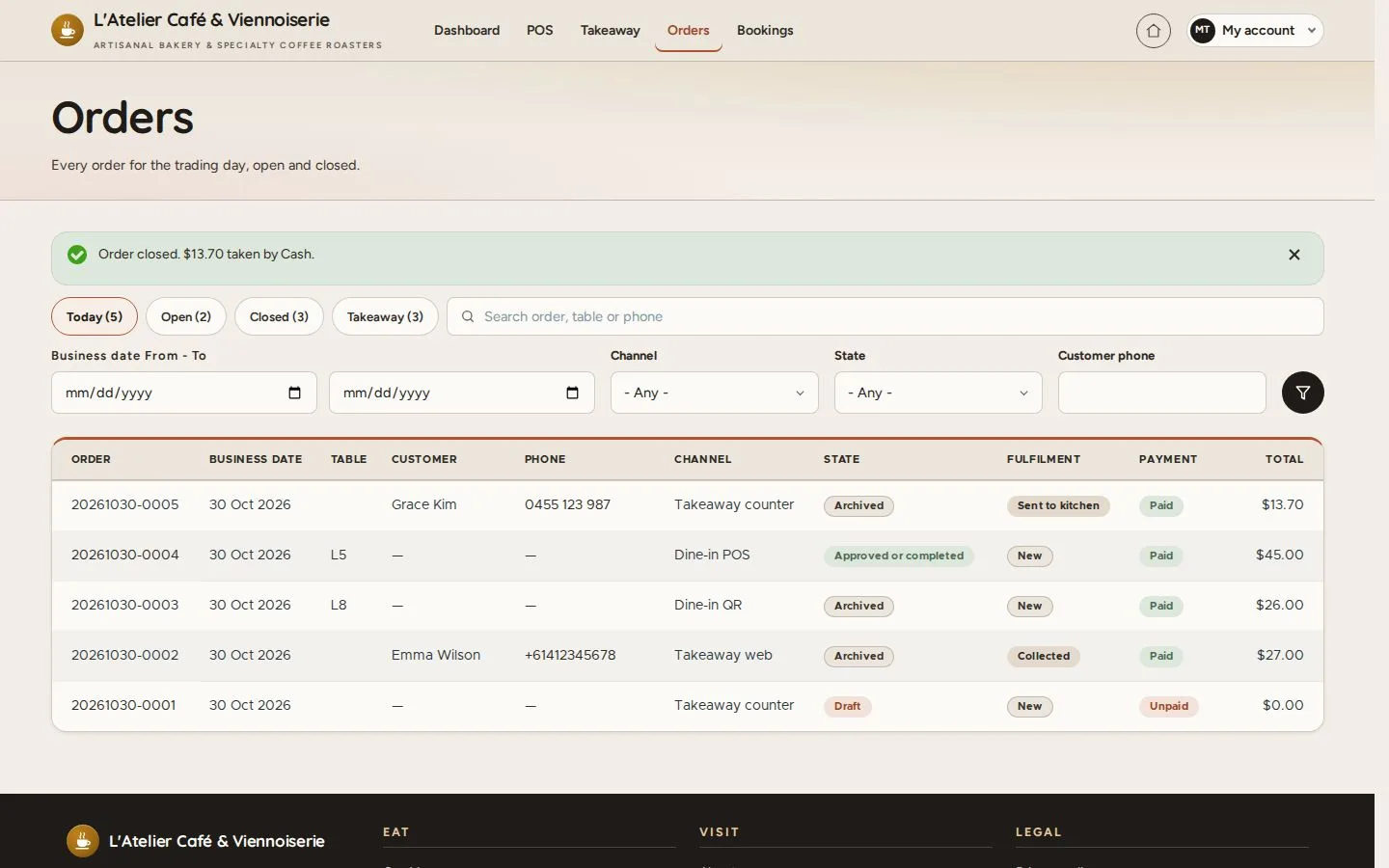
Order closed

Waiter

Order closed

5Step 5 of 6

  1. Orders says Order closed, with how it was paid

Waiters close takeaway orders; a Manager closes table orders.

Open illustrated screen ↗Full image ↗

Waiter · Counter and phone takeaway05

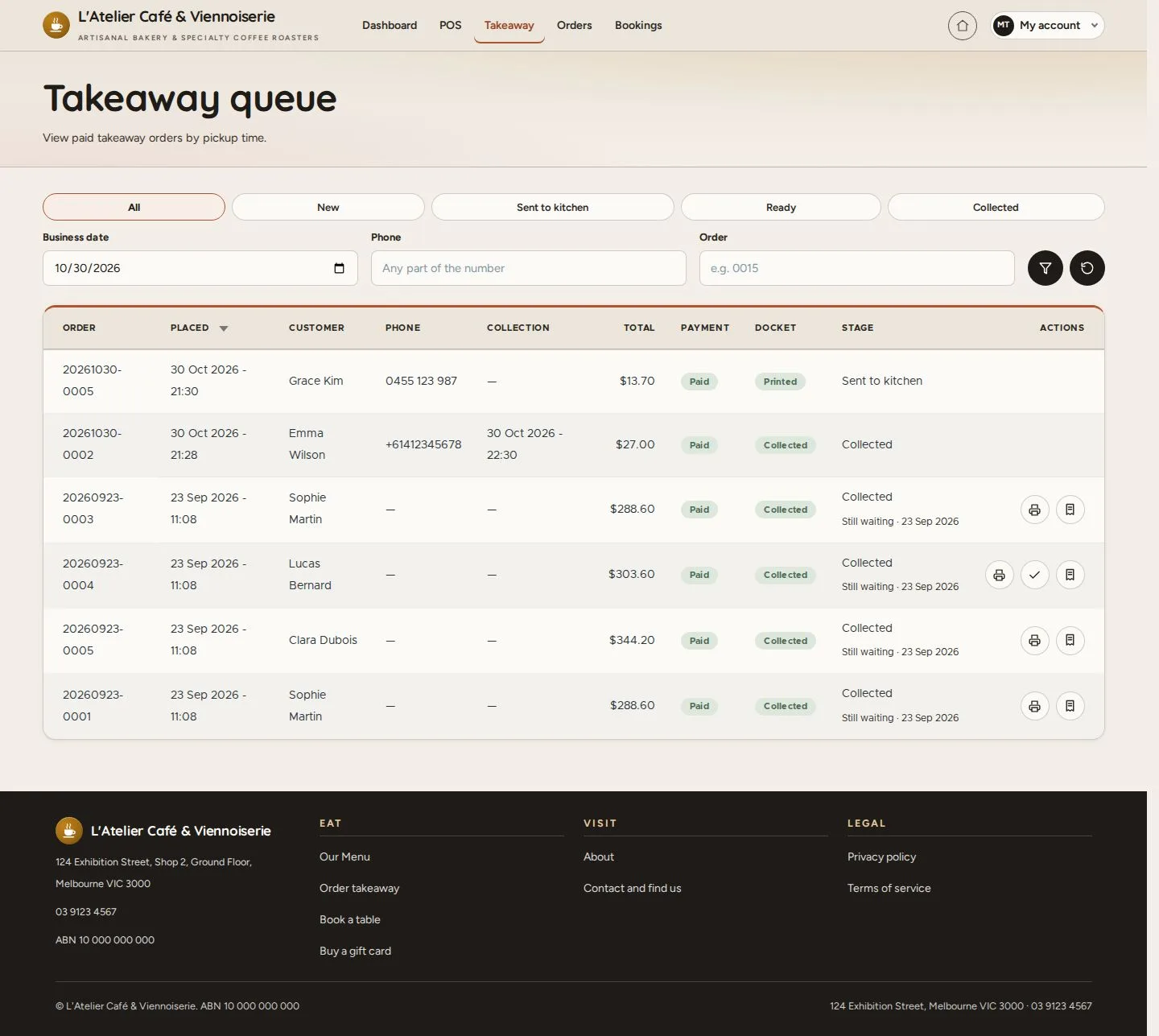
Takeaway queue

Waiter

Takeaway queue

6Step 6 of 6

  1. Takeaway lists every takeaway order
  2. Filter by New, Sent to kitchen, Ready or Collected

Enlarge, then scroll

Open illustrated screen ↗Full image ↗

Check

The order is paid, closed and listed in the takeaway queue

Waiter · Counter and phone takeaway06
1 / 7
Privacy Terms