






Order at your table

Table QR code · Send to waiter · Your table order · Order more

  • At a table, while the café is open
  • No account and no online payment
Public
Scan the table QR code

Public

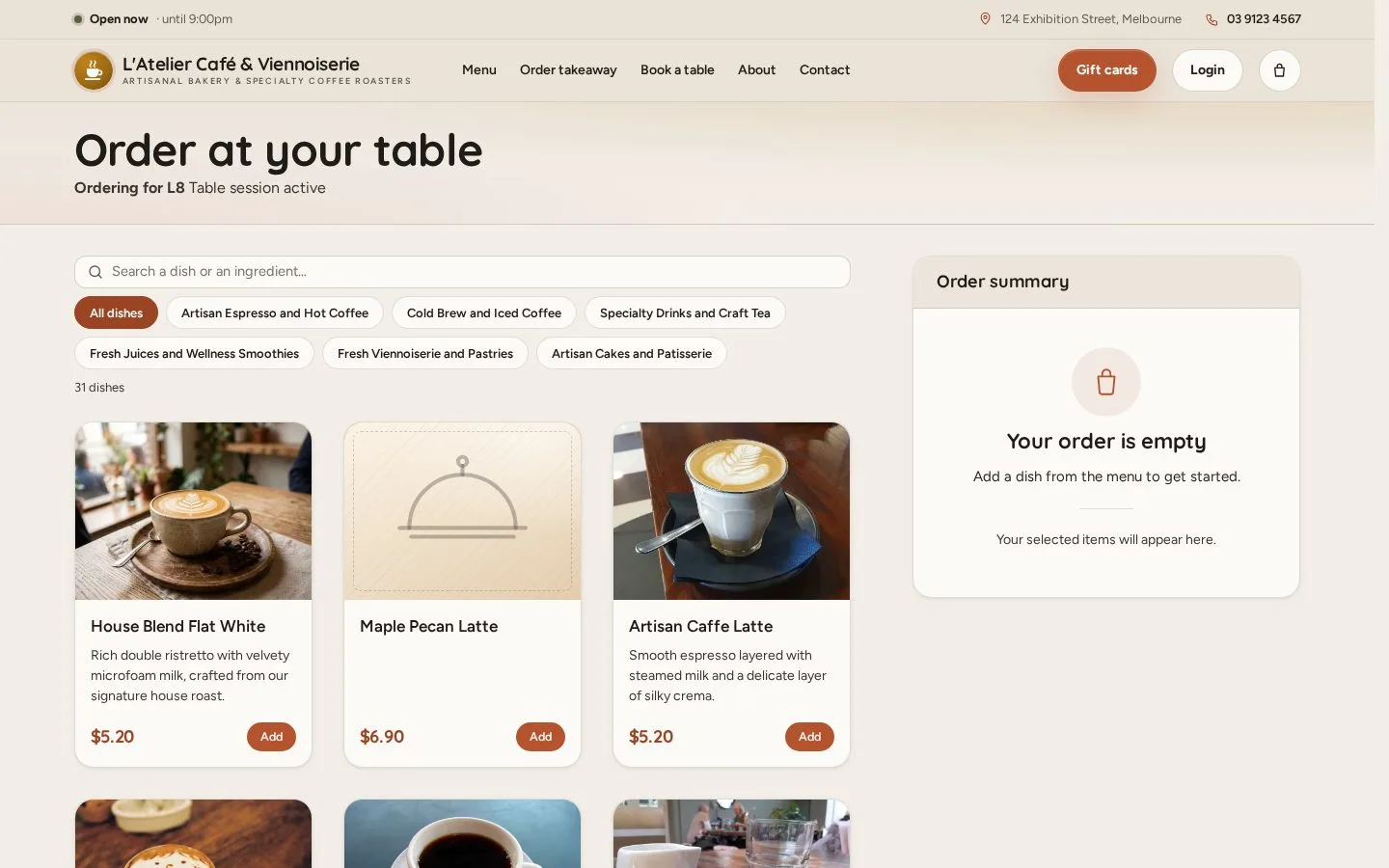
Scan the table QR code

1Step 1 of 5

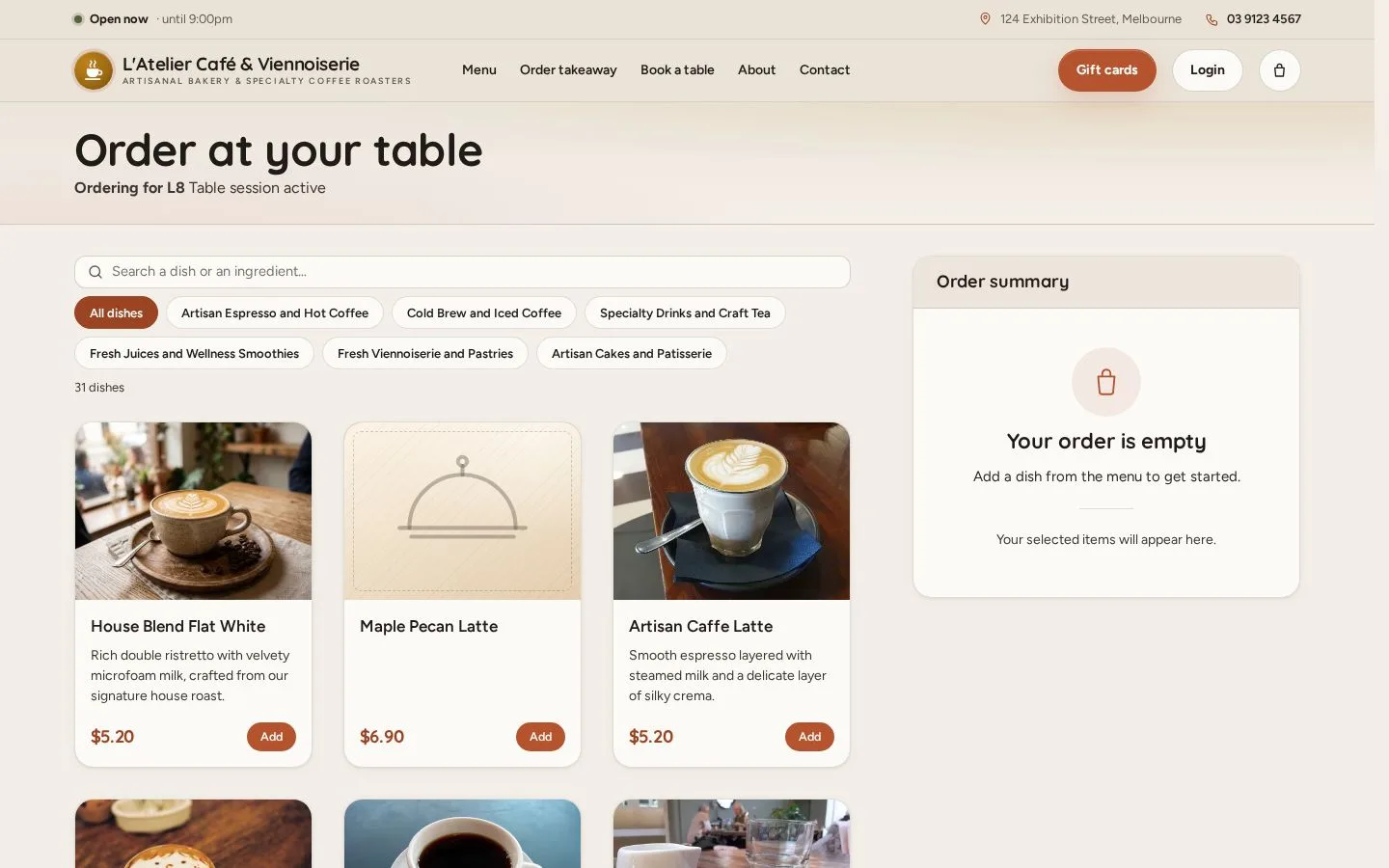
  1. Scan the QR code on your table with your phone camera
  2. The menu opens for your table, for example Ordering for L8
  3. Pick a category or search, then press Add on a dish

Full image ↗

Public · Order at your table01

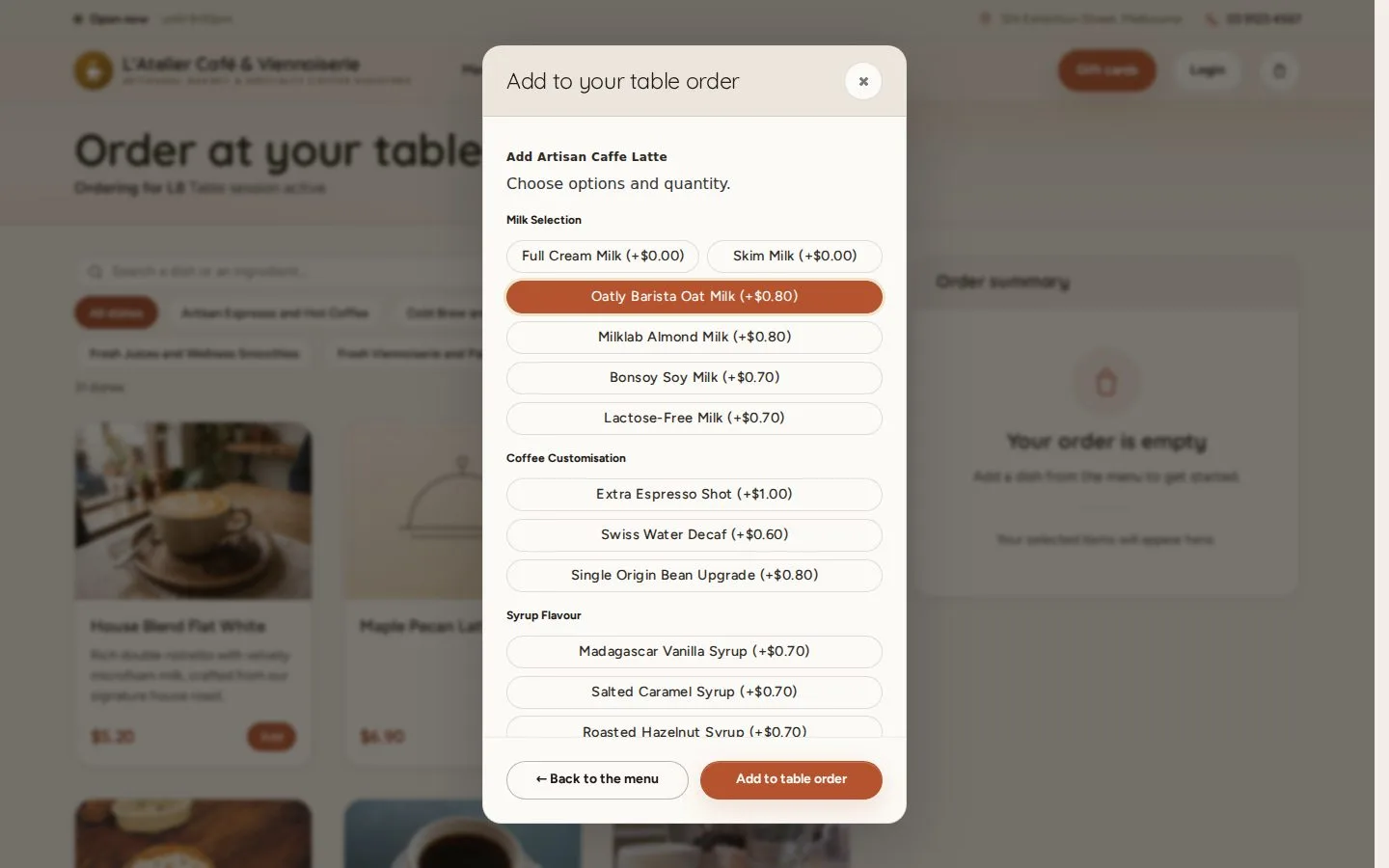
Choose options

Public

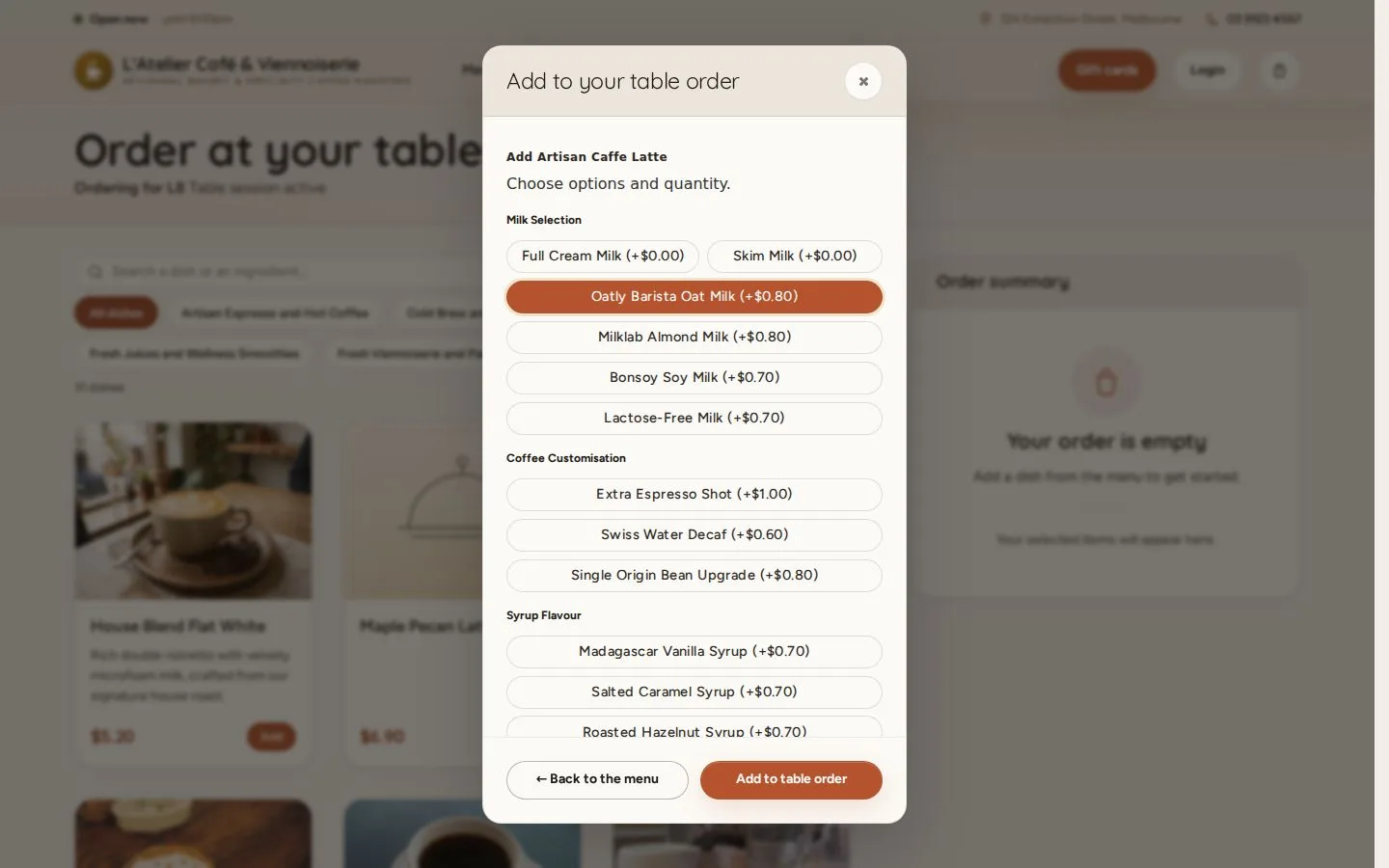
Choose options

2Step 2 of 5

  1. Choose the options and the quantity
  2. Add a note for the kitchen further down
  3. Add to table order

Full image ↗

Public · Order at your table02

Review your order

Public

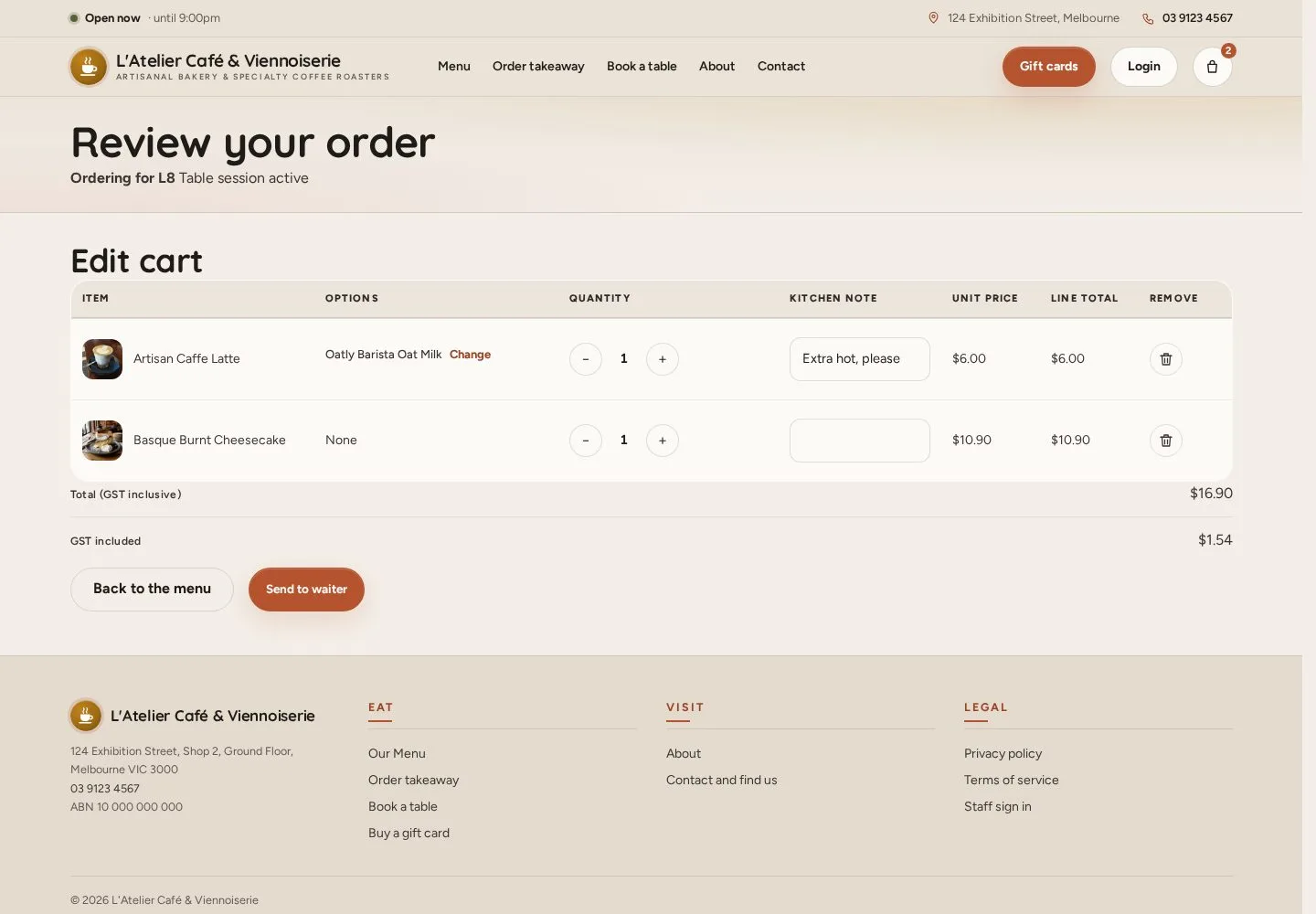
Review your order

3Step 3 of 5

  1. Check the dishes, options and notes
  2. Change a quantity, or remove a dish
  3. Send to waiter

Enlarge, then scroll

Full image ↗

Public · Order at your table03

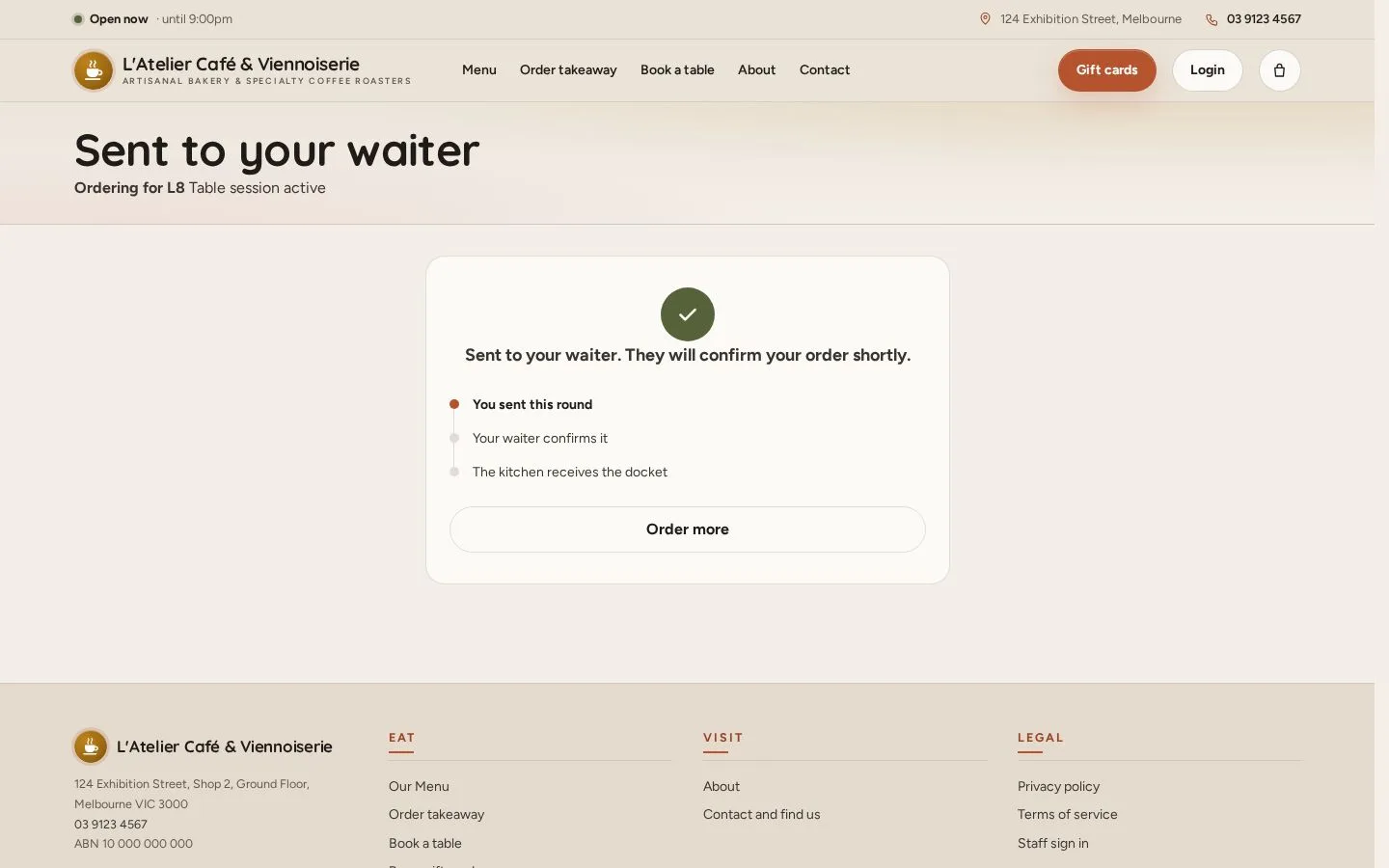
Sent to your waiter

Public

Sent to your waiter

4Step 4 of 5

  1. Your waiter confirms the round, then the kitchen receives it
  2. Order more adds another round the same way

Full image ↗

Public · Order at your table04

Your table order

Public

Your table order

5Step 5 of 5

  1. On the table menu, tap the Table order bar: the items sent and the total
  2. Every round, and whether it is with the kitchen; Total so far includes GST
  3. Your waiter takes payment at the end of the meal

Enlarge, then scroll

Full image ↗

Check

Each round reaches your waiter, then the kitchen; you pay at the end of the meal

Public · Order at your table05
1 / 6
Privacy Terms