




Start the shift

Staff dashboard · Staff menu · Orders · My account

  • Signed in as a waiter
Waiter

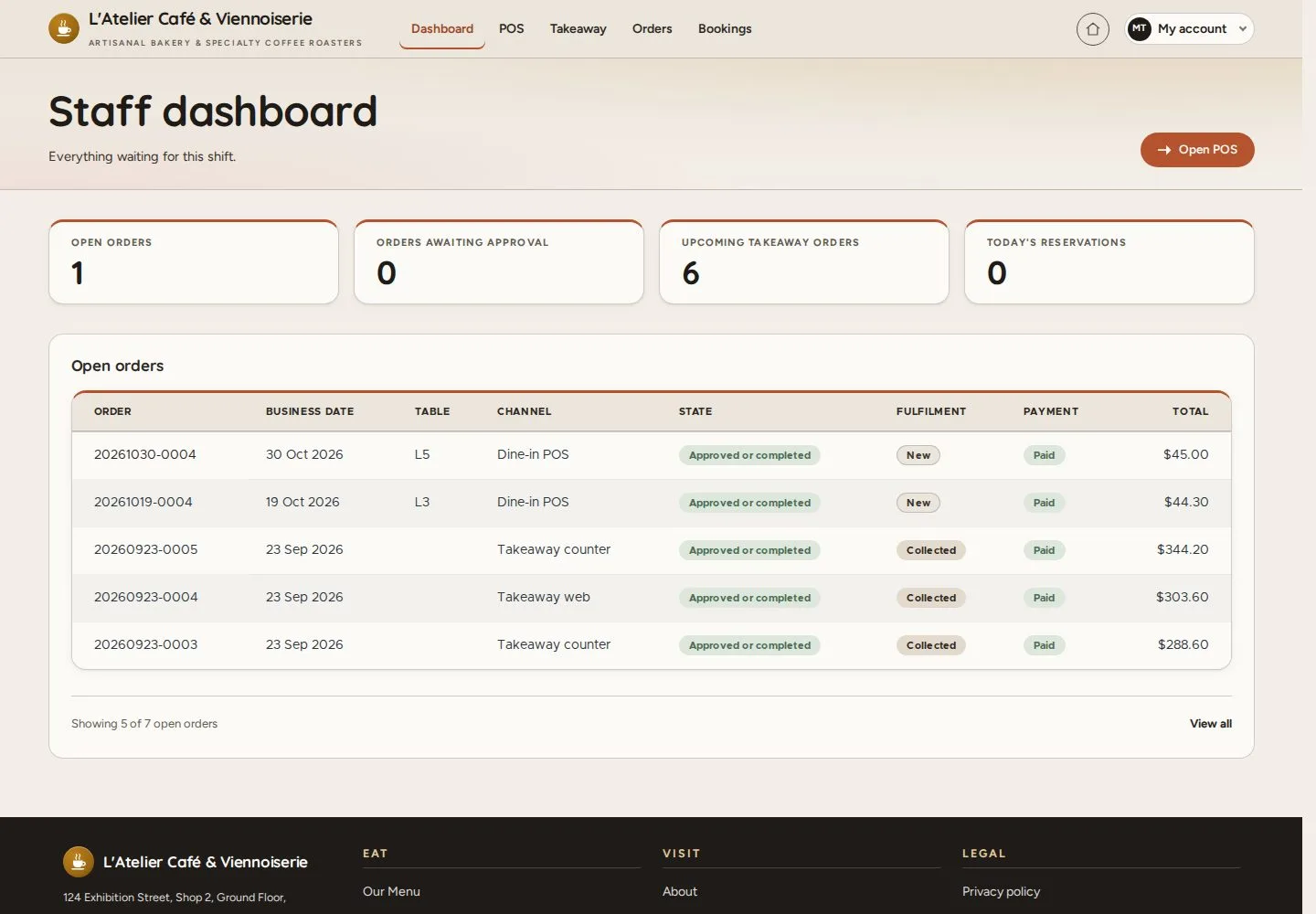
Staff dashboard

Waiter

Staff dashboard

1Step 1 of 4

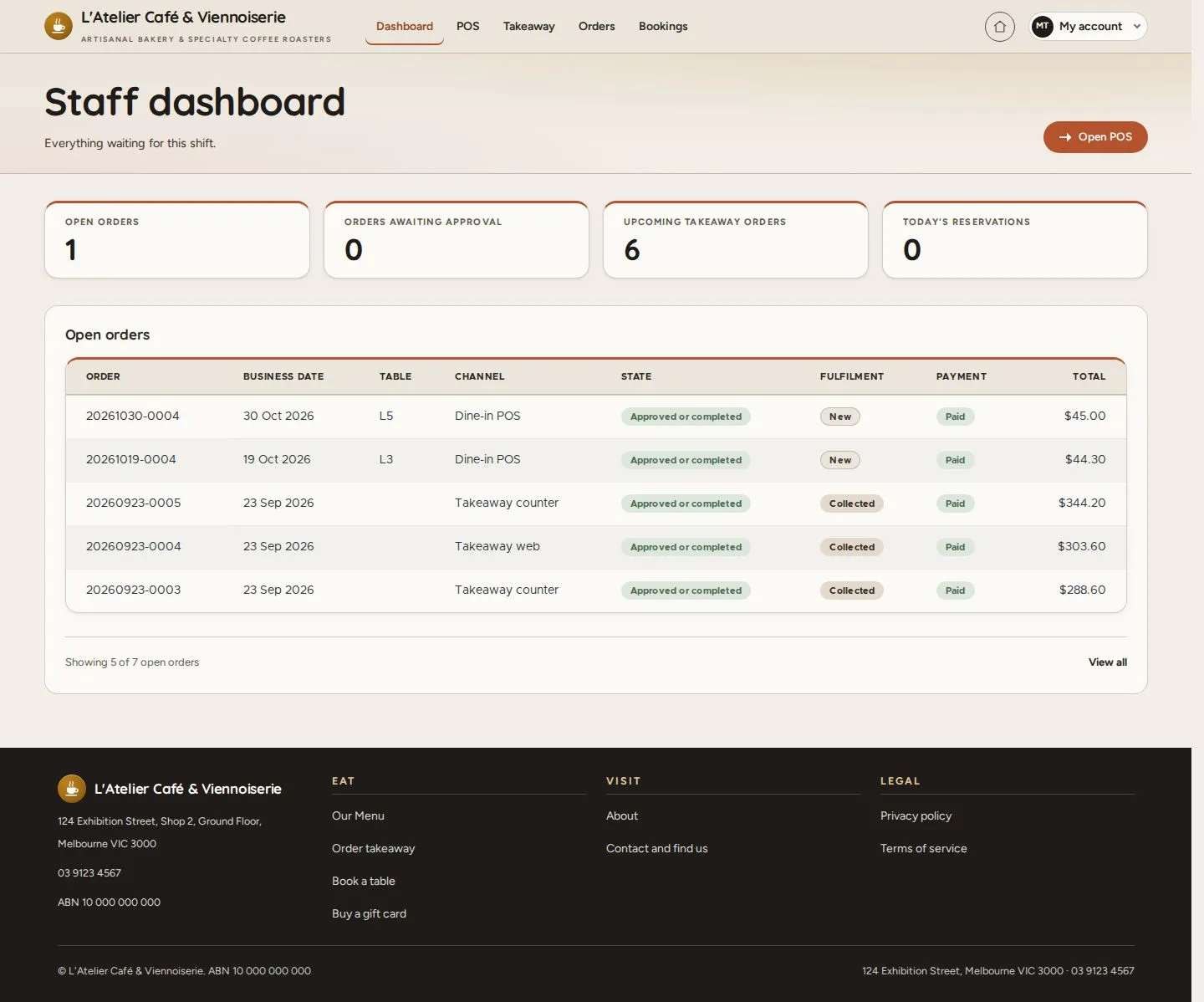
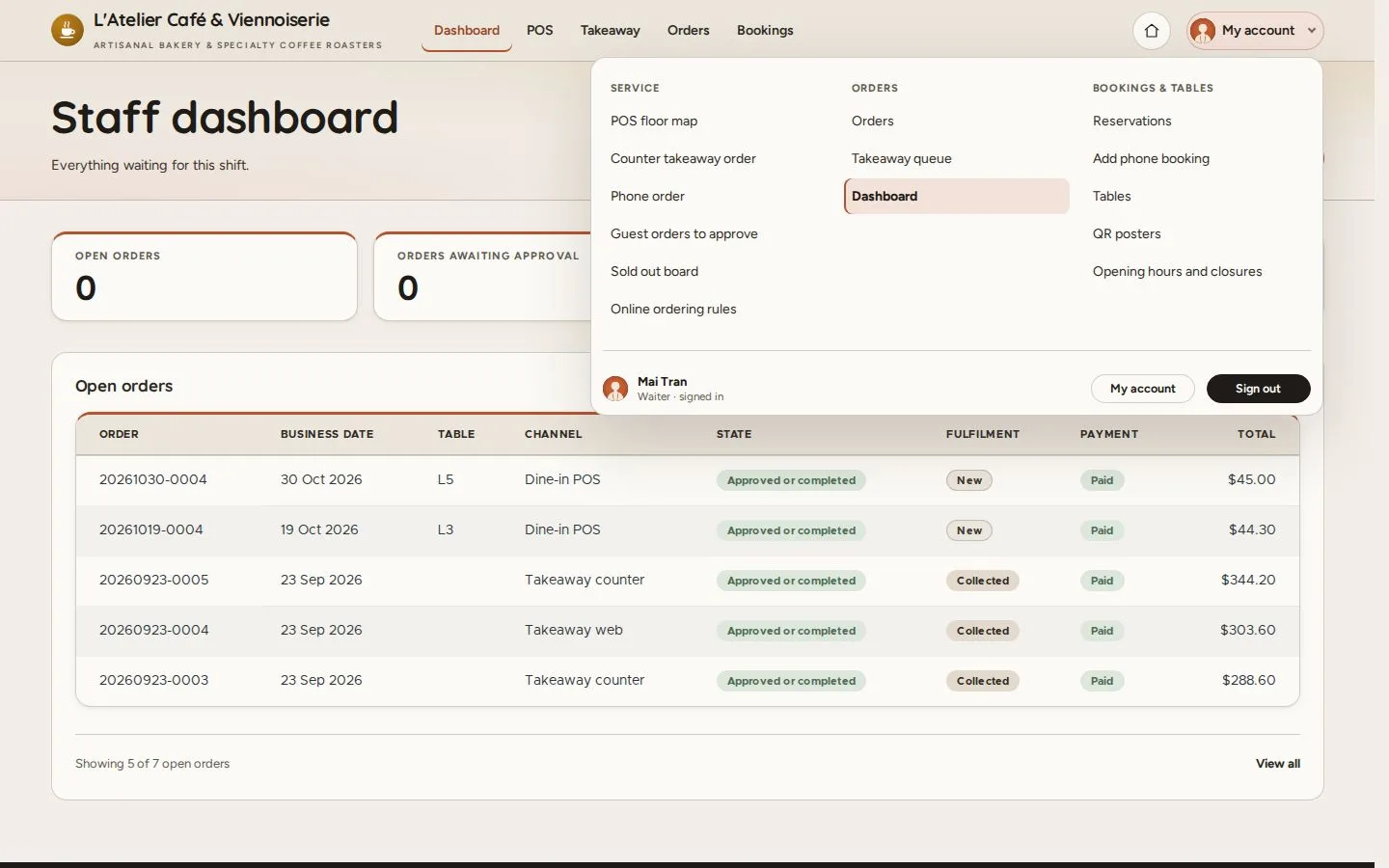
  1. After Log in, the Staff dashboard opens
  2. Read the counts: open orders, guest orders to approve, takeaway, bookings
  3. Open POS for the floor map

Enlarge, then scroll

Open illustrated screen ↗Full image ↗

Waiter · Start the shift01

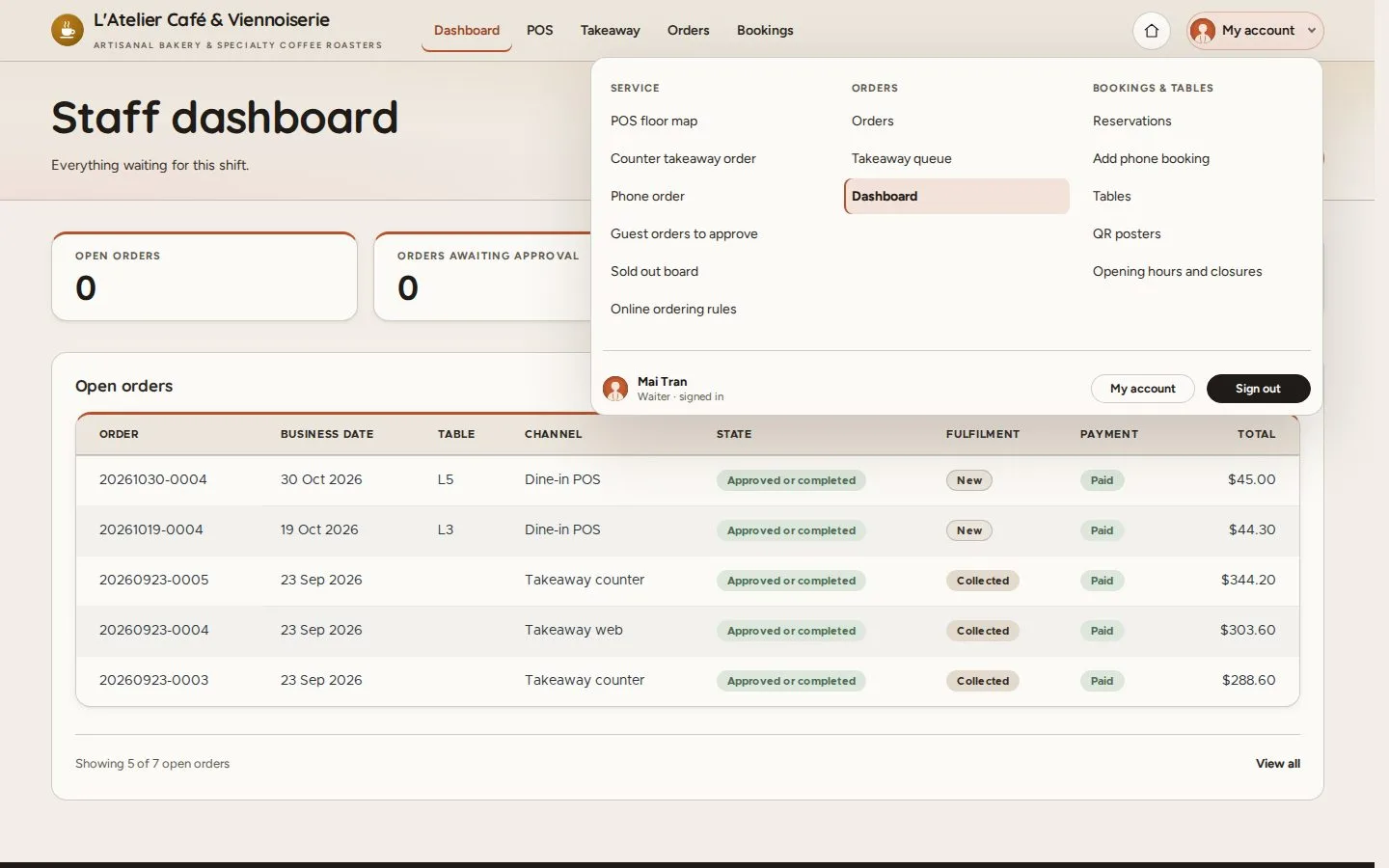
The staff menu

Waiter

The staff menu

2Step 2 of 4

  1. My account opens every page of the shift
  2. Service: POS, counter and phone orders, approvals, Sold out board
  3. Online ordering rules: Pause online ordering when the kitchen is overloaded

Sign out is in the same menu, at the end of the shift.

Open illustrated screen ↗Full image ↗

Waiter · Start the shift02

Orders

Waiter

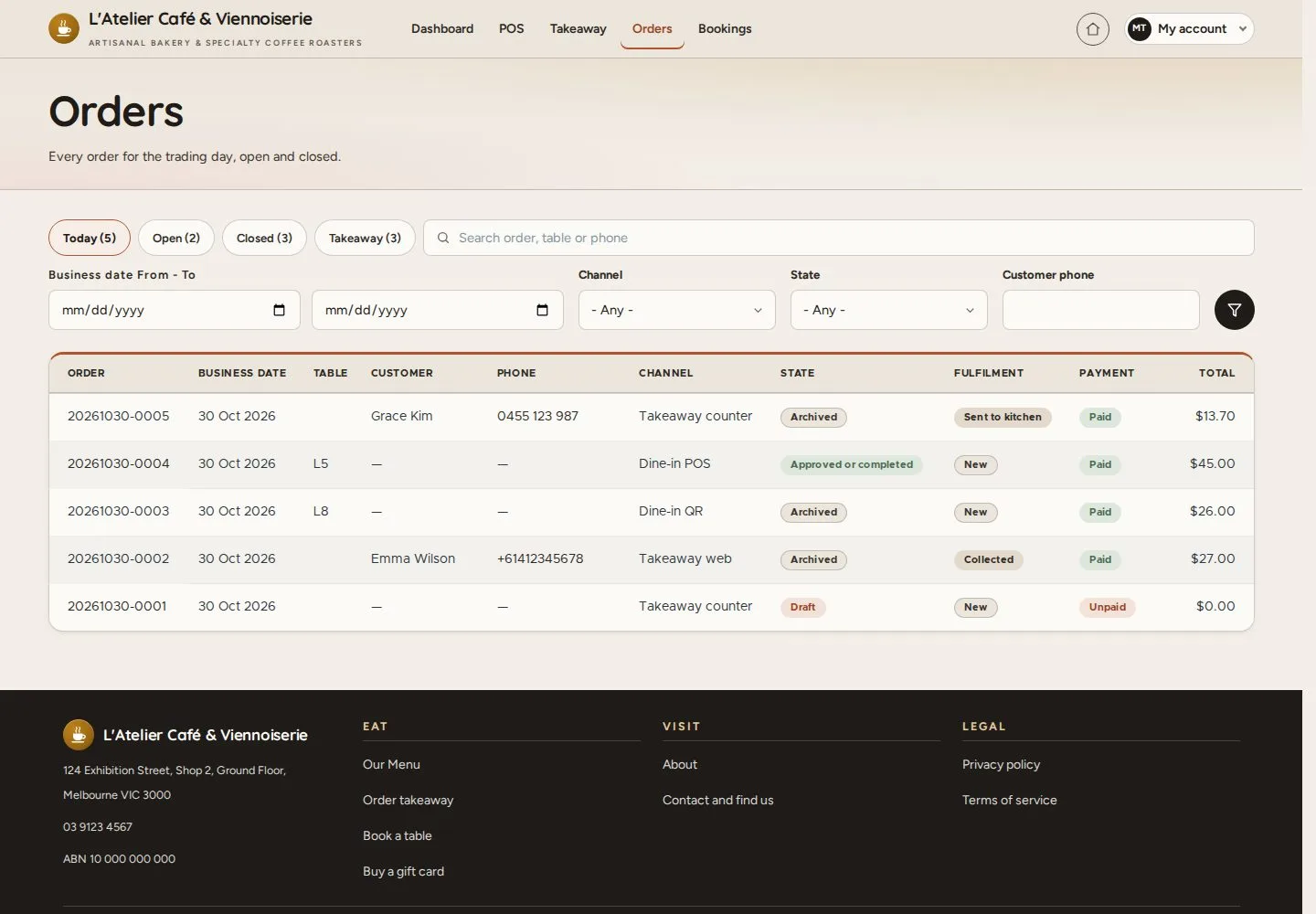
Orders

3Step 3 of 4

  1. Orders lists the day's orders: Today, Open, Closed, Takeaway
  2. Search by order, table or phone
  3. Open an order for its lines, payments and history

Enlarge, then scroll

Open illustrated screen ↗Full image ↗

Waiter · Start the shift03

My account

Waiter

My account

4Step 4 of 4

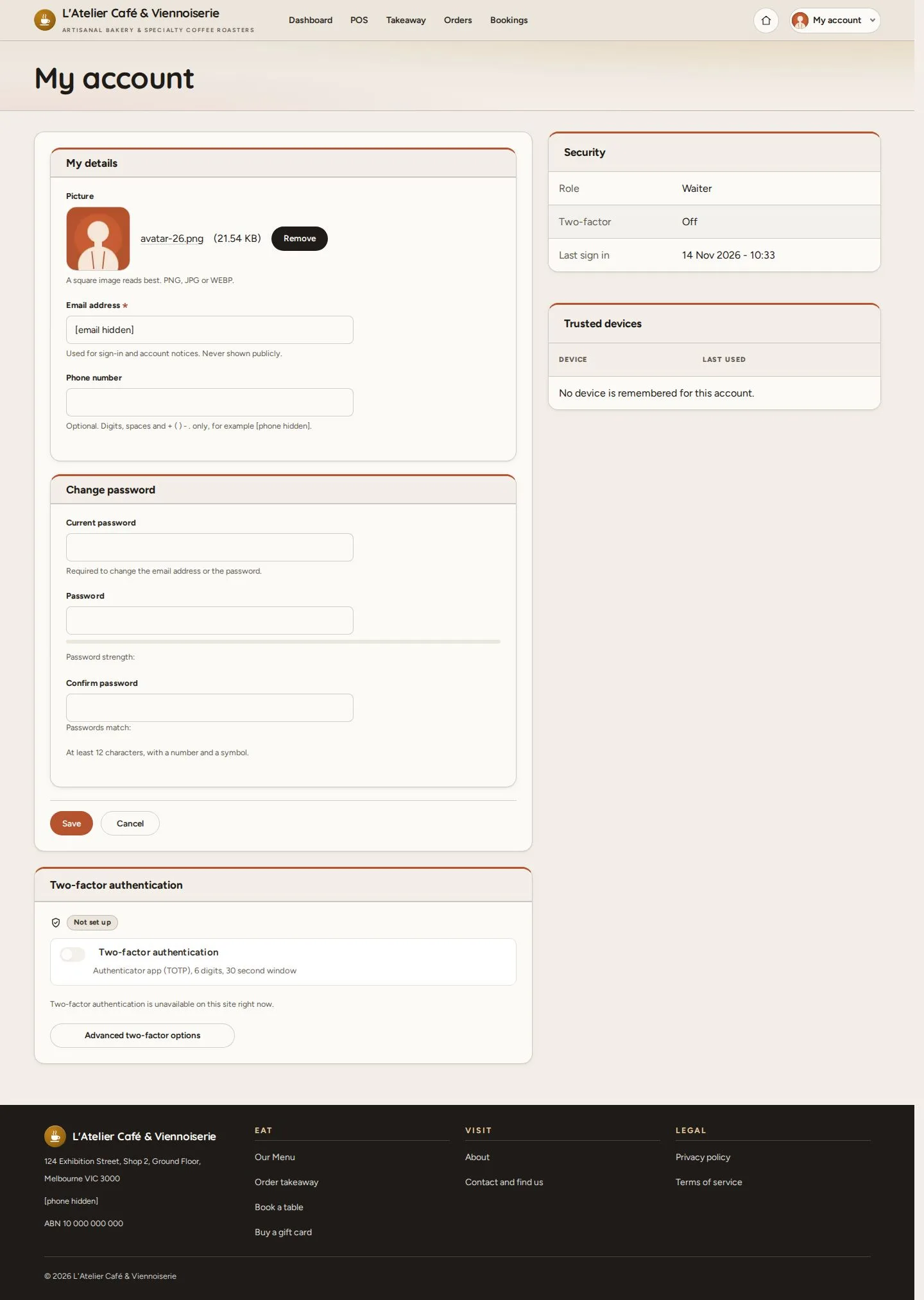
  1. My account in the menu: your picture, email and phone
  2. Change your password
  3. Security: two-factor sign-in and trusted devices

Enlarge, then scroll

Open illustrated screen ↗Full image ↗

Check

You see what is waiting and know where each page is

Waiter · Start the shift04
1 / 5
Privacy Terms