



Tables and QR codes

Tables · Add table · QR poster · Rotate QR code · QR posters

  • Signed in as a Manager
Manager

Tables

Manager

Tables

1Step 1 of 5

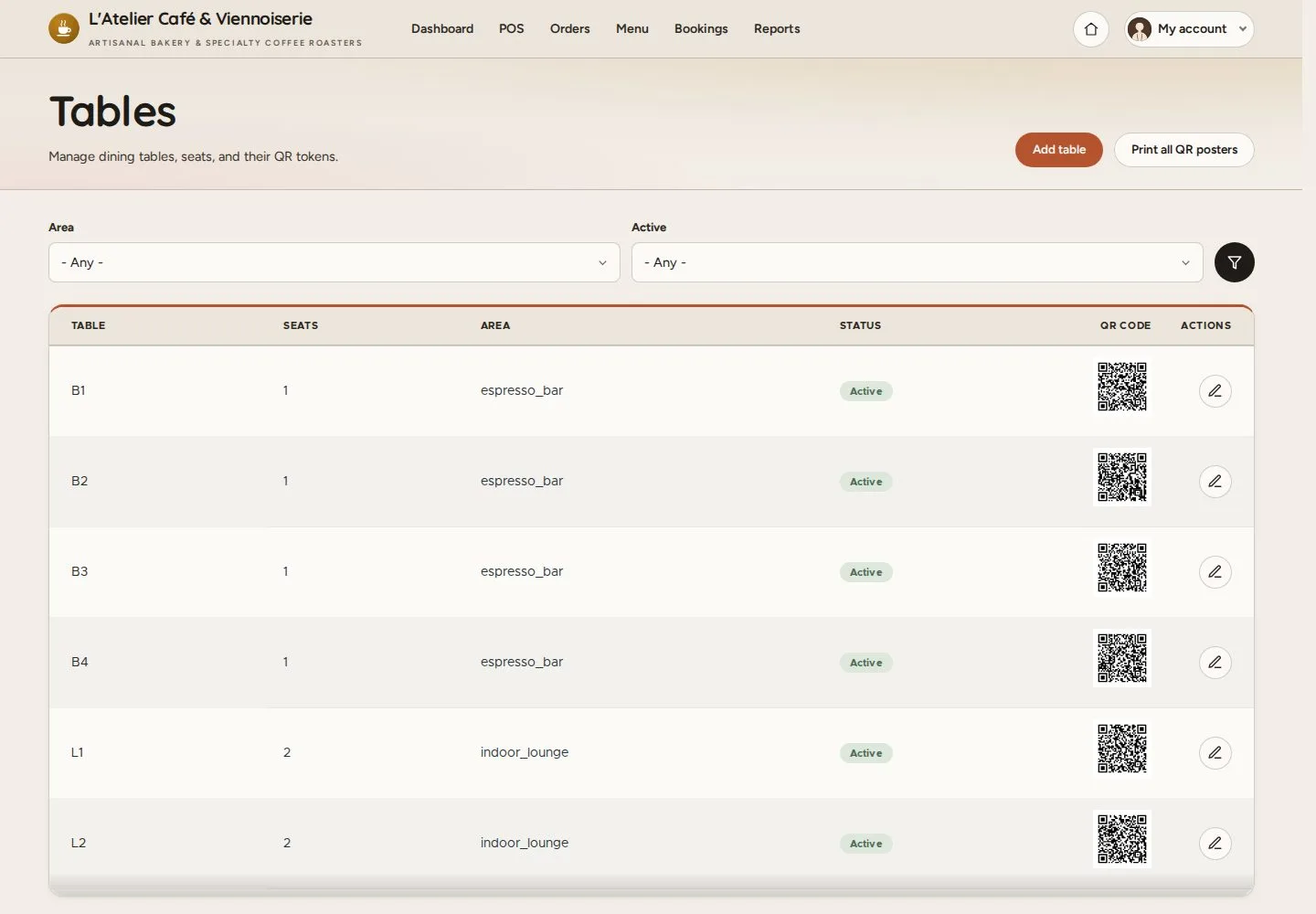
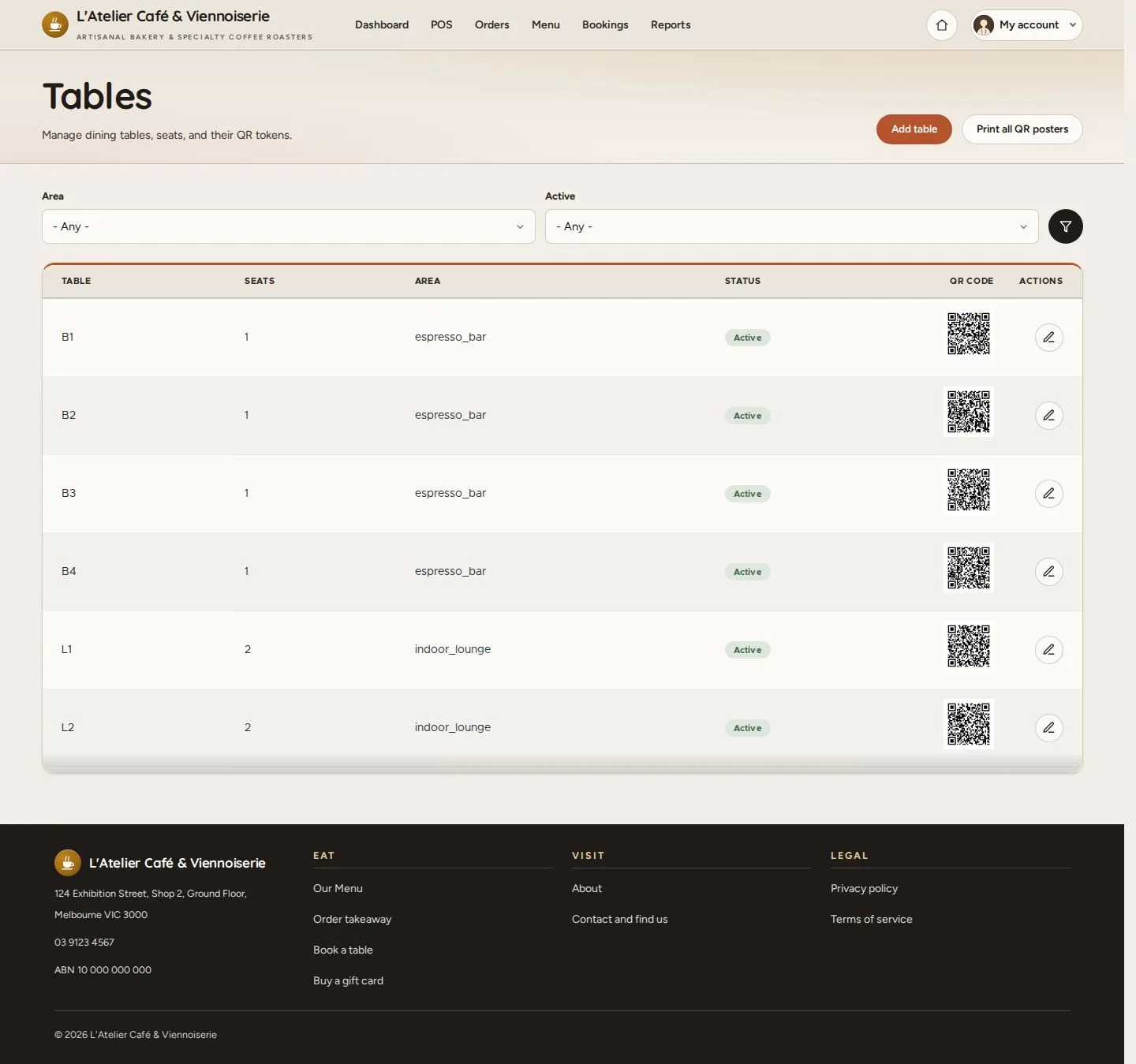
  1. My account › Tables: seats, area, status and QR code of each
  2. Add table; Print all QR posters

Enlarge, then scroll

Open illustrated screen ↗Full image ↗

Manager · Tables and QR codes01

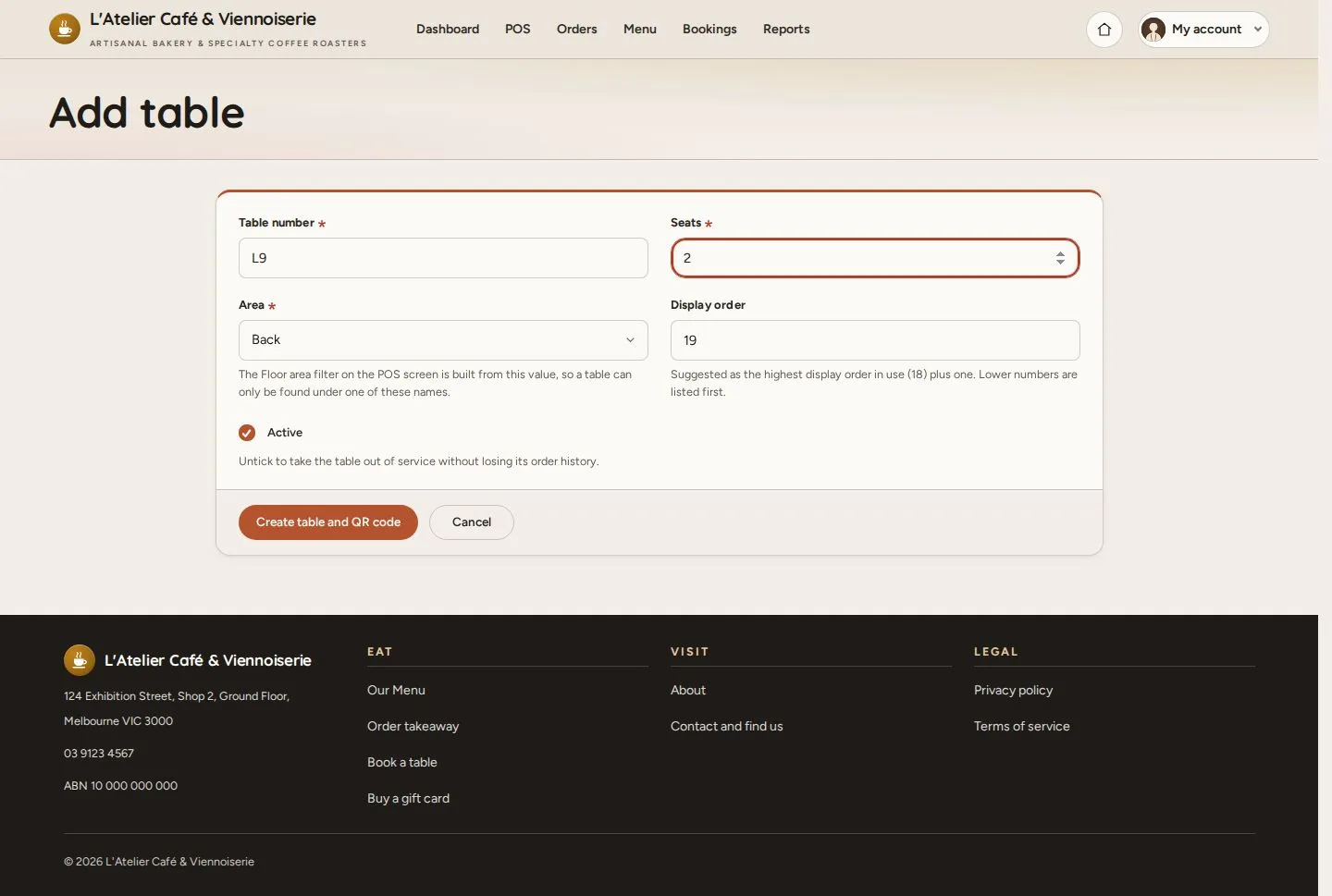
Add table

Manager

Add table

2Step 2 of 5

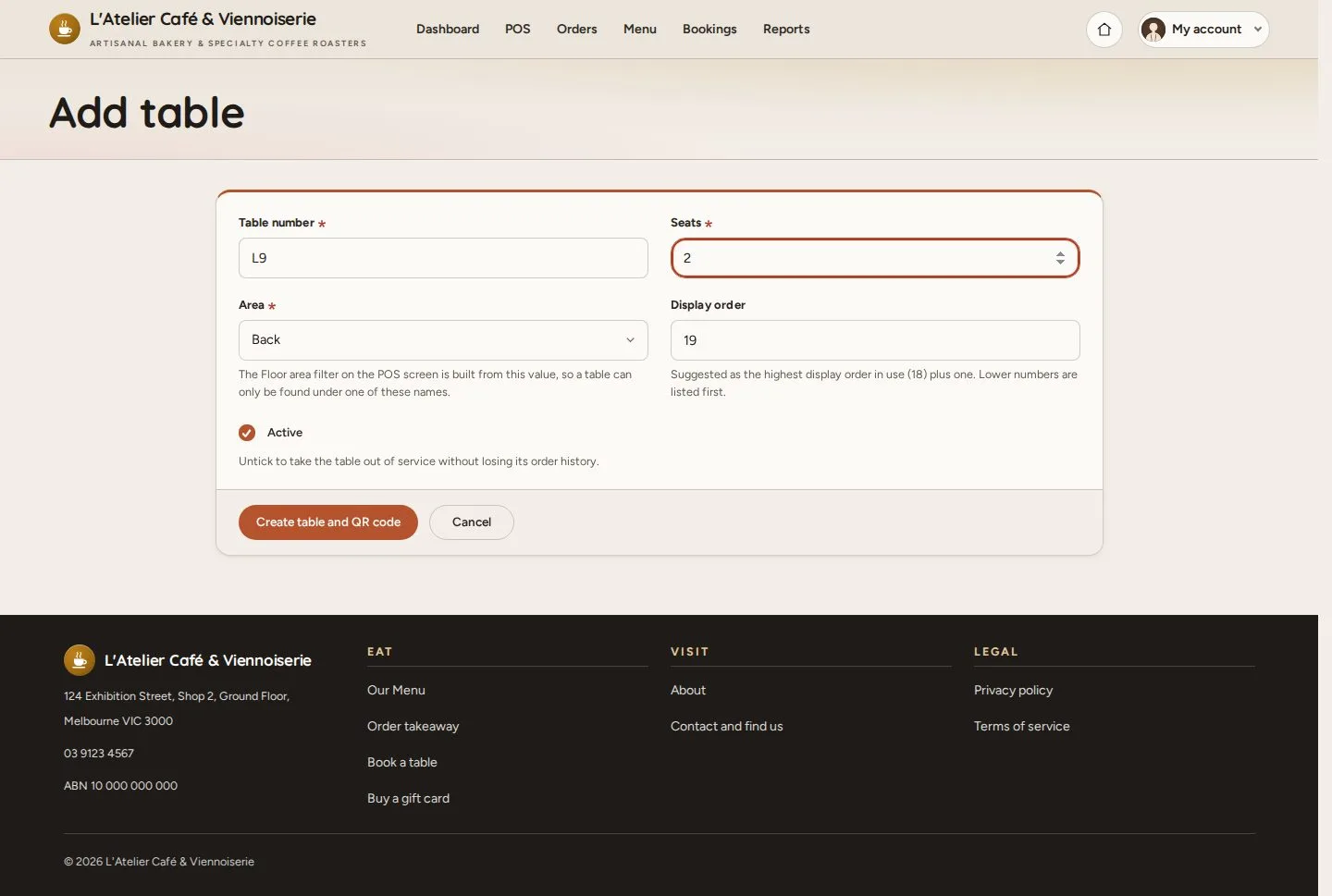
  1. Table number, seats, area and display order
  2. Create table and QR code

Untick Active to take a table out of service; its history stays.

Open illustrated screen ↗Full image ↗

Manager · Tables and QR codes02

Table QR poster

Manager

Table QR poster

3Step 3 of 5

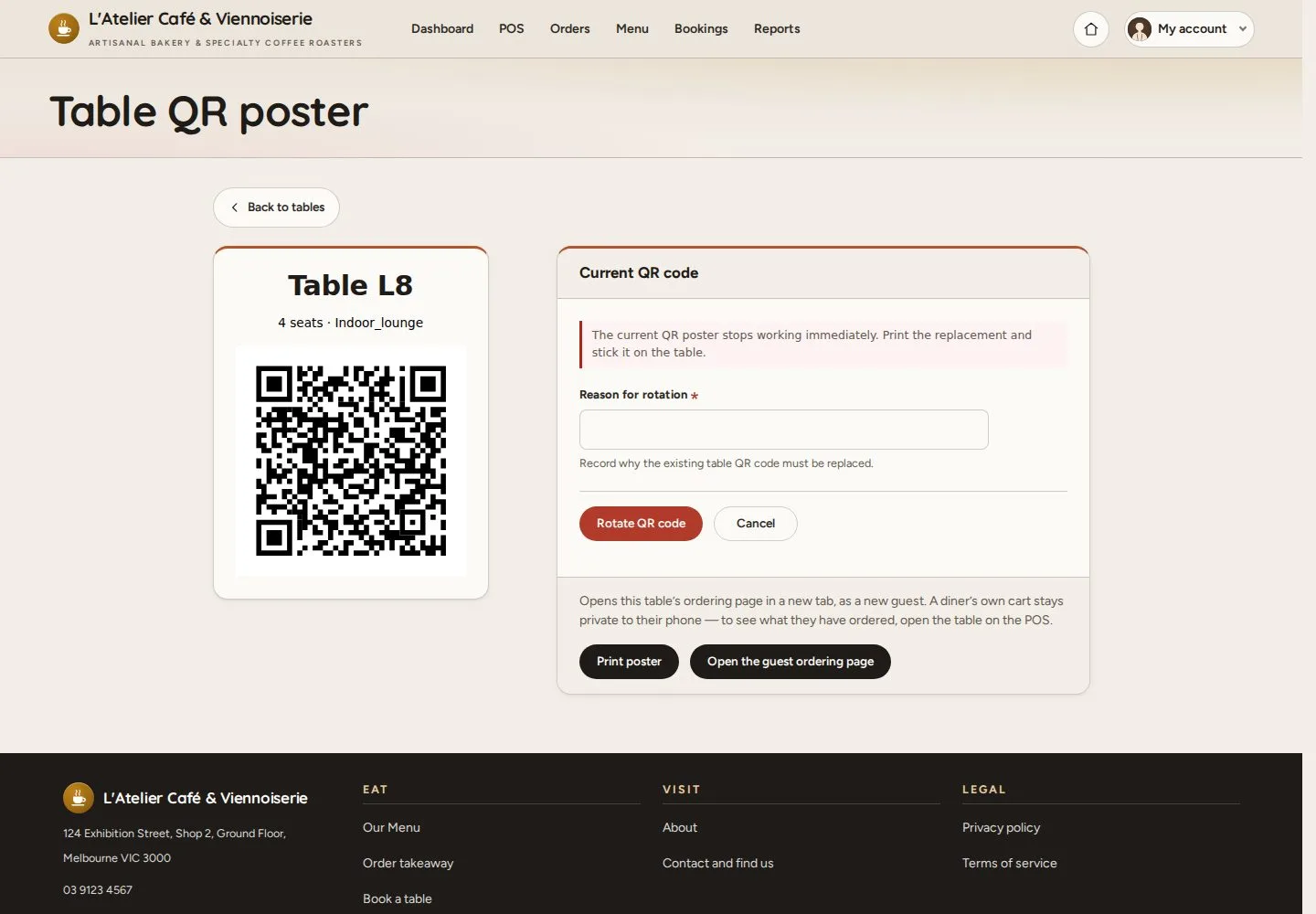
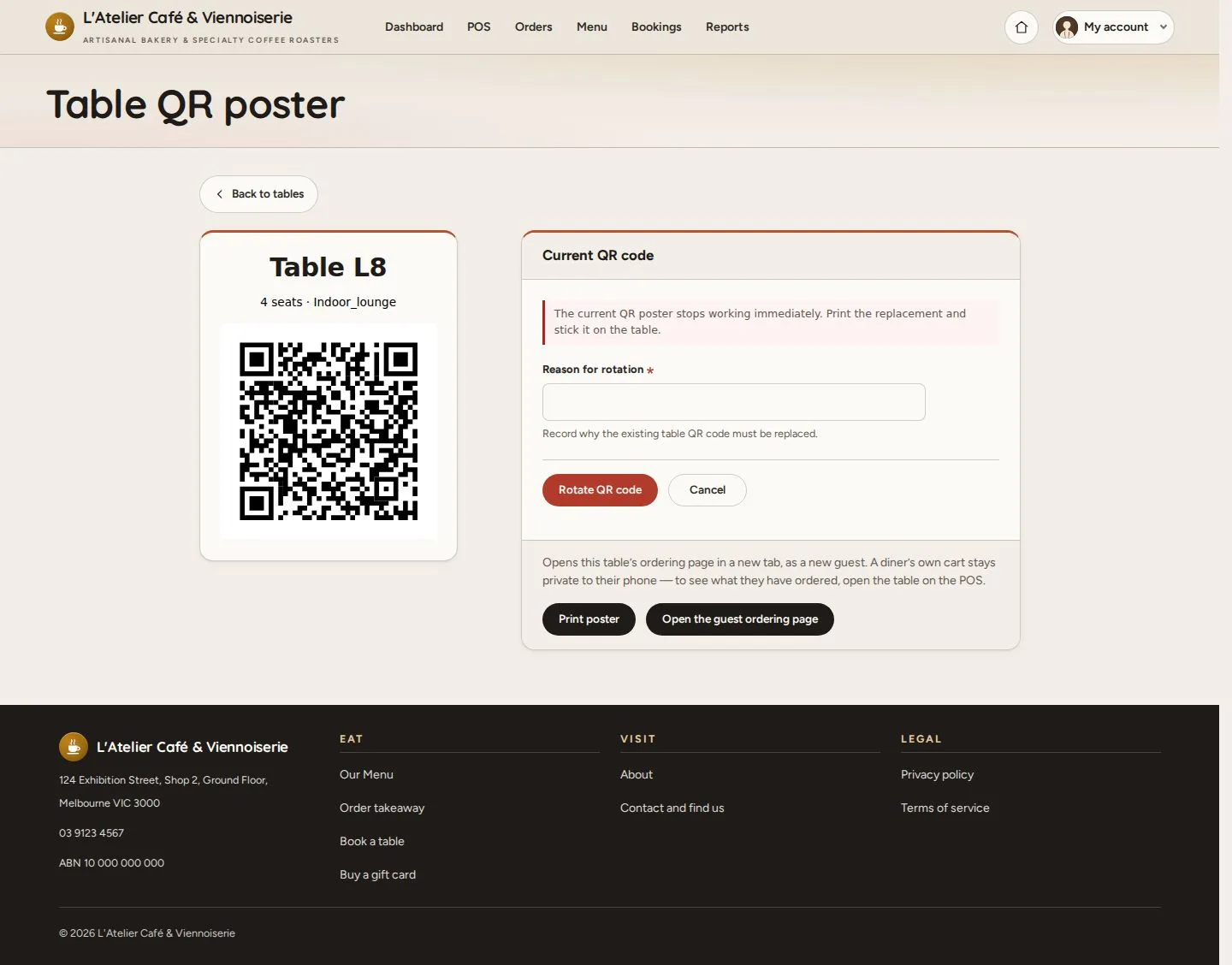
  1. Open the QR code of a table
  2. Print poster and put it on the table
  3. Open the guest ordering page to test it

Enlarge, then scroll

Open illustrated screen ↗Full image ↗

Manager · Tables and QR codes03

Rotate the QR code

Manager

Rotate the QR code

4Step 4 of 5

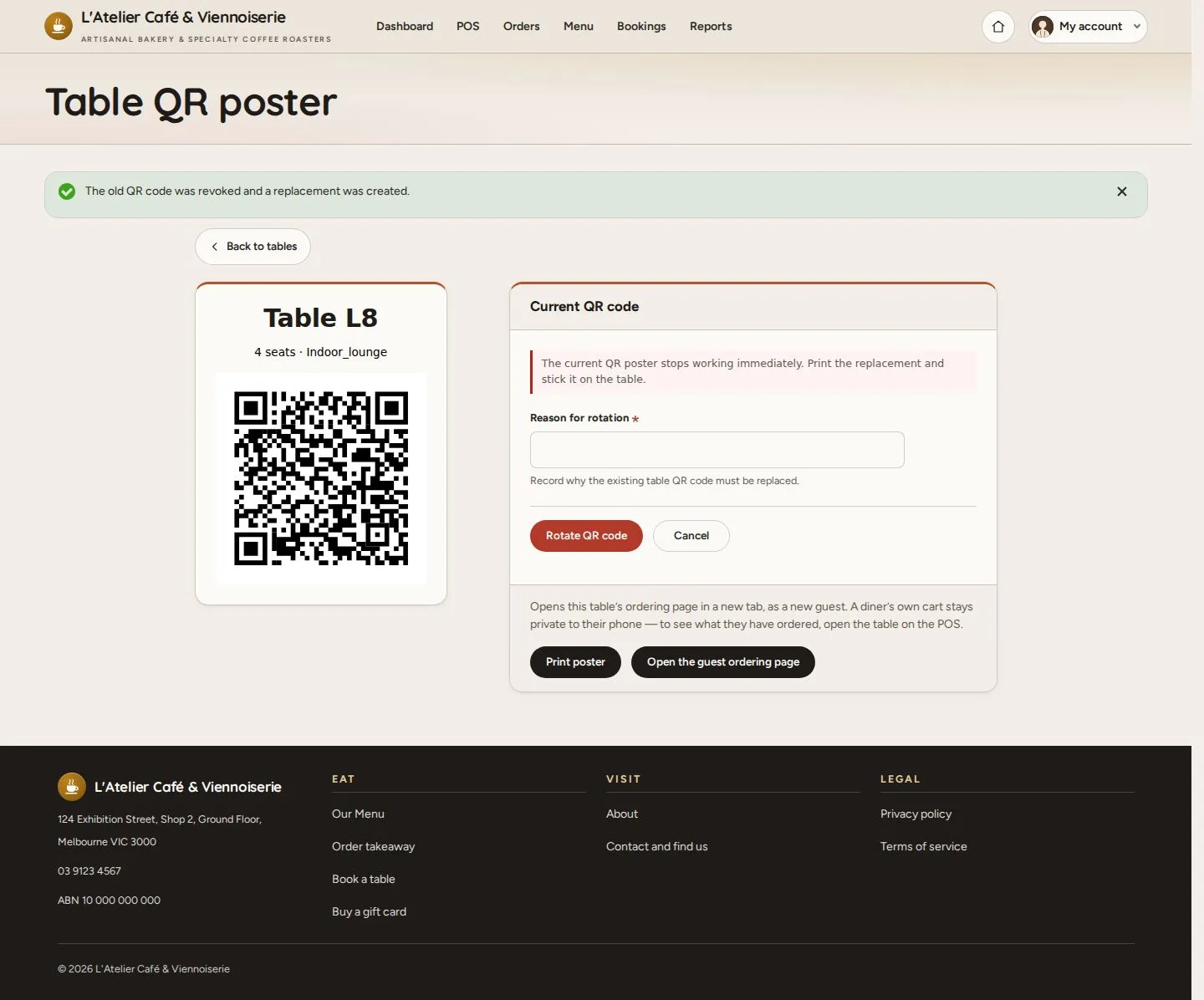
  1. Poster copied or shared? Enter a Reason for rotation
  2. Rotate QR code: the old code stops at once
  3. Print poster and replace it on the table

Replace the poster straight away: the old one no longer opens ordering.

Enlarge, then scroll

Open illustrated screen ↗Full image ↗

Manager · Tables and QR codes04

QR posters

Manager

QR posters

5Step 5 of 5

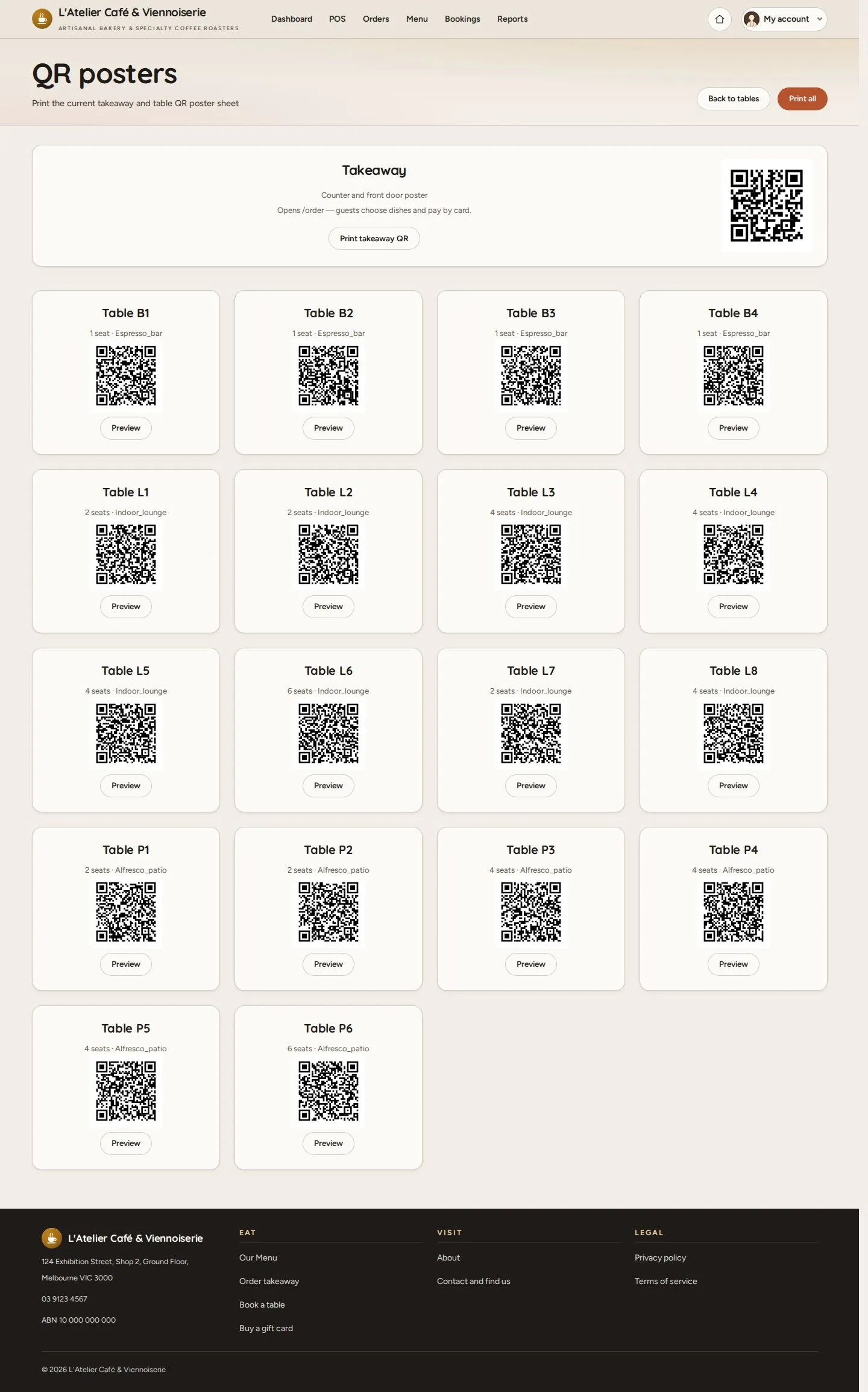
  1. My account › QR posters: the takeaway poster and one per table
  2. Print all, or Print takeaway QR

Enlarge, then scroll

Open illustrated screen ↗Full image ↗

Check

Every table has a working QR poster; a rotated code no longer opens ordering

Manager · Tables and QR codes05
1 / 6
Privacy Terms