






Staff accounts

Staff accounts · Add staff member · Block · Reinstate

  • Signed in as a Manager
Manager

Staff accounts

Manager

Staff accounts

1Step 1 of 5

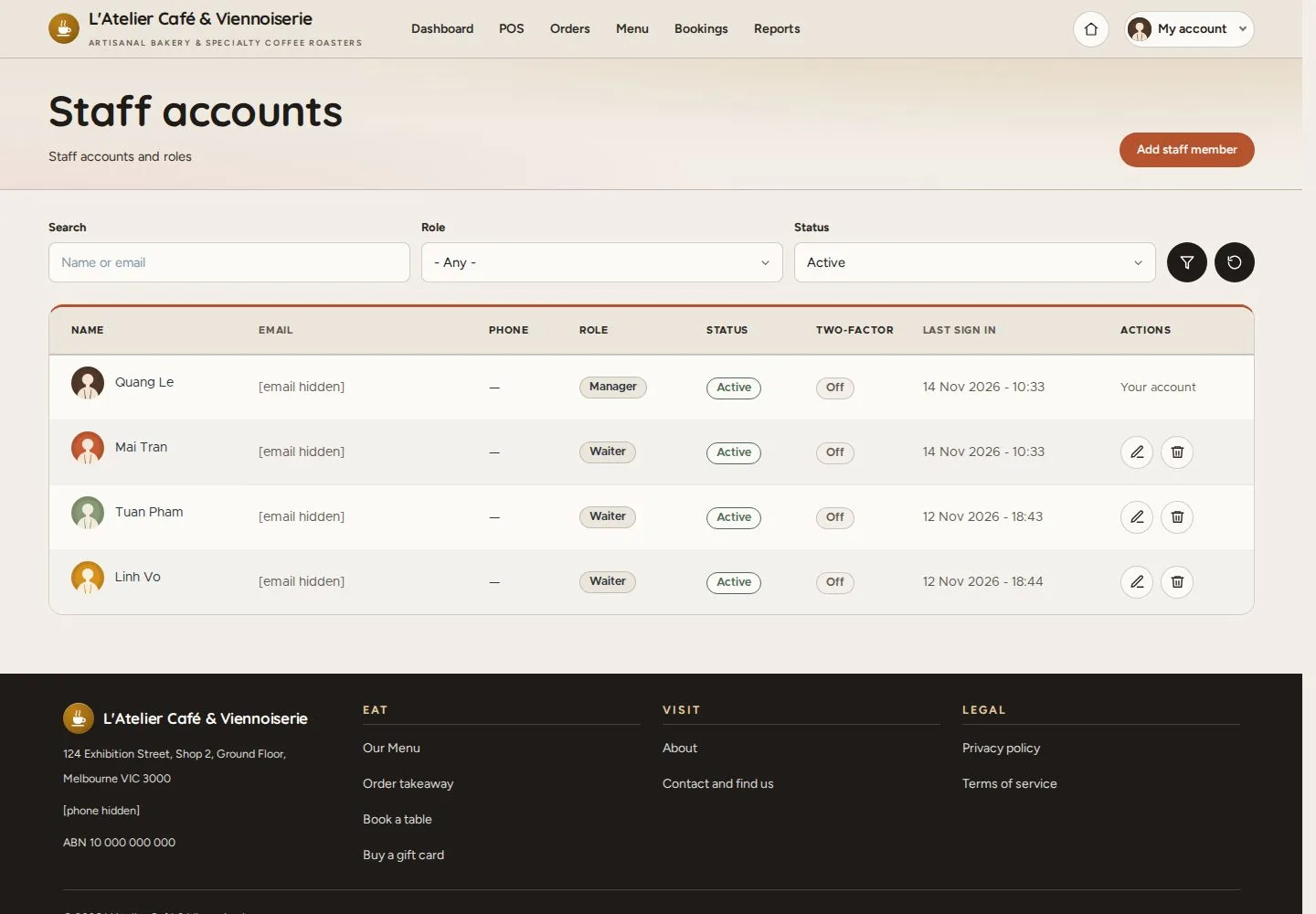
  1. My account › Staff accounts: role, status, two-factor and last sign in
  2. Search a name or email; filter by role or status
  3. Add staff member

Enlarge, then scroll

Open illustrated screen ↗Full image ↗

Manager · Staff accounts01

Add staff account

Manager

Add staff account

2Step 2 of 5

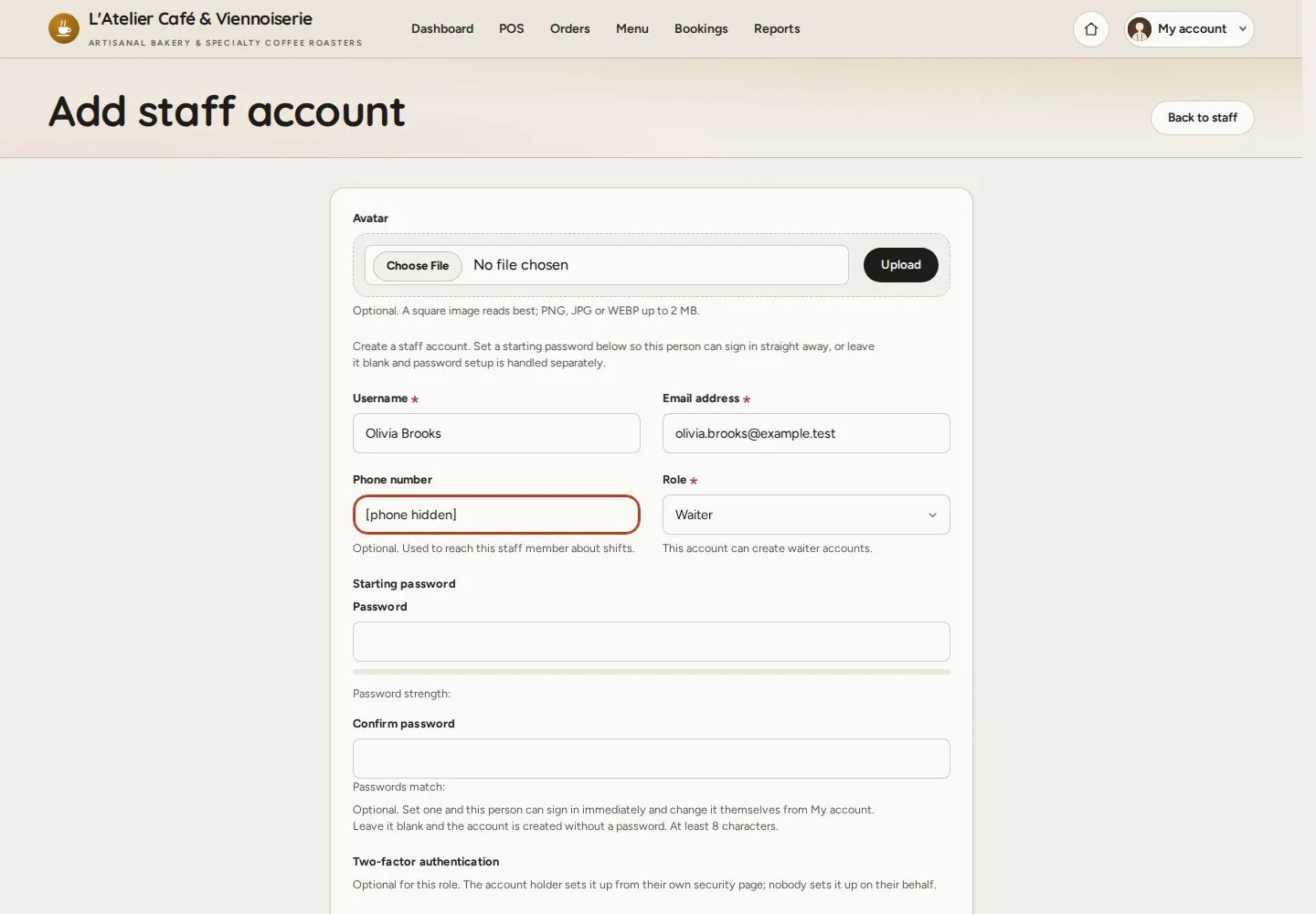
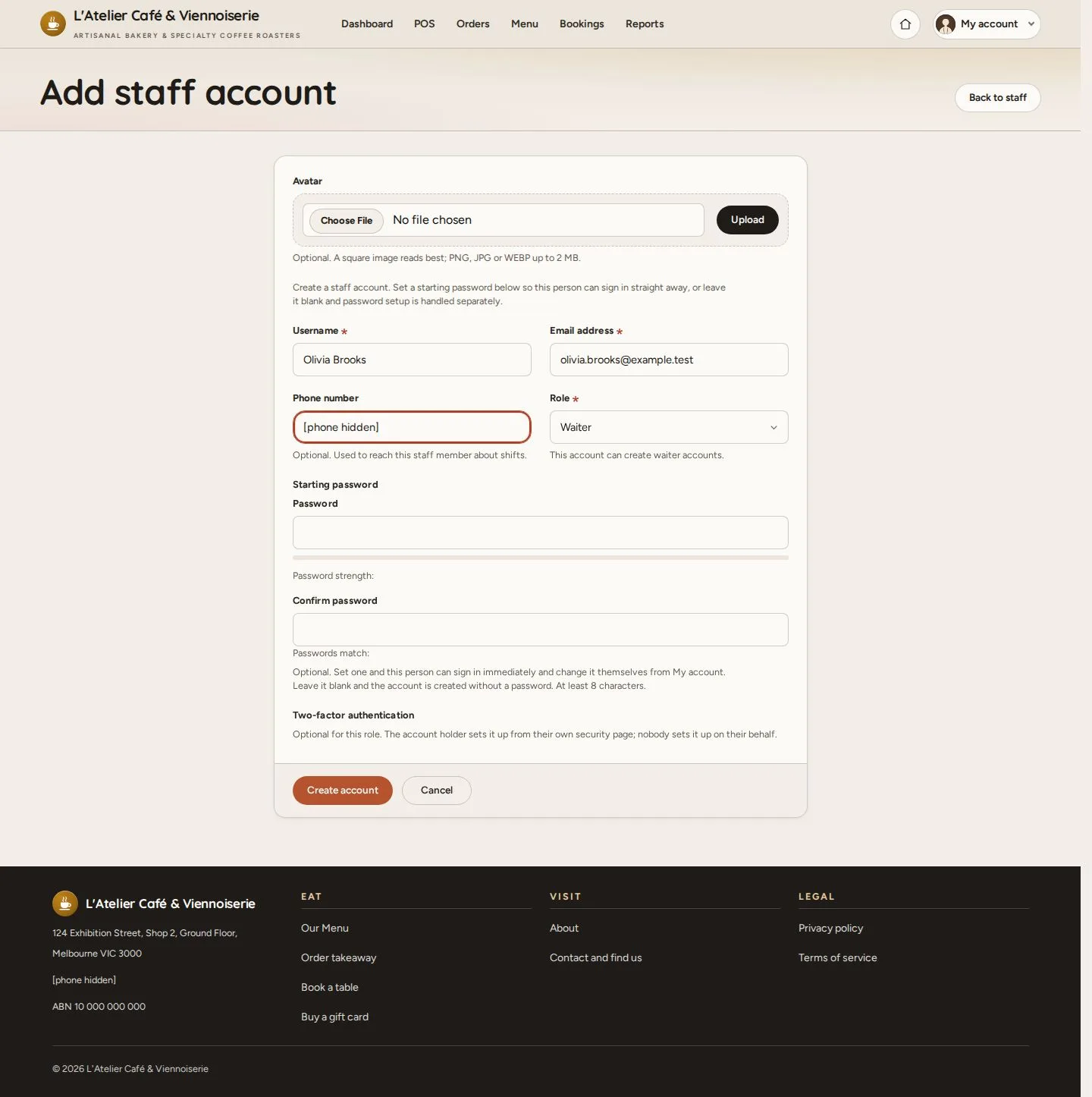
  1. Username, email and phone; an avatar if you like
  2. Role: Waiter
  3. A starting password, or none: they then set one from an email

Two-factor is set up by the person, from their own account.

Enlarge, then scroll

Open illustrated screen ↗Full image ↗

Manager · Staff accounts02

Edit staff account

Manager

Edit staff account

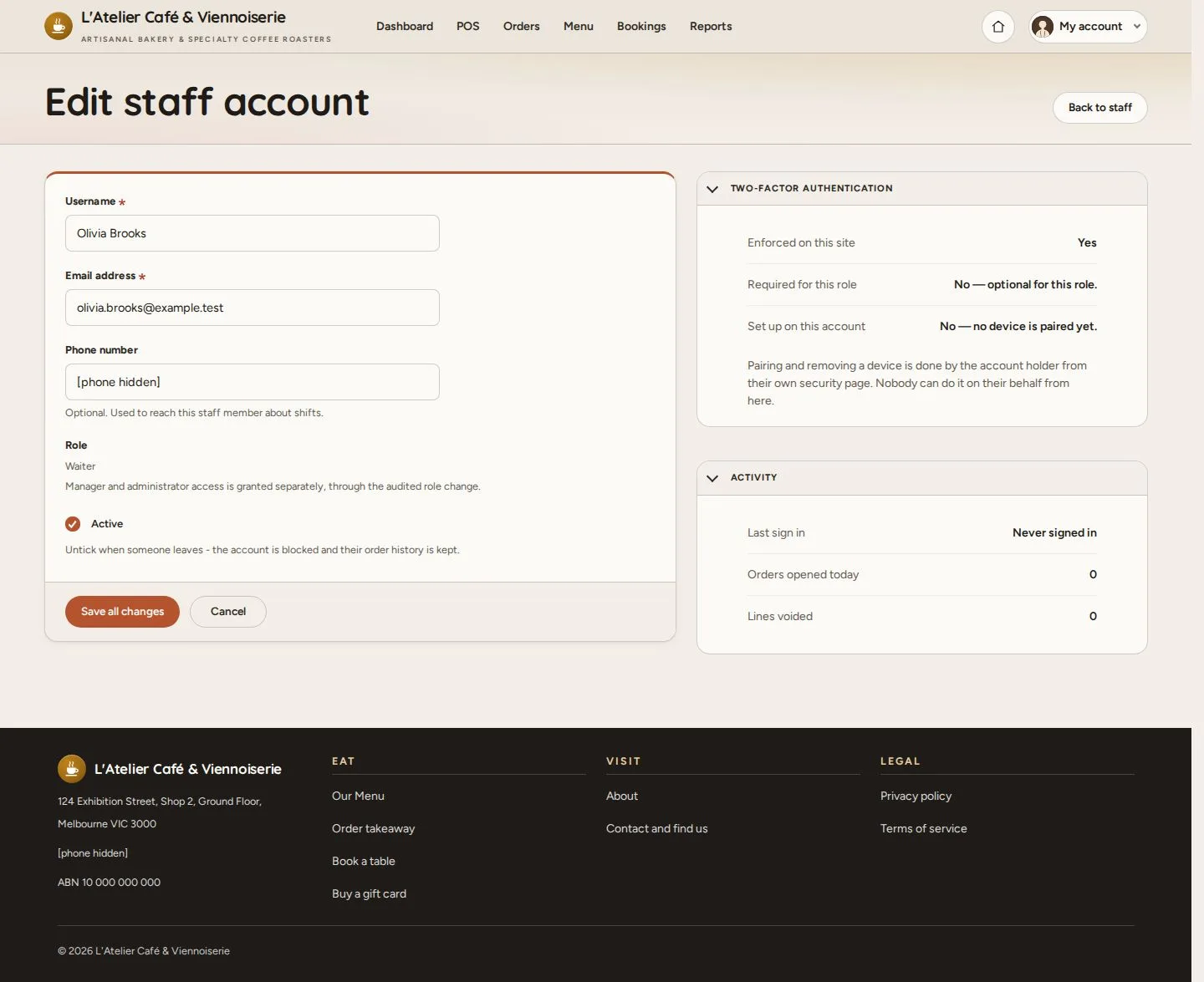
3Step 3 of 5

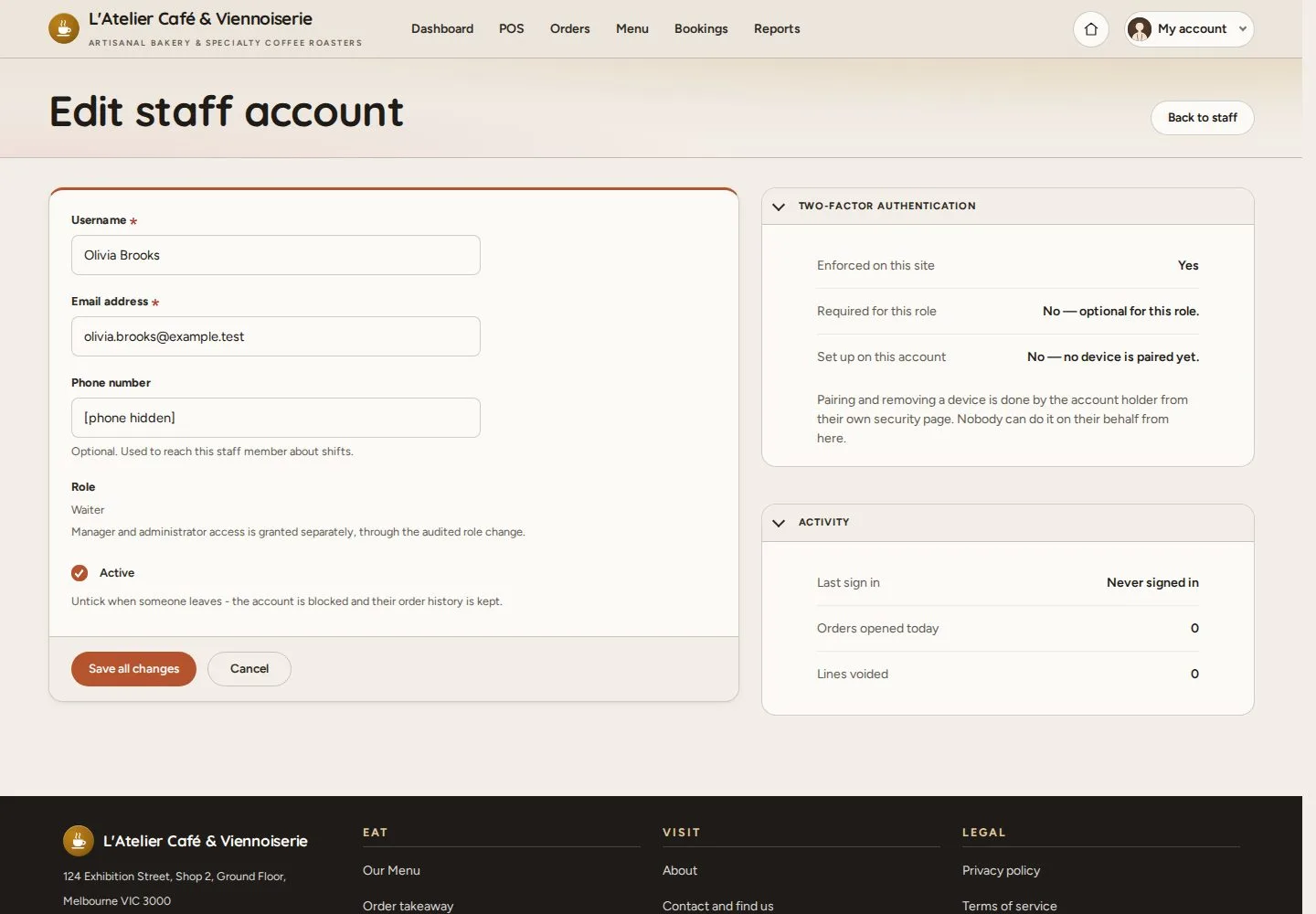
  1. Edit (pencil): email, phone and Active
  2. Two-factor and activity at a glance
  3. Save all changes

Enlarge, then scroll

Open illustrated screen ↗Full image ↗

Manager · Staff accounts03

Block

Manager

Block

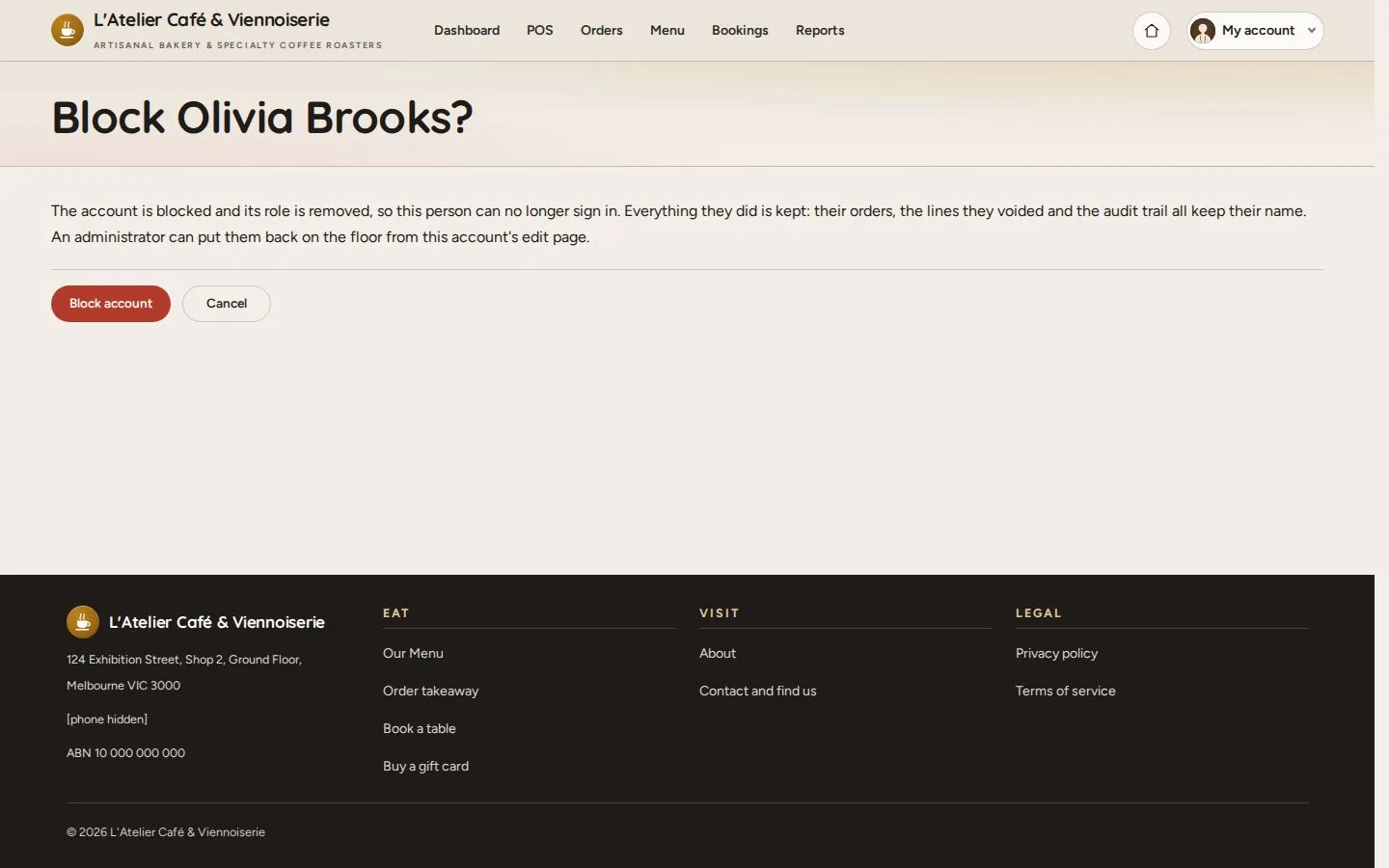
4Step 4 of 5

  1. Block on their row when someone leaves, then Block account
  2. They can no longer sign in; their orders and history keep their name

Open illustrated screen ↗Full image ↗

Manager · Staff accounts04

Reinstate

Manager

Reinstate

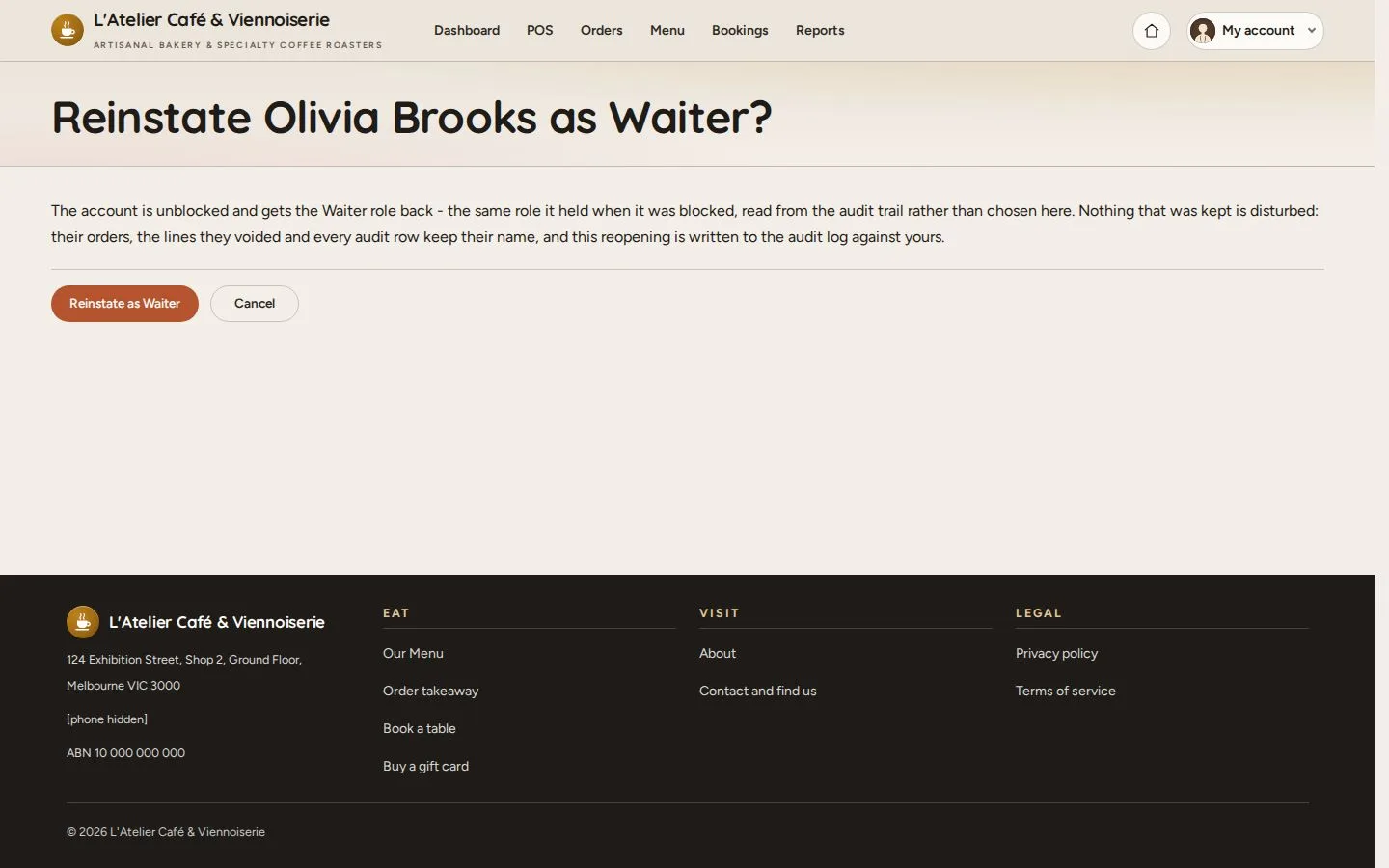
5Step 5 of 5

  1. Status: Blocked lists them; Reinstate on their row
  2. Reinstate as Waiter: the role held before comes back

Open illustrated screen ↗Full image ↗

Check

The person works with the role they had; their history keeps their name

Manager · Staff accounts05
1 / 6
Privacy Terms