
Book a table
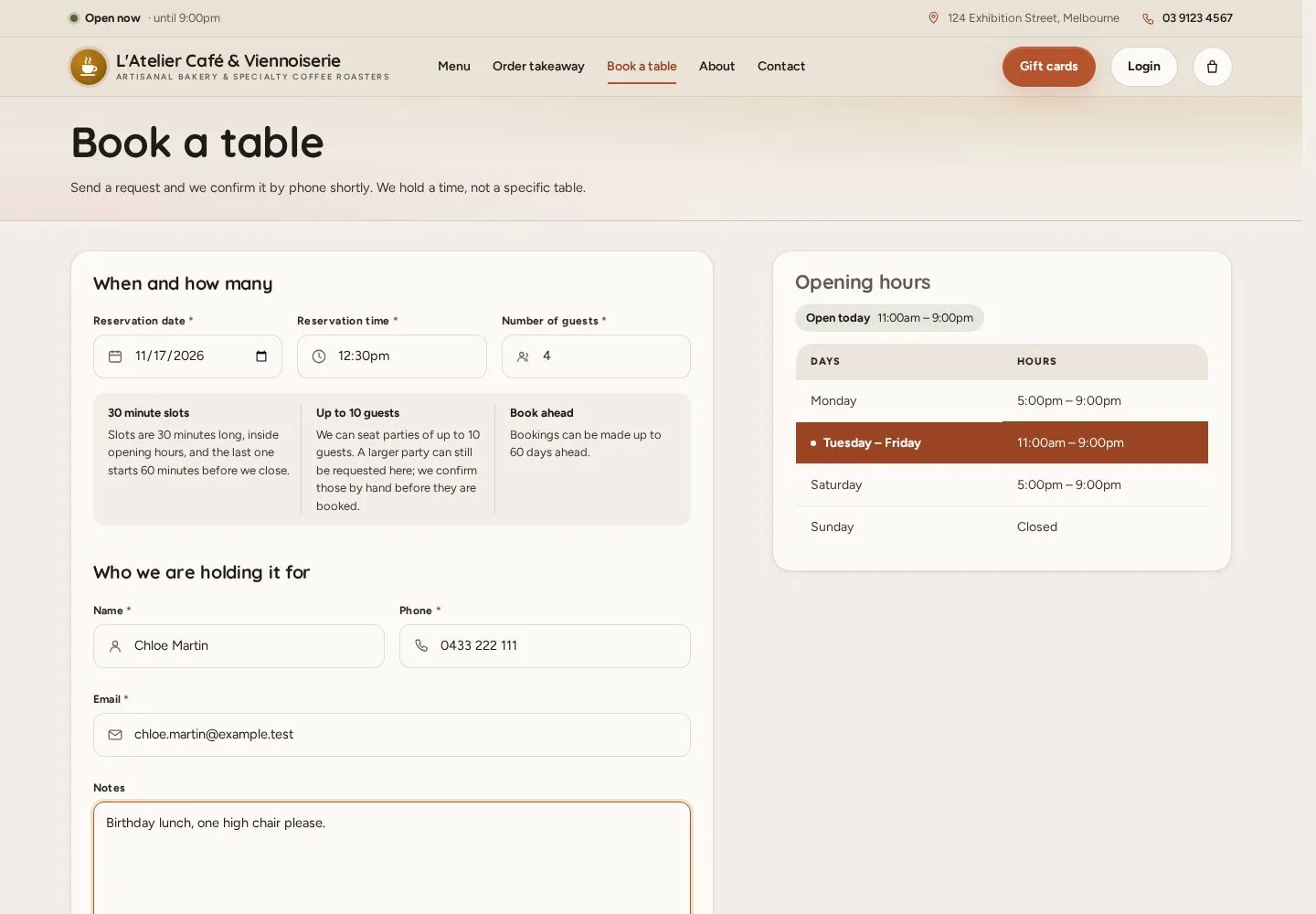
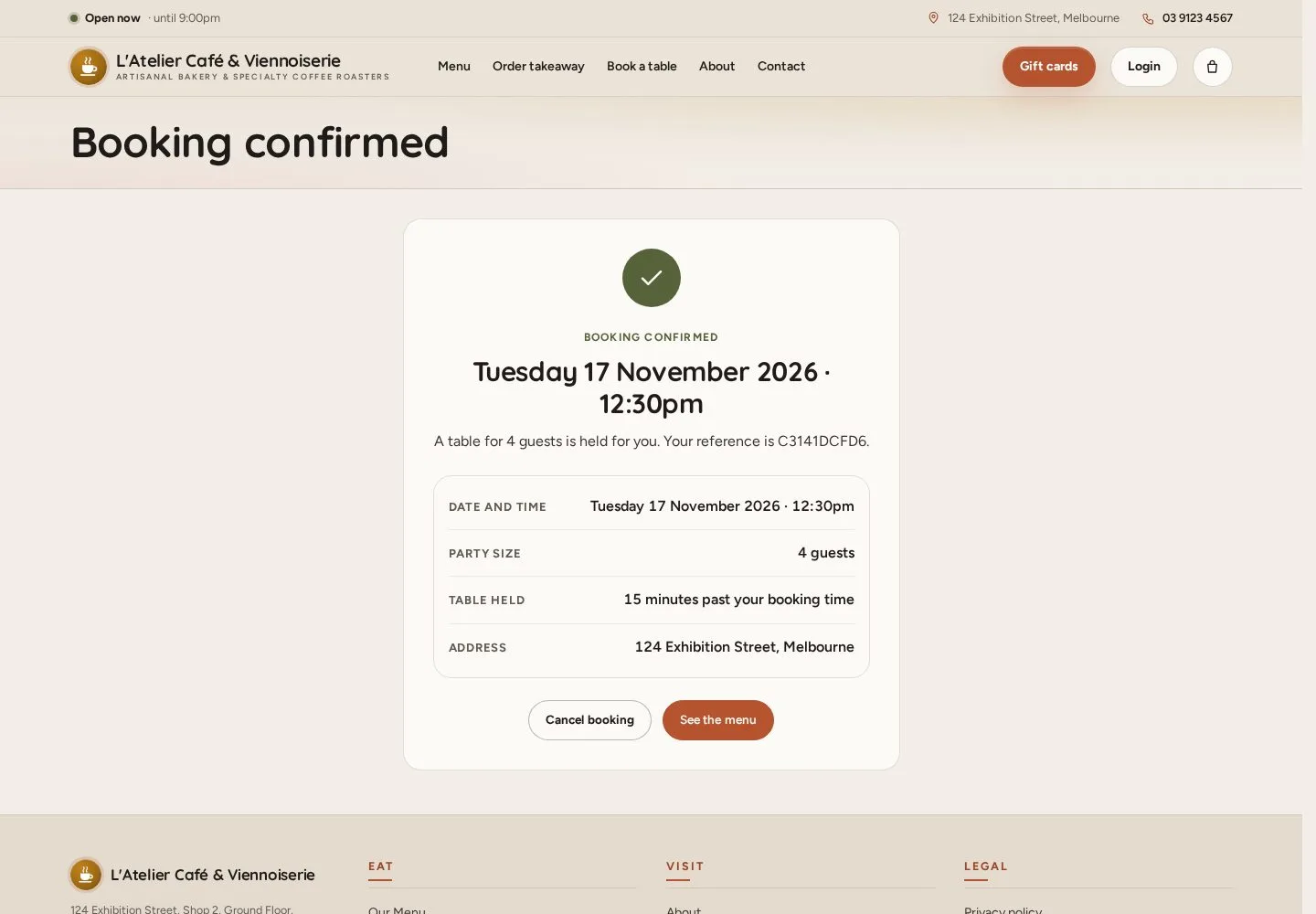
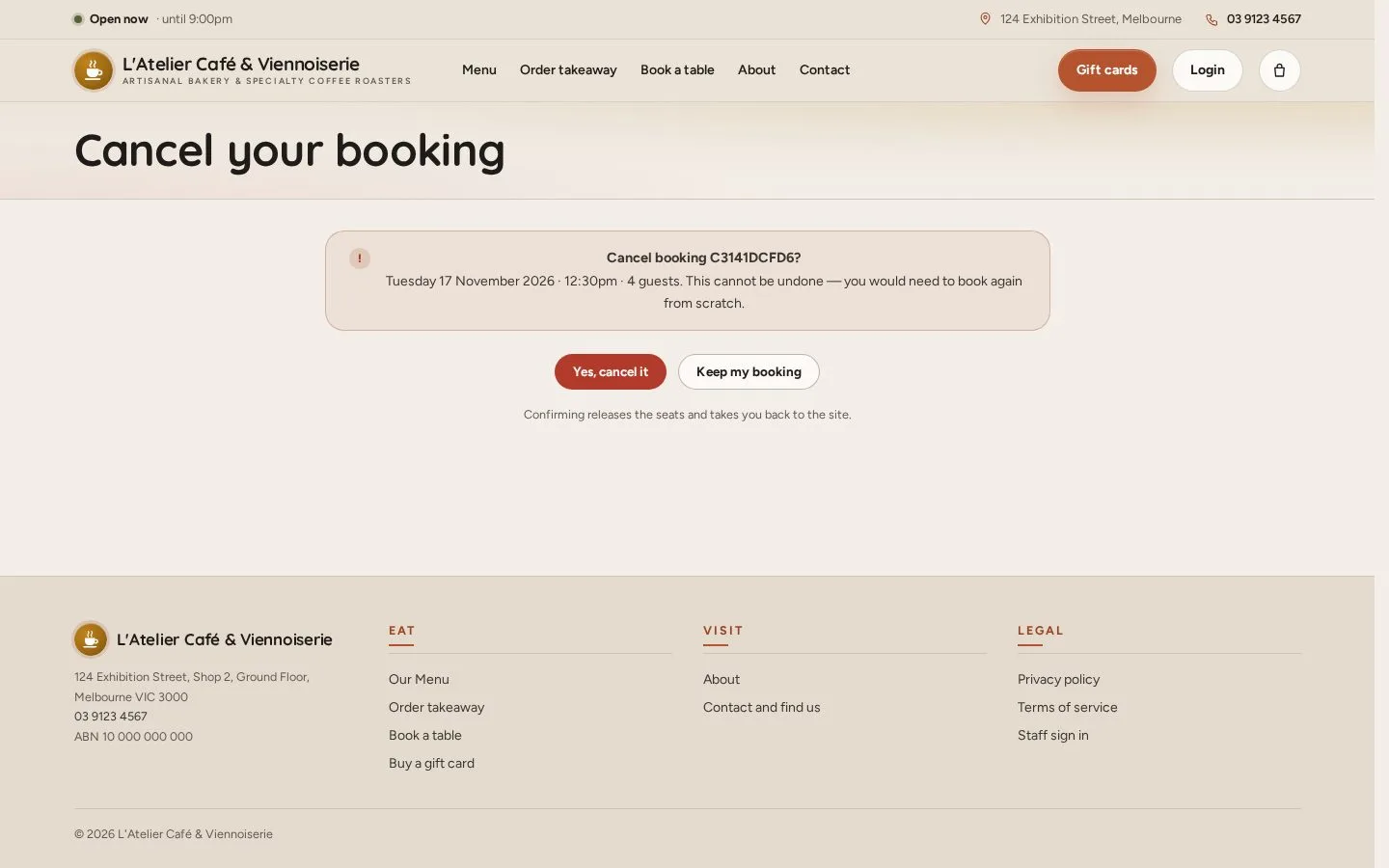
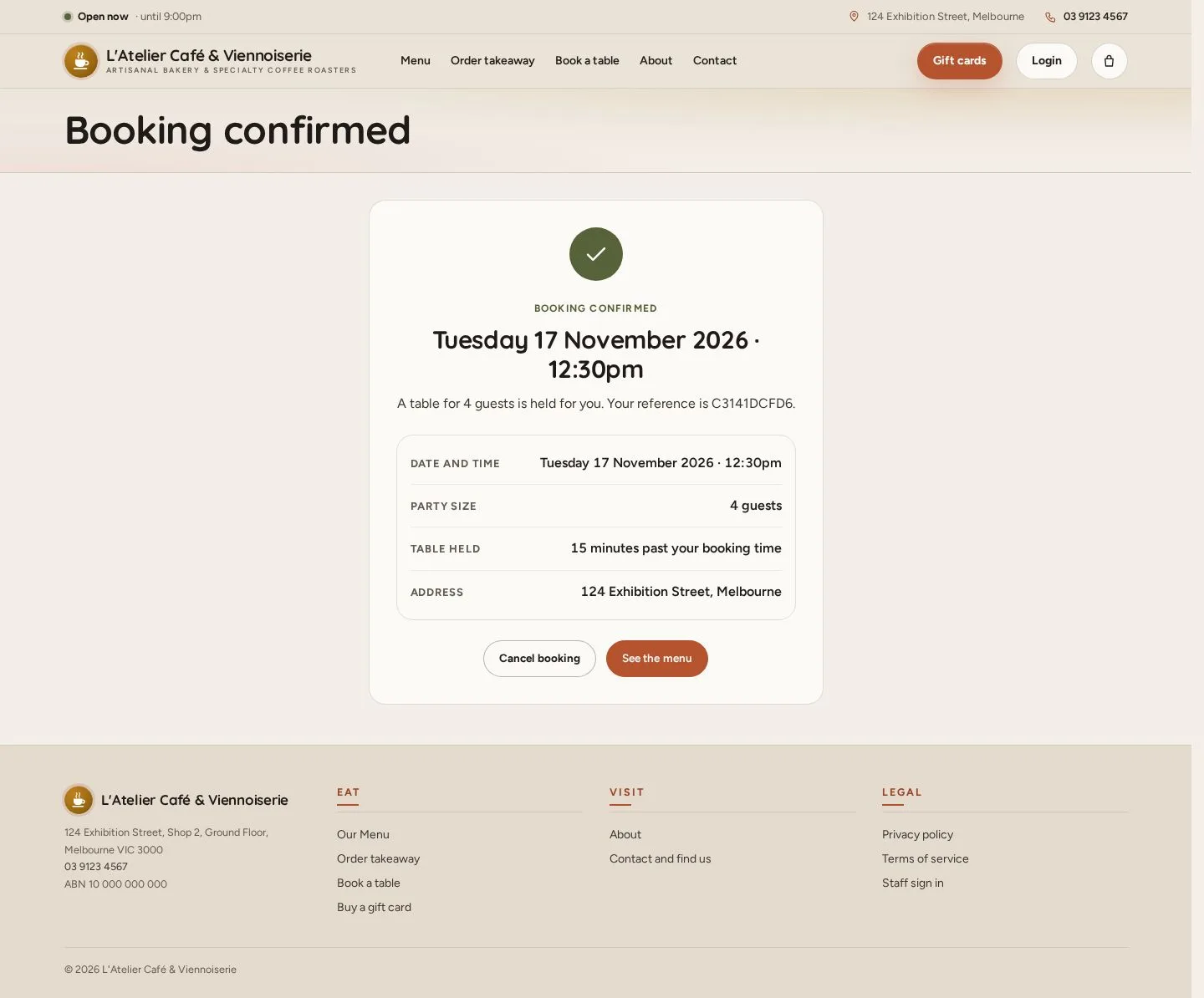
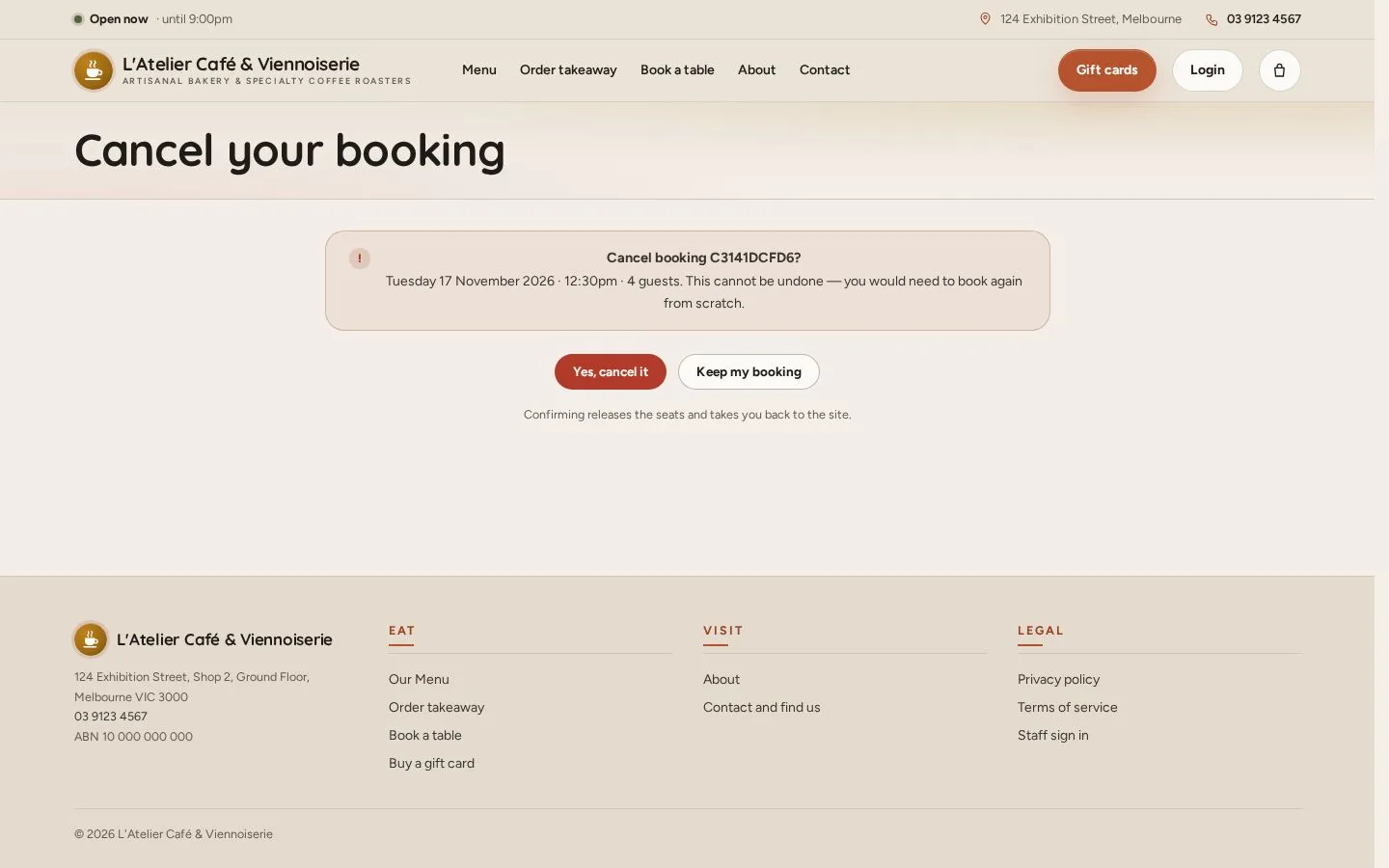
Book a table · Date and time · Booking confirmed · Cancel booking
- No account needed
- Your name, phone and email
Public
1 / 4

 MenuNerds Café
User guide
Choose a product, then a role, and follow each task step by step on the real screens.
 EverLMS Enterprise
Run company training from onboarding to a confident team
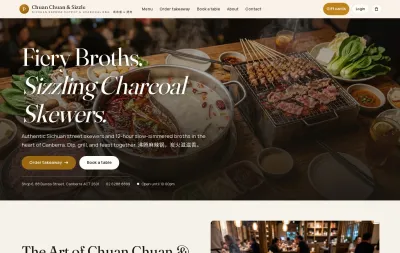 MenuNerds Restaurant
Run table and takeaway orders alongside table bookings
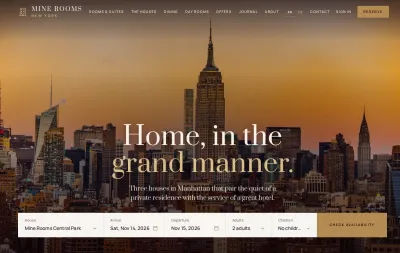 Mine Rooms
Run a hotel on direct bookings from your own website
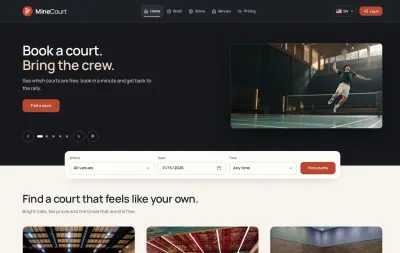 MineCourt
Court management platform from one venue to many to SaaS
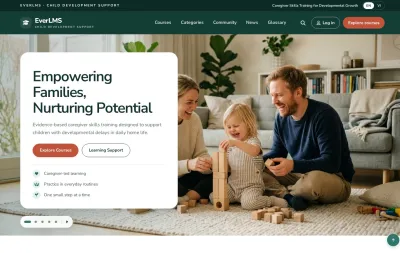 EverLMS Academy
Run public training programmes from courses to certificates
MenuNerds Café
Run a busy café with QR orders for tables and takeaway
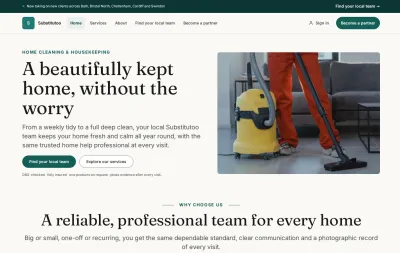 Substitutoo
Run home cleaning teams from one company to a franchise
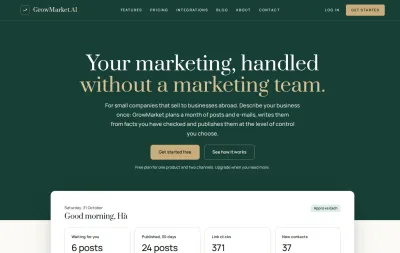 GrowMarket.AI
AI marketing that helps a small business handle many channels
Book a table · Date and time · Booking confirmed · Cancel booking