







Close the day

Close the day · Counted cash · Variance · Confirm

  • Signed in as a Manager
  • No open orders on that business day
Manager
Close the day

Manager

Close the day

1Step 1 of 4

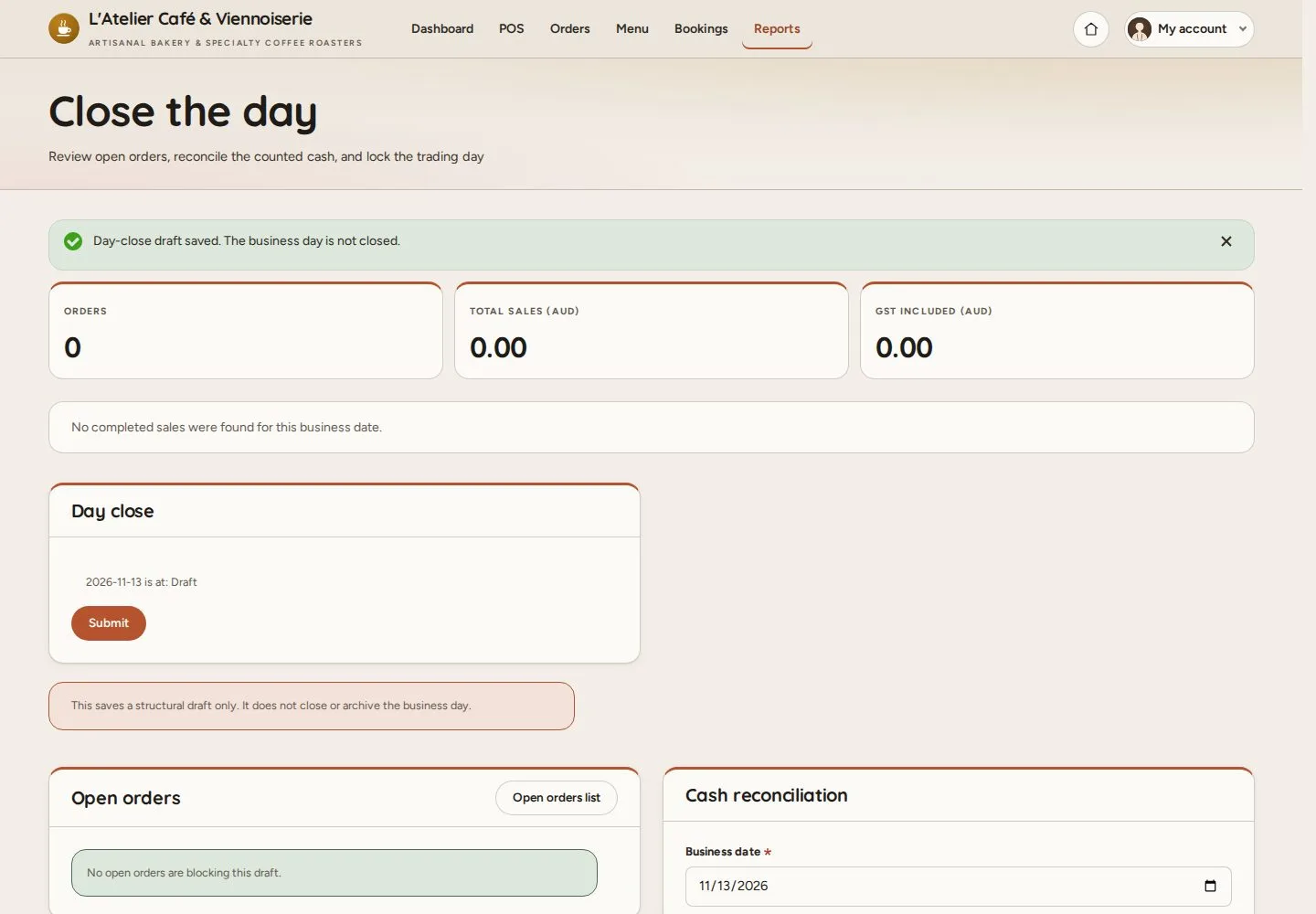
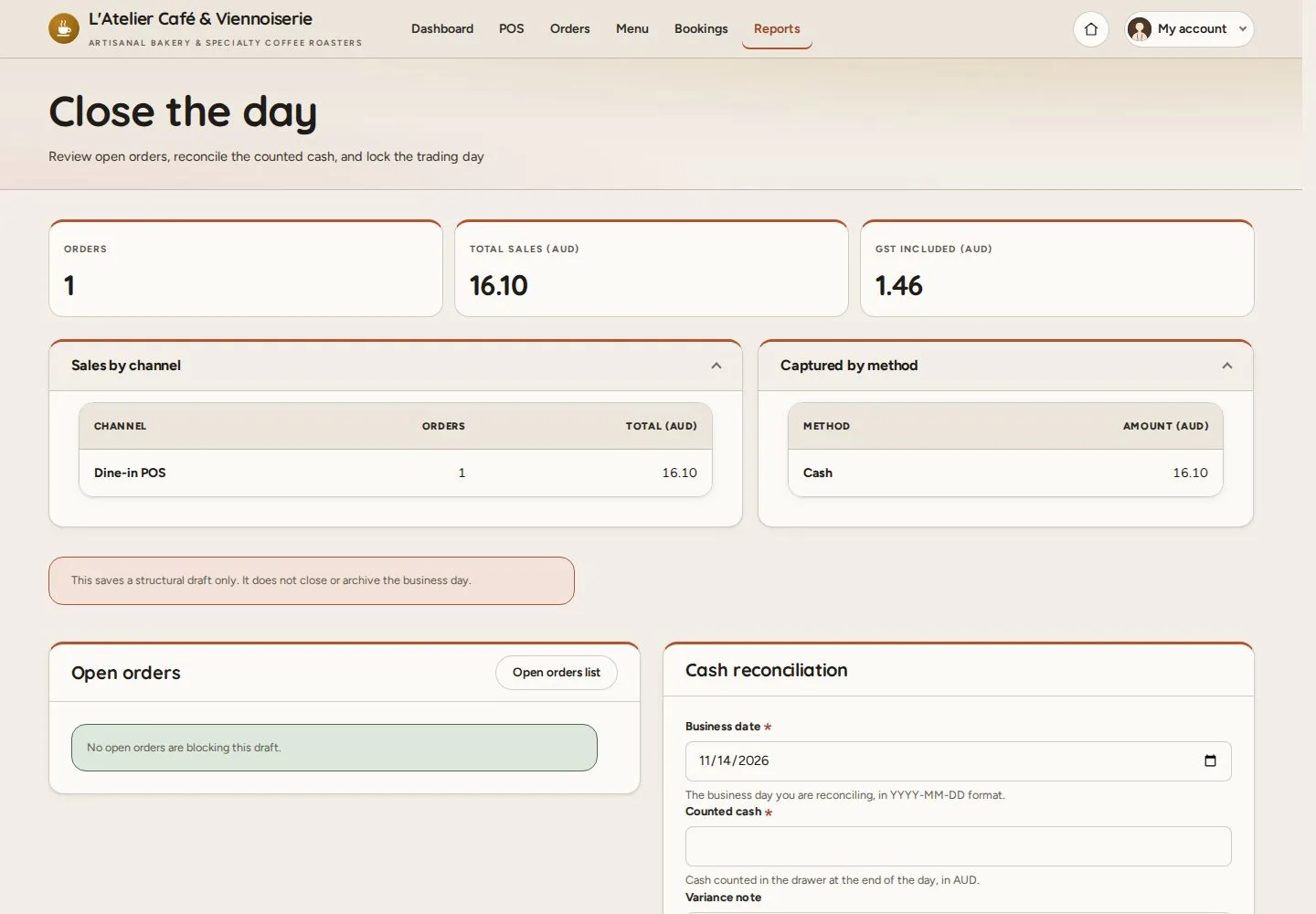
  1. My account › Close the day: the day's totals by channel and method
  2. Open orders must be empty: close or void them first
  3. Choose the business date

Enlarge, then scroll

Open illustrated screen ↗Full image ↗

Manager · Close the day01

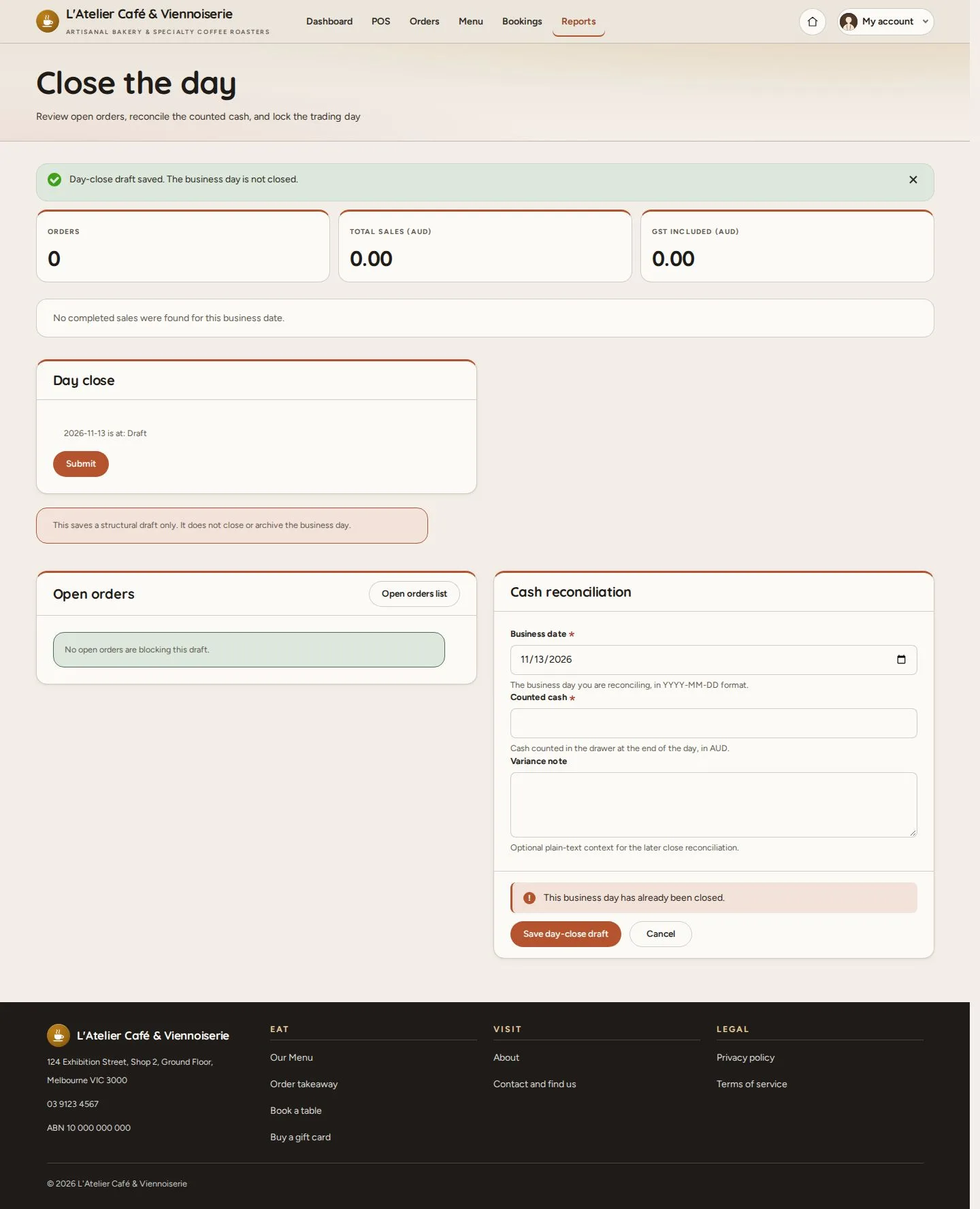
Draft saved

Manager

Draft saved

2Step 2 of 4

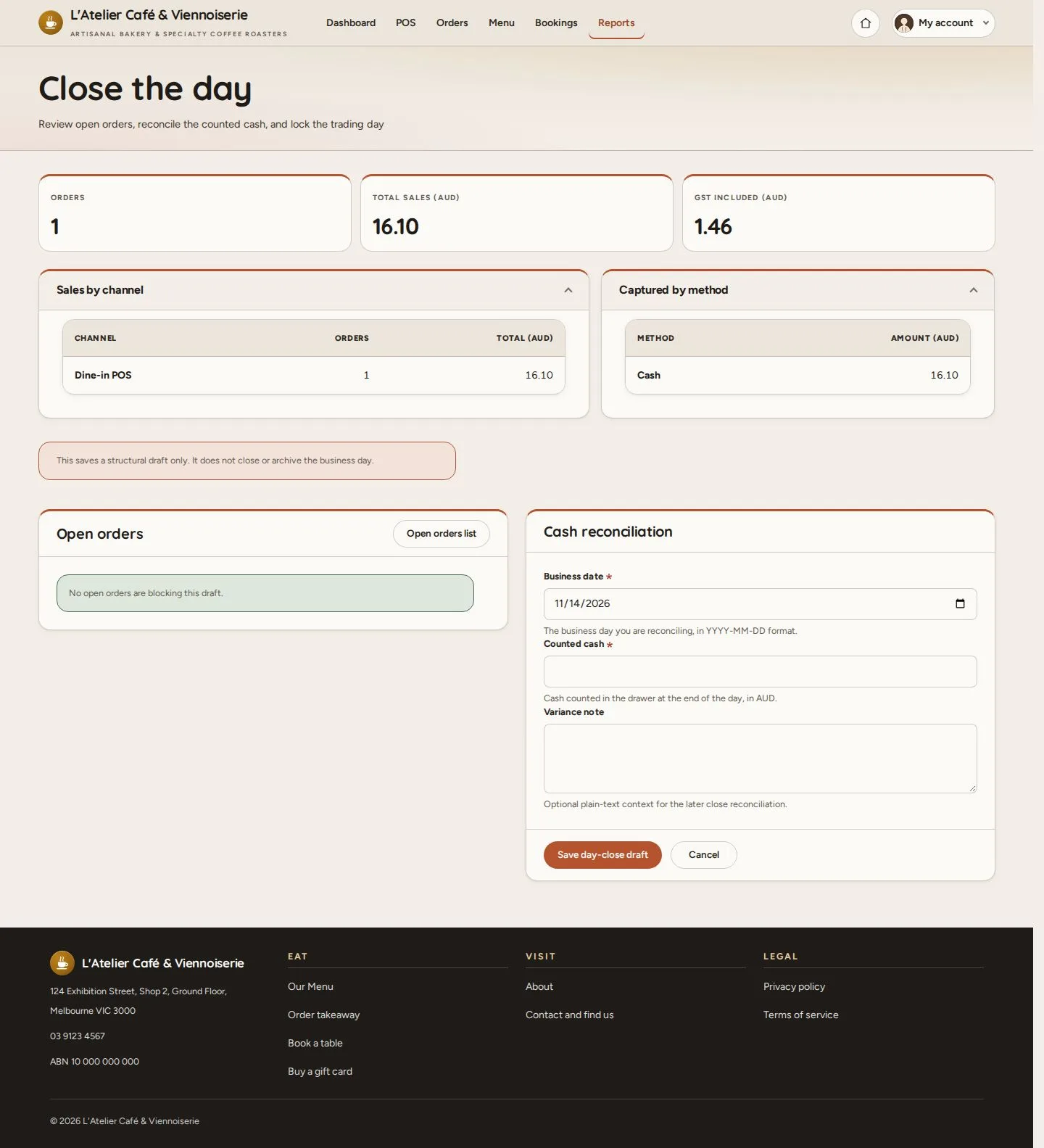
  1. Enter the counted cash and a variance note
  2. Save day-close draft: the day is not closed yet

Enlarge, then scroll

Open illustrated screen ↗Full image ↗

Manager · Close the day02

Close the day

Manager

Close the day

3Step 3 of 4

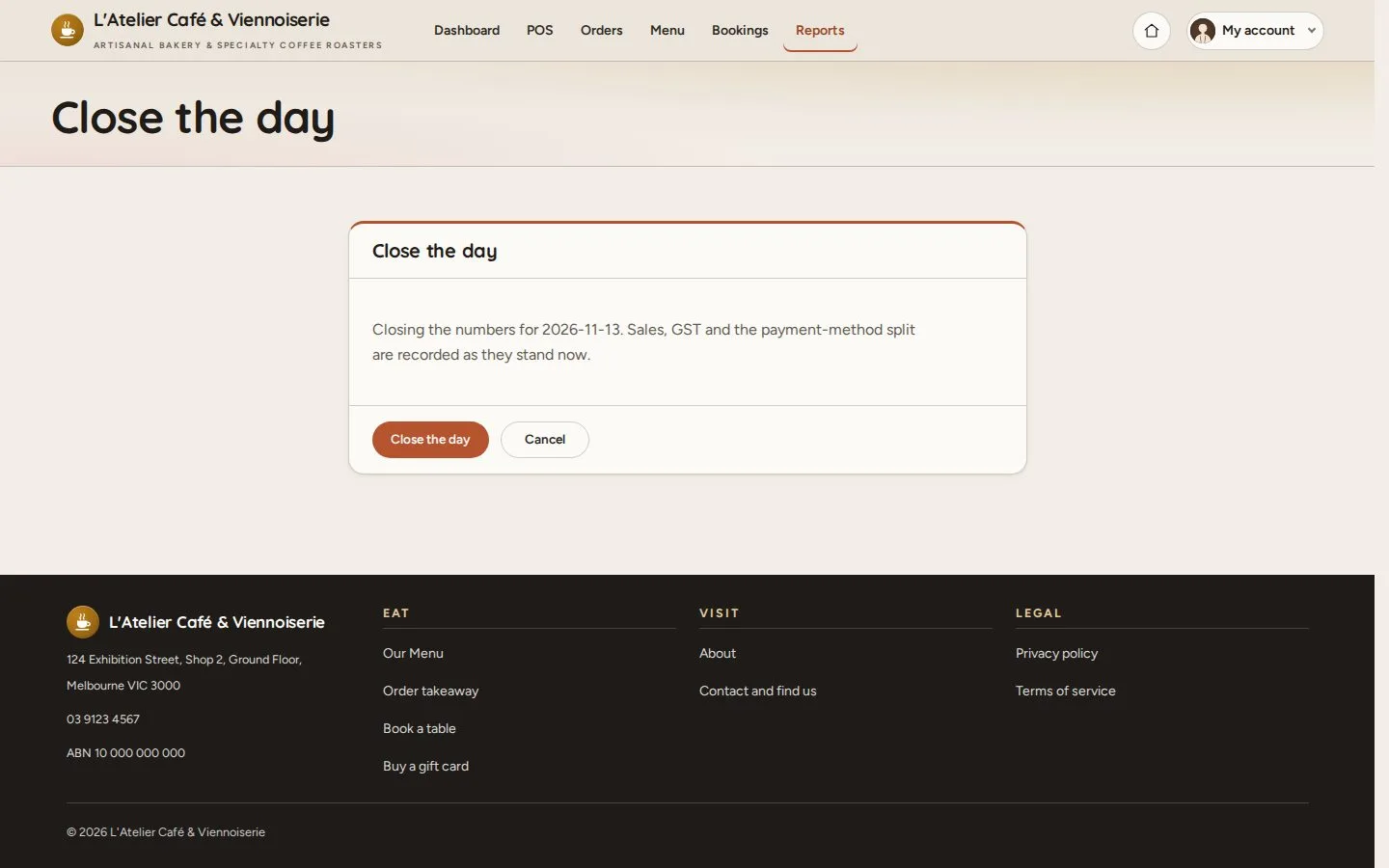
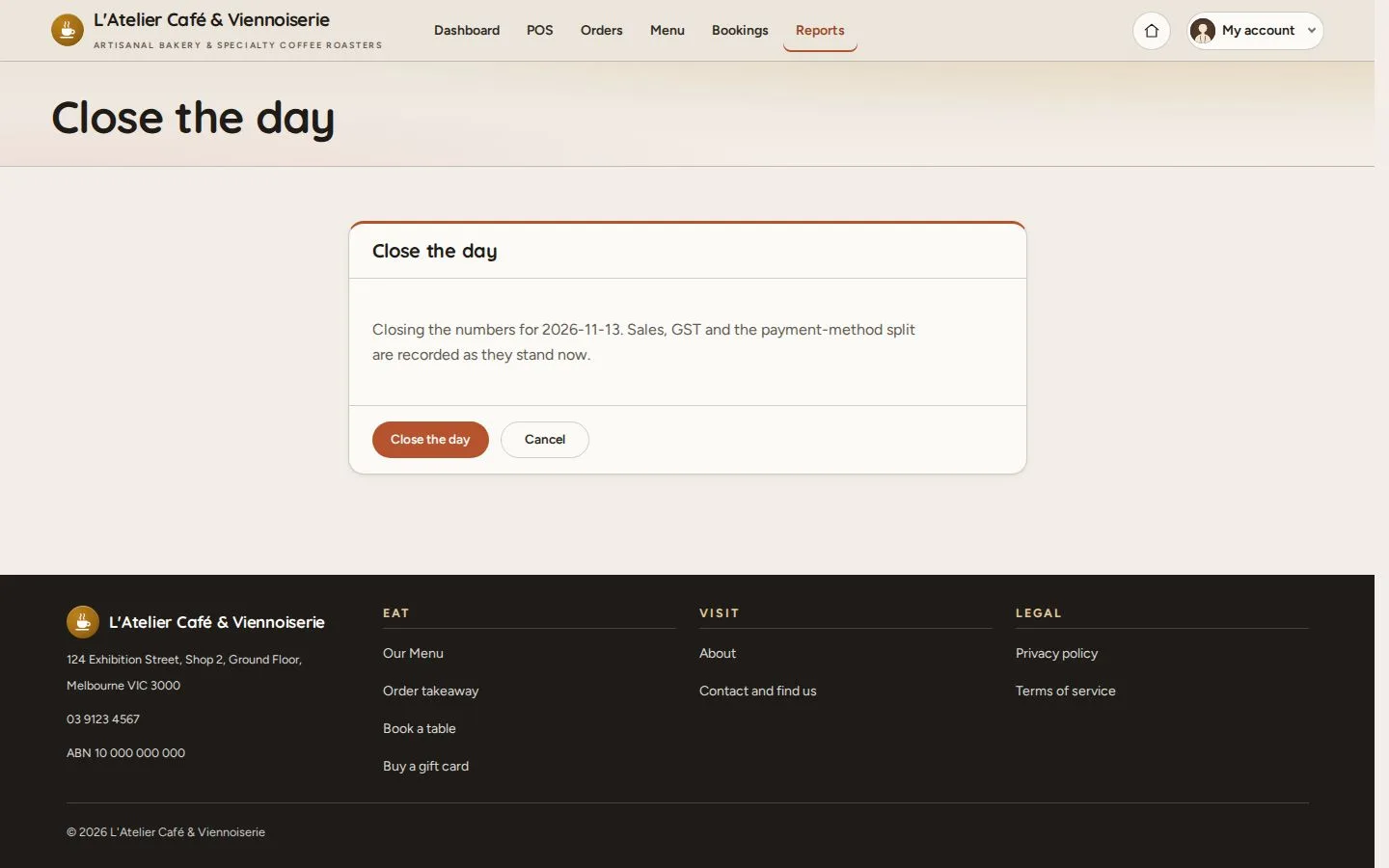
  1. Submit on Day close
  2. Close the day: sales, GST and payments are recorded as they stand

Open illustrated screen ↗Full image ↗

Manager · Close the day03

Confirm the counted cash

Manager
Confirm the counted cash

4Step 4 of 4

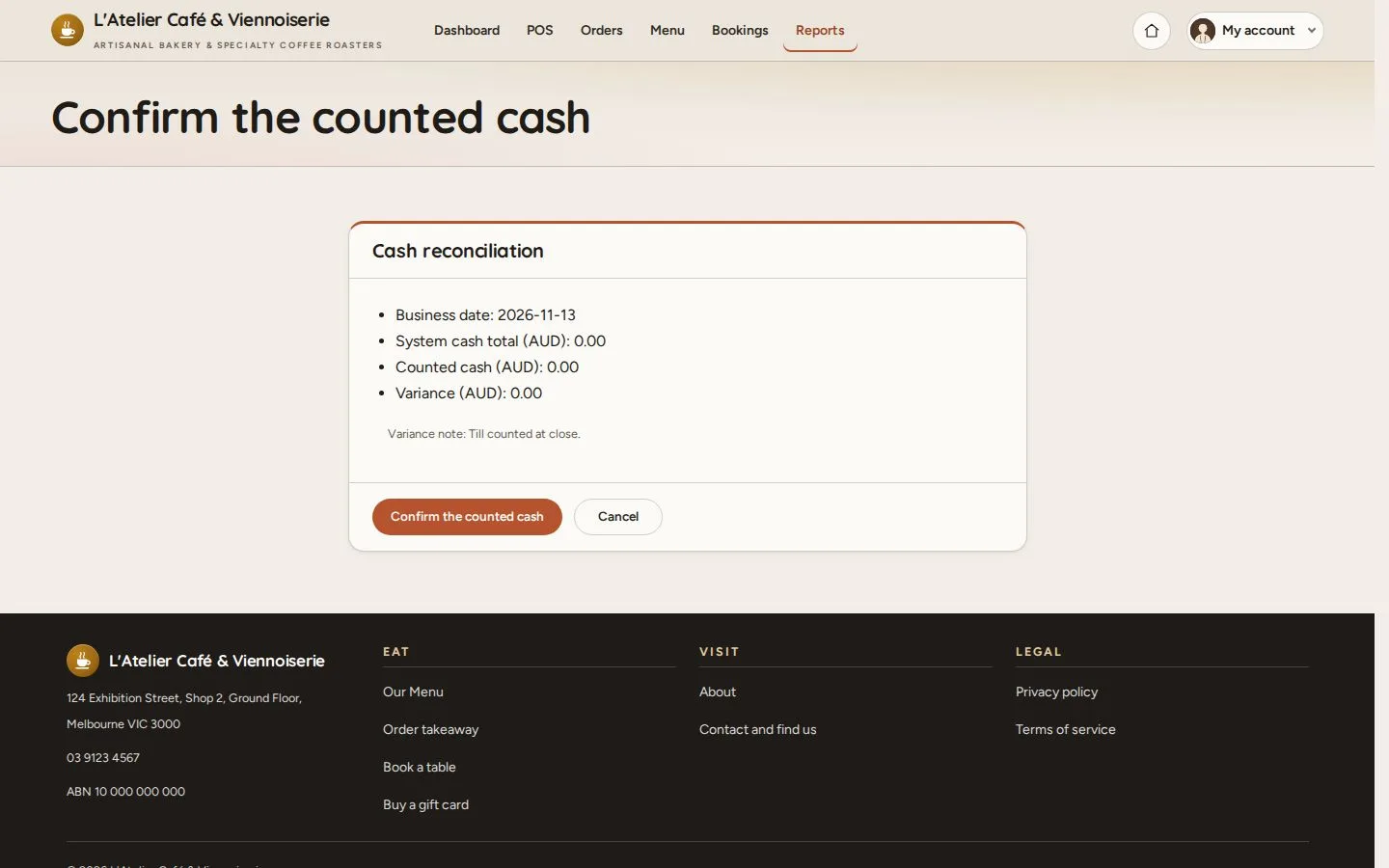
  1. Approve on Day close
  2. Check the system cash, the counted cash and the variance
  3. Confirm the counted cash

Open illustrated screen ↗Full image ↗

Check

Counted cash confirmed; the day locks once the next business date begins

Manager · Close the day04
1 / 5
Privacy Terms