Notifications

In the site and by mail, as each person chooses

  • Signed in
Manager

The bell

Learner

The bell

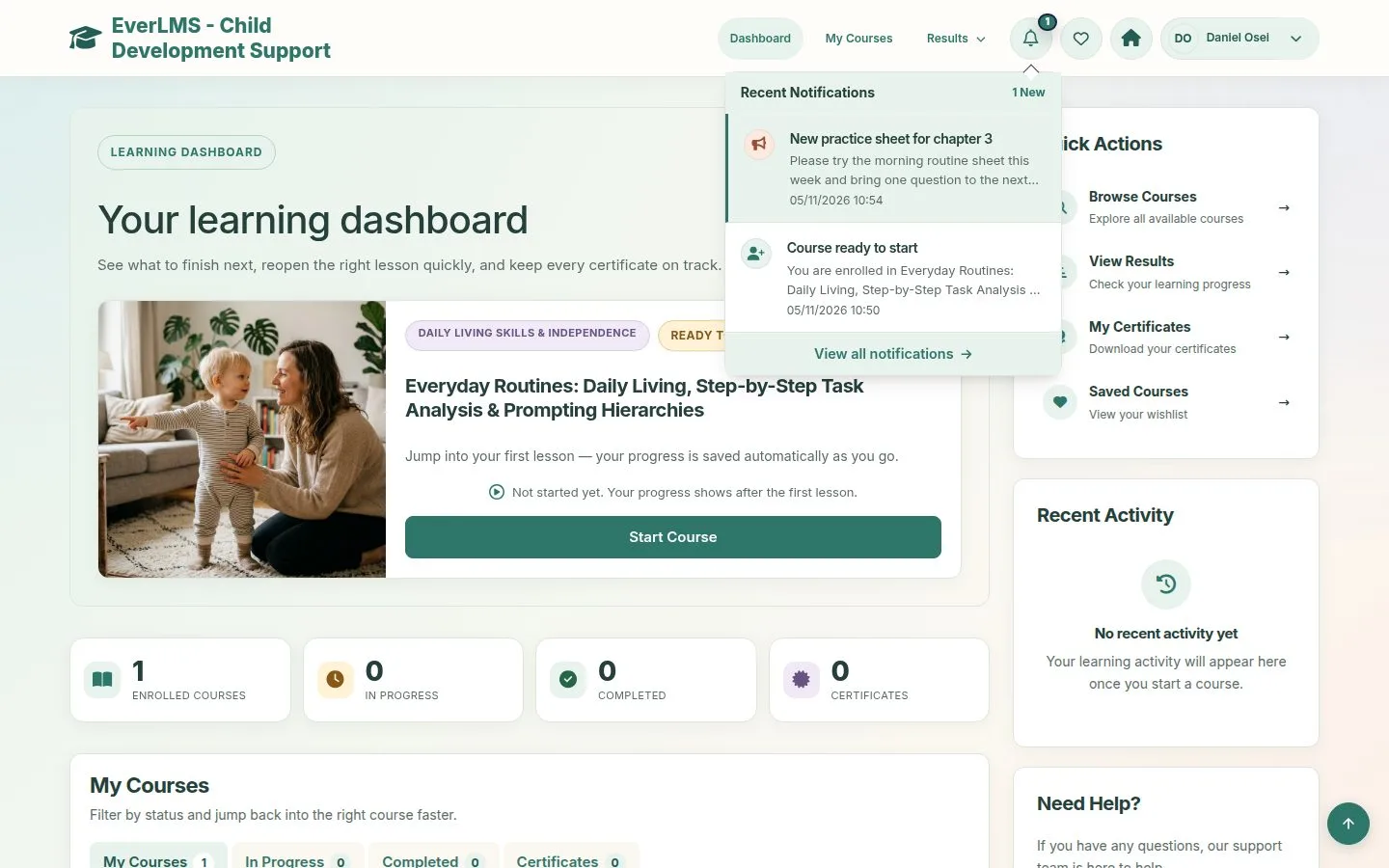
1Step 1 of 7

  1. The number counts what you have not read.
  2. Hover to see the latest.

Open illustrated screen ↗Full image ↗

Manager · Notifications01

Notifications

Learner

Notifications

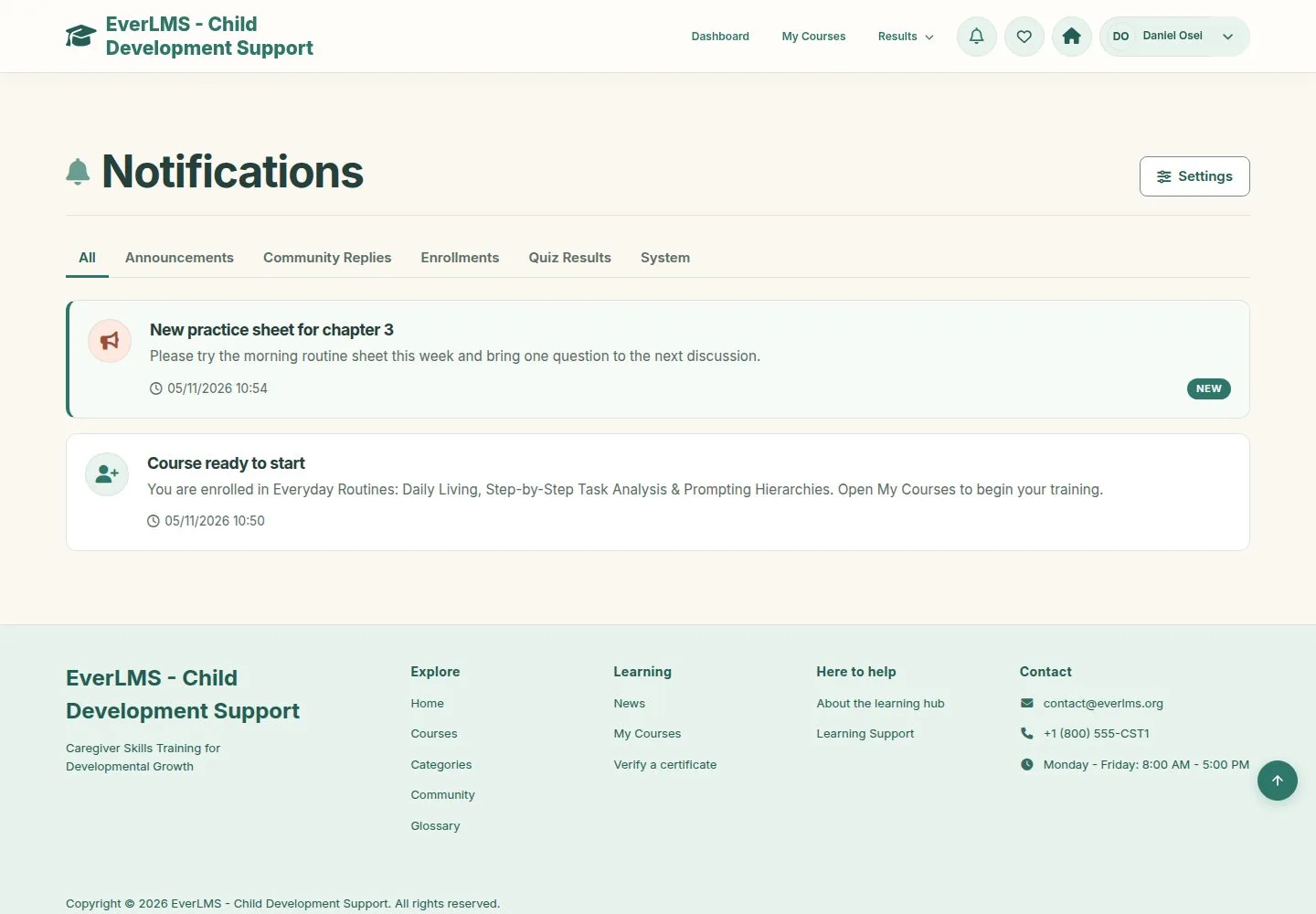
2Step 2 of 7

  1. All, Announcements, Community Replies, Enrollments, Quiz Results, System.
  2. New marks what you have not read.

Enlarge, then scroll

Open illustrated screen ↗Full image ↗

Manager · Notifications02

Your choices

Learner

Your choices

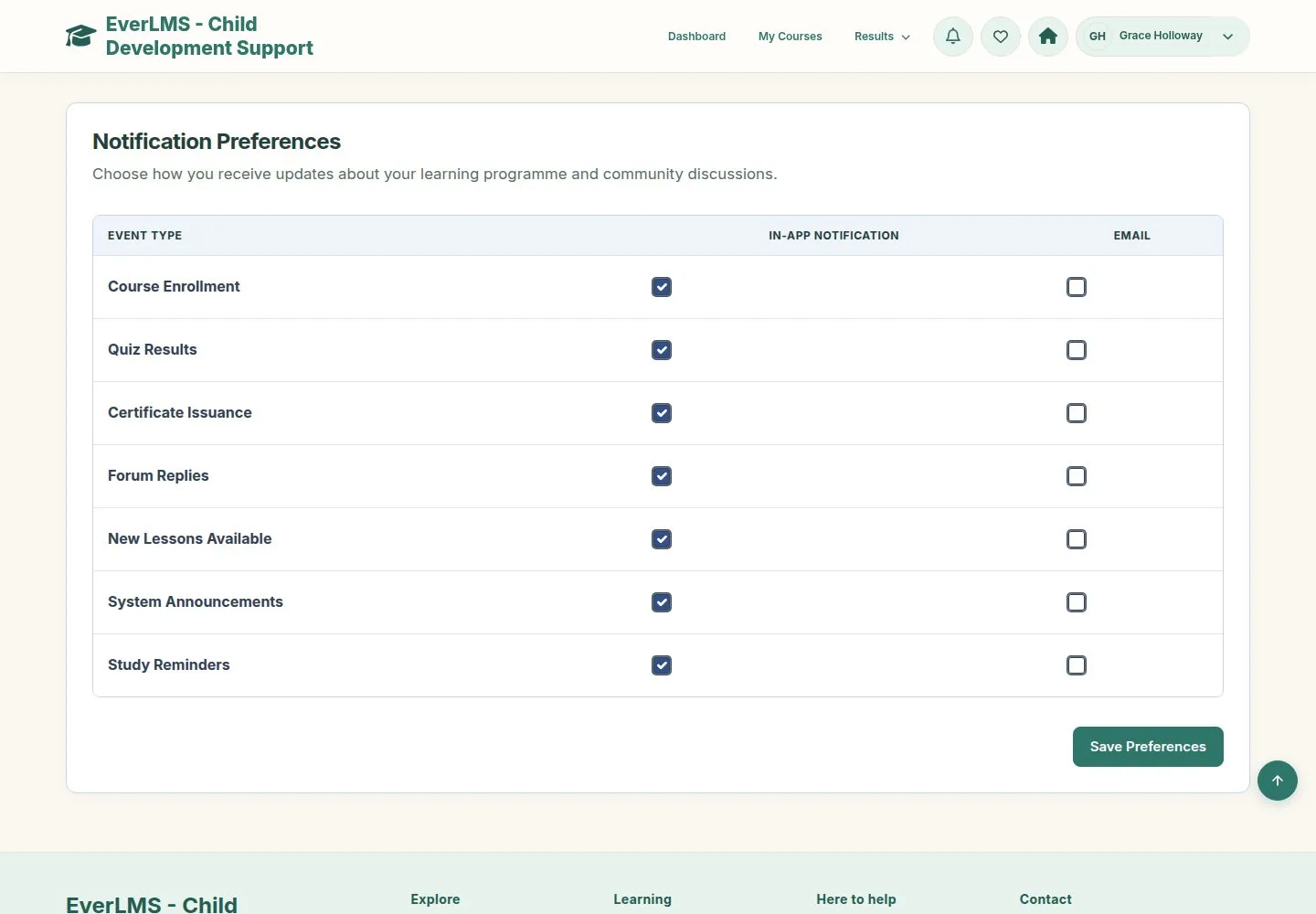
3Step 3 of 7

  1. For each kind of event: in the site, by email, or both.
  2. Save Preferences.

Enlarge, then scroll

Open illustrated screen ↗Full image ↗

Manager · Notifications03

An instructor to a course

Instructor

An instructor to a course

4Step 4 of 7

  1. Notify on a row opens the form with that learner chosen, first in the list.

Enlarge, then scroll

Full image ↗

Manager · Notifications04

A Manager to a role

Manager

A Manager to a role

5Step 5 of 7

  1. Workspace › Broadcast Announcement.
  2. Recipients by role, title, message and an optional link.
  3. The summary counts the people before you send.

Enlarge, then scroll

Open illustrated screen ↗Full image ↗

Manager · Notifications05

Sent

Manager

Sent

6Step 6 of 7

  1. The message says how many accounts received it.

Enlarge, then scroll

Open illustrated screen ↗Full image ↗

Manager · Notifications06

Received

Instructor

Received

7Step 7 of 7

  1. It appears under Announcements.

Open illustrated screen ↗Full image ↗

Check

People hear about what concerns them, in the way they chose

Manager · Notifications07
1 / 8
Privacy Terms