Learner accounts

Find, add, change, export

  • A Manager account
Manager

Manage Learners

Manager

Manage Learners

1Step 1 of 7

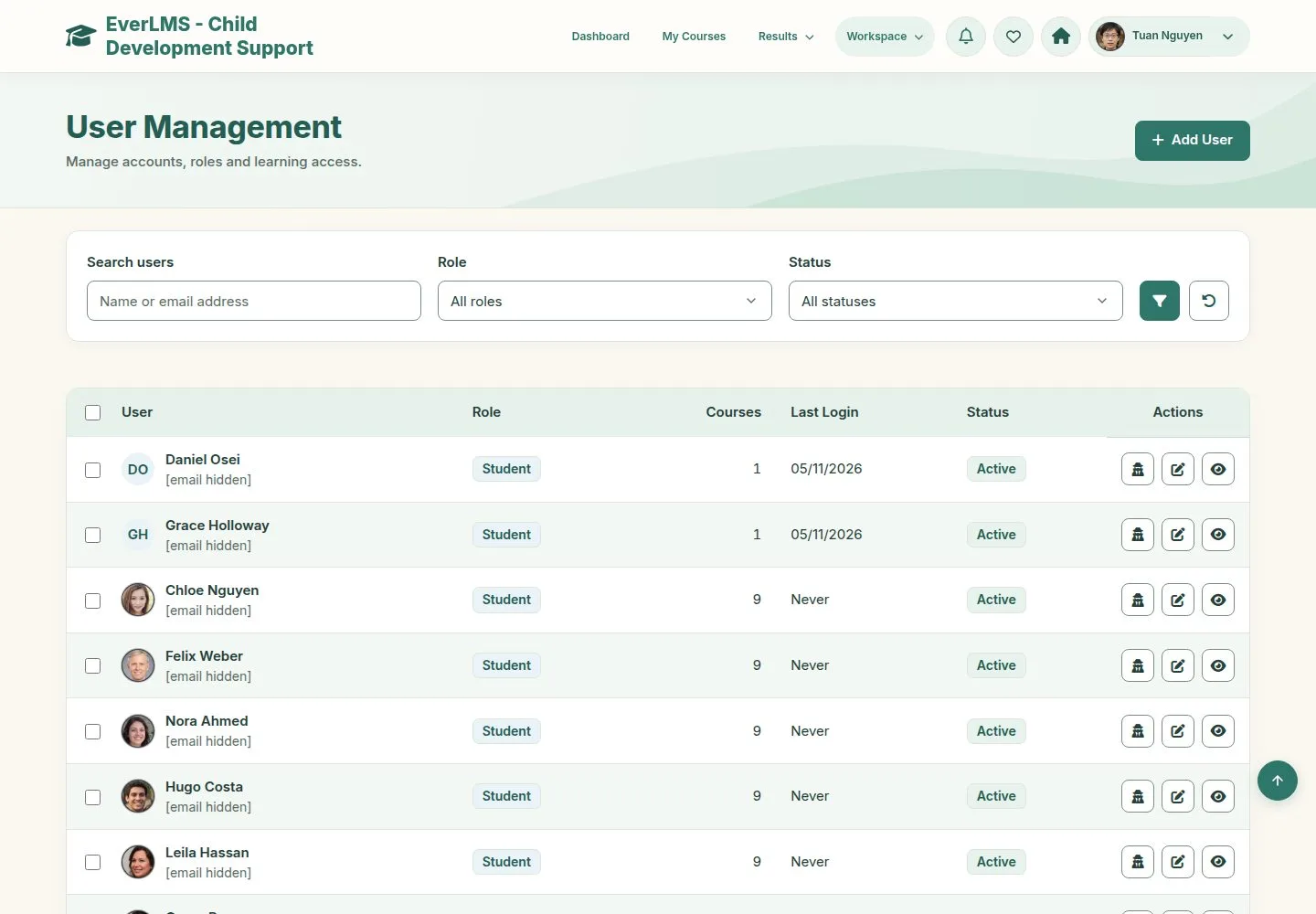
  1. Workspace › Manage Learners opens User Management.
  2. Search by name or email; filter by role and status.
  3. Role, courses enrolled, last login and status of each account.

Enlarge, then scroll

Open illustrated screen ↗Full image ↗

Manager · Learner accounts01

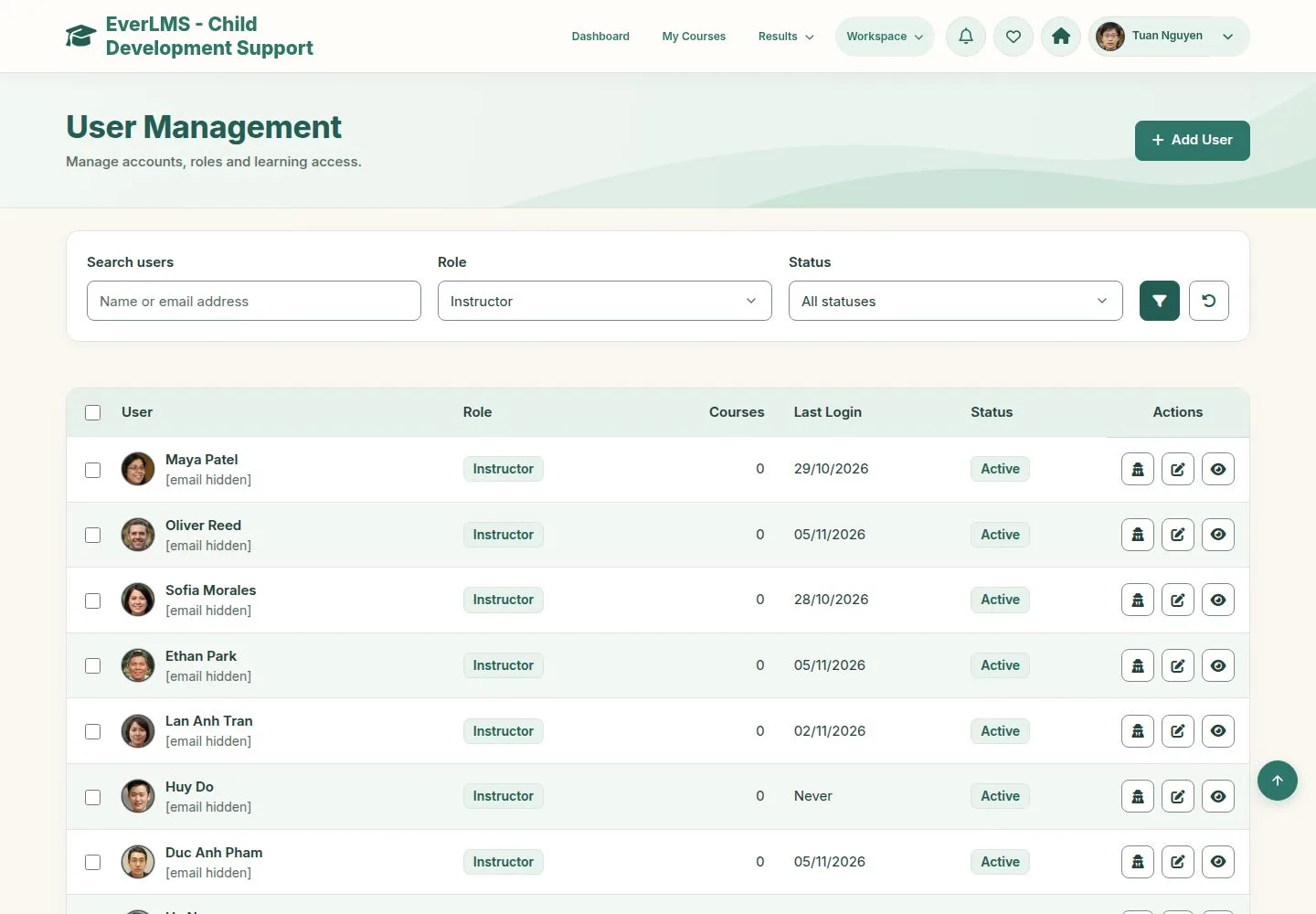
Filter by role

Manager

Filter by role

2Step 2 of 7

  1. The list updates without a new page.

Enlarge, then scroll

Open illustrated screen ↗Full image ↗

Manager · Learner accounts02

Add User

Manager

Add User

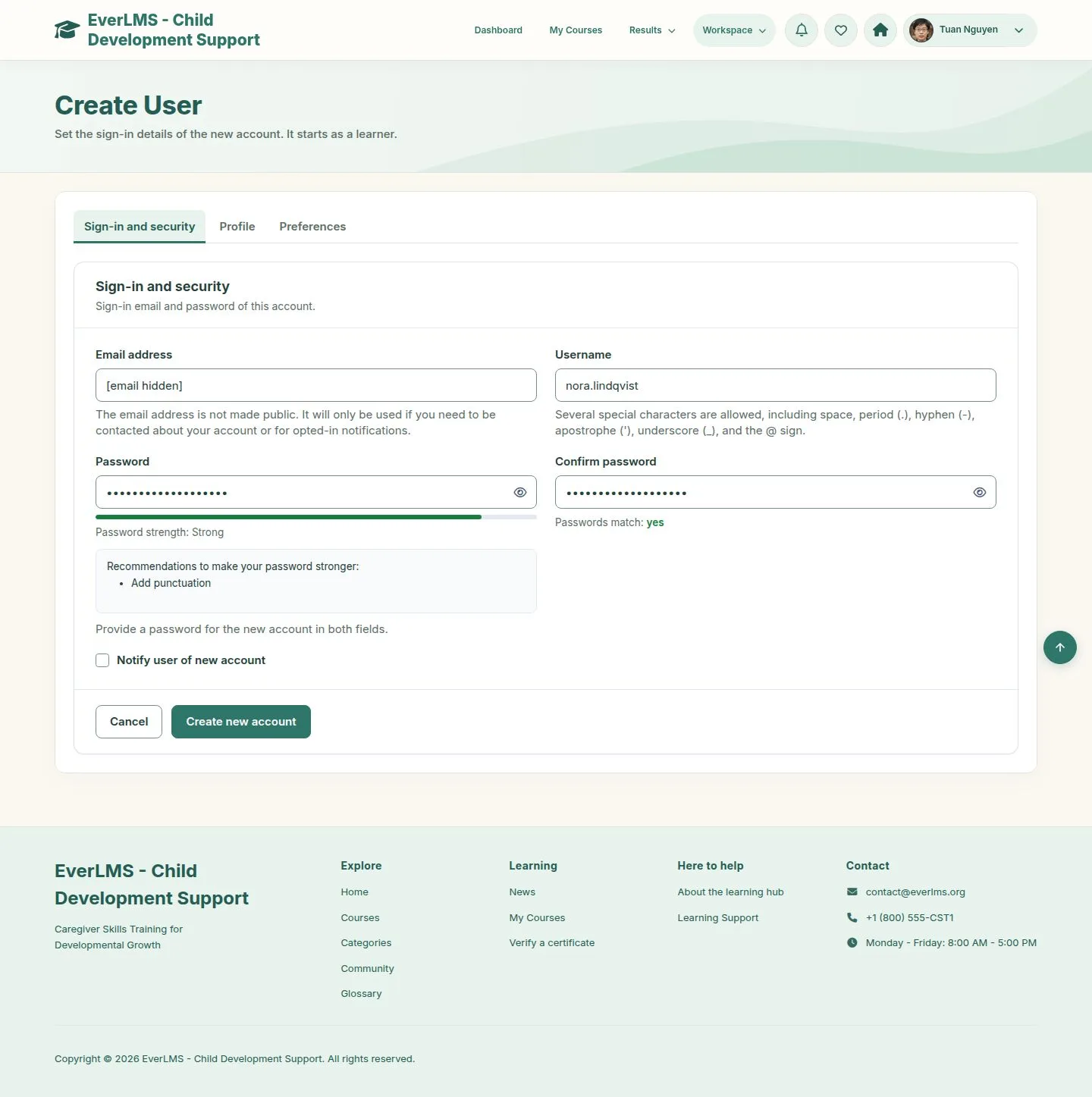
3Step 3 of 7

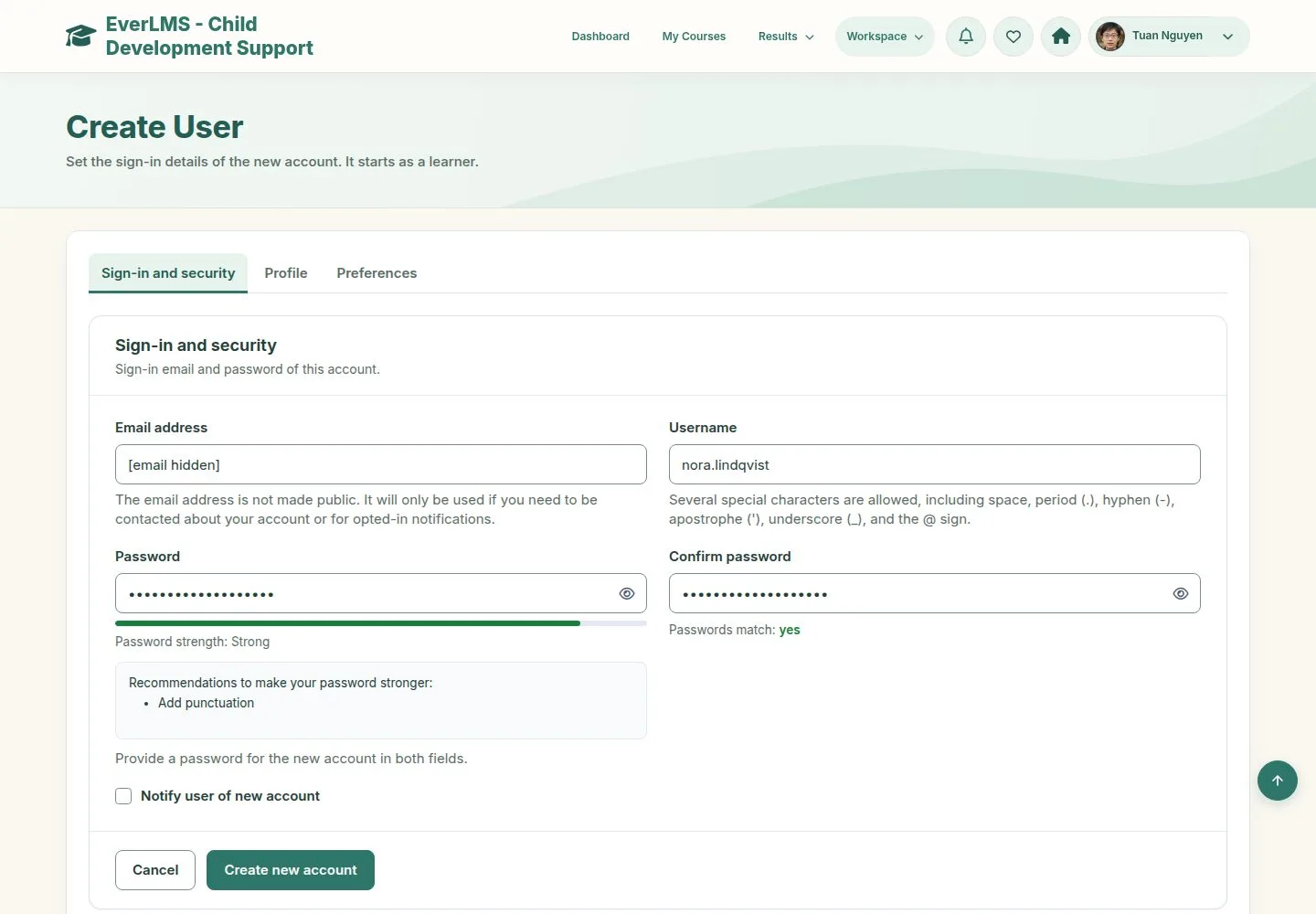
  1. Sign-in and security: email, username, password.
  2. Profile: picture, name, bio.
  3. Preferences: time zone, language, categories.

Enlarge, then scroll

Open illustrated screen ↗Full image ↗

Manager · Learner accounts03

Added

Manager

Added

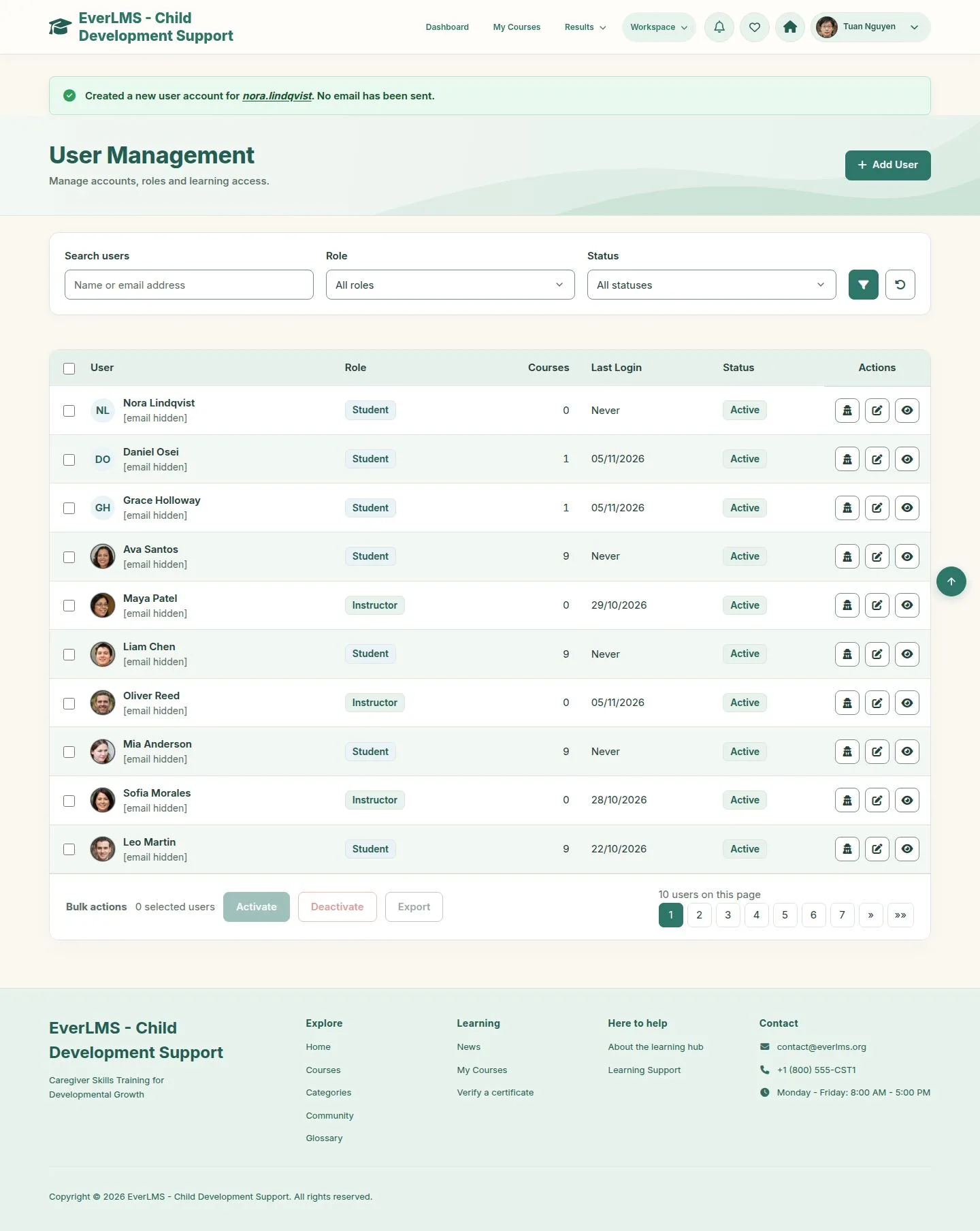
4Step 4 of 7

  1. The new account is a Student.
  2. Only an administrator can give an account another role.

Enlarge, then scroll

Open illustrated screen ↗Full image ↗

Manager · Learner accounts04

Change an account

Manager

Change an account

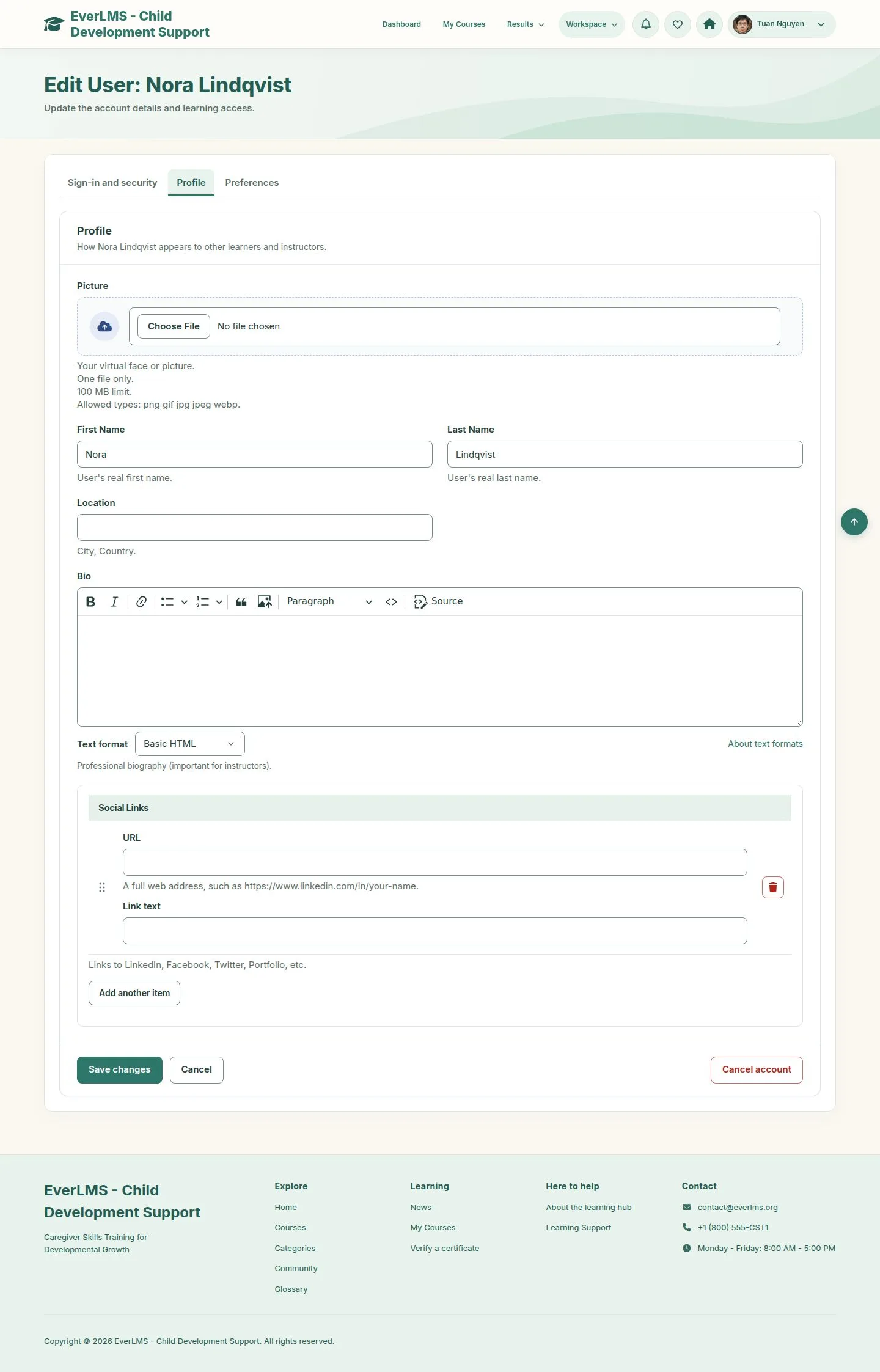
5Step 5 of 7

  1. The edit button of a row opens the same tabs.

Enlarge, then scroll

Full image ↗

Manager · Learner accounts05

Select for a bulk action

Manager

Select for a bulk action

6Step 6 of 7

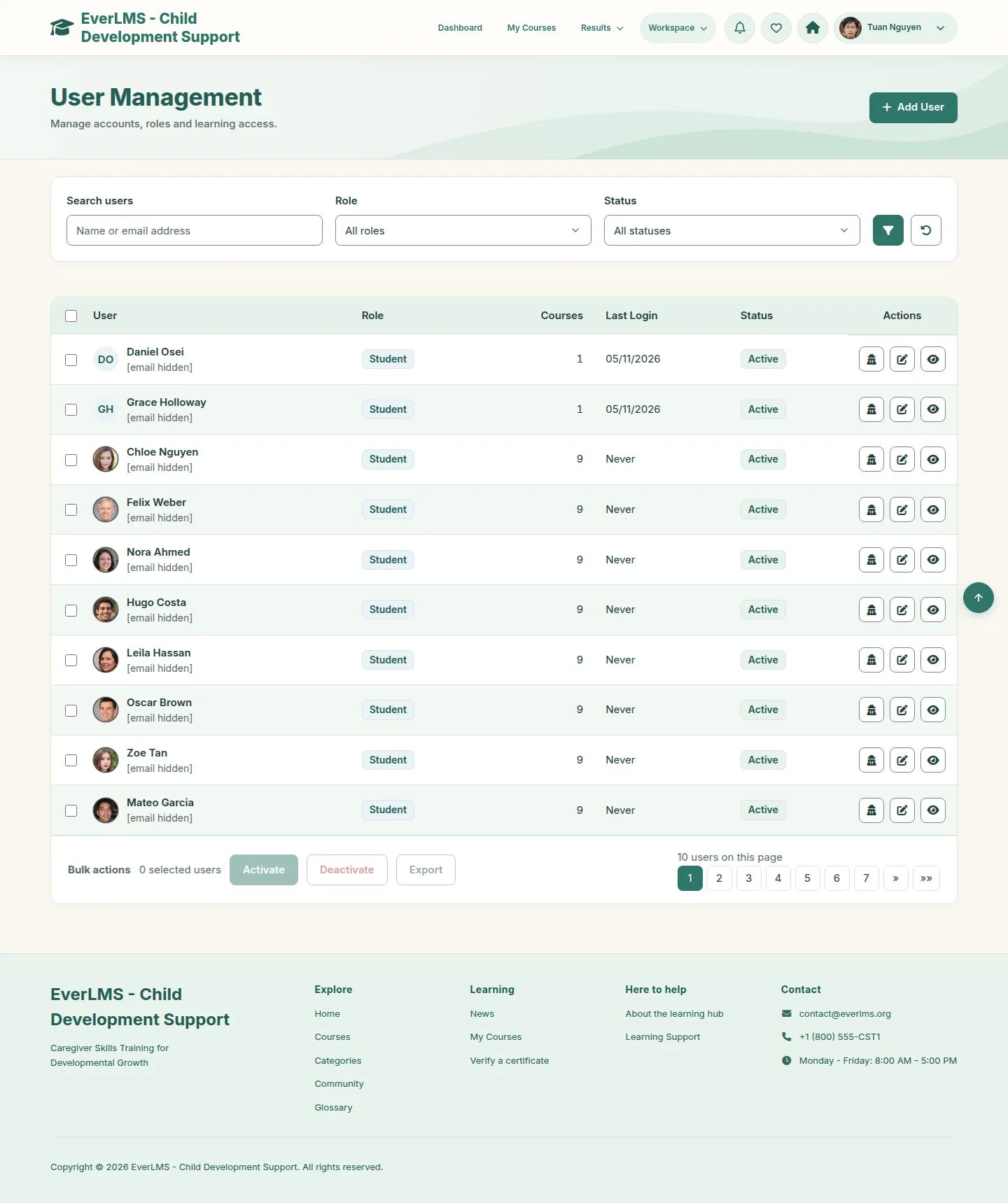
  1. Tick accounts; the bar counts them.
  2. Activate, Deactivate or Export.

Enlarge, then scroll

Full image ↗

Manager · Learner accounts06

Deactivate

Manager

Deactivate

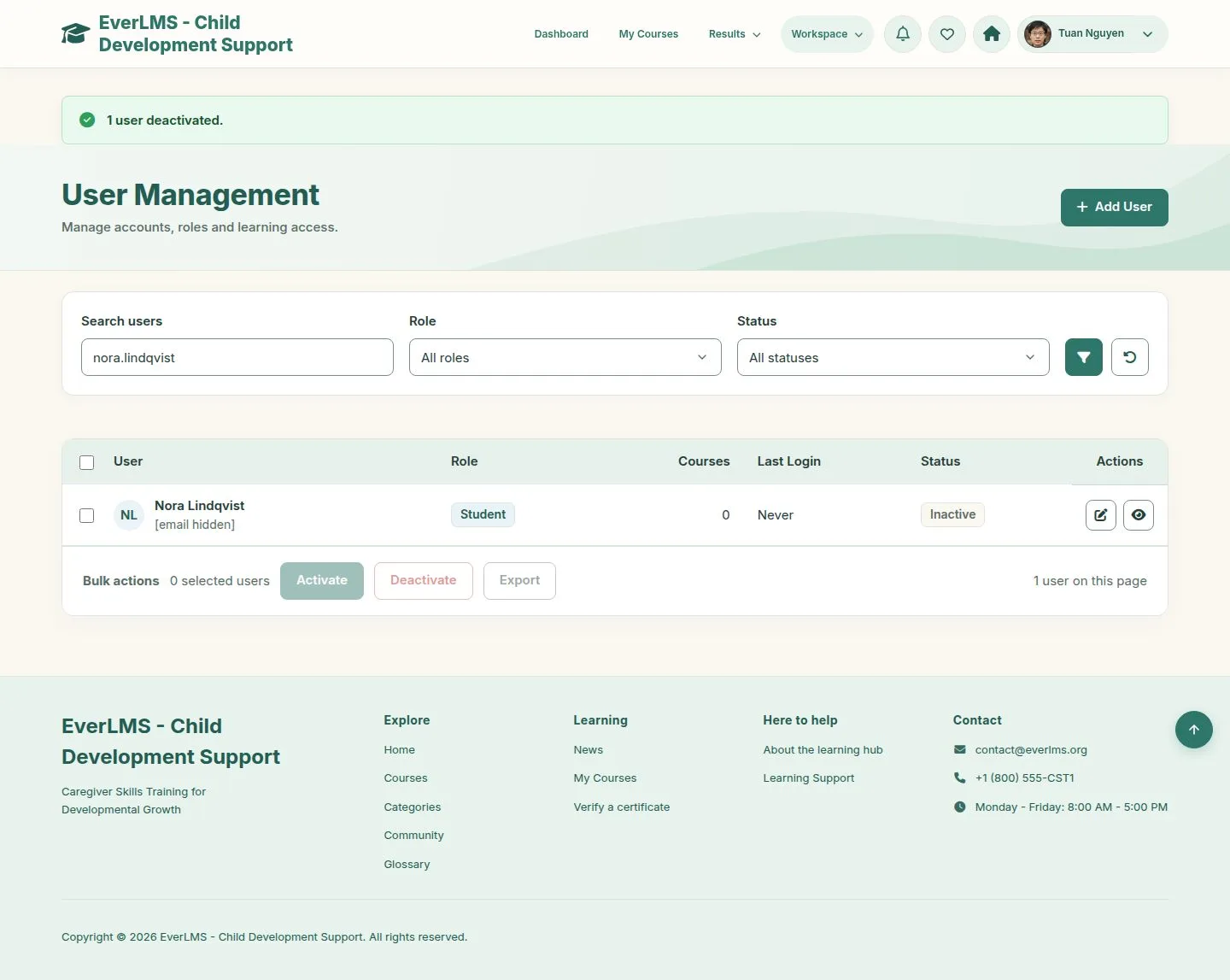
7Step 7 of 7

  1. The status changes at once; the account cannot sign in.
  2. Learning records stay.

Enlarge, then scroll

Full image ↗

Check

Every account is up to date, and a blocked account can no longer sign in

Manager · Learner accounts07
1 / 8
Privacy Terms