Roles & access

Each role its own work; Switch User to check

  • An account of the role
Manager

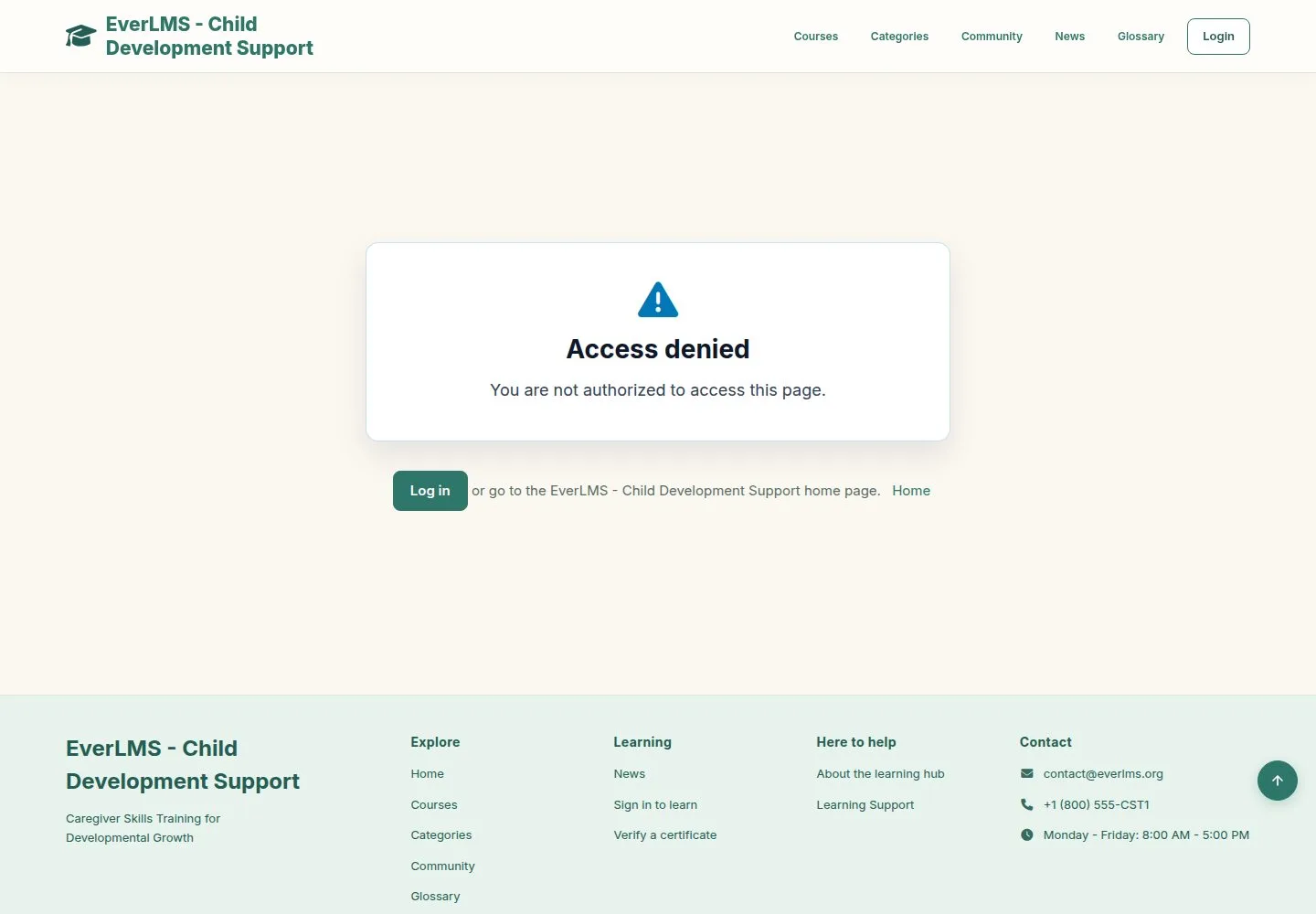
A visitor

Visitor

A visitor

1Step 1 of 9

  1. Public pages are open.
  2. A page for members offers Log in and brings you back.

Enlarge, then scroll

Full image ↗

Manager · Roles & access01

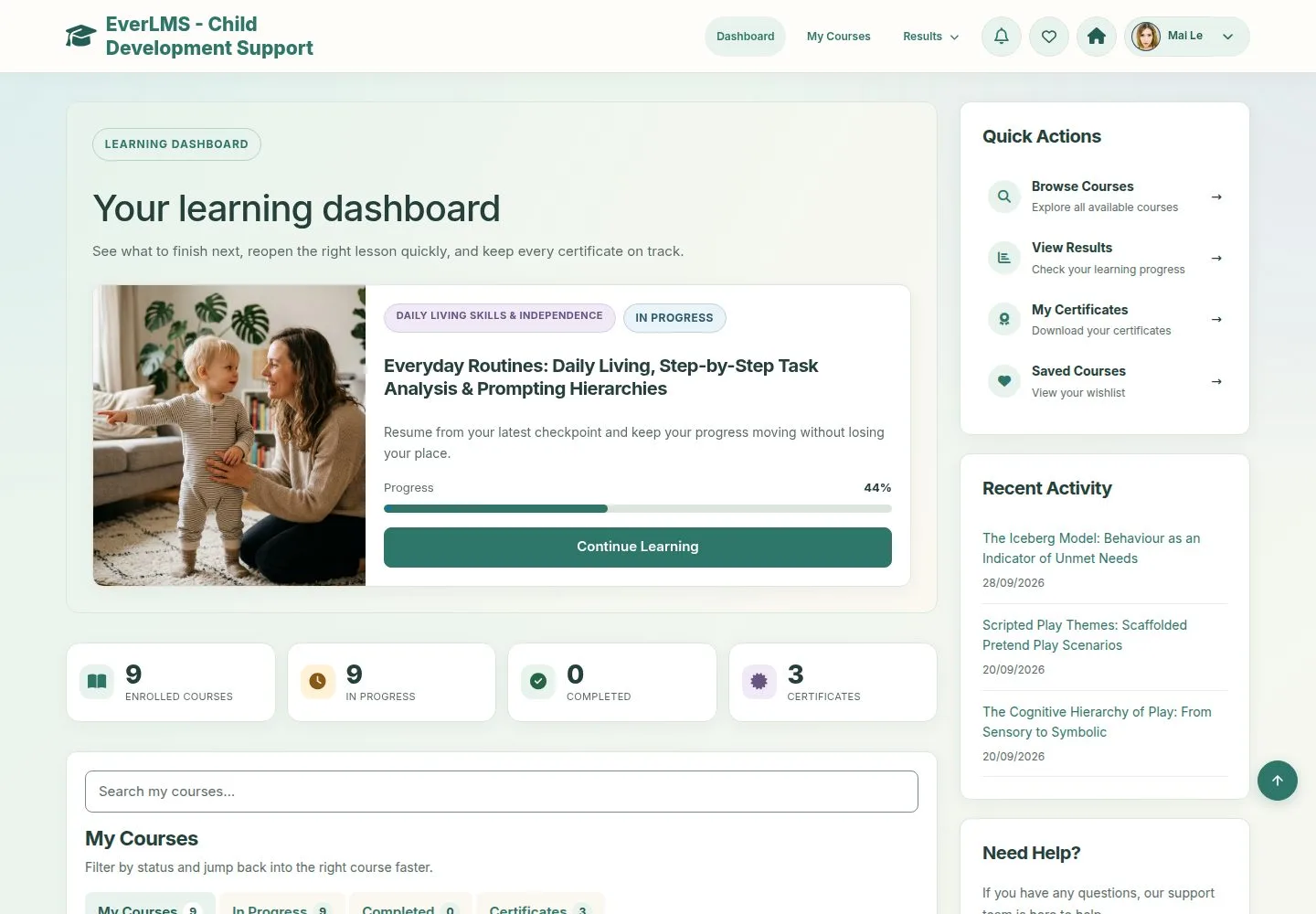
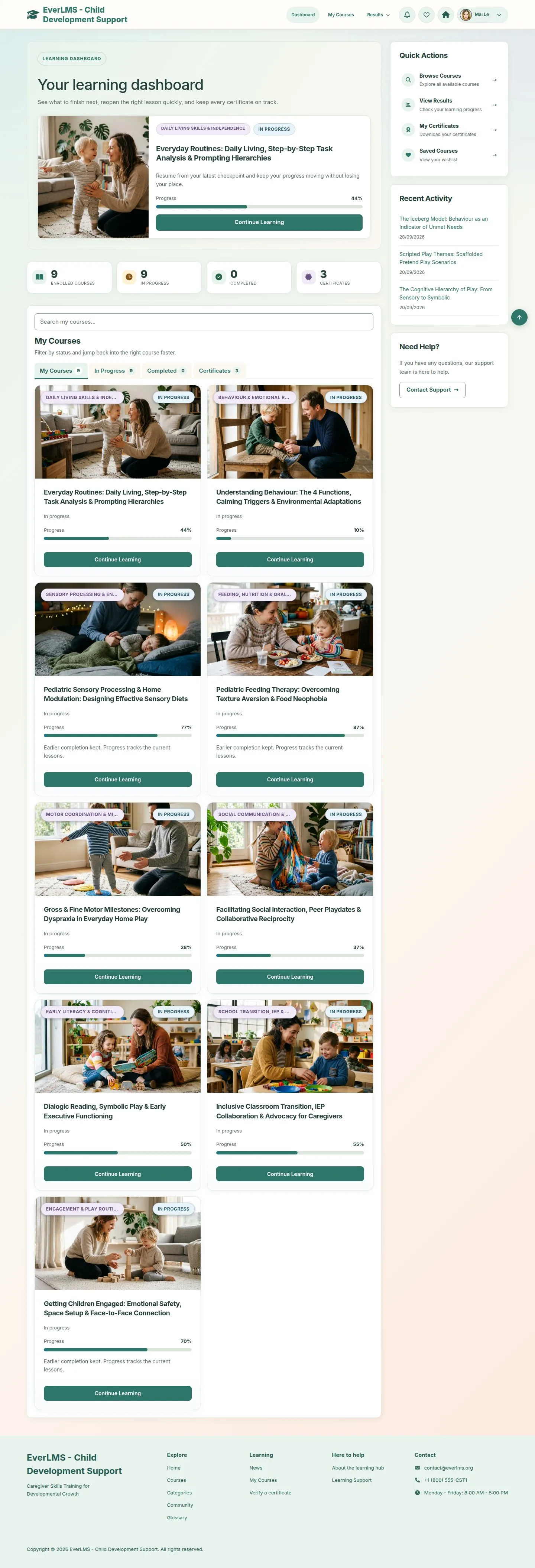
A learner

Learner

A learner

2Step 2 of 9

  1. Dashboard, My Courses and Results.
  2. The header changes between the public pages and yours.

Enlarge, then scroll

Open illustrated screen ↗Full image ↗

Manager · Roles & access02

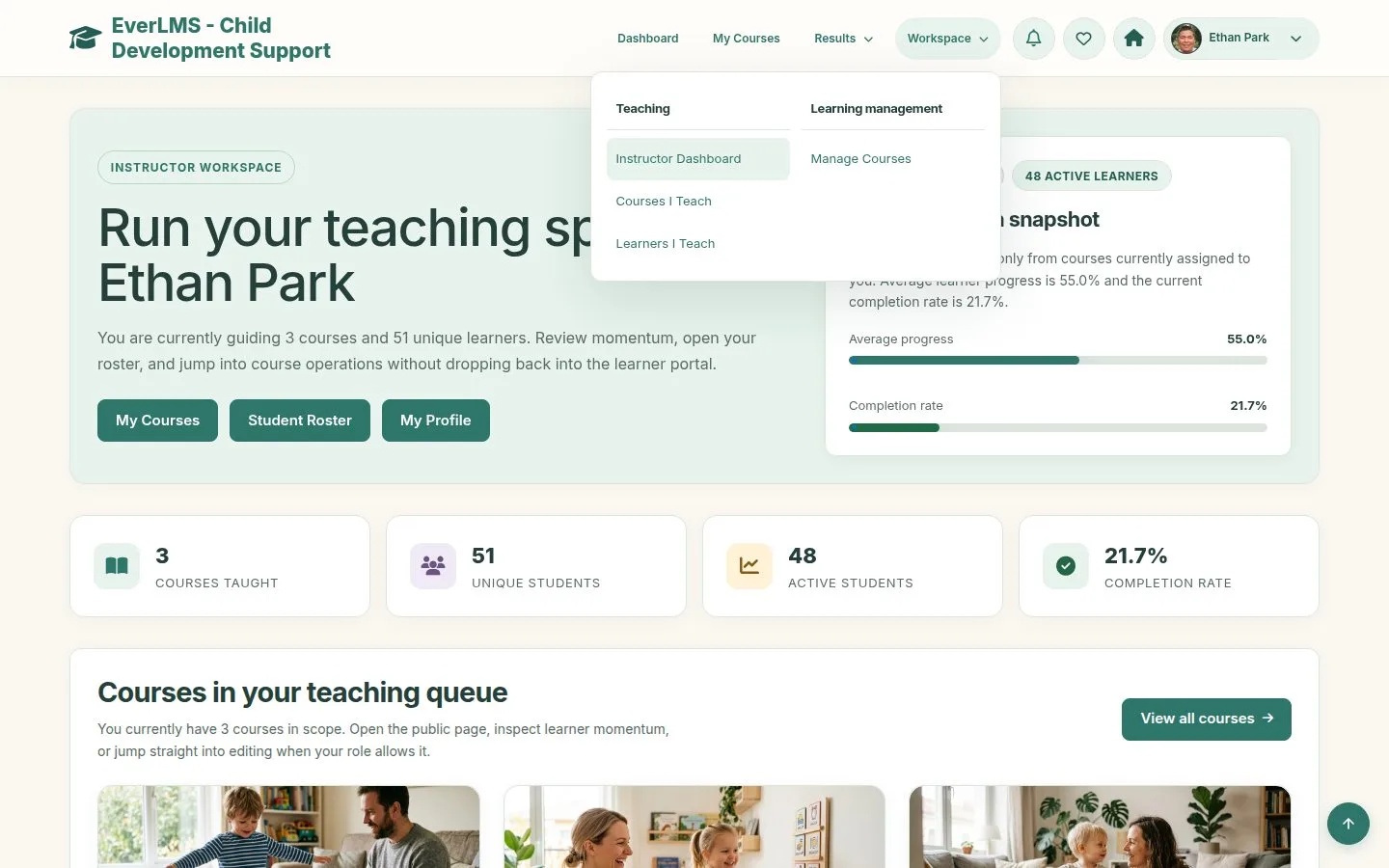
An instructor

Instructor

An instructor

3Step 3 of 9

  1. Workspace adds Teaching, for the courses they teach.

Open illustrated screen ↗Full image ↗

Manager · Roles & access03

A Manager

Manager

A Manager

4Step 4 of 9

  1. Workspace adds learning management, achievements and communication, and content.

Open illustrated screen ↗Full image ↗

Manager · Roles & access04

Other people's records

Learner

Other people's records

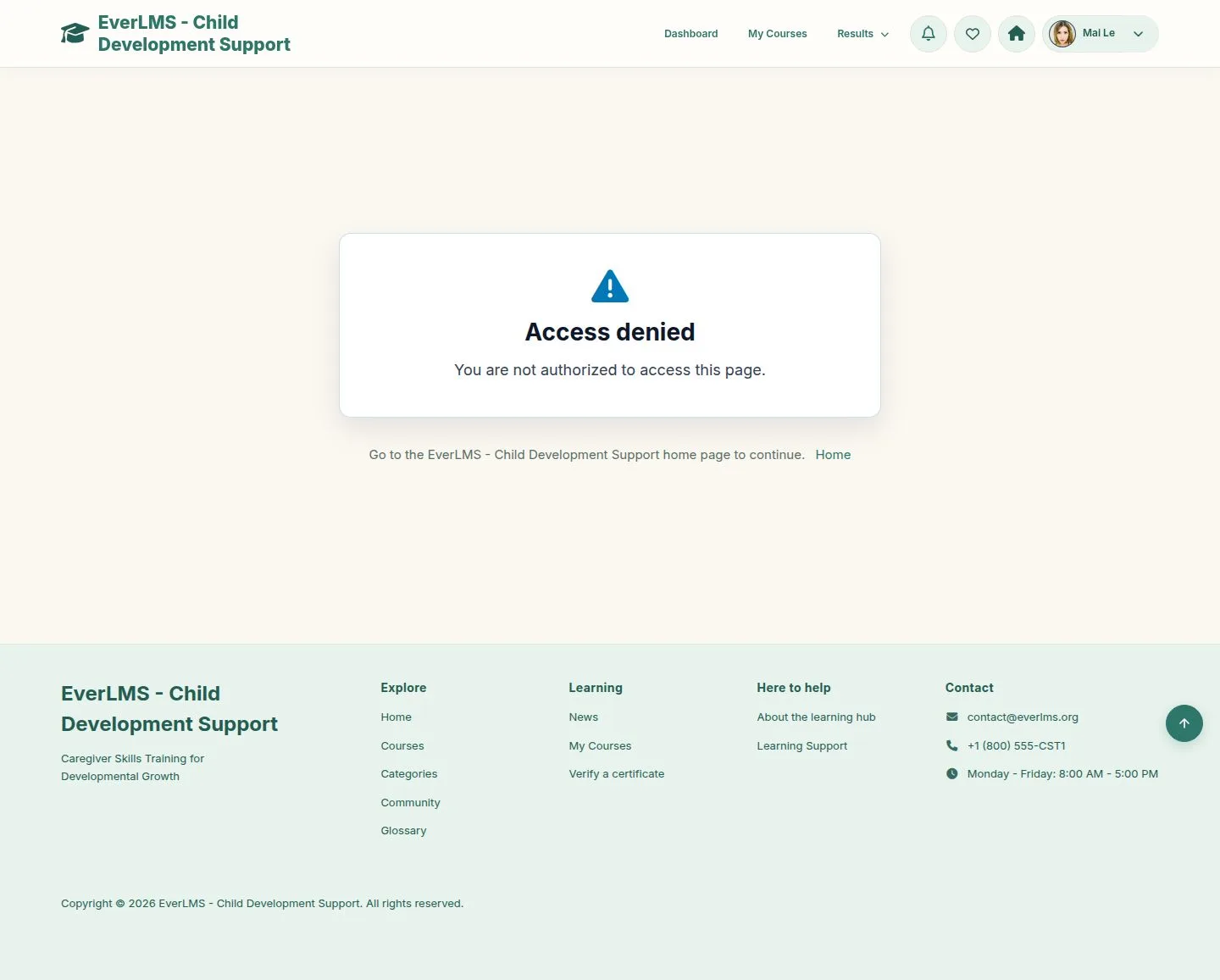
5Step 5 of 9

  1. A result, certificate or note of someone else is refused.

Enlarge, then scroll

Full image ↗

Manager · Roles & access05

Other courses

Instructor

Other courses

6Step 6 of 9

  1. An instructor reaches only the courses they teach.

Enlarge, then scroll

Full image ↗

Manager · Roles & access06

Switch User

Manager

Switch User

7Step 7 of 9

  1. Account menu › Switch User.
  2. Filter by role or email, then Switch user.

Enlarge, then scroll

Open illustrated screen ↗Full image ↗

Manager · Roles & access07

You are that person

Manager

You are that person

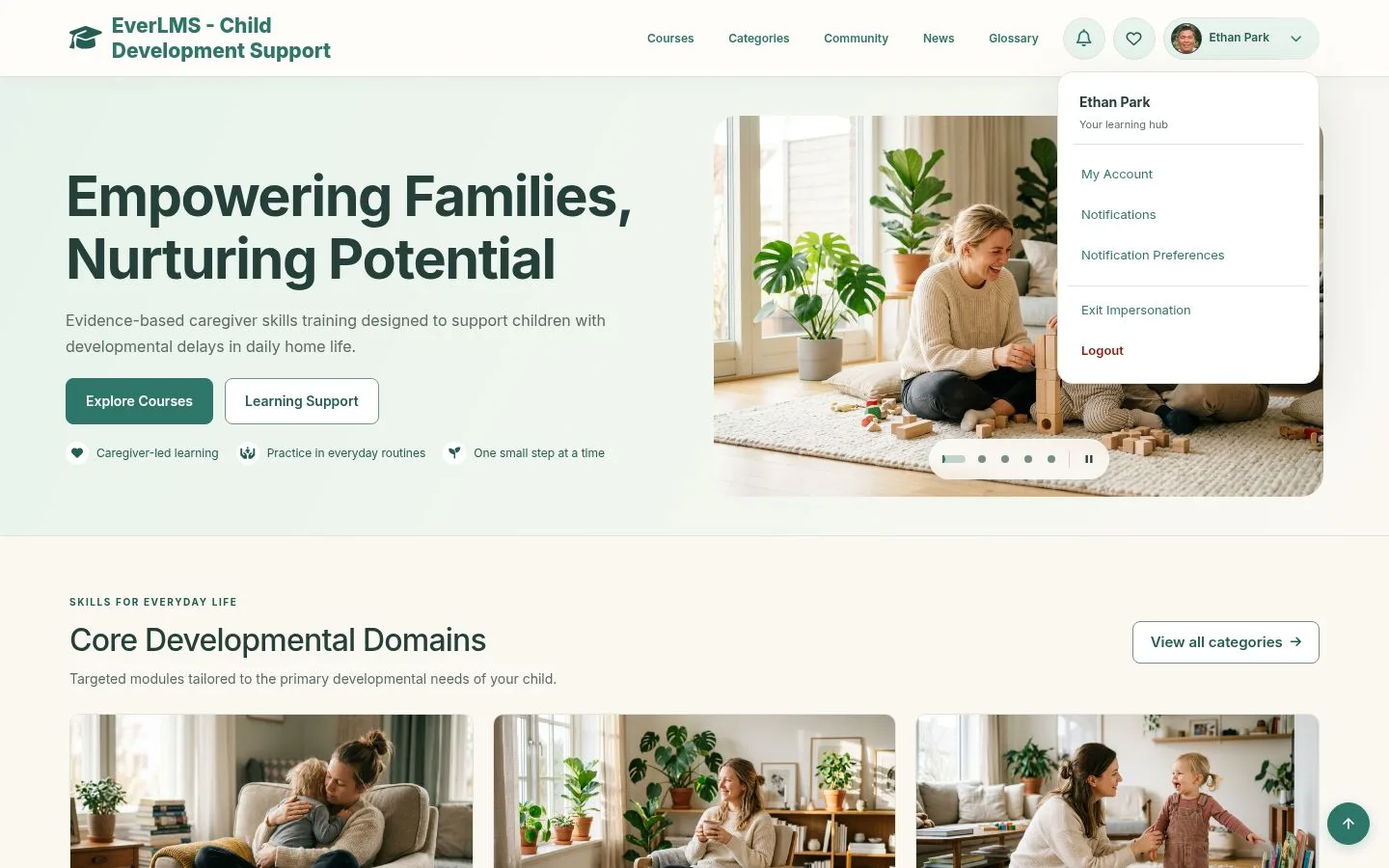
8Step 8 of 9

  1. The site now shows what they see.
  2. The dialog says how to come back.

Full image ↗

Manager · Roles & access08

Come back

Manager

Come back

9Step 9 of 9

  1. Account menu › Exit Impersonation.

Full image ↗

Check

Each person sees only their work, and a Manager can check what anyone sees

Manager · Roles & access09
1 / 10
Privacy Terms