Site content

Slides, FAQ, glossary, news, page blocks

  • A Manager account
Manager
Slides

Manager

Slides

1Step 1 of 12

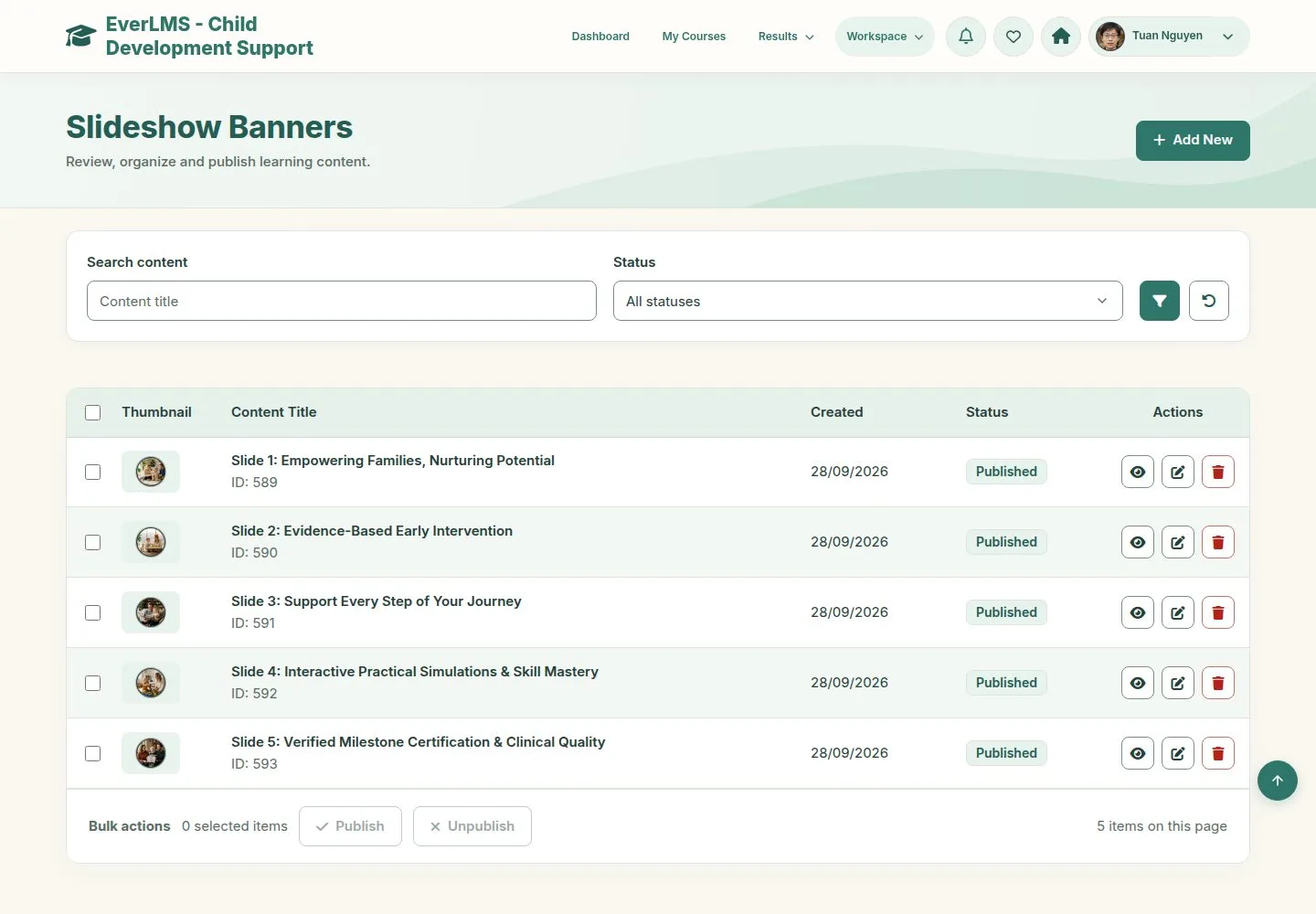
  1. The slides of the home page.
  2. Each row views, edits or deletes; the bar publishes and unpublishes.

Enlarge, then scroll

Open illustrated screen ↗Full image ↗

Manager · Site content01

Glossary, FAQ, news

Manager

Glossary, FAQ, news

2Step 2 of 12

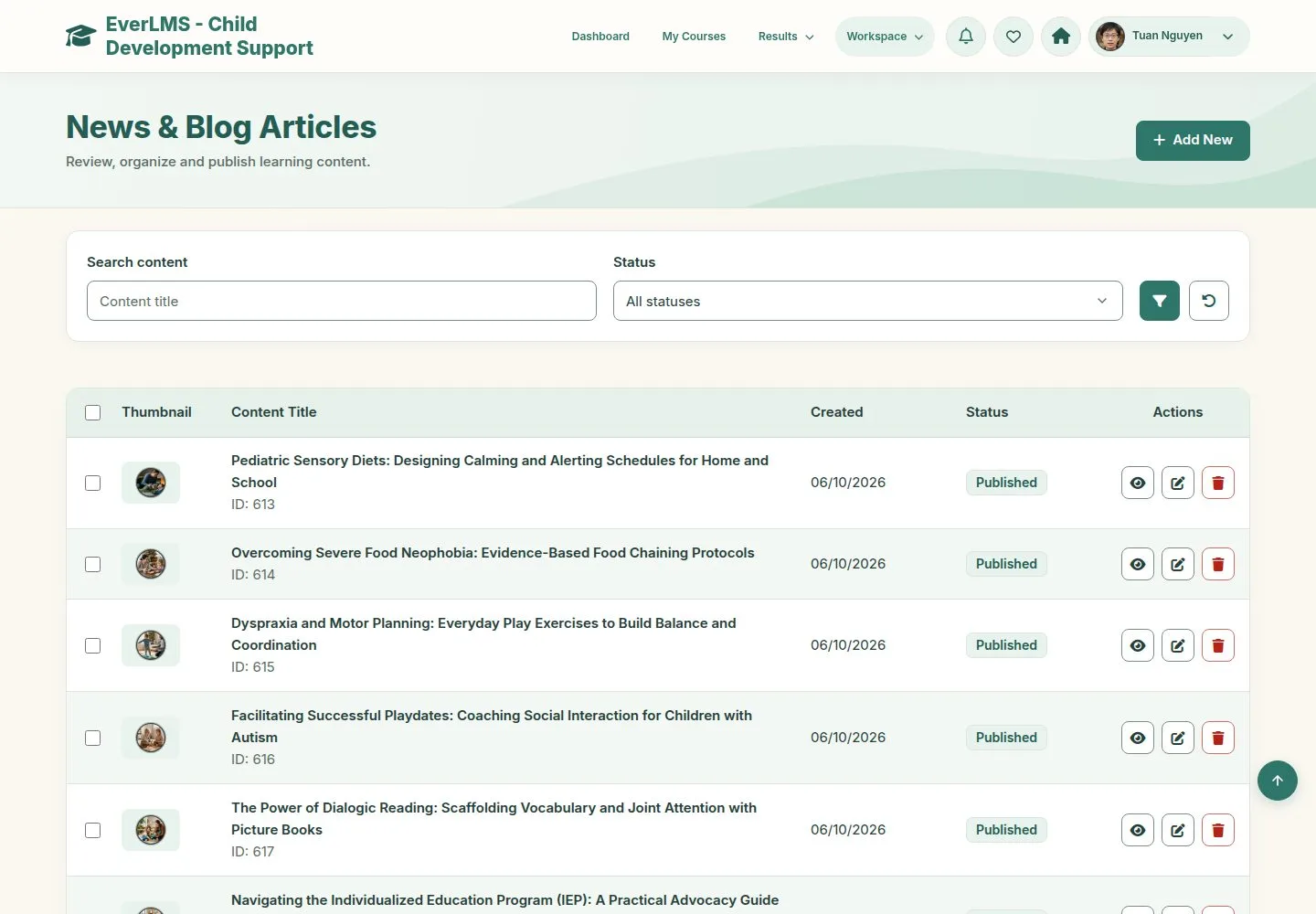
  1. The same list for Introduction Blocks, FAQs, Glossary Terms and News.

Enlarge, then scroll

Open illustrated screen ↗Full image ↗

Manager · Site content02

Add a FAQ

Manager

Add a FAQ

3Step 3 of 12

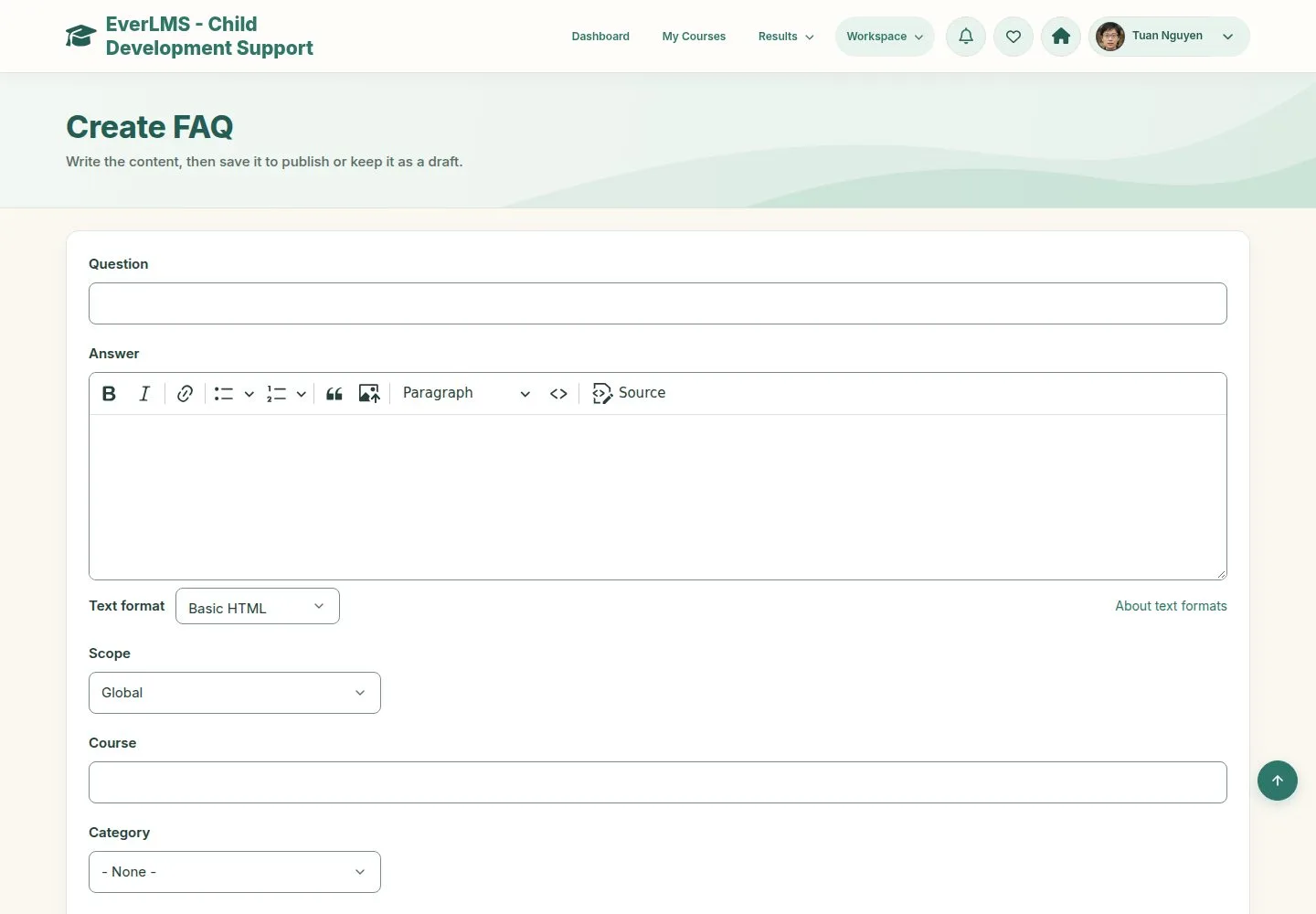
  1. Question and answer.
  2. Scope: global, or one course; category and weight.

Enlarge, then scroll

Open illustrated screen ↗Full image ↗

Manager · Site content03

Add a news article

Manager

Add a news article

4Step 4 of 12

  1. Title, thumbnail, tags and body.
  2. Edit summary writes the text of the card.

Enlarge, then scroll

Open illustrated screen ↗Full image ↗

Manager · Site content04

On the site

Manager

On the site

5Step 5 of 12

  1. The article opens Learning & insights.
  2. Without a summary, the card starts with the body.

Enlarge, then scroll

Open illustrated screen ↗Full image ↗

Manager · Site content05

Publish and unpublish

Manager

Publish and unpublish

6Step 6 of 12

  1. Tick rows and use the bar; the list says what changed.

Enlarge, then scroll

Full image ↗

Manager · Site content06

Delete asks first

Manager

Delete asks first

7Step 7 of 12

  1. A dialog on the same page names the item.
  2. The list updates after deleting.

Full image ↗

Manager · Site content07

Page Blocks

Manager

Page Blocks

8Step 8 of 12

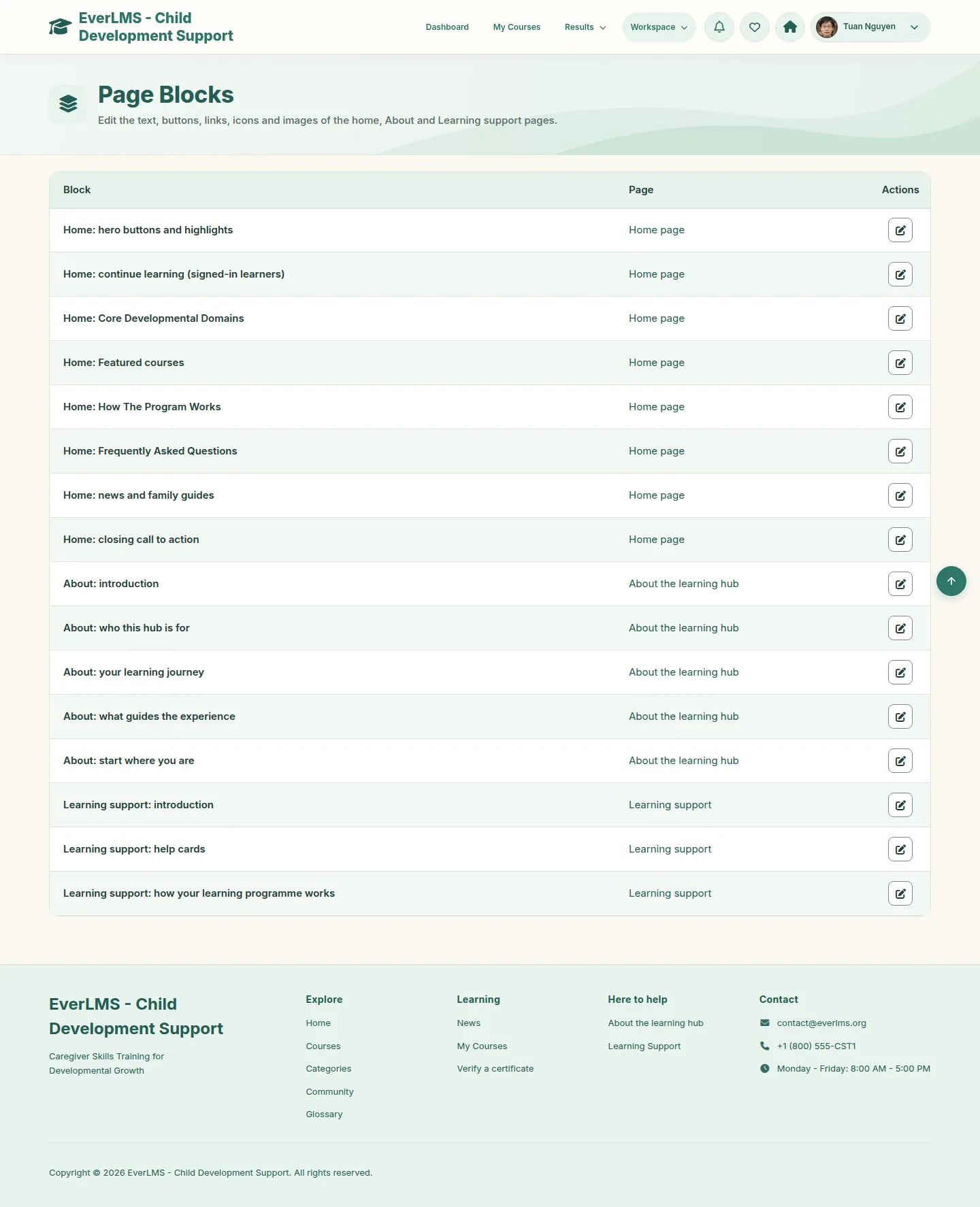
  1. Workspace › Page Blocks lists the blocks of the home, About and Learning Support pages.

Enlarge, then scroll

Open illustrated screen ↗Full image ↗

Manager · Site content08

The pencil

Manager

The pencil

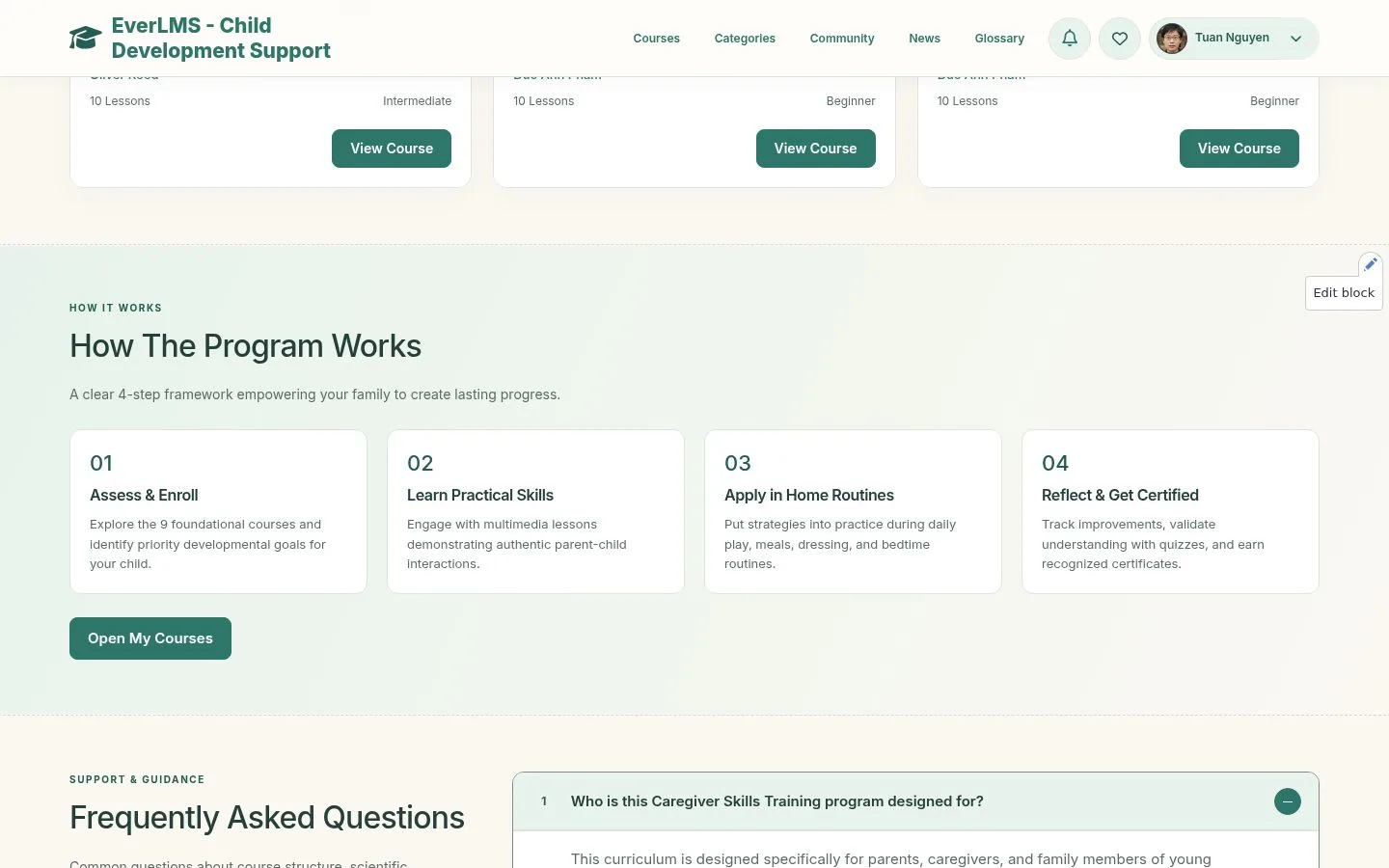
9Step 9 of 12

  1. On the page, the pencil of a block opens its form.
  2. Learners and visitors do not see it.

Open illustrated screen ↗Full image ↗

Manager · Site content09

Edit a block

Manager

Edit a block

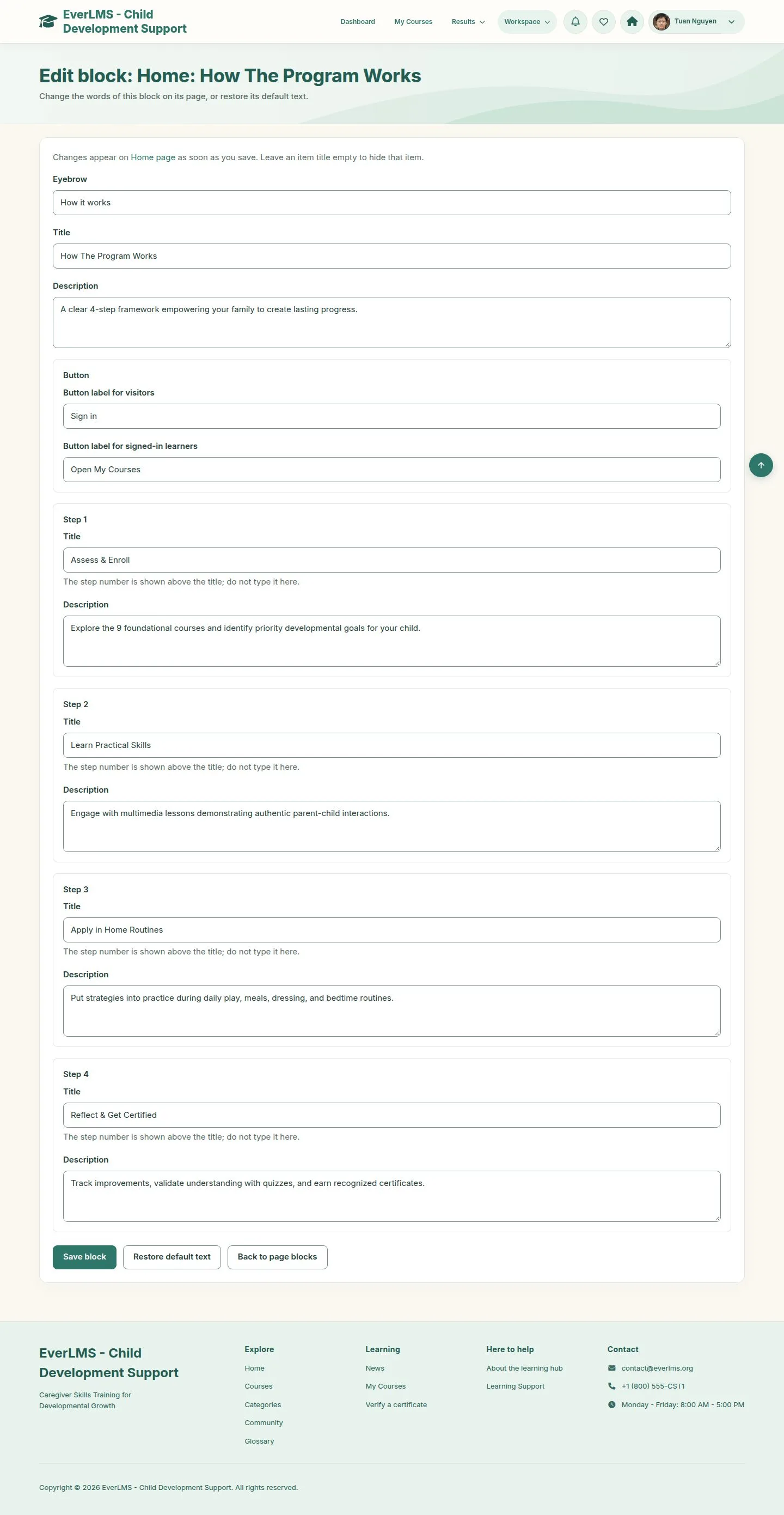
10Step 10 of 12

  1. Eyebrow, title, description, buttons and each item.
  2. Changes appear as soon as you save.

Enlarge, then scroll

Open illustrated screen ↗Full image ↗

Manager · Site content10

On the home page

Manager

On the home page

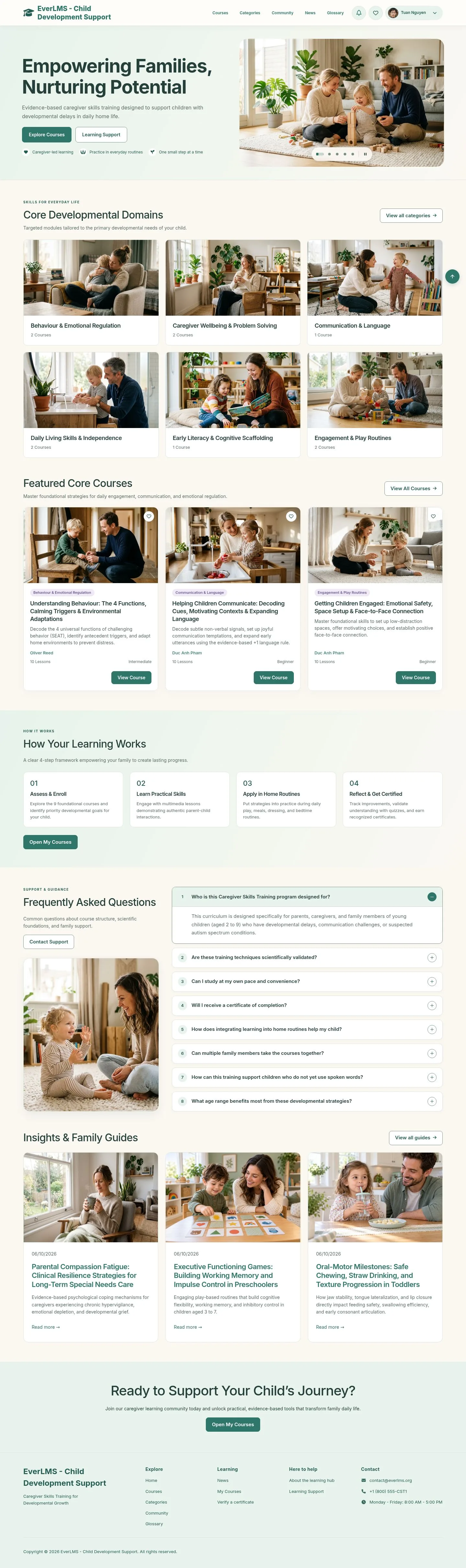
11Step 11 of 12

  1. The new text is on the page.

Enlarge, then scroll

Open illustrated screen ↗Full image ↗

Manager · Site content11

Restore default text

Manager

Restore default text

12Step 12 of 12

  1. Restore default text brings the block back.

Enlarge, then scroll

Open illustrated screen ↗Full image ↗

Check

The site shows your words and pictures, without a developer

Manager · Site content12
1 / 13
Privacy Terms