Enrolment

Enroll Now, or assigned by the programme team

  • An account, made on the site or by the programme team
  • A published course
Learner
Create an account

Visitor

Create an account

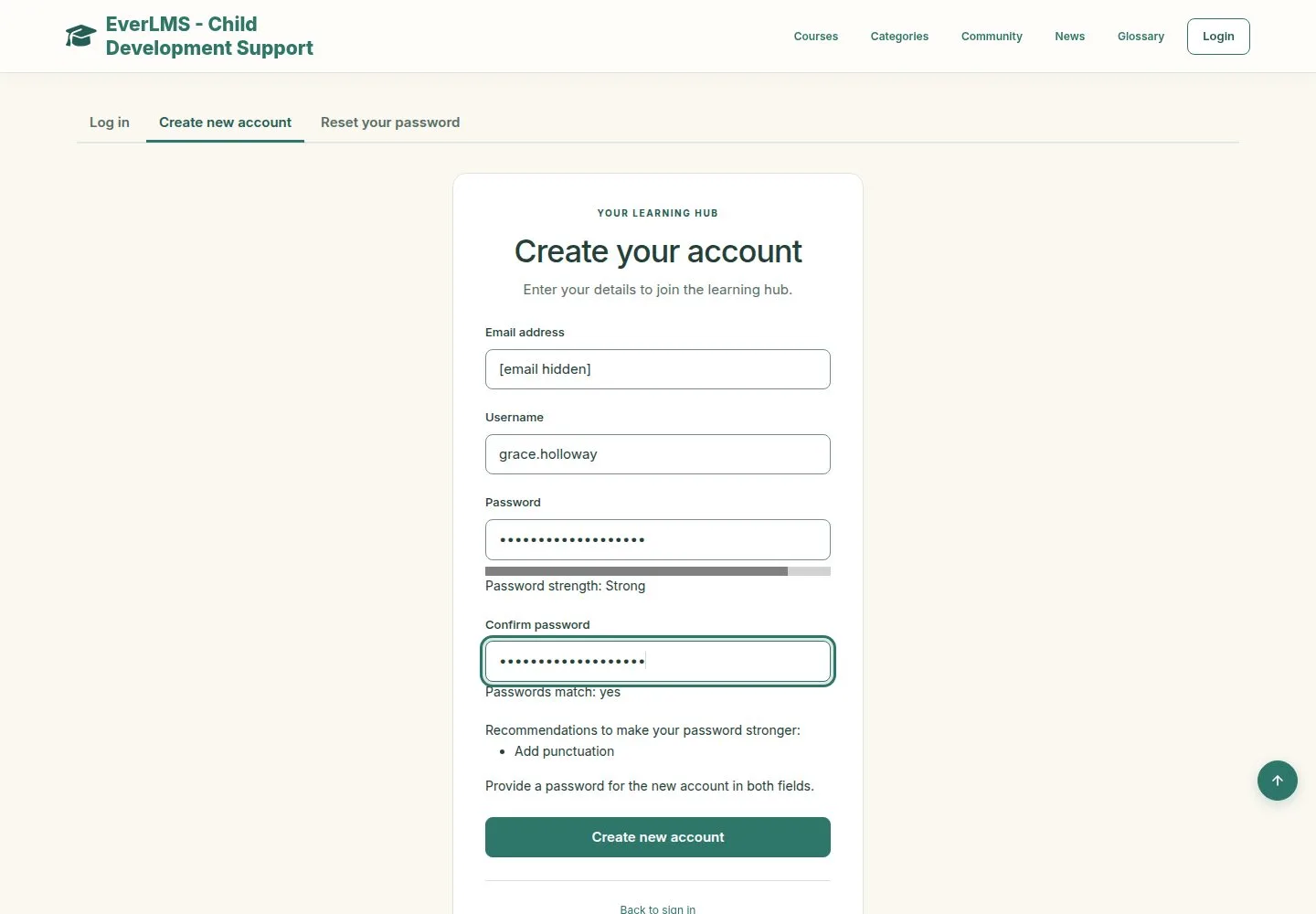
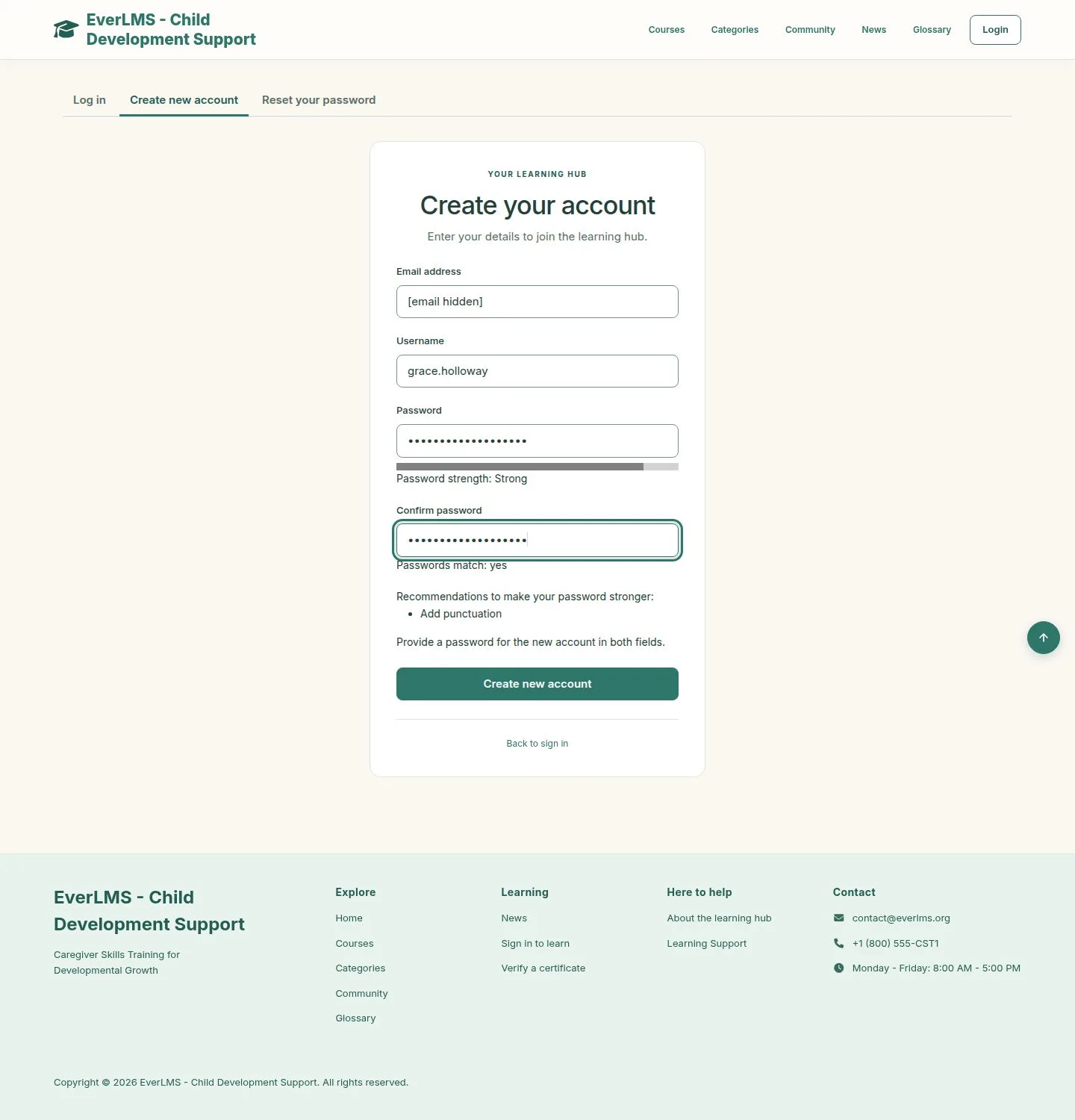
1Step 1 of 16

  1. Email address, Username and a password typed twice.
  2. The meter says how strong the password is.
  3. Create new account signs you in at once.

Enlarge, then scroll

Open illustrated screen ↗Full image ↗

Learner · Enrolment01

When it cannot be created

Visitor

When it cannot be created

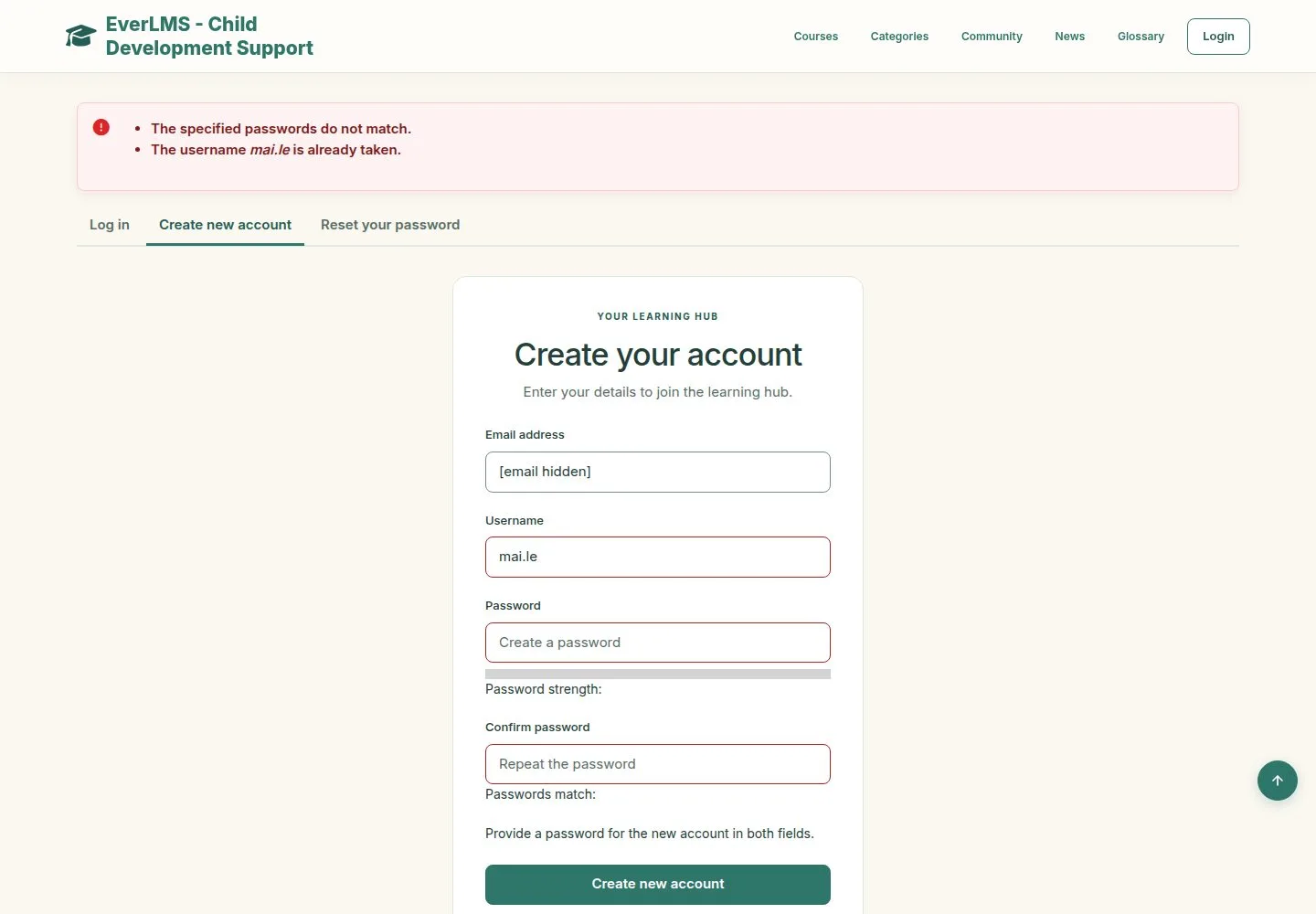
2Step 2 of 16

  1. Each problem is named at the top and its field is marked.
  2. A taken username or address, or two different passwords, stop the form.

Enlarge, then scroll

Open illustrated screen ↗Full image ↗

Learner · Enrolment02

Signed in

Visitor

Signed in

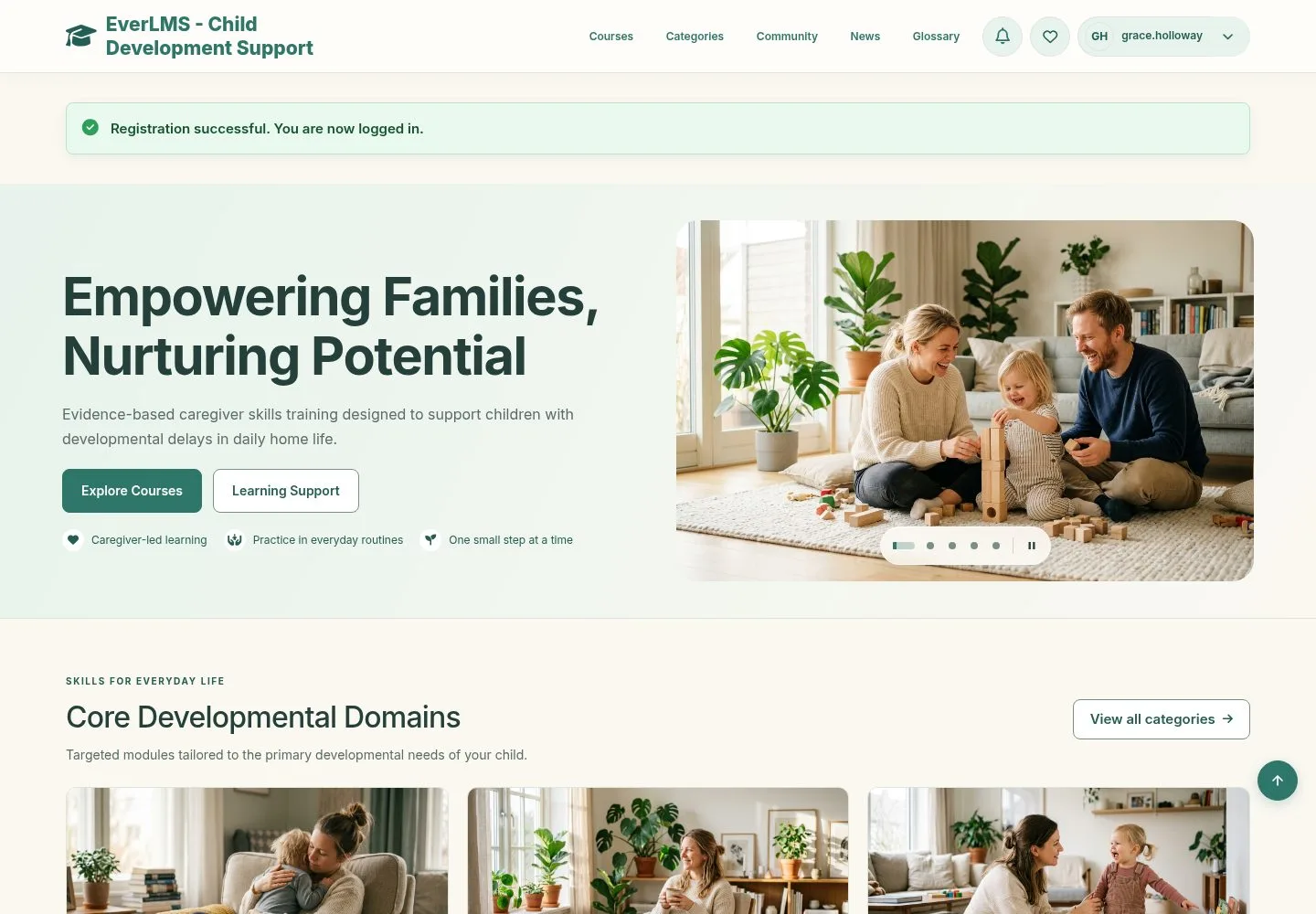
3Step 3 of 16

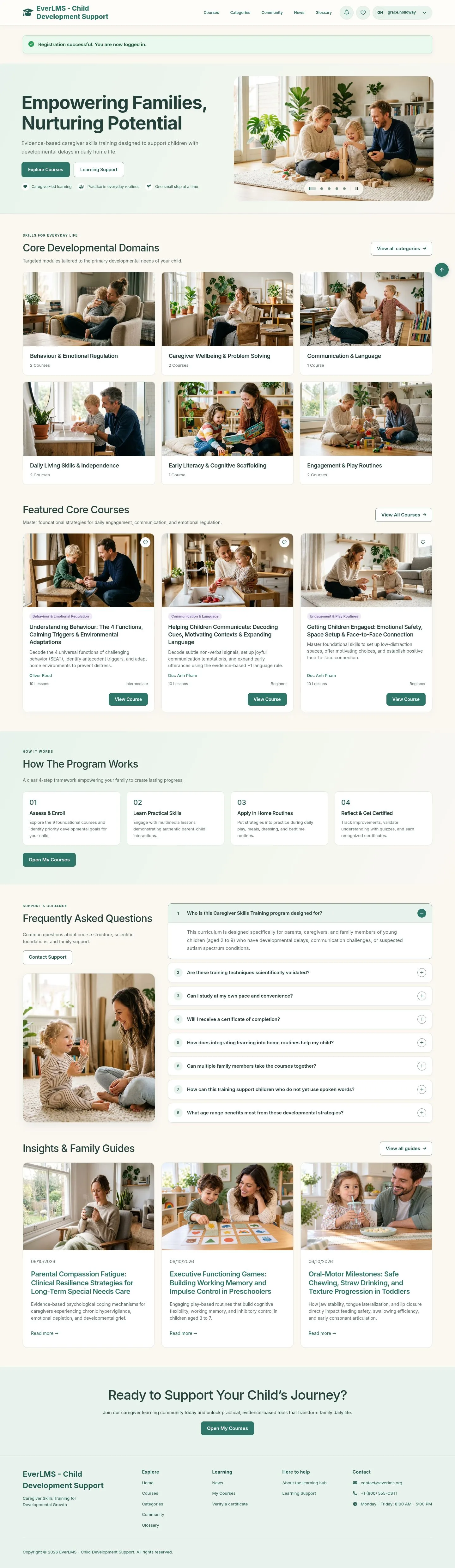
  1. You are signed in on the home page.
  2. A welcome mail follows.

Enlarge, then scroll

Open illustrated screen ↗Full image ↗

Learner · Enrolment03

Log in

Visitor

Log in

4Step 4 of 16

  1. Username and password.
  2. A wrong pair is refused without saying which one is wrong.
  3. After signing in, each role lands where its work is: learners on the dashboard.

Enlarge, then scroll

Open illustrated screen ↗Full image ↗

Learner · Enrolment04

Forgot your password

Visitor

Forgot your password

5Step 5 of 16

  1. Type your username or email address.
  2. A mail with a one-time link comes if the account exists.

Enlarge, then scroll

Open illustrated screen ↗Full image ↗

Learner · Enrolment05

The reset mail

Visitor

The reset mail

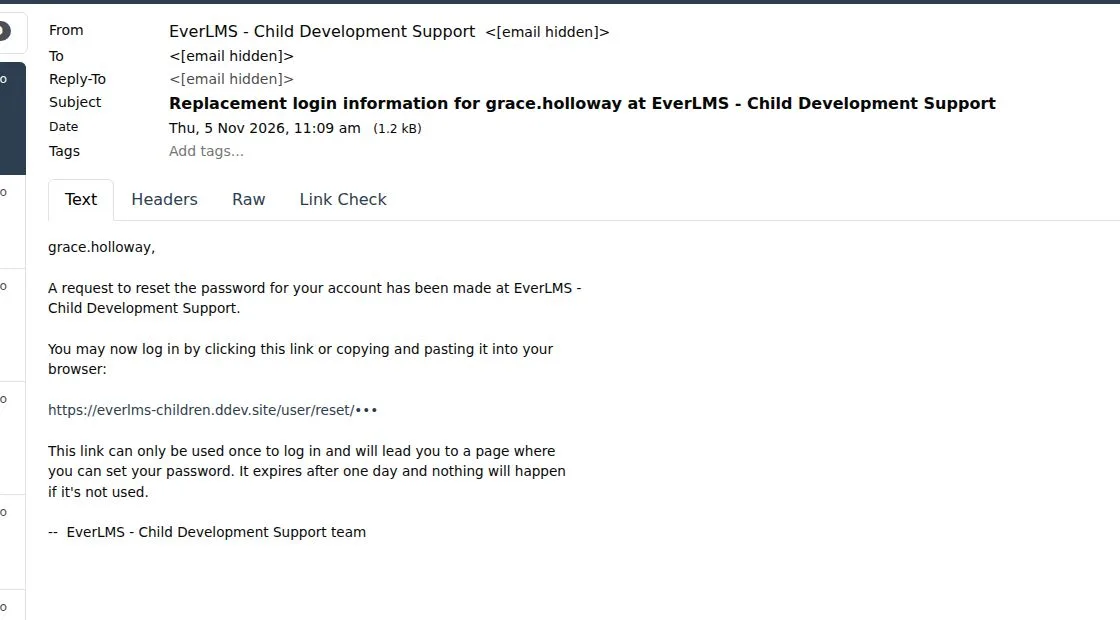
6Step 6 of 16

  1. The link works once and expires after a day.

Full image ↗

Learner · Enrolment06

Set a new password

Visitor

Set a new password

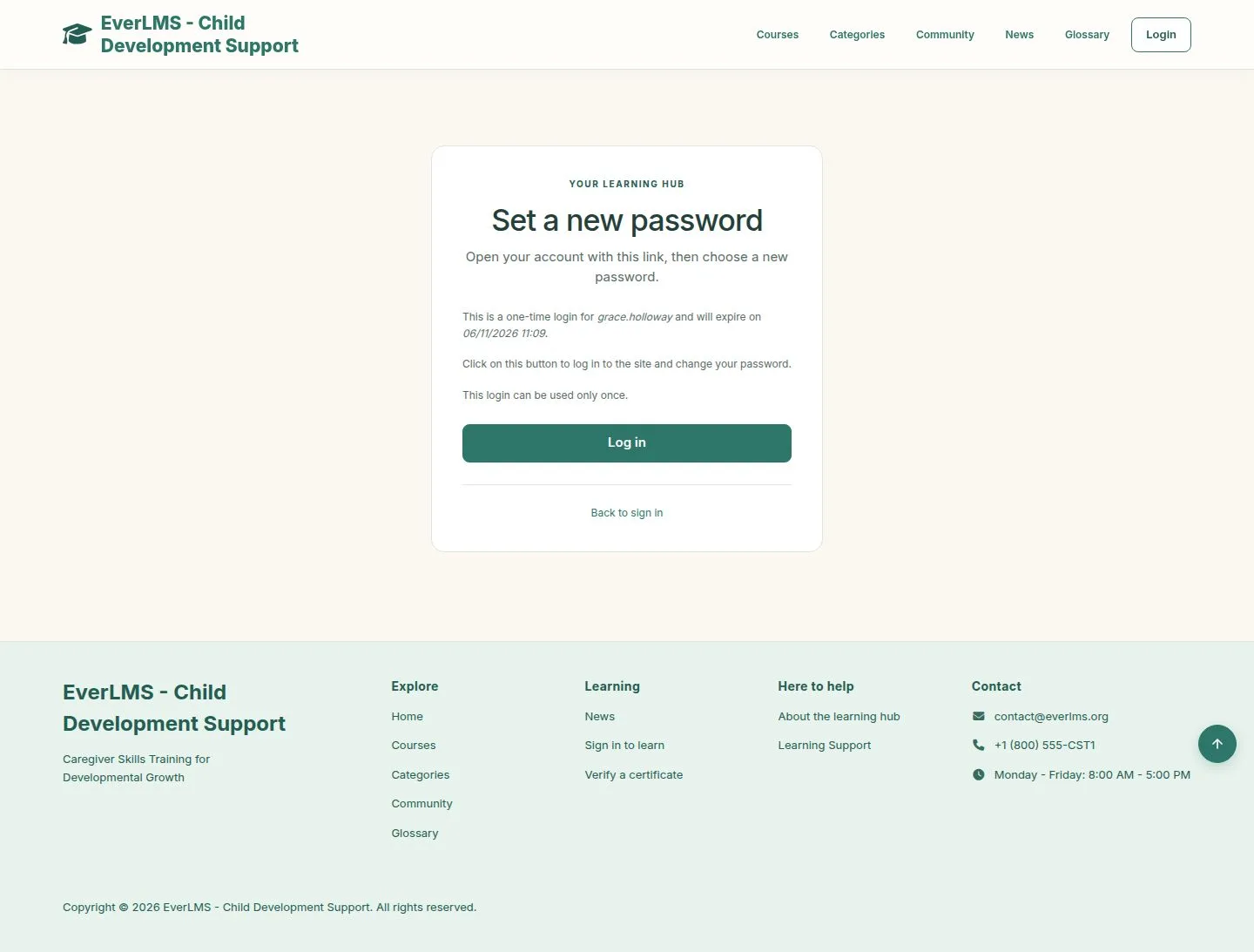
7Step 7 of 16

  1. Log in opens Account settings, where you type the new password twice.

Enlarge, then scroll

Full image ↗

Learner · Enrolment07

A course before enrolling

Learner

A course before enrolling

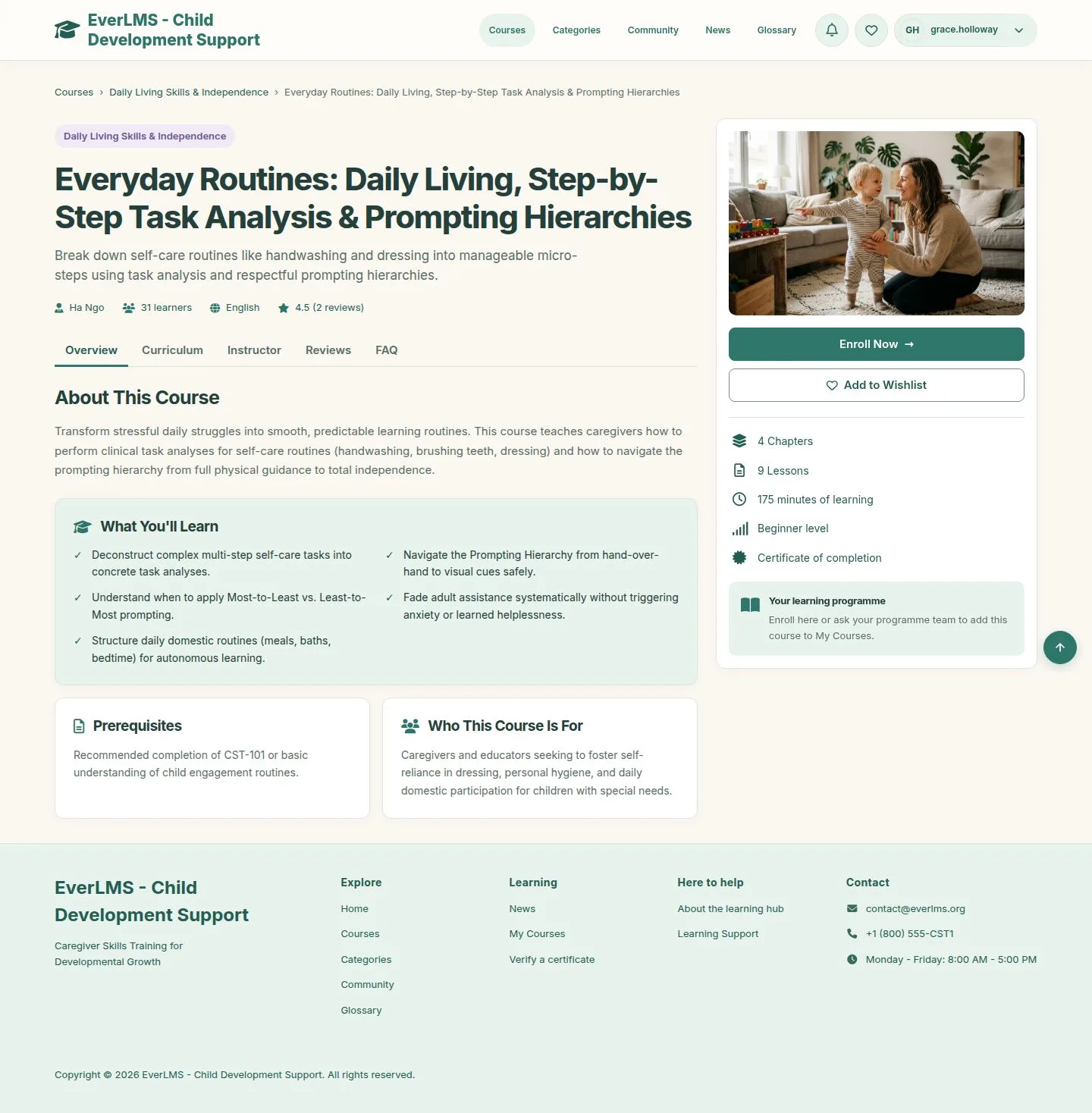
8Step 8 of 16

  1. Enroll Now and Add to Wishlist are on the side card.

Enlarge, then scroll

Open illustrated screen ↗Full image ↗

Learner · Enrolment08

A lesson before enrolling

Learner

A lesson before enrolling

9Step 9 of 16

  1. A link to a lesson brings you back to the course page, with what to do next.

Enlarge, then scroll

Open illustrated screen ↗Full image ↗

Learner · Enrolment09

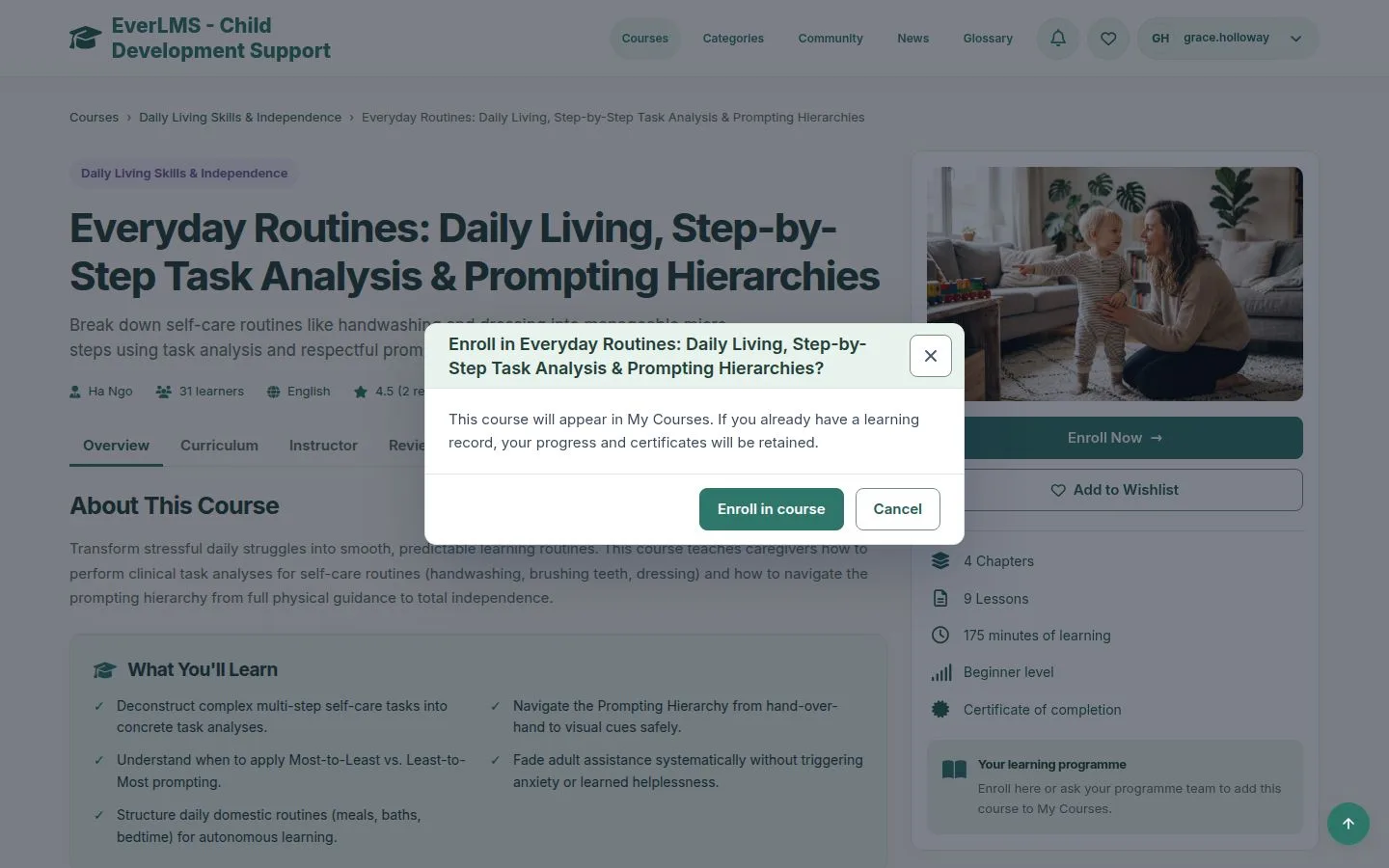
Enroll Now

Learner

Enroll Now

10Step 10 of 16

  1. The dialog names the course.
  2. Enroll in course confirms; Cancel keeps the page as it was.

If you already have a learning record, your progress and certificates are kept.

Open illustrated screen ↗Full image ↗

Learner · Enrolment10

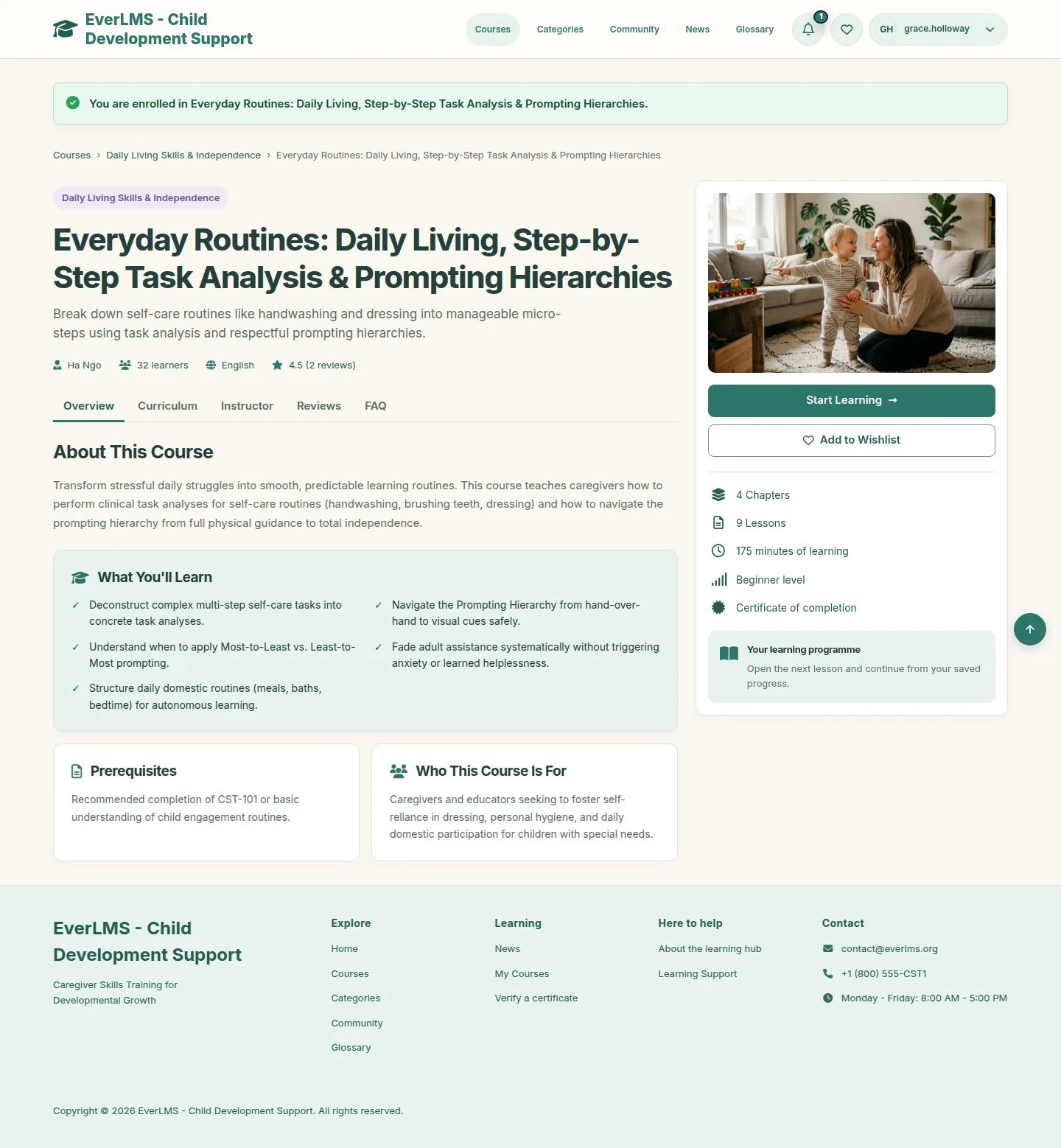
Enrolled

Learner

Enrolled

11Step 11 of 16

  1. Enroll Now becomes Start Learning.
  2. The bell counts a new notification.

Enlarge, then scroll

Open illustrated screen ↗Full image ↗

Learner · Enrolment11

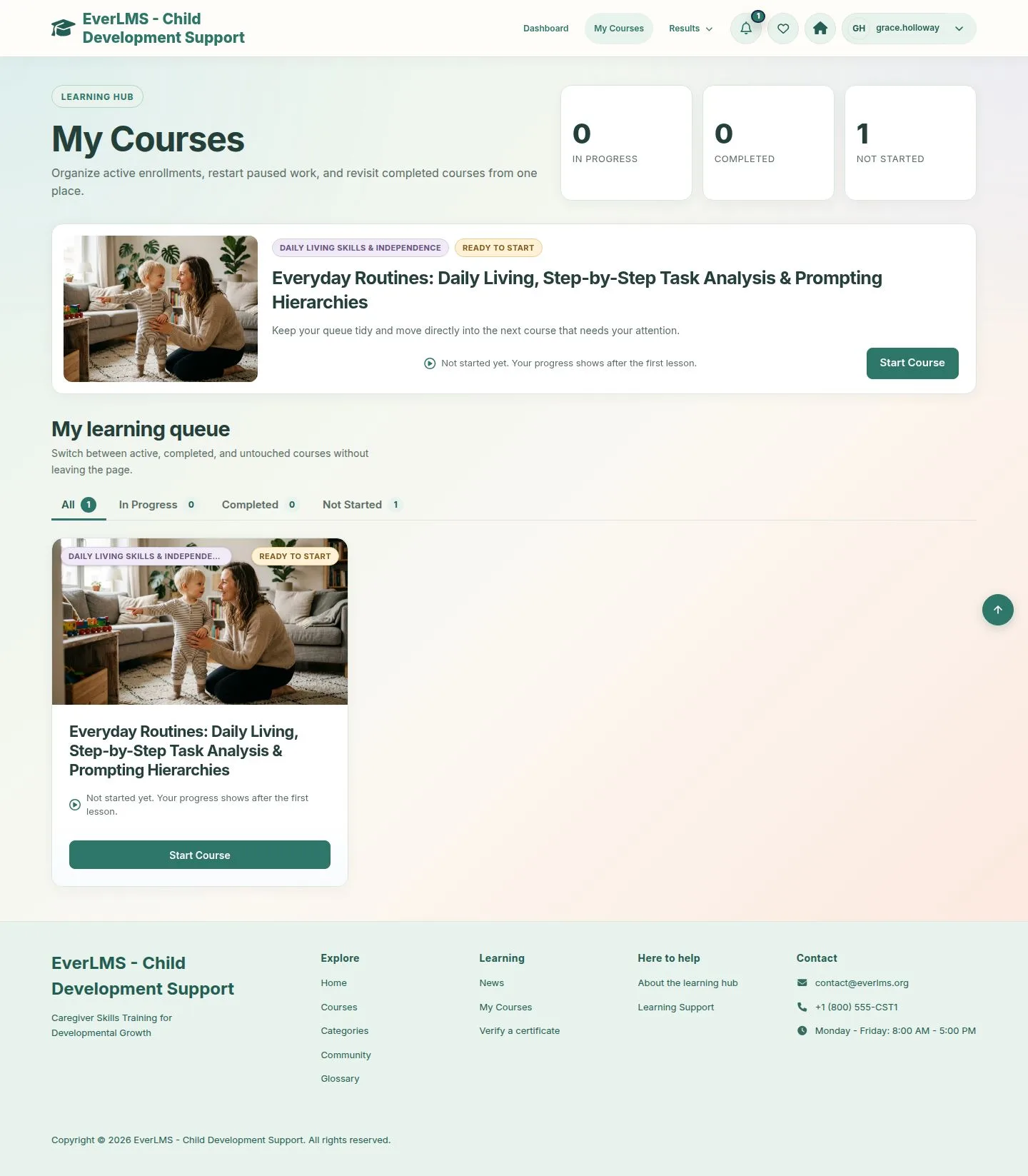
My Courses

Learner

My Courses

12Step 12 of 16

  1. The new course is Ready to start.
  2. All, In Progress, Completed and Not Started filter the queue.

Enlarge, then scroll

Open illustrated screen ↗Full image ↗

Learner · Enrolment12

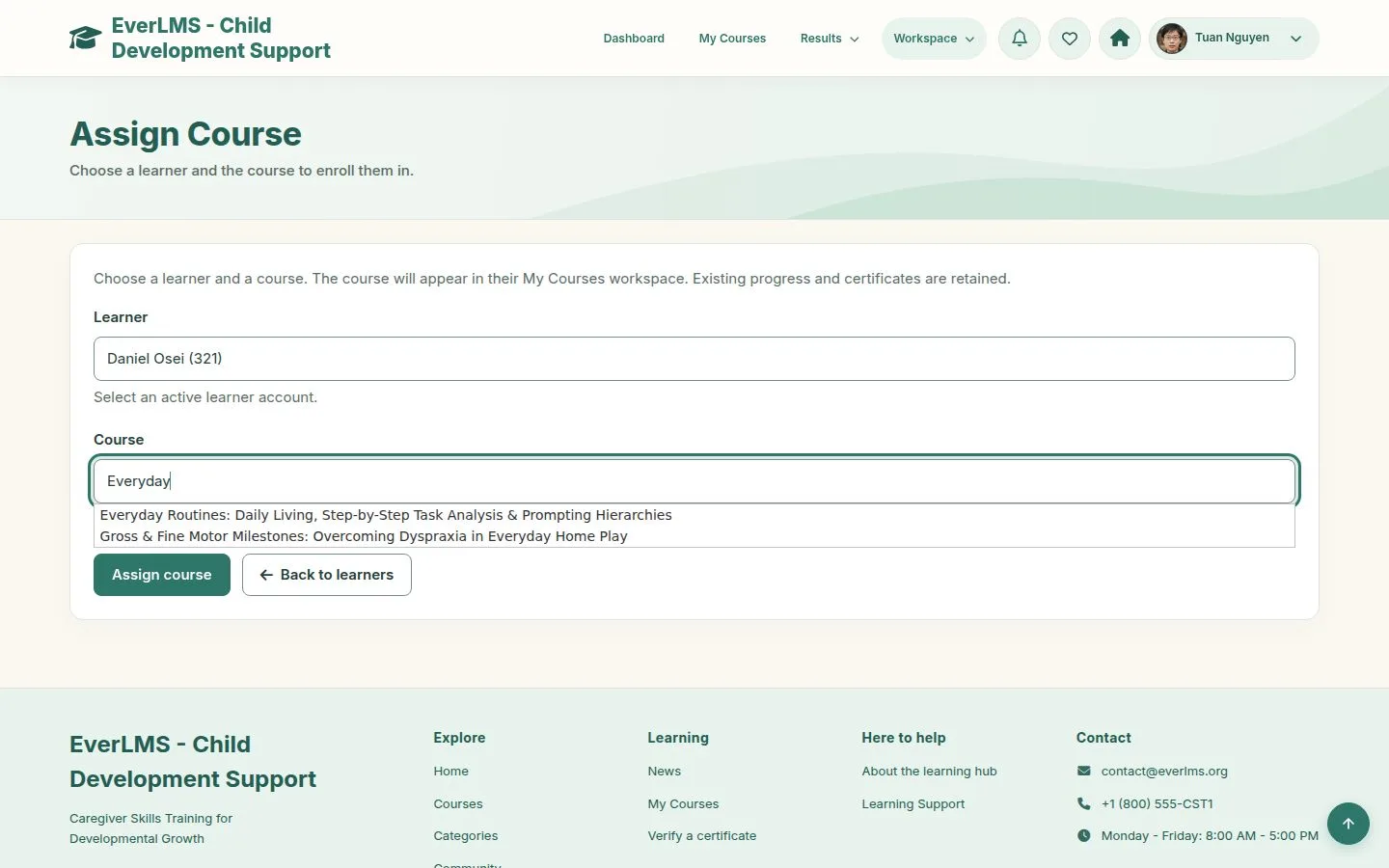
Assign a course

Manager

Assign a course

13Step 13 of 16

  1. Workspace › Assign Course.
  2. Type part of the name, login or email of the learner and choose; the same for the course.

Only active learners and published courses can be chosen.

Open illustrated screen ↗Full image ↗

Learner · Enrolment13

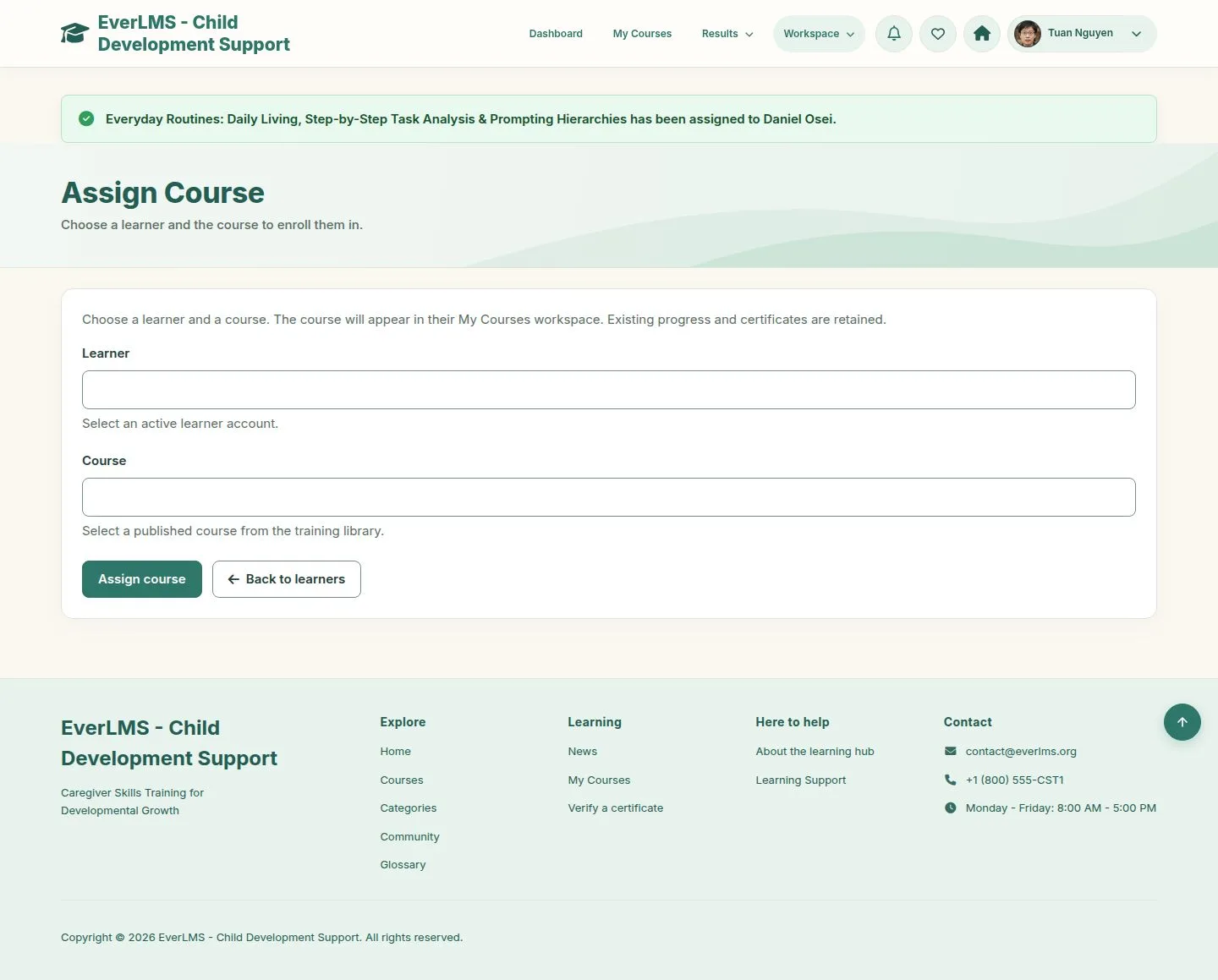
Assigned

Manager

Assigned

14Step 14 of 16

  1. Assign course adds the course to the learner.
  2. The learner gets a notification.

Enlarge, then scroll

Full image ↗

Learner · Enrolment14

Assigned twice

Manager

Assigned twice

15Step 15 of 16

  1. The same pair again changes nothing: the message says the record is retained.

Enlarge, then scroll

Full image ↗

Learner · Enrolment15

What the learner sees

Learner
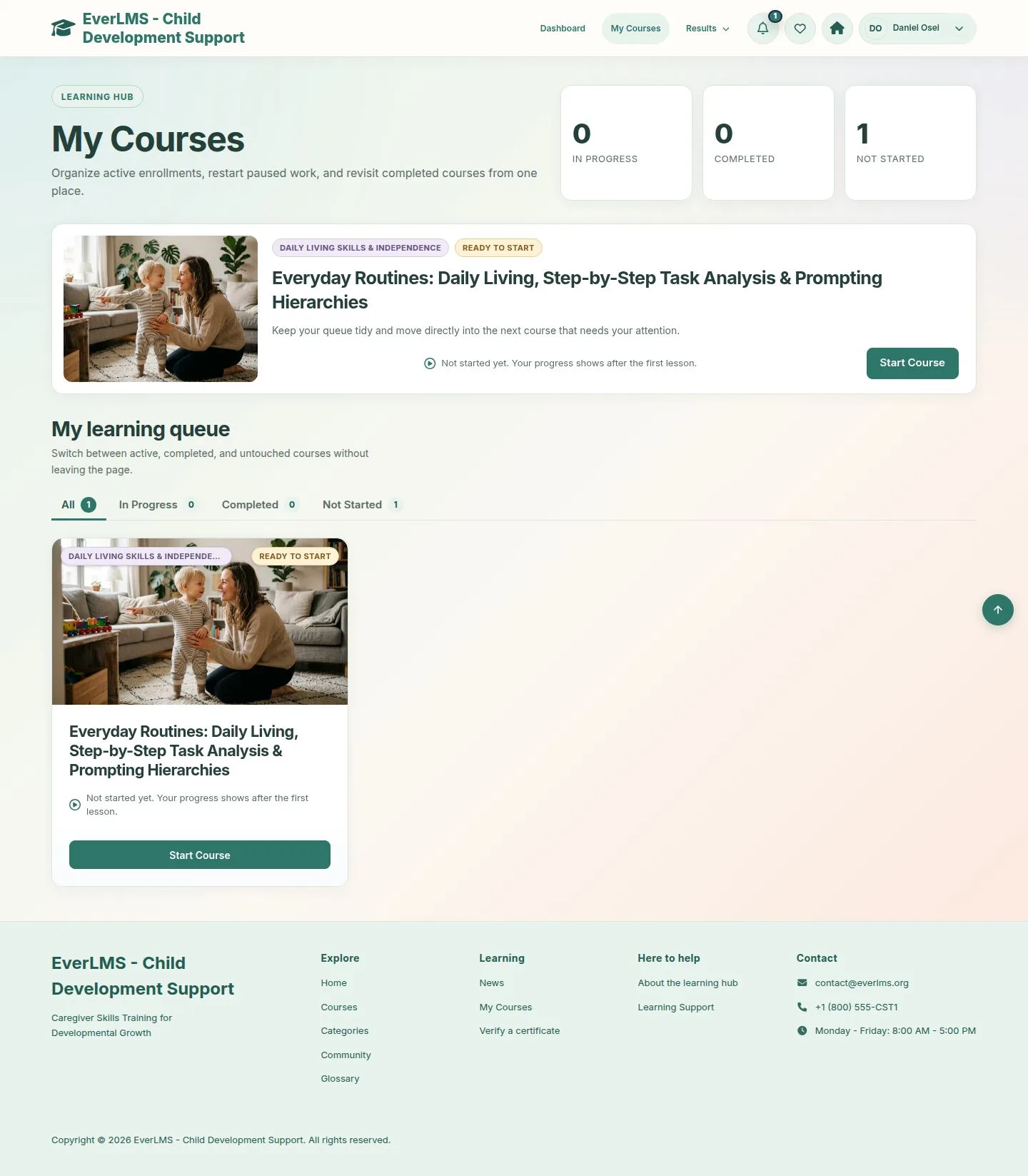
What the learner sees

16Step 16 of 16

  1. The course waits in My Courses, without any step by the learner.

Enlarge, then scroll

Open illustrated screen ↗Full image ↗

Check

The course is in My Courses; each learner has one learning record per course

Learner · Enrolment16
1 / 17
Privacy Terms