Certificates

PDF and public check

  • A course with a certificate template, or the default template
Learner
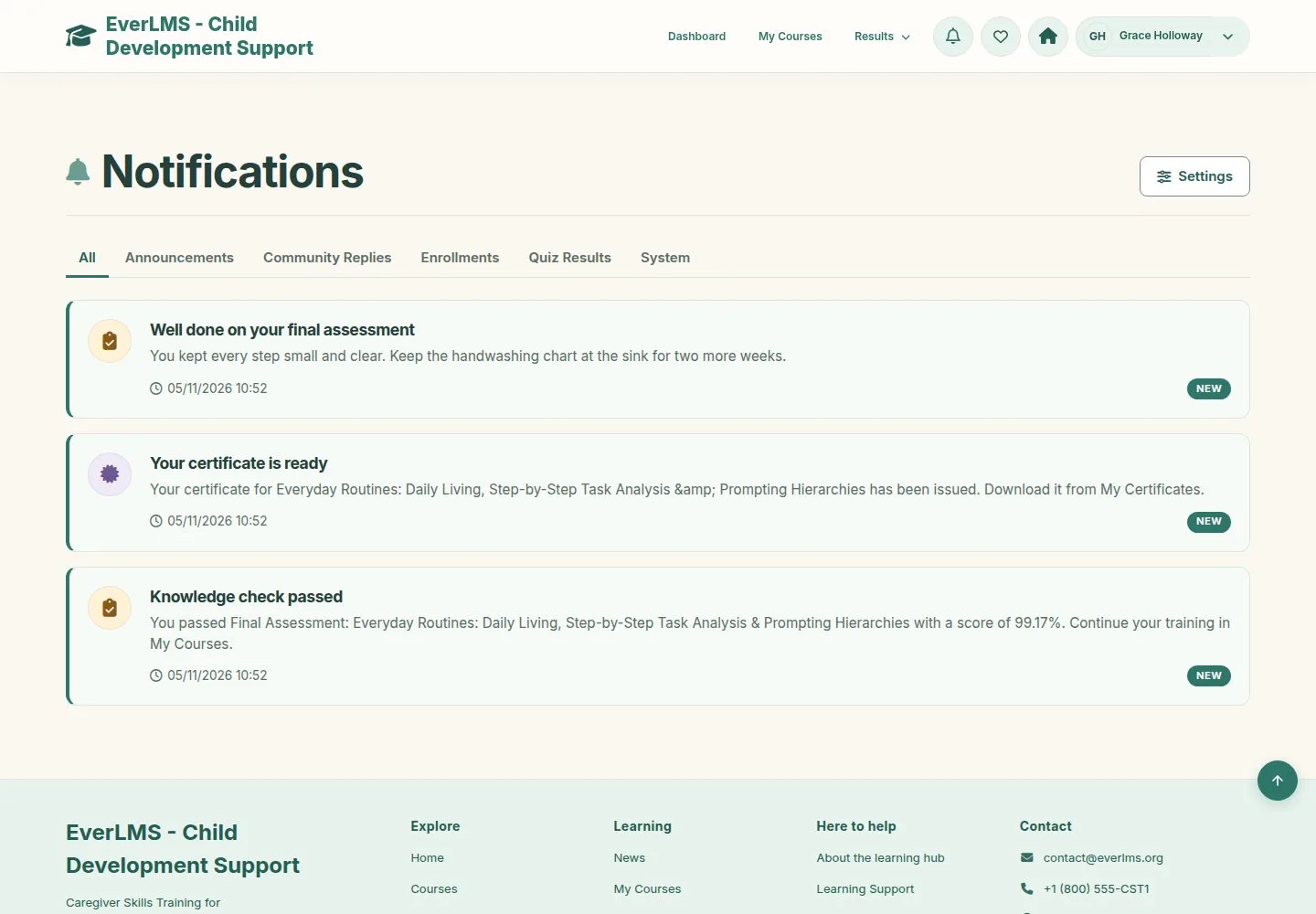
Your certificate is ready

Learner

Your certificate is ready

1Step 1 of 15

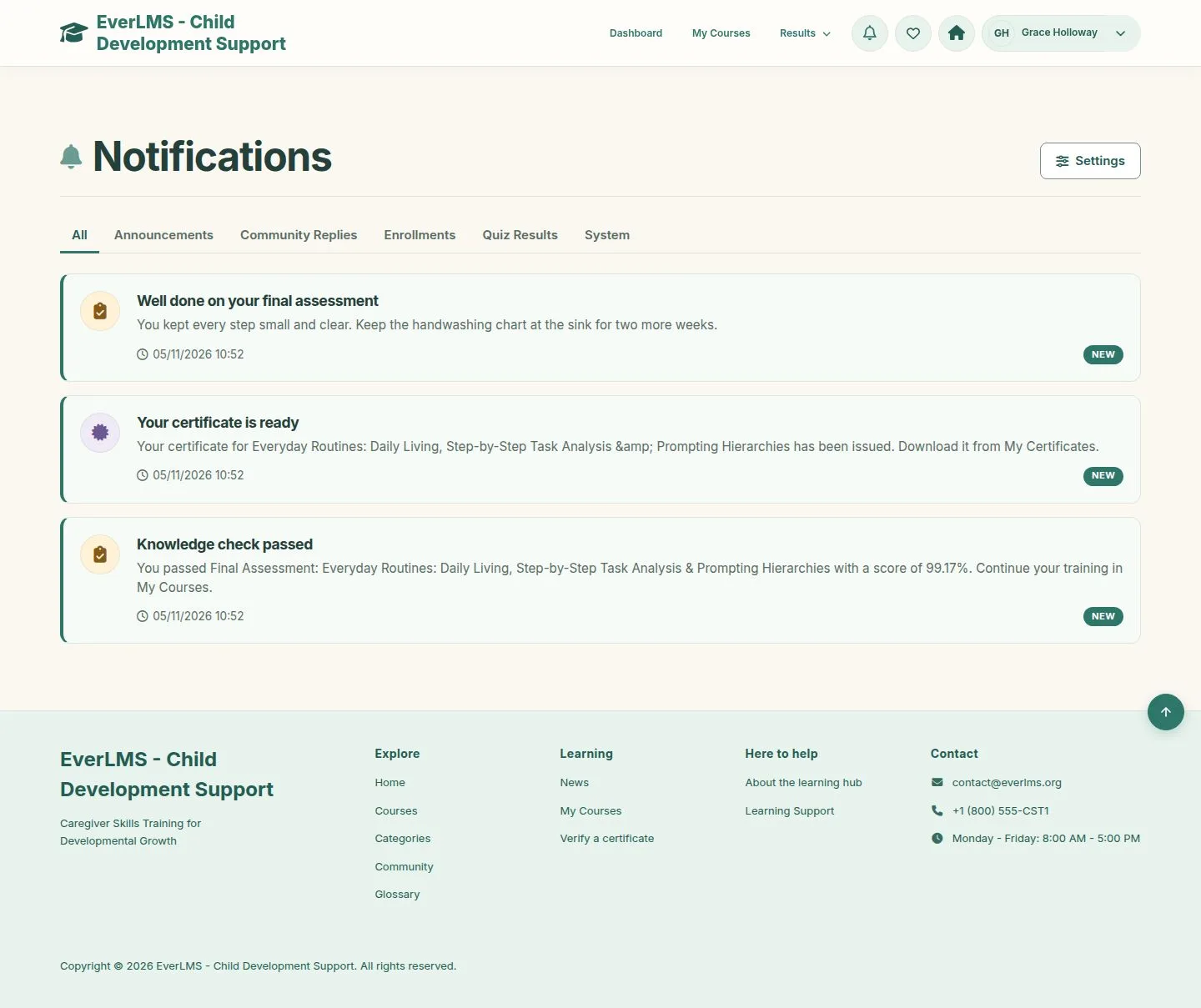
  1. Passing issues the certificate, once per course.
  2. A notification links to My Certificates.

Enlarge, then scroll

Open illustrated screen ↗Full image ↗

Learner · Certificates01

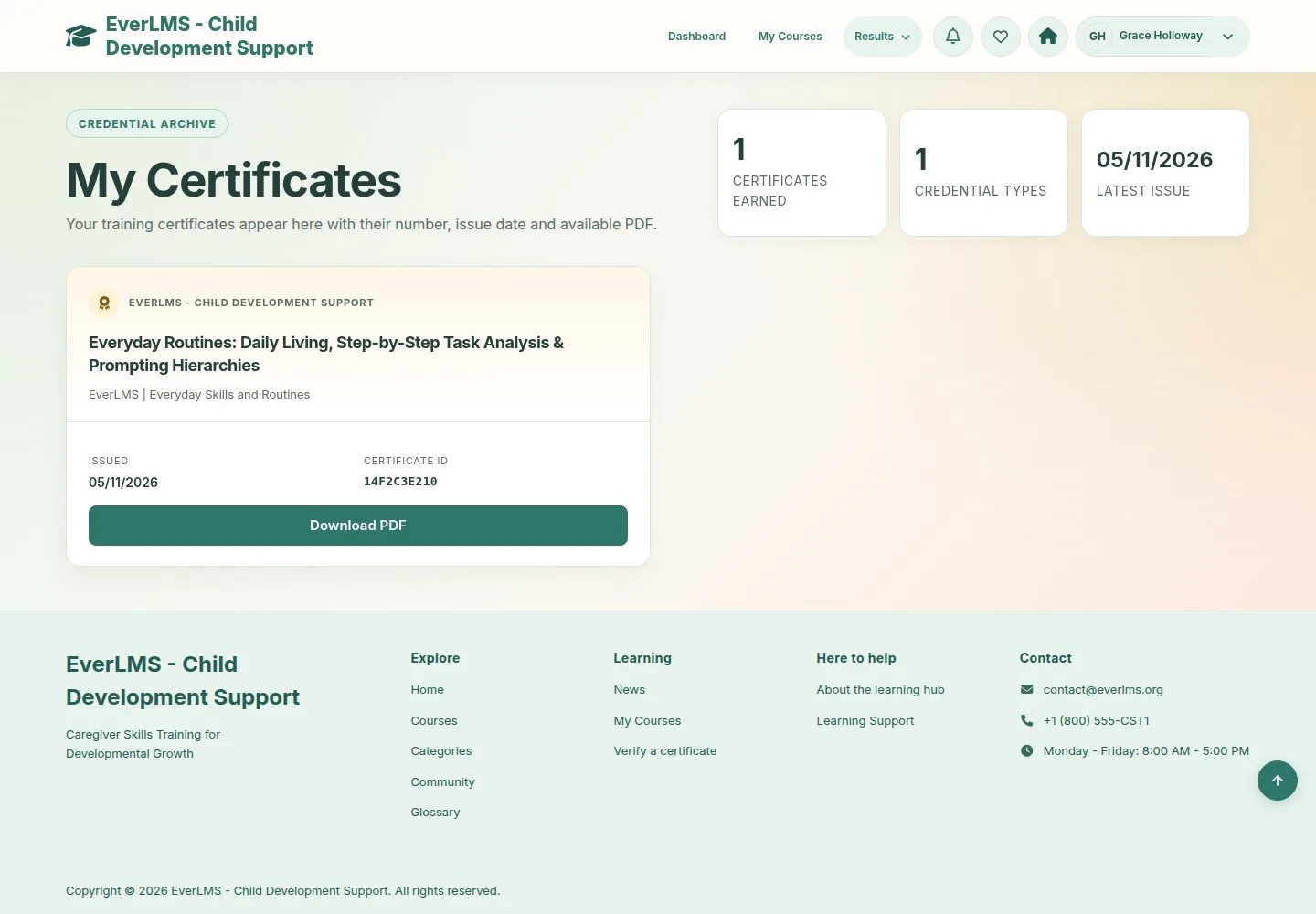
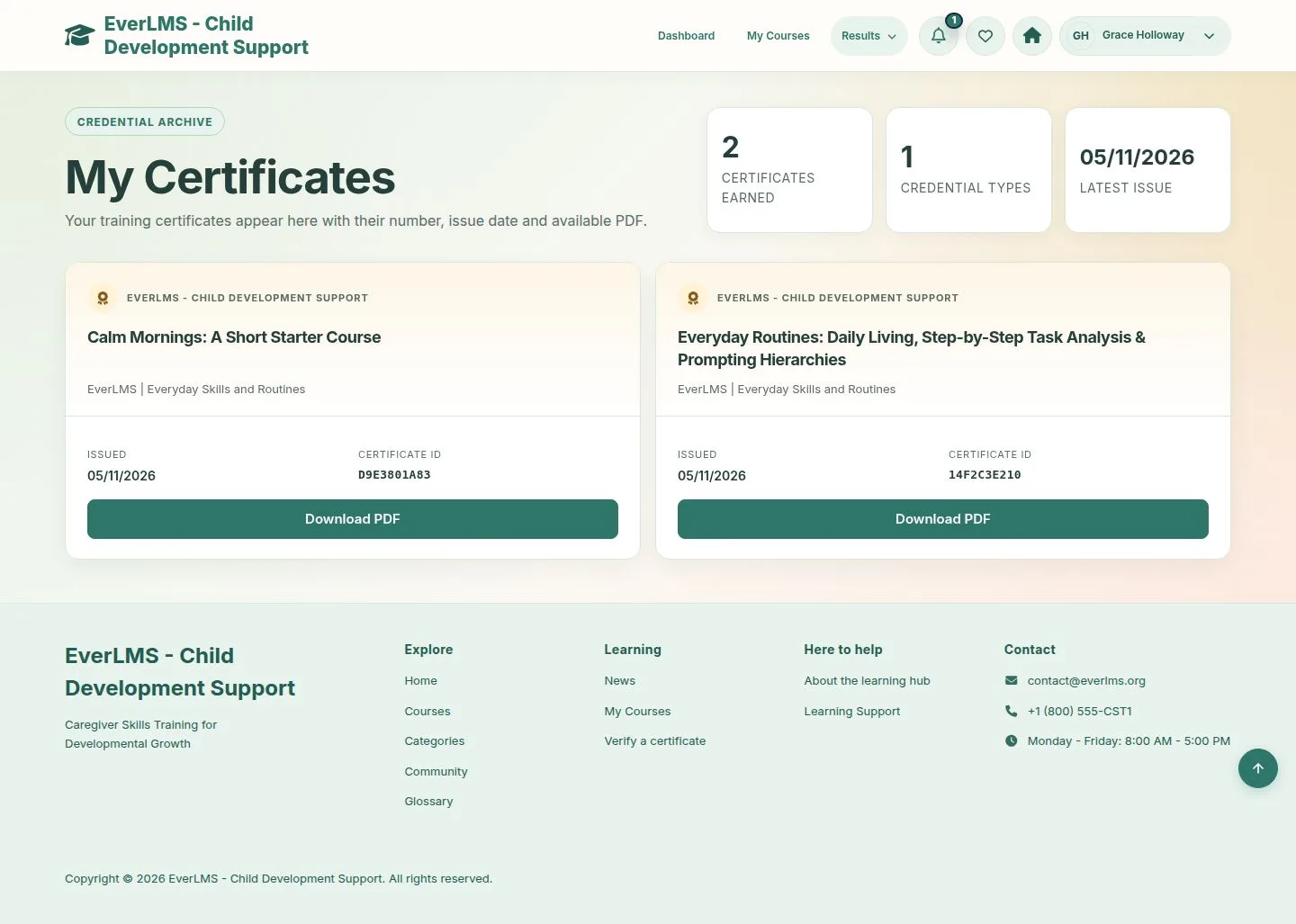
My Certificates

Learner

My Certificates

2Step 2 of 15

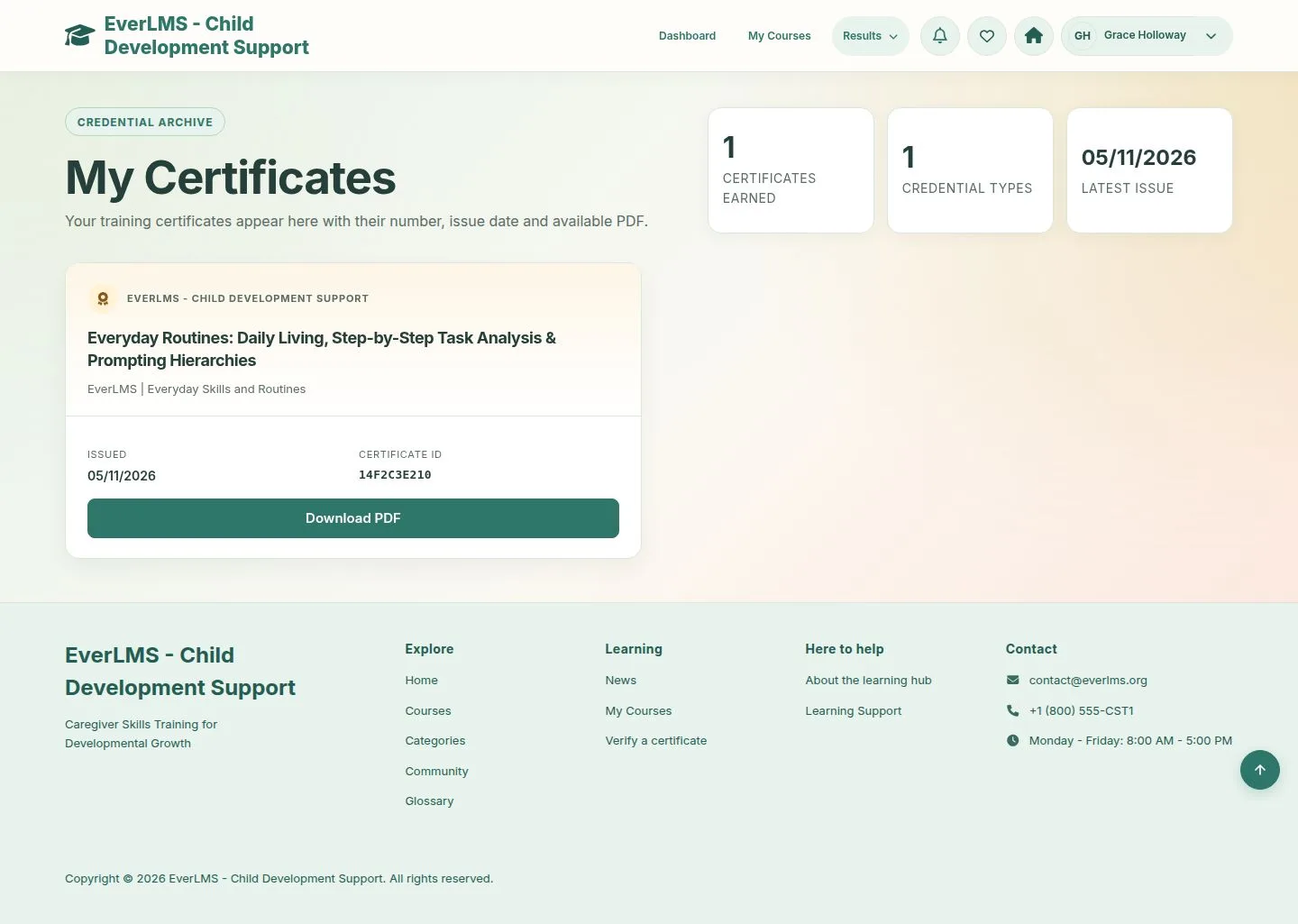
  1. The course, the template, the date and the certificate ID.
  2. Download PDF opens the file.

Enlarge, then scroll

Open illustrated screen ↗Full image ↗

Learner · Certificates02

Taken again

Learner

Taken again

3Step 3 of 15

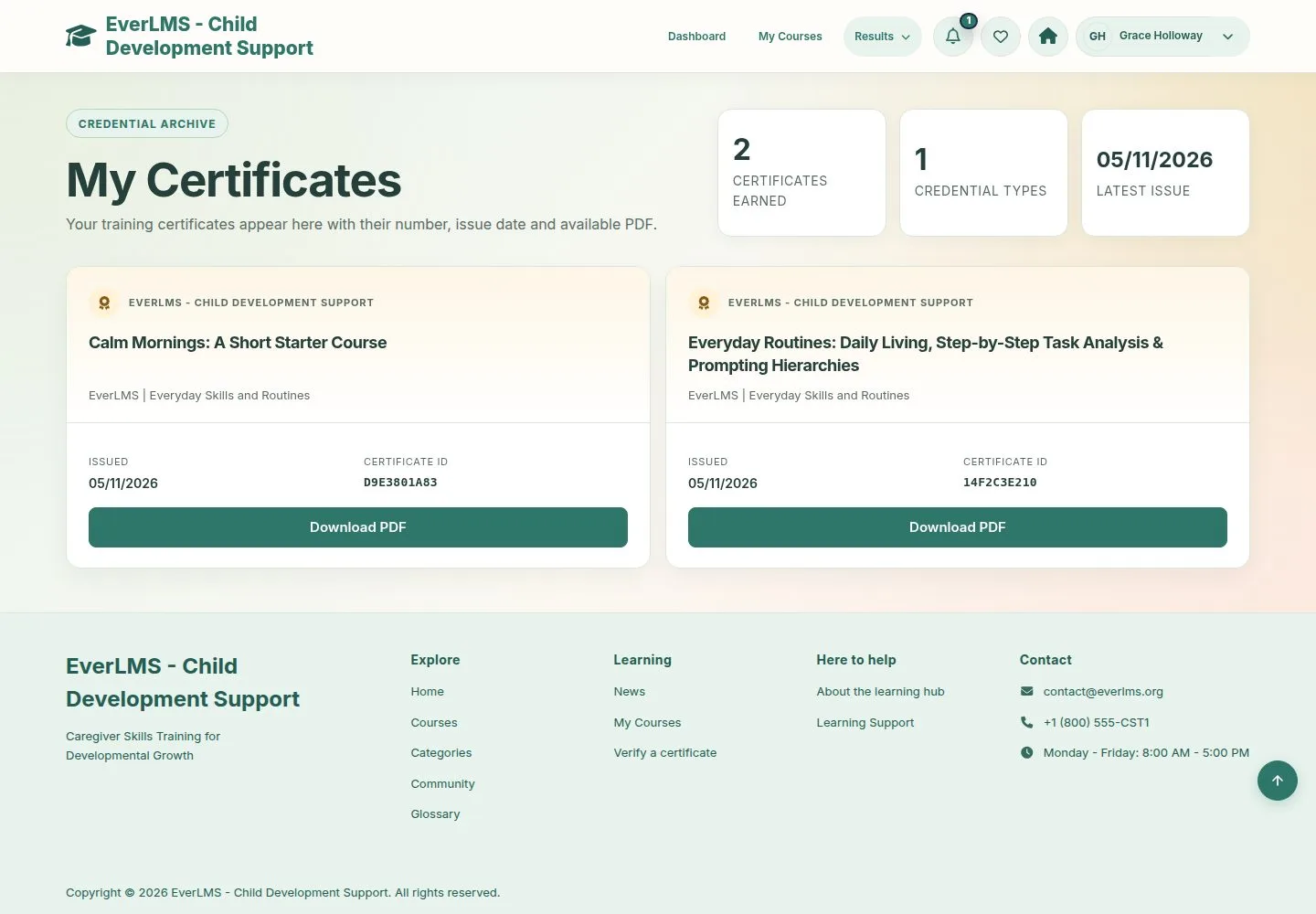
  1. Passing again does not issue a second certificate.

Enlarge, then scroll

Open illustrated screen ↗Full image ↗

Learner · Certificates03

Check a certificate

Visitor

Check a certificate

4Step 4 of 15

  1. Verify a certificate is in the footer of every page.
  2. Type the code printed on the certificate.

Open illustrated screen ↗Full image ↗

Learner · Certificates04

A valid code

Visitor

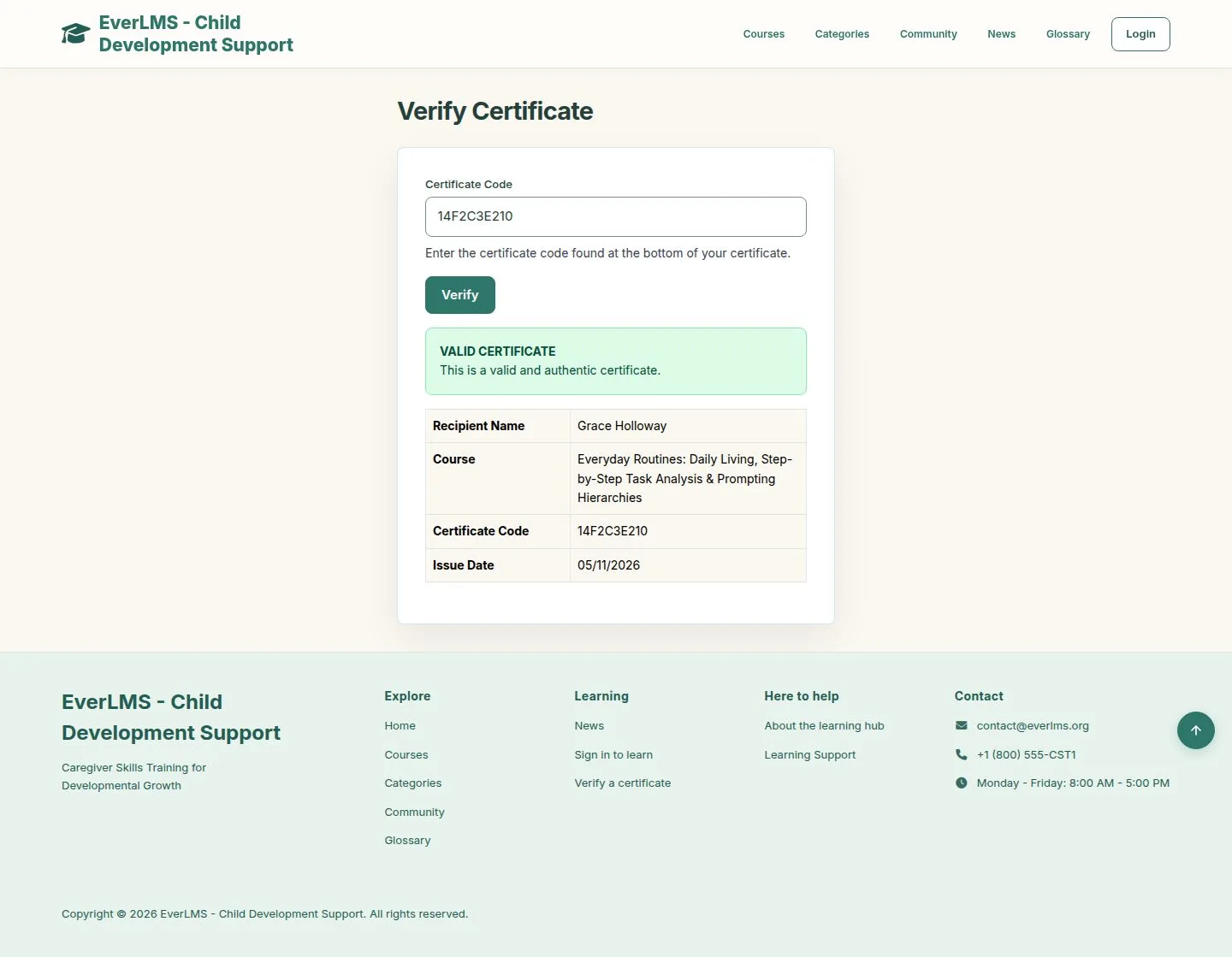
A valid code

5Step 5 of 15

  1. The name, the course, the code and the date.

Enlarge, then scroll

Full image ↗

Learner · Certificates05

An unknown code

Visitor

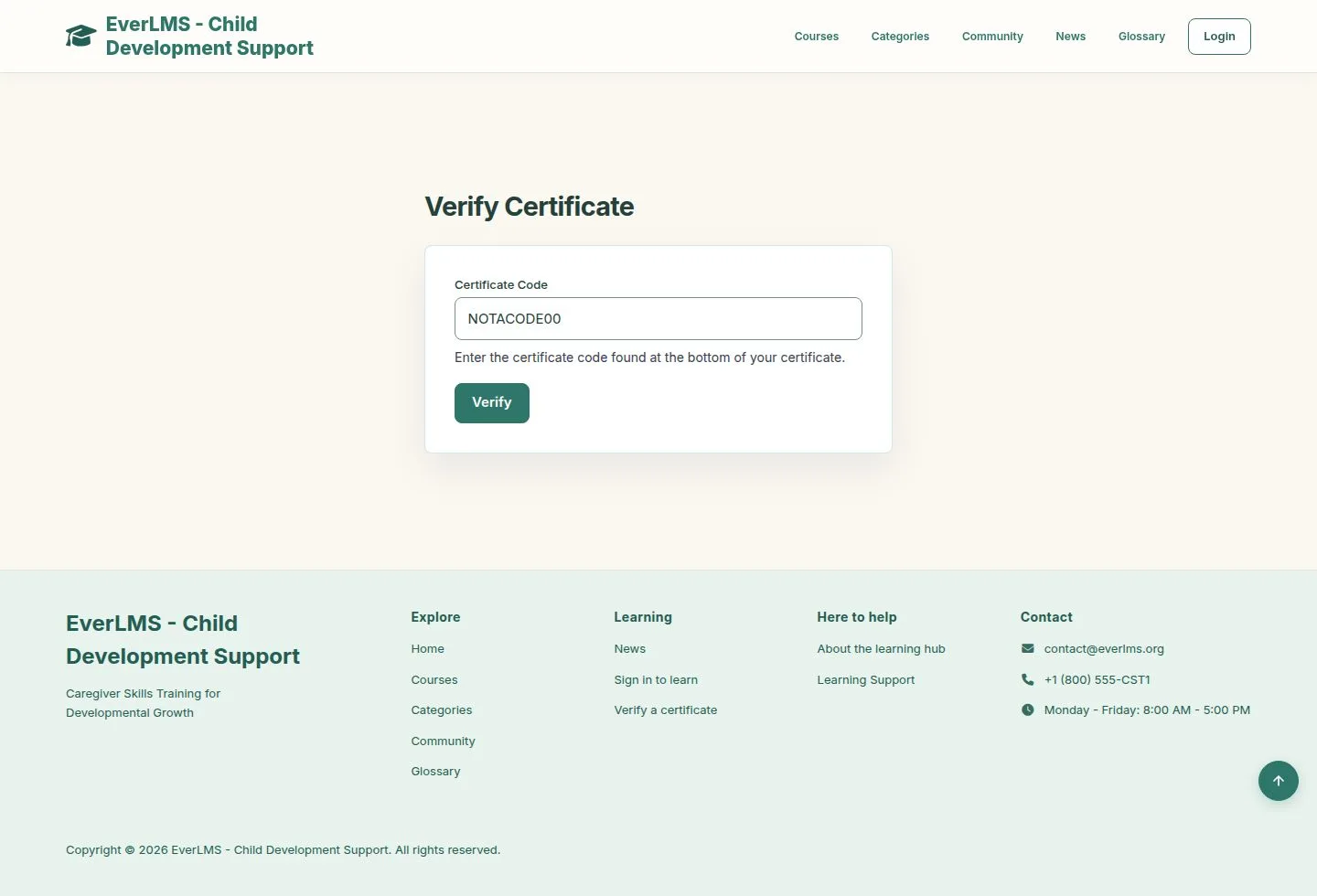
An unknown code

6Step 6 of 15

  1. The page says no certificate has this code.

Full image ↗

Learner · Certificates06

Certificate Management

Manager

Certificate Management

7Step 7 of 15

  1. Every issued certificate: search by code, name or email, filter by status.
  2. Each row opens the PDF, makes the PDF again or revokes.

Enlarge, then scroll

Open illustrated screen ↗Full image ↗

Learner · Certificates07

Revoke

Manager

Revoke

8Step 8 of 15

  1. Revoke asks for the reason in a dialog.
  2. This cannot be undone.

Full image ↗

Learner · Certificates08

Revoked

Manager

Revoked

9Step 9 of 15

  1. The row says Revoked and keeps only the PDF link.

Enlarge, then scroll

Full image ↗

Learner · Certificates09

The public check

Visitor

The public check

10Step 10 of 15

  1. The code now says Revoked, with the reason.

Enlarge, then scroll

Full image ↗

Learner · Certificates10

The learner

Learner

The learner

11Step 11 of 15

  1. The card says Revoked, without Download PDF, and no longer counts as earned.

Open illustrated screen ↗Full image ↗

Learner · Certificates11

Templates

Manager

Templates

12Step 12 of 15

  1. One template per look; a course can name its own.
  2. Each row previews and edits.

Enlarge, then scroll

Open illustrated screen ↗Full image ↗

Learner · Certificates12

A new template

Manager

A new template

13Step 13 of 15

  1. Certificate Body uses the tokens for the name, course, date and code.
  2. Twig Template is optional, for a full layout of your own.
  3. Design, images, orientation and colour follow.

Enlarge, then scroll

Open illustrated screen ↗Full image ↗

Learner · Certificates13

Preview

Manager

Preview

14Step 14 of 15

  1. Preview opens a PDF with sample values.

A template changes the next certificates; those already issued keep their PDF until they are made again.

Open illustrated screen ↗Full image ↗

Learner · Certificates14

A removed course

Visitor

A removed course

15Step 15 of 15

  1. A certificate keeps naming the course it was issued for, even when the course is removed.

Enlarge, then scroll

Full image ↗

Check

One certificate per learner and course, with a code that anyone can check

Learner · Certificates15
1 / 16
Privacy Terms