Lessons & progress

Reading, interactive, notes, questions

  • Enrolled in the course
Learner
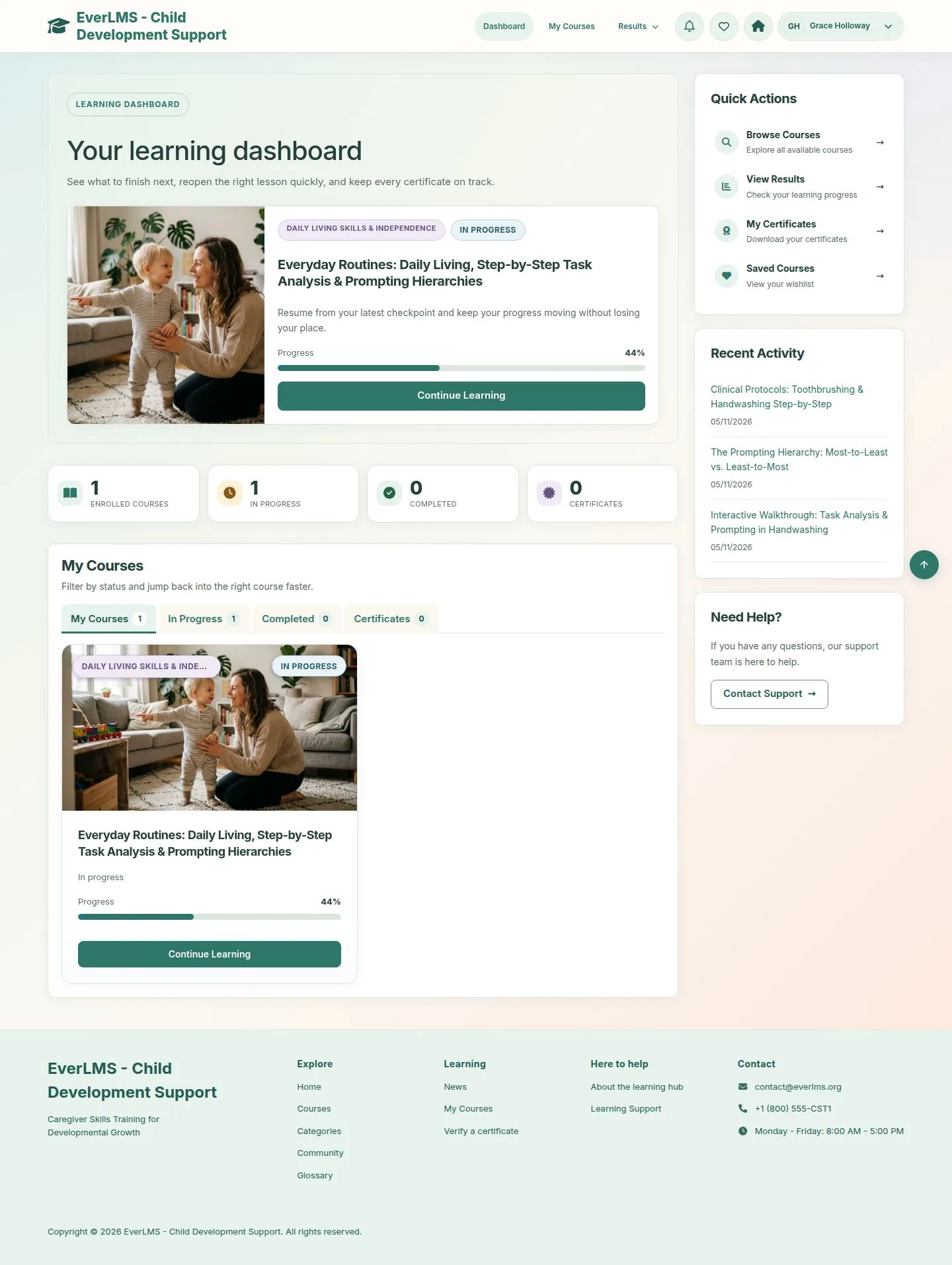
Your dashboard

Learner

Your dashboard

1Step 1 of 12

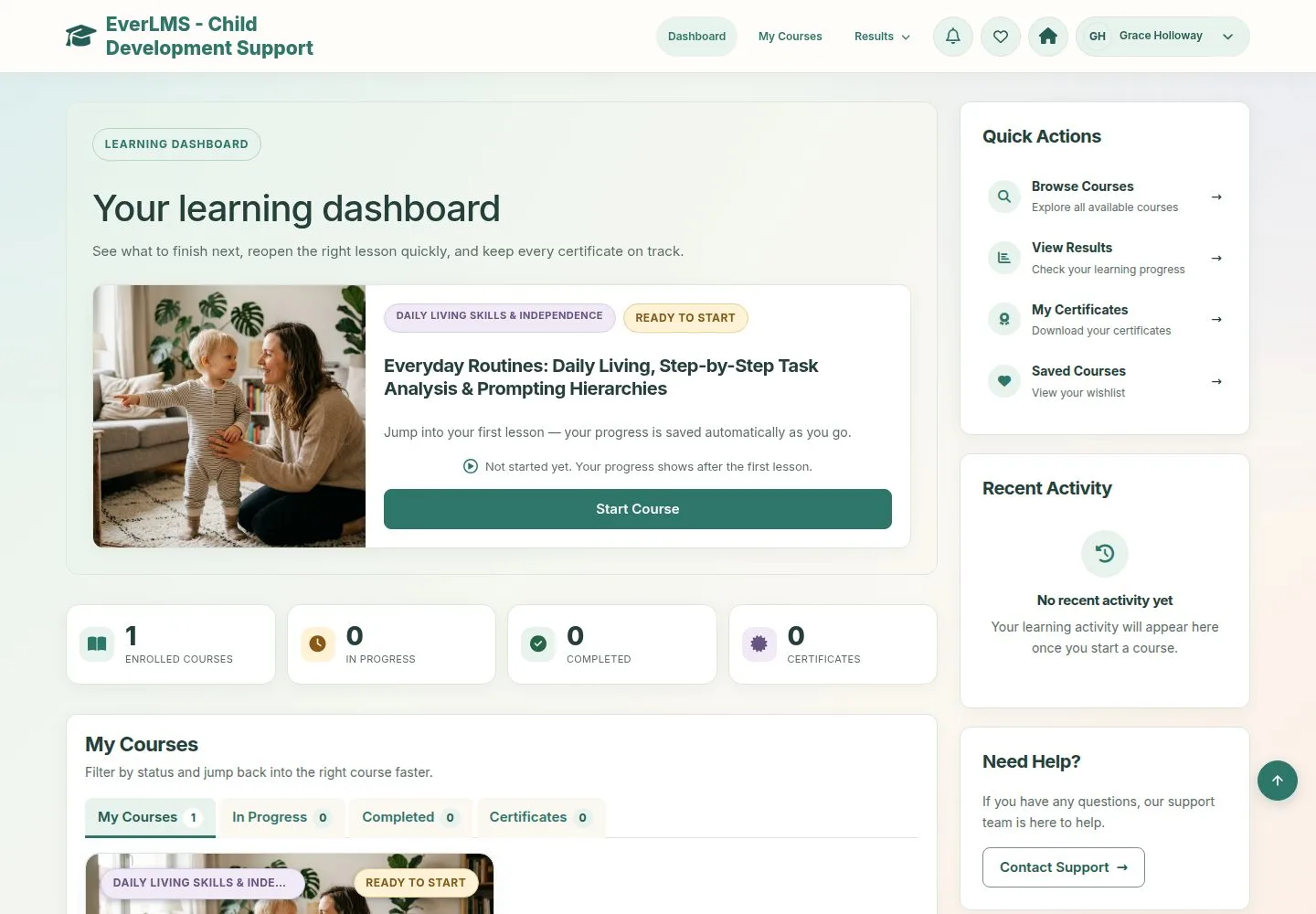
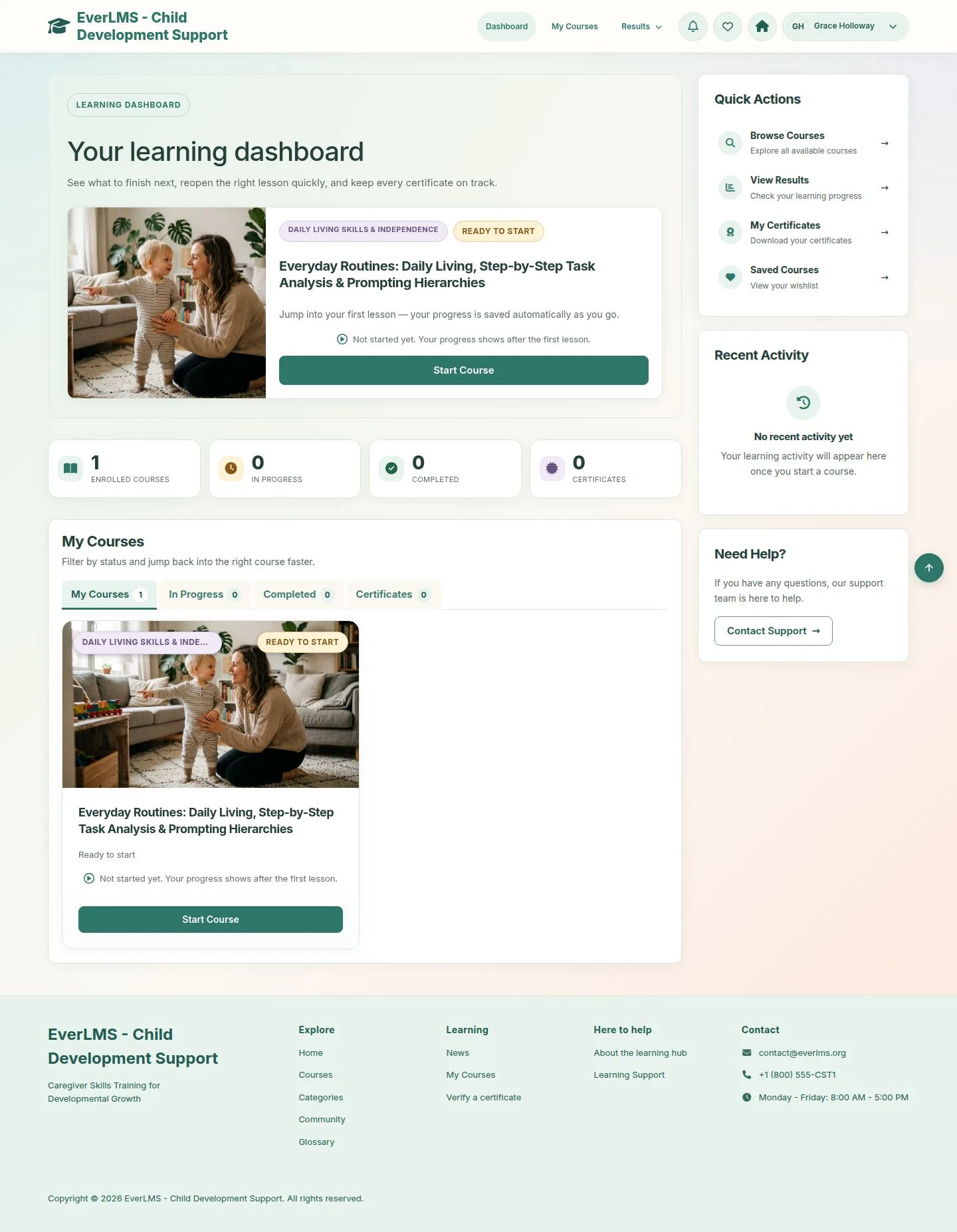
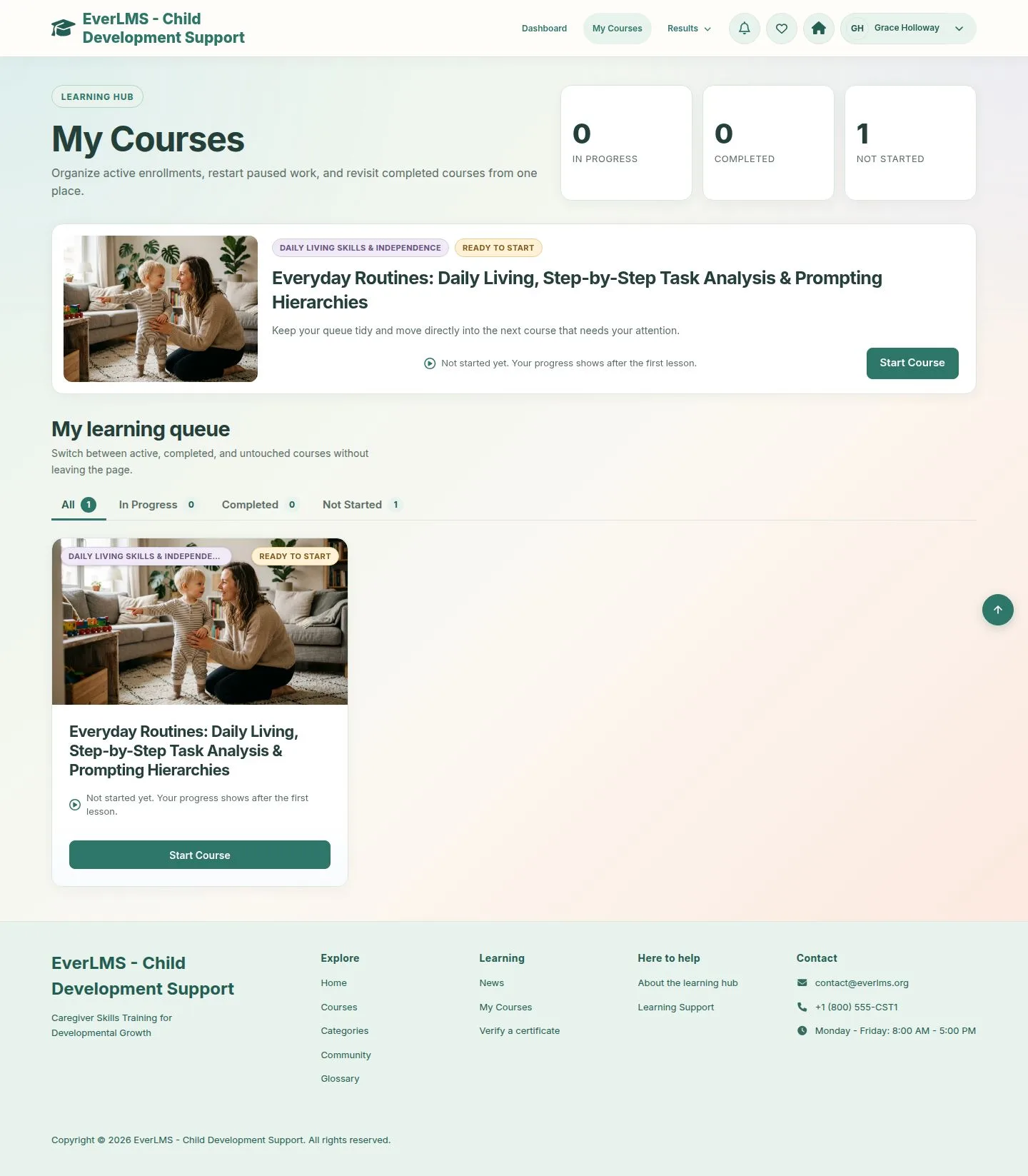
  1. The course to continue, your totals, Quick Actions and Recent Activity.
  2. My Courses filters by status.

Enlarge, then scroll

Open illustrated screen ↗Full image ↗

Learner · Lessons & progress01

My Courses

Learner

My Courses

2Step 2 of 12

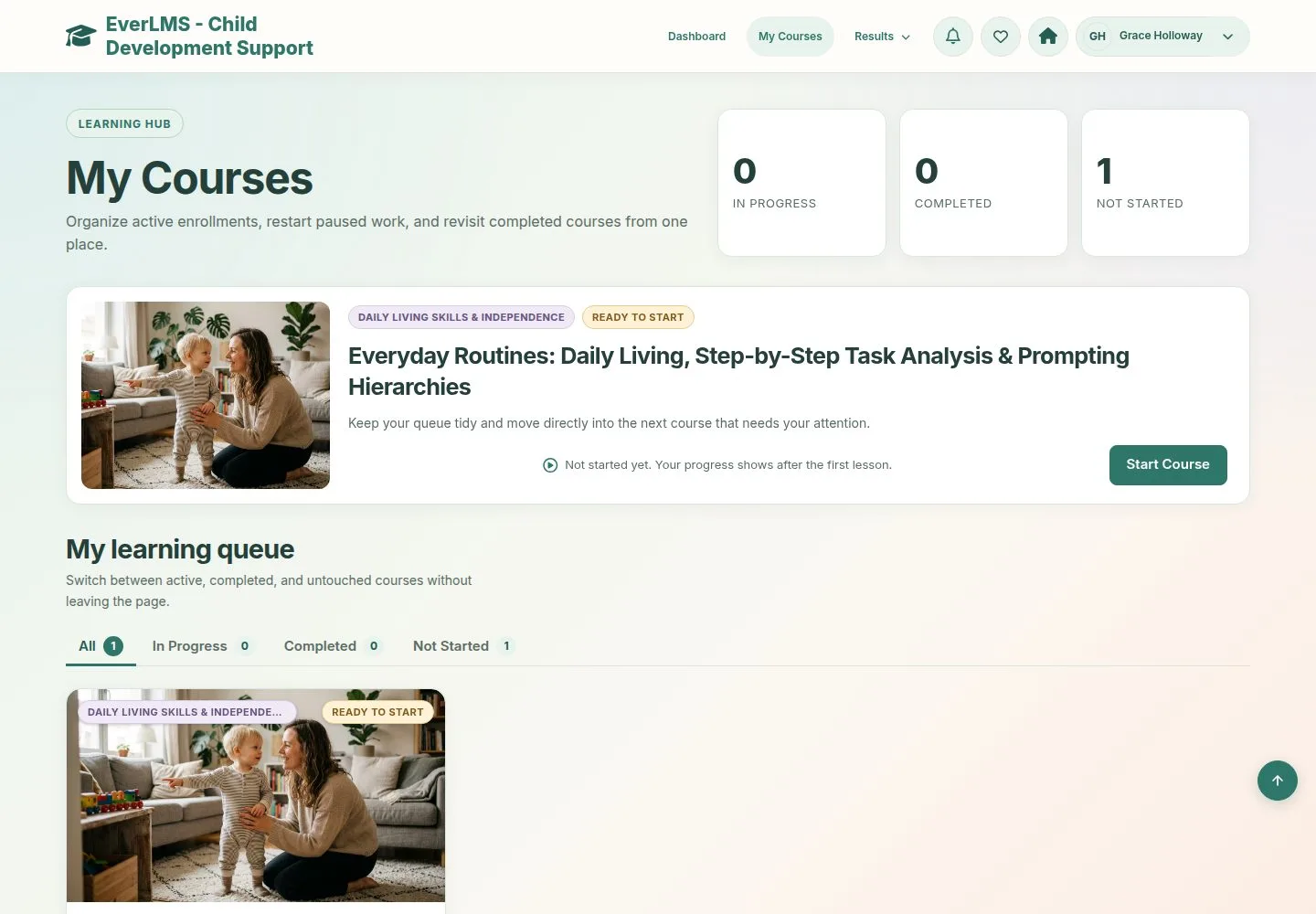
  1. Start Course opens the first lesson; later it is Continue Learning.

Enlarge, then scroll

Open illustrated screen ↗Full image ↗

Learner · Lessons & progress02

A reading lesson

Learner

A reading lesson

3Step 3 of 12

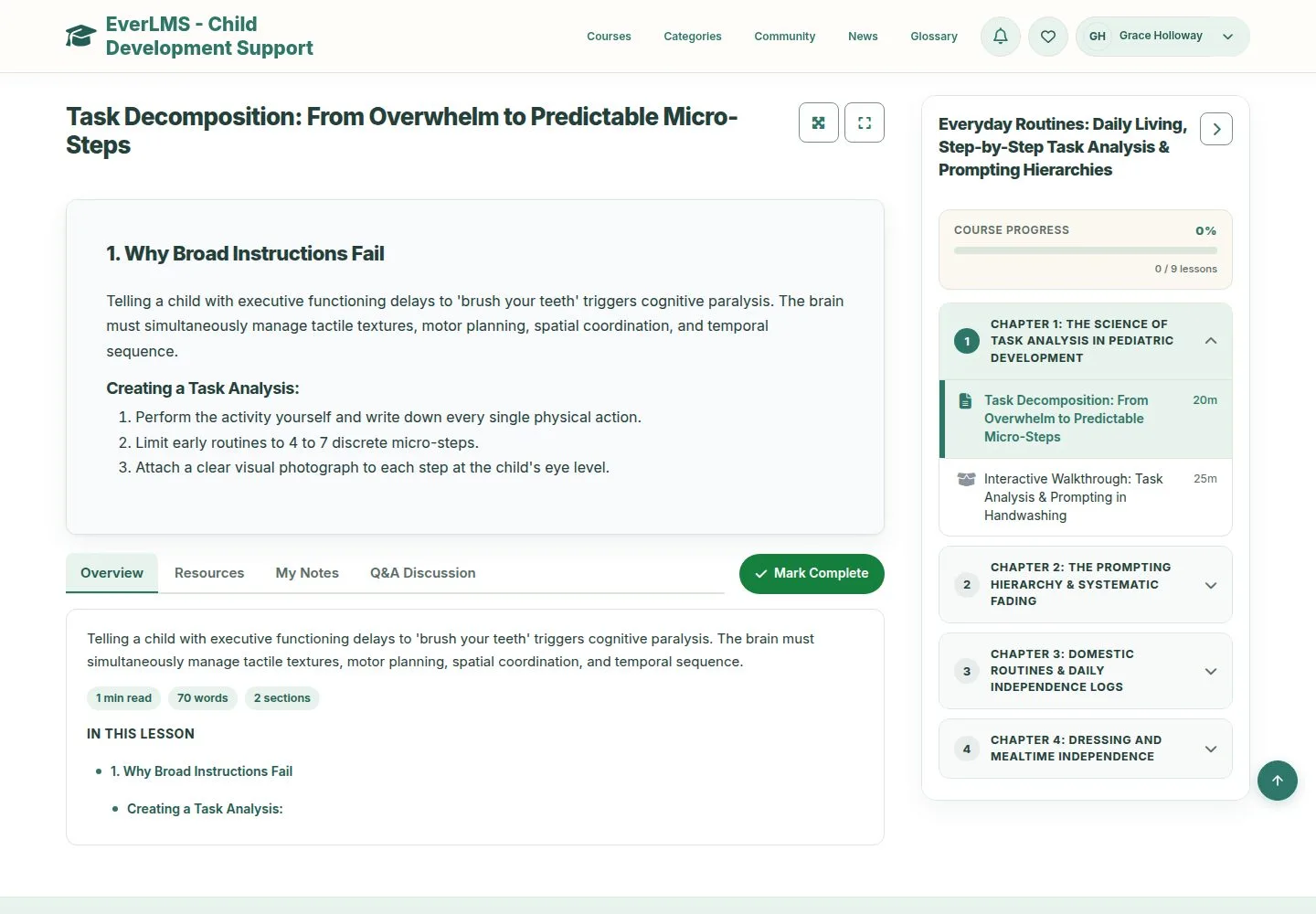
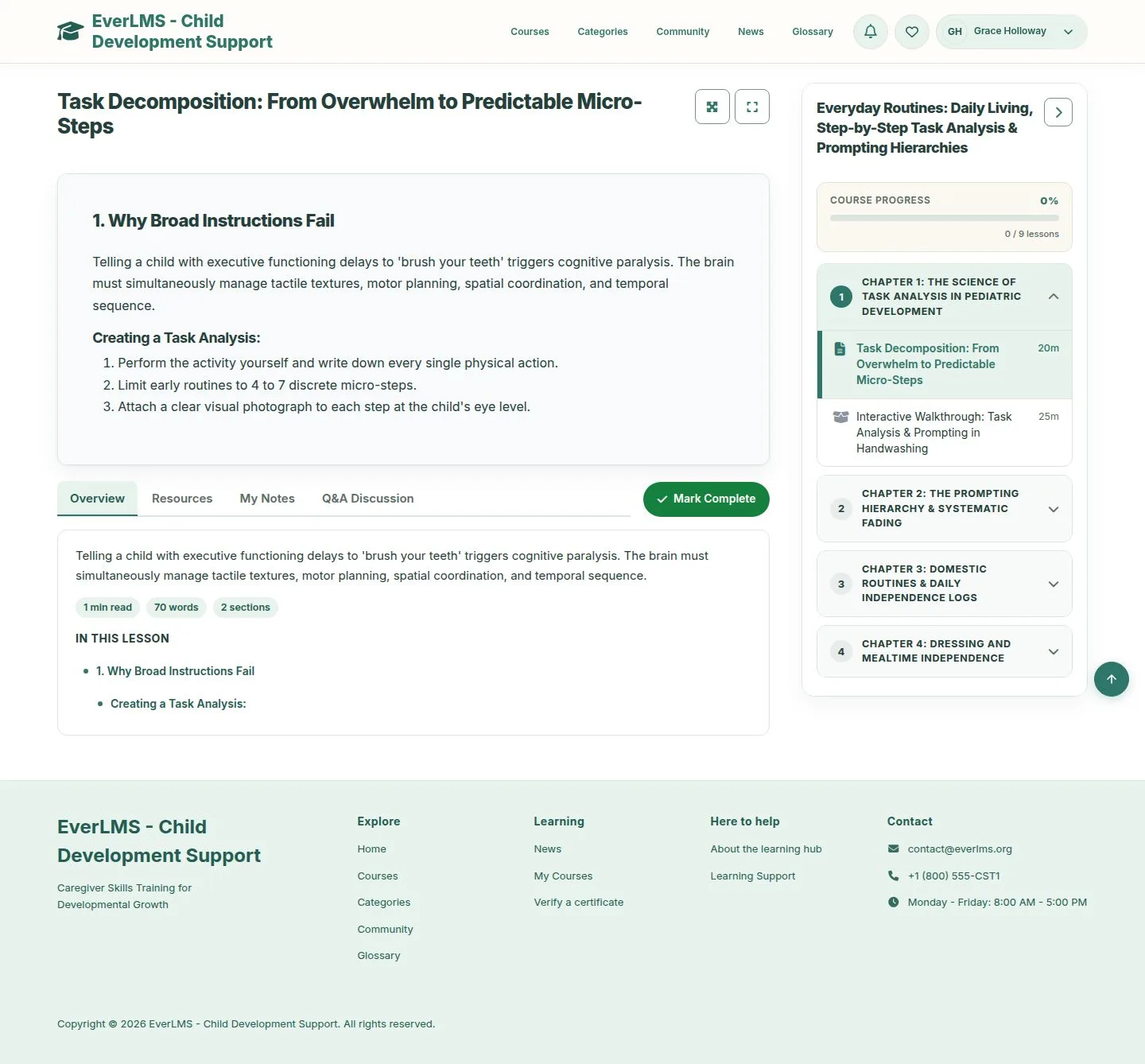
  1. The lesson, then Overview, Resources, My Notes and Q&A Discussion.
  2. The course outline on the right shows where you are.
  3. Overview gives the reading time and links to each section.

Enlarge, then scroll

Open illustrated screen ↗Full image ↗

Learner · Lessons & progress03

Theater mode

Learner

Theater mode

4Step 4 of 12

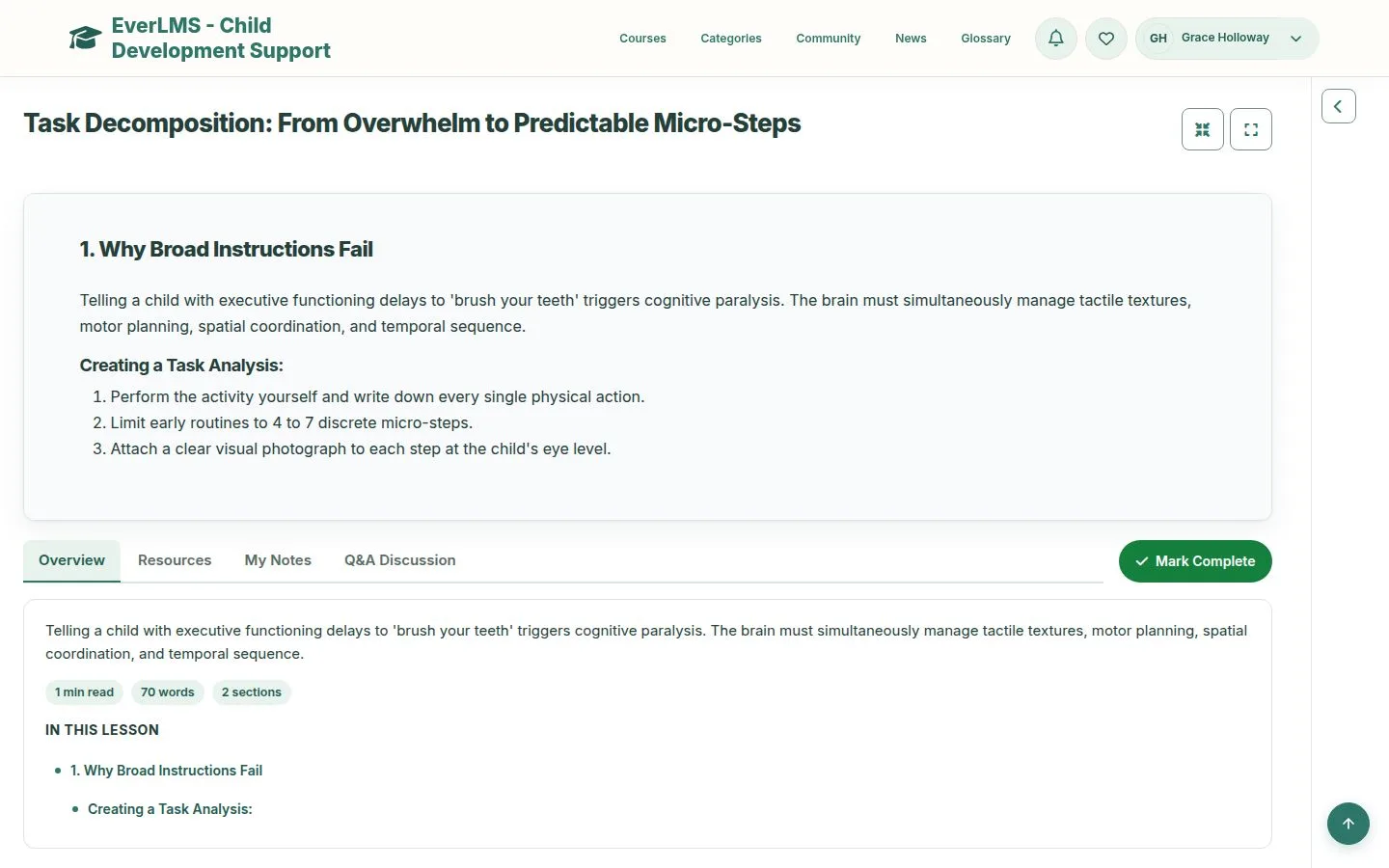
  1. The button beside the title hides the outline for a wider lesson.
  2. The next button fills the screen.

Open illustrated screen ↗Full image ↗

Learner · Lessons & progress04

My Notes

Learner

My Notes

5Step 5 of 12

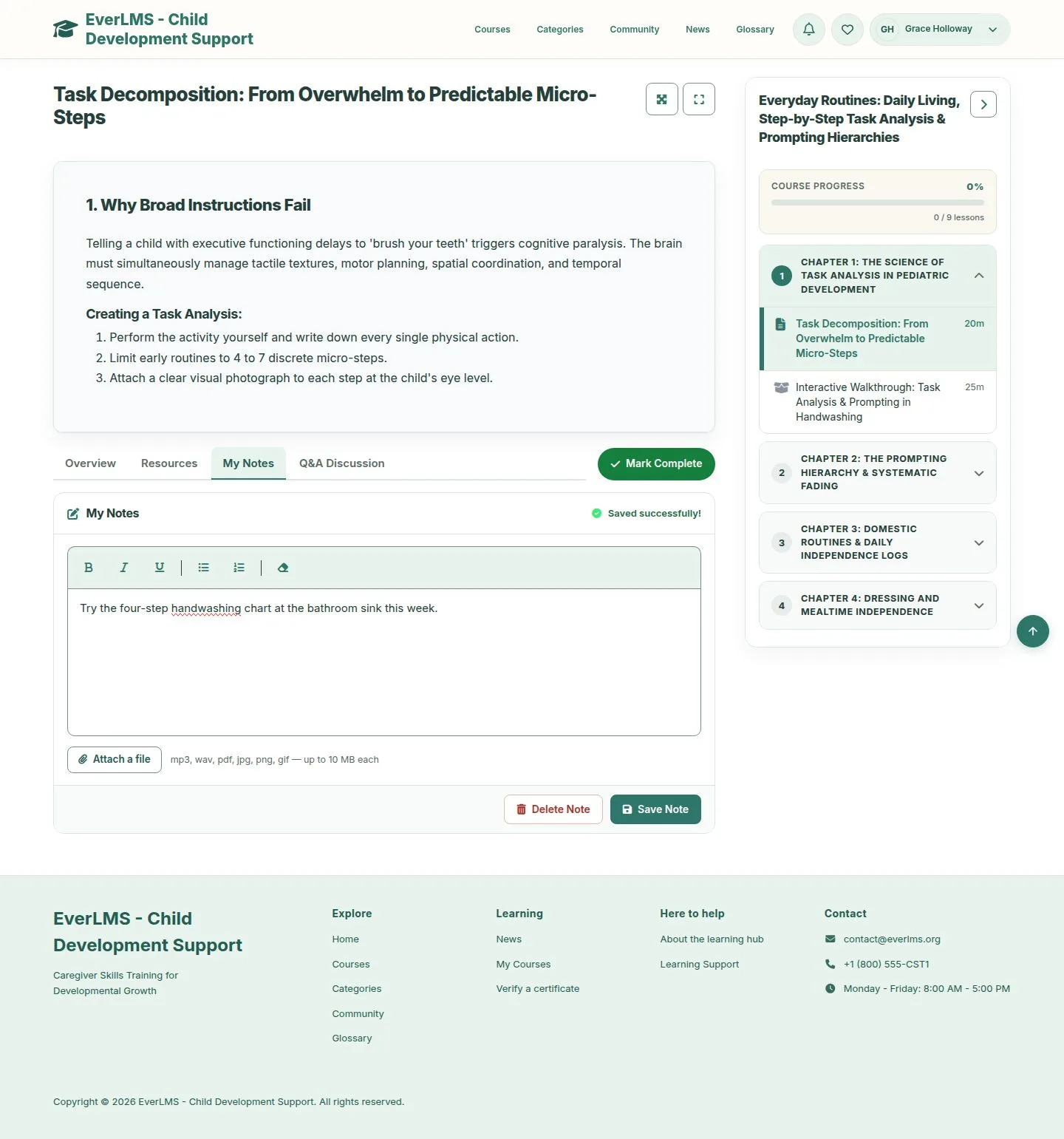
  1. Write, format, attach a file, Save Note.
  2. Notes belong to you and to this lesson.

Enlarge, then scroll

Open illustrated screen ↗Full image ↗

Learner · Lessons & progress05

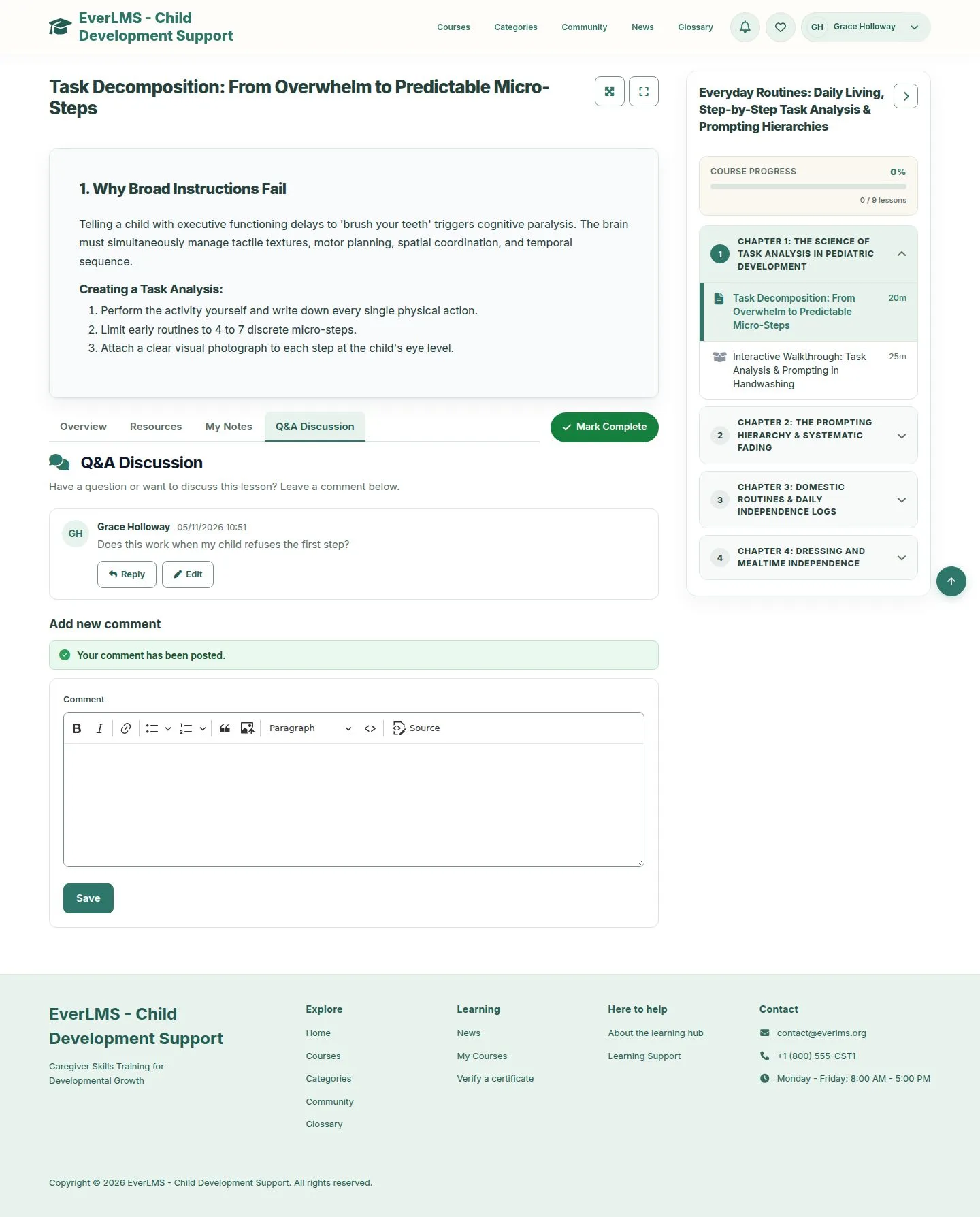
Ask a question

Learner

Ask a question

6Step 6 of 12

  1. Q&A Discussion is open to the learners and instructors of the course.
  2. Reply answers one comment; Edit changes your own.

Enlarge, then scroll

Open illustrated screen ↗Full image ↗

Learner · Lessons & progress06

Mark Complete

Learner

Mark Complete

7Step 7 of 12

  1. Mark Complete records the lesson and opens the next one.
  2. The outline ticks it and Course Progress moves.

Enlarge, then scroll

Open illustrated screen ↗Full image ↗

Learner · Lessons & progress07

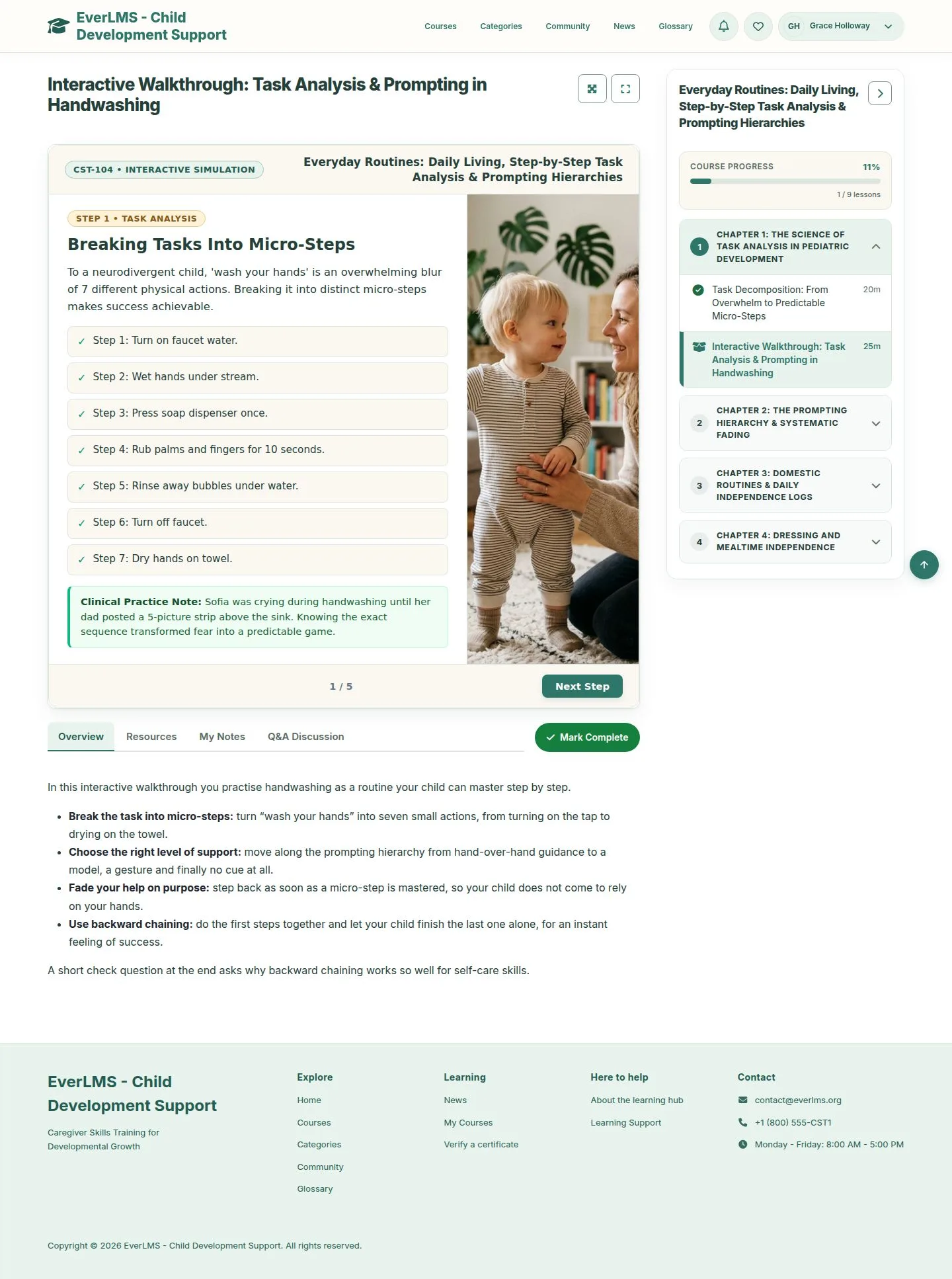
An interactive lesson

Learner

An interactive lesson

8Step 8 of 12

  1. Work through the steps inside the lesson with Next Step.
  2. Mark Complete when you have finished.

Enlarge, then scroll

Open illustrated screen ↗Full image ↗

Learner · Lessons & progress08

Progress so far

Learner

Progress so far

9Step 9 of 12

  1. Continue Learning opens the lesson where you stopped.
  2. Recent Activity lists your last lessons.

Enlarge, then scroll

Open illustrated screen ↗Full image ↗

Learner · Lessons & progress09

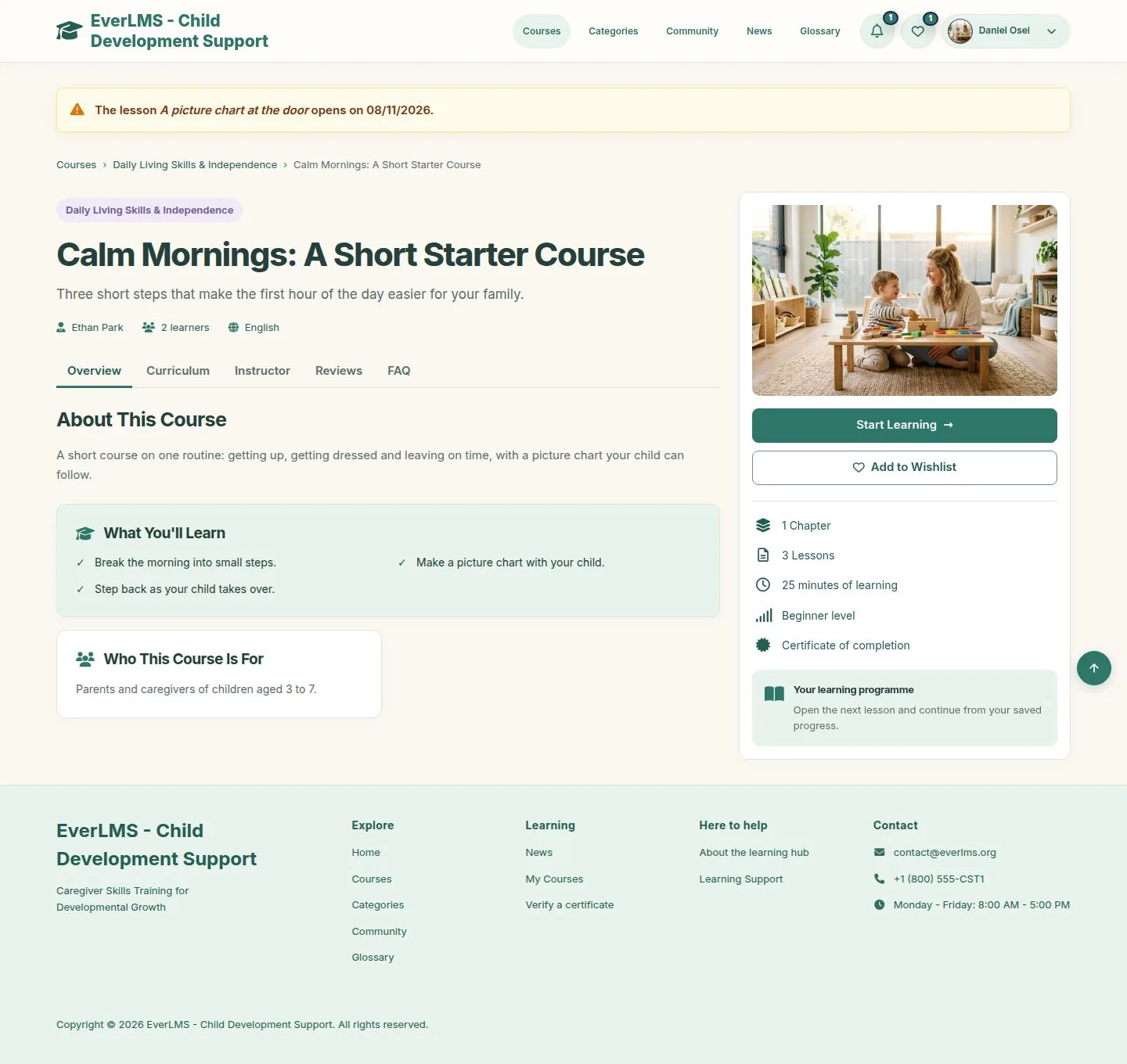
A lesson that opens later

Learner

A lesson that opens later

10Step 10 of 12

  1. A lesson with Drip Days opens that many days after you enrolled.
  2. Until then its link brings you back to the course page, which gives the date; the outline shows a lock.

The course team sets Drip Days on the lesson.

Enlarge, then scroll

Full image ↗

Learner · Lessons & progress10

Lessons added later

Learner

Lessons added later

11Step 11 of 12

  1. A course can grow after you finished it.
  2. Your completion and certificate stay; progress counts the current lessons.

Enlarge, then scroll

Full image ↗

Learner · Lessons & progress11

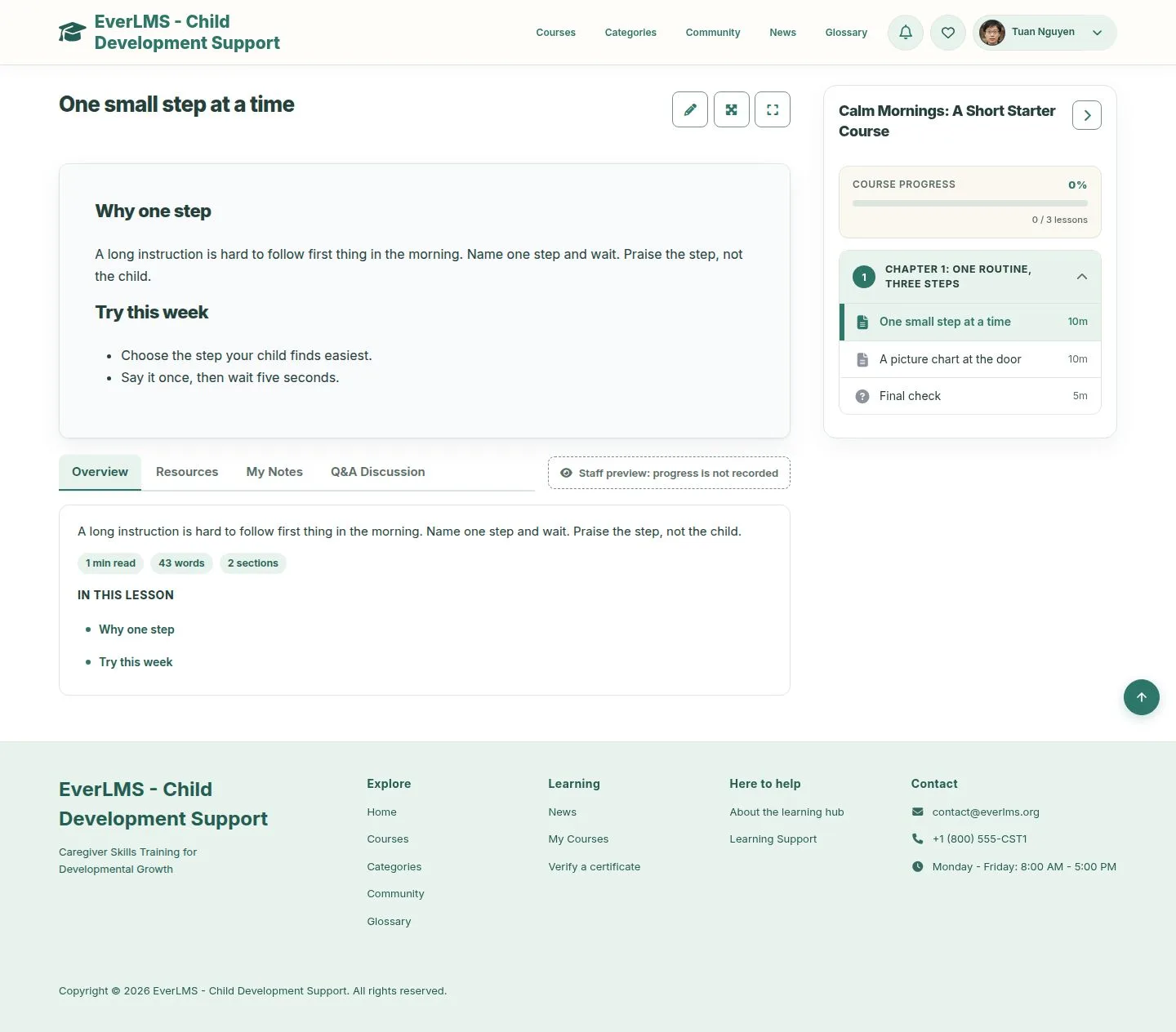
Staff preview

Manager

Staff preview

12Step 12 of 12

  1. Managers and the instructors of a course can open its lessons.
  2. Staff preview: nothing is recorded for them.

Enlarge, then scroll

Full image ↗

Check

Each completed lesson moves the progress of the course, and every view opens where you stopped

Learner · Lessons & progress12
1 / 13
Privacy Terms