Final assessment

8 question types

  • Enrolled in the course
  • The lessons before it are up to you: the assessment does not lock
Learner
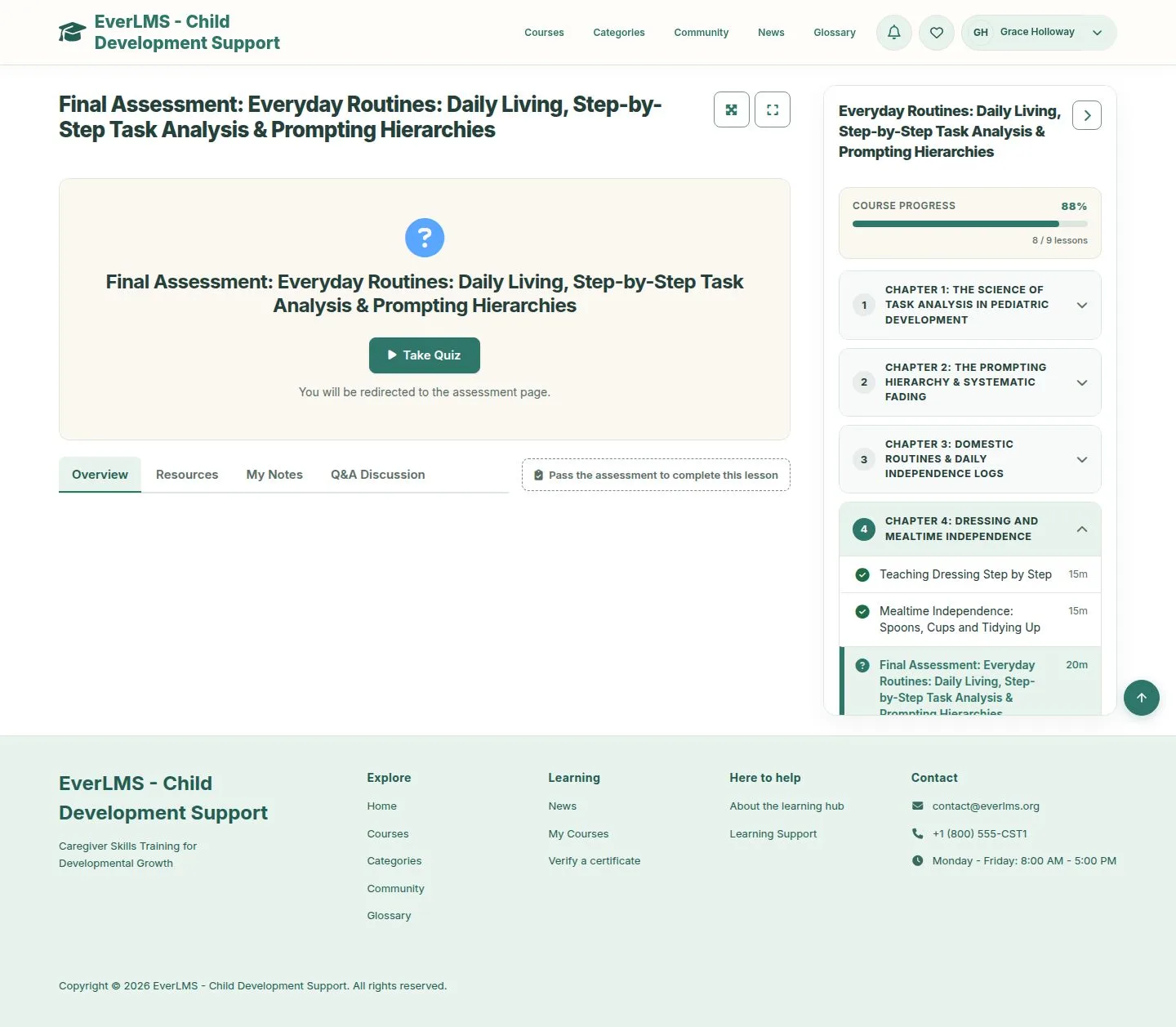
The assessment lesson

Learner

The assessment lesson

1Step 1 of 14

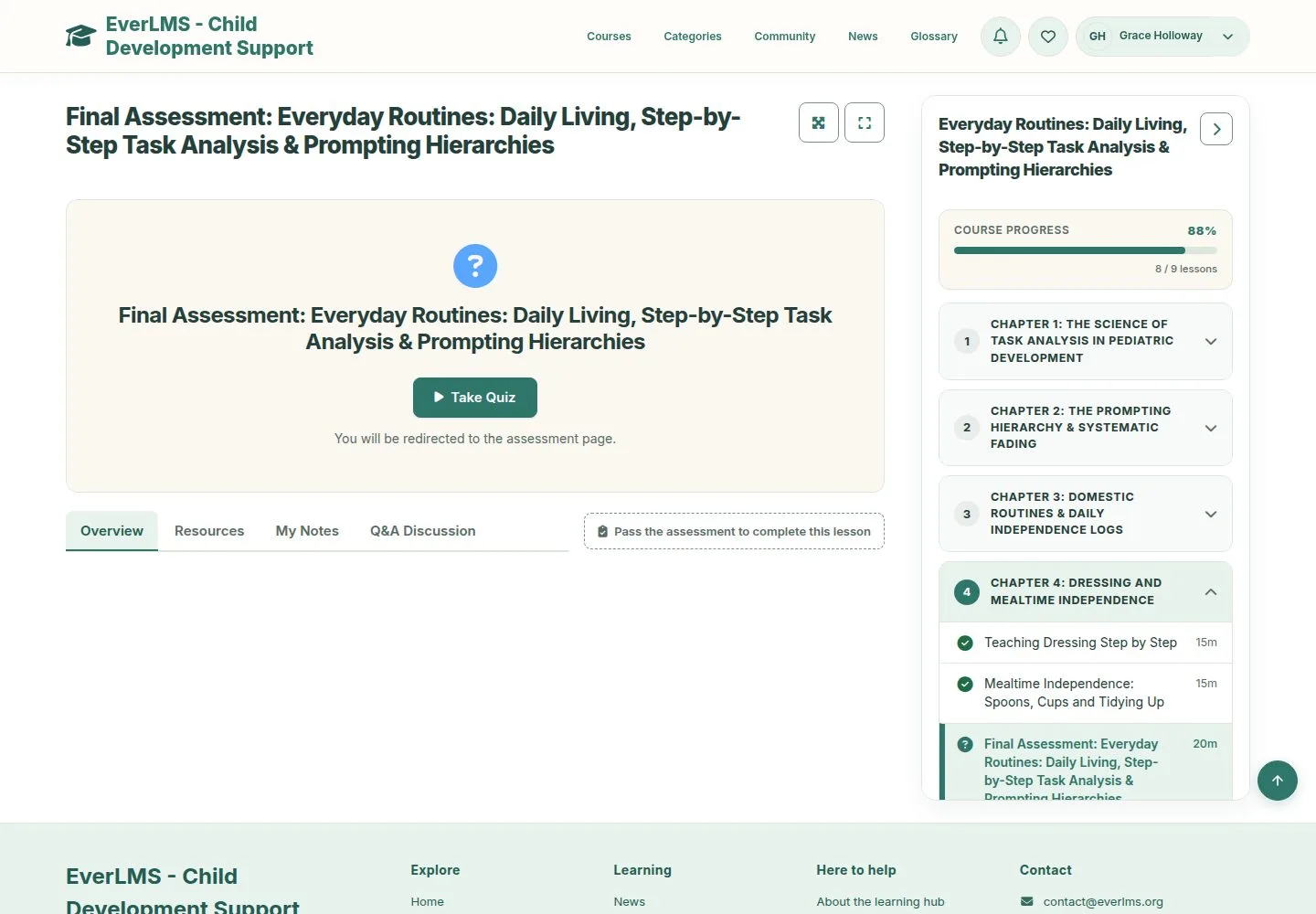
  1. Take Quiz opens the assessment.
  2. This lesson has no Mark Complete: passing completes it.

Enlarge, then scroll

Open illustrated screen ↗Full image ↗

Learner · Final assessment01

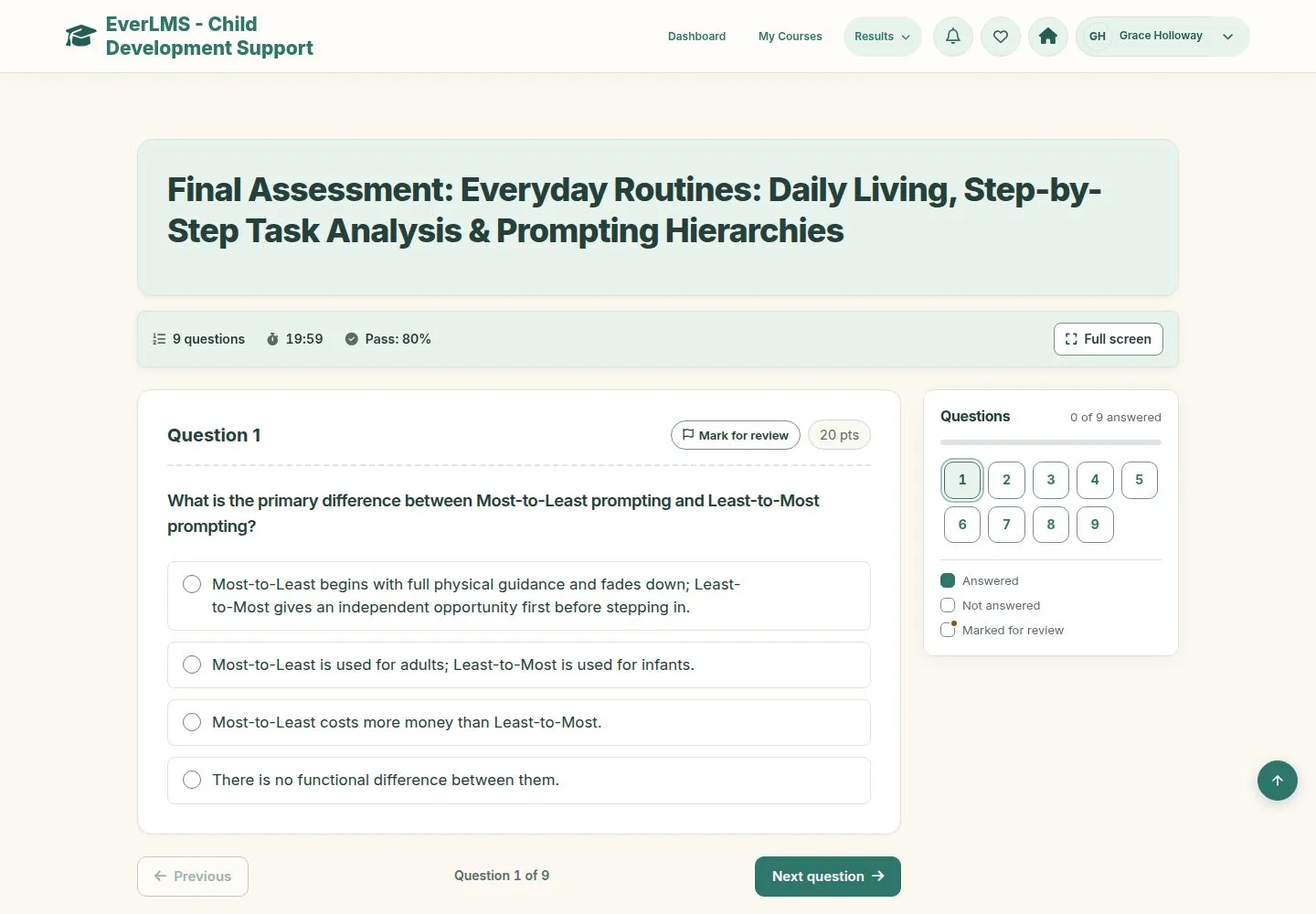
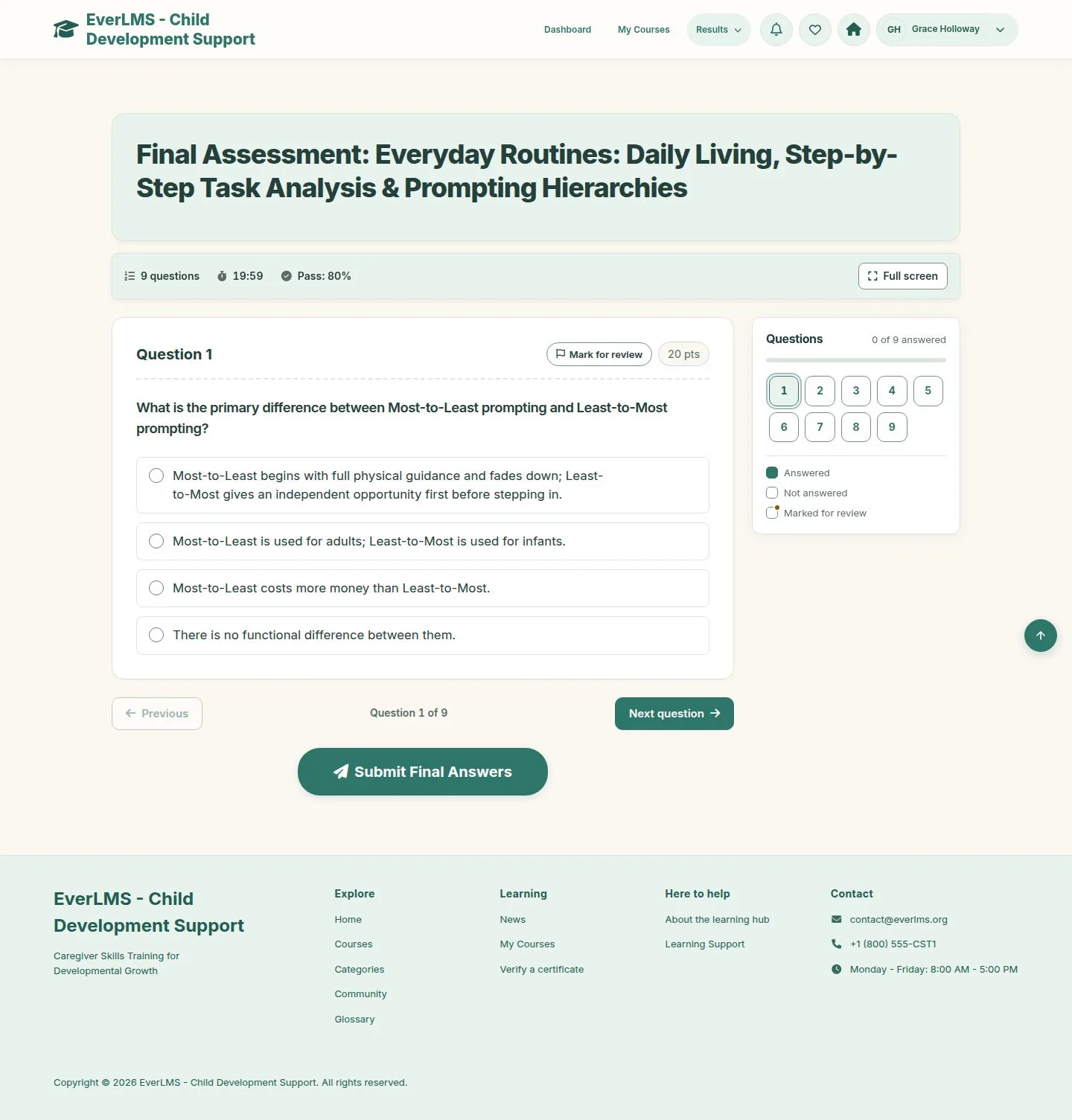
One question at a time

Learner

One question at a time

2Step 2 of 14

  1. Time left, questions and the pass mark are at the top.
  2. The Questions panel shows answered and not answered; a number jumps to its question.
  3. Full screen hides everything else.

Enlarge, then scroll

Open illustrated screen ↗Full image ↗

Learner · Final assessment02

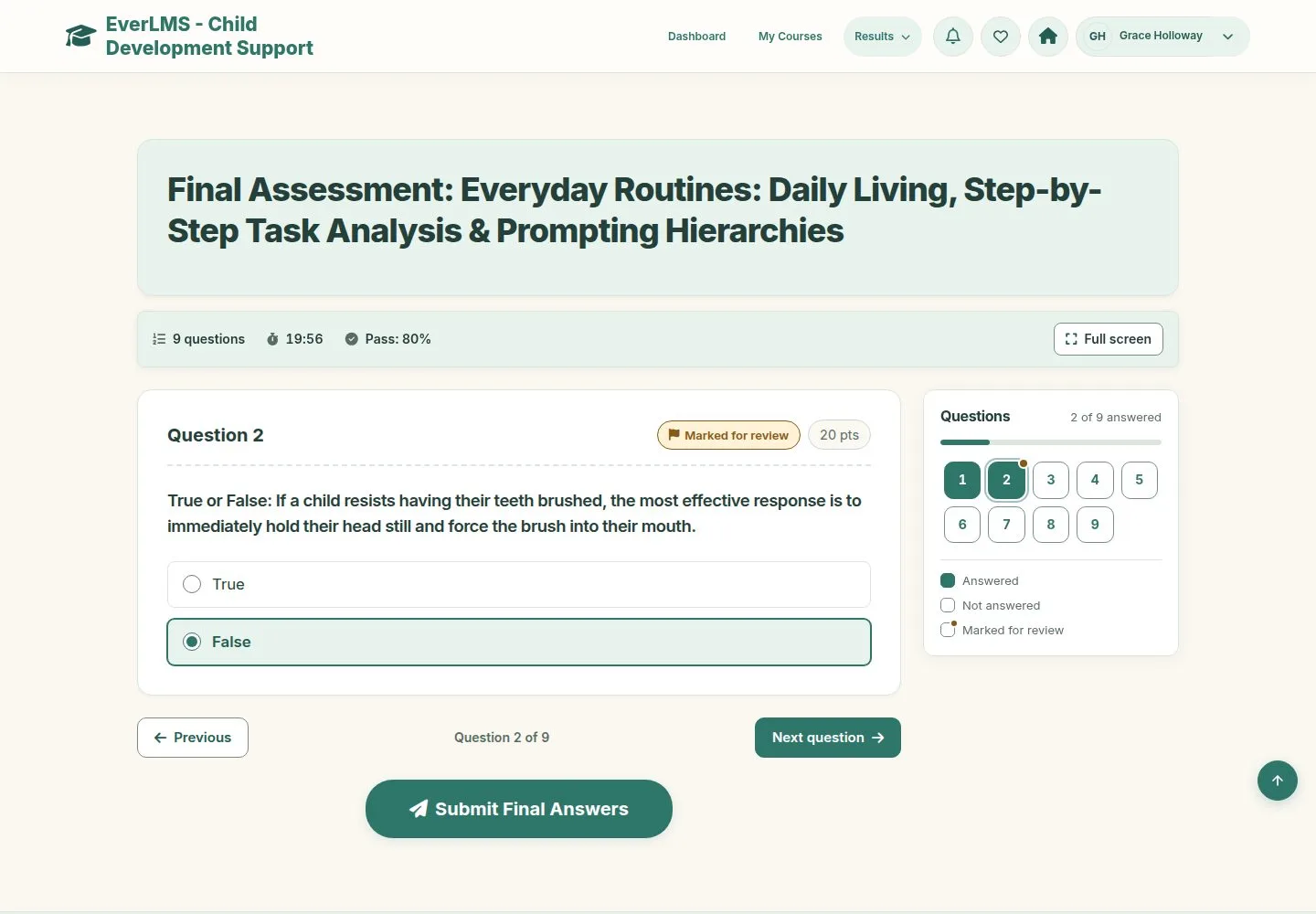
Mark for review

Learner

Mark for review

3Step 3 of 14

  1. Mark for review flags a question to come back to.

Enlarge, then scroll

Open illustrated screen ↗Full image ↗

Learner · Final assessment03

Several right answers

Learner

Several right answers

4Step 4 of 14

  1. Tick every answer that applies.
  2. Single choice and True or False take one.

Enlarge, then scroll

Open illustrated screen ↗Full image ↗

Learner · Final assessment04

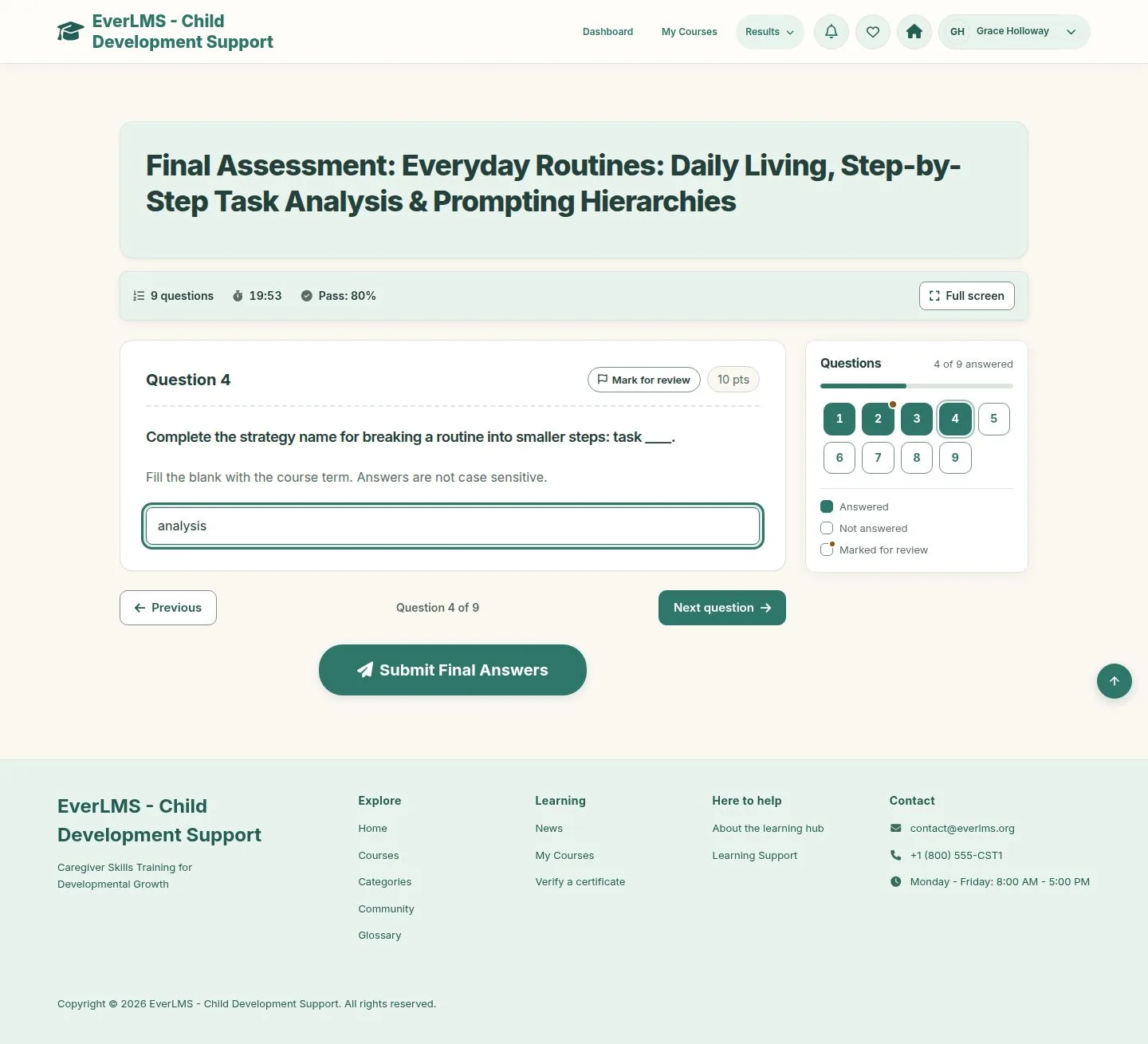
Fill in a word

Learner

Fill in a word

5Step 5 of 14

  1. Type the missing word. Case does not matter.

Enlarge, then scroll

Open illustrated screen ↗Full image ↗

Learner · Final assessment05

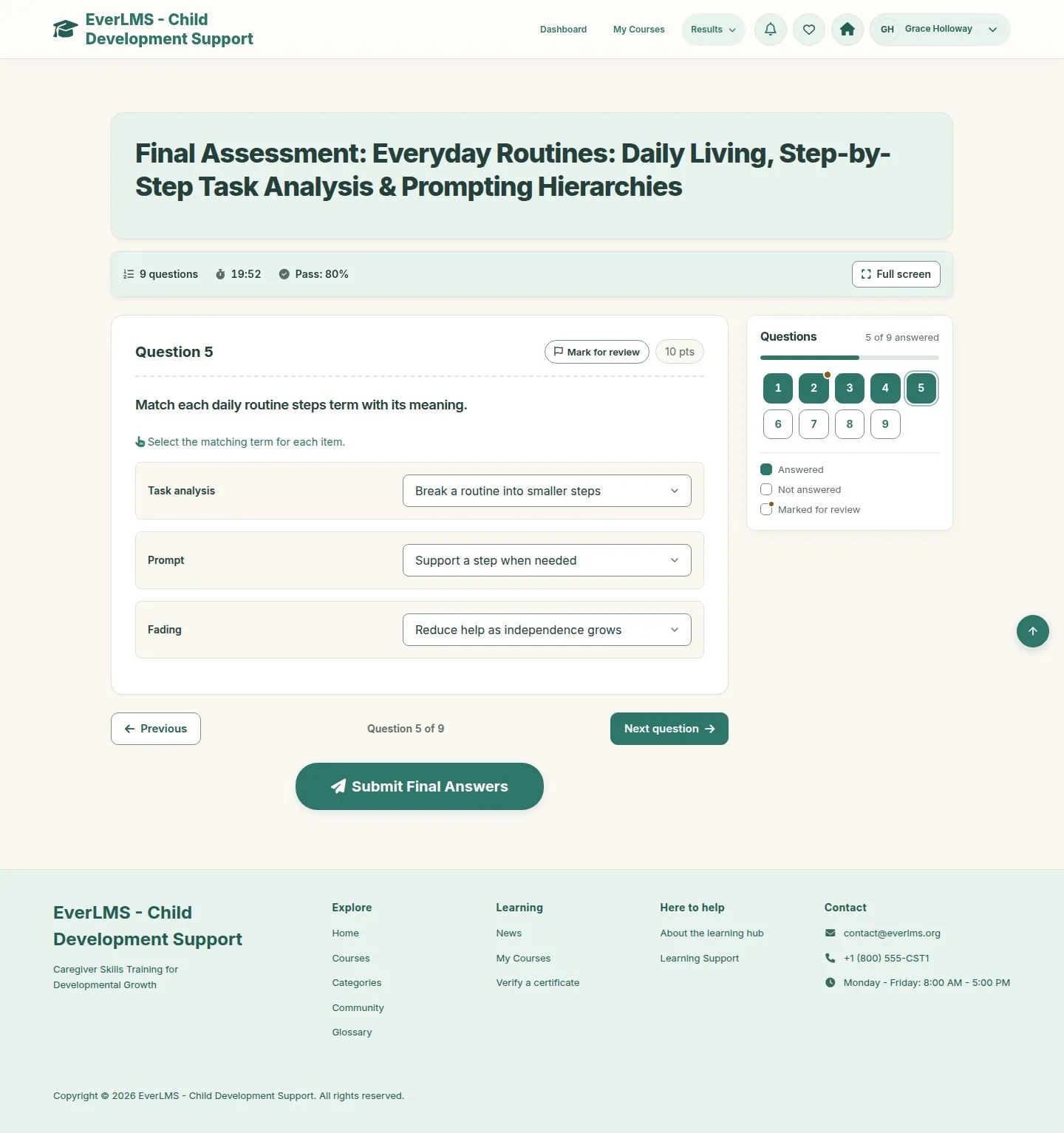
Match

Learner

Match

6Step 6 of 14

  1. Choose the match for each item.

Enlarge, then scroll

Open illustrated screen ↗Full image ↗

Learner · Final assessment06

Put in order

Learner

Put in order

7Step 7 of 14

  1. Drag the items, or use the arrow buttons.

Enlarge, then scroll

Open illustrated screen ↗Full image ↗

Learner · Final assessment07

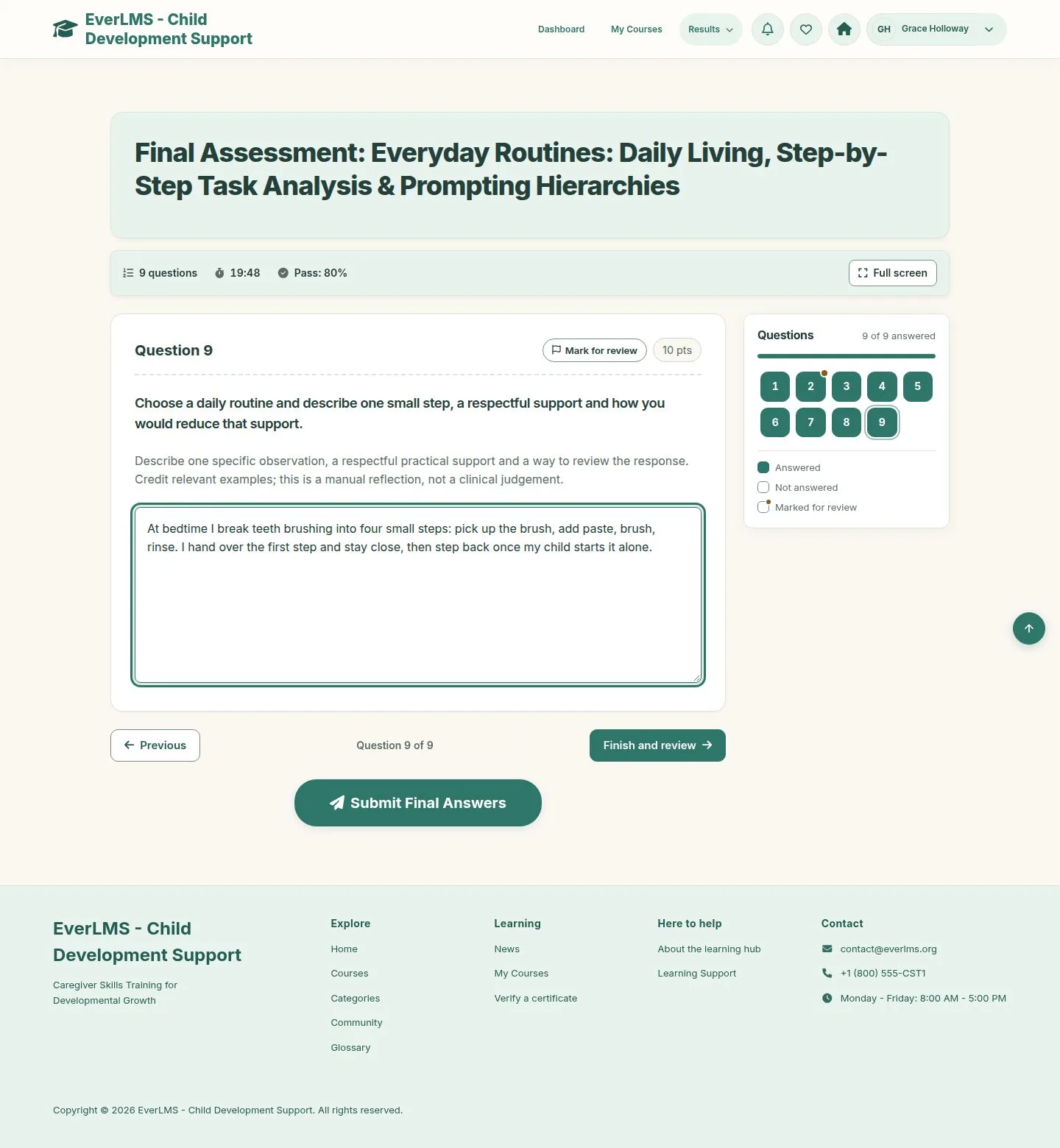
Essay

Learner

Essay

8Step 8 of 14

  1. Write your answer. A person grades it.

Enlarge, then scroll

Open illustrated screen ↗Full image ↗

Learner · Final assessment08

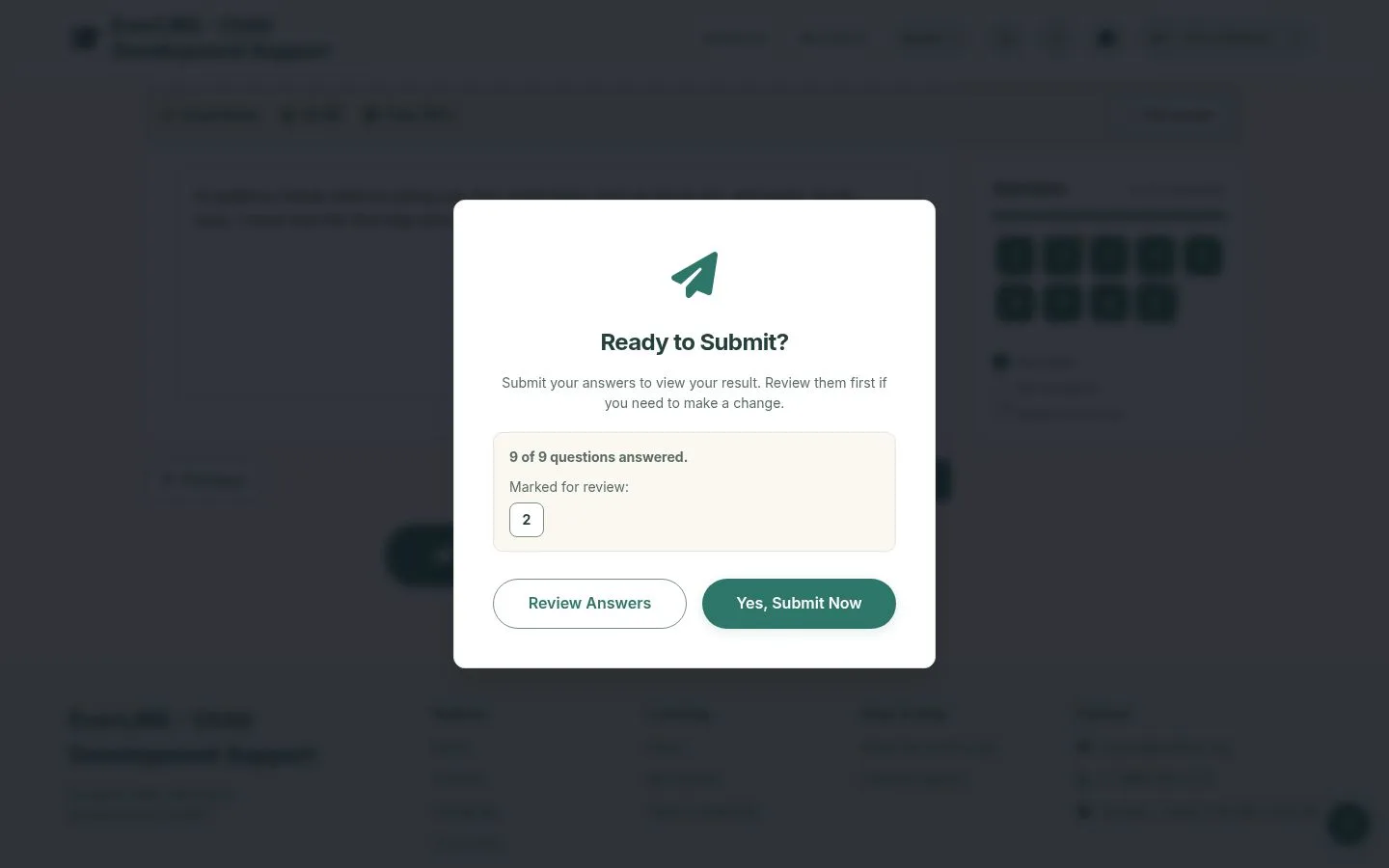
Submit

Learner

Submit

9Step 9 of 14

  1. The dialog counts the answered questions and lists those not answered or marked.
  2. Review Answers goes back; Yes, Submit Now ends the attempt.

Open illustrated screen ↗Full image ↗

Learner · Final assessment09

The result

Learner

The result

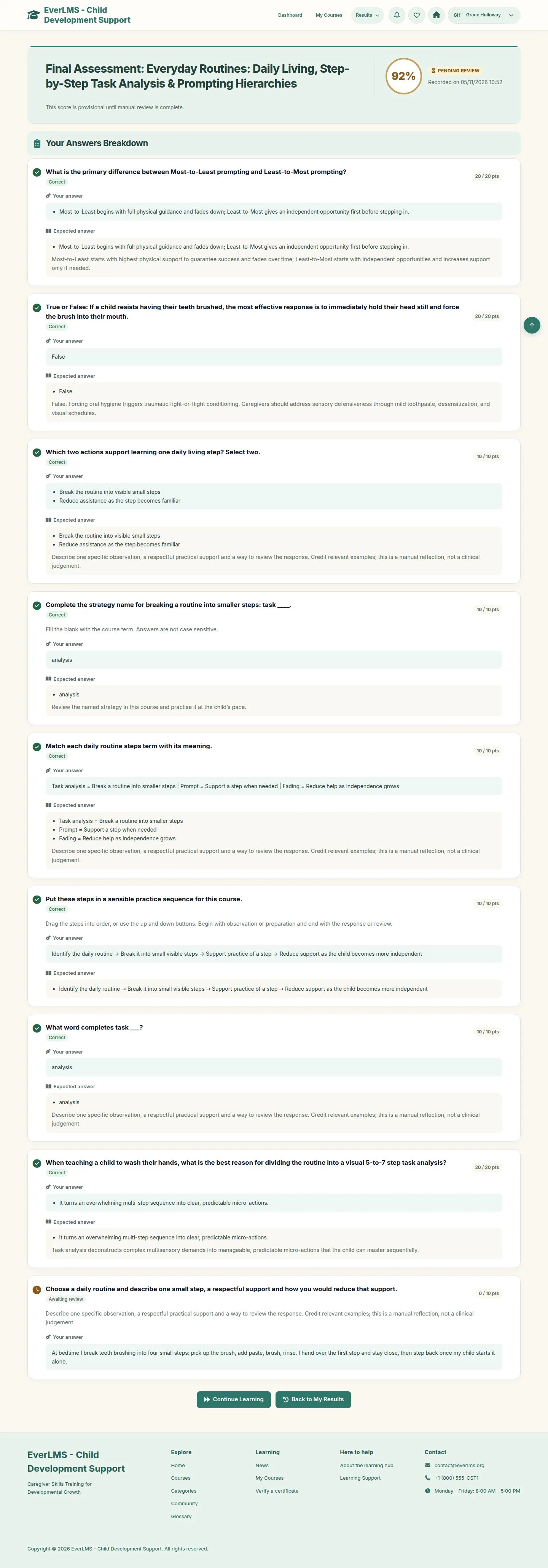
10Step 10 of 14

  1. With an essay the score is provisional: Pending review.
  2. Your Answers Breakdown shows each answer, the points and the expected answer.

Enlarge, then scroll

Full image ↗

Learner · Final assessment10

A failed attempt

Learner

A failed attempt

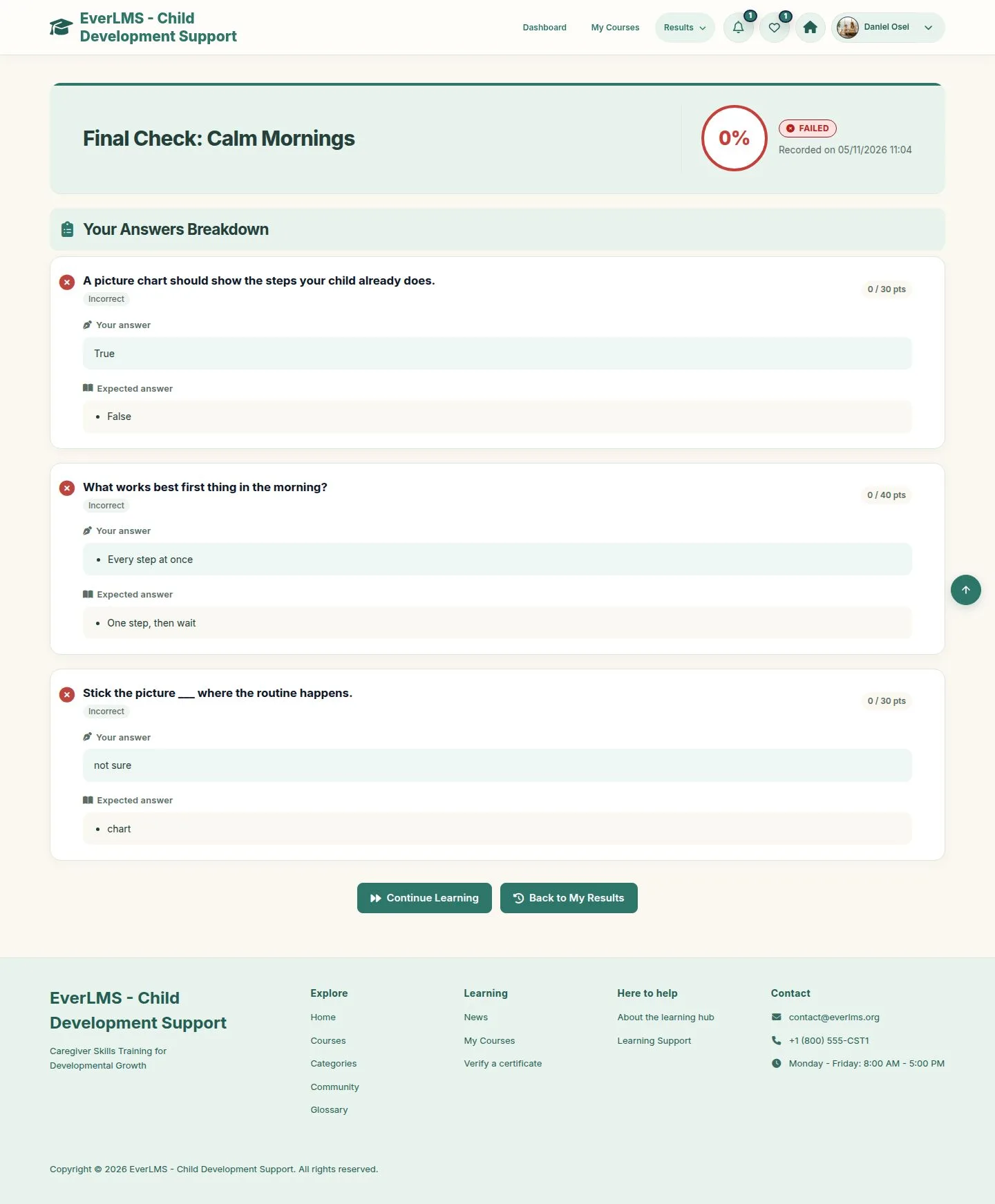
11Step 11 of 14

  1. Below the pass mark the attempt is Failed.
  2. Each answer shows what was expected.

Enlarge, then scroll

Full image ↗

Learner · Final assessment11

Attempts run out

Learner

Attempts run out

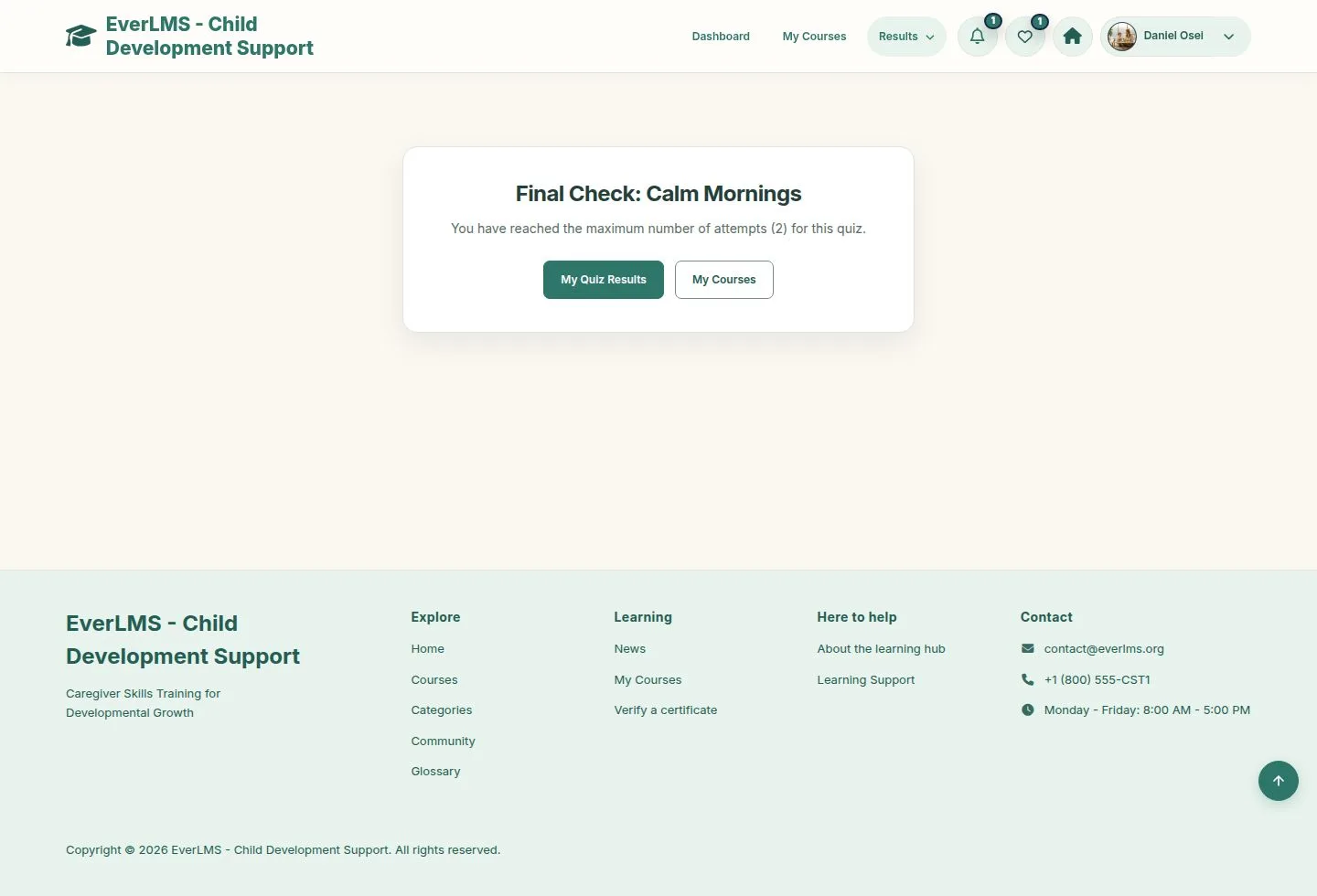
12Step 12 of 14

  1. An assessment can limit the attempts.
  2. After the last one the page says so and offers My Quiz Results and My Courses.

Full image ↗

Learner · Final assessment12

My Quiz Results

Learner

My Quiz Results

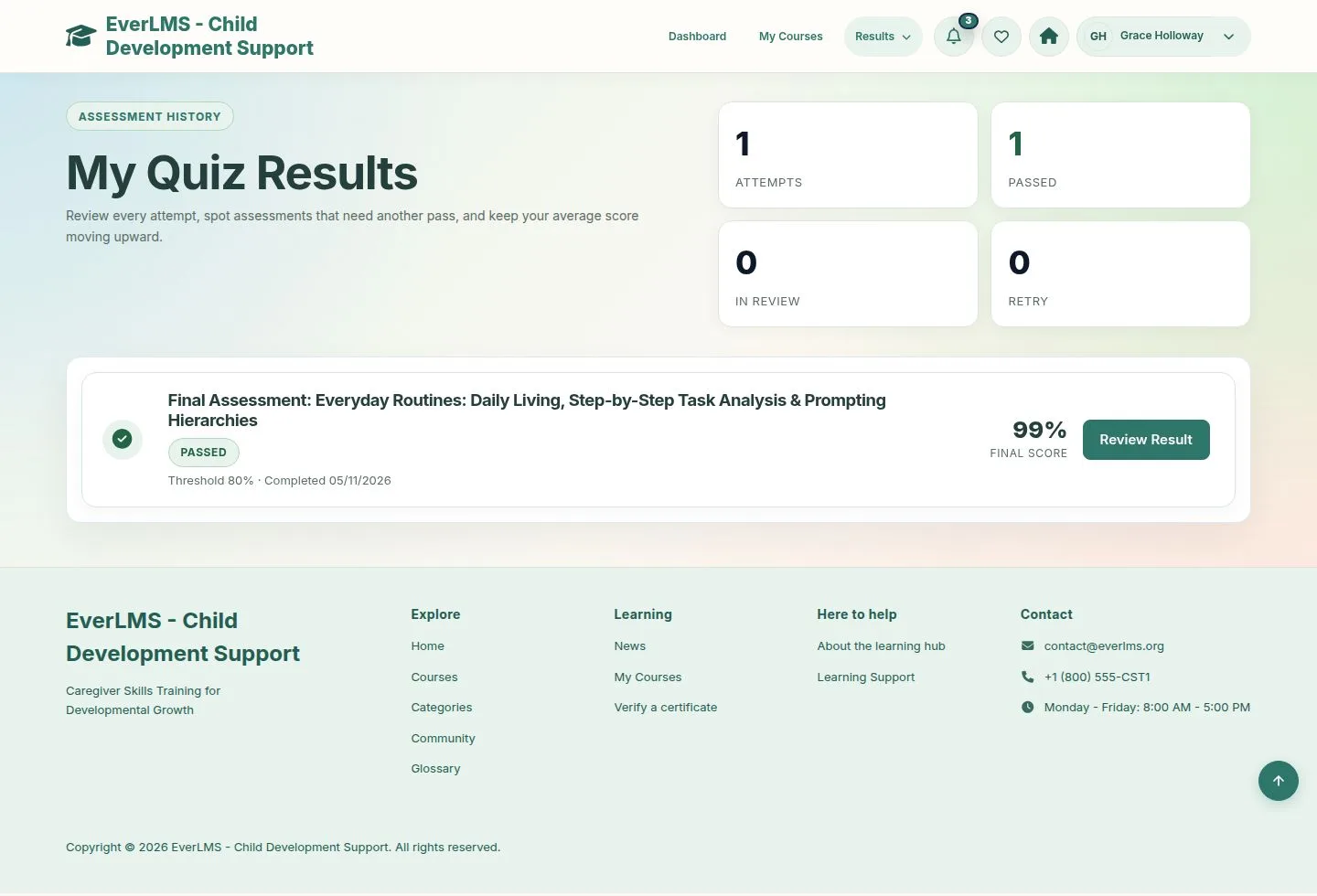
13Step 13 of 14

  1. Every attempt with its status and score.
  2. Review Result opens the answers.

Open illustrated screen ↗Full image ↗

Learner · Final assessment13

Passed

Learner

Passed

14Step 14 of 14

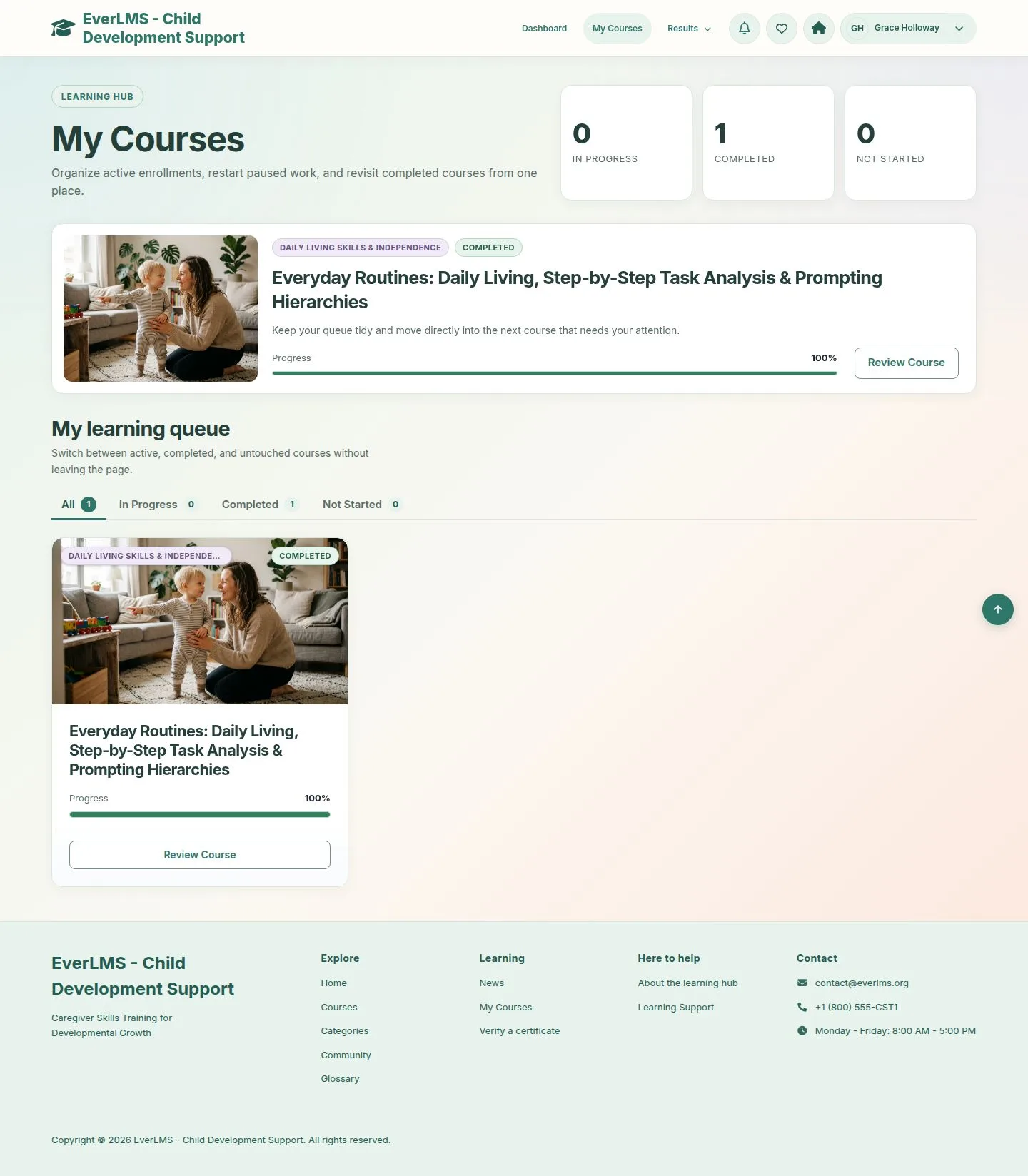
  1. Passing completes the lesson; the course reaches 100% and moves to Completed.

Enlarge, then scroll

Open illustrated screen ↗Full image ↗

Check

Each attempt is recorded with every answer; passing completes the lesson and the course

Learner · Final assessment14
1 / 15
Privacy Terms