Instructor follow-up

Roster, statistics and notices per course

  • An Instructor account
  • Named as an instructor of the course
Instructor
Your dashboard

Instructor

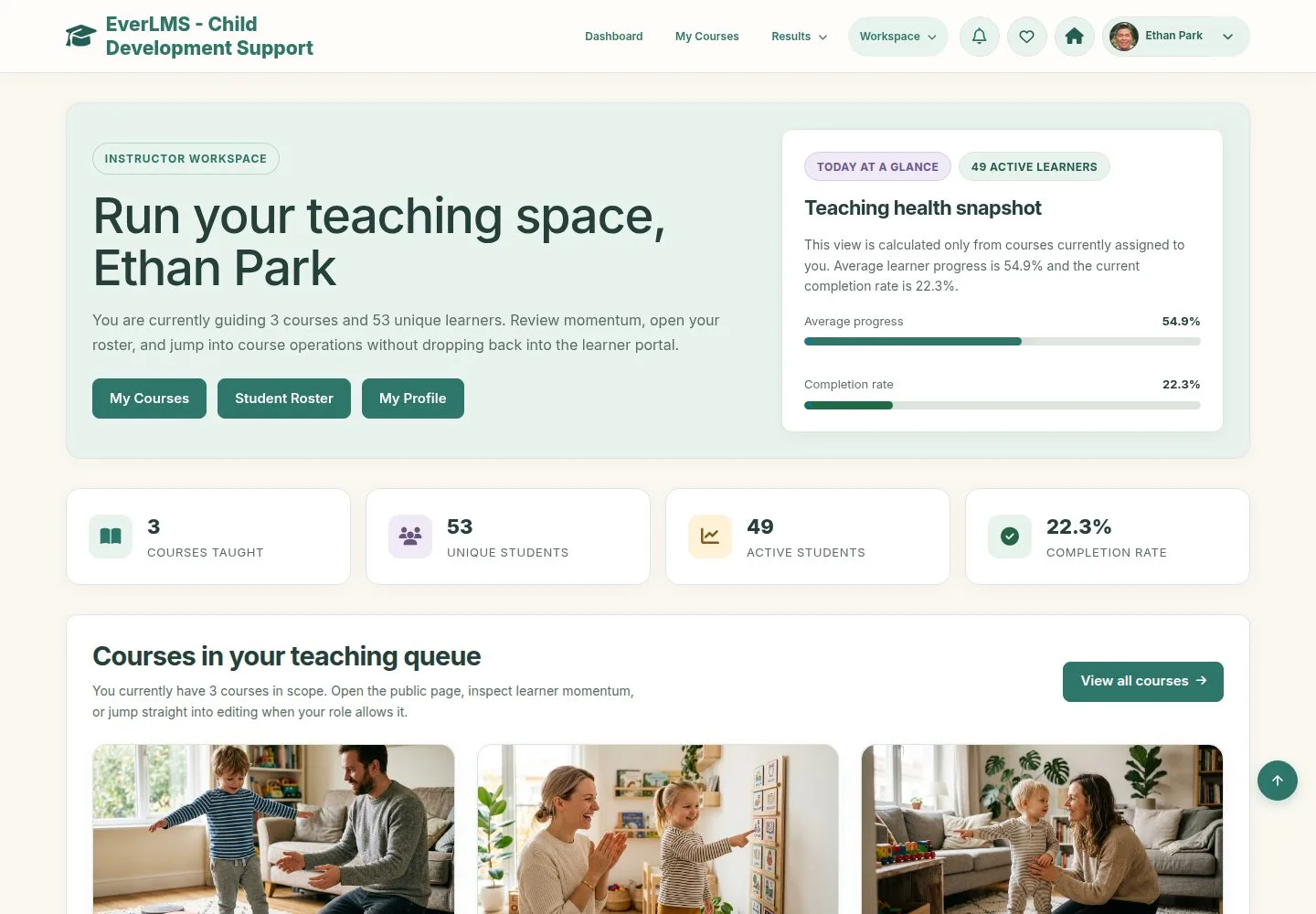
Your dashboard

1Step 1 of 13

  1. Your courses, unique students, active students and completion rate.
  2. Courses in your teaching queue open their statistics.

Enlarge, then scroll

Open illustrated screen ↗Full image ↗

Instructor · Instructor follow-up01

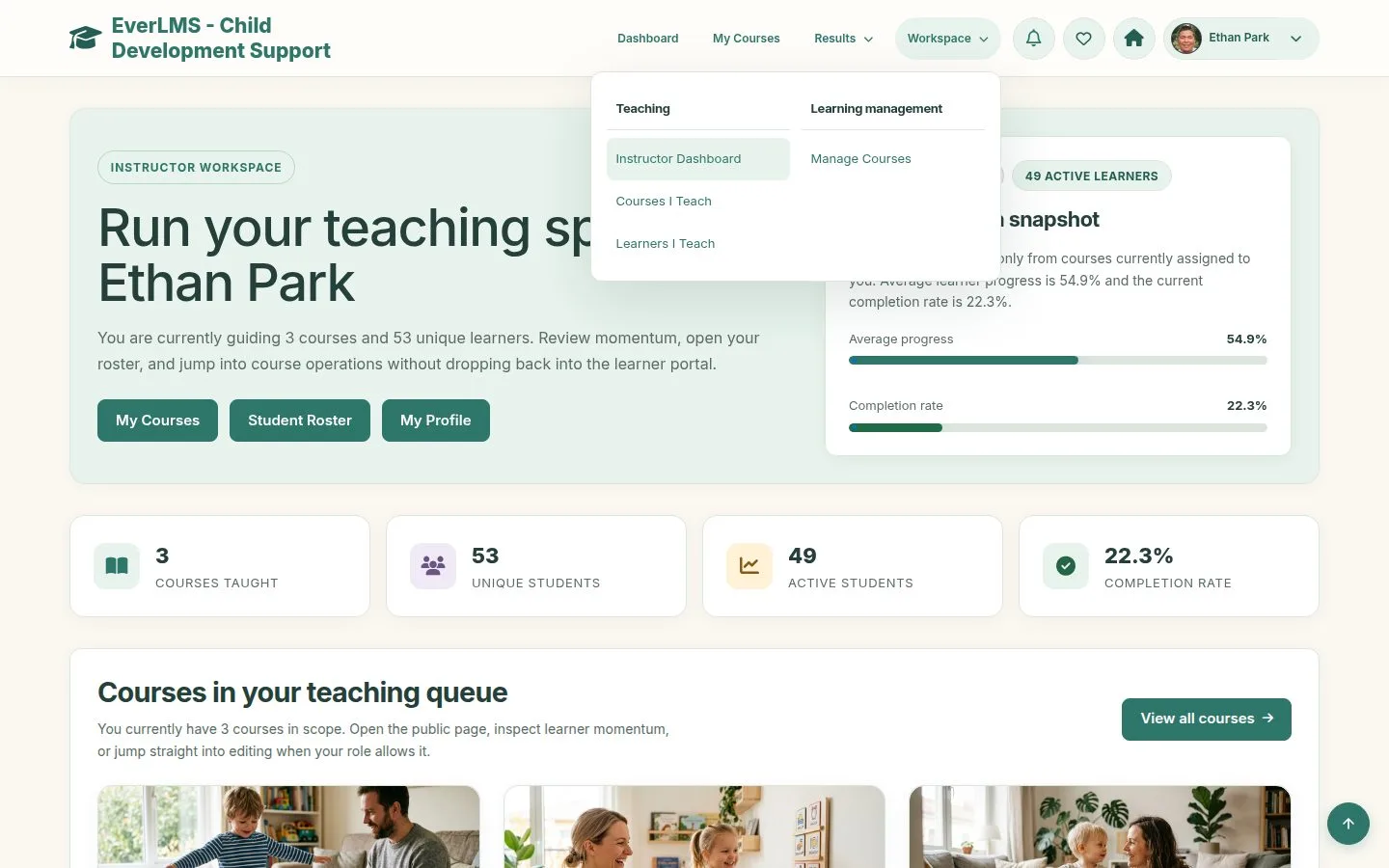
Workspace menu

Instructor

Workspace menu

2Step 2 of 13

  1. Teaching: Instructor Dashboard, Courses I Teach, Learners I Teach.
  2. Manage Courses edits the courses you may edit.

Open illustrated screen ↗Full image ↗

Instructor · Instructor follow-up02

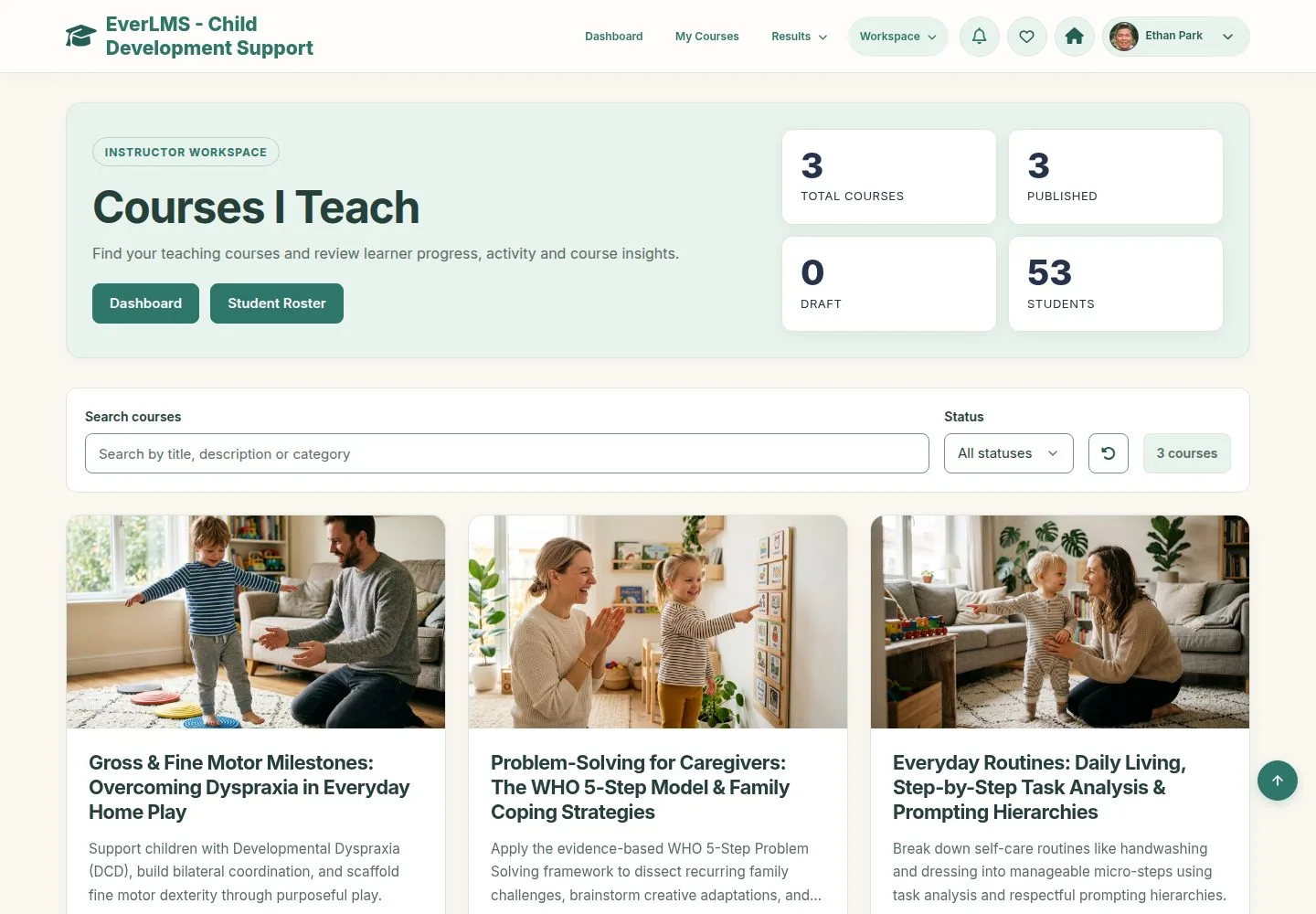
Courses I Teach

Instructor

Courses I Teach

3Step 3 of 13

  1. Search and filter by status; the cards open the statistics.

Enlarge, then scroll

Open illustrated screen ↗Full image ↗

Instructor · Instructor follow-up03

A course

Instructor

A course

4Step 4 of 13

  1. Enrollments, active learners, attempts, comments, questions, completion.
  2. Course roster: progress and status of each learner.
  3. Public Page, Edit Course and Back to courses are above.

Enlarge, then scroll

Open illustrated screen ↗Full image ↗

Instructor · Instructor follow-up04

Quiz attempts

Instructor

Quiz attempts

5Step 5 of 13

  1. Score, threshold and status of each attempt.
  2. View result opens the answers and the grading.

Enlarge, then scroll

Open illustrated screen ↗Full image ↗

Instructor · Instructor follow-up05

Discussion

Instructor

Discussion

6Step 6 of 13

  1. Every question on a lesson of this course.

Enlarge, then scroll

Open illustrated screen ↗Full image ↗

Instructor · Instructor follow-up06

Question bank

Instructor

Question bank

7Step 7 of 13

  1. The questions of the course by type and points.
  2. Edit quiz and Edit question open the forms.

Enlarge, then scroll

Open illustrated screen ↗Full image ↗

Instructor · Instructor follow-up07

Students I Teach

Instructor

Students I Teach

8Step 8 of 13

  1. One row per learner and course.
  2. Filter by name or email, course and status.

Enlarge, then scroll

Open illustrated screen ↗Full image ↗

Instructor · Instructor follow-up08

A learner

Instructor

A learner

9Step 9 of 13

  1. Courses in your teaching scope, results, certificates, notifications.

Enlarge, then scroll

Full image ↗

Instructor · Instructor follow-up09

A learner in a course

Instructor

A learner in a course

10Step 10 of 13

  1. Learning timeline, comments and attempts of this learner in this course.

Enlarge, then scroll

Full image ↗

Instructor · Instructor follow-up10

Notify learners

Instructor

Notify learners

11Step 11 of 13

  1. Notify course learners on the course page.
  2. Choose learners or All, the type, the title and the message.

Learner preferences decide how it arrives.

Enlarge, then scroll

Open illustrated screen ↗Full image ↗

Instructor · Instructor follow-up11

Sent

Instructor

Sent

12Step 12 of 13

  1. The message says how many learners were notified.

Enlarge, then scroll

Open illustrated screen ↗Full image ↗

Instructor · Instructor follow-up12

Only your courses

Instructor

Only your courses

13Step 13 of 13

  1. A course you do not teach is refused.

Enlarge, then scroll

Full image ↗

Check

You see who is learning, who is stalled and what they ask, in your own courses only

Instructor · Instructor follow-up13
1 / 14
Privacy Terms