Course catalogue

Filters, sort, search

  • Nothing: the catalogue is public
Learner
The home page

Visitor

The home page

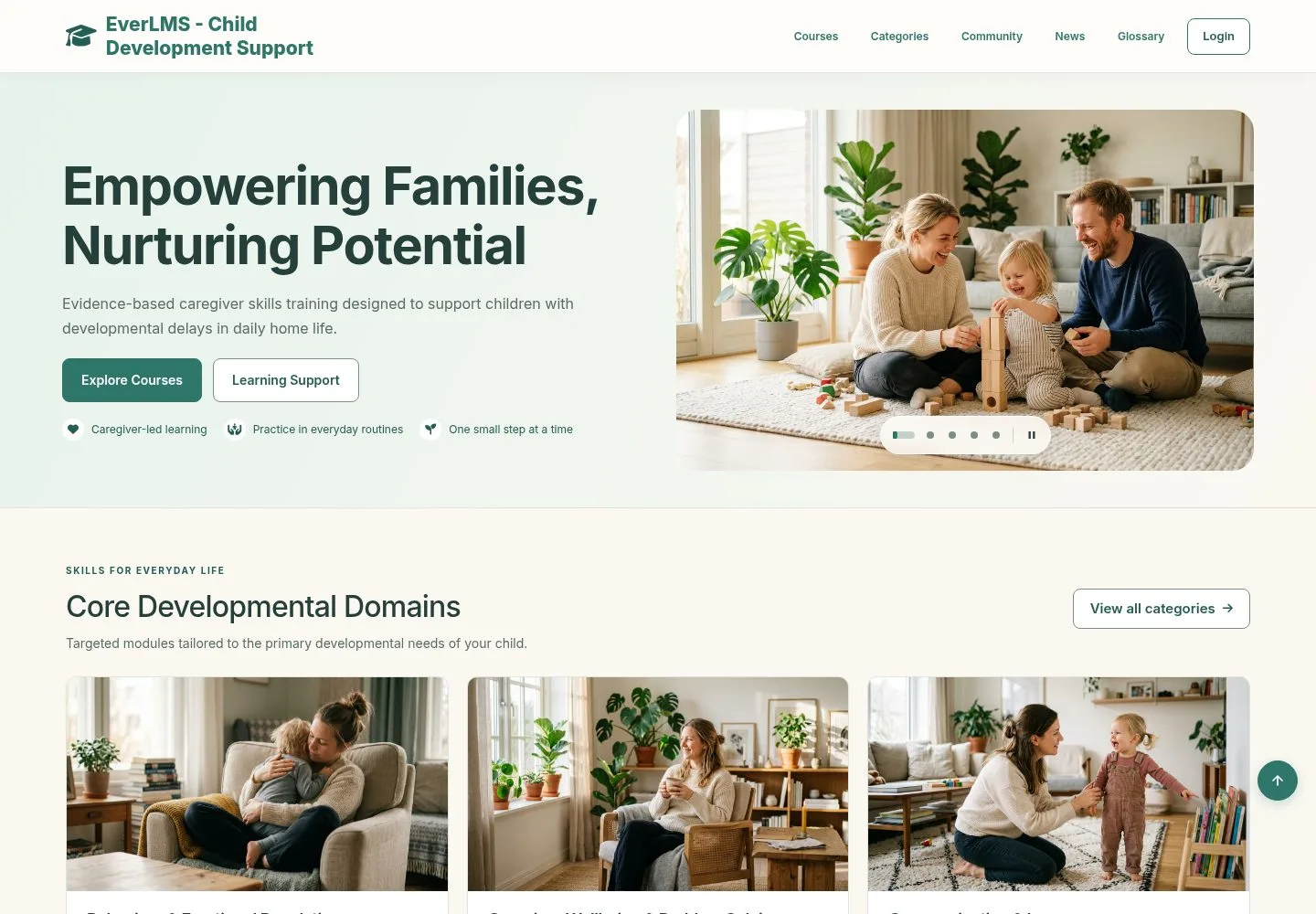
1Step 1 of 14

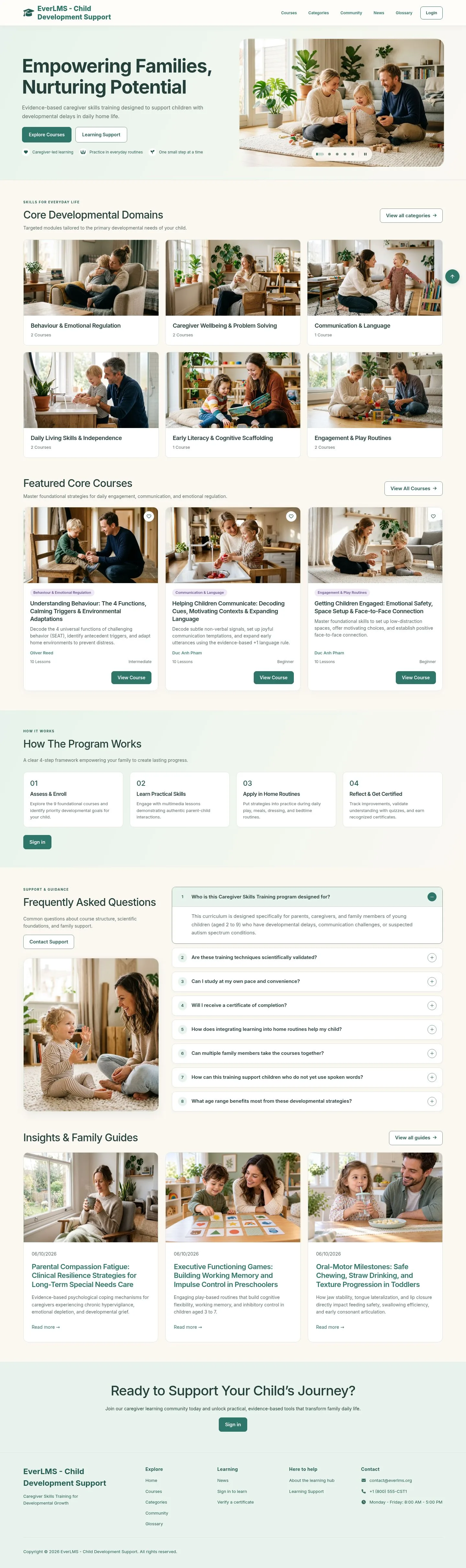
  1. Core Developmental Domains lists the topics of the programme.
  2. Featured courses, How The Program Works, questions and family guides follow.
  3. Explore Courses opens the catalogue.

Enlarge, then scroll

Open illustrated screen ↗Full image ↗

Learner · Course catalogue01

Courses

Visitor

Courses

2Step 2 of 14

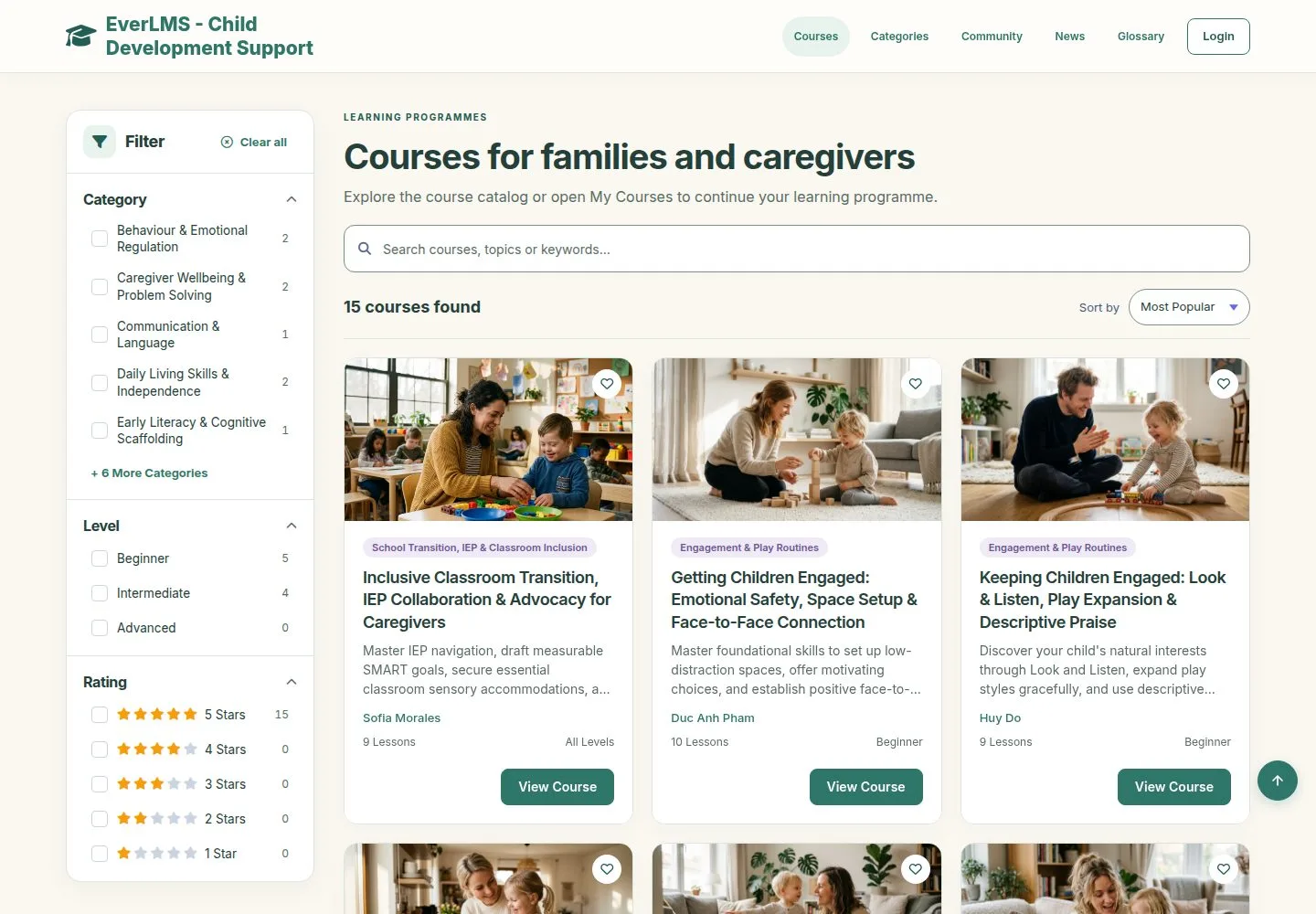
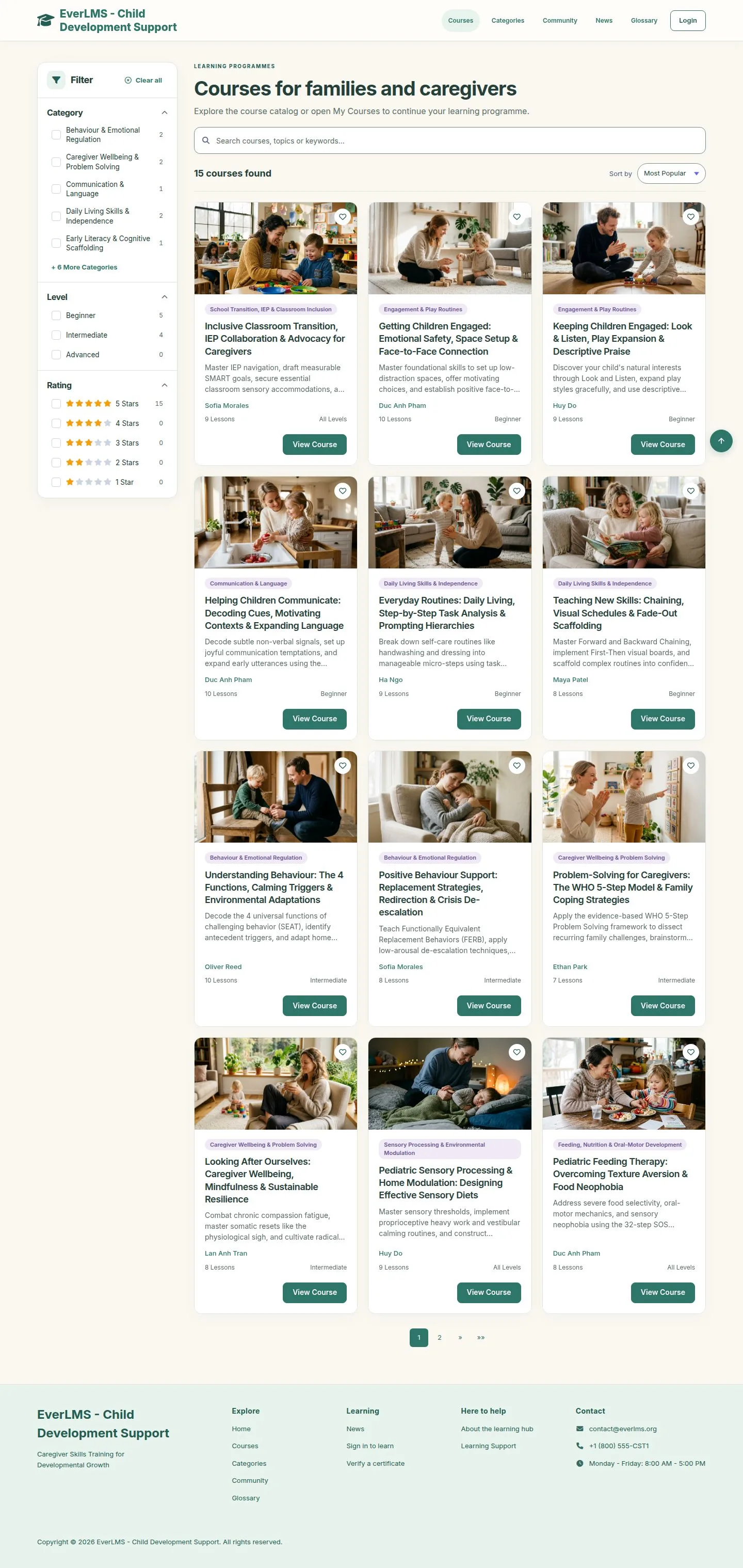
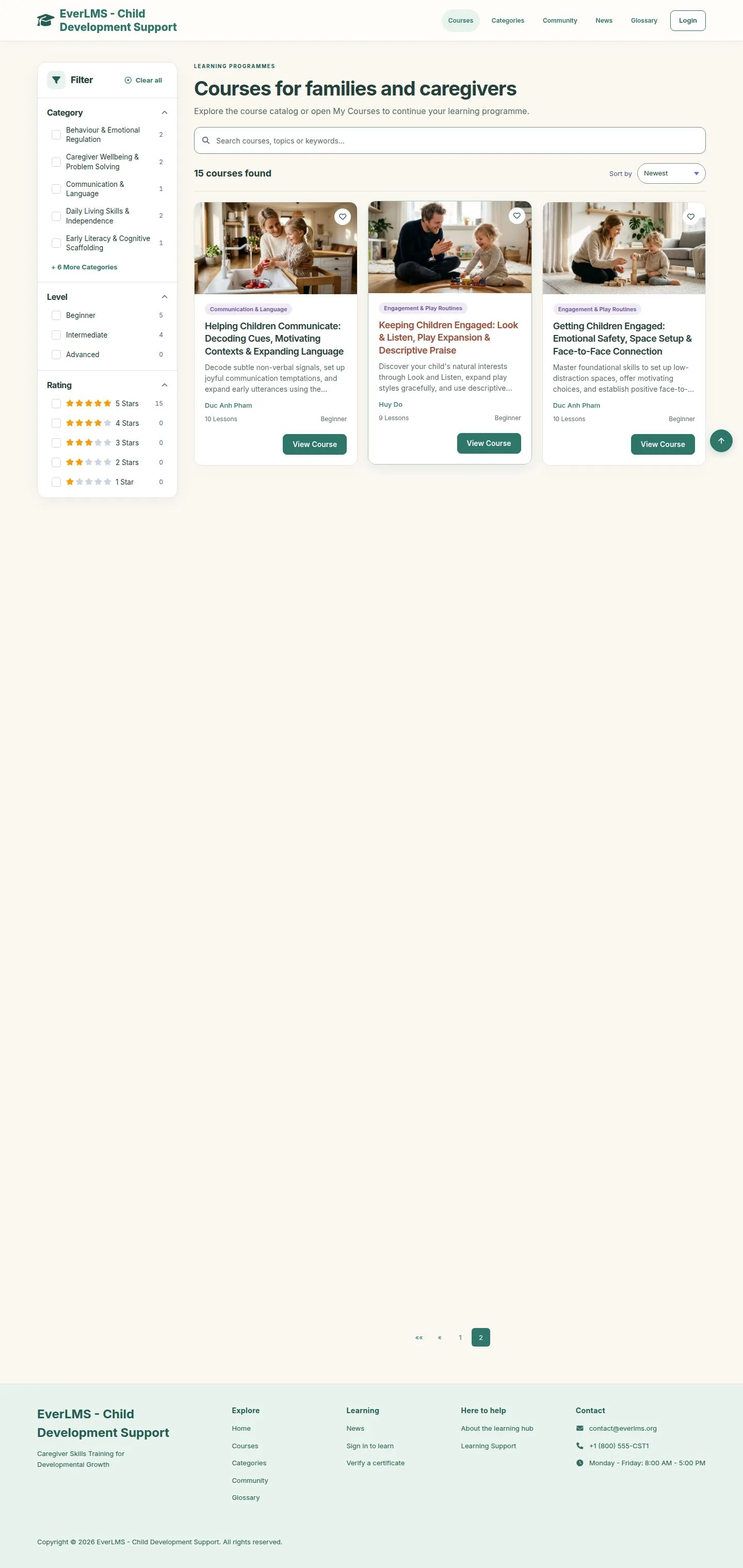
  1. Every course is a card: category, instructor, lessons, level.
  2. The filter on the left shows how many courses each choice has.
  3. View Course opens its page.

Enlarge, then scroll

Open illustrated screen ↗Full image ↗

Learner · Course catalogue02

Filter

Visitor

Filter

3Step 3 of 14

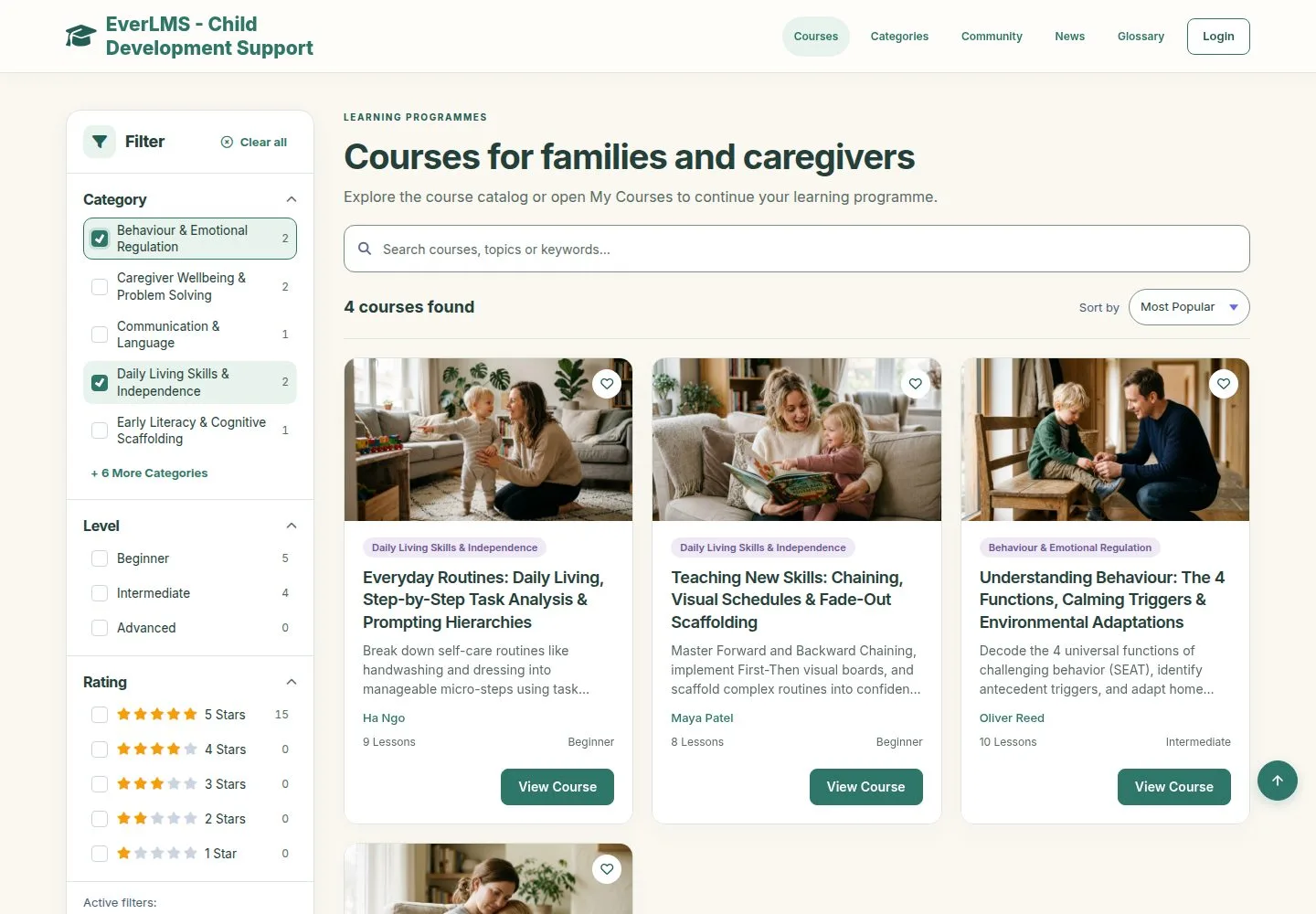
  1. Tick one or more choices of Category, Level or Rating.
  2. Only the list changes; the page stays where it is.
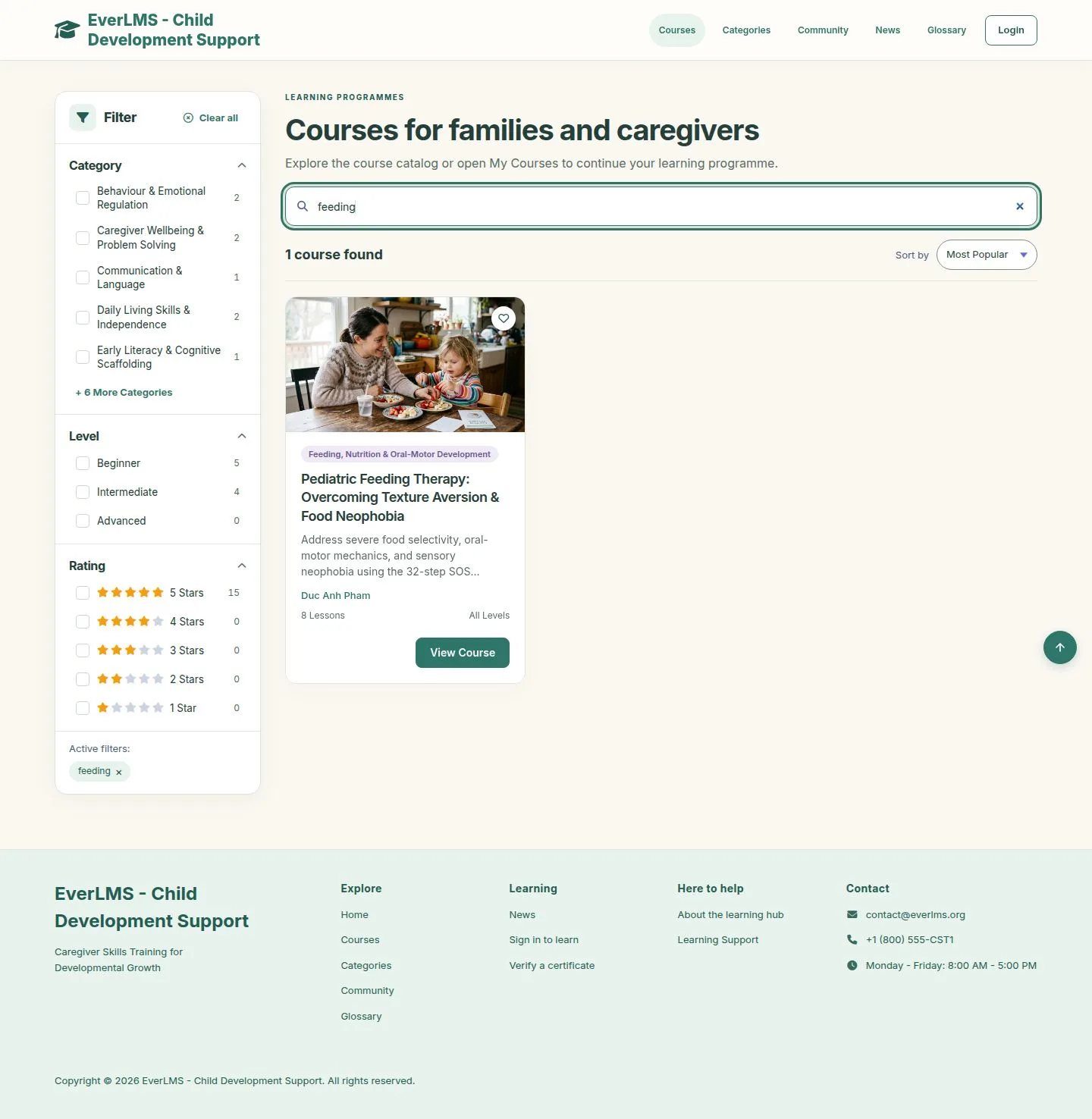
  3. Active filters are listed under the filter; × removes one, Clear all removes them all.

Enlarge, then scroll

Full image ↗

Learner · Course catalogue03

Sort

Visitor

Sort

4Step 4 of 14

  1. Most Popular: most enrolments first.
  2. Newest: latest course first.
  3. Highest Rated: best average of approved reviews first.

The sort keeps your filters.

Enlarge, then scroll

Open illustrated screen ↗Full image ↗

Learner · Course catalogue04

Next page

Visitor

Next page

5Step 5 of 14

  1. The pager changes only the list, so you keep your place on the page.

Enlarge, then scroll

Open illustrated screen ↗Full image ↗

Learner · Course catalogue05

Search

Visitor

Search

6Step 6 of 14

  1. Type a word in the search box.
  2. It looks in the course titles and descriptions and shows the number found.

Enlarge, then scroll

Open illustrated screen ↗Full image ↗

Learner · Course catalogue06

Categories

Visitor

Categories

7Step 7 of 14

  1. Each developmental domain has a card with its courses.
  2. Search narrows the cards.

Enlarge, then scroll

Open illustrated screen ↗Full image ↗

Learner · Course catalogue07

A category

Visitor

A category

8Step 8 of 14

  1. The same list and filter, opened on one category.
  2. Category shows which one you are in.

Enlarge, then scroll

Open illustrated screen ↗Full image ↗

Learner · Course catalogue08

A course page

Visitor

A course page

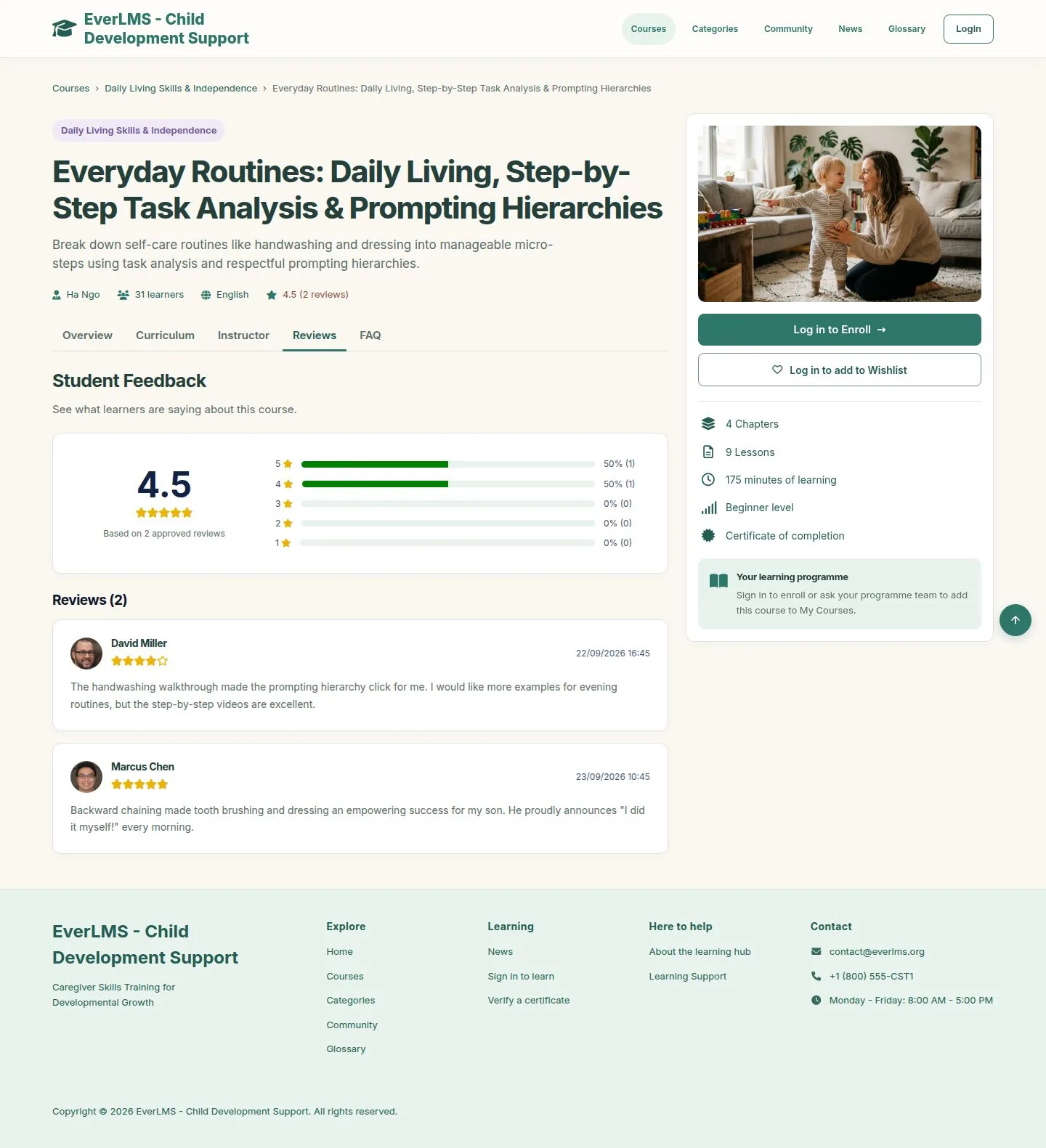
9Step 9 of 14

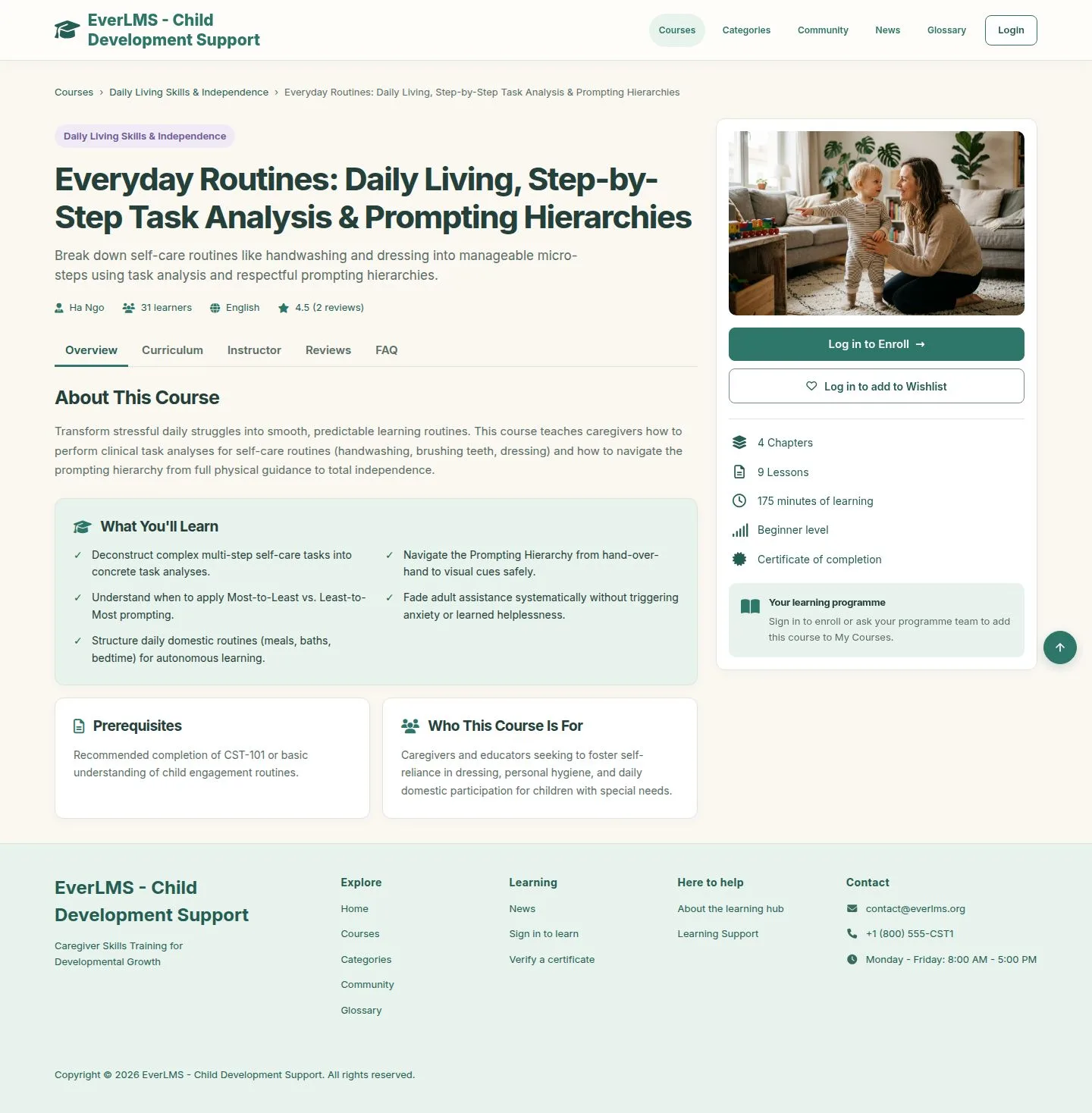
  1. Overview: what you will learn, prerequisites, who the course is for.
  2. The side card shows chapters, lessons, minutes, level and the certificate.
  3. Log in to Enroll keeps your place: after signing in you come back here.

Enlarge, then scroll

Open illustrated screen ↗Full image ↗

Learner · Course catalogue09

Curriculum

Visitor

Curriculum

10Step 10 of 14

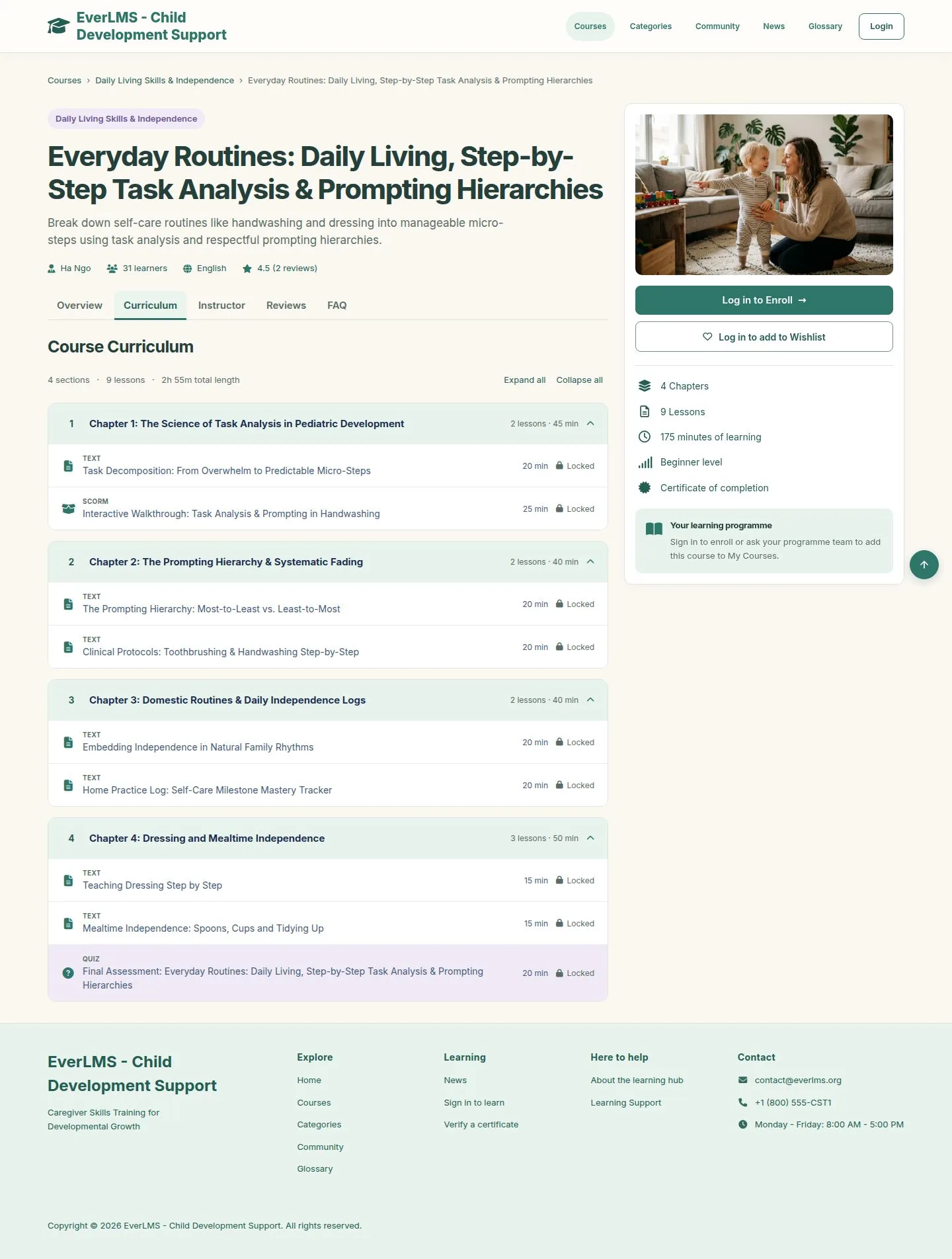
  1. Chapters and lessons with their type and minutes.
  2. Lessons are locked until you enroll.

Enlarge, then scroll

Open illustrated screen ↗Full image ↗

Learner · Course catalogue10

Reviews and questions

Visitor

Reviews and questions

11Step 11 of 14

  1. Reviews shows the average and the approved reviews.
  2. FAQ answers common questions about this course.

Enlarge, then scroll

Open illustrated screen ↗Full image ↗

Learner · Course catalogue11

An instructor

Visitor

An instructor

12Step 12 of 14

  1. The name on a card or a course opens the instructor page.
  2. Courses and Reviews are two tabs, each with its own pages.

Enlarge, then scroll

Open illustrated screen ↗Full image ↗

Learner · Course catalogue12

Glossary

Visitor

Glossary

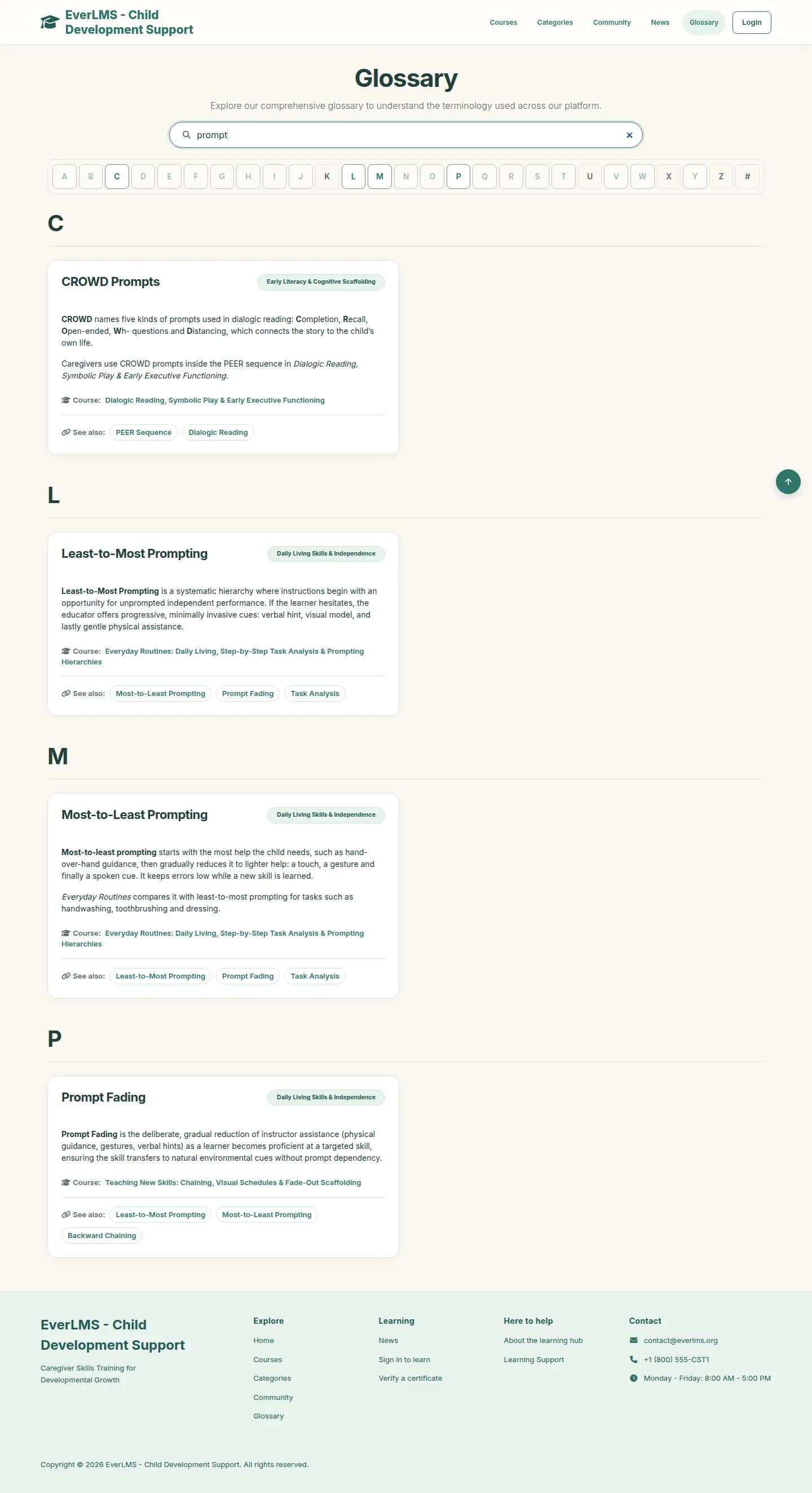
13Step 13 of 14

  1. Search or choose a letter.
  2. A term links to the course that teaches it and to related terms.

Enlarge, then scroll

Open illustrated screen ↗Full image ↗

Learner · Course catalogue13

Save for later

Learner

Save for later

14Step 14 of 14

  1. The heart on a card or a course page saves the course.
  2. My Wishlist lists what you saved; the heart takes a course off the list.

Signing in is needed to save a course.

Enlarge, then scroll

Open illustrated screen ↗Full image ↗

Check

The right course is found by topic, level or word, and its page shows what it teaches and who teaches it

Learner · Course catalogue14
1 / 15
Privacy Terms