Community & reviews

Topics, best answers, moderated reviews

  • Signed in to reply; visitors read the questions
Learner
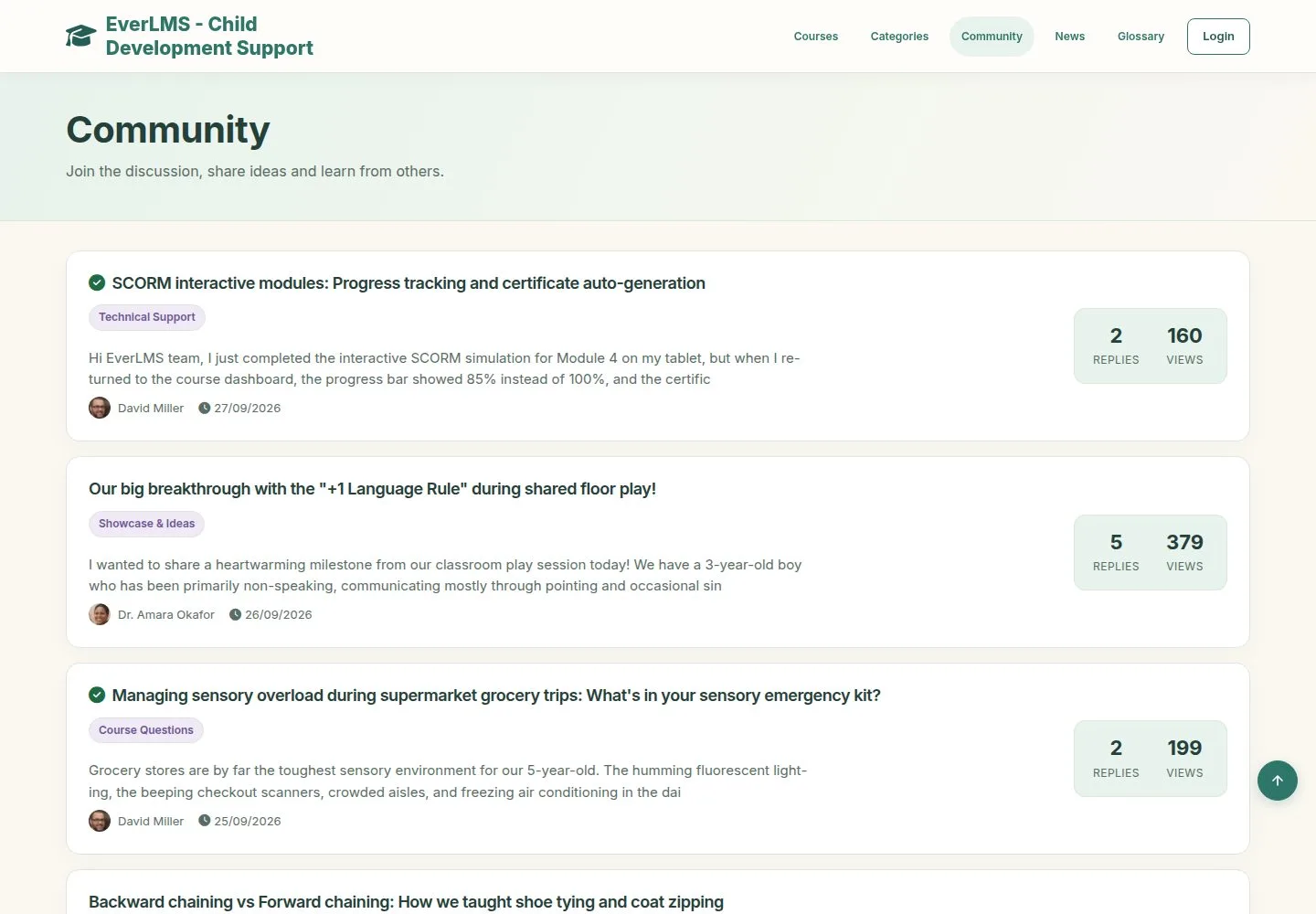
The community

Visitor

The community

1Step 1 of 15

  1. Topics with their category, replies and views.
  2. A tick marks a resolved topic.

Enlarge, then scroll

Open illustrated screen ↗Full image ↗

Learner · Community & reviews01

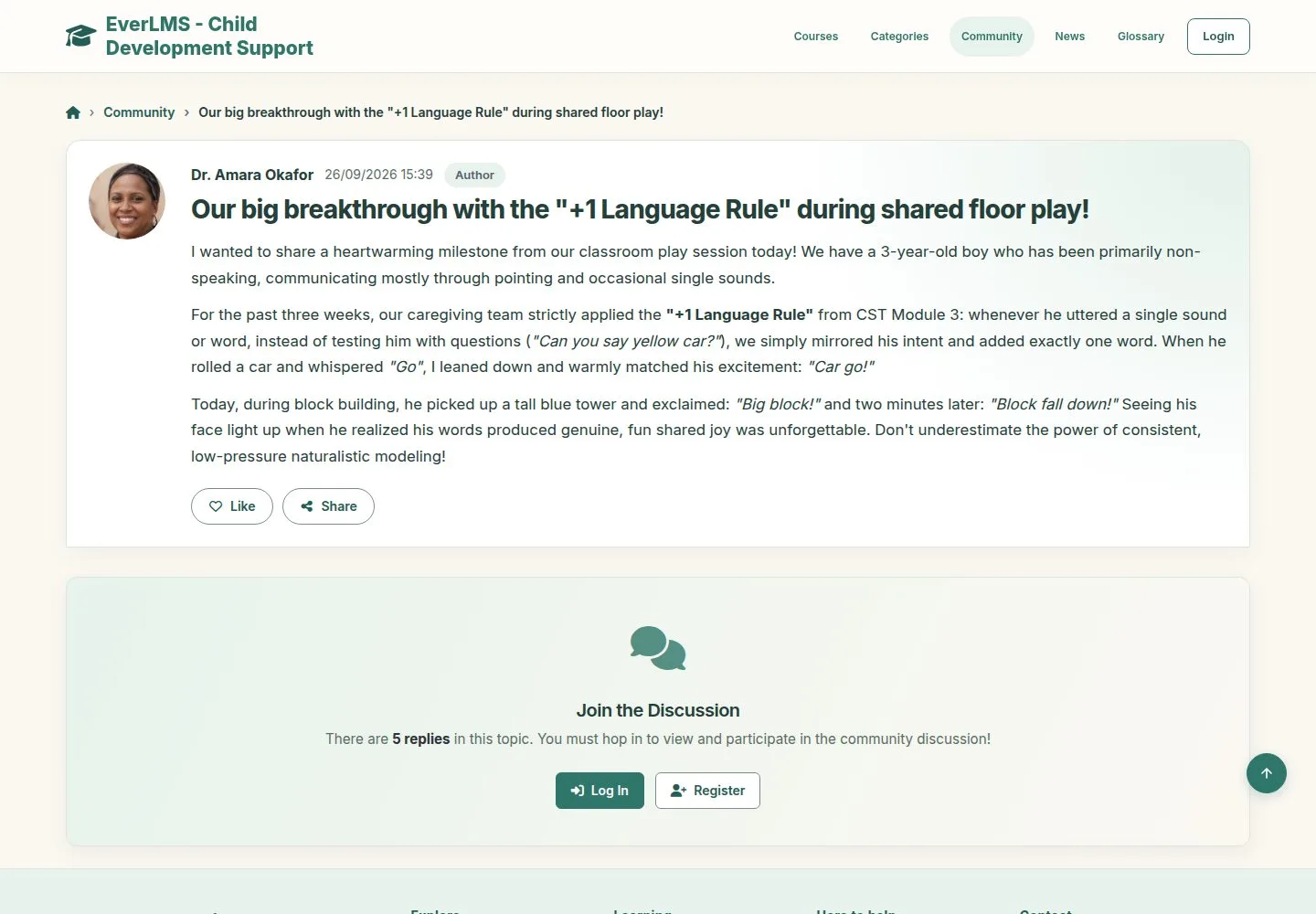
A visitor reads

Visitor

A visitor reads

2Step 2 of 15

  1. A visitor reads the question.
  2. Replies are for members: Log In or Register.

Enlarge, then scroll

Open illustrated screen ↗Full image ↗

Learner · Community & reviews02

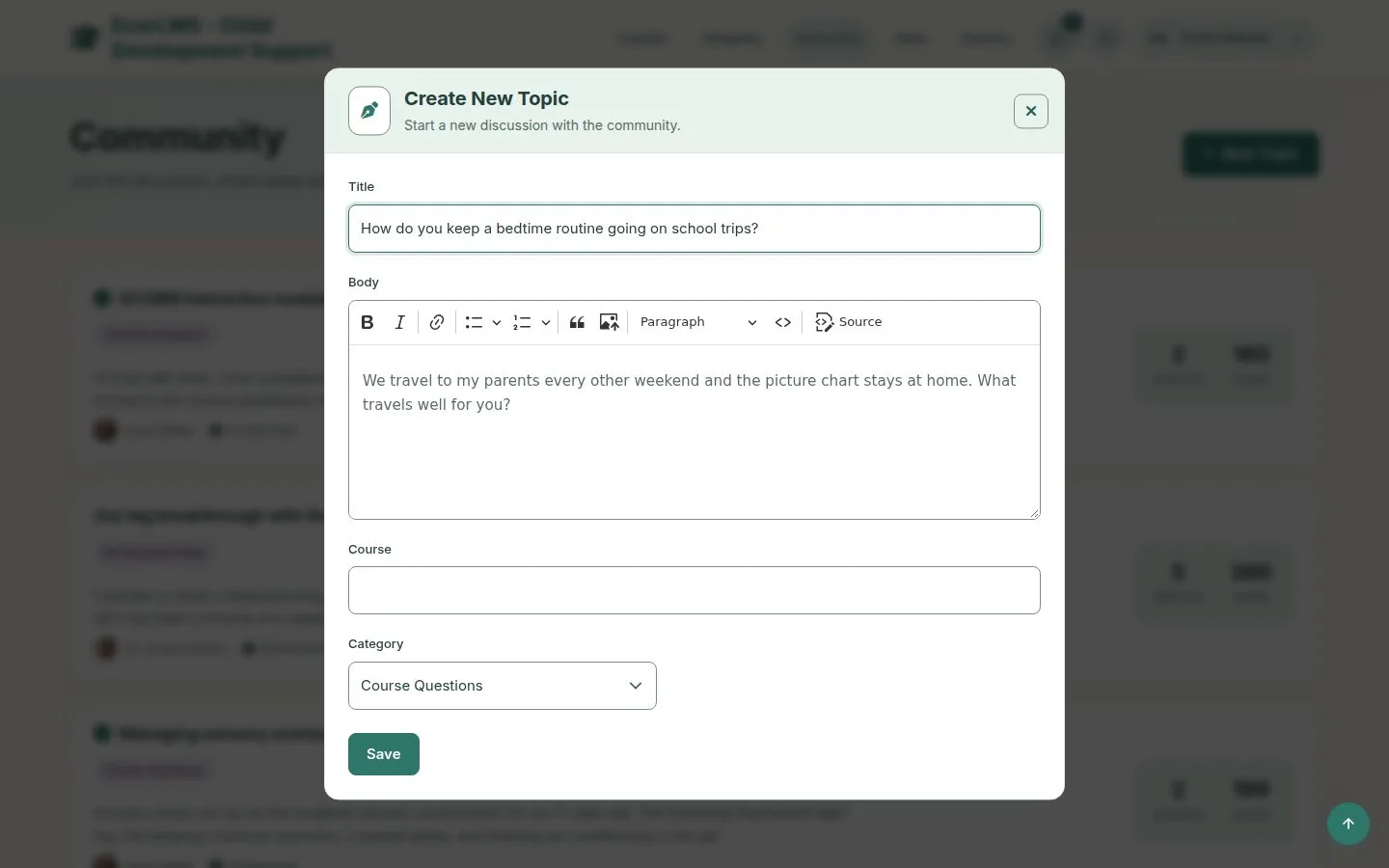
New Topic

Learner

New Topic

3Step 3 of 15

  1. New Topic opens a dialog: title, body, course and category.

Open illustrated screen ↗Full image ↗

Learner · Community & reviews03

The topic

Learner

The topic

4Step 4 of 15

  1. Your topic has its own page and address.
  2. Reply, Like and Share are under the text.

Enlarge, then scroll

Full image ↗

Learner · Community & reviews04

Reply

Learner

Reply

5Step 5 of 15

  1. The form says who you are answering.
  2. Post Reply.

Enlarge, then scroll

Full image ↗

Learner · Community & reviews05

Answer a reply

Instructor

Answer a reply

6Step 6 of 15

  1. Reply on a post addresses that member.
  2. Reply to the topic instead goes back.

Enlarge, then scroll

Full image ↗

Learner · Community & reviews06

You are told

Learner

You are told

7Step 7 of 15

  1. The author of a topic gets a notification for each reply.

Enlarge, then scroll

Open illustrated screen ↗Full image ↗

Learner · Community & reviews07

Sort and like

Learner

Sort and like

8Step 8 of 15

  1. Sort by Newest or Oldest; a best answer stays on top.
  2. Like counts once per person.

Enlarge, then scroll

Full image ↗

Learner · Community & reviews08

Best answer

Learner

Best answer

9Step 9 of 15

  1. The author, or a Manager, marks a best answer.
  2. The topic is then resolved and takes no more replies.

Enlarge, then scroll

Full image ↗

Learner · Community & reviews09

Moderate

Manager

Moderate

10Step 10 of 15

  1. Managers edit and delete any reply; authors their own.
  2. Delete asks first, on the same page.

Full image ↗

Learner · Community & reviews10

Leave a review

Learner

Leave a review

11Step 11 of 15

  1. Reviews tab of a course you are enrolled in: rating and text.
  2. One review per learner and course.

Enlarge, then scroll

Full image ↗

Learner · Community & reviews11

Waiting for approval

Learner

Waiting for approval

12Step 12 of 15

  1. The review waits; it is not shown yet.

Enlarge, then scroll

Full image ↗

Learner · Community & reviews12

Student Feedback

Manager

Student Feedback

13Step 13 of 15

  1. Workspace › Student Feedback lists the reviews.
  2. Search the text, filter by status and rating.

Enlarge, then scroll

Open illustrated screen ↗Full image ↗

Learner · Community & reviews13

Approve and feature

Manager

Approve and feature

14Step 14 of 15

  1. Approve shows the review on the site.
  2. Feature marks it as a highlight.

Enlarge, then scroll

Full image ↗

Learner · Community & reviews14

On the course page

Visitor

On the course page

15Step 15 of 15

  1. The average and the list count approved reviews only.

Enlarge, then scroll

Full image ↗

Check

Questions get answers the community can find later, and reviews appear once the programme team approves them

Learner · Community & reviews15
1 / 16
Privacy Terms