





Guide › Working with documents › Upload
Upload and open a PDF
Why it matters
Start with one PDF and let the quick scan check its pages before processing.
Before you begin: Open Workspace. Have a PDF within the limits displayed for your account.
- 1
Choose one PDF
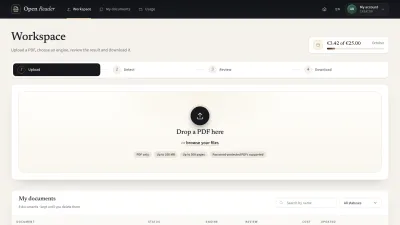
CreatorDrop a PDF into the upload area or select a file. Upload one file at a time; the site accepts only the first file when several are dropped.
Historical local-site capture · 5 October 2026 · Empty workspace. - 2
Wait for upload and the quick scan
Watch upload progress. You can select Cancel while uploading. After upload, the site checks the PDF and scans its page information before opening Detect.
Historical local-site capture · 5 October 2026 · Checking the PDF (quick scan queued). - 3
Handle a protected PDF
If the site asks for a password, enter the PDF’s password to continue. An incorrect password can be retried. Closing the prompt cancels that upload; the PDF password is not retained.
Historical local-site capture · 5 October 2026 · Password prompt with the password typed (shown as dots). - 4
Handle a duplicate or rejected file
For a duplicate, open the existing document or continue as a new document. If the file is not a valid PDF, is damaged or exceeds your limits, follow the reason shown and provide another file.
Historical local-site capture · 5 October 2026 · Duplicate upload dialog. - Good to know
- File size and page limits depend on the account and site settings. Read the limits in your upload area.
- A damaged-file capture is an example of an error state; the guide does not promise that every invalid file reaches Detect.
- Result to check
Detect shows a quick scan summary for your uploaded document. A rejected or cancelled upload gives you a reason or returns you to the upload area.