





Guide › Working with documents › My documents
Find, rename and remove your documents
Why it matters
Return to previous work and keep your own document list organised.
Before you begin: Log in as the document owner. Workspace includes My documents.
- 1
Find a document by name or status
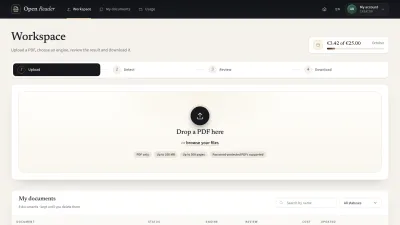
CreatorUse the search box, status filter and pagination. The list shows your own documents, page count, latest engine, cost and update time. Clear the filters when no result appears.
Historical local-site capture · 5 October 2026 · Search by name. - 2
Open where the document left off
Uploaded opens Detect; Processing opens progress; Ready opens Review; Failed opens the reason and recovery options.
Historical local-site capture · 5 October 2026 · My documents with several statuses. - 3
Rename or download
Use Rename to change the display name and future download filename. Download opens format selection for a usable result.
Historical local-site capture · 5 October 2026 · Rename dialog. - 4
Delete a document you no longer need
Select Delete, read the confirmation and confirm if intended. The document leaves the list immediately; its files are removed in the background. A processing document’s active run is cancelled first.
Historical local-site capture · 5 October 2026 · Delete dialog. - Result to check
You can reopen your own work, find it under its new name or confirm that a deleted document has left the list.