





Guide › Getting started › Log in
Log in and find your workspace
Why it matters
Use your account to open your documents and the tools available to your role.
Before you begin: An active account and access to your installation. Your administrator may provide your first password link.
- 1
Open Log in
VisitorSelect Log in on the public site. Enter your email and password, then select Log in.
Static prototype illustration · sample content; no live operation is shown. - 2
Go to the right starting page
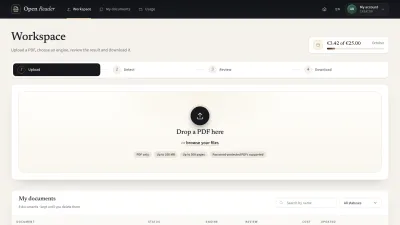
CreatorCreator and Content Admin accounts open Workspace. Admin accounts open Switch user. If you signed in while opening a protected page, return to that page.
Historical local-site capture · 5 October 2026 · Empty workspace. - 3
Use Home and My account
Home opens the public site. My account contains Account settings and the links your role may use. Select Log out when you finish. In a switched session, use Switch back instead.
- Good to know
- If you need to verify your email, use the code screen and request a new code when needed.
- For an incorrect password, use Forgot password. For a blocked account, contact your administrator. For too many attempts, wait for the time shown.
- Result to check
Your role’s starting page and account menu are visible. You can open your own documents after signing in.