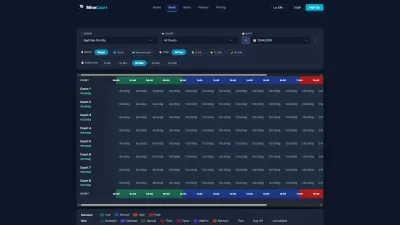





Counter booking

Staff Booking · Customer · Walk-in · Block slot

  • Venue Staff account
Venue Staff

Staff Booking

Venue Staff

Staff Booking

1Step 1 of 7

  1. Court · Date
  2. Single · Serial
  3. Time · Duration

Enlarge, then scroll

Open illustrated screen ↗Full image ↗

Venue Staff · Counter booking01

Another day

Venue Staff

Another day

2Step 2 of 7

  1. Date
  2. Previous · Next day

Enlarge, then scroll

Open illustrated screen ↗Full image ↗

Venue Staff · Counter booking02

Choose slots

Venue Staff

Choose slots

3Step 3 of 7

  1. Select free slots
  2. Customer panel

Enlarge, then scroll

Open illustrated screen ↗Full image ↗

Venue Staff · Counter booking03

Find the customer

Venue Staff

Find the customer

4Step 4 of 7

  1. Search customer
  2. Name, email or phone
  3. Select

Open illustrated screen ↗Full image ↗

Venue Staff · Counter booking04

New walk-in customer

Venue Staff

New walk-in customer

5Step 5 of 7

  1. New walk-in customer
  2. Name · Phone

Open illustrated screen ↗Full image ↗

Venue Staff · Counter booking05

Staff Checkout

Venue Staff

Staff Checkout

6Step 6 of 7

  1. Payment mode
  2. Notes
  3. Booked by
  4. Confirm Order

Pay now (full) records cash or a transfer taken at the counter.

Enlarge, then scroll

Open illustrated screen ↗Full image ↗

Venue Staff · Counter booking06

Block a slot

Venue Staff

Block a slot

7Step 7 of 7

  1. Block slot
  2. Choose a free slot
  3. Reason

To open a blocked slot again, select it and confirm.

Open illustrated screen ↗Full image ↗

Check

Order created for the customer; blocked slots closed to booking

Venue Staff · Counter booking07
1 / 8
Privacy Terms