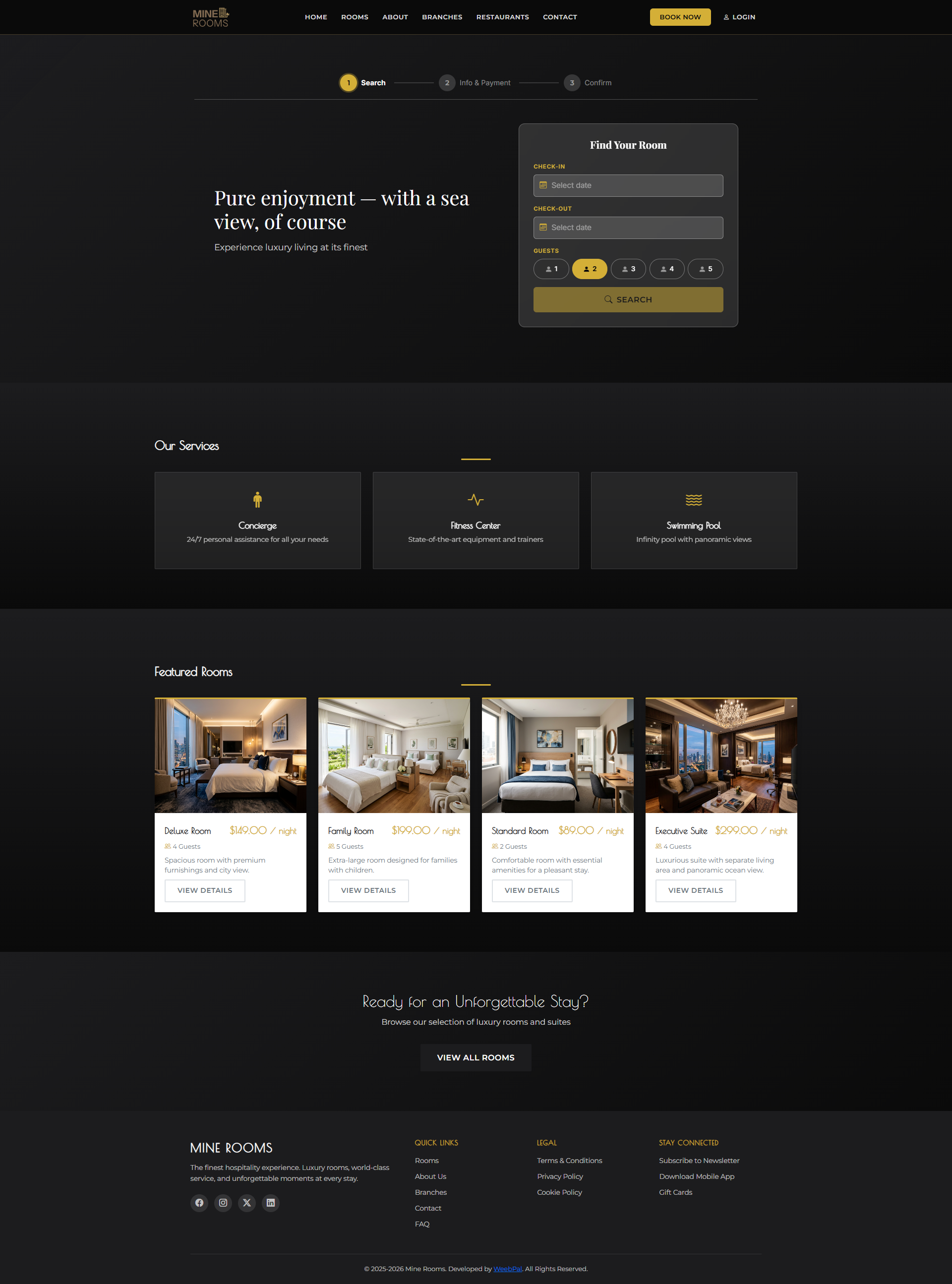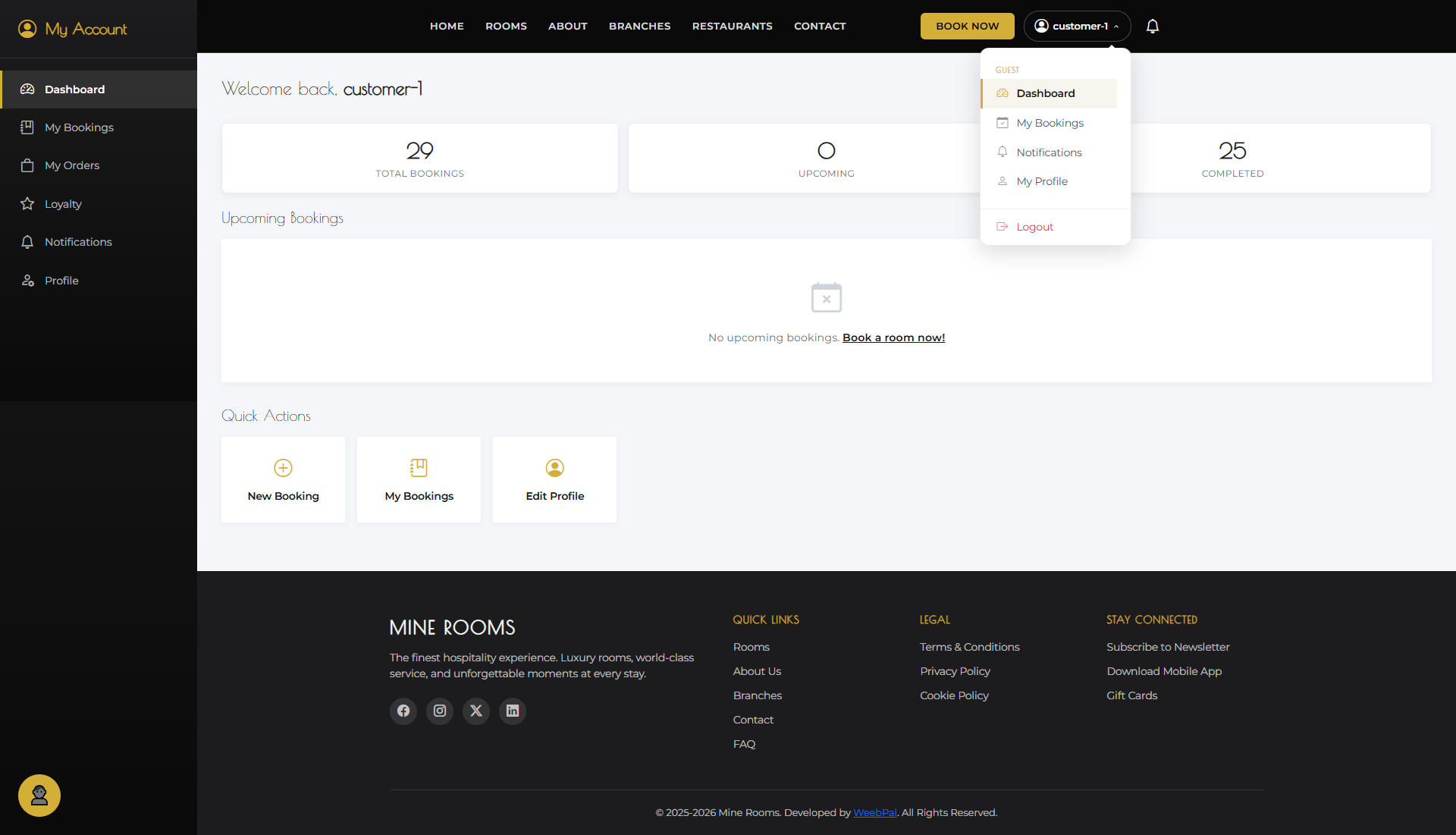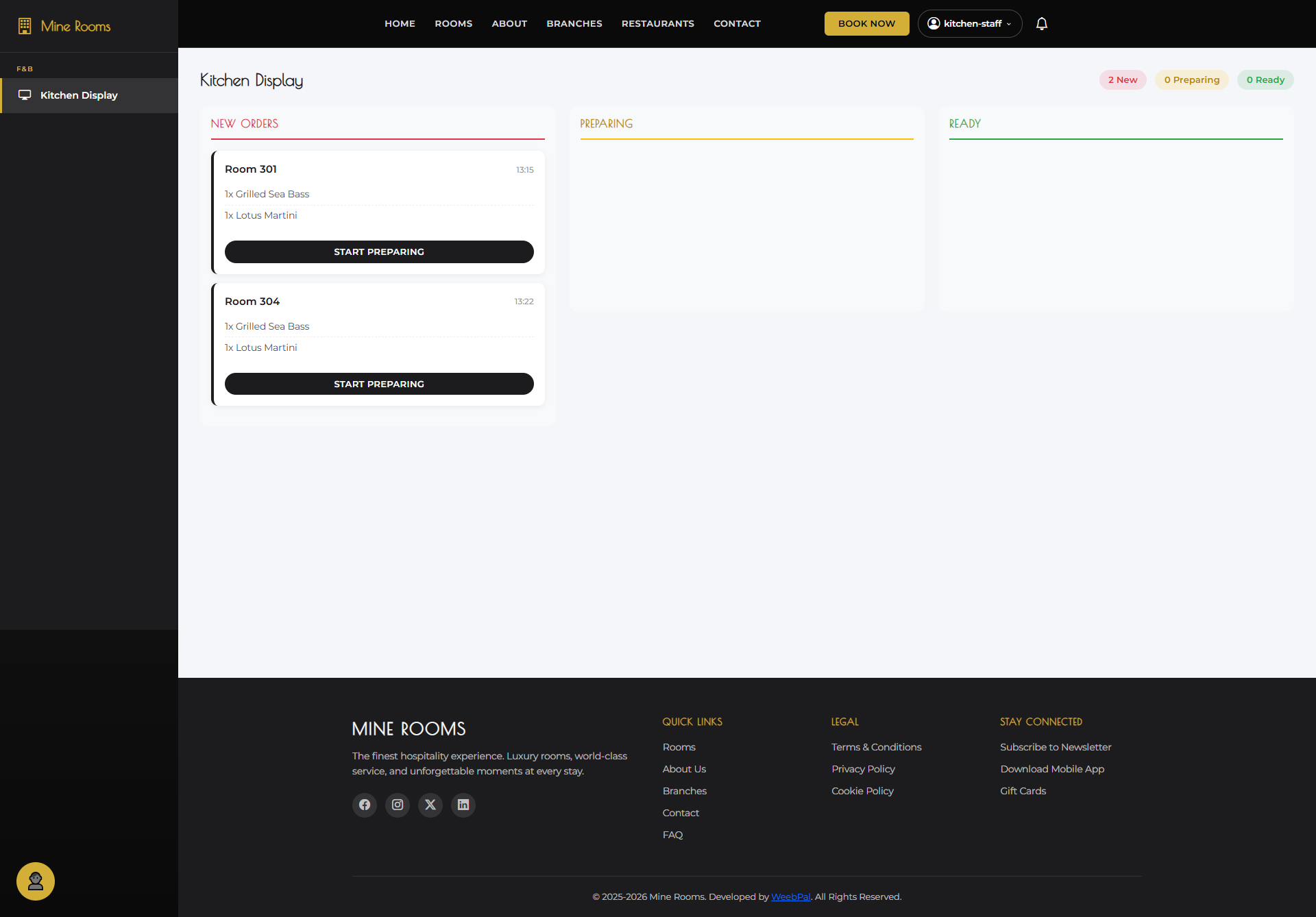
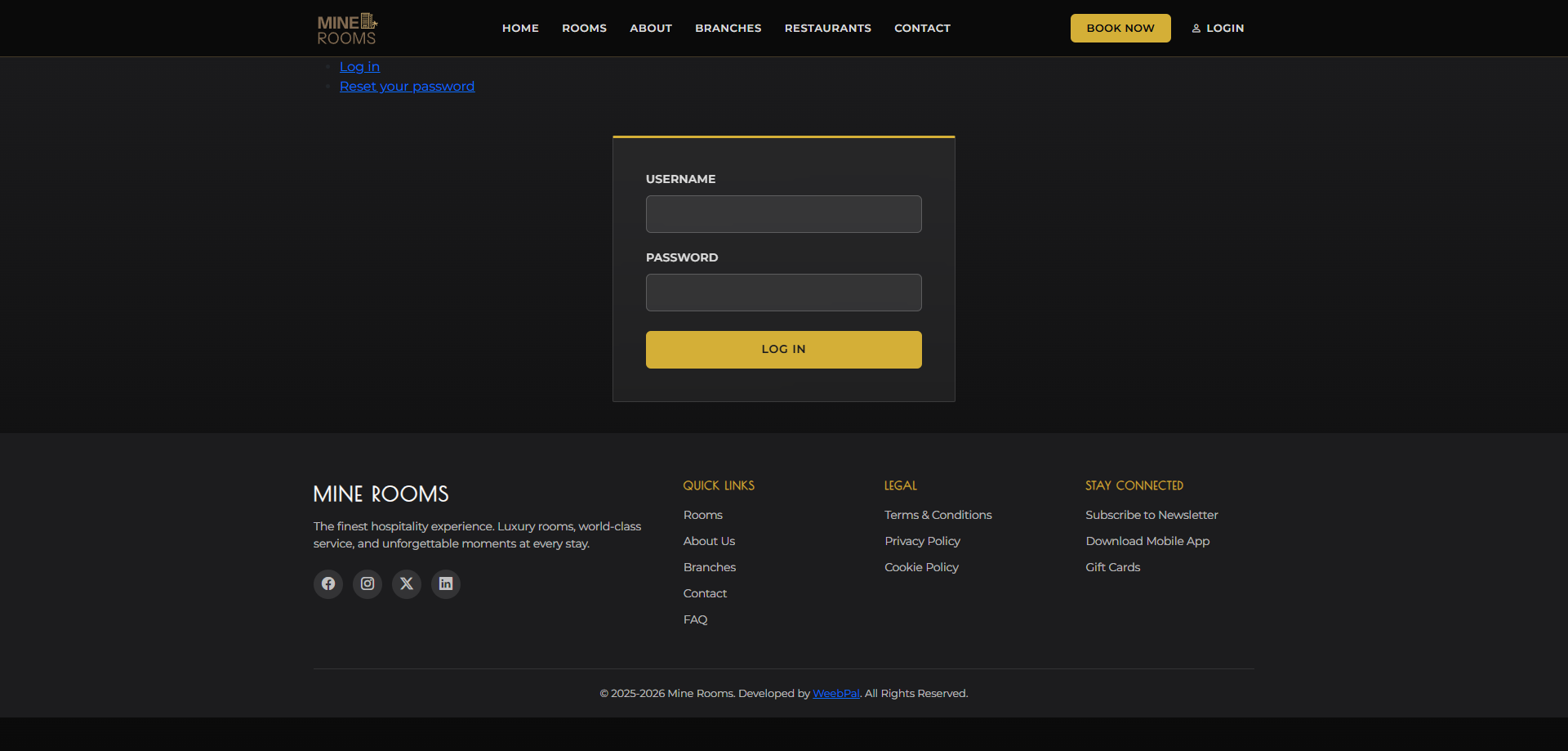
🔑 System Login
Who it’s for: Receptionist
Demo access: sandbox accounts are issued on request — request a guided demo.
Navigation: Go to the management portal login
- Enter your Username and Password, then click Log In
- After login you are redirected to
manage/bookings— the booking management dashboard - Use the top navigation bar to switch between modules
🗺️ Room Board Overview
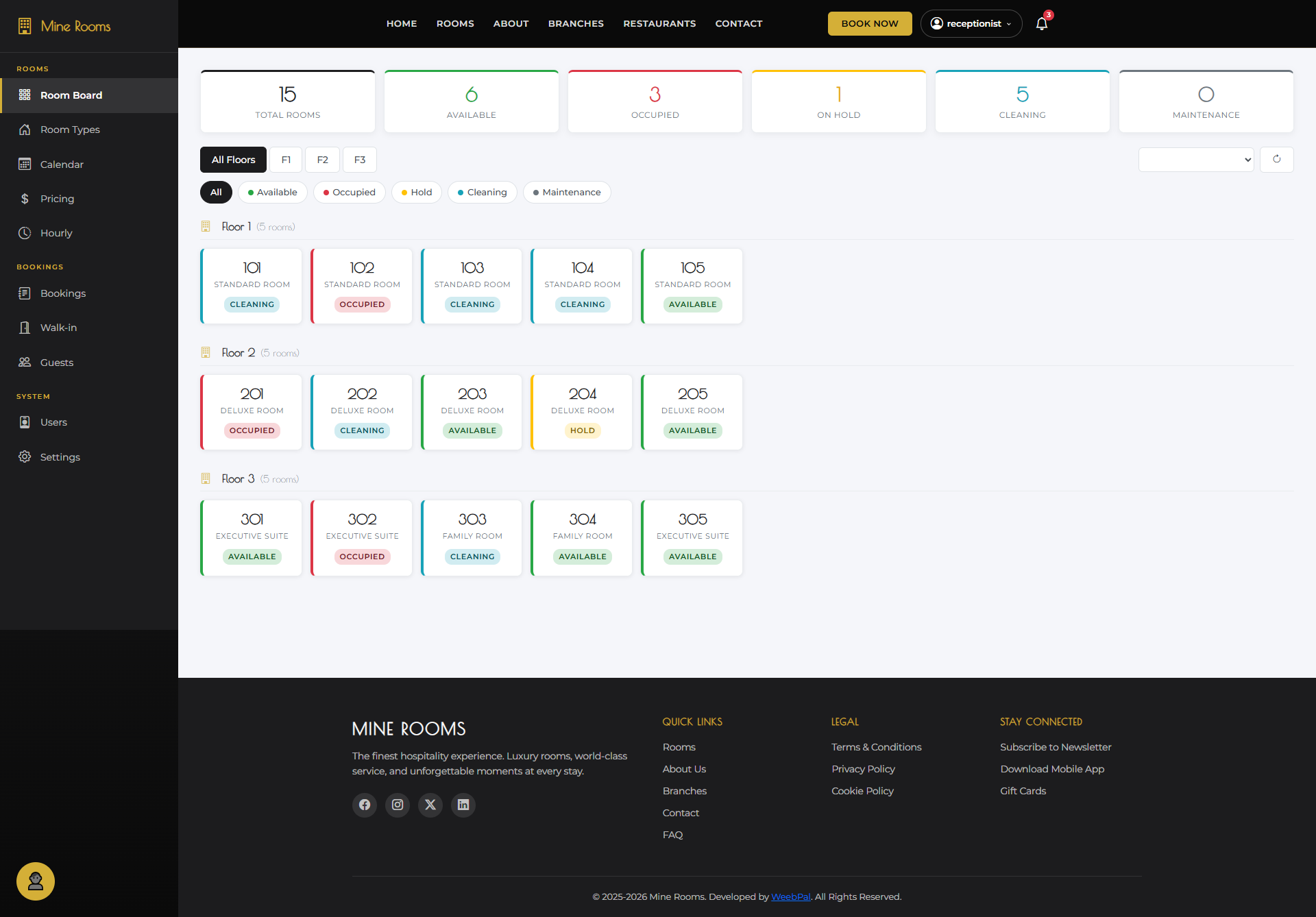
What it shows: A visual grid of all hotel rooms, with each card showing the current status by color.
Navigation: Left sidebar → Room Board
- Status: Available (green) · Occupied (orange) · Cleaning (yellow) · Maintenance (grey).
- Filter by Floor, Room Type, or Branch. The Occupancy rate appears at the top.
- Click any room card to open its detail panel.
🔍 Room Board Detail
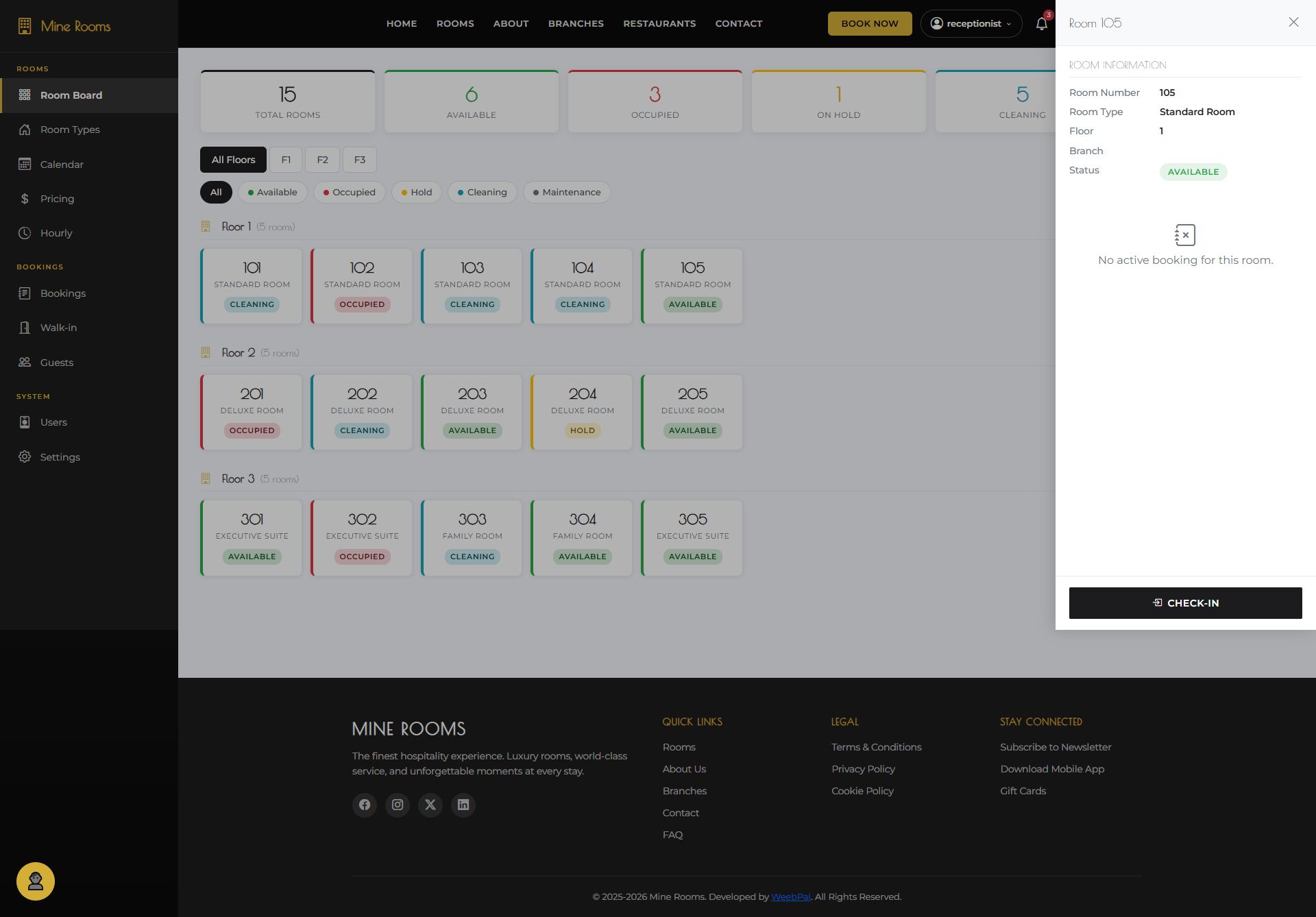
What it shows: The detail panel for a specific room, including guest info, booking details, and action buttons.
Navigation: Room Board → click a room card
- View the Room number, Room type, Current guest, Booking dates, and Status.
- Use the quick action buttons: Check-in · Checkout · Change Status.
- Open the full Booking Detail from the booking reference link.
🏨 Room Board — Check-in
What it does: Initiate the check-in process for a guest directly from the Room Board.
Navigation: Room Board → click room card → Check-in
- Verify booking is Confirmed status before proceeding
- Click Check-in on room detail panel → review guest details
- Confirm to proceed to the Confirm Check-in step
✅ Room Board — Confirm Check-in
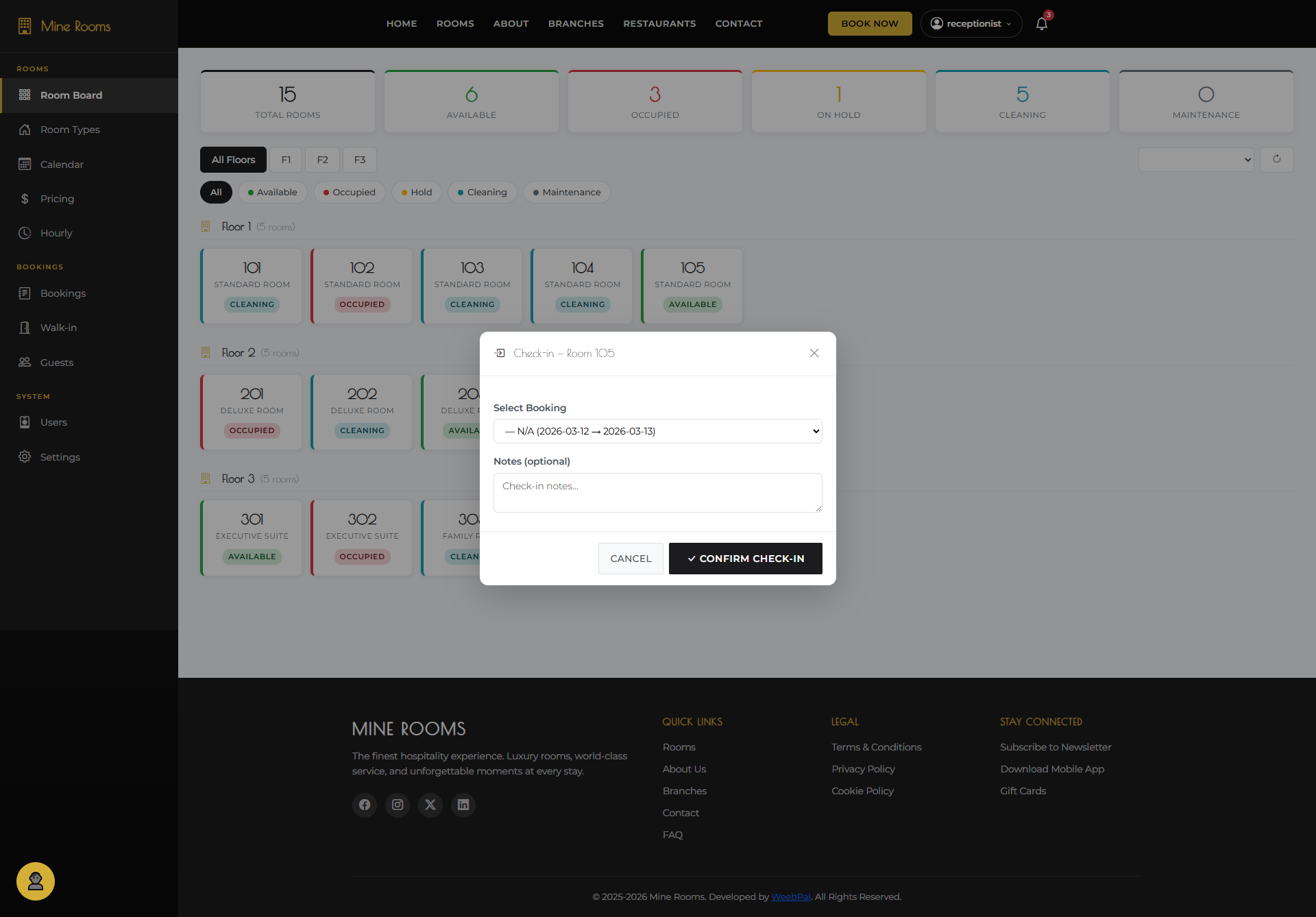
What it does: Final confirmation step when checking a guest in via the Room Board.
Navigation: Room Board → room card → Check-in → Confirm Check-in
- Review summary: Guest name, Room number, Check-in time
- Click Confirm — room card updates to Occupied
- Guest receives check-in notification on their account
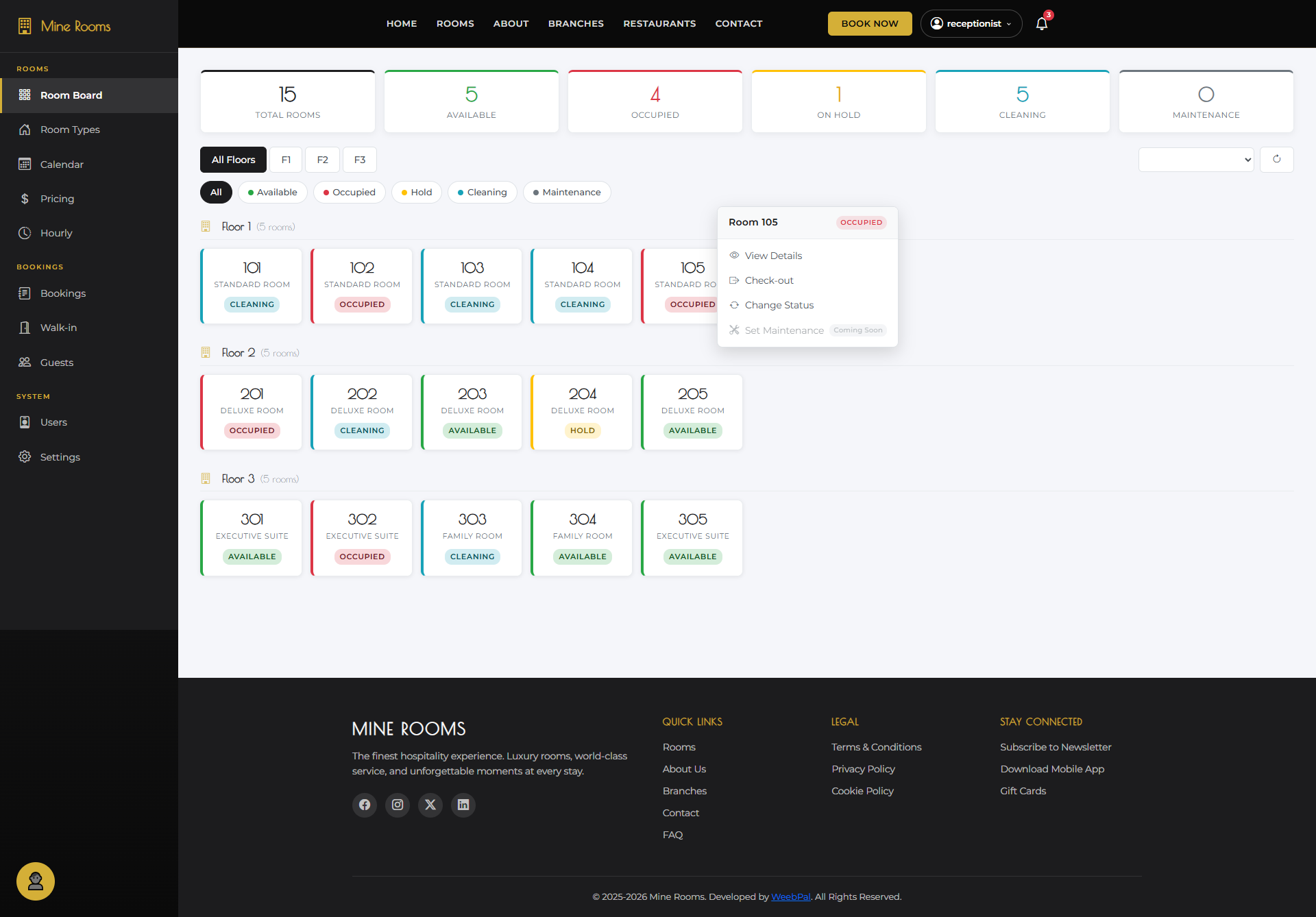
🚪 Room Board — Checkout
What it does: Initiate the checkout process for a departing guest directly from the Room Board.
Navigation: Room Board → occupied room card → Checkout
- Click Checkout — system loads checkout form
- Review Bill Summary and select payment method (Cash/Card/MoMo)
- Proceed to Confirm Checkout to finalize departure
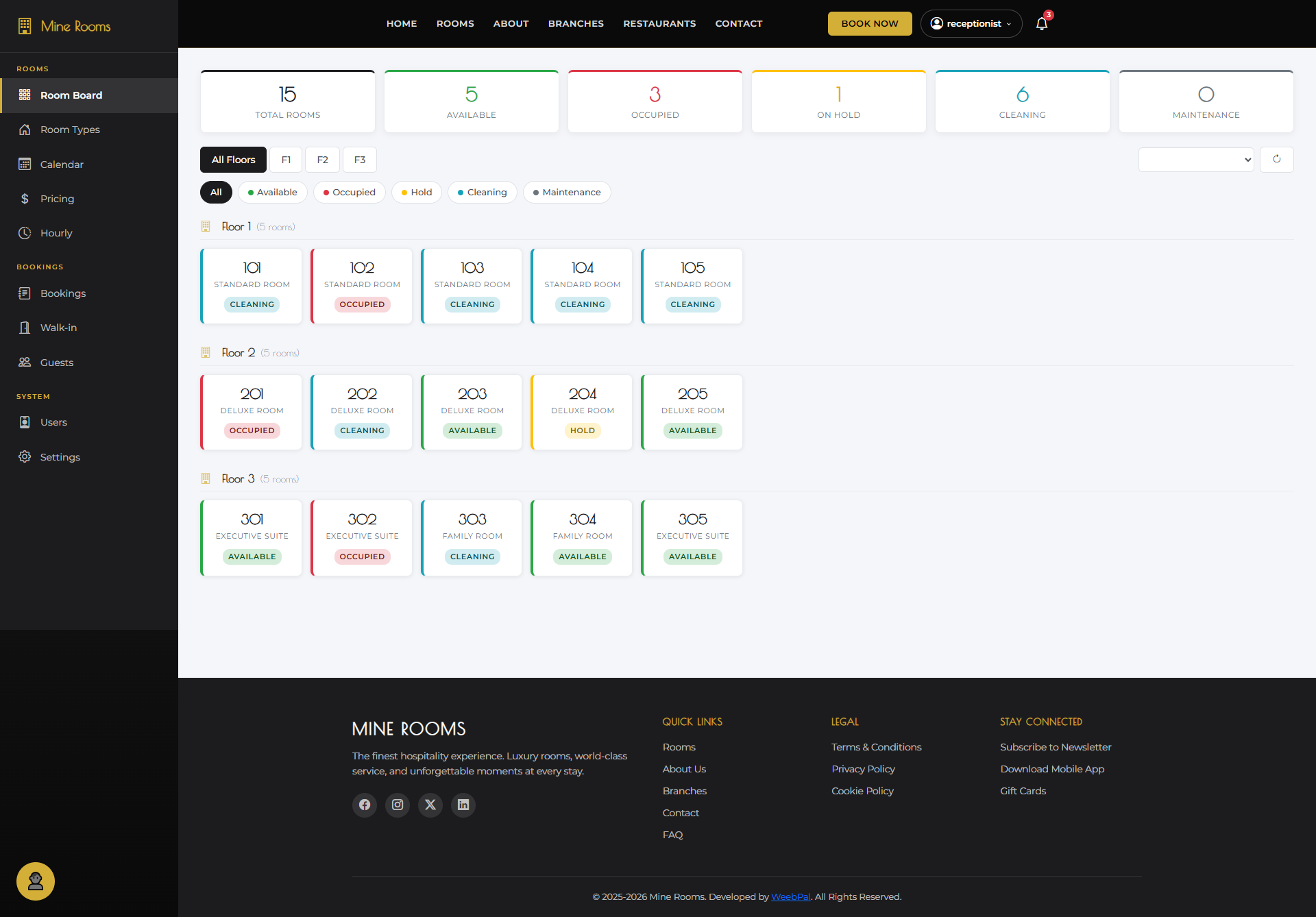
✅ Room Board — Confirm Checkout
What it does: Confirm the guest's departure — finalize billing and release the room for cleaning.
Navigation: Room Board → Checkout → Confirm Checkout
- Click Confirm Checkout — room updates to Cleaning Required
- Guest's booking moves to Completed status
- Housekeeping is notified automatically
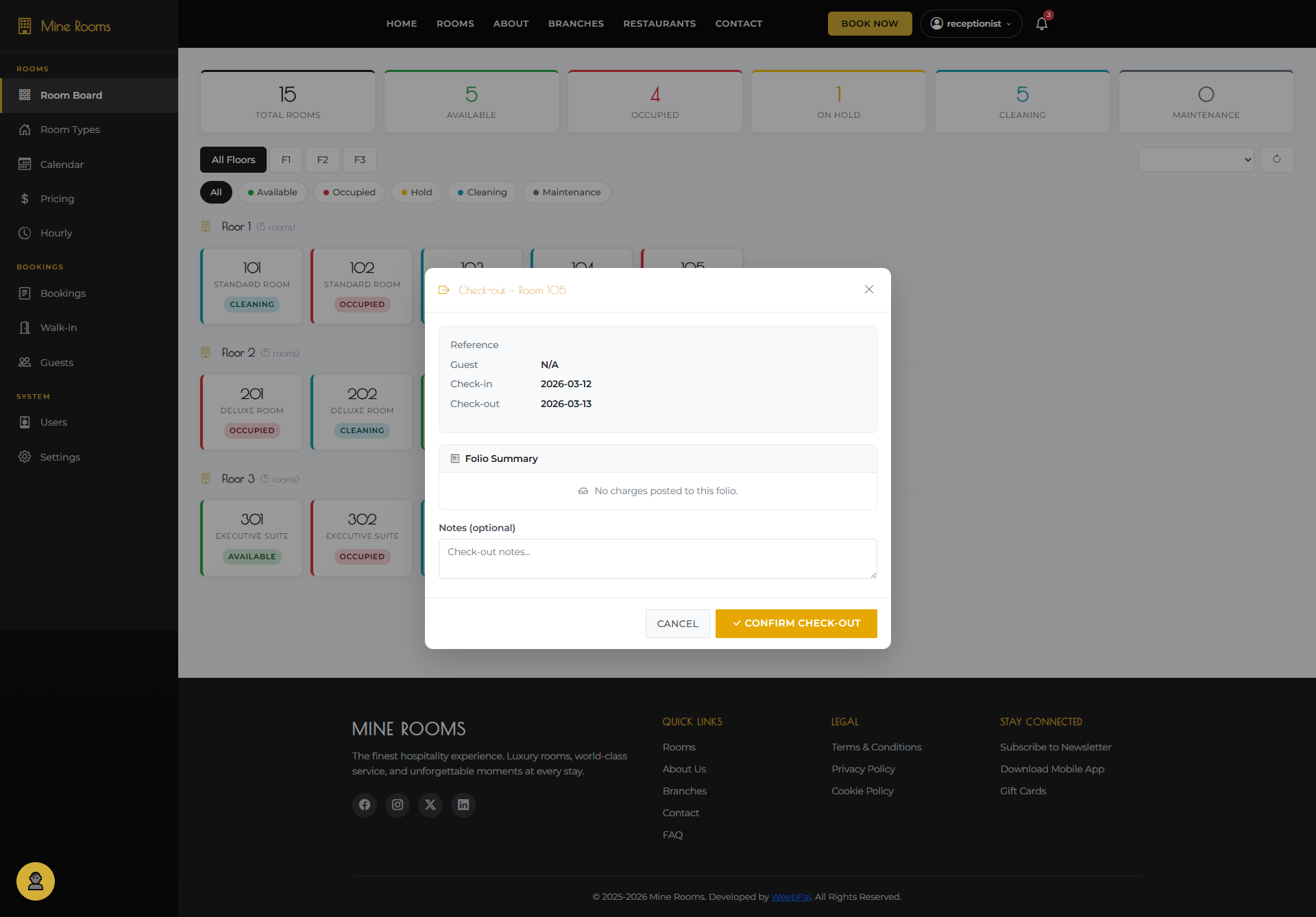
🔧 Change Room Status
What it does: Update a room's status for maintenance, blocking, or admin use.
Navigation: Room Board → room card → Change Status
- Select status: Available · Occupied · Cleaning · Maintenance · Out of Order
- Add optional note → click Save to apply
- Room card updates immediately on board
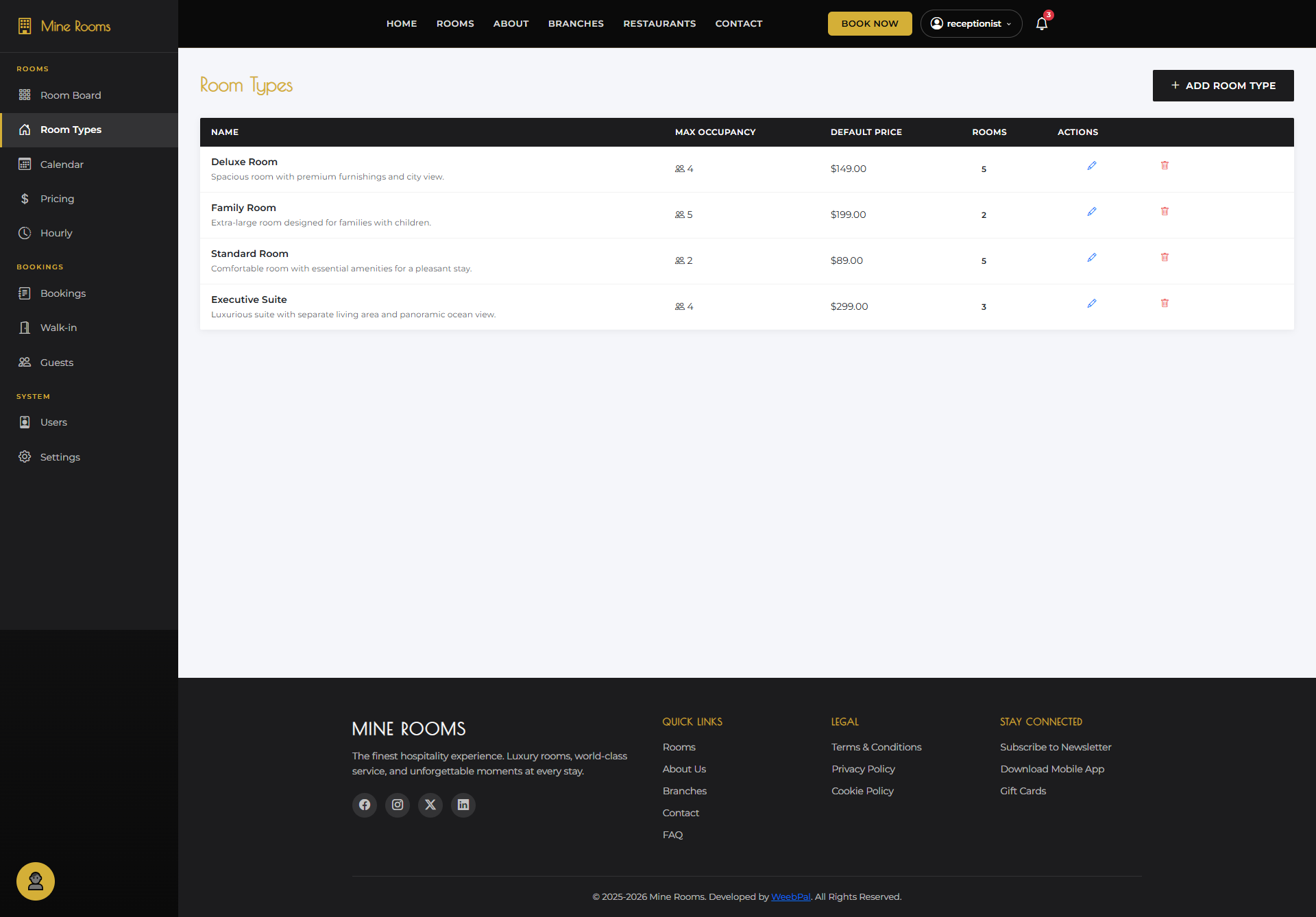
🛏️ Room Types
What it shows: All room type categories configured in the system (e.g. Deluxe Room, Family Room, Executive Suite).
Navigation: Left sidebar → Room Types
- View: name, capacity, amenities, room count
- Click + Add Room Type or Edit to modify
- Room types shared across branches; pricing is branch-specific
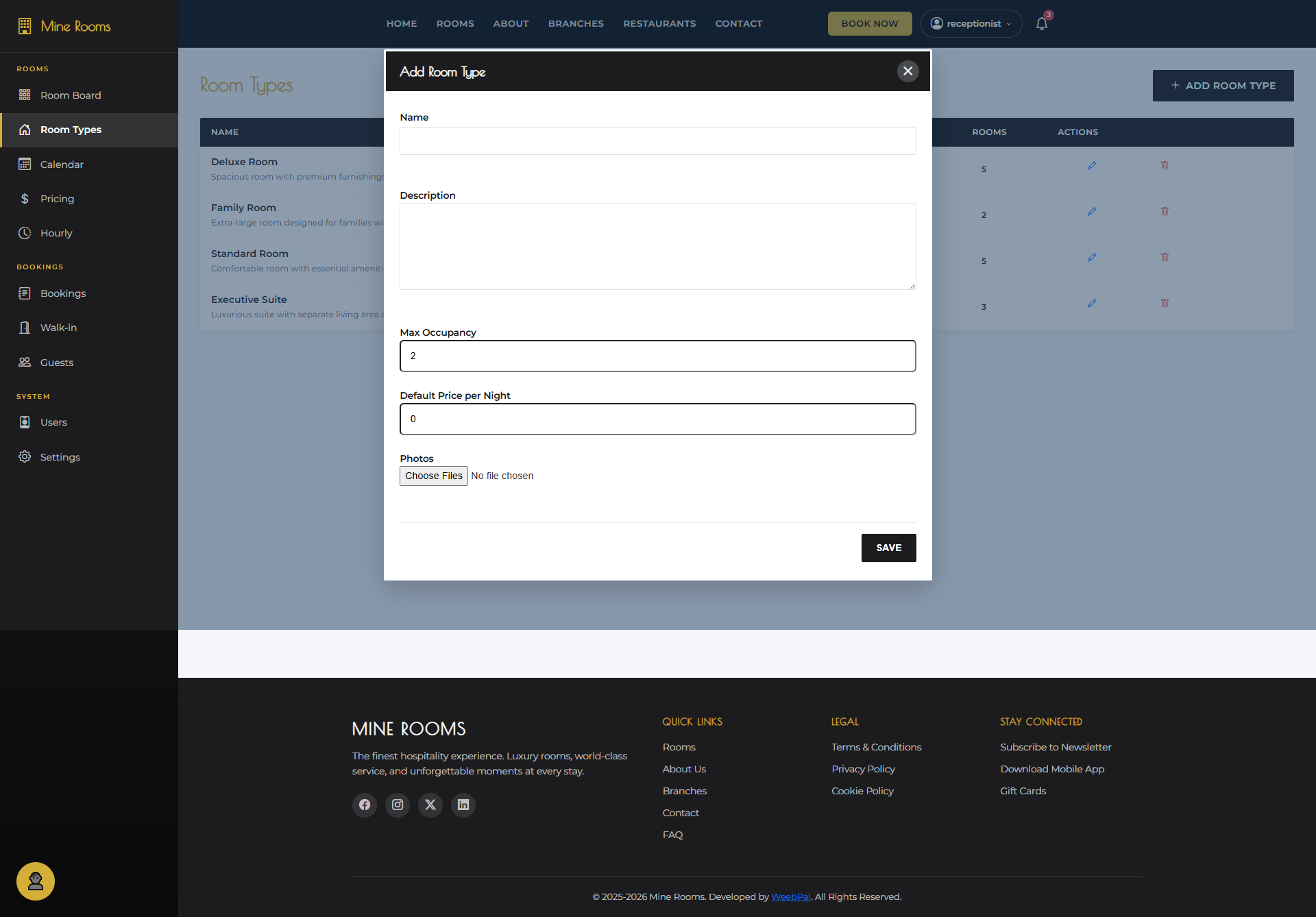
➕ Add Room Type
What it does: Create a new room type category that can be assigned to physical rooms across branches.
Navigation: Room Types → + Add Room Type
- Enter: Name, Description, Max Guests, Amenities
- Upload photos and set bed configuration (Single/Double/Twin/King)
- Click Save to add room type
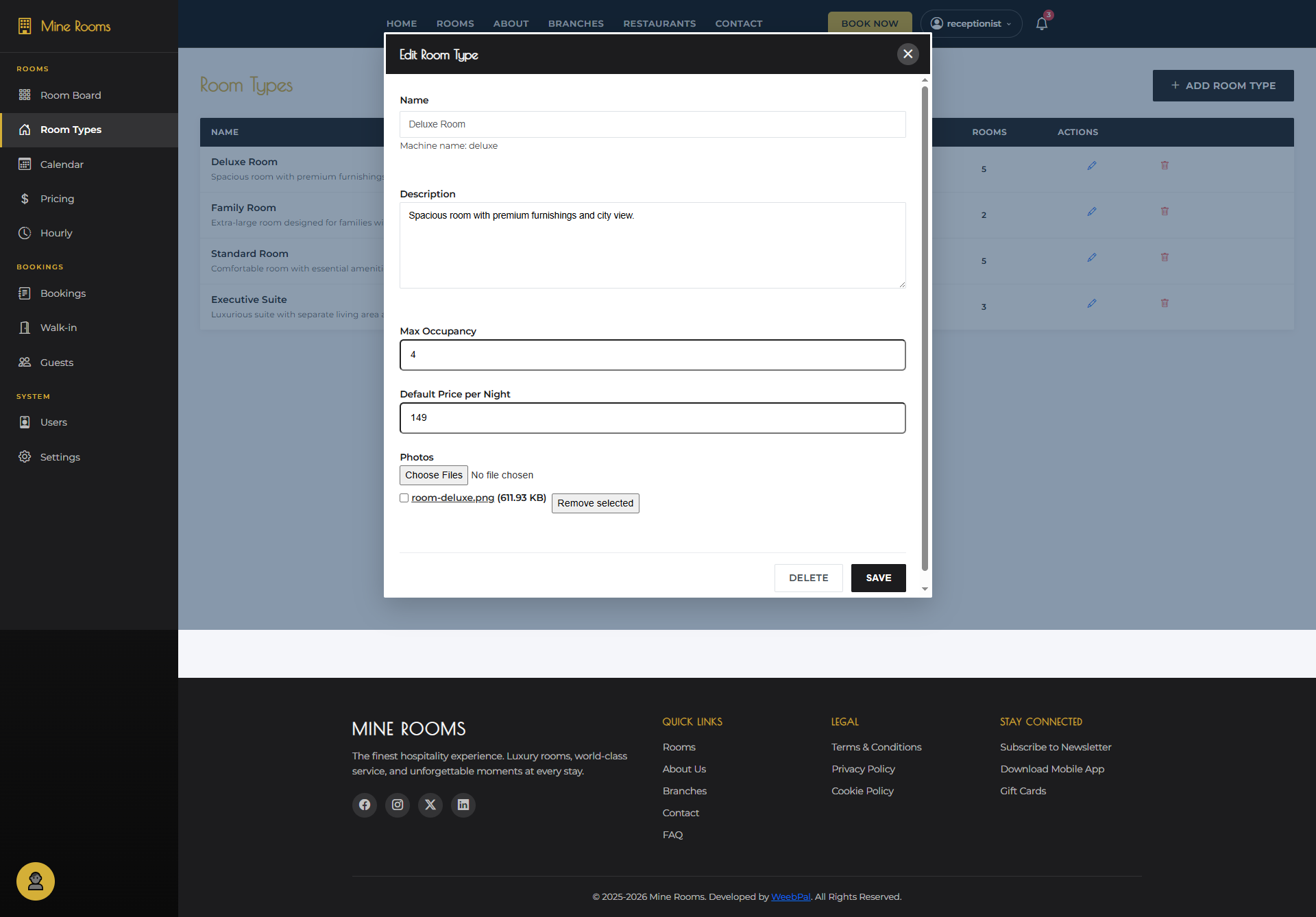
✏️ Edit Room Type
What it does: Update an existing room type's details, amenities, or photos.
Navigation: Room Types → Edit on any room type
- Modify any field: name, description, capacity, amenities, photos
- Changes take effect immediately on the public website
- Click Save to apply all edits
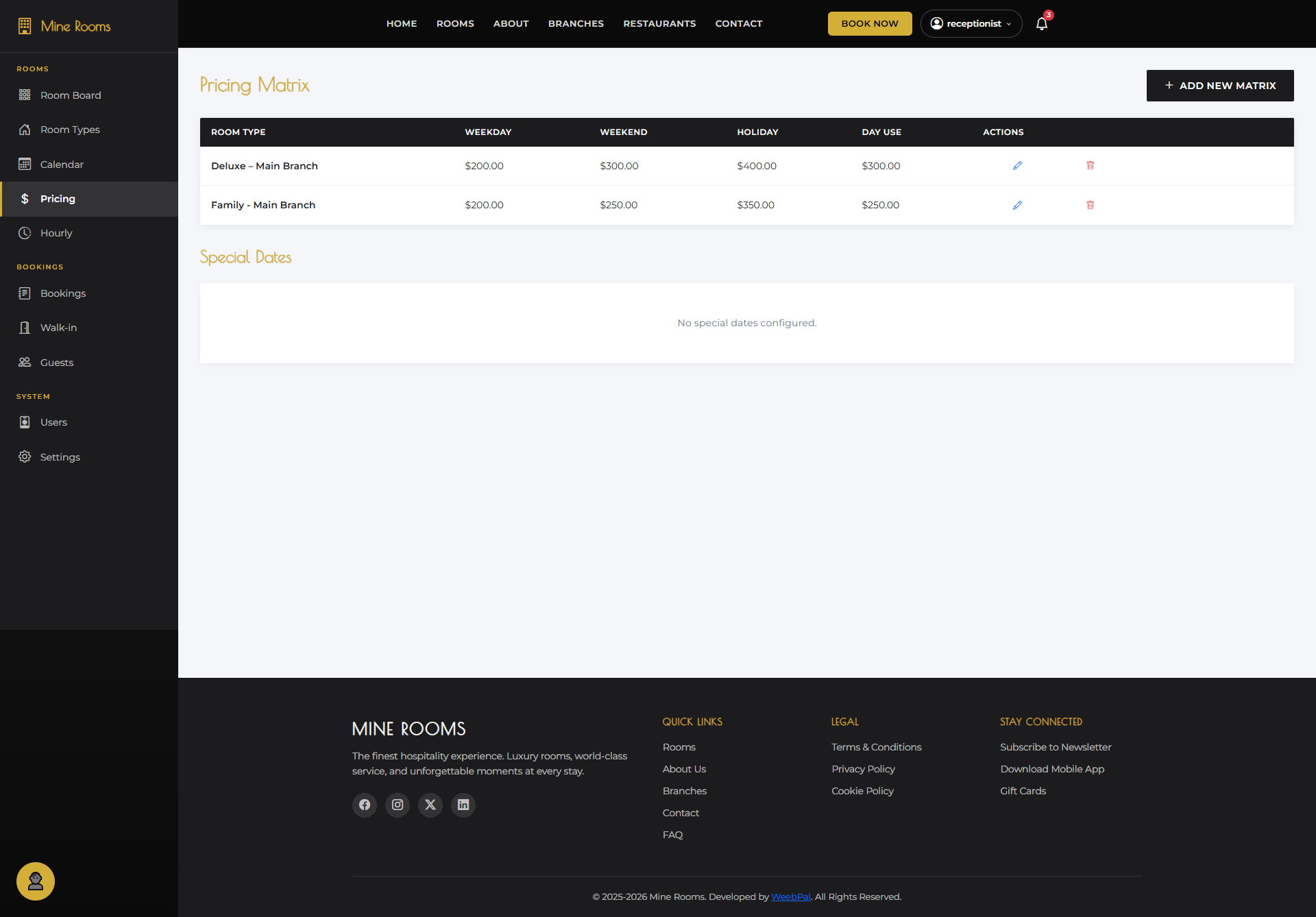
💰 Pricing
What it shows: All pricing configurations — nightly and hourly rates per room type per branch.
Navigation: Left sidebar → Pricing
- View: Room Type, Branch, Nightly Rate, Hourly Rate, Status
- Filter by Branch or Room Type to narrow results
- Click + Add Pricing or Edit to manage rates
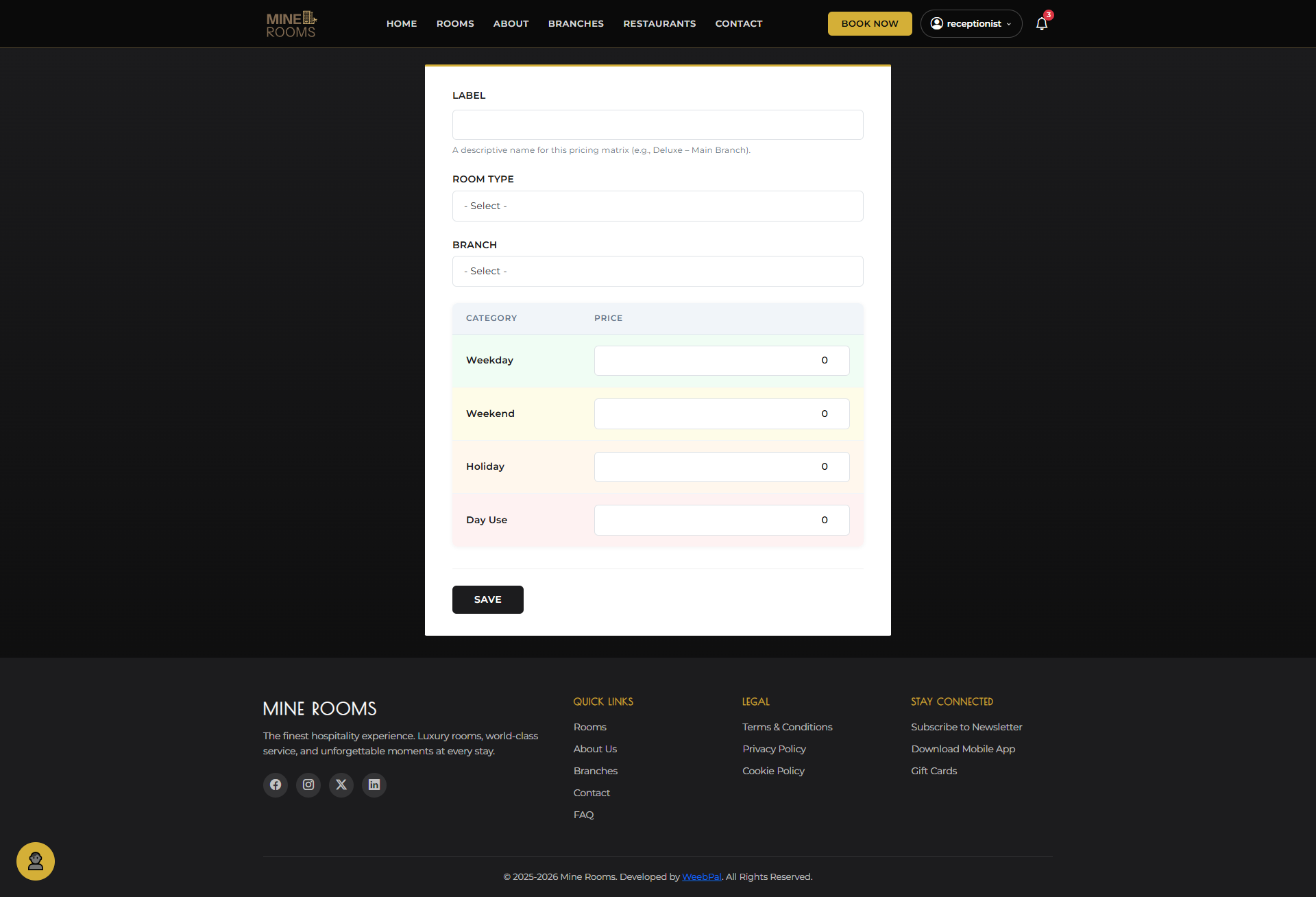
➕ Add Pricing
What it does: Create a new pricing record for a room type at a specific branch.
Navigation: Pricing → + Add Pricing
- Select Room Type and Branch from dropdowns
- Enter Nightly Rate (USD) and optionally Hourly Rate
- Set date ranges or leave blank for indefinite pricing
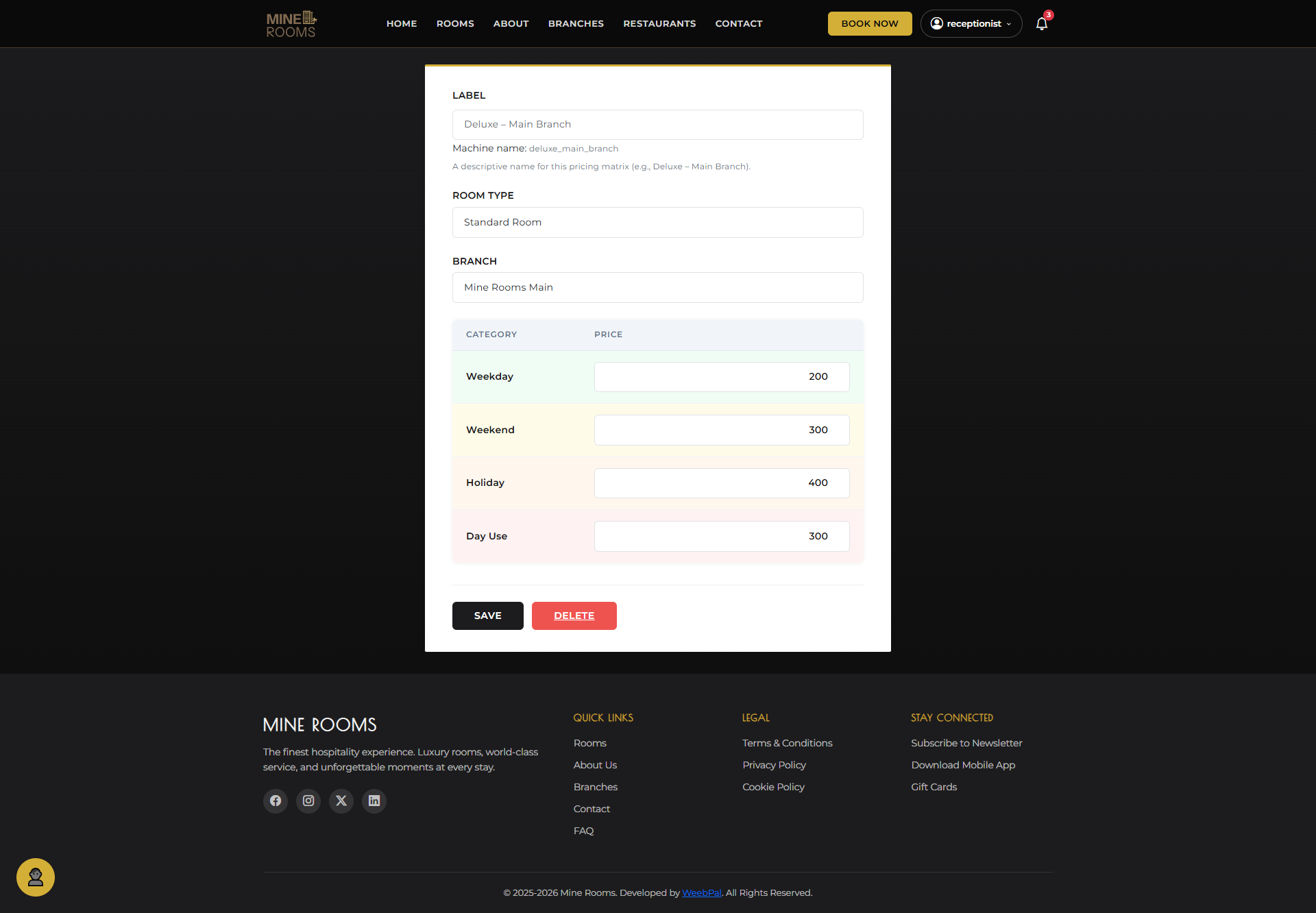
✏️ Edit Pricing
What it does: Update the nightly or hourly rate for a specific room type and branch.
Navigation: Pricing → Edit on any pricing row
- Modify Nightly Rate, Hourly Rate, or Date Range
- Click Save to apply the updated pricing immediately
- Updated pricing applies to new bookings only — existing confirmed bookings keep the original rate
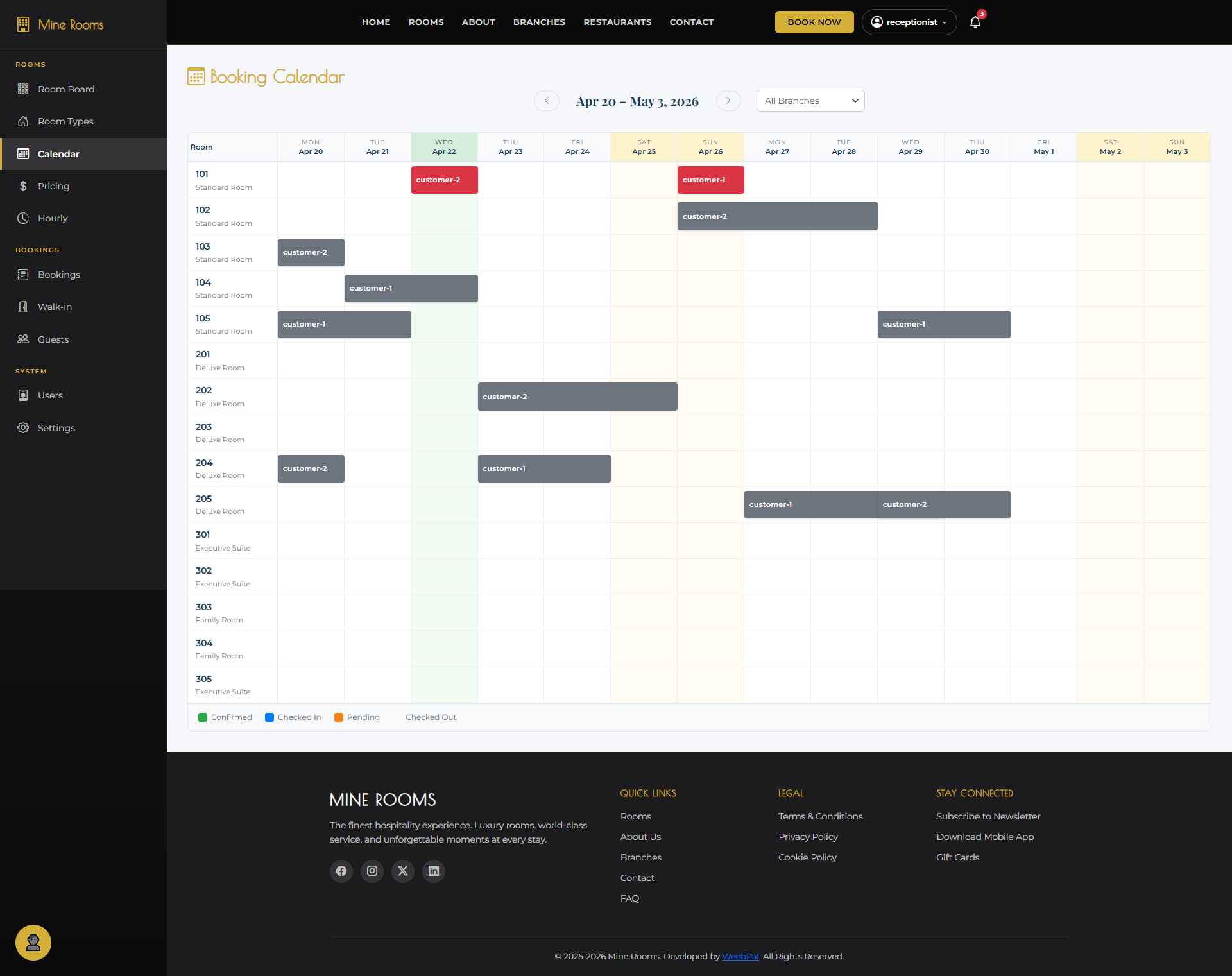
📅 Booking Calendar
What it shows: A visual timeline of all bookings displayed as a calendar — see room occupancy by date at a glance.
Navigation: Left sidebar → Calendar
- Switch between monthly, weekly, daily views
- Each block shows guest name and room type — hover for quick summary
- Click any block to open full Booking Detail
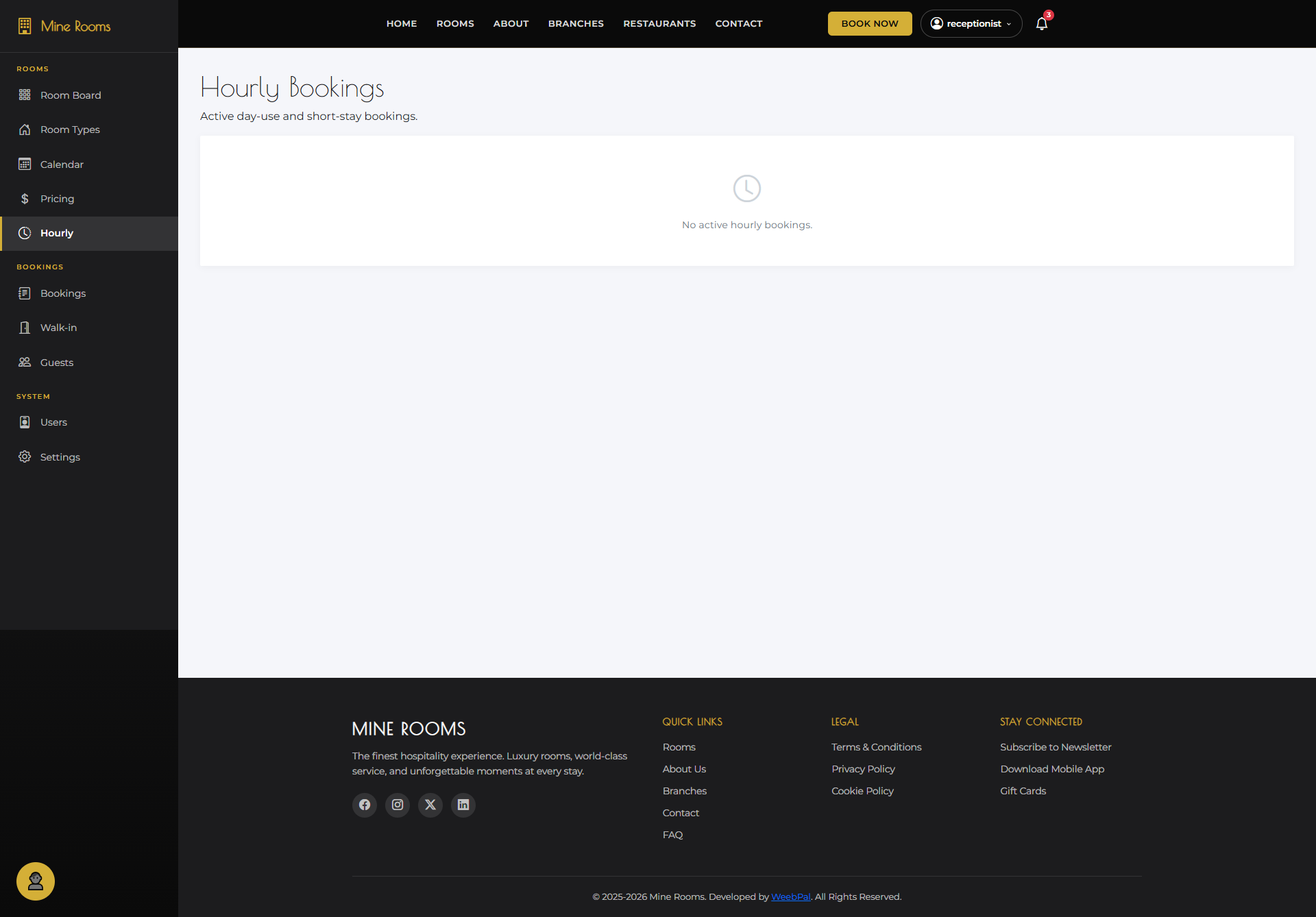
⏱️ Hourly Booking
What it does: Create a short-stay booking charged by the hour — ideal for day-use guests who don't need an overnight stay.
Navigation: Left sidebar → Hourly
- Select Room type, room, Start time, Number of hours
- Enter guest details and payment method
- Pricing auto-calculated based on hourly rate
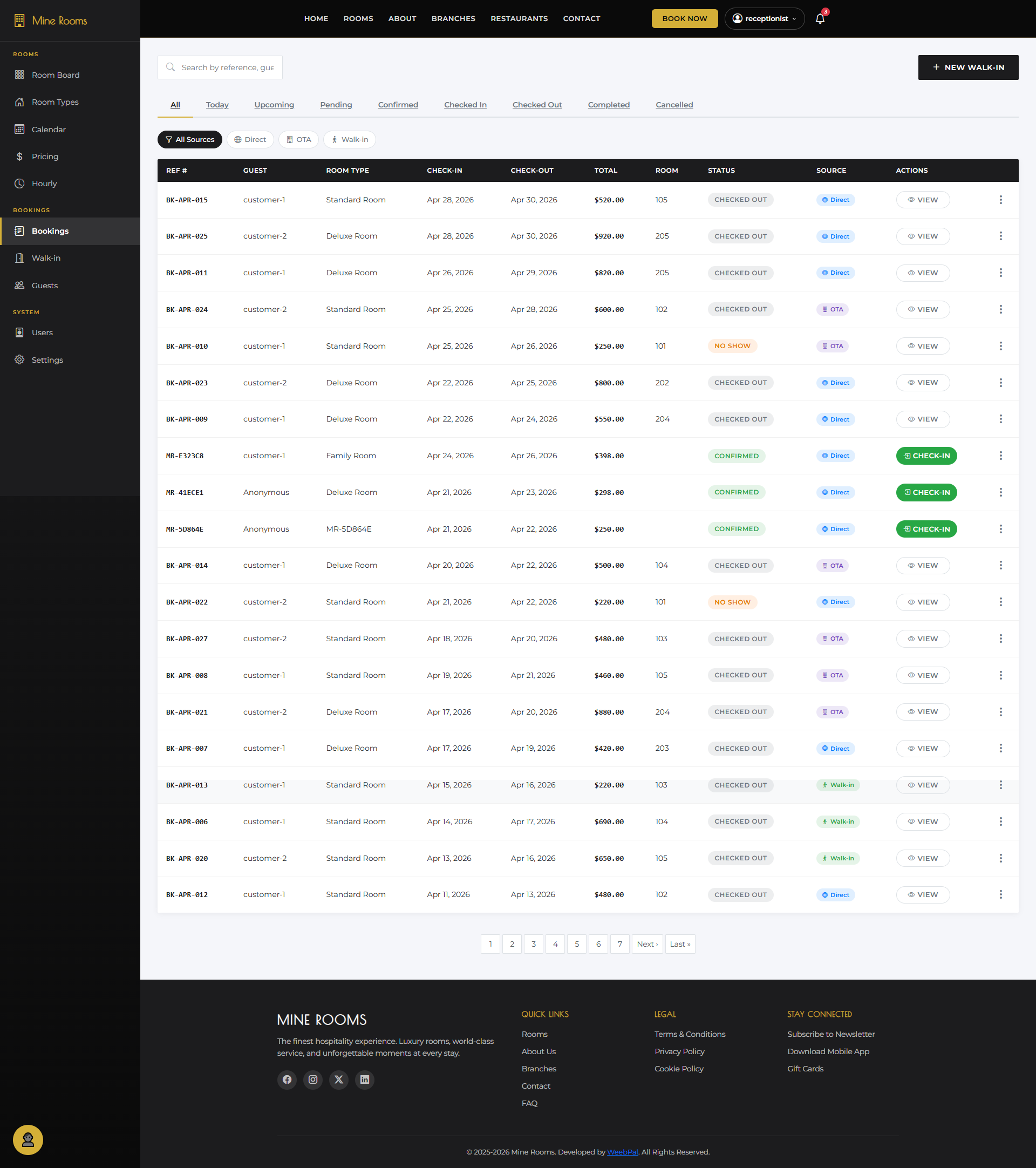
📋 All Bookings
What it shows: The main booking management list — all reservations across all statuses.
Navigation: Left sidebar → Bookings
- Lists all bookings with: Guest, Room Type, Dates, Total, Status, Source
- Use filter tabs to switch views or Search for booking ID/guest
- Click + NEW WALK-IN to create instant front-desk booking
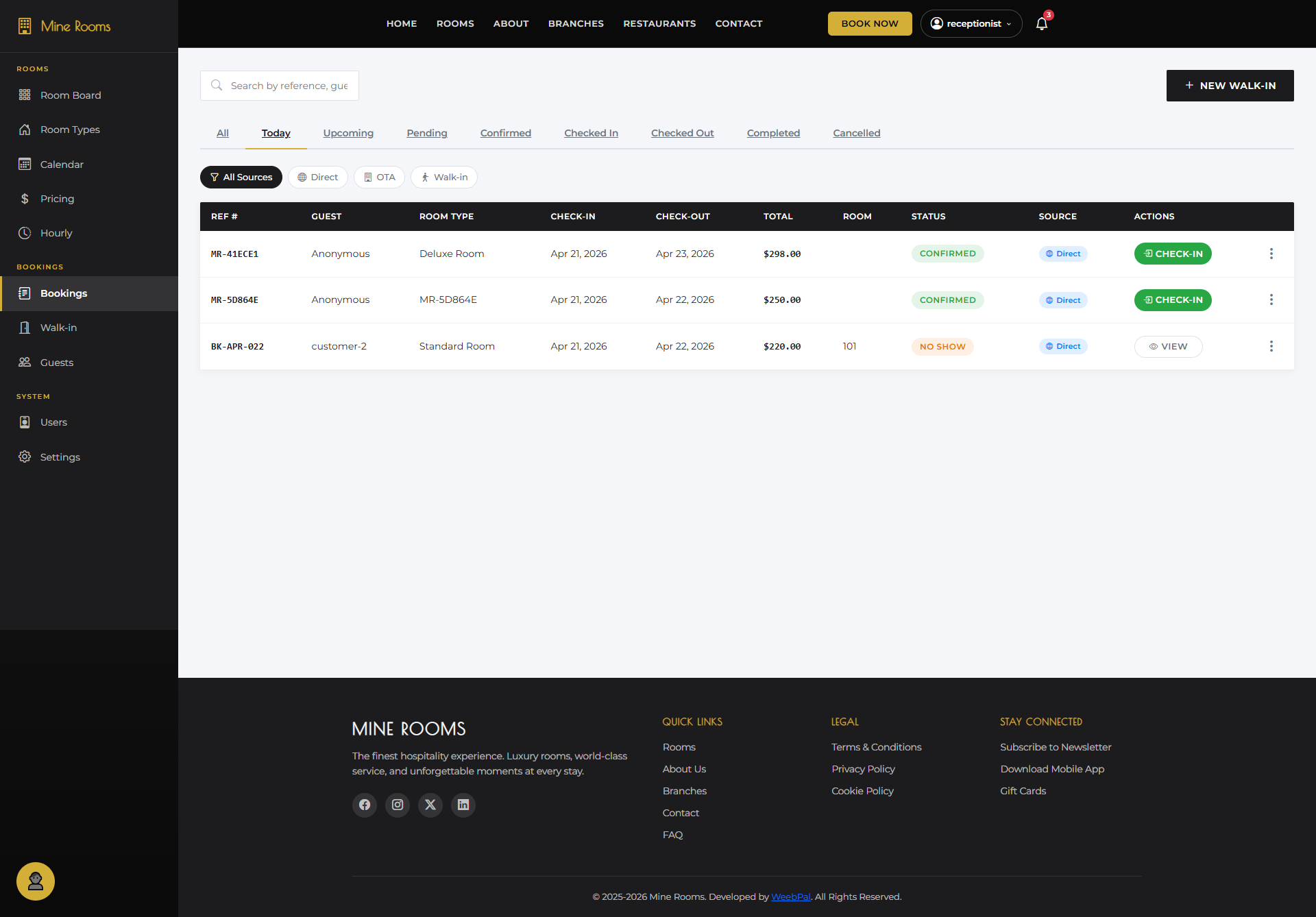
📅 Today's Bookings
What it shows: Bookings with check-in or check-out activity happening today — the most critical tab for daily operations.
Navigation: Bookings → Today tab
- Shows bookings where check-in/out date falls today
- Green CHECK-IN buttons for arriving guests
- Flag NO SHOW directly from this tab
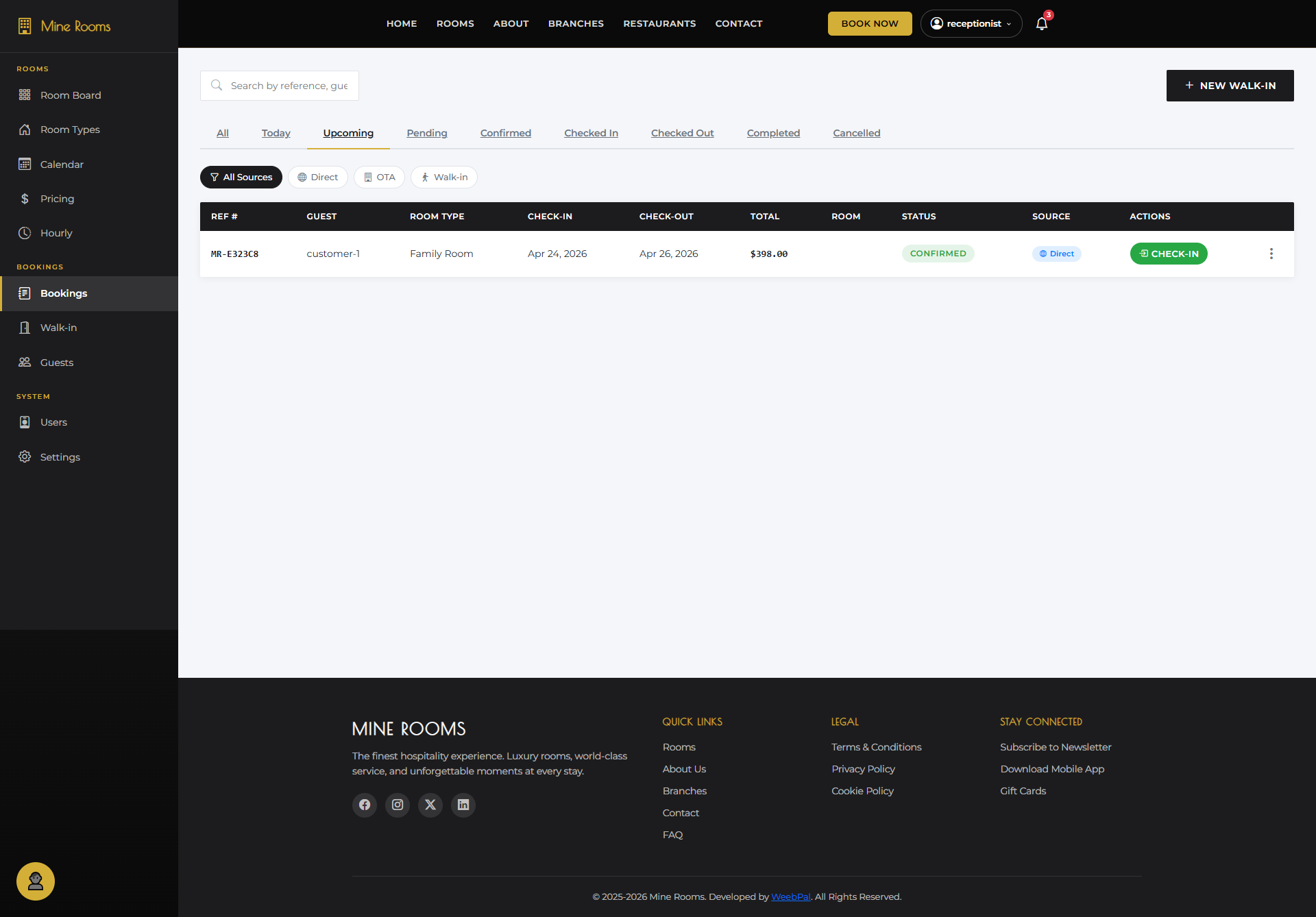
⬆️ Upcoming Bookings
What it shows: Confirmed bookings with future check-in dates — your upcoming guest arrivals.
Navigation: Bookings → Upcoming tab
- Sorted by check-in date ascending — nearest arrivals first
- Click any booking to view guest preferences and special requests
- On arrival day, booking moves to Today tab
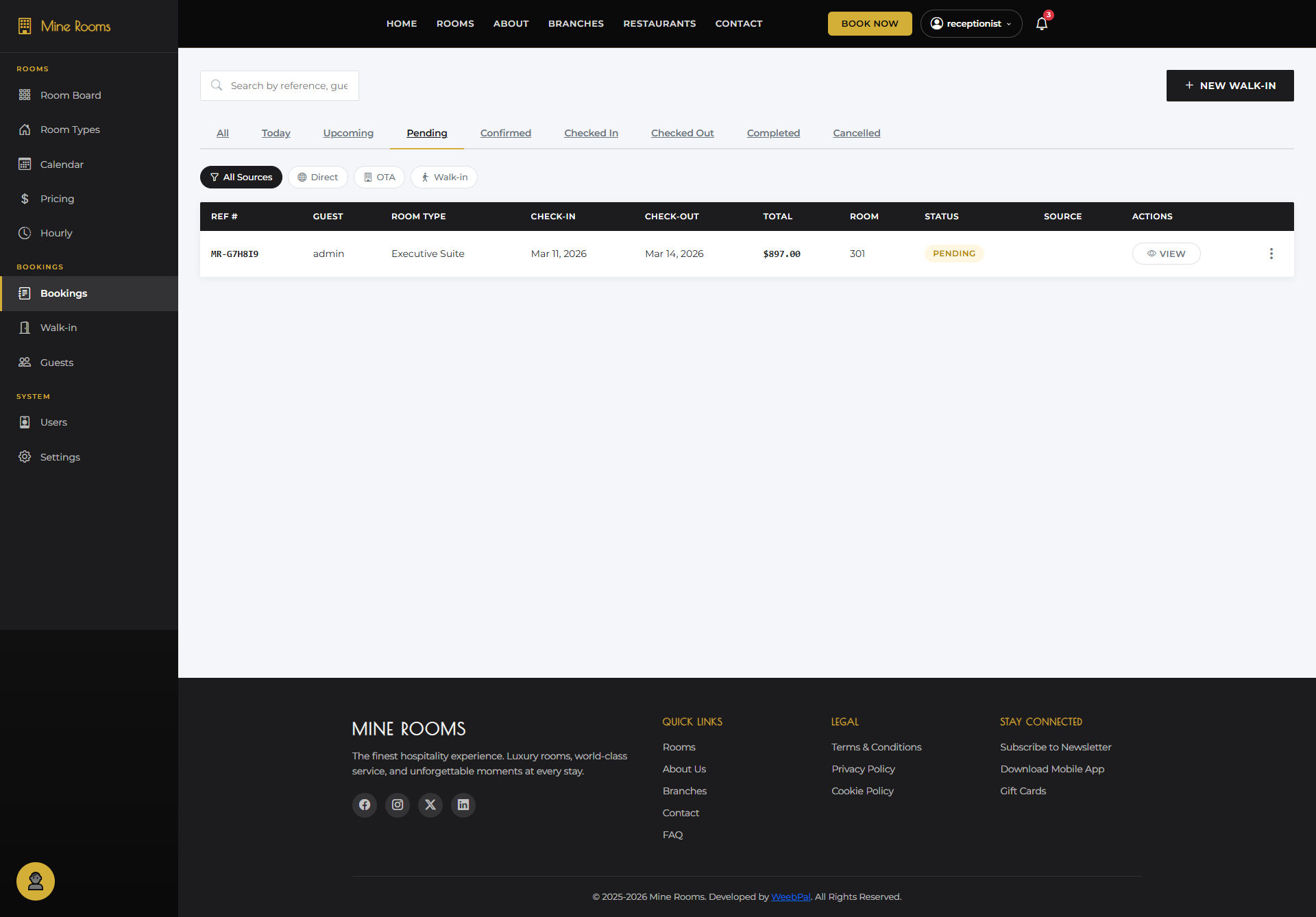
⏳ Pending Bookings
What it shows: Bookings submitted by guests that are waiting for receptionist review and confirmation.
Navigation: Bookings → Pending tab
- New online bookings appear here — review before confirming
- Click booking row to open Detail → Confirm or Cancel
- Guest receives notification once confirmed
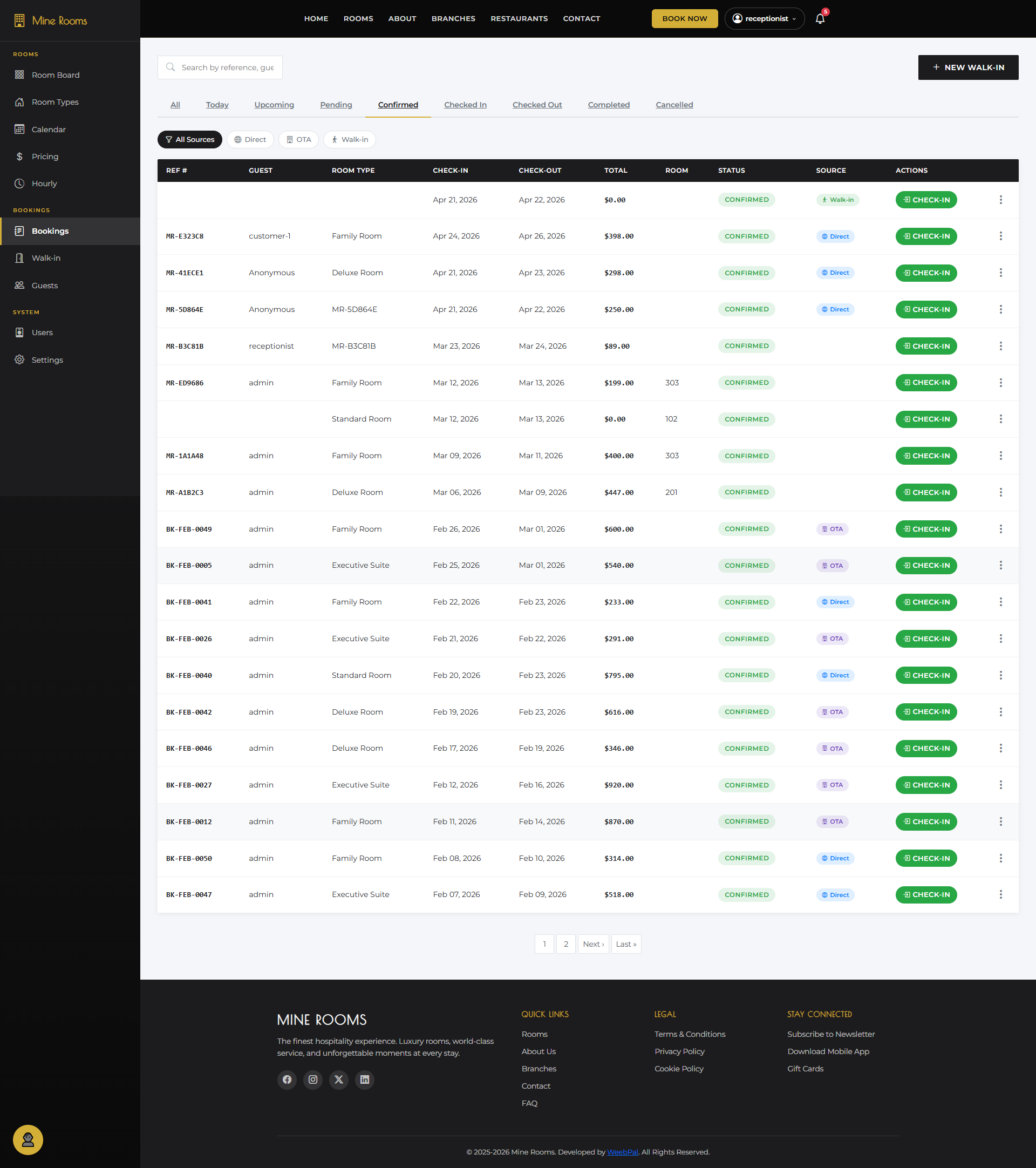
✅ Confirmed Bookings
What it shows: Bookings that have been approved and are ready for check-in — across all booking sources.
Navigation: Bookings → Confirmed tab
- All confirmed bookings with green CHECK-IN action button
- Filter by Source: Direct, OTA, Walk-in
- Click row to view details and assign a specific room
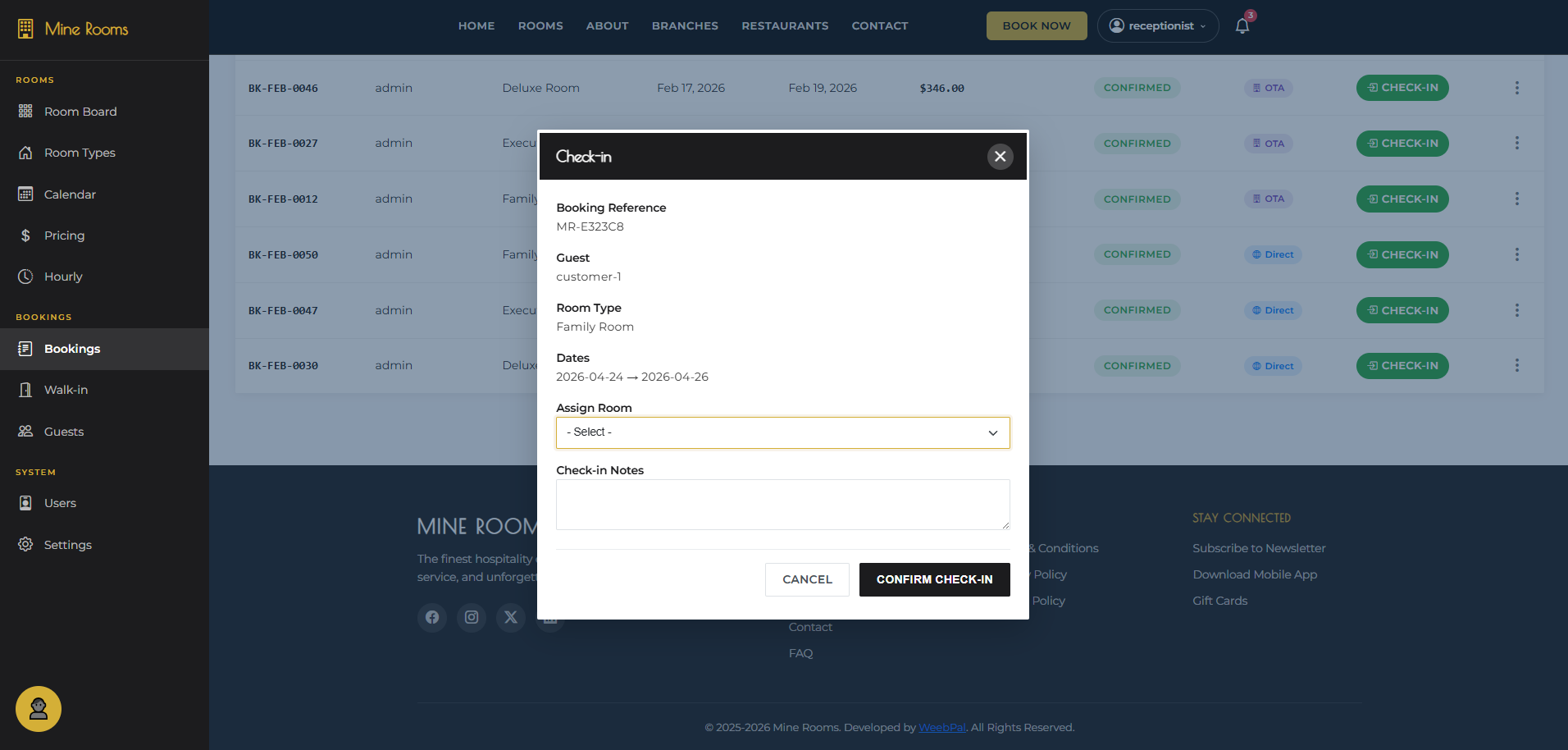
🔑 Confirm Check-in
What it does: Process a guest's physical arrival — assign their room and officially check them in.
Navigation: Bookings → Confirmed tab → CHECK-IN button
- Verify guest ID and match with booking details
- Select room number from Assign Room dropdown
- Click CONFIRM CHECK-IN — status changes to Checked In
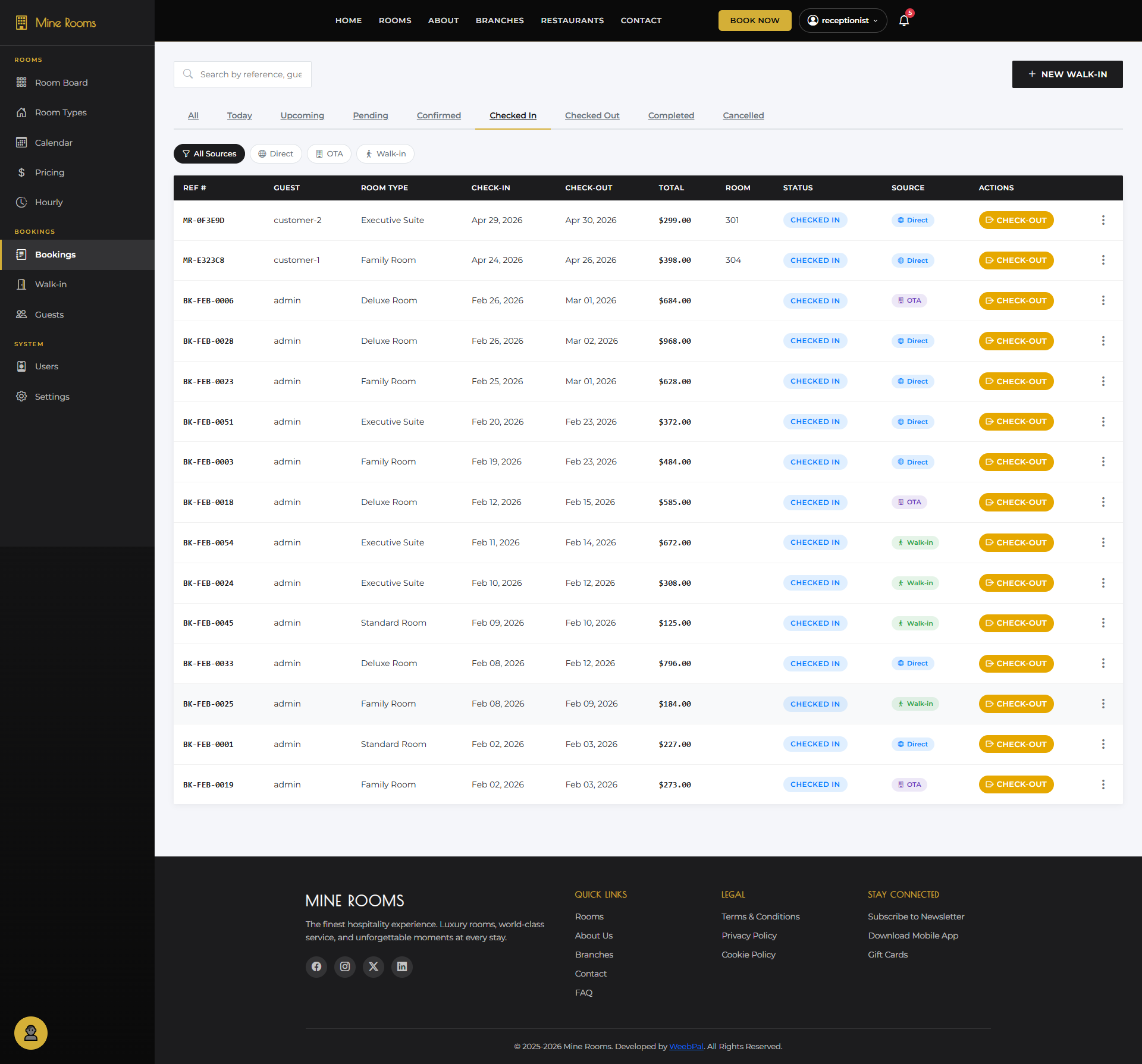
🏨 Checked-In Bookings
What it shows: All bookings currently in Checked-In state — guests actively staying at the property.
Navigation: Bookings → Checked In tab
- Each booking shows yellow CHECK-OUT action button
- Monitor active room occupancy across all branches
- Click row to view full guest and room details
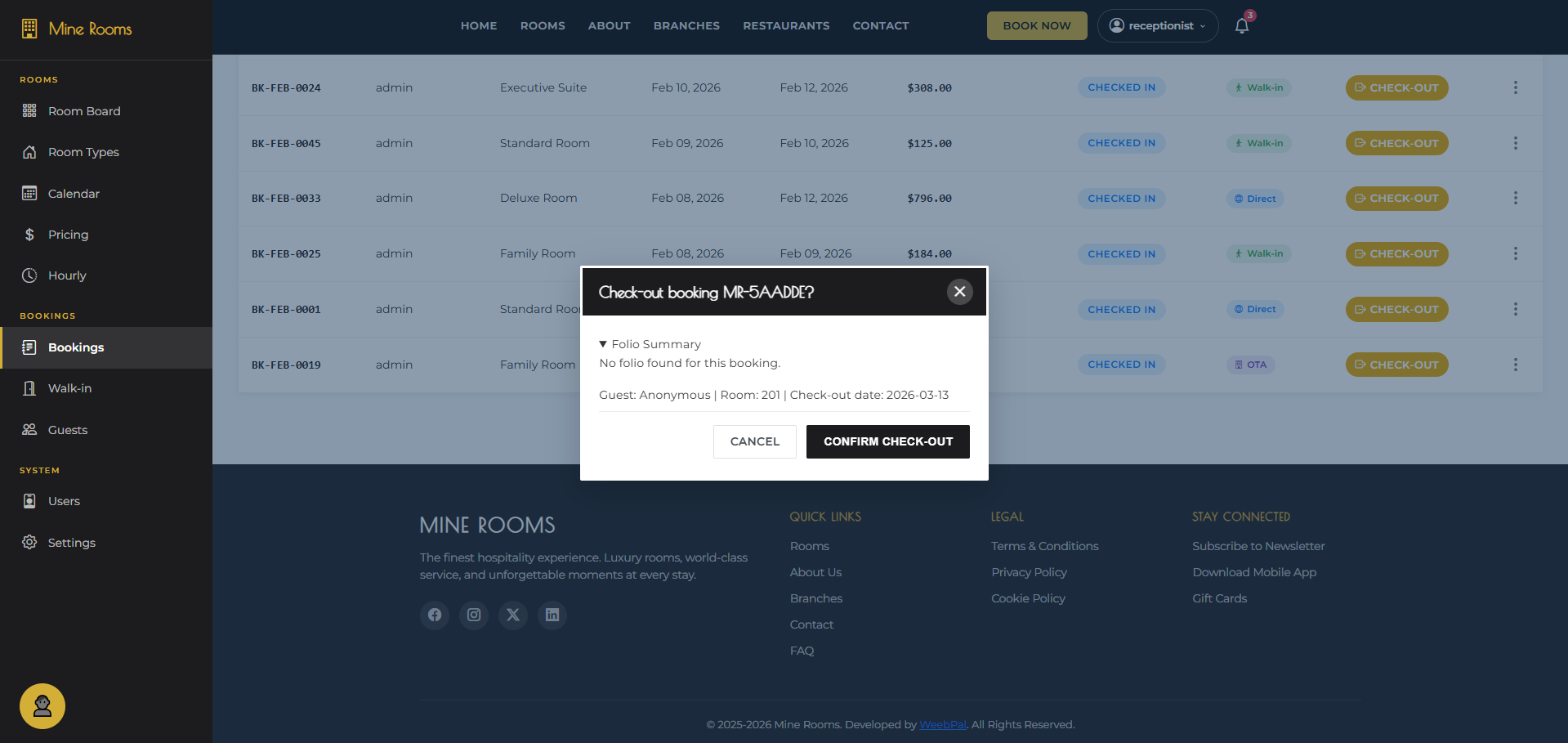
🚪 Confirm Checkout
What it does: Process a guest's departure — review the folio summary and confirm checkout.
Navigation: Bookings → Checked In tab → CHECK-OUT button
- Confirmation dialog shows: Booking Ref, Folio, Guest, Room
- Review Folio Summary to confirm all charges
- Click CONFIRM CHECK-OUT — room status changes to Dirty
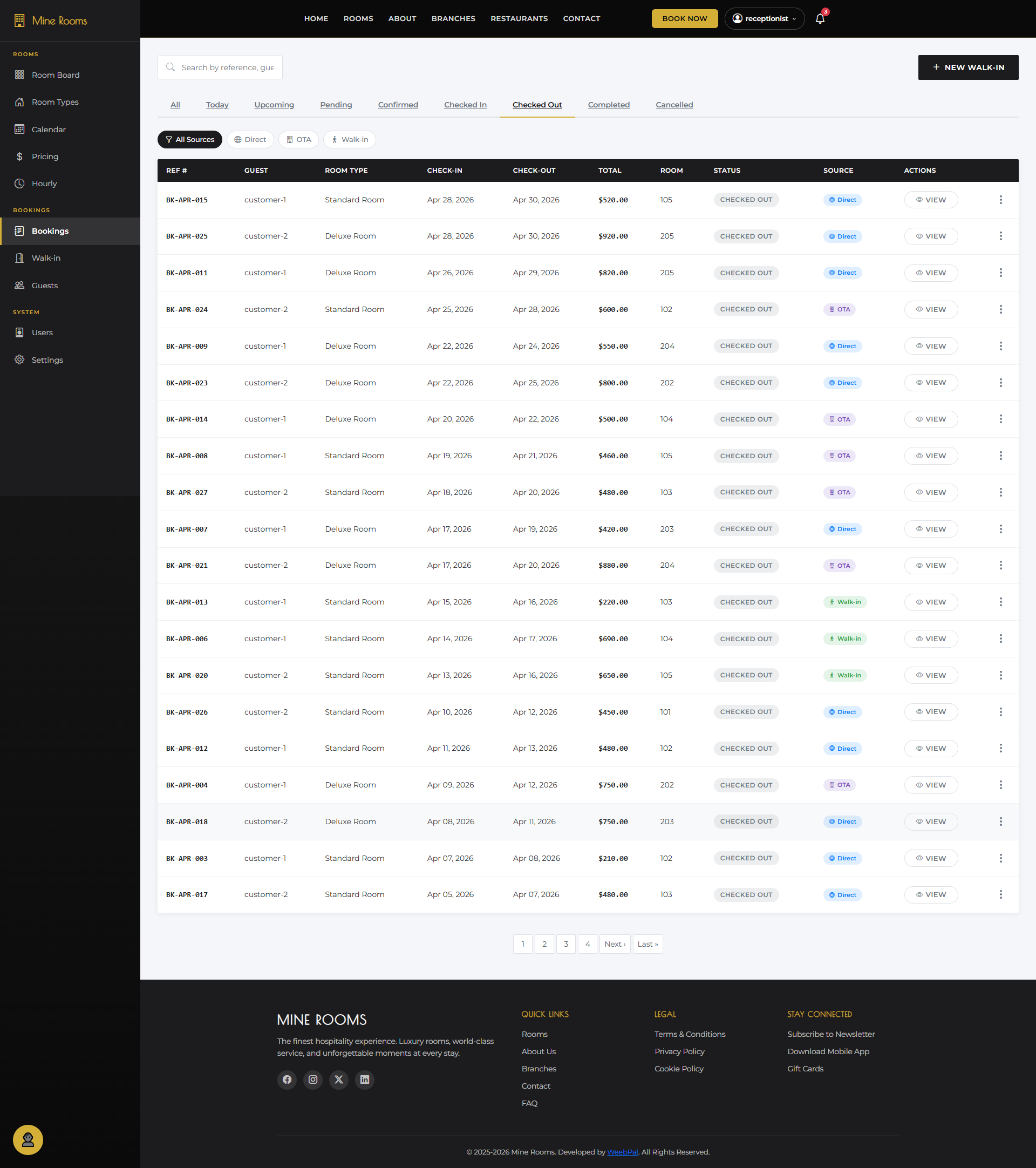
📤 Checked-Out Bookings
What it shows: Bookings where the guest has successfully checked out — departure is complete.
Navigation: Bookings → Checked Out tab
- Lists completed departures: guest, room type, dates, total
- Only VIEW available — bookings read-only after checkout
- Confirm guest has departed before reassigning room
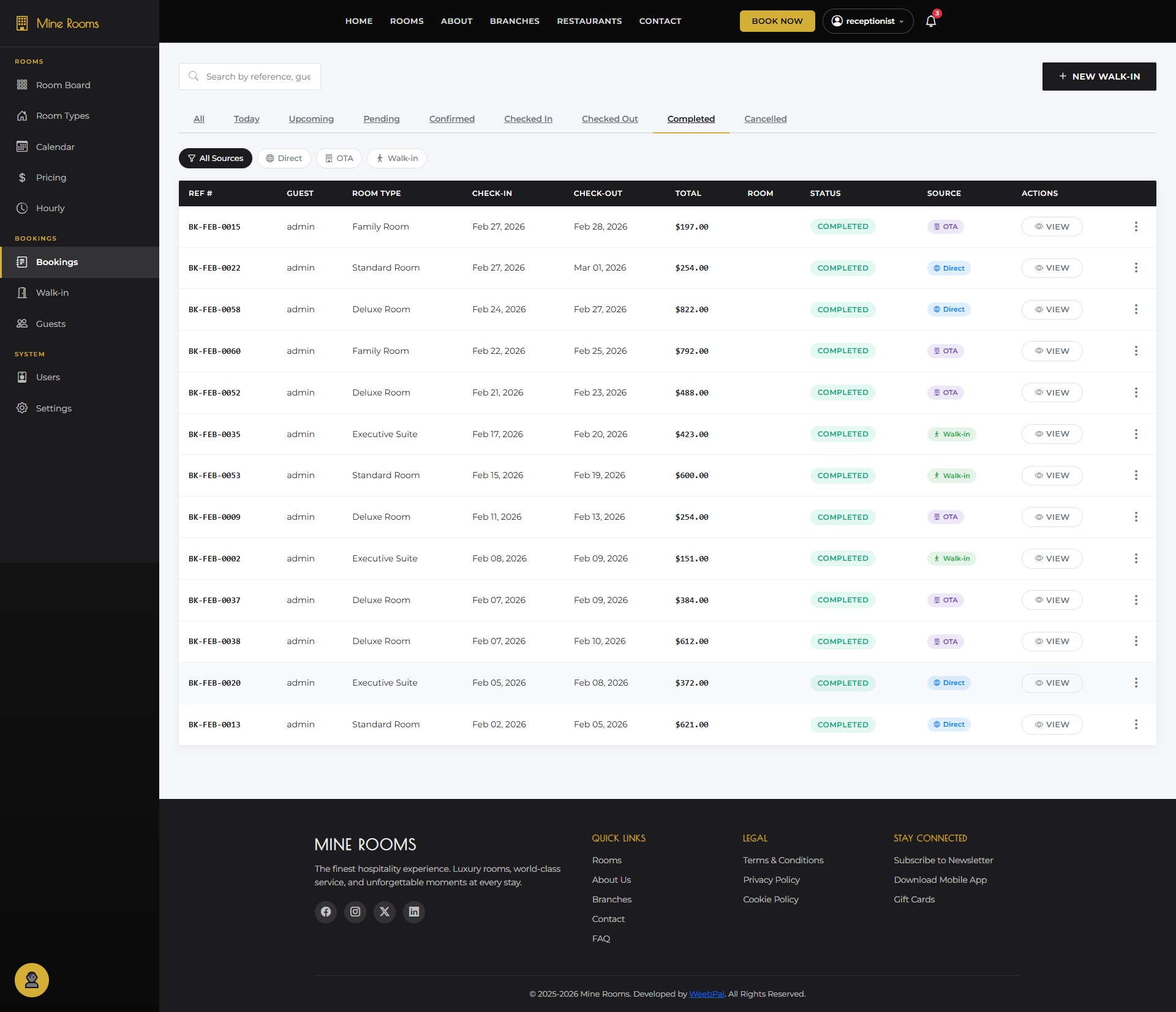
✔️ Completed Bookings
What it shows: Fully completed past stays — the historical record of all finished bookings.
Navigation: Bookings → Completed tab
- Full history of past stays with final booking details
- VIEW button to access detail and payment summary
- Filter by Source to analyze booking channel performance
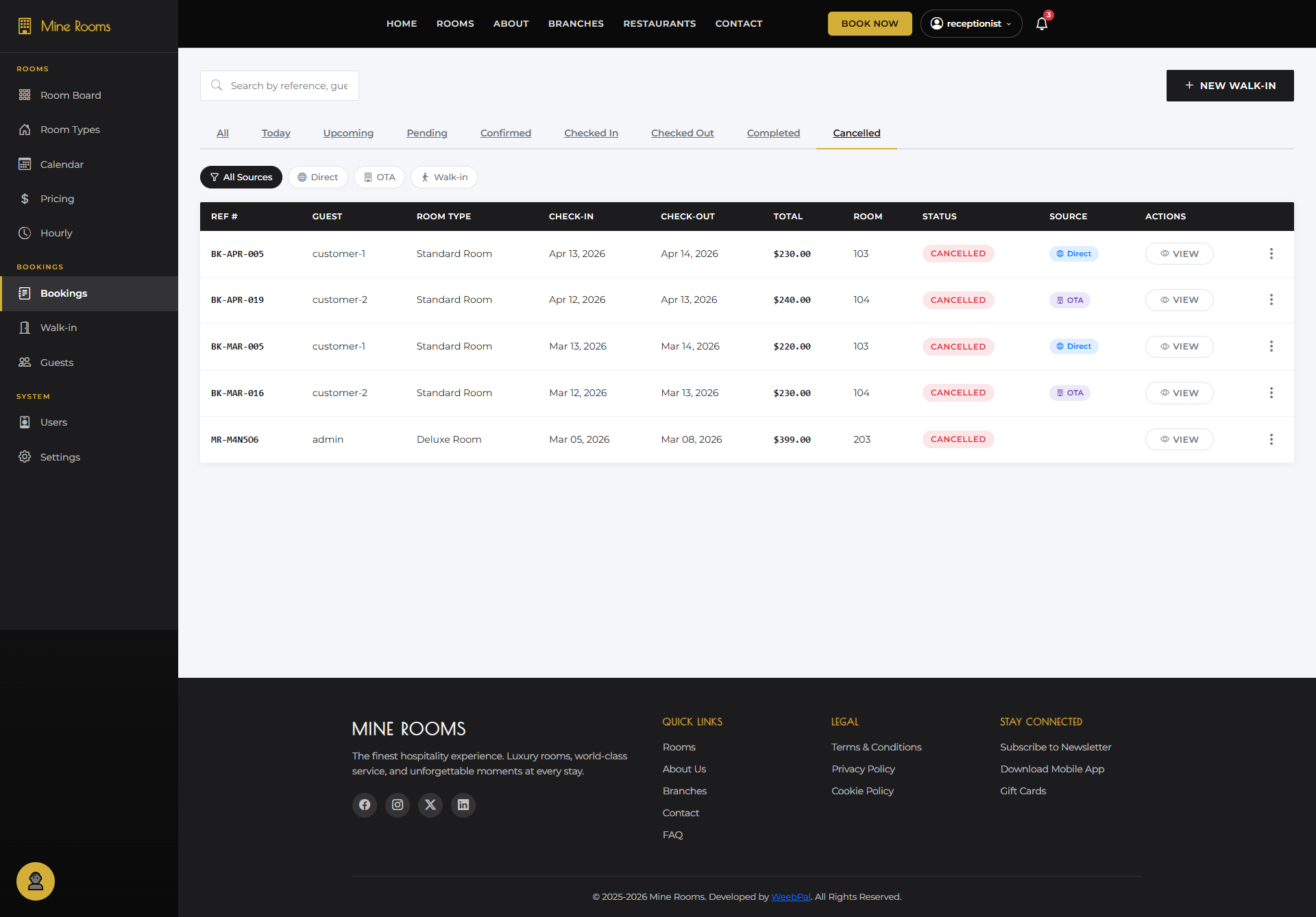
❌ Cancelled Bookings
What it shows: All cancelled reservations — bookings rejected or cancelled before check-in.
Navigation: Bookings → Cancelled tab
- All cancellations with Ref#, Guest, Room Type, Dates, Total
- Click VIEW to review cancellation reason
- Cancellations from OTA partners reflected here automatically
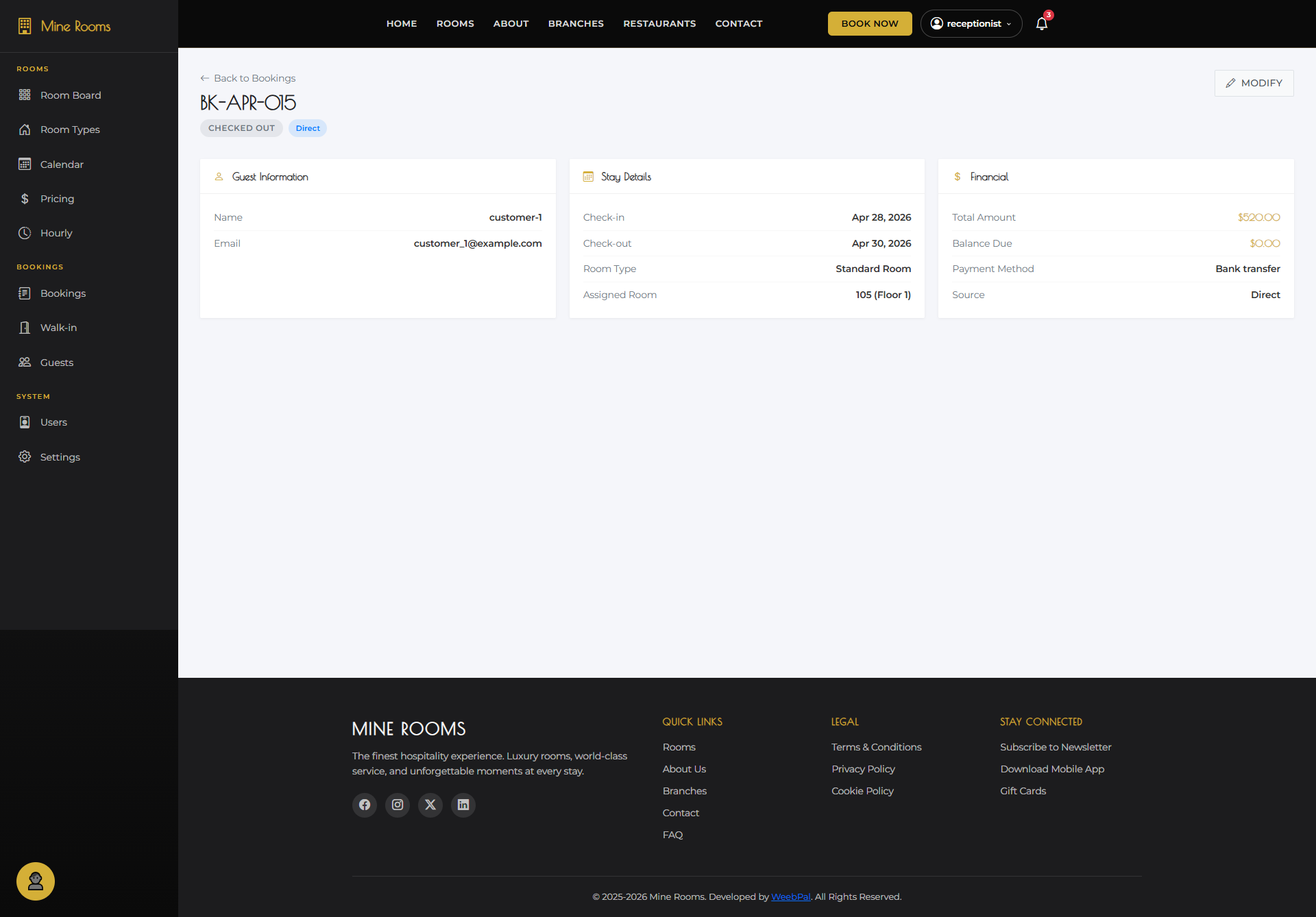
🔍 Booking Detail View
What it shows: Full information for a single booking — guest details, stay details, and payment summary.
Navigation: Bookings → click VIEW on any booking row
- Guest Information: Name and email
- Stay Details: Dates, Room Type, Assigned Room
- Financial: Total, Balance Due, Payment Method, Source
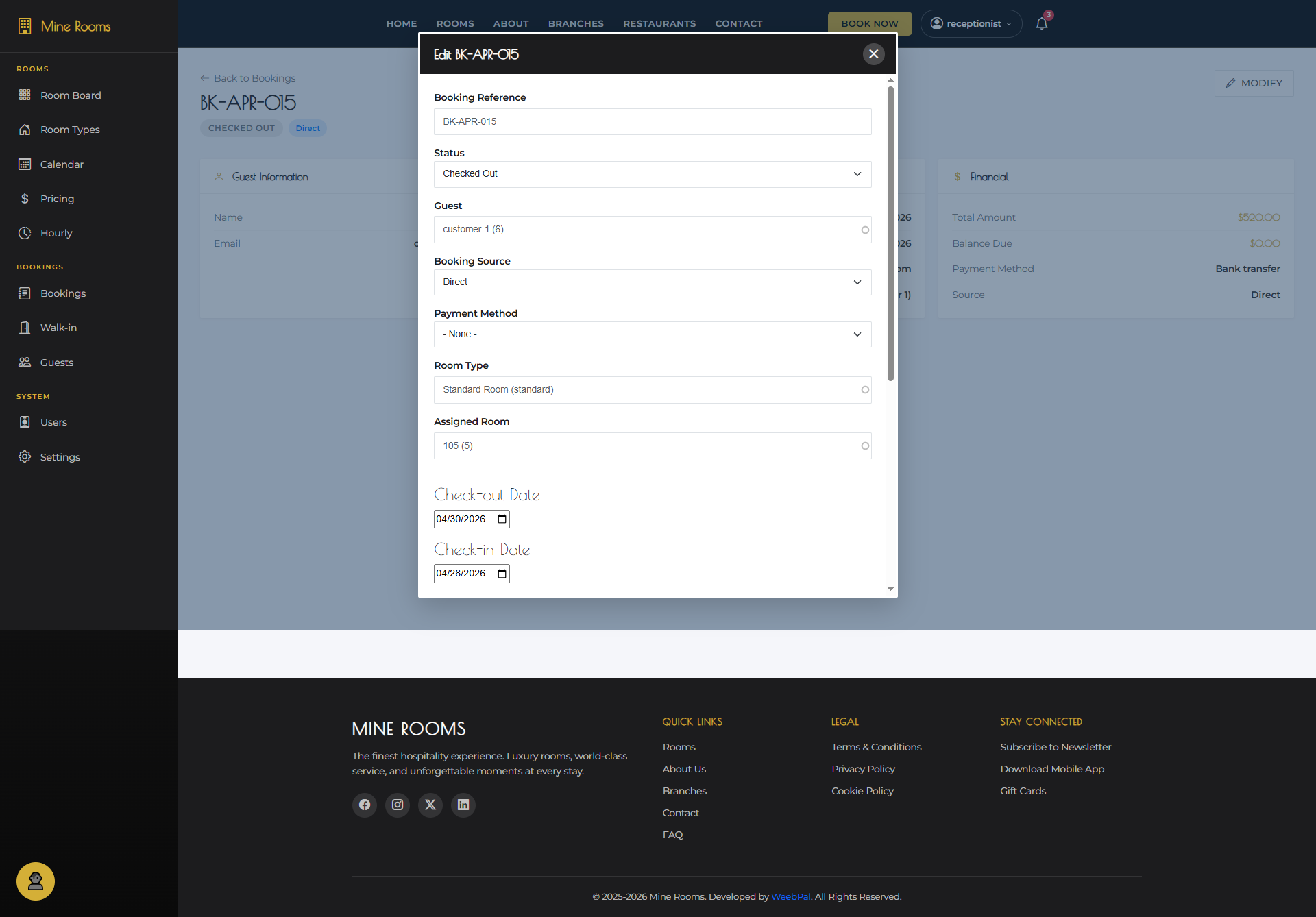
✏️ Modify Booking
What it does: Edit an existing booking — update guest, dates, room type, or payment method.
Navigation: Bookings → open booking detail → MODIFY button
- Edit any field: Guest, Status, Source, Payment, Room Type, Room, Dates
- Changes take effect immediately after saving
- Click MODIFY button (top right) to access edit form
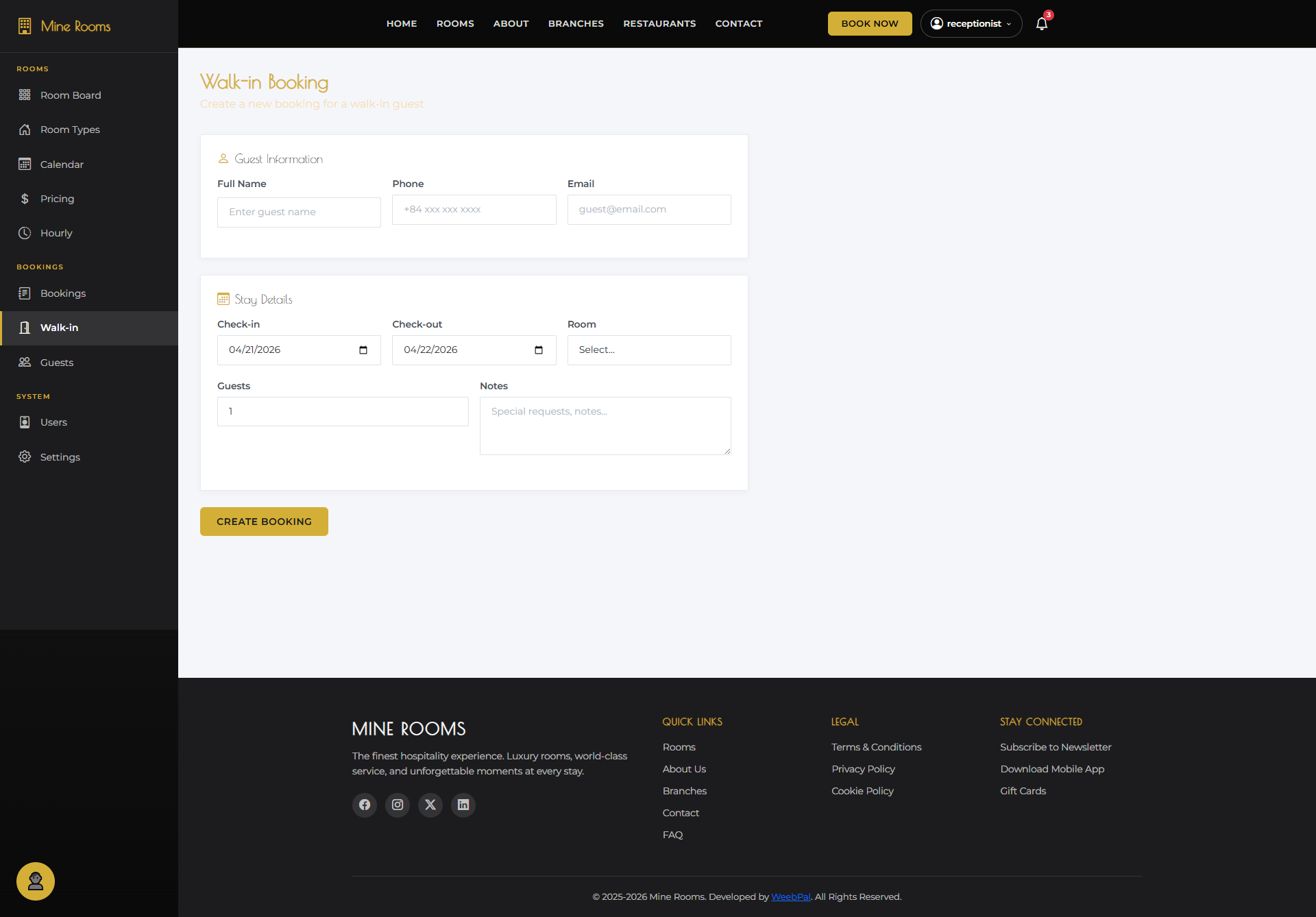
🚶 Walk-in Booking
What it does: Create a new booking immediately for a guest who arrives at the front desk without a prior reservation.
Navigation: Bookings → + Walk-in button
- Select Branch, Room type, room number
- Enter: Full name, Email, Phone, ID
- Set dates and payment → click Create & Check-in
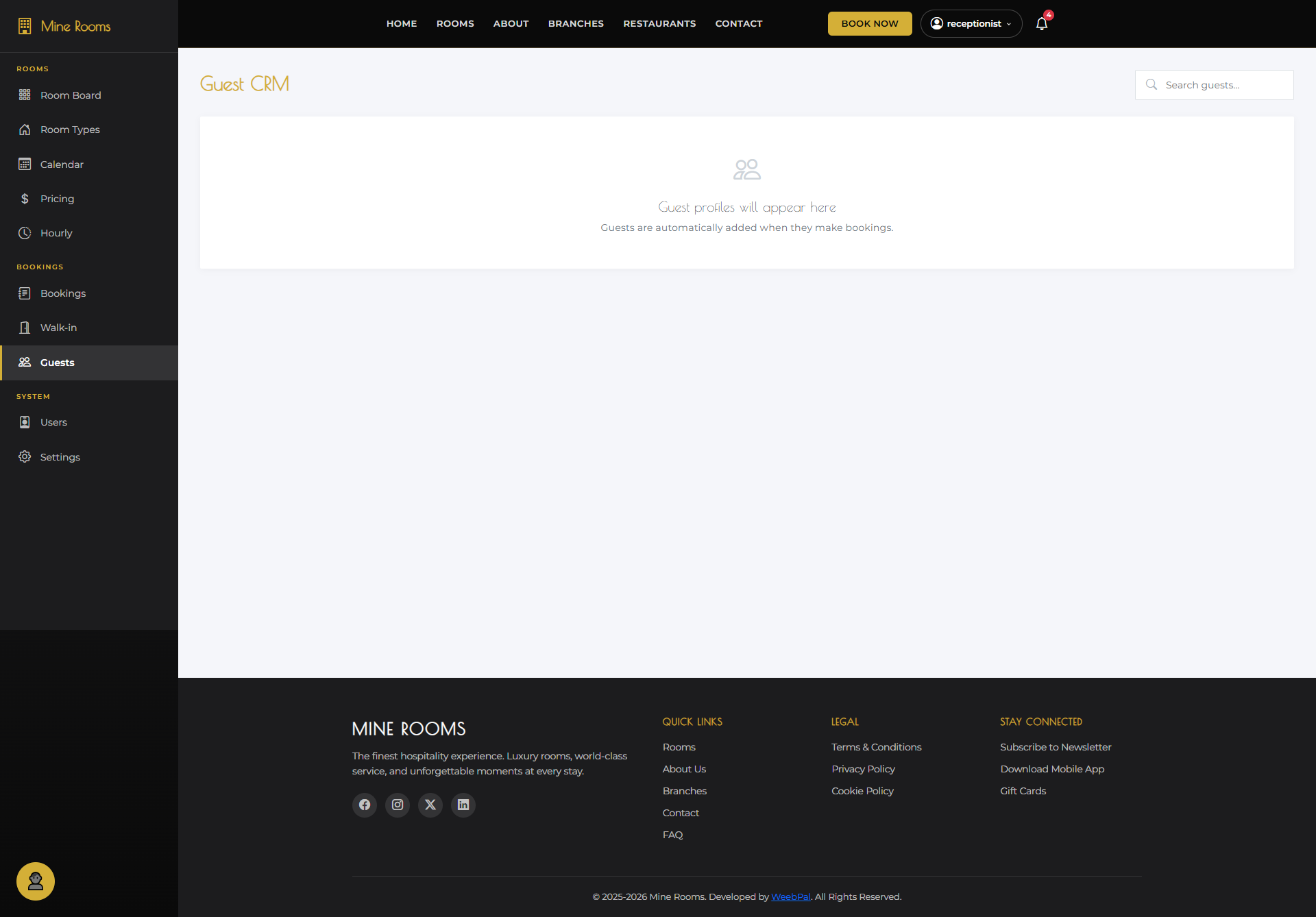
👥 Guest List
What it shows: The complete guest database — all registered guests who have ever made a booking.
Navigation: Left sidebar → Guests
- Search guests by name, email, or phone number
- View each guest's booking history and loyalty points
- Click a guest to view their full profile and past stays
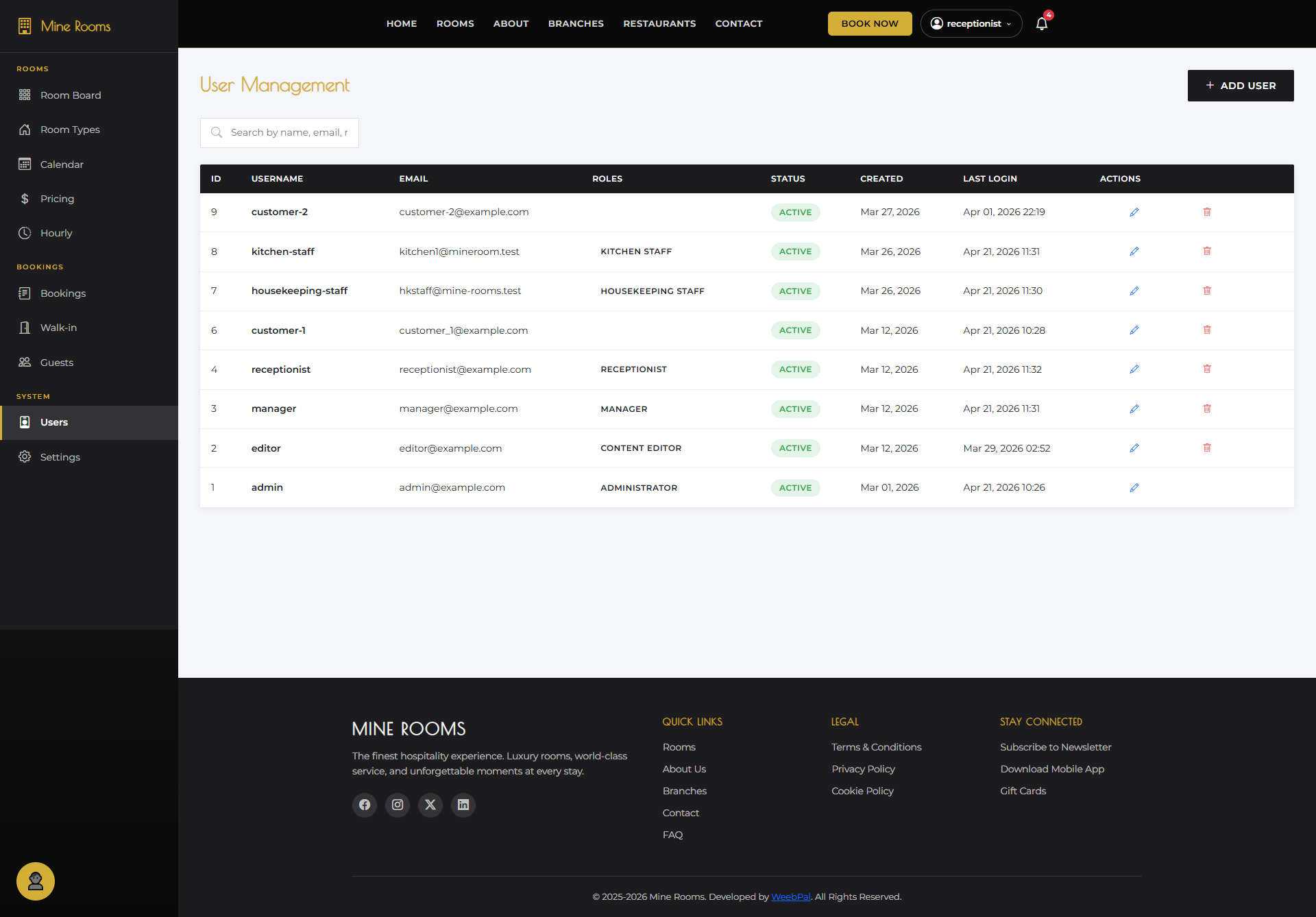
👥 Users List
What it shows: All staff user accounts registered in the system, with their roles and status.
Navigation: Left sidebar → Users
- Each user shows: Name, Email, Role, Status, Last Login
- Roles: Admin · Receptionist · Kitchen · Housekeeping
- Click + Add User to create new staff account
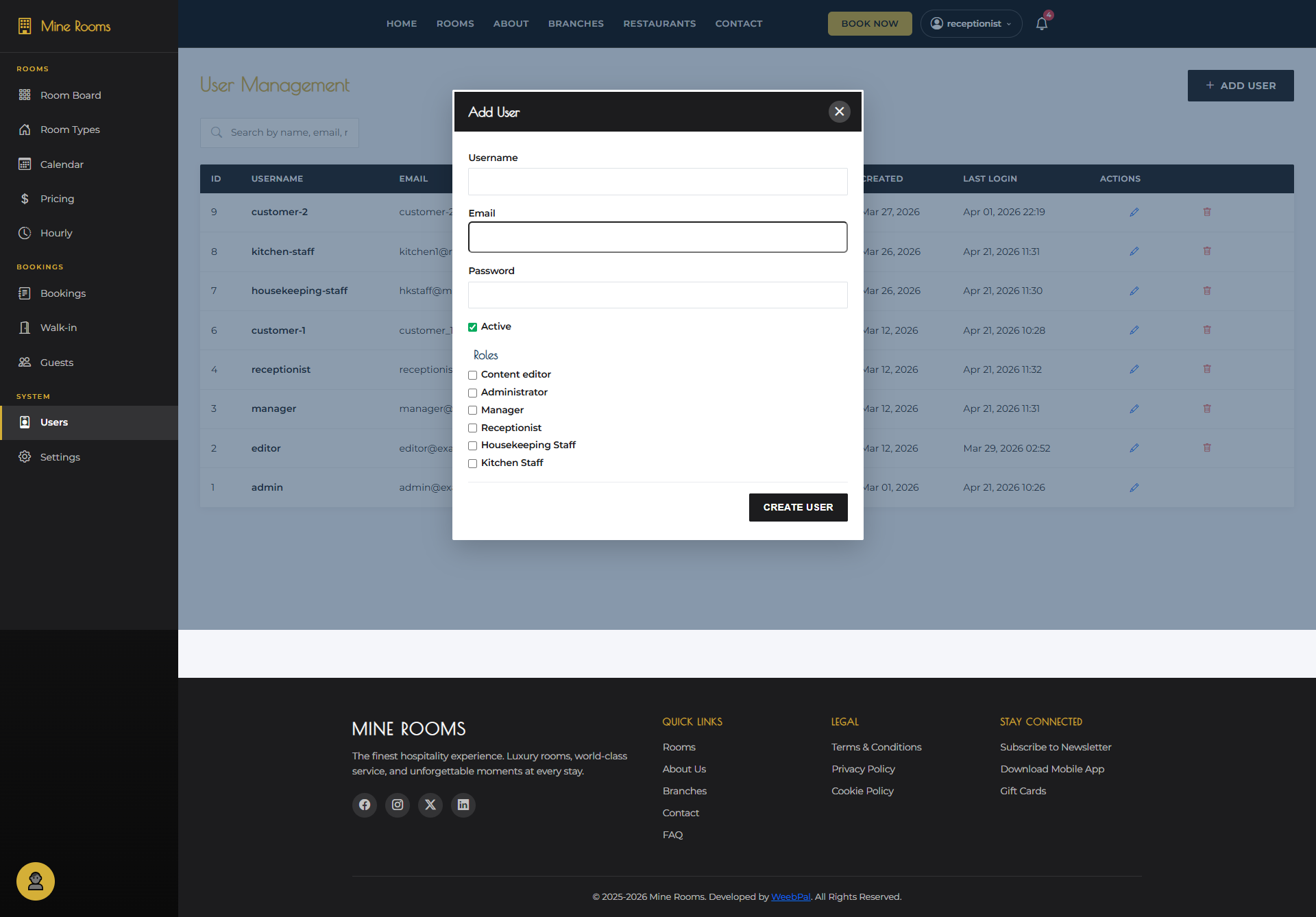
➕ Add User
What it does: Create a new staff account and assign their system role.
Navigation: Users → + Add User
- Enter: Full Name, Email, Username, Password
- Select Role and set Branch assignment
- Click Save — user can now log in
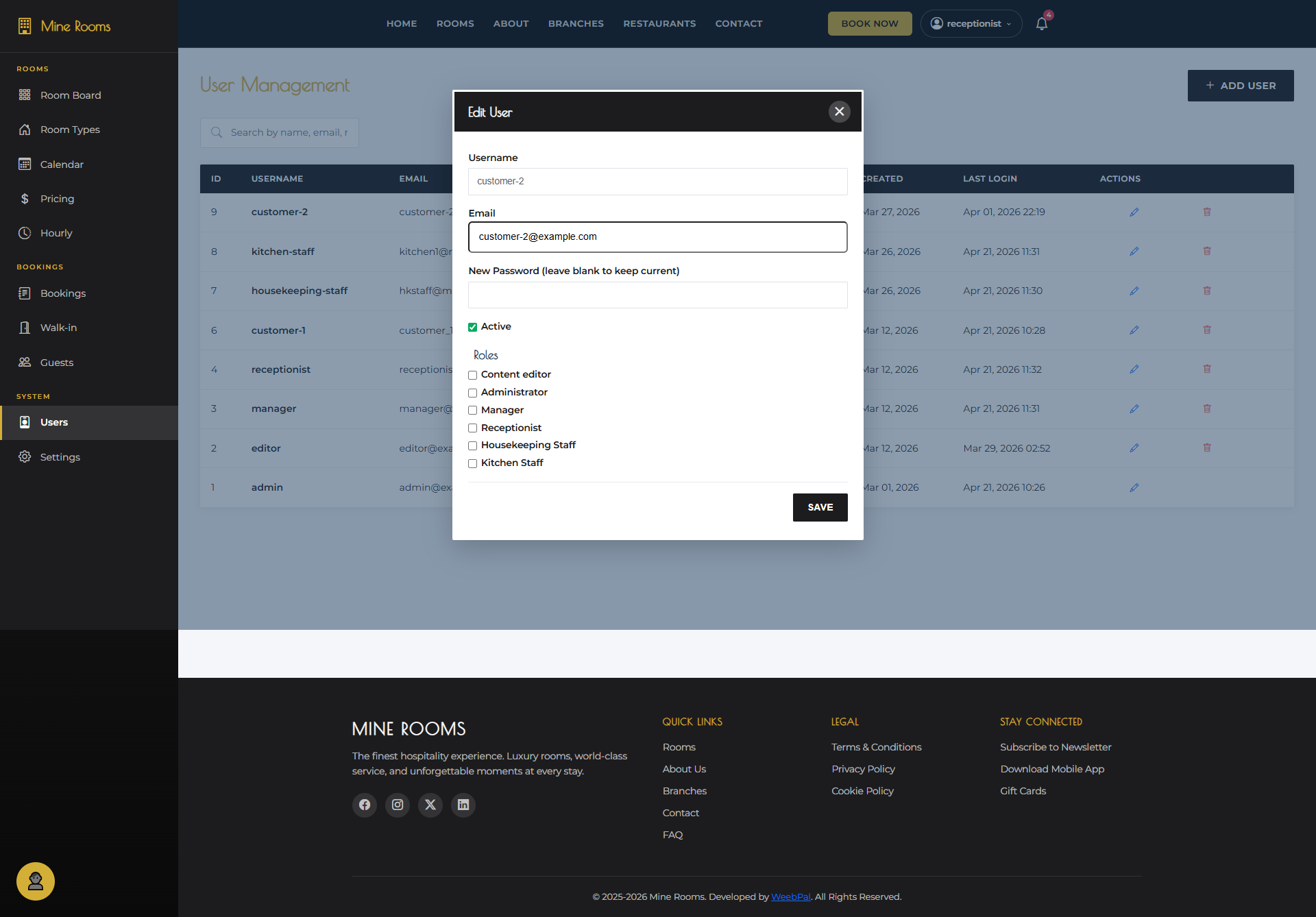
✏️ Edit User
What it does: Update an existing staff member's details, role, or account status.
Navigation: Users → Edit on any user row
- Modify Name, Email, Role, or Branch
- Reset Password if staff is locked out
- Toggle Status to enable/disable access
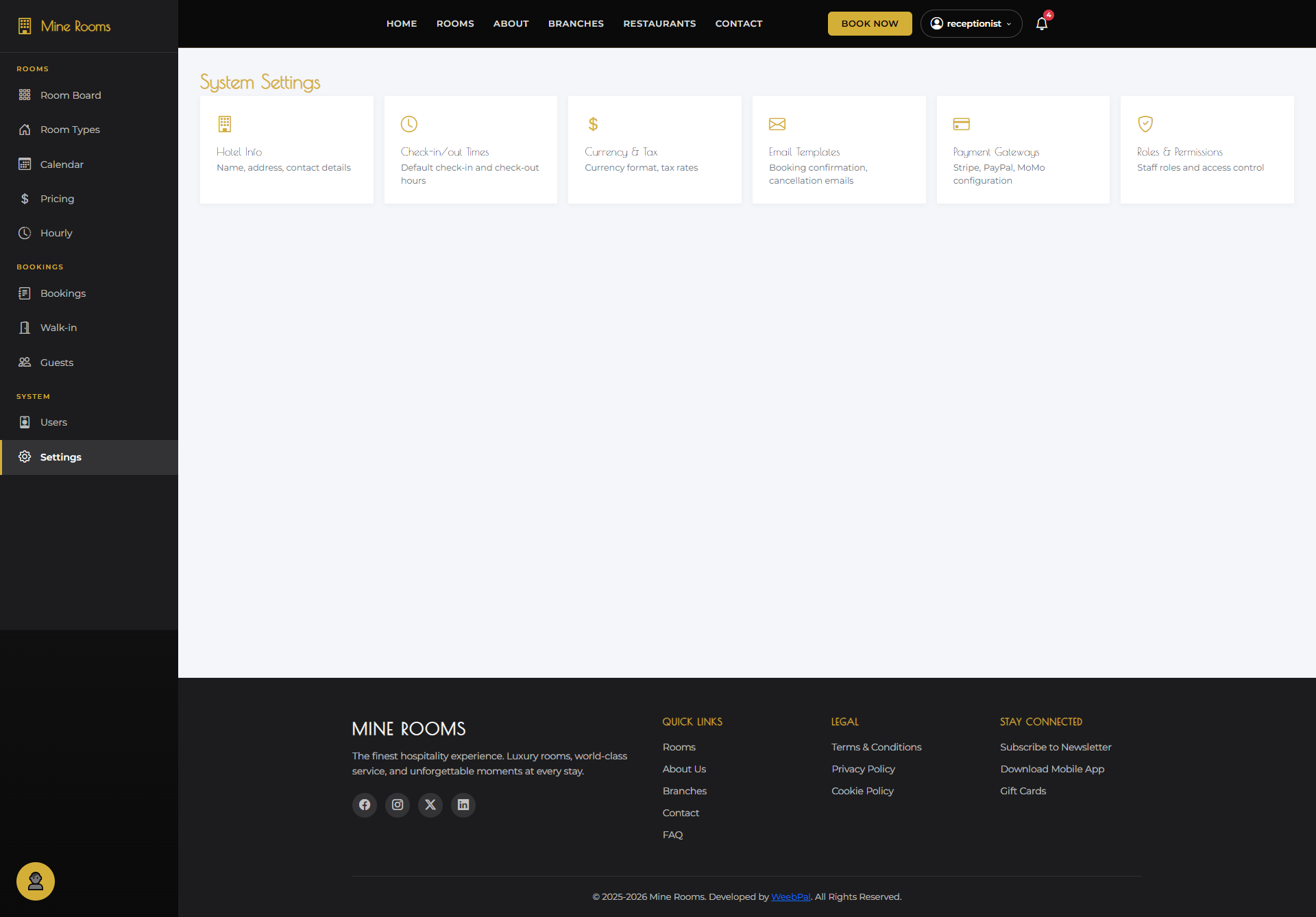
⚙️ Settings
What it shows: System-wide hotel configuration settings — property details, check-in/out times, tax settings, and more.
Navigation: Left sidebar → Settings
- Configure: Hotel name, Address, Contact info, Logo
- Set Check-in/out times, Tax rates, Currency
- Click Save after changes