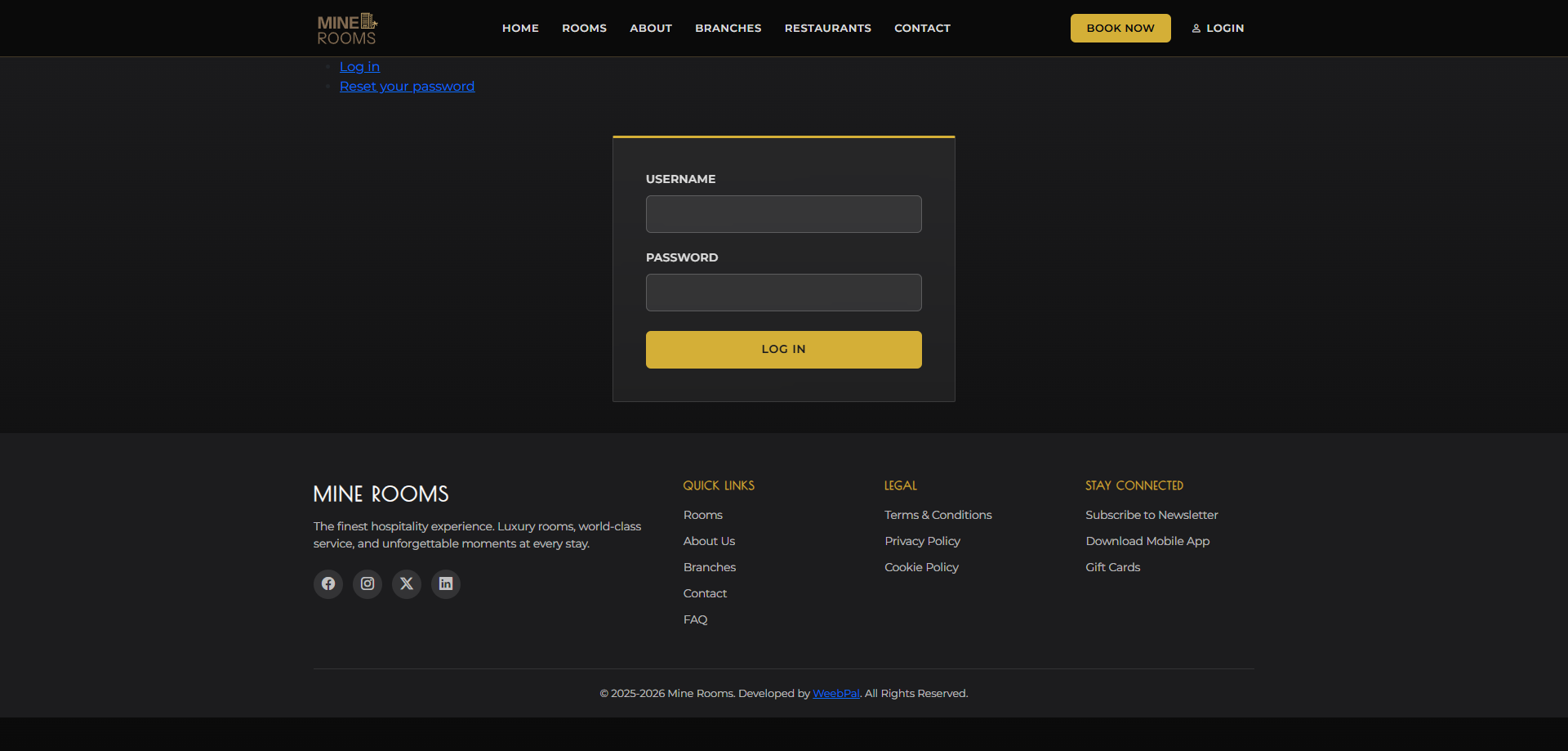
🔑 System Login
Who it’s for: Kitchen Staff · Demo access: on request
Navigation: Go to the management portal login
- Enter your Username and Password, then click Log In
- After login you are redirected to the Kitchen Display dashboard
- The kitchen display is your only workspace — all food orders appear here
📋 Kitchen Display Board
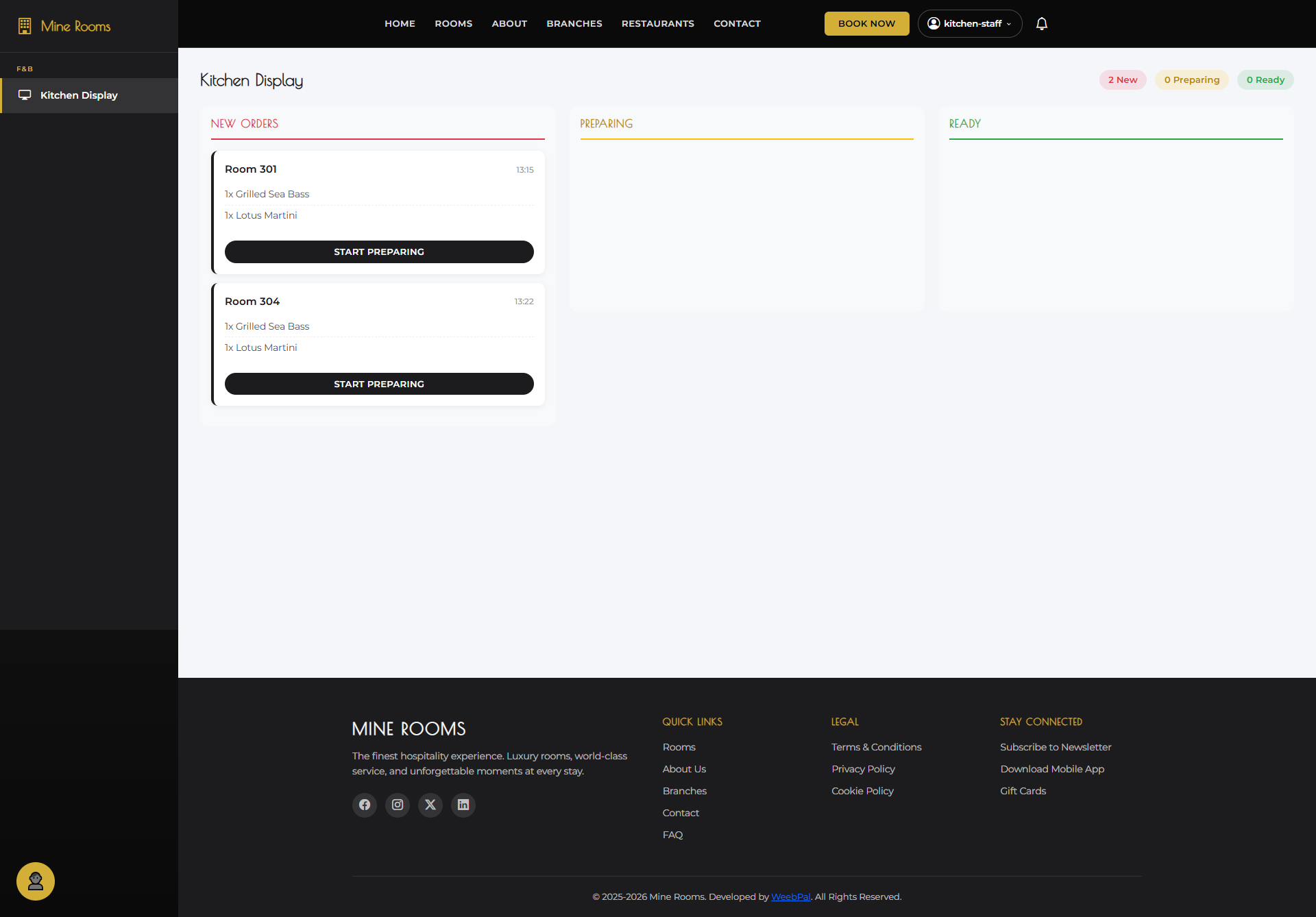
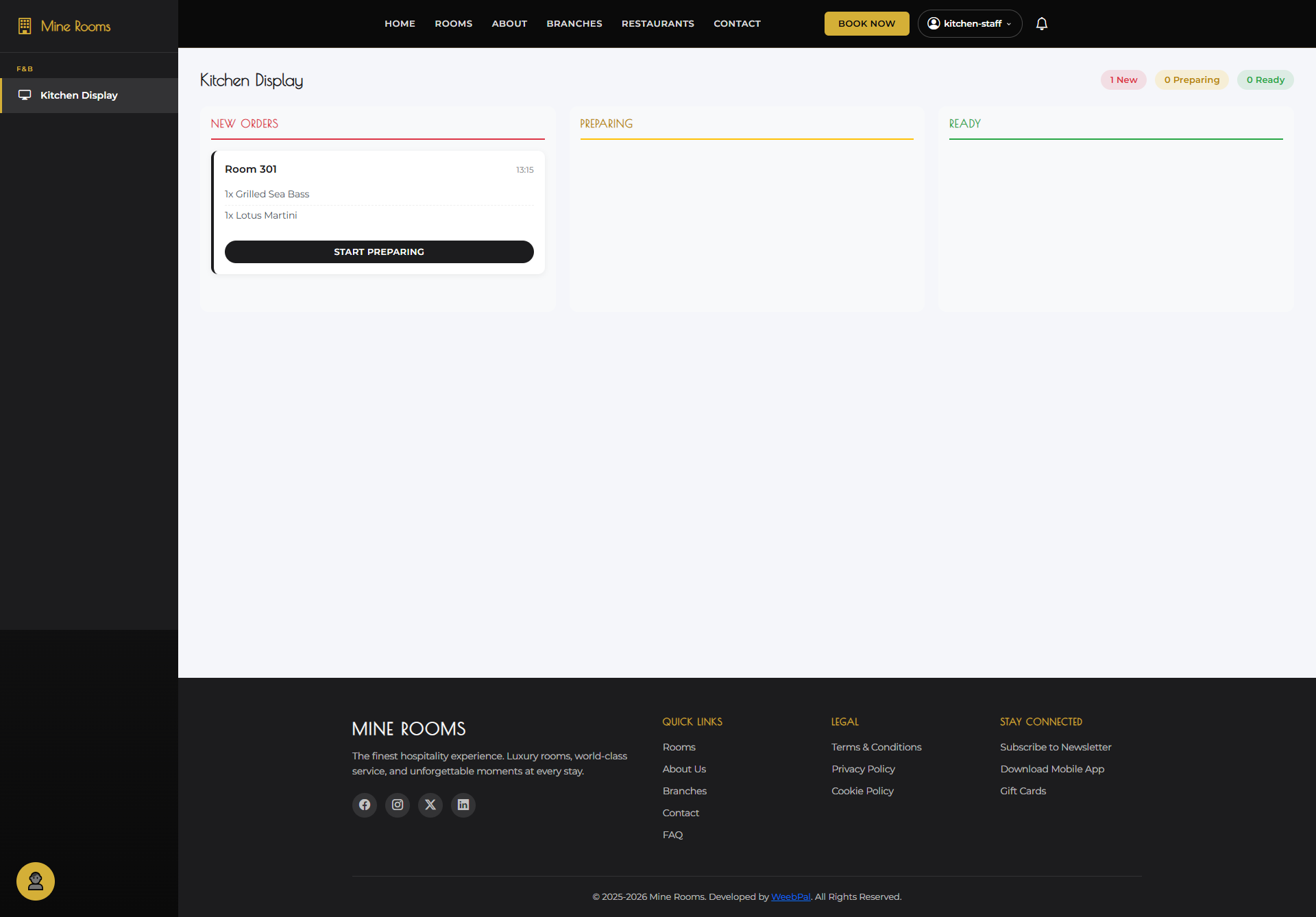
What it shows: All incoming in-room food orders displayed as cards, organized by status and time received.
Navigation: Shown automatically after login
- Each card shows Room, Guest, Items, Time, and Status.
- Orders are sorted by time received; oldest items appear first.
- Status columns: New → Preparing → Ready → Delivered.
▶️ Start Preparing an Order
What you can do: Accept a new order and move it from New to Preparing status.
Navigation: Kitchen Display → click Start on a New order card
- Review the order items carefully before starting.
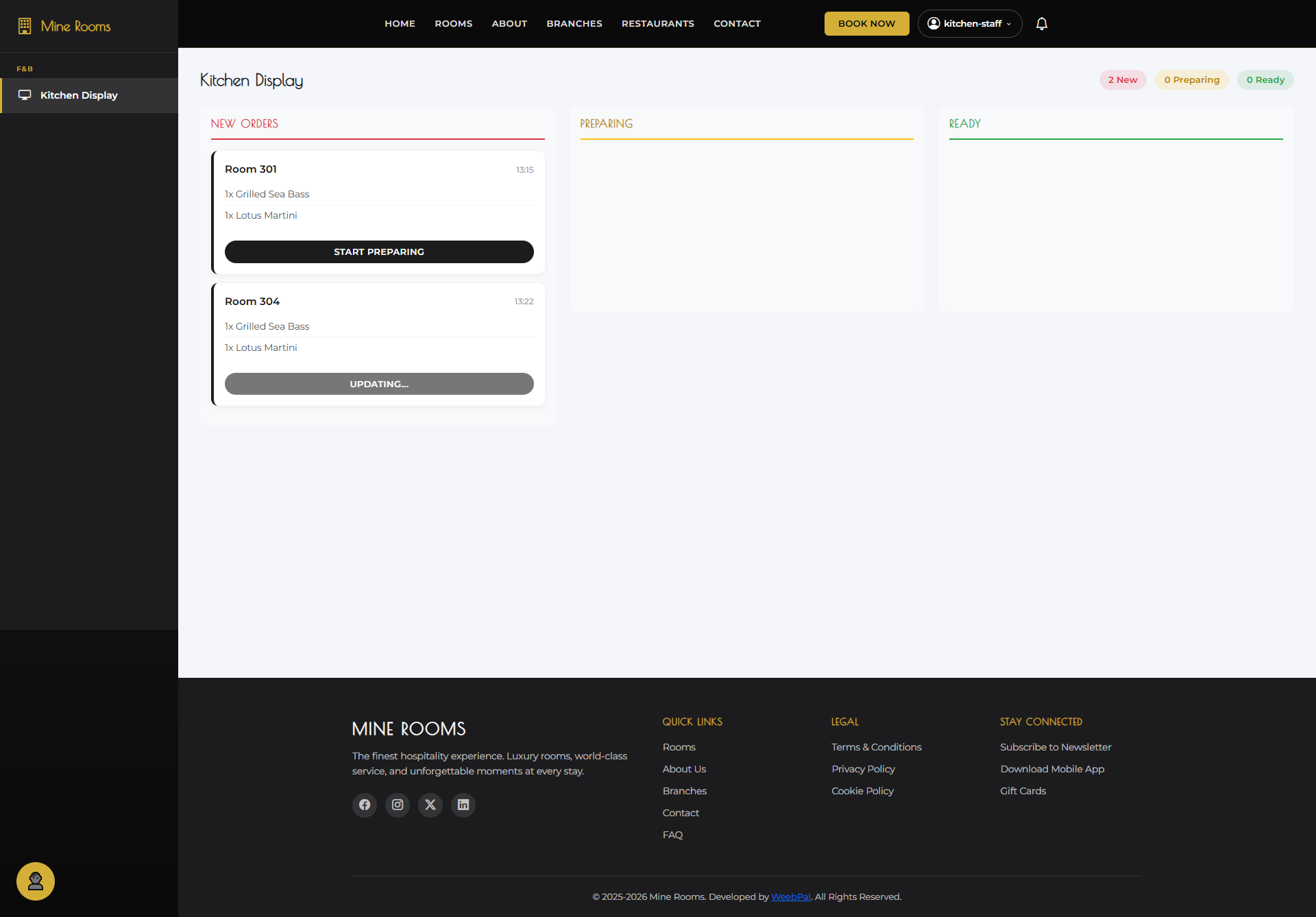
- Click Start to move the order to Preparing and start the timer.
- The guest status updates to Preparing on their account.
👨🍳 Order in Preparation
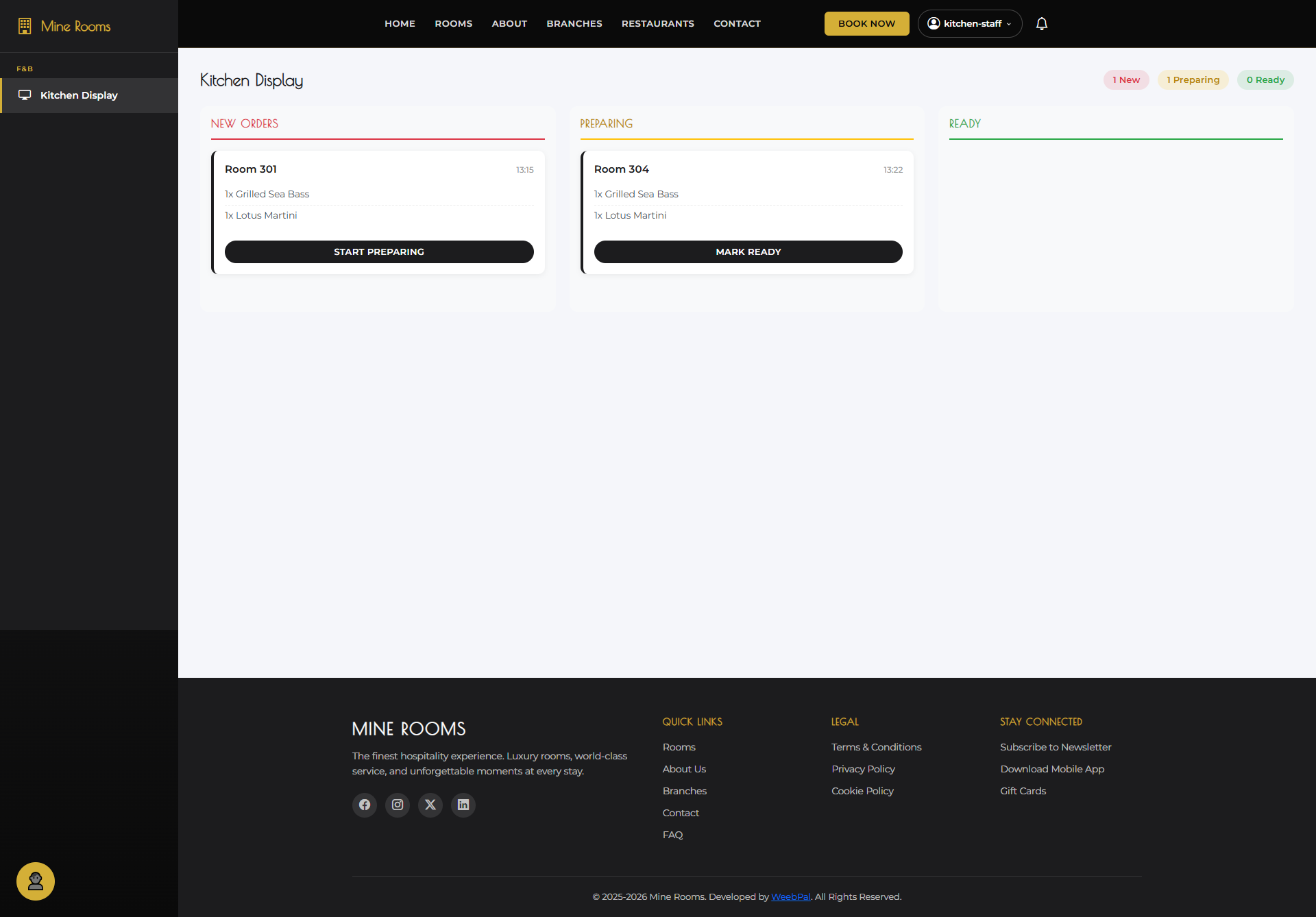
What it shows: Orders that are currently being prepared in the kitchen.
Navigation: Kitchen Display → Preparing column
- The order stays in Preparing while cooking.
- The Elapsed time counter is visible on each card.
- Click Mark as Ready once all items are complete.
✅ Mark as Ready
What you can do: Mark the food as ready for delivery to the guest's room.
Navigation: Kitchen Display → Preparing order → Mark as Ready
- Verify that all items are plated and complete.
- Click Mark as Ready to move the order to Ready.
- The guest status updates to Ready on their account.
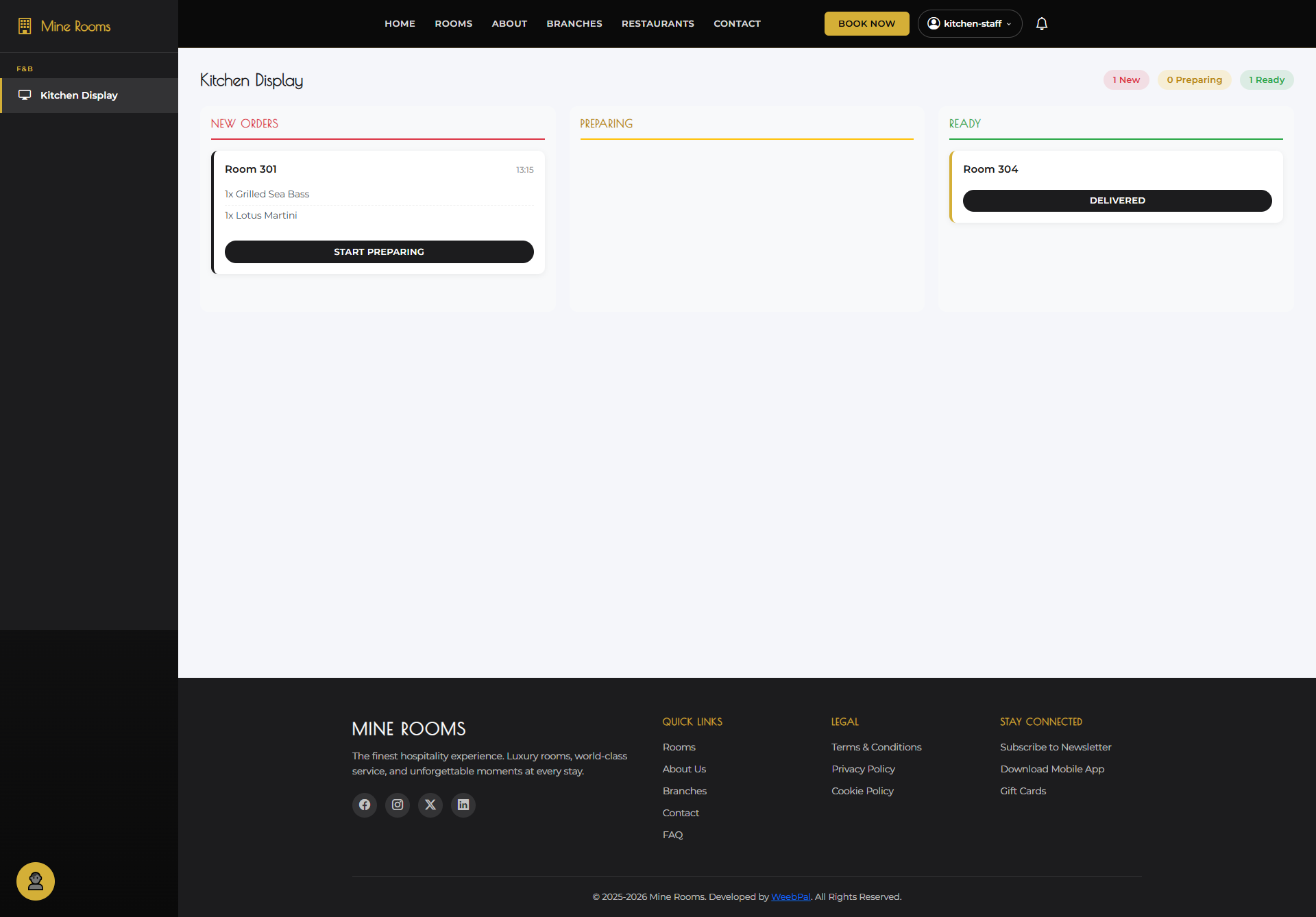
🚀 Mark as Delivered
What you can do: Confirm that the food order has been delivered to the guest's room.
Navigation: Kitchen Display → Ready order → Mark as Delivered
- After delivery, return and update the order.
- Click Mark as Delivered to move the order to Delivered.
- The guest receives a notification, and the order is added to the room bill.
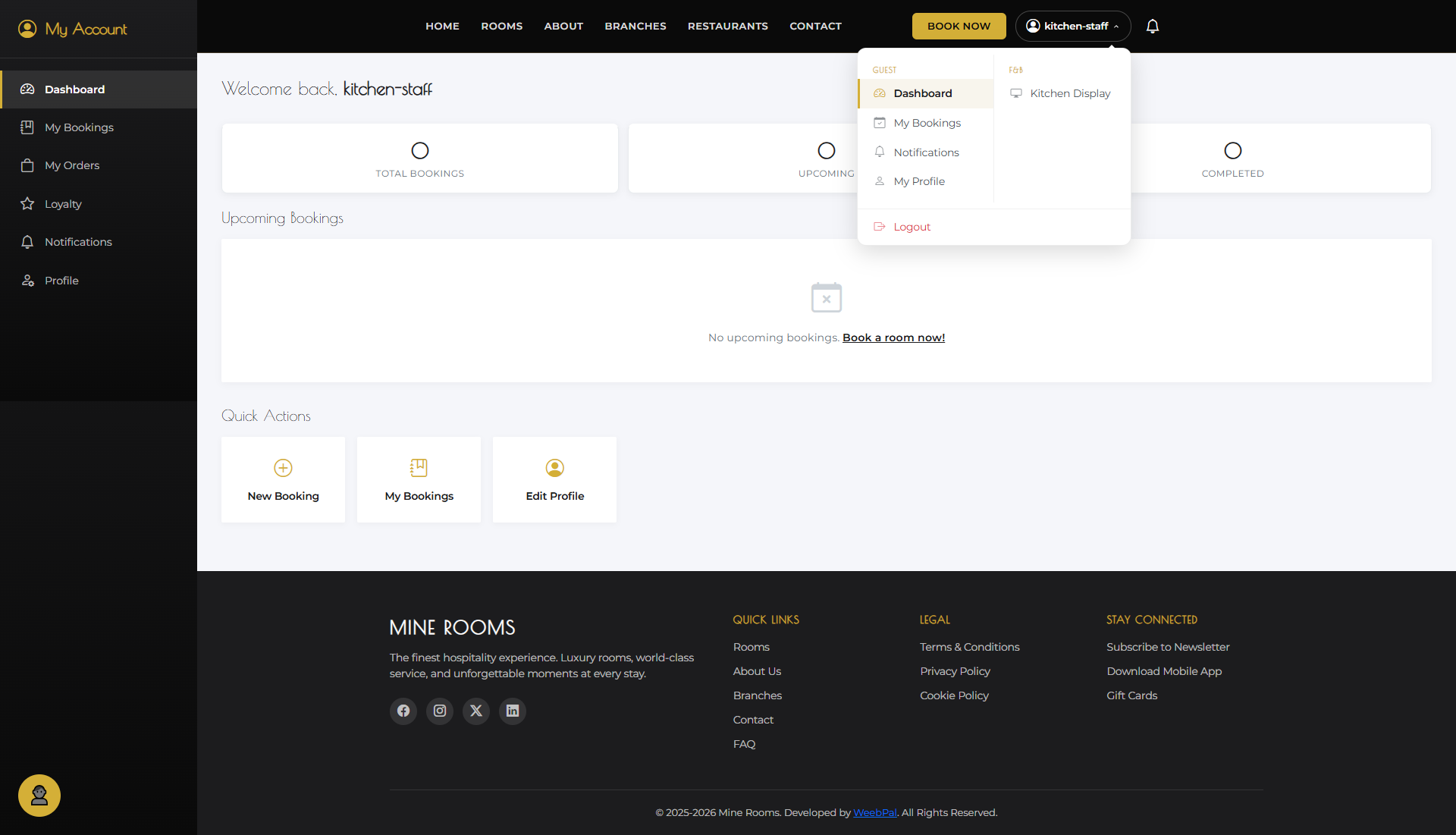
👤 My Account
What it shows: Your personal account options, accessible from the top-right corner of the management interface.
Navigation: Click your name or avatar (top-right corner)
- My Profile: Update your name and email address.
- Change Password: Update your login credentials.
- Log Out: End your session securely.