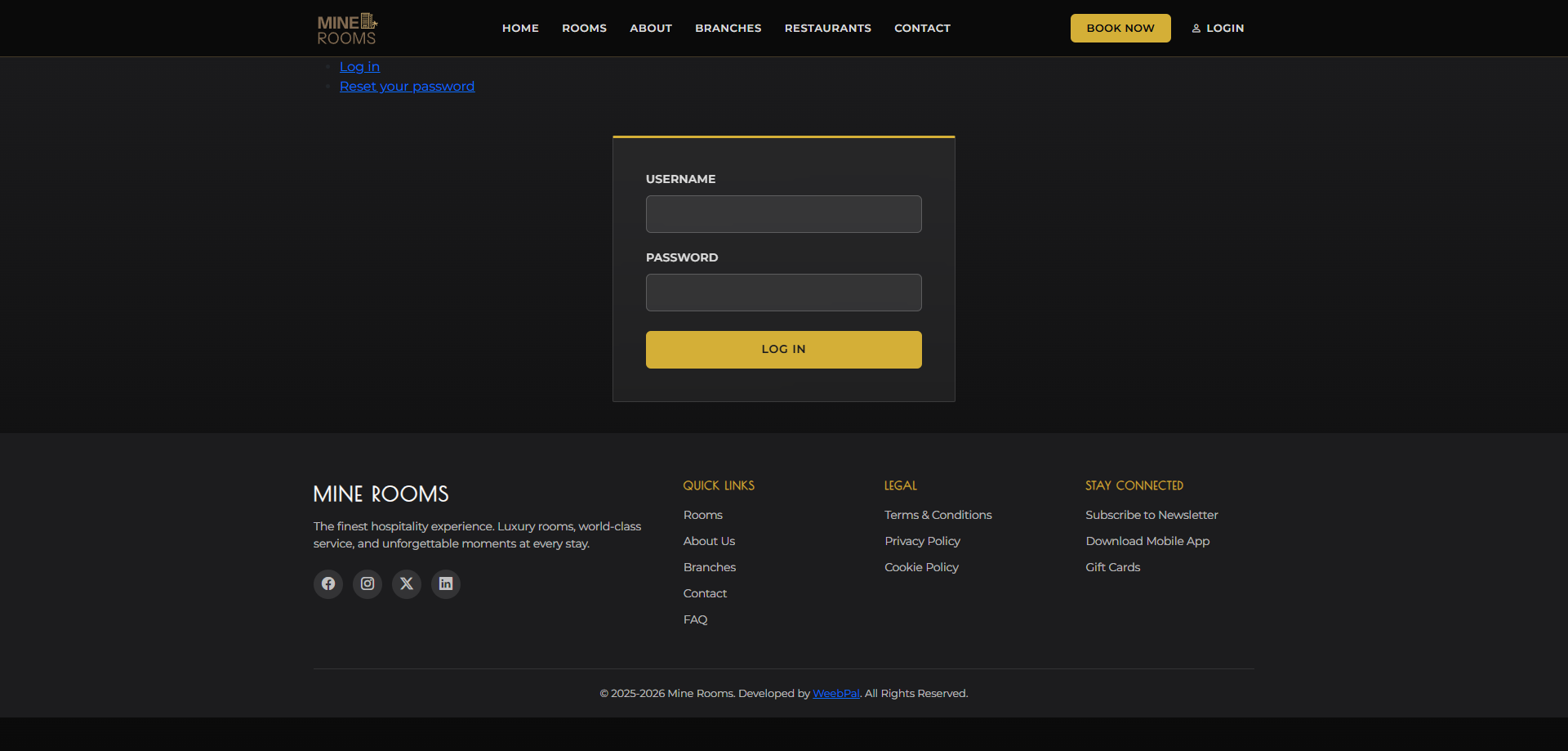
🔑 System Login
Who it’s for: Customer (Registered Guest)
- Demo access: sandbox accounts are issued on request — request a guided demo.
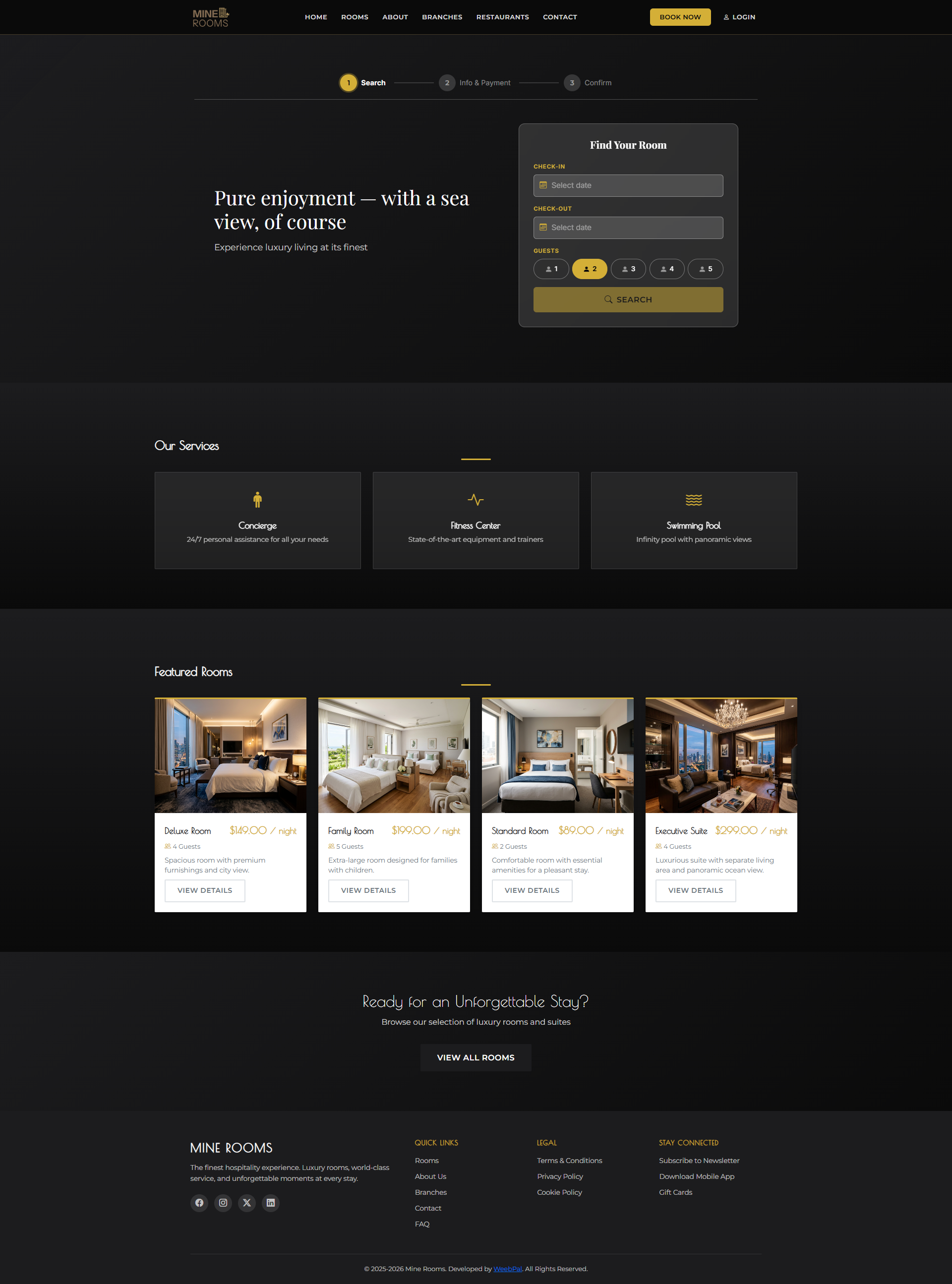
Navigation: Top menu → LOGIN
- Enter your Username and Password, then click Log In
- After login you are redirected to your personal Dashboard
- Access your account anytime via the account icon in the top-right corner
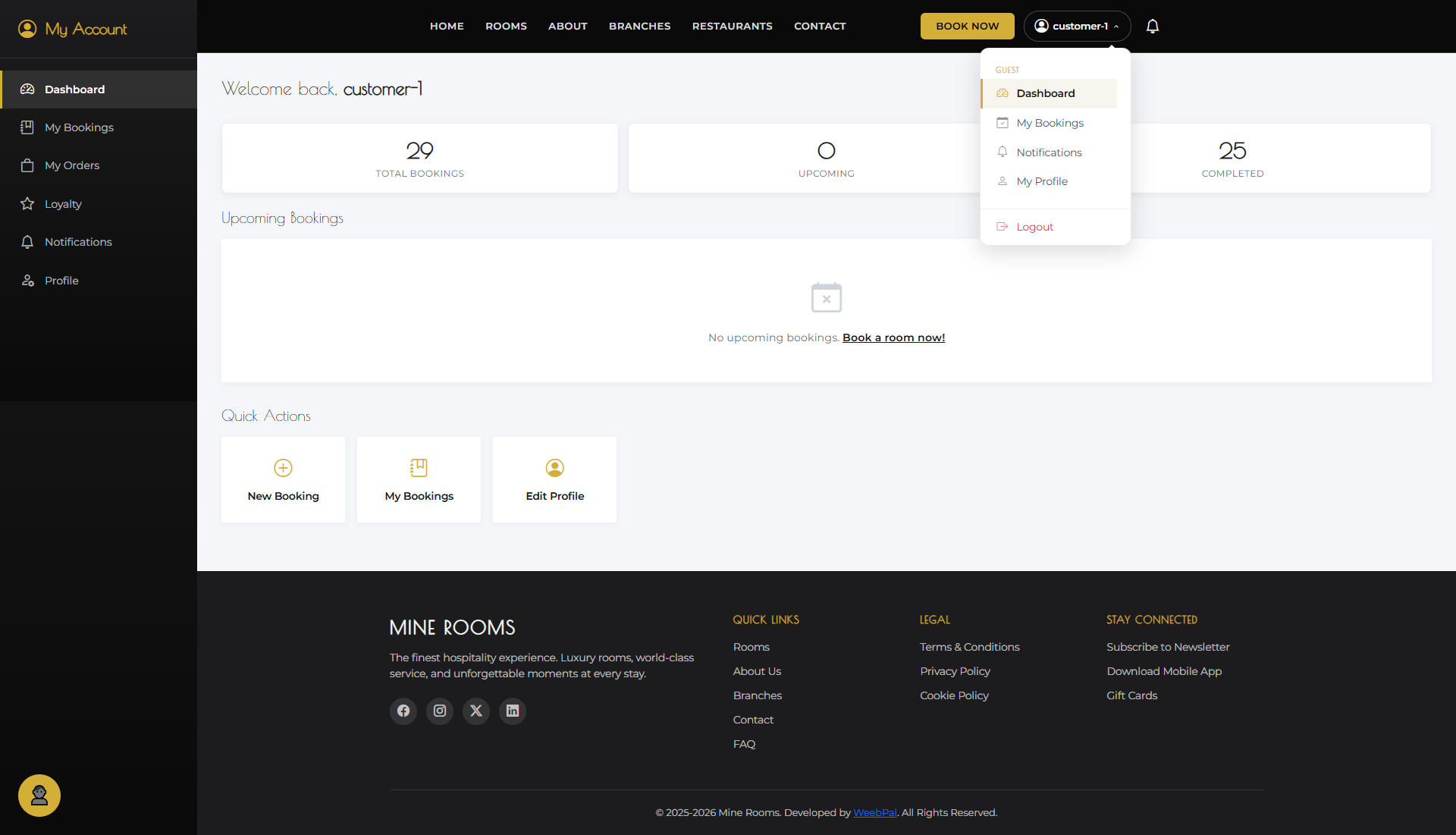
👤 My Account Menu
What it shows: The account dropdown menu in the top-right corner, which gives you access to all personal sections.
Navigation: Click your username or avatar icon (top-right)
- Menu items: My Bookings · My Orders · My Loyalty · My Notifications · My Profile · Log Out.
- Click any item to go directly to that section.
- The dropdown is available on every page while you are signed in.
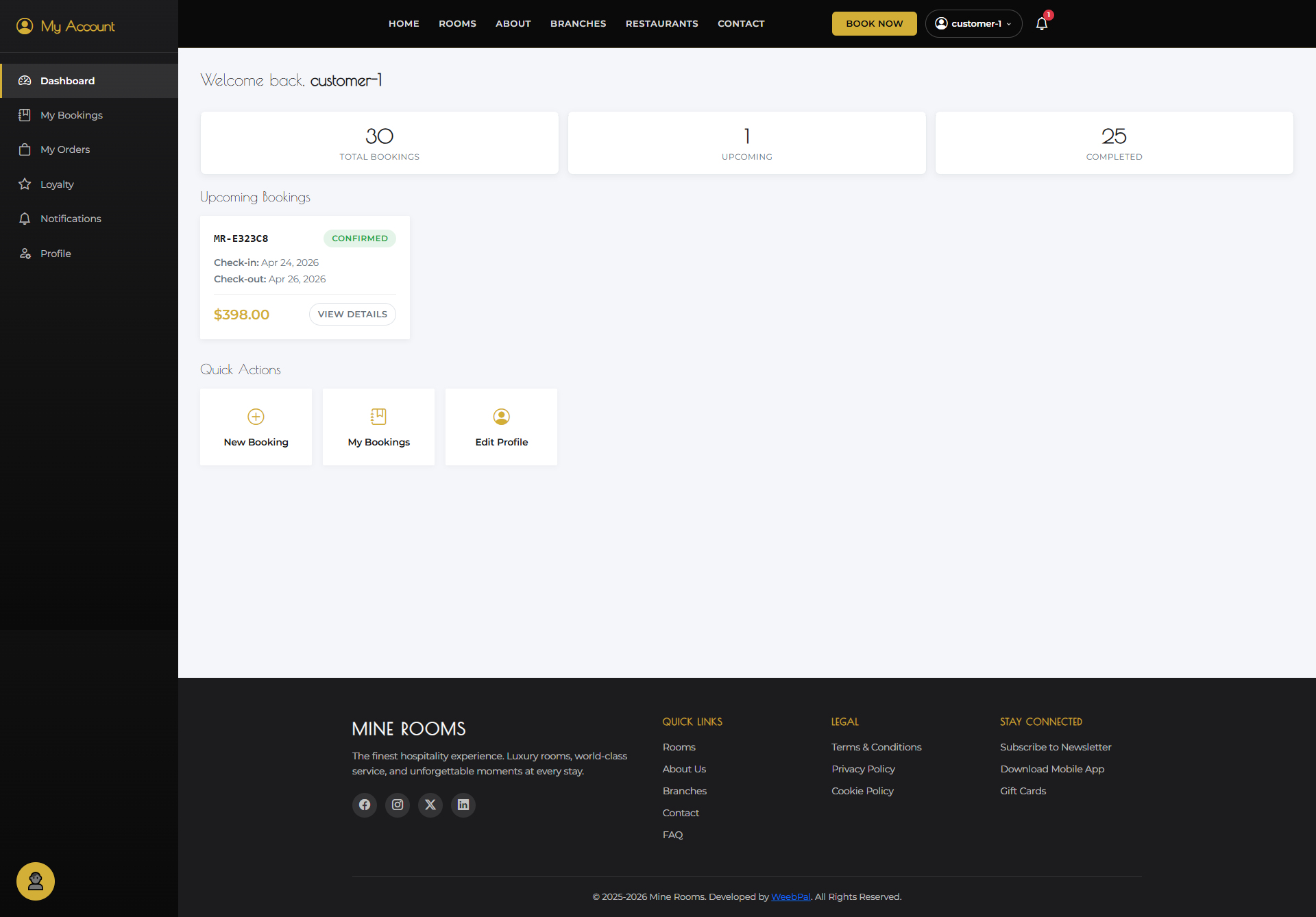
📊 Dashboard
What it shows: Your personalized dashboard after login, summarizing bookings, orders, and loyalty points.
Navigation: Automatically shown after login
- See your current active booking with dates and status.
- View recent food orders and delivery status.
- Check your loyalty point balance at a glance.
- Open quick links to My Bookings, My Orders, and My Loyalty.
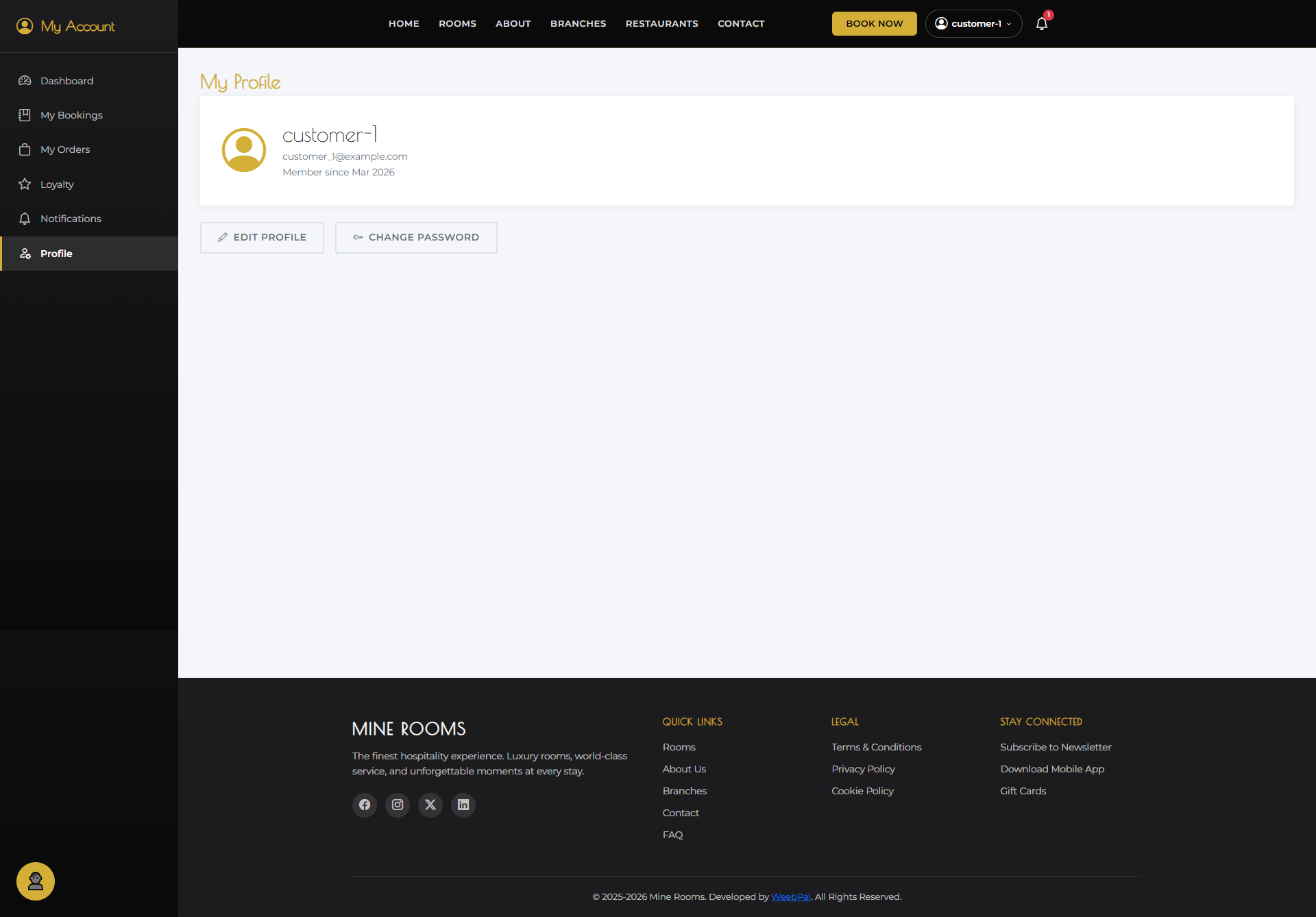
⚙️ My Profile
What you can do: Update your personal information, including name, email, phone number, and password.
Navigation: Account menu → My Profile
- Edit your Full Name, Email Address, and Phone Number.
- Change your Password after confirming your current password.
- Click Save to apply the changes.
📋 My Bookings
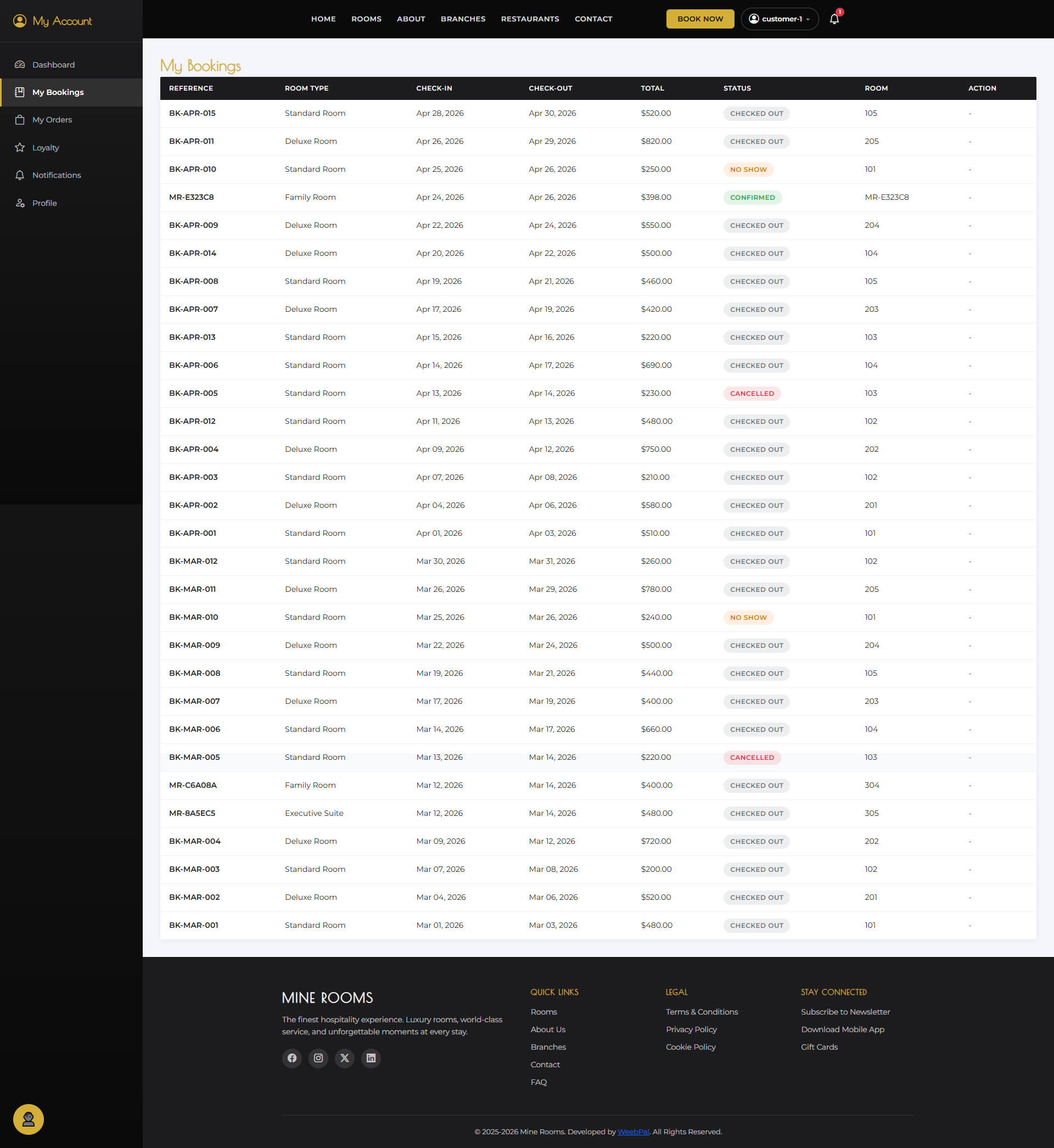
What it shows: A full list of all your hotel reservations — past, current, and upcoming.
Navigation: Account menu → My Bookings
- Each booking card shows: Room type, Branch, Check-in/out dates, Total price, Status
- Booking statuses: Pending → Confirmed → Checked-In → Completed
- Click a booking to view its full details
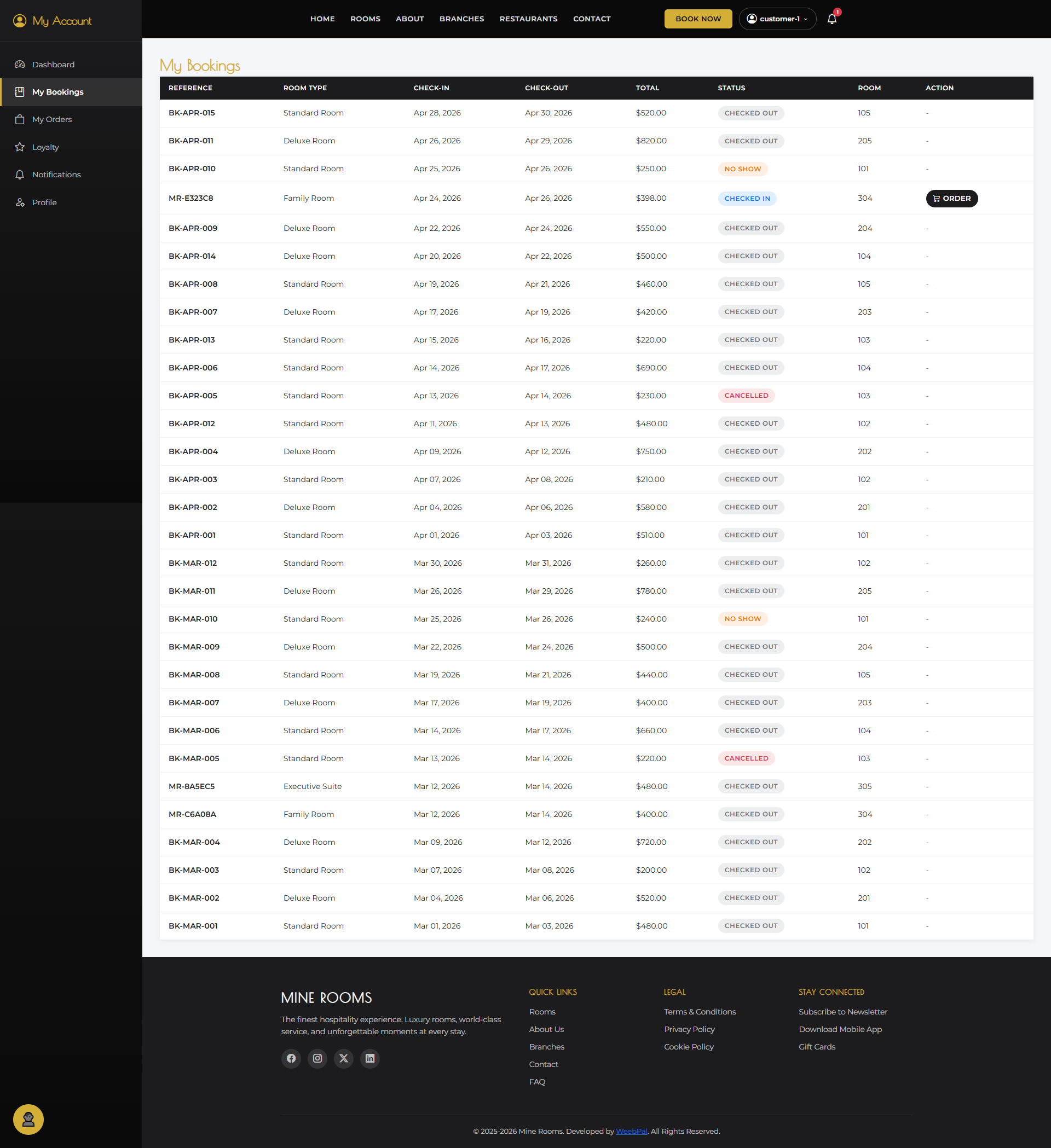
🏨 My Bookings — Checked-In
What it shows: Your booking card once the receptionist confirms check-in at the front desk.
Navigation: Account menu → My Bookings → select active booking
- Status updates to Checked-In and your assigned room number appears on the booking card
- You can now place in-room food orders linked to this booking
- Check-out date is displayed — plan your departure accordingly
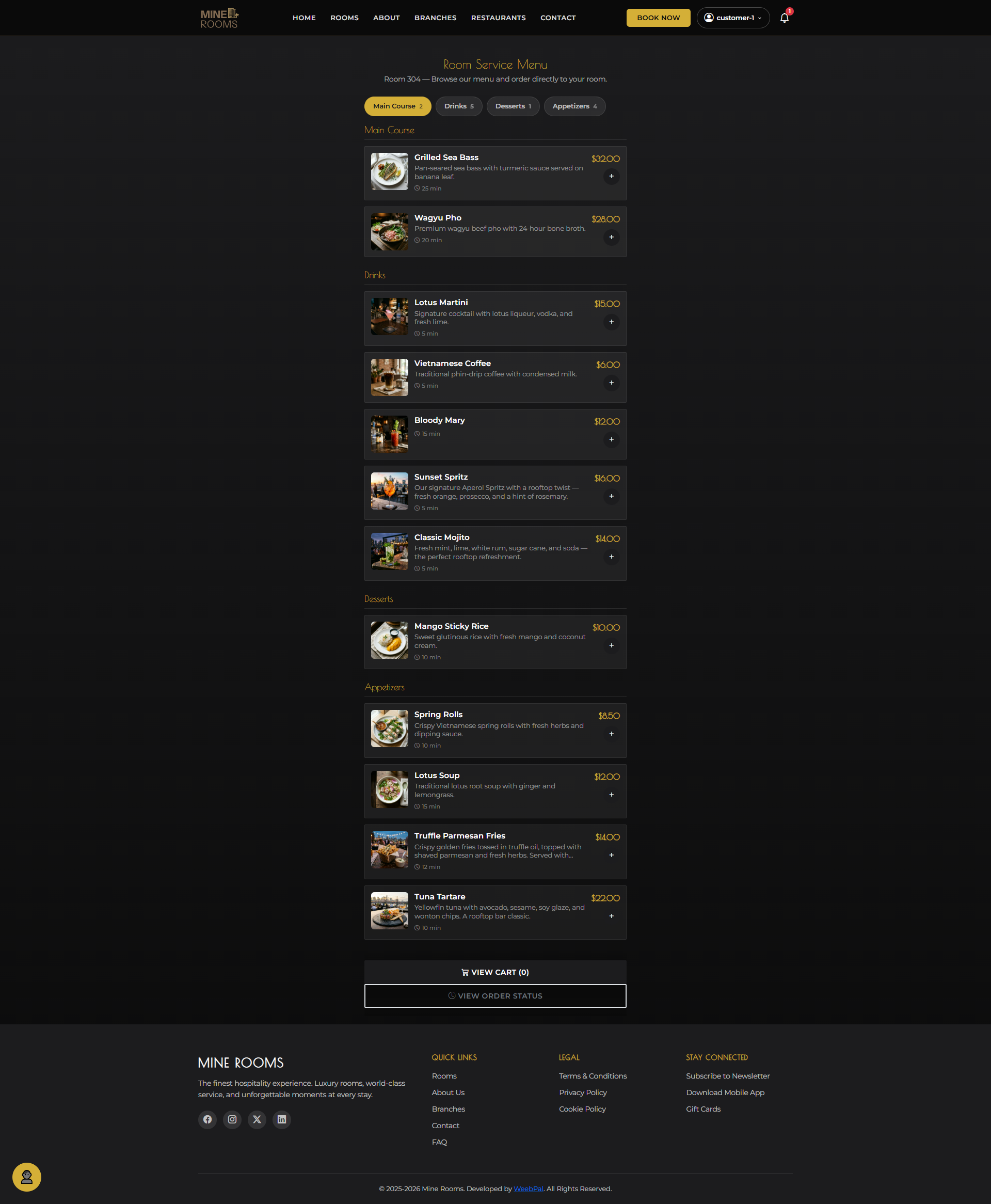
🍽️ Order Food In-Room
What you can do: Order food from the hotel restaurant for delivery directly to your room.
Navigation: Account menu → My Bookings → click ORDER on your Checked-In booking
- The ORDER button only appears on bookings with Checked-In status
- Browse menu items organized by category — each item shows name, description, and price
- Click Add to Cart to add an item — adjust quantity with the +/− controls
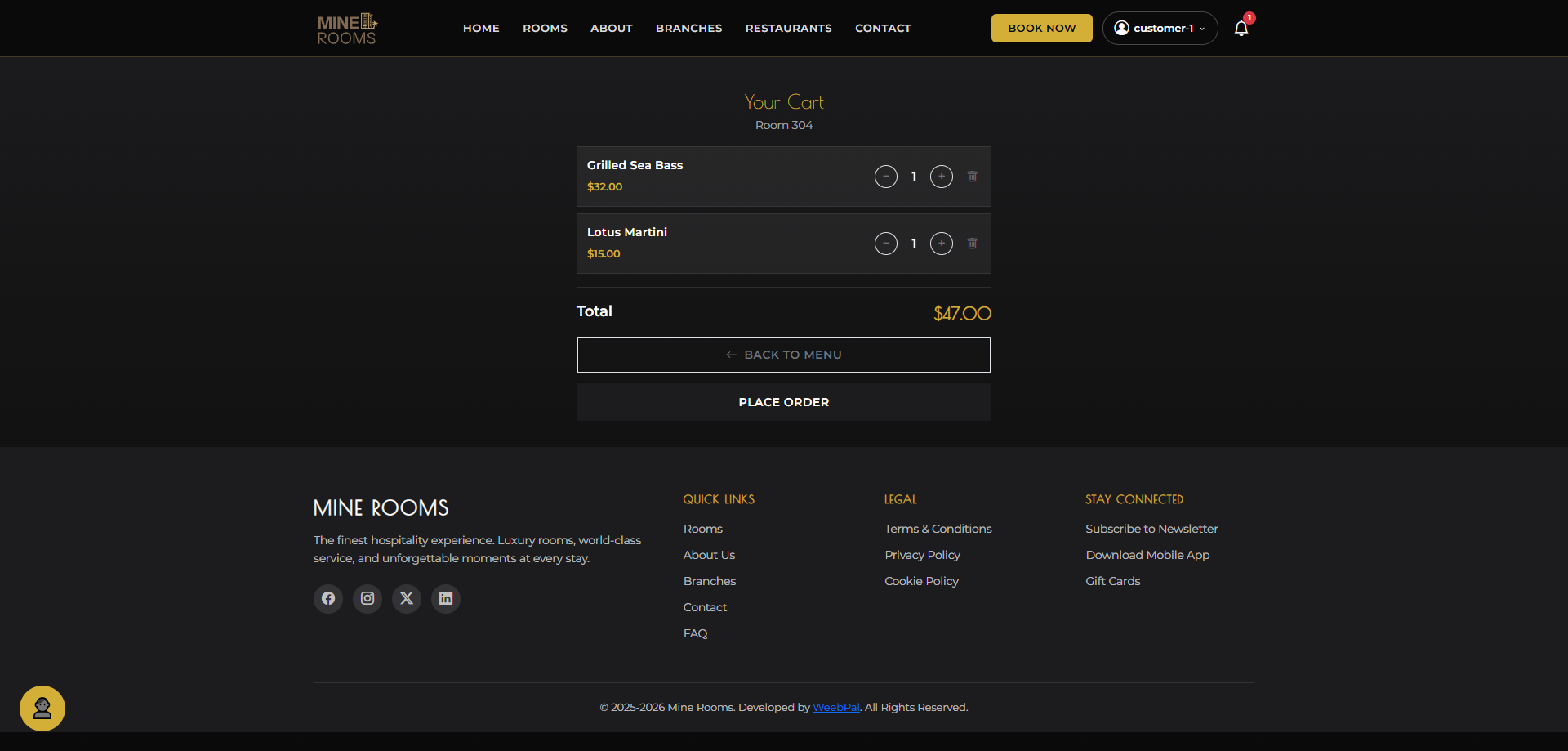
🛒 View Cart
What you can do: Review items before placing the order.
Navigation: Click the Cart icon (top-right)
- See items, quantities, and prices
- Adjust quantities or remove items
- Click Place Order to proceed
✅ Place Order
What you can do: Confirm and submit your food order.
Navigation: Cart → Place Order
- Your room number is pre-filled
- Review the order summary
- Click Confirm Order to send to kitchen
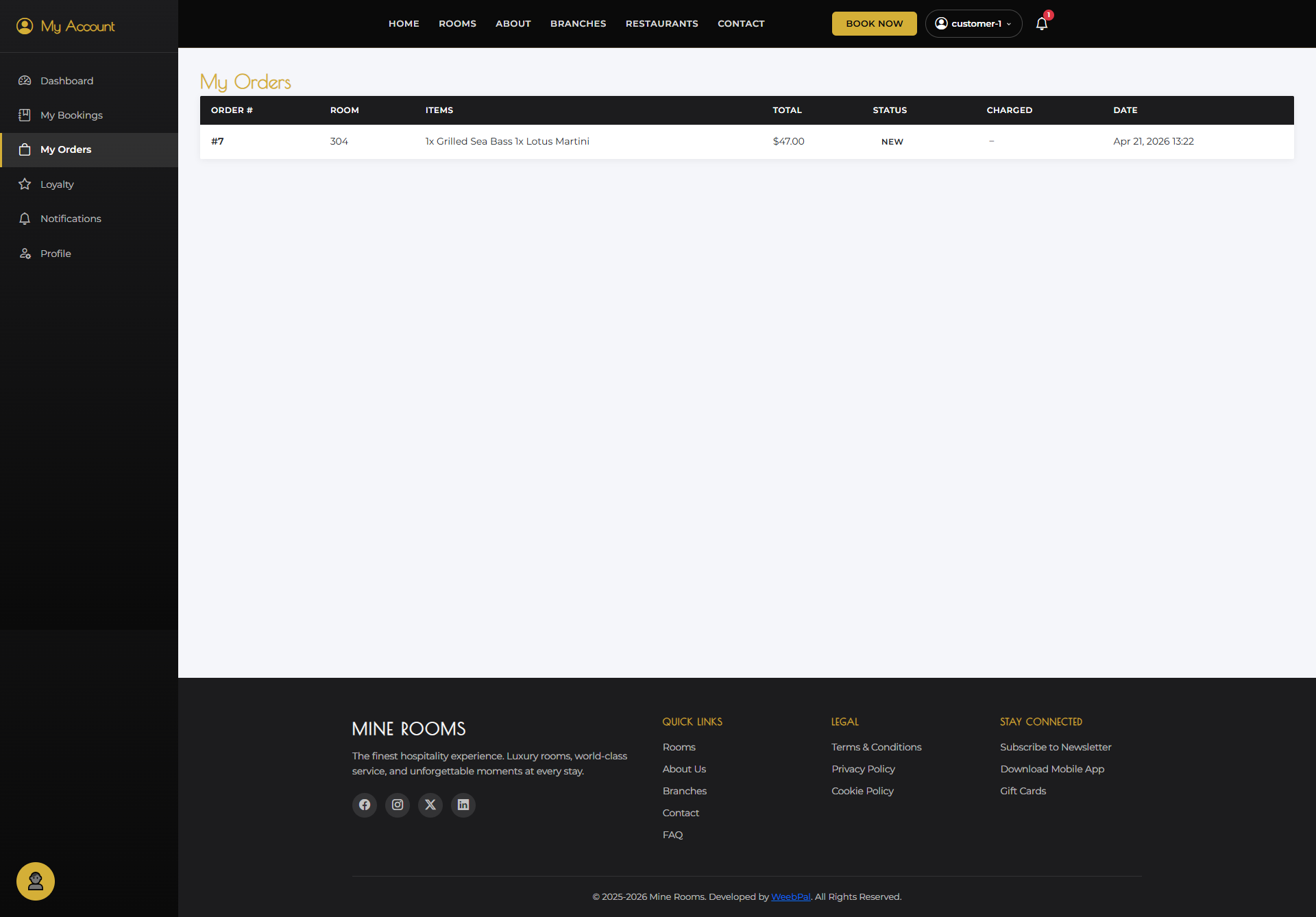
📦 My Orders
What it shows: All your in-room food orders and their current status.
Navigation: Account menu → My Orders
- Order statuses: Pending → Preparing → Ready → Delivered
- Each order shows: items, total price, order time, and current status
- Click an order to view its full item breakdown
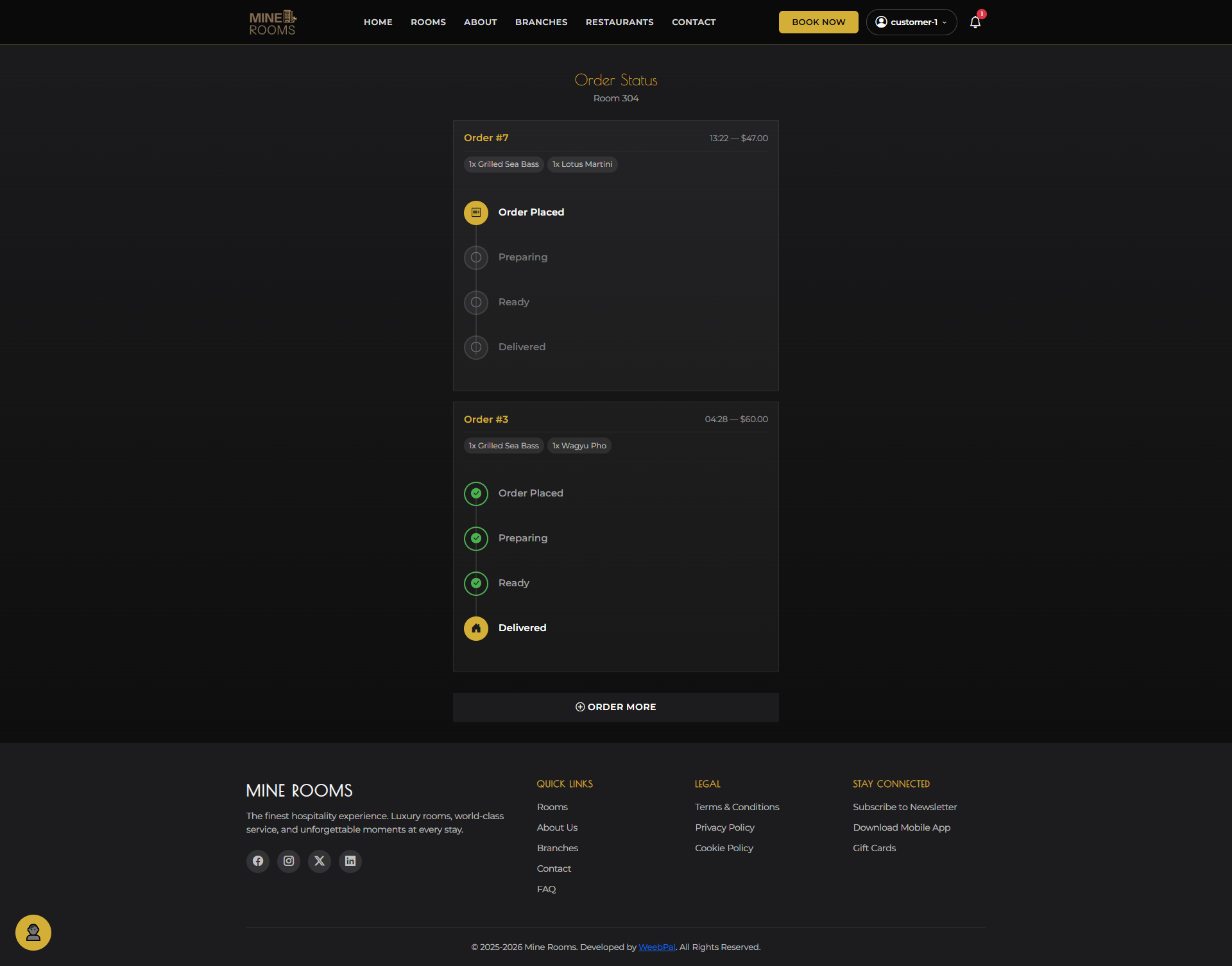
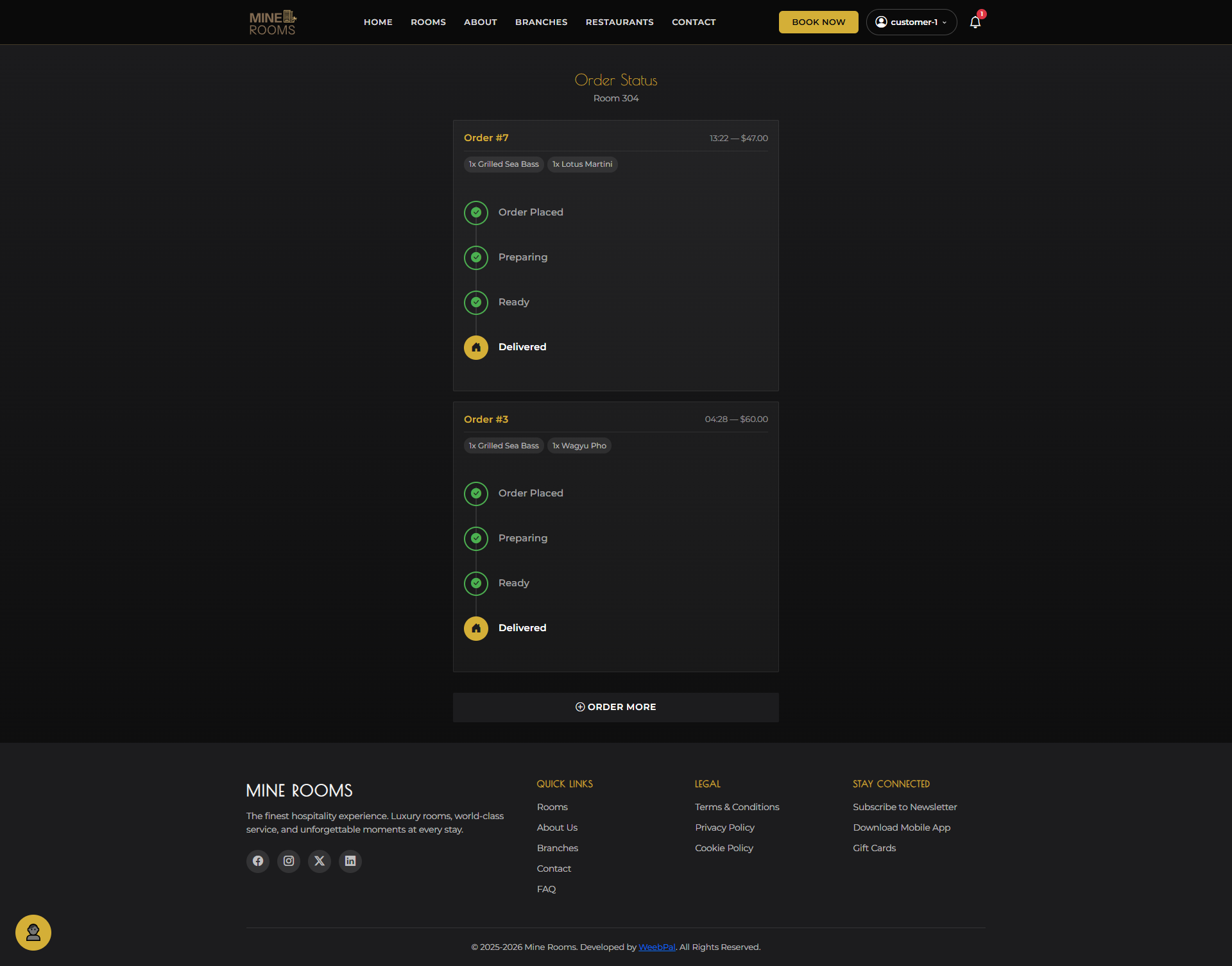
🚀 Order Status
What it shows: Live status of your order — updated in real time as the kitchen processes and delivers it.
Navigation: My Bookings → ORDER → status page, or via order link
- Status updates to Delivered once the kitchen confirms delivery to your room
- The delivery timestamp is recorded and the order is closed
- All delivered orders are added to your room bill automatically
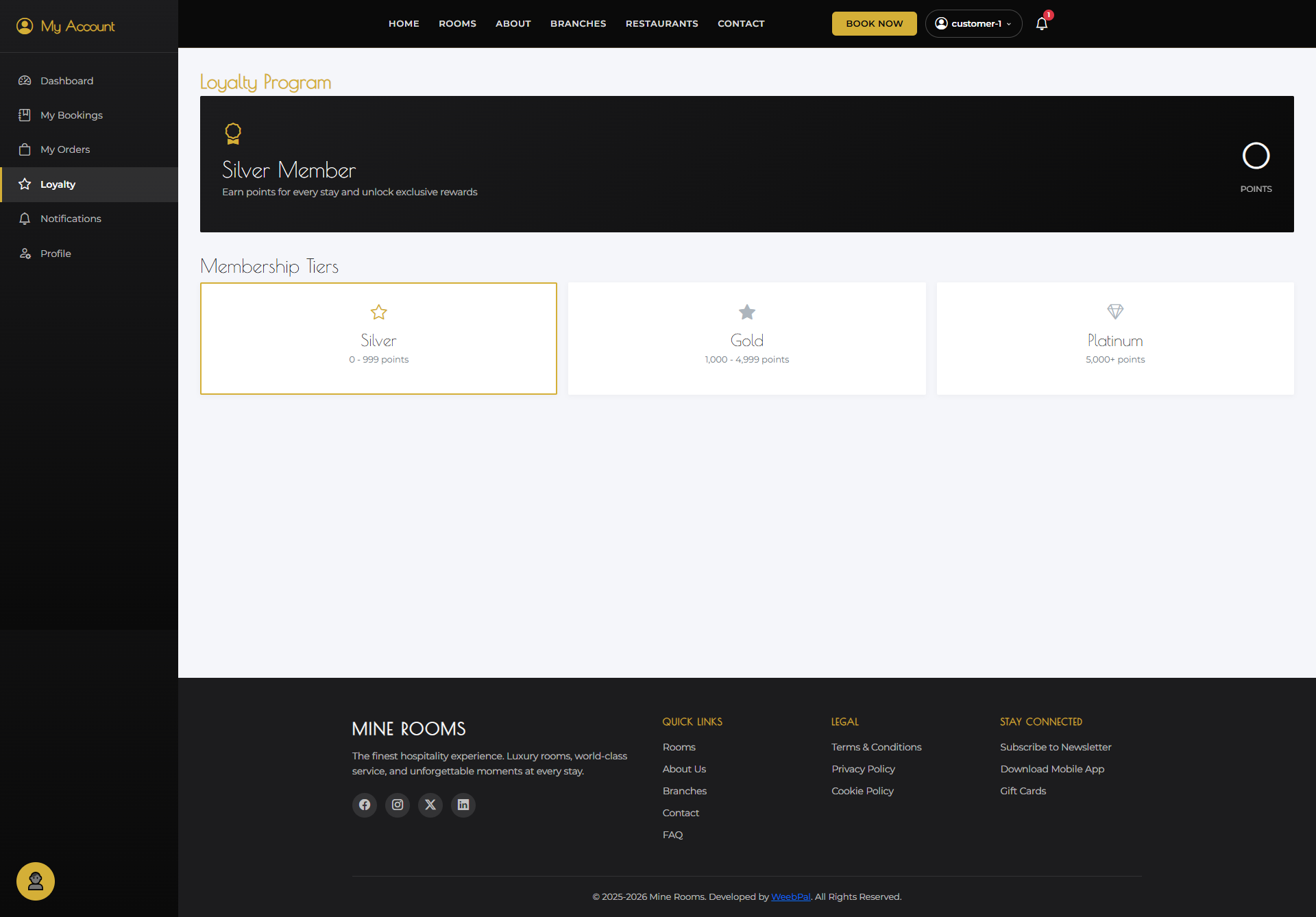
⭐ My Loyalty Rewards
What it shows: Your loyalty points balance and available rewards you can redeem.
Navigation: Account menu → My Loyalty
- View current point balance and points per stay
- Browse available rewards — discounts, free nights, upgrades
- Click Redeem to apply reward to next booking
- Track your redemption history
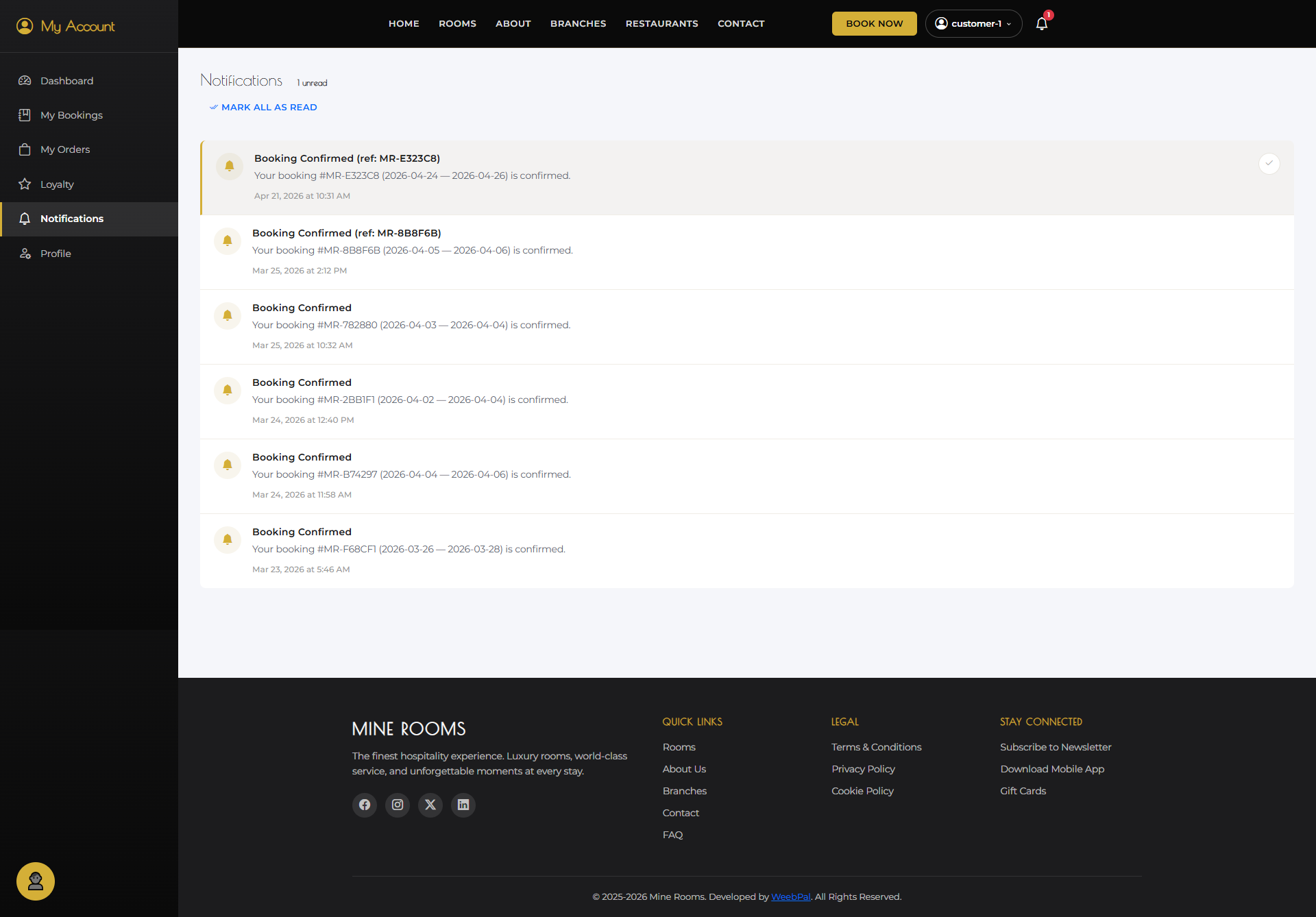
🔔 My Notifications
What it shows: Real-time alerts about your bookings, food orders, and account activity.
Navigation: Account menu → My Notifications
- Notifications for: Booking confirmed, Check-in processed, Order status updates, Loyalty points earned
- Unread notifications are highlighted — click to mark as read
- All notifications are stored in history for future reference