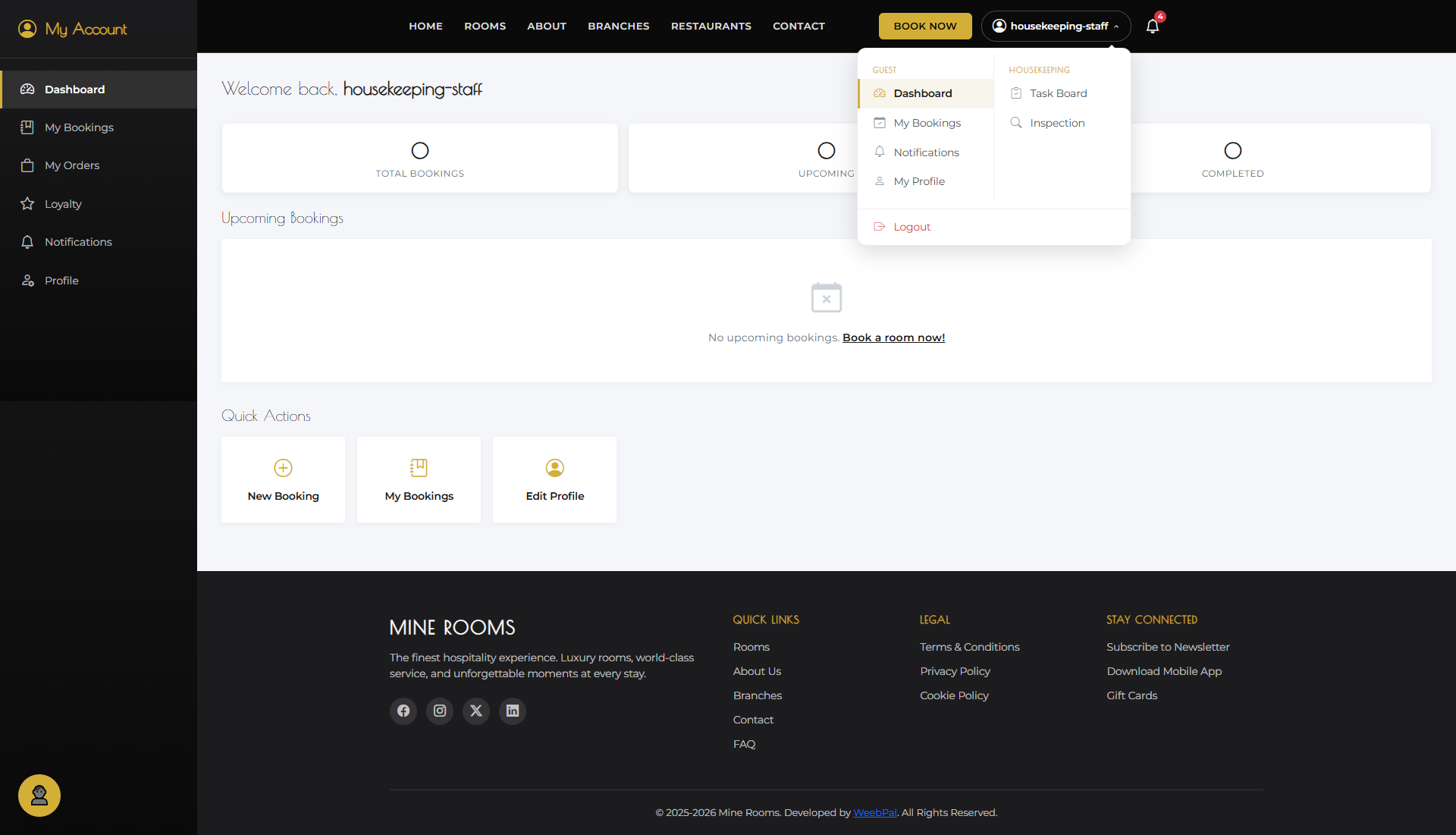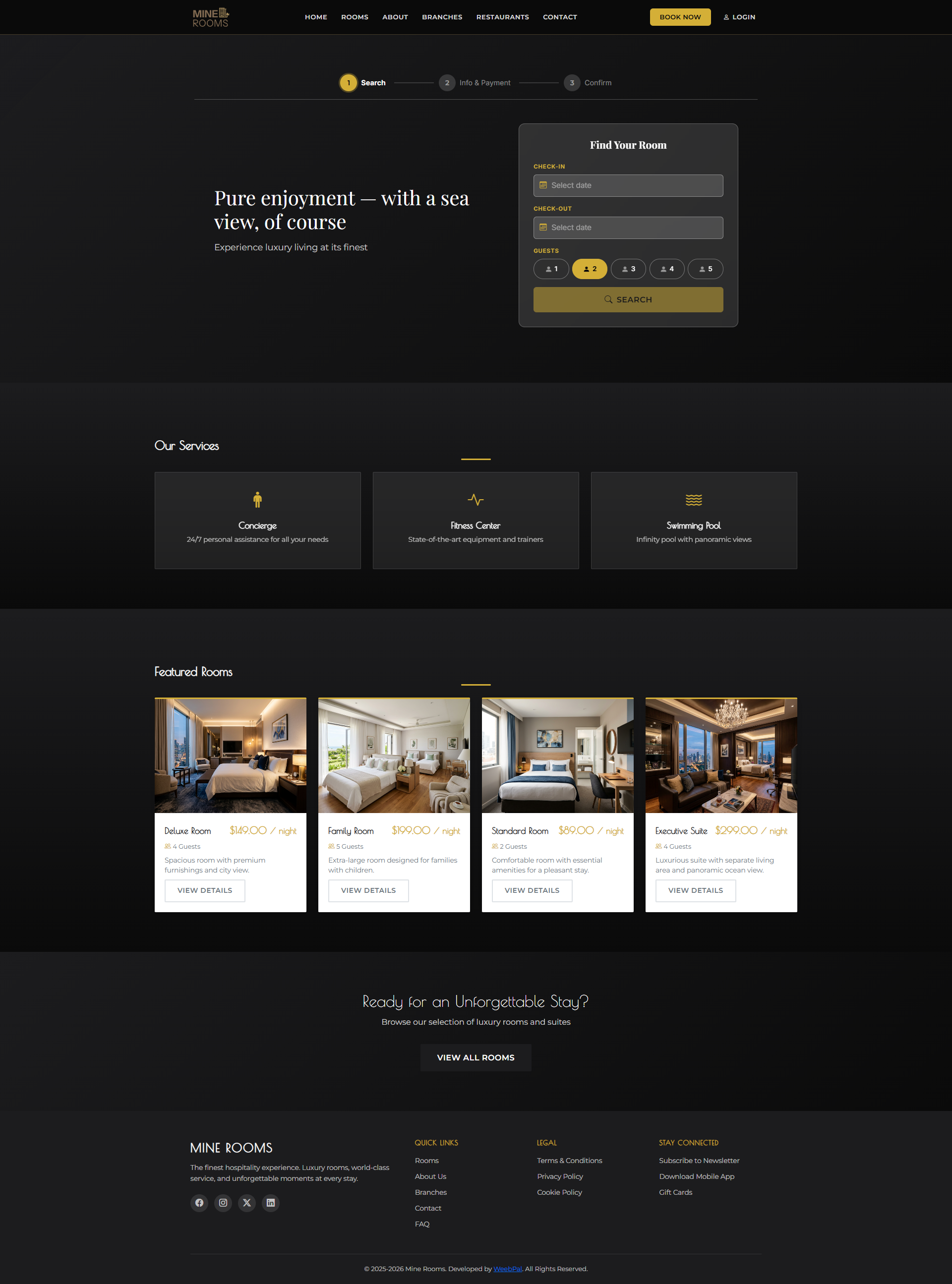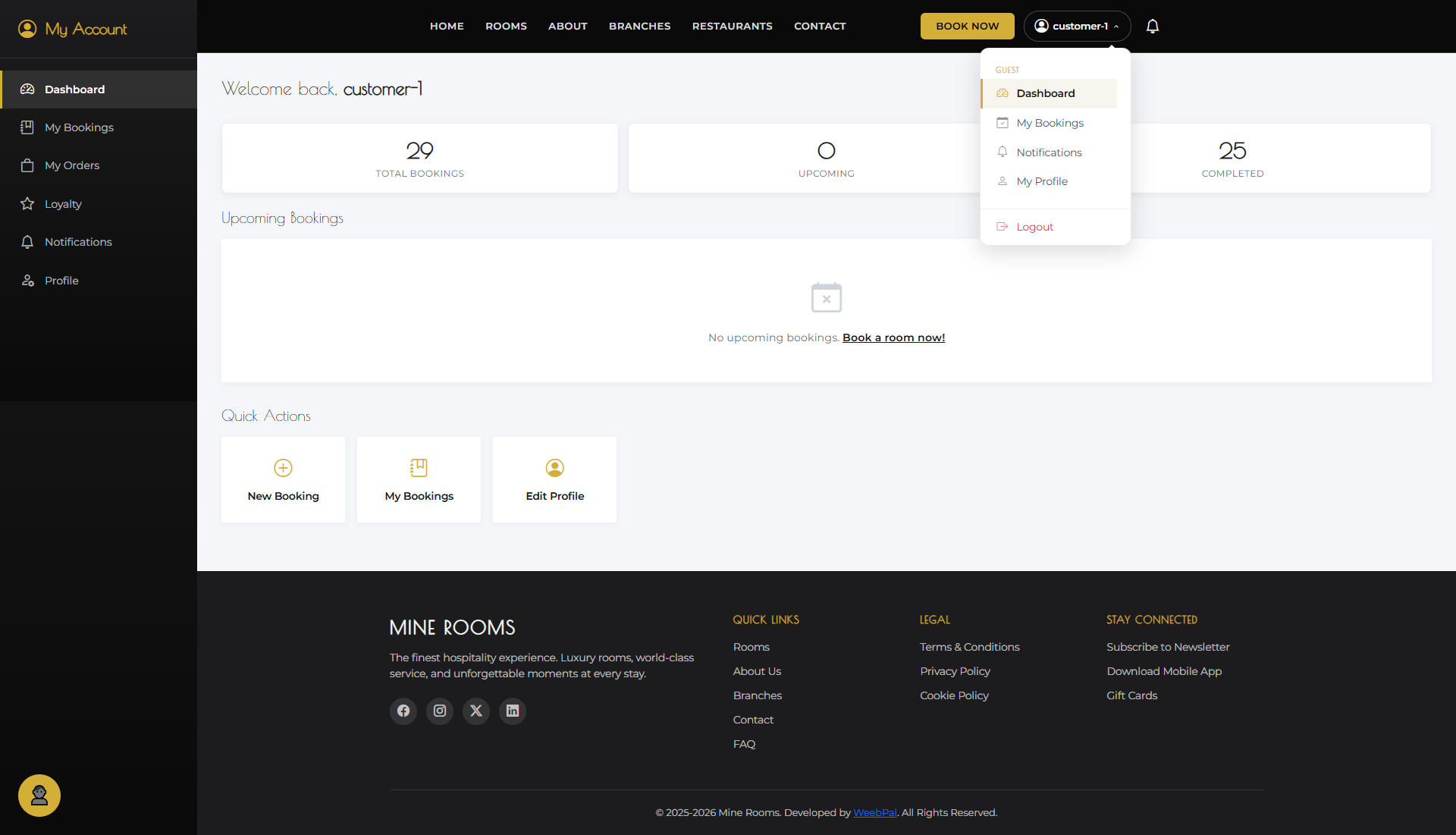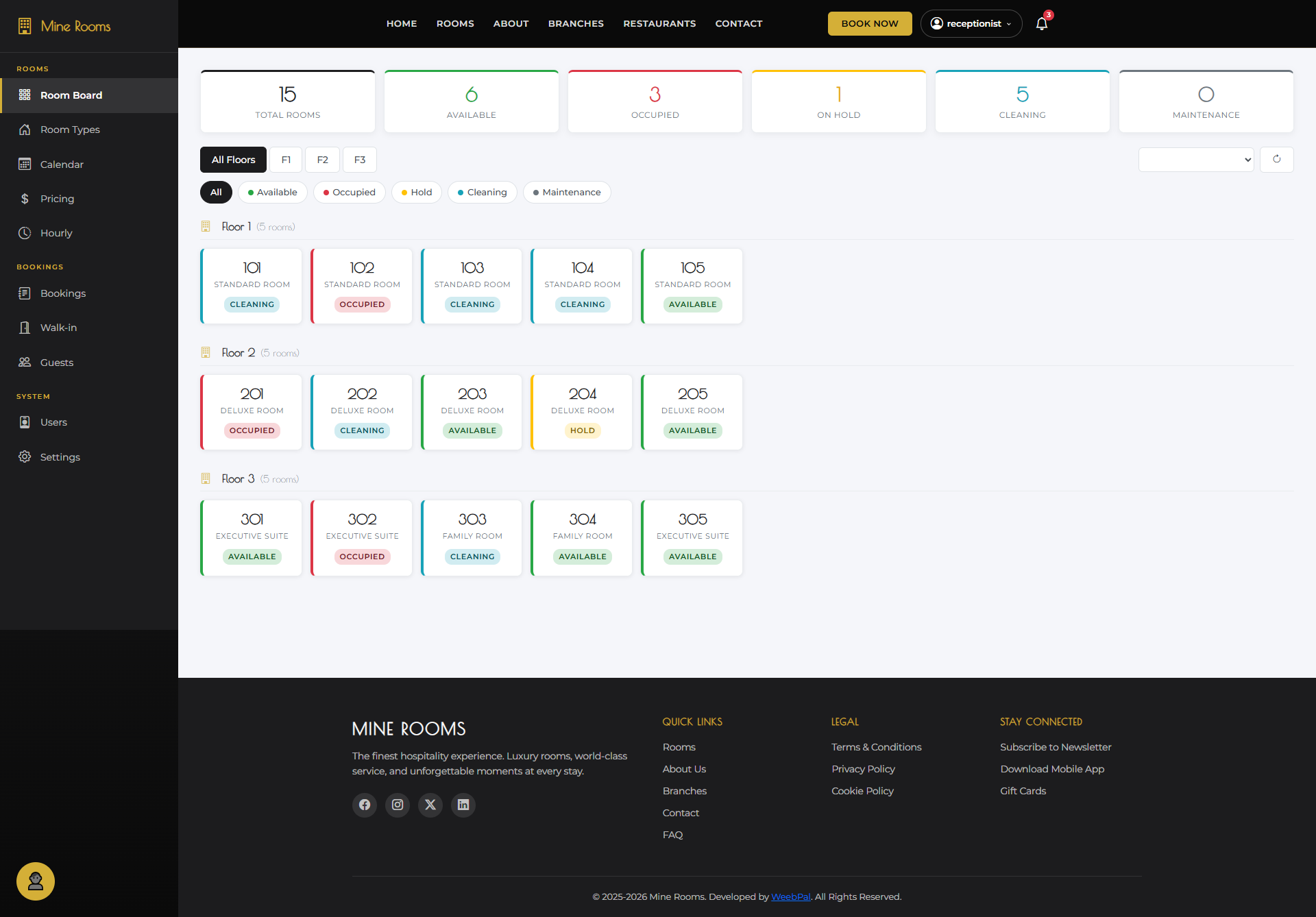
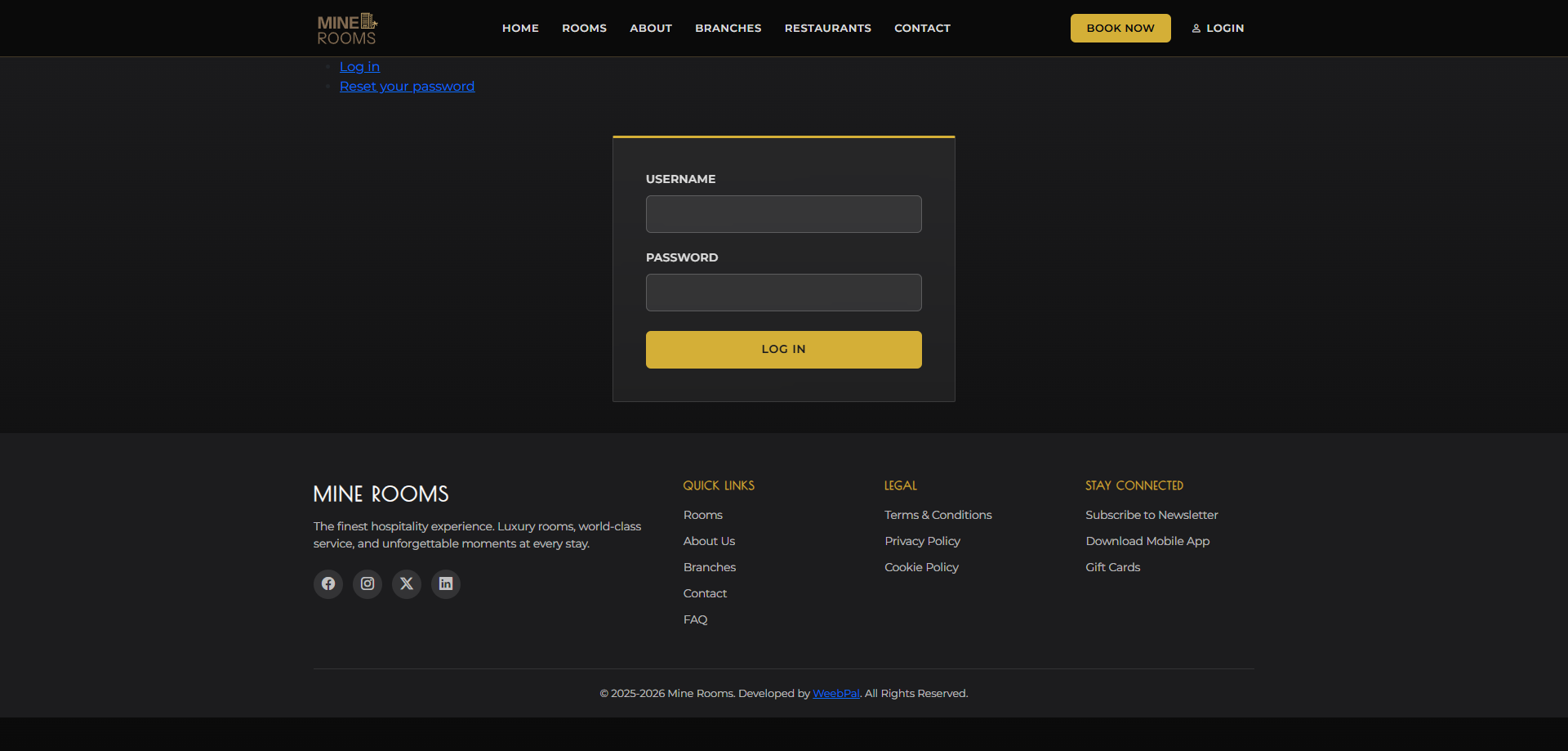
🔑 System Login
Who it’s for: Housekeeping Staff · Demo access: on request
Navigation: Go to the management portal login
- Enter your Username and Password, then click Log In
- After login you are redirected to the Housekeeping Task Board
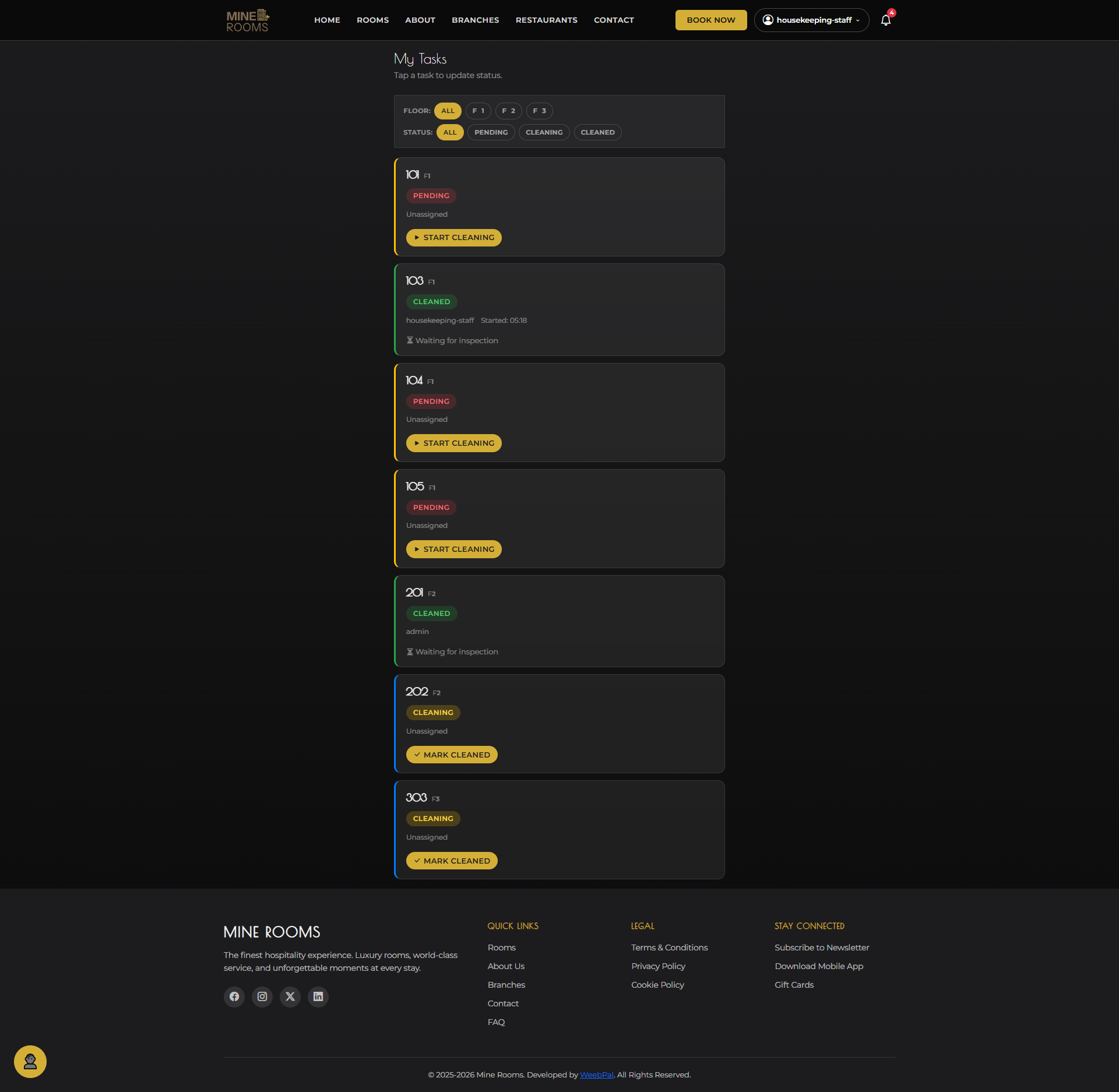
- The task board is your complete workspace — all your room cleaning tasks appear here
📋 Task Board Overview
What it shows: Your complete list of housekeeping tasks, including every room assigned to you across all statuses.
Navigation: Shown automatically after login
- Each card shows Room, Type, Floor, Status, and Time since checkout.
- The board is organized by status: Pending · Cleaning · Cleaned · Inspected.
- Tasks are sorted by priority, so check-ins today appear first.
⏳ Pending Tasks
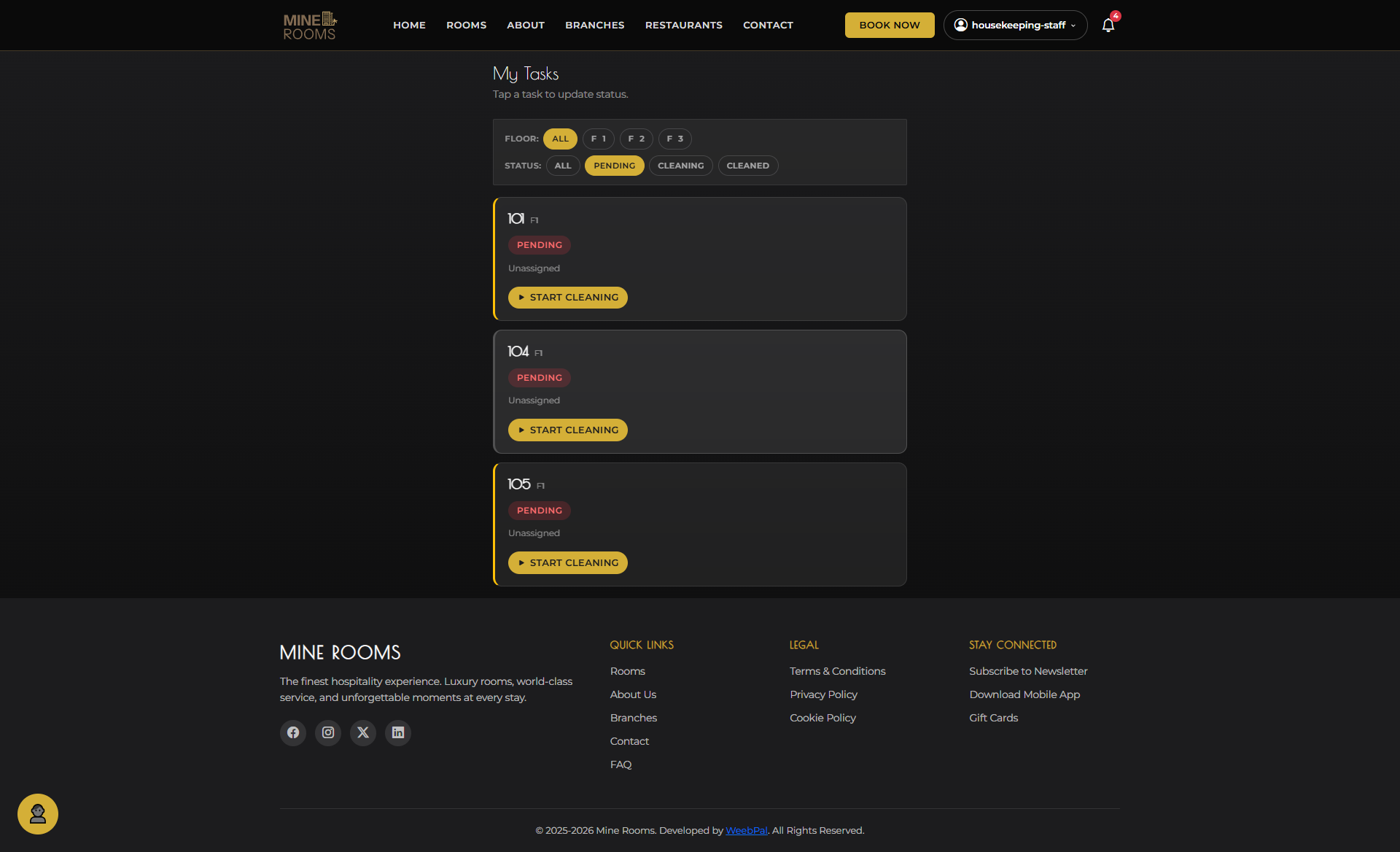
What it shows: Rooms that need cleaning, including recently checked-out rooms and rooms scheduled for cleaning.
Navigation: Task Board → Pending column
- Pending rooms are vacated and ready for cleaning.
- Each card shows the room, checkout time, and next check-in if scheduled.
- Click Start Cleaning on any task card to begin work.
▶️ Start Cleaning
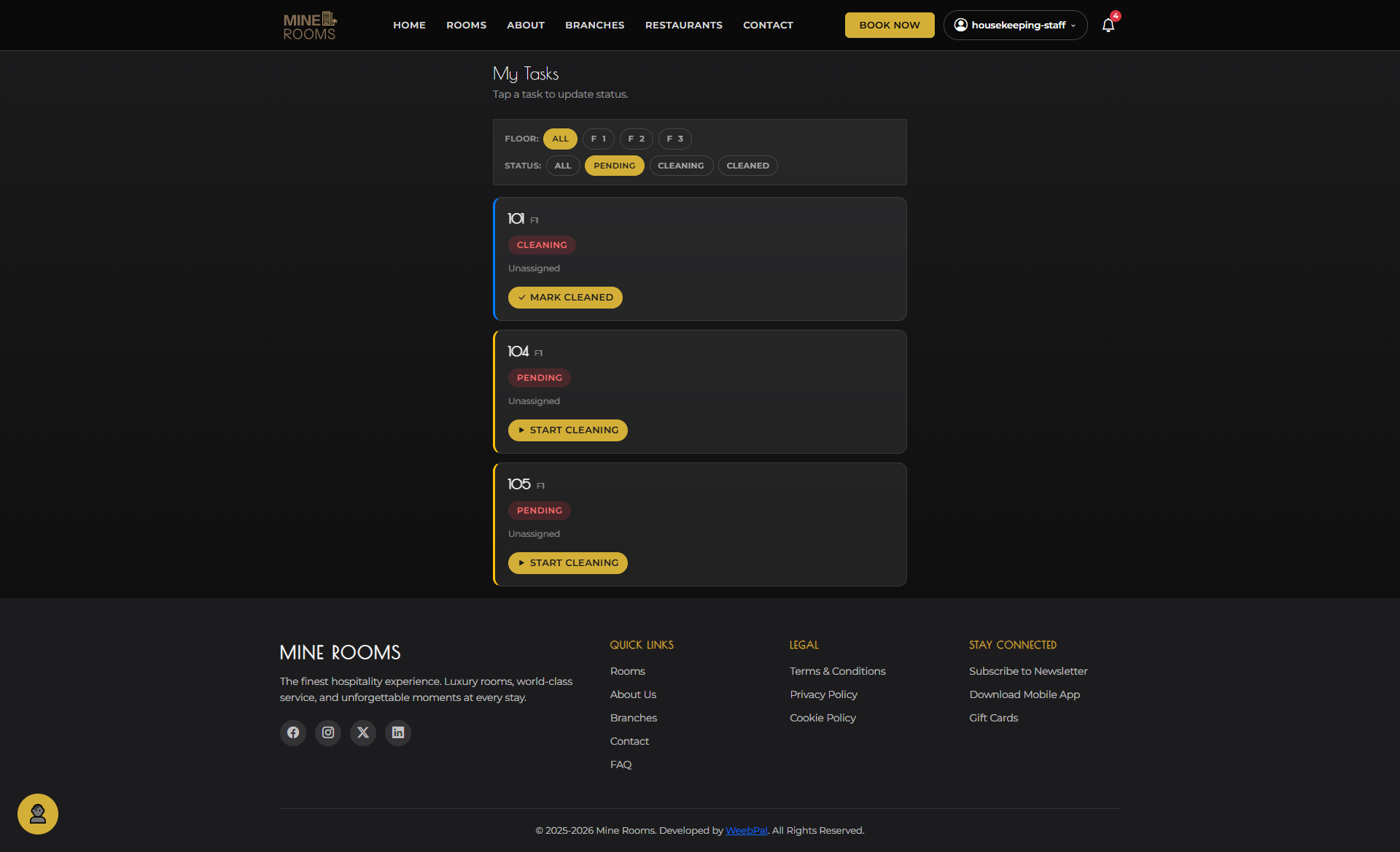
What you can do: Begin the cleaning process for a room and move the task from Pending to Cleaning.
Navigation: Task Board → Pending task card → Start Cleaning
- Go to the room and click Start Cleaning.
- The task moves to the Cleaning column with a timer.
- The room status updates to Cleaning on the Room Board.
🧹 Cleaning in Progress
What it shows: Tasks currently being cleaned, meaning the rooms you are working on right now.
Navigation: Task Board → Cleaning column
- The room stays in Cleaning while you work.
- Follow the checklist: bed, linens, bathroom, amenities, and vacuum.
- Click Mark as Complete once the room is fully cleaned.
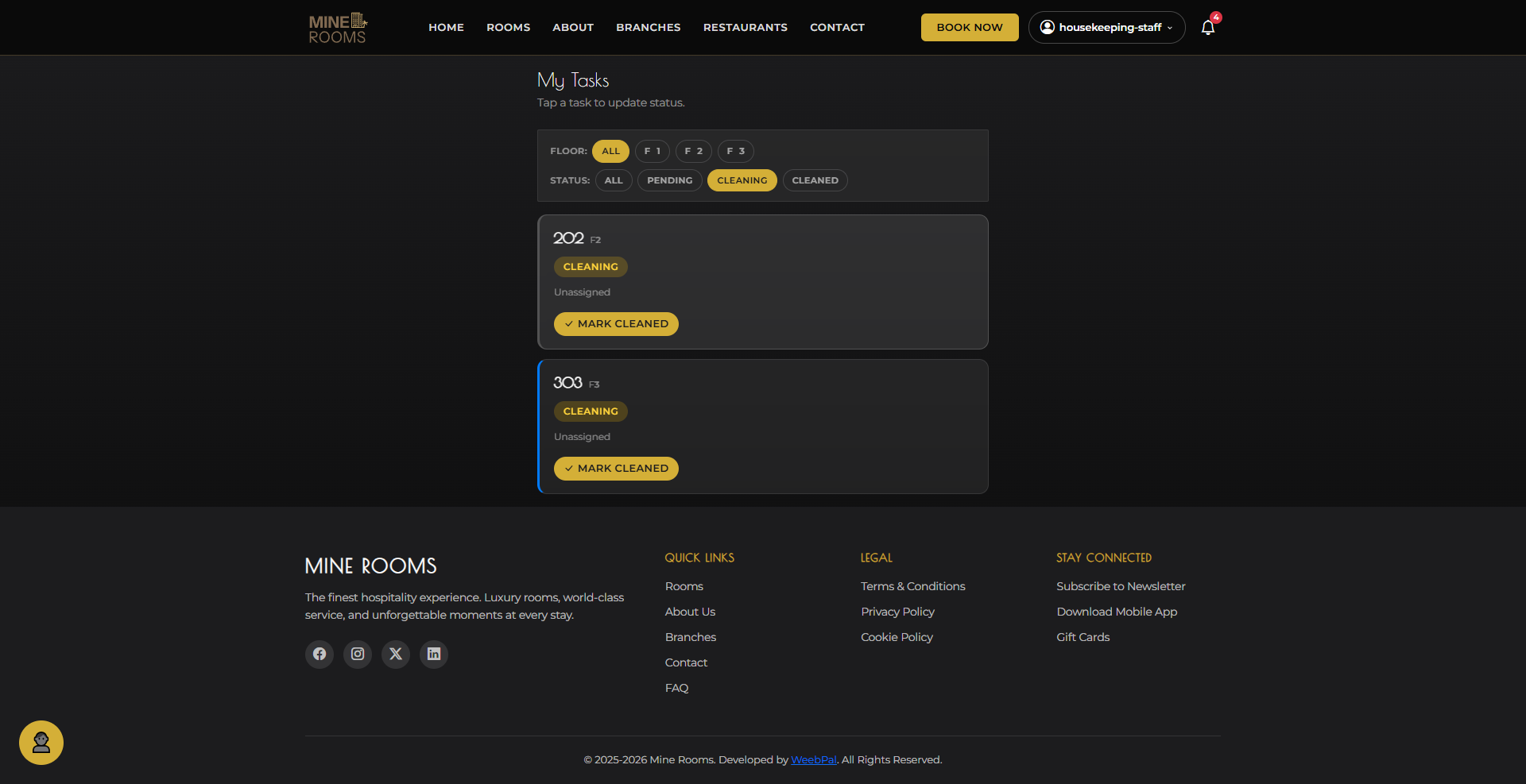
✅ Mark Cleaning Complete
What you can do: Mark the physical cleaning as finished and prepare for the final "Make Cleaned" step.
Navigation: Task Board → Cleaning task card → Mark as Complete
- Confirm that bed, bathroom, and amenities are done.
- Click Mark as Complete to wait for Make Cleaned confirmation.
- The cleaning time is recorded for performance tracking.
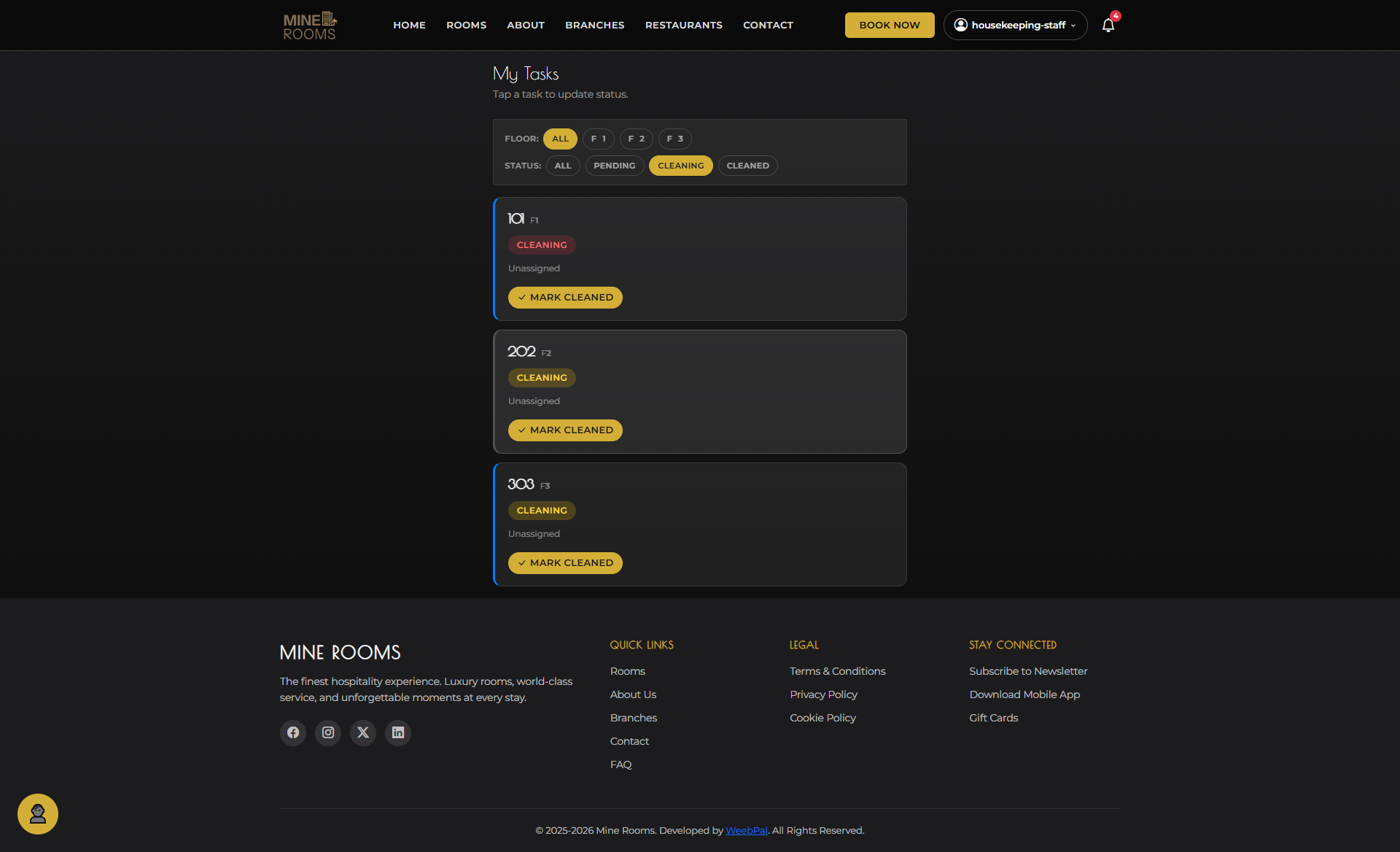
🧽 Make Cleaned
What you can do: Mark the room as cleaned in the system and confirm it is ready for inspection.
Navigation: Task Board → completed cleaning task → Make Cleaned
- Click Make Cleaned to update the room status to Cleaned.
- The task moves to the Cleaned column and becomes visible to the receptionist.
- The supervisor or inspector can now review the room.
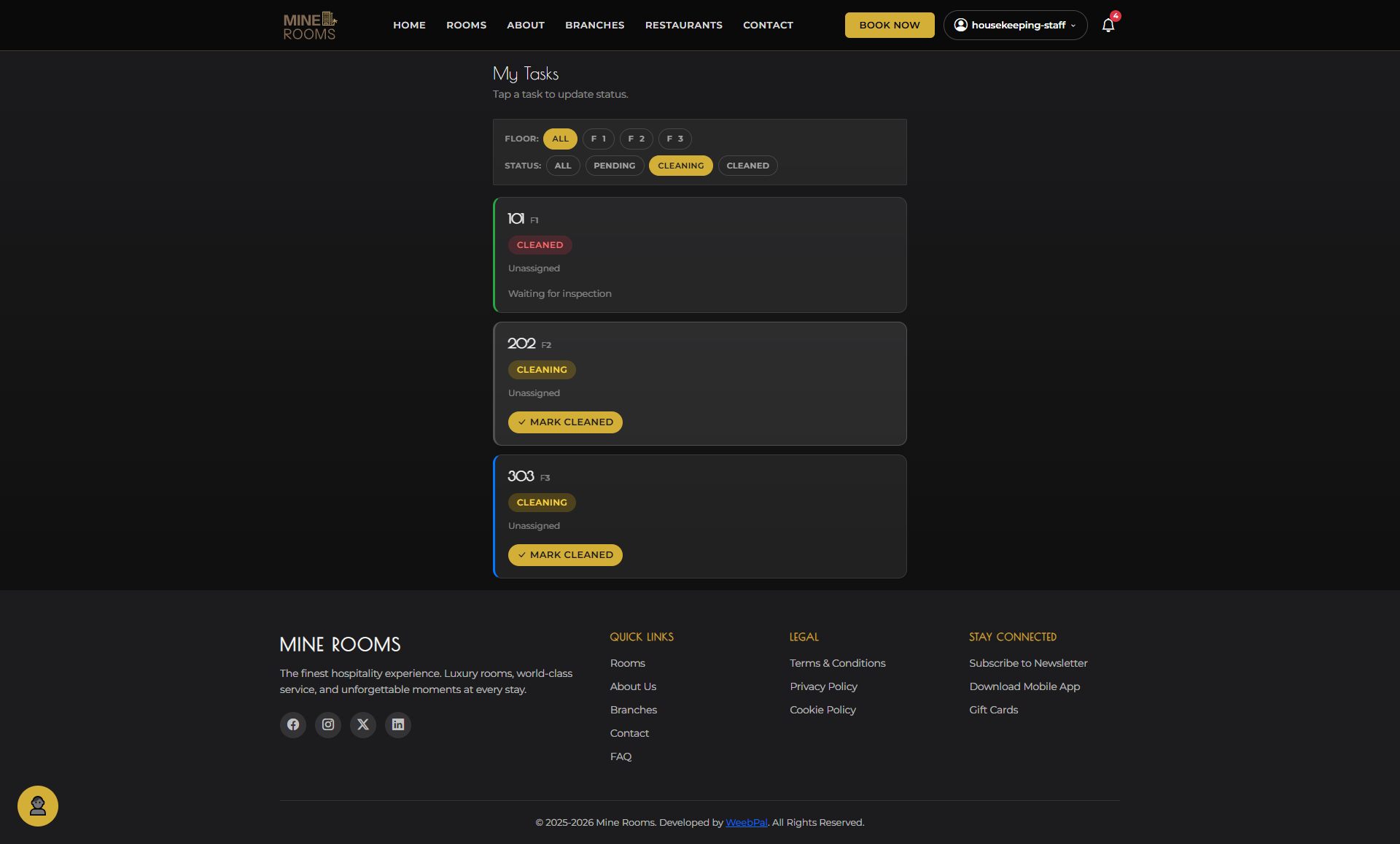
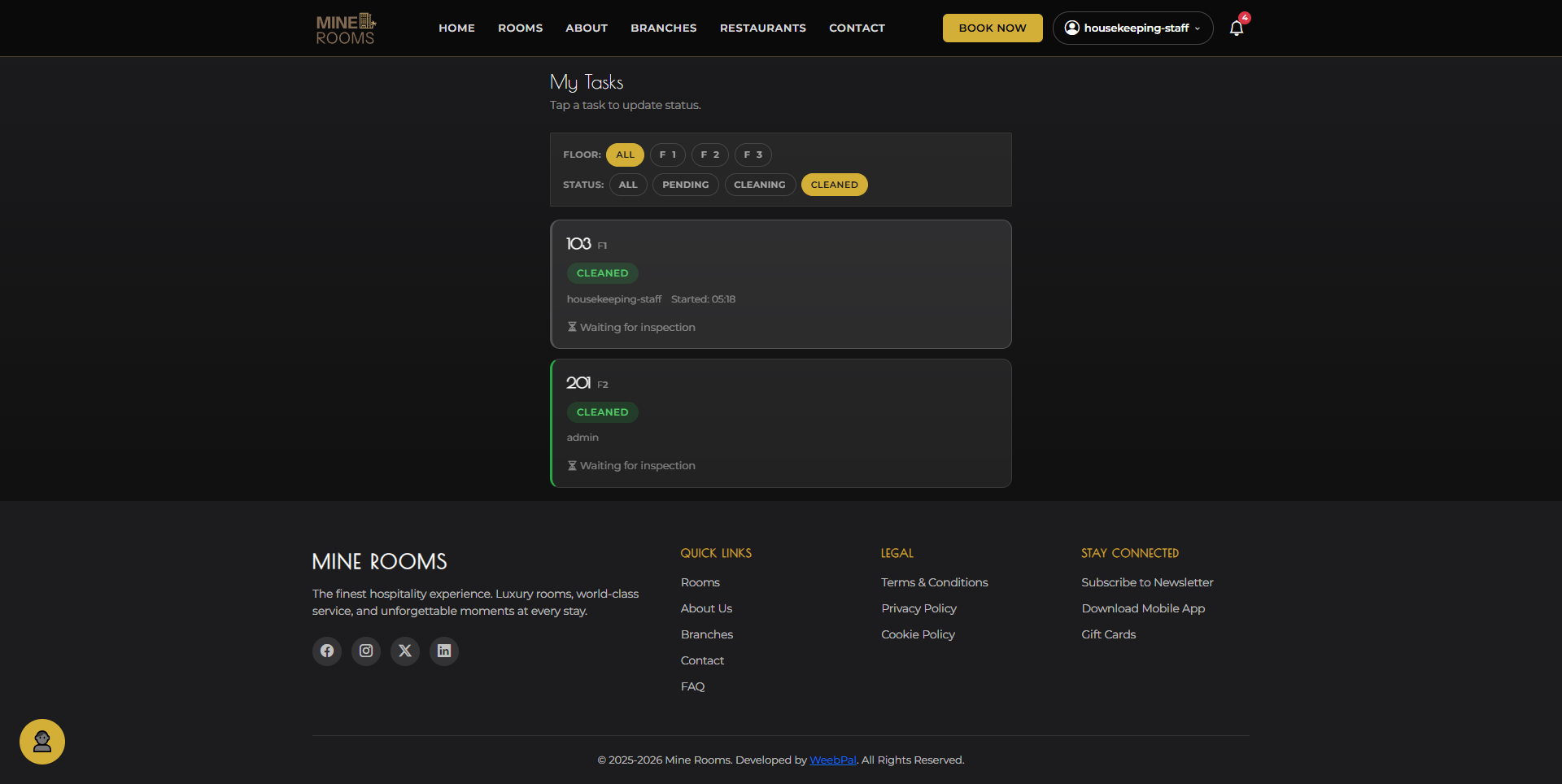
🏆 Cleaned & Confirmed
What it shows: The task board after a room has been marked as cleaned and is waiting for final inspection confirmation.
Navigation: Task Board → Cleaned column
- The card shows Cleaned status with a timestamp.
- The supervisor receives a notification to inspect.
- After inspection passes, the room is marked Available on the Room Board.
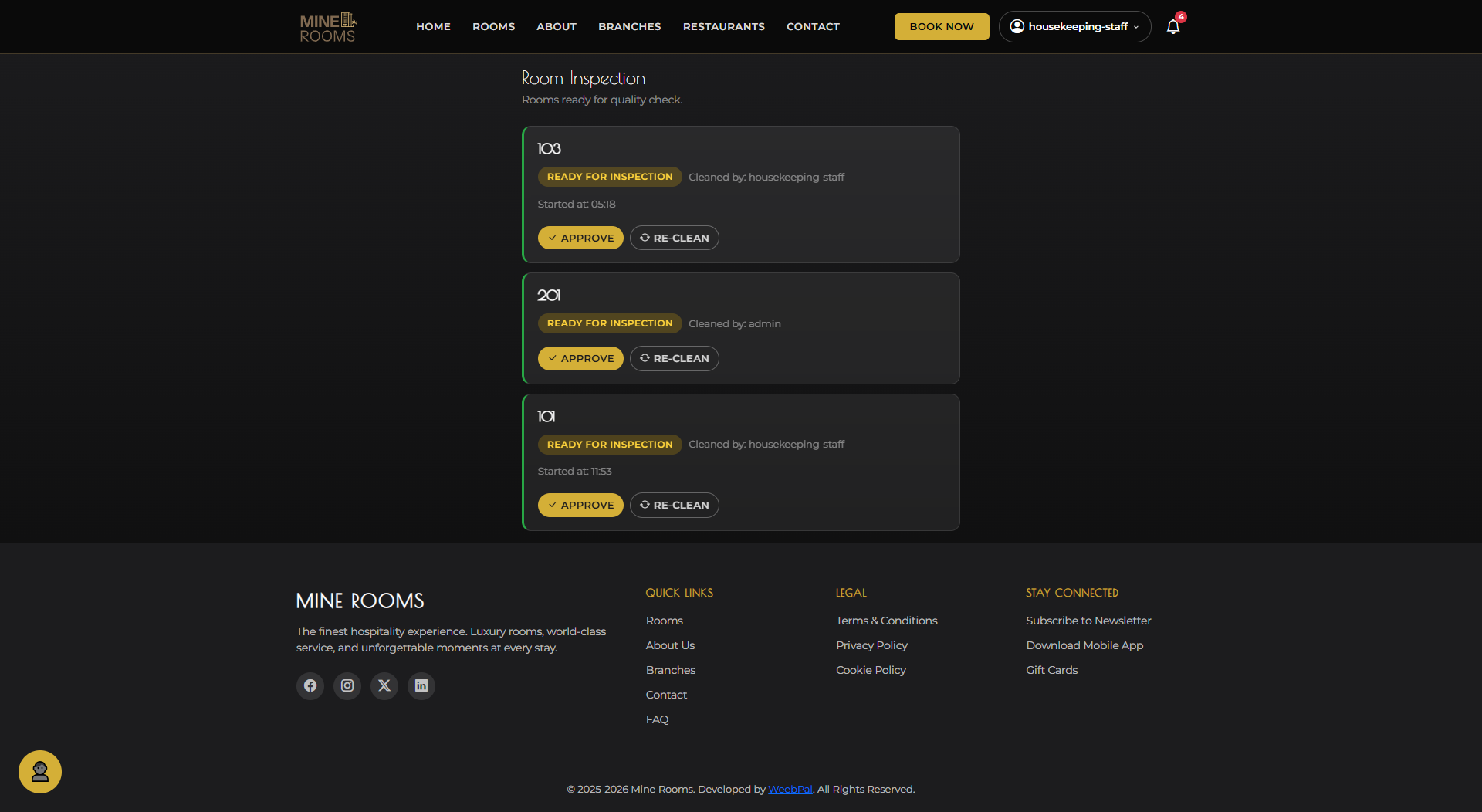
🔍 Inspection
What you can do: Inspect the cleaned room and confirm that it meets quality standards.
Navigation: Task Board → Cleaned task → Inspect
- Inspect: Linen, Bathroom, Amenities, Floor, and Odour.
- Pass: click Approve to make the room Available.
- Fail: click Reject to return the task to Pending.
👤 My Account
What it shows: Your personal account options — accessible from the top-right corner of the management interface.
Navigation: Click your name or avatar (top-right corner)
- My Profile: Update your name and email address
- Change Password: Update your login credentials
- Log Out: End your session securely