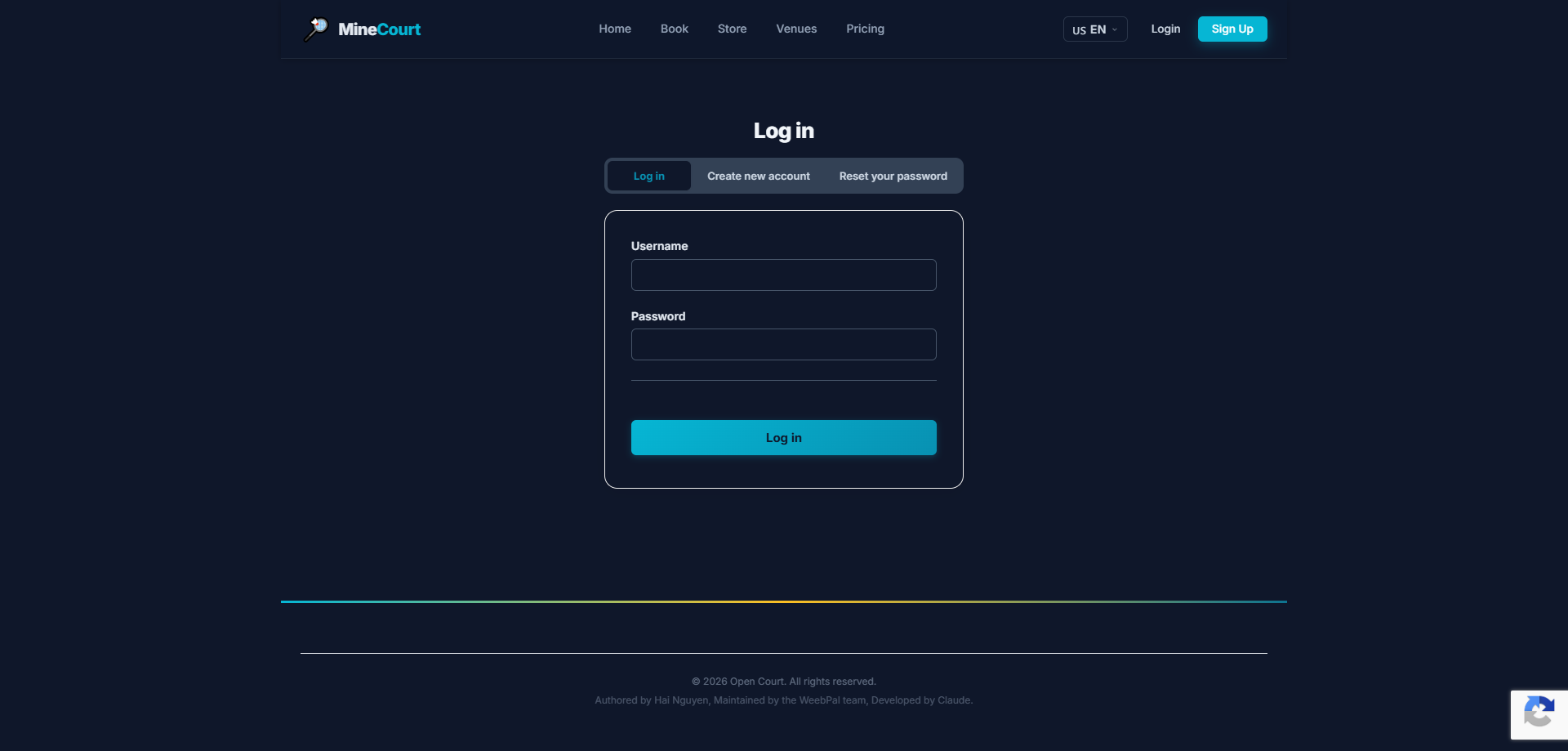
🔑 System Login
What it shows: Access Venue Manager privilege level.
Navigation: Menu → Login
- Demo access: sandbox accounts are issued on request — request a guided demo.
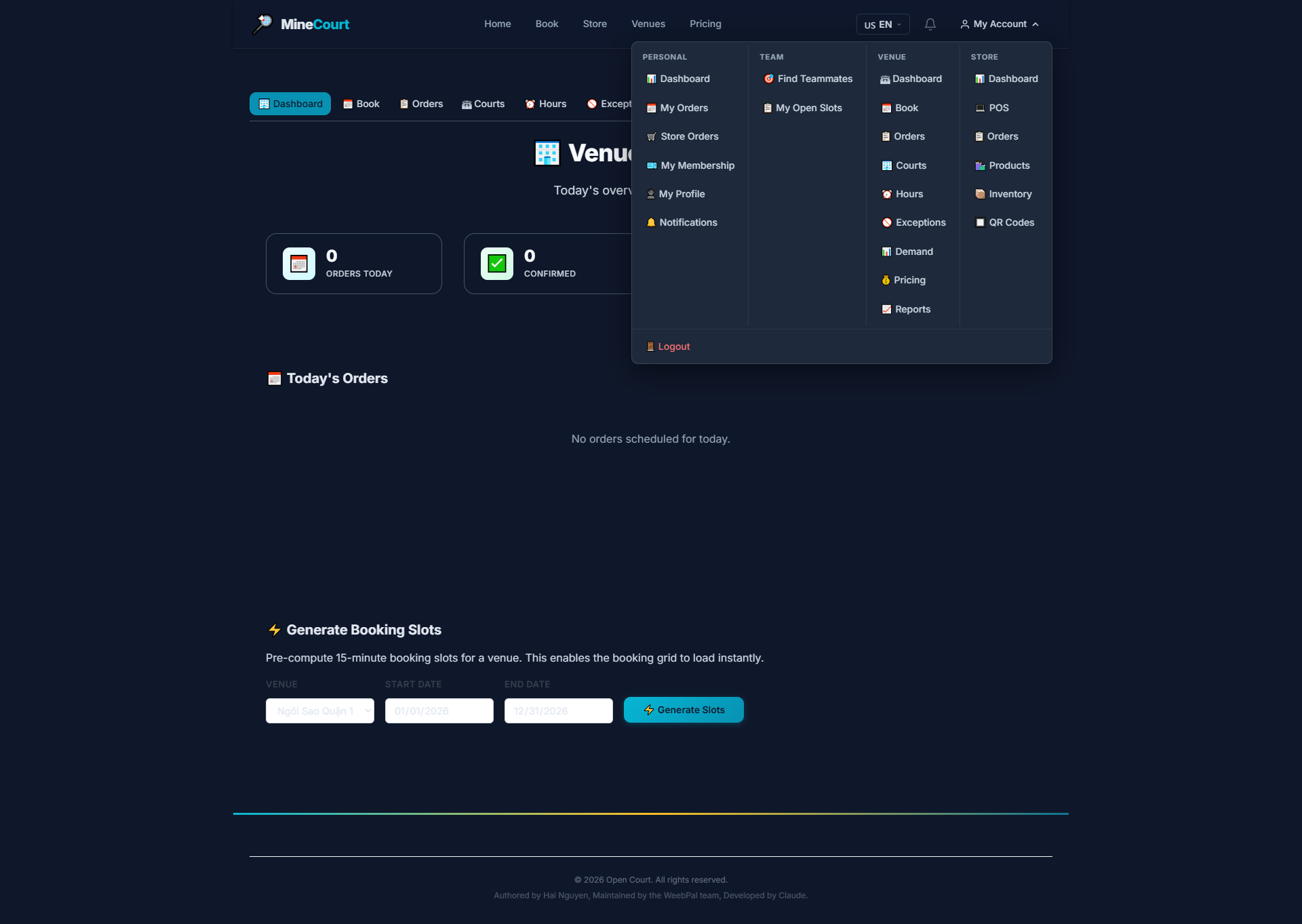
Venue Manager Menu
What it shows: Navigation interface with module selector for Venue and Store sections, plus expandable sidebar showing context-specific sub-menus.
Navigation: Click My Account in the top-right navigation bar.
- Venue Module: Court scheduling, pricing grid, operating hours, and all booking orders
- Store Module: POS interface, inventory management, and add-on service sales
- Smart Submenu: Sidebar expands dynamically based on which module you're in
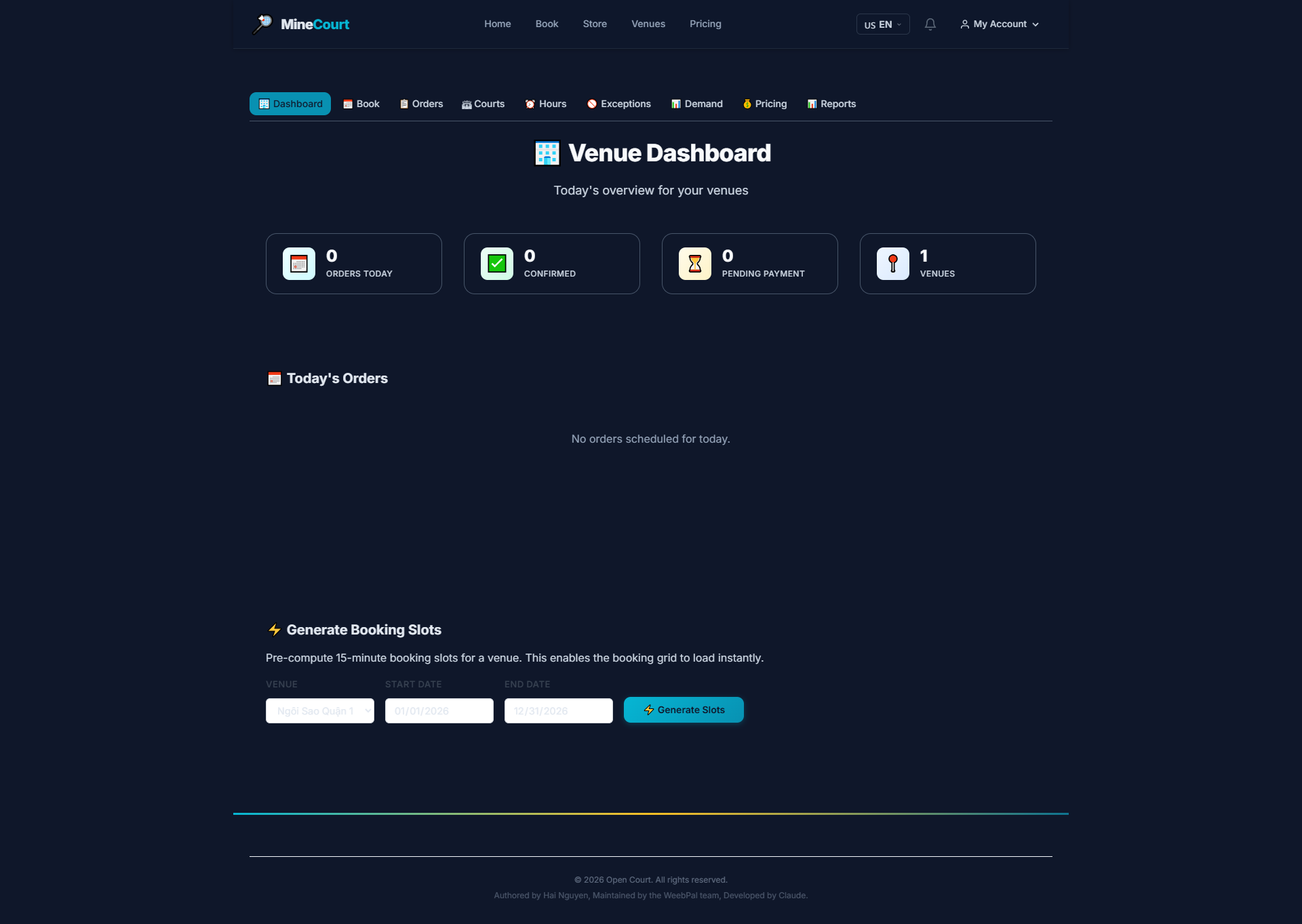
Venue Dashboard
What it shows: Real-time operational overview of the venue for the day.
Navigation: Venue Dashboard (default view after login)
- Live Metrics: Instant stats on total bookings, pending payments, and venue-wide utilization
- Today's Orders Grid: Tracks all players scheduled today so reception can prepare proactively
- Generate Booking Slots: Core engine that publishes available slots to the mobile app — up to 2 years ahead
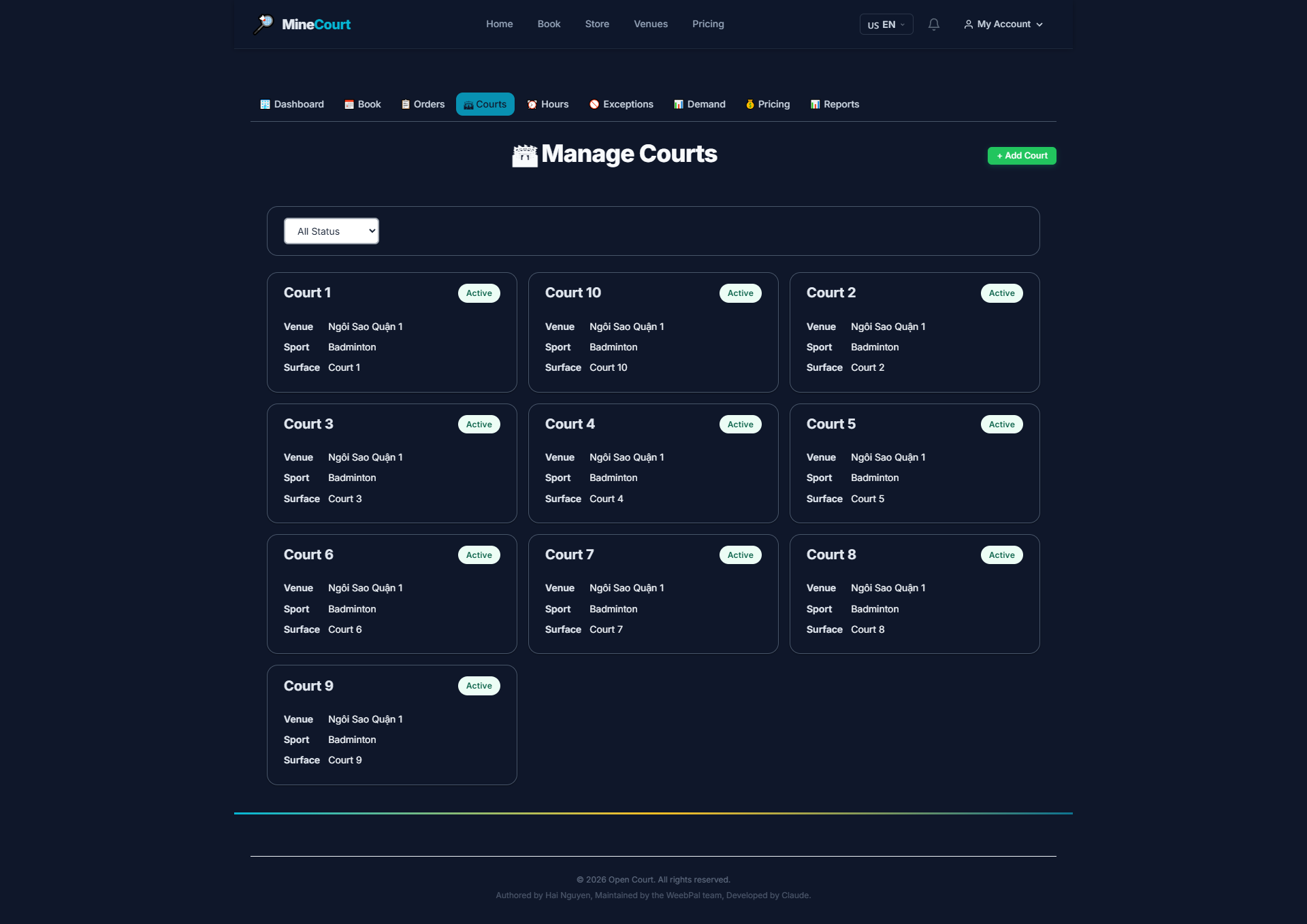
Manage Courts
What it shows: View and manage all physical courts within the venue.
Navigation: Venue module → Courts tab
- Court List: Overview of court name, ID, and surface type
- Active/Inactive Toggle: Instantly hide or show a specific court from the booking app
- Maintenance: Use Update to refresh court specifications and keep records current
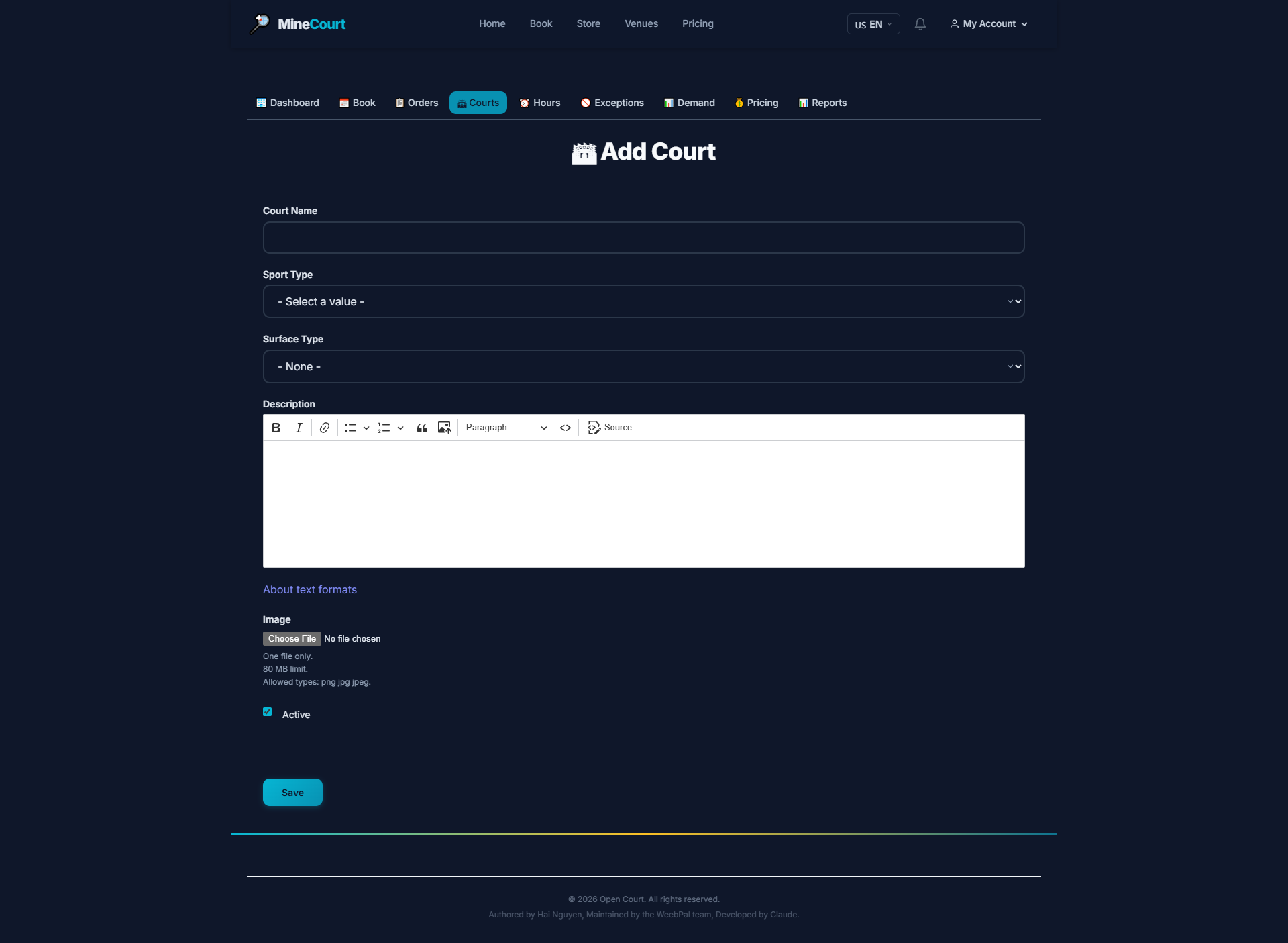
Add Court
What it shows: Register a new physical court into the venue's management system.
Navigation: Manage Courts page → Add Court
- Surface Type: Assign the correct floor material (Wood, Rubber) for proper footwear compatibility
- Venue Link: Attach the new court to the correct parent Venue
- Activate: Toggling Active immediately syncs the court with the pricing and scheduling engine
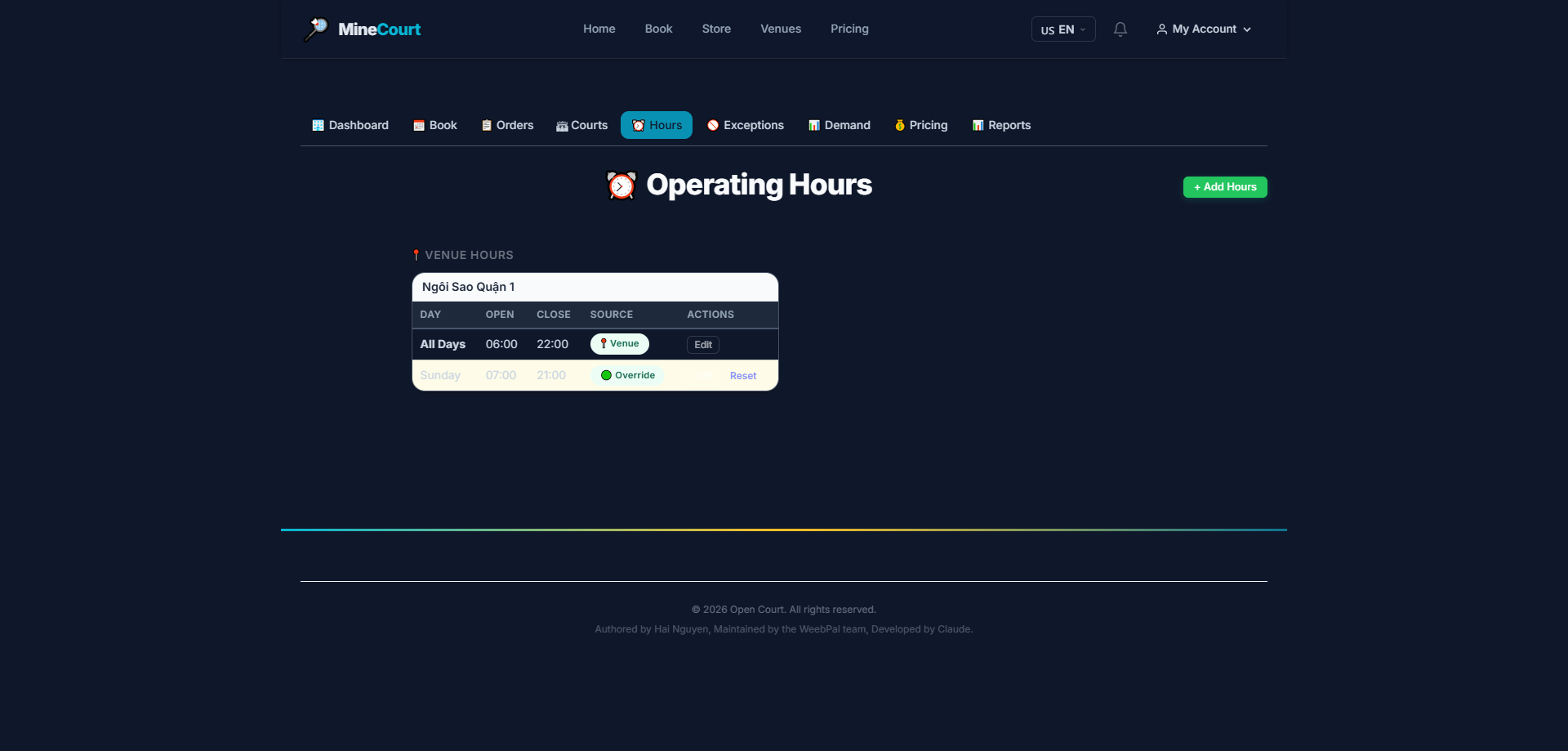
Operating Hours
What it shows: View the venue's configured open and close hours.
Navigation: Venue module → Operating Hours tab
- Displays open/close times for each day of the week
- Distinguishes Weekday and Weekend schedules
- Click Add to create new operating hours
- Click Edit to modify existing schedules
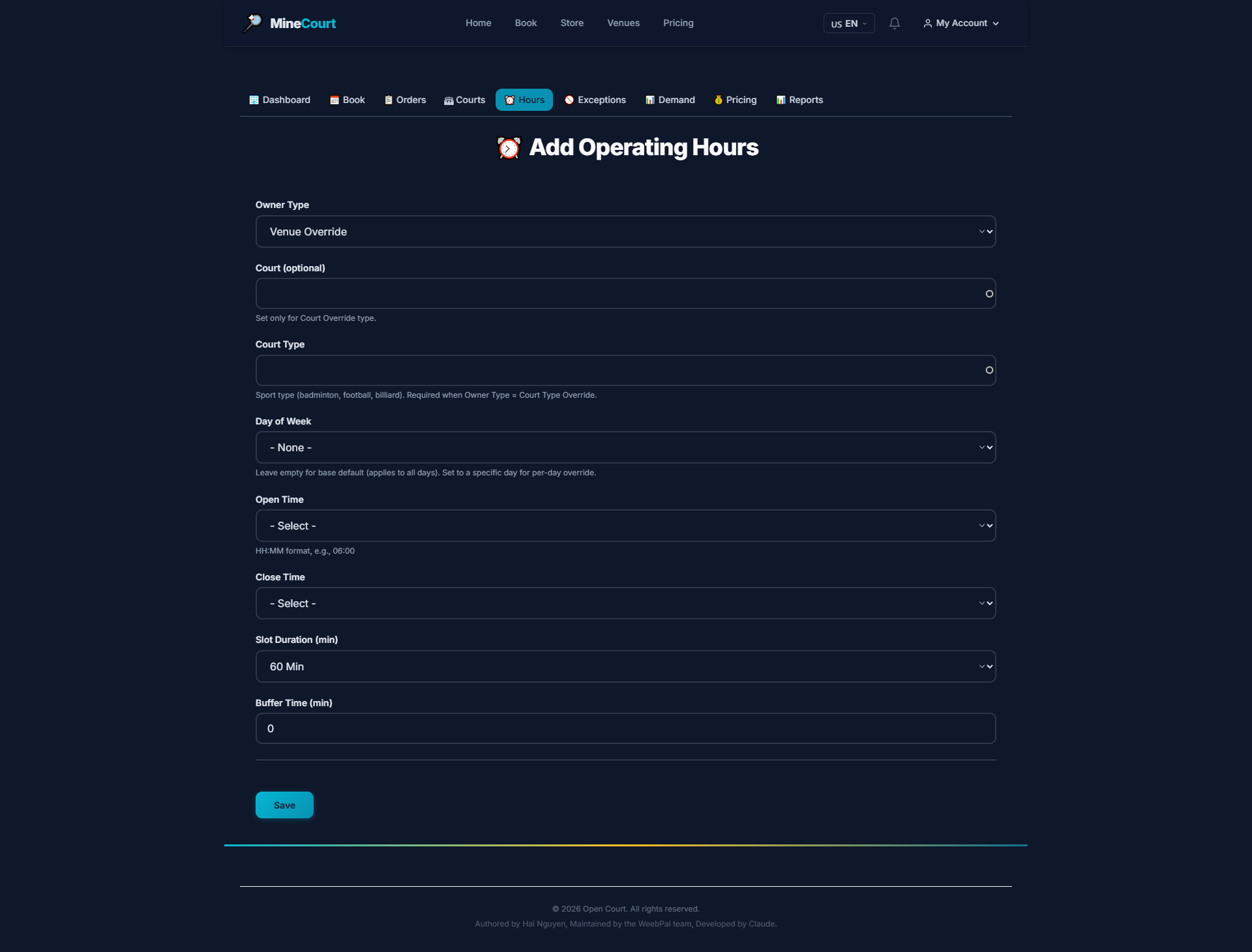
Add Operating Hours
What it shows: Configure opening hours for specific days or grouped days.
Navigation: Hours tab → Add
- Select the Venue to apply
- Select days of the week (Mon—Sun)
- Enter Open Time and Close Time
- Click Save
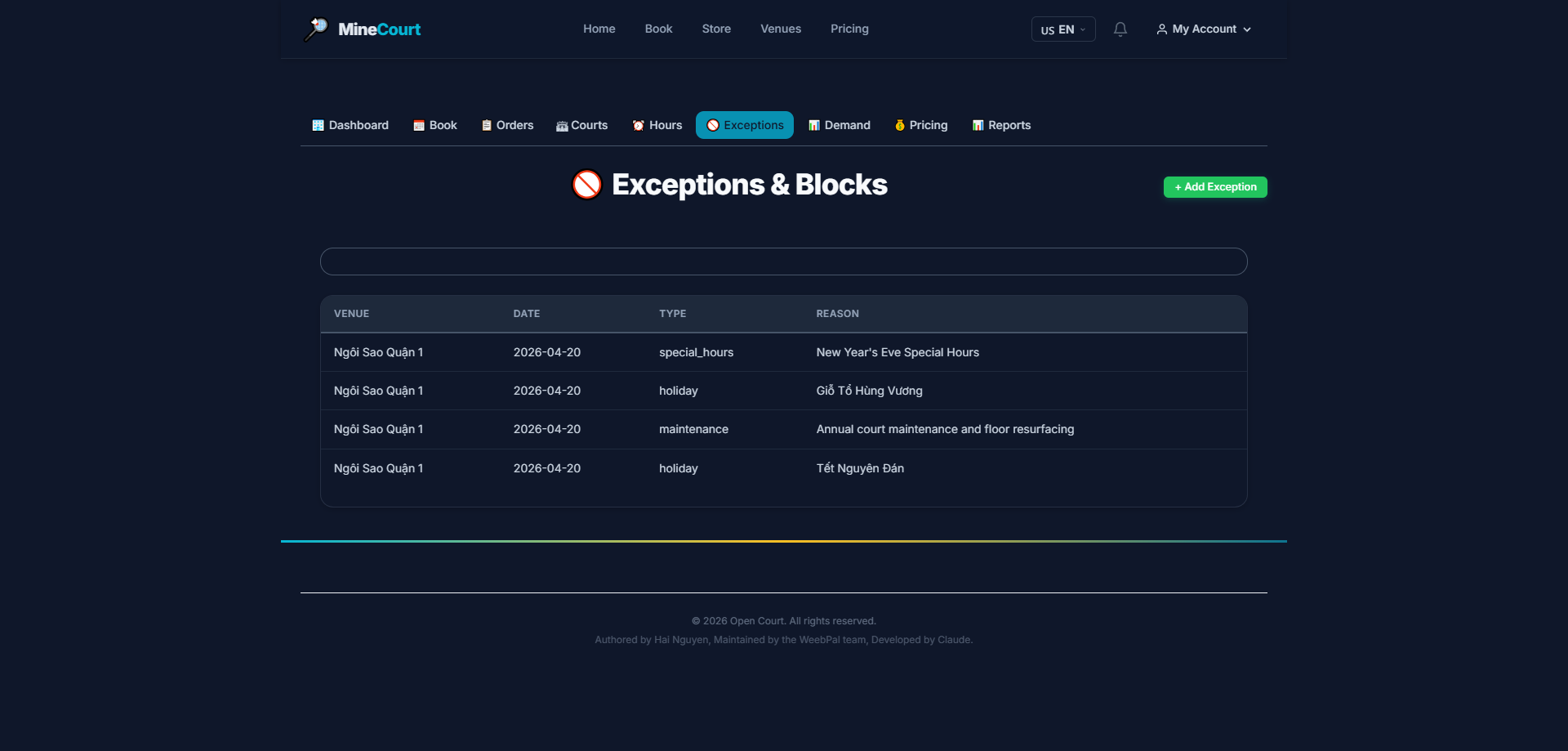
Exceptions & Blocks
What it shows: View the list of exception days (holidays, maintenance closures...).
Navigation: Dashboard → Exceptions tab
- Exception list: name, date range, exception type
- Day Off status means the venue is fully closed on that date
- Click Add Exception to create a new entry
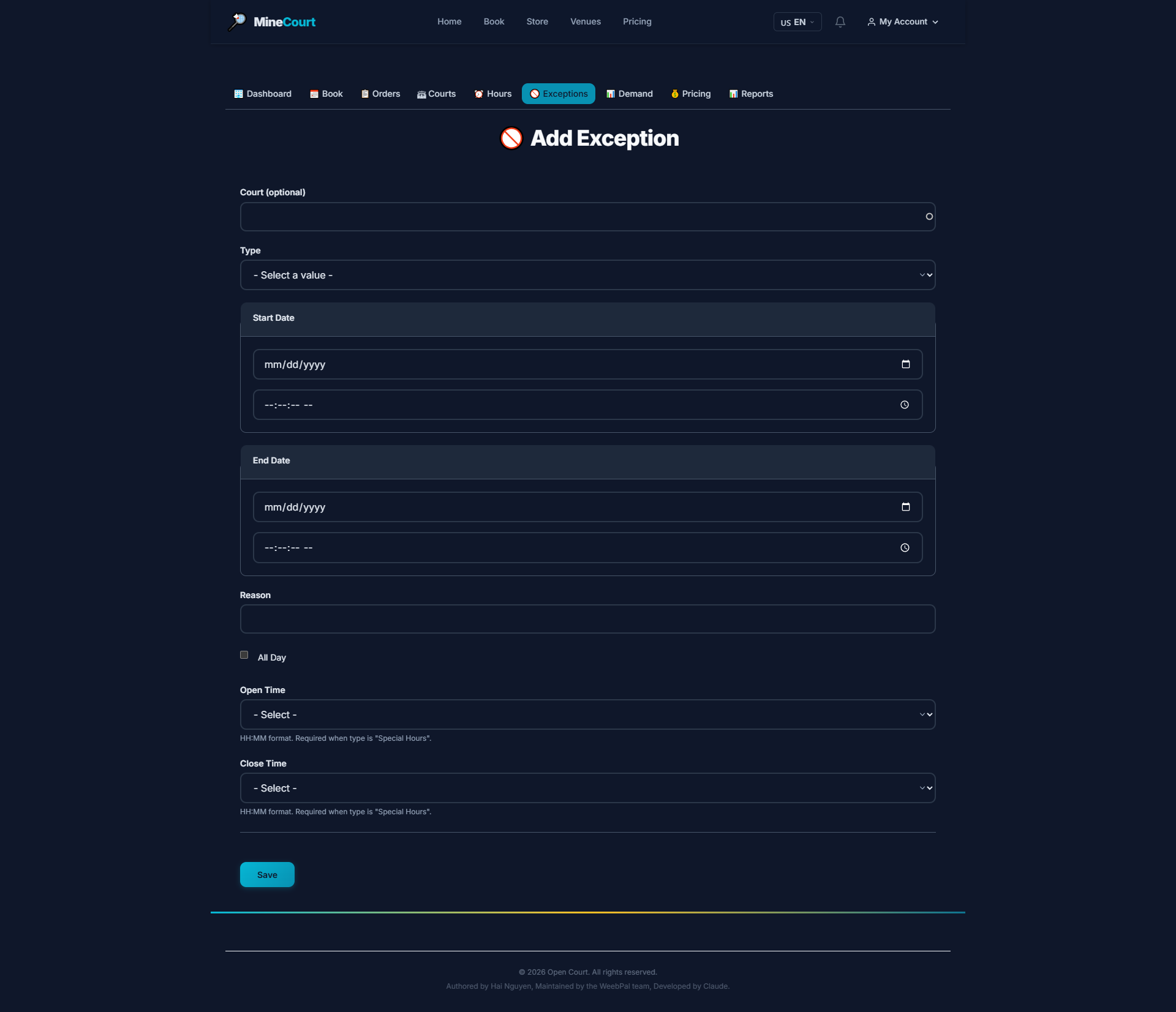
Add Exception
What it shows: Configure a closure or special-pricing override for a specific date range.
Navigation: Exceptions tab → Add Exception
- Enter exception Name (e.g., Maintenance, National Holiday)
- Select date range: Start Date → End Date
- Check Day Off for a full closure on those dates
- Or enter override hours if only changing opening time
- Click Save
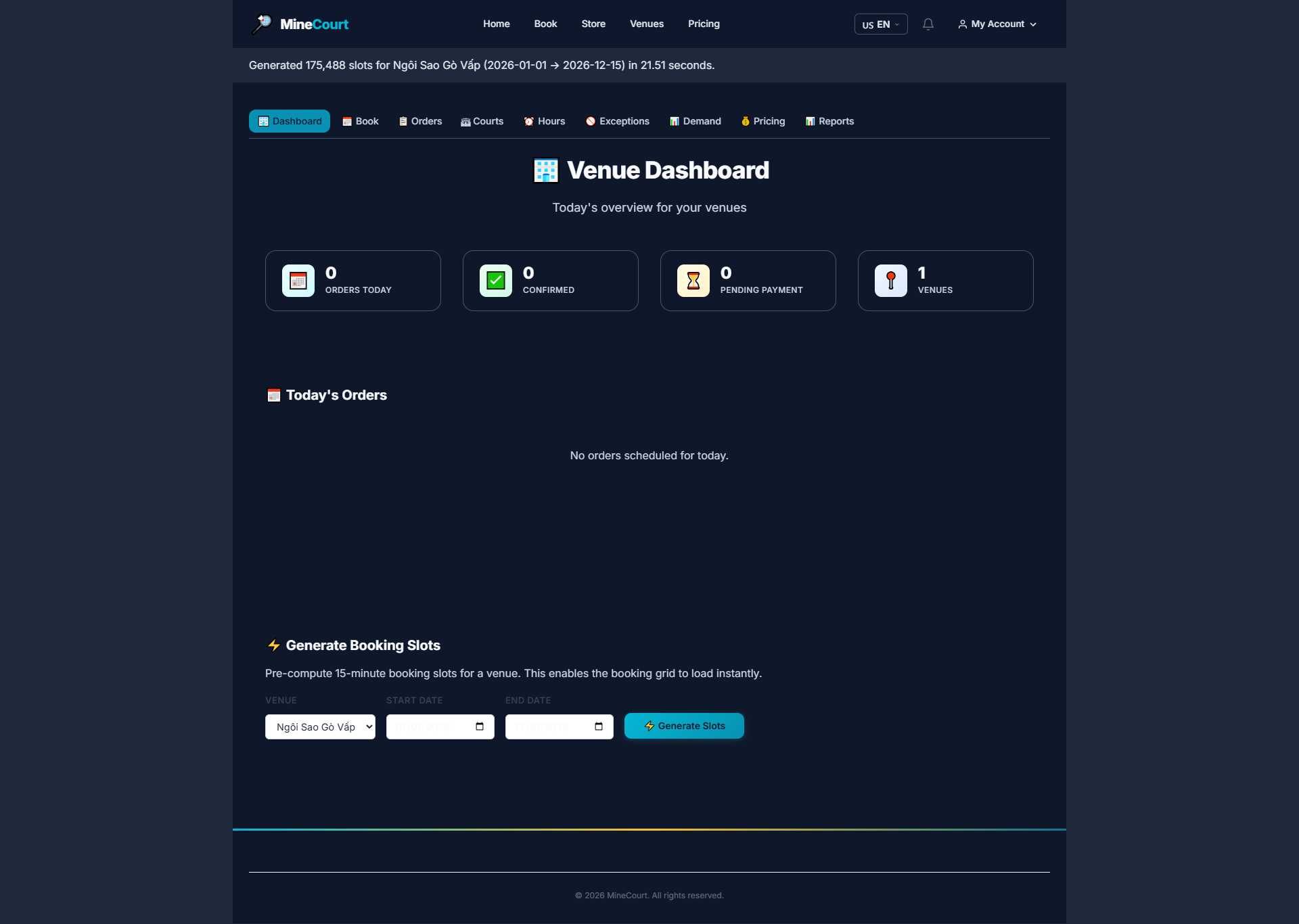
Generate Booking Slots
What it shows: Pre-generate available time slots so customers can book by date.
Navigation: Venue Dashboard → Generate Booking Slots section
- Select the Venue to generate for
- Select Start Date and End Date (up to 2 years ahead)
- Click Generate Slots — system auto-creates slots based on Operating Hours
- Slots that conflict with existing bookings will not be deleted, only flagged with a warning
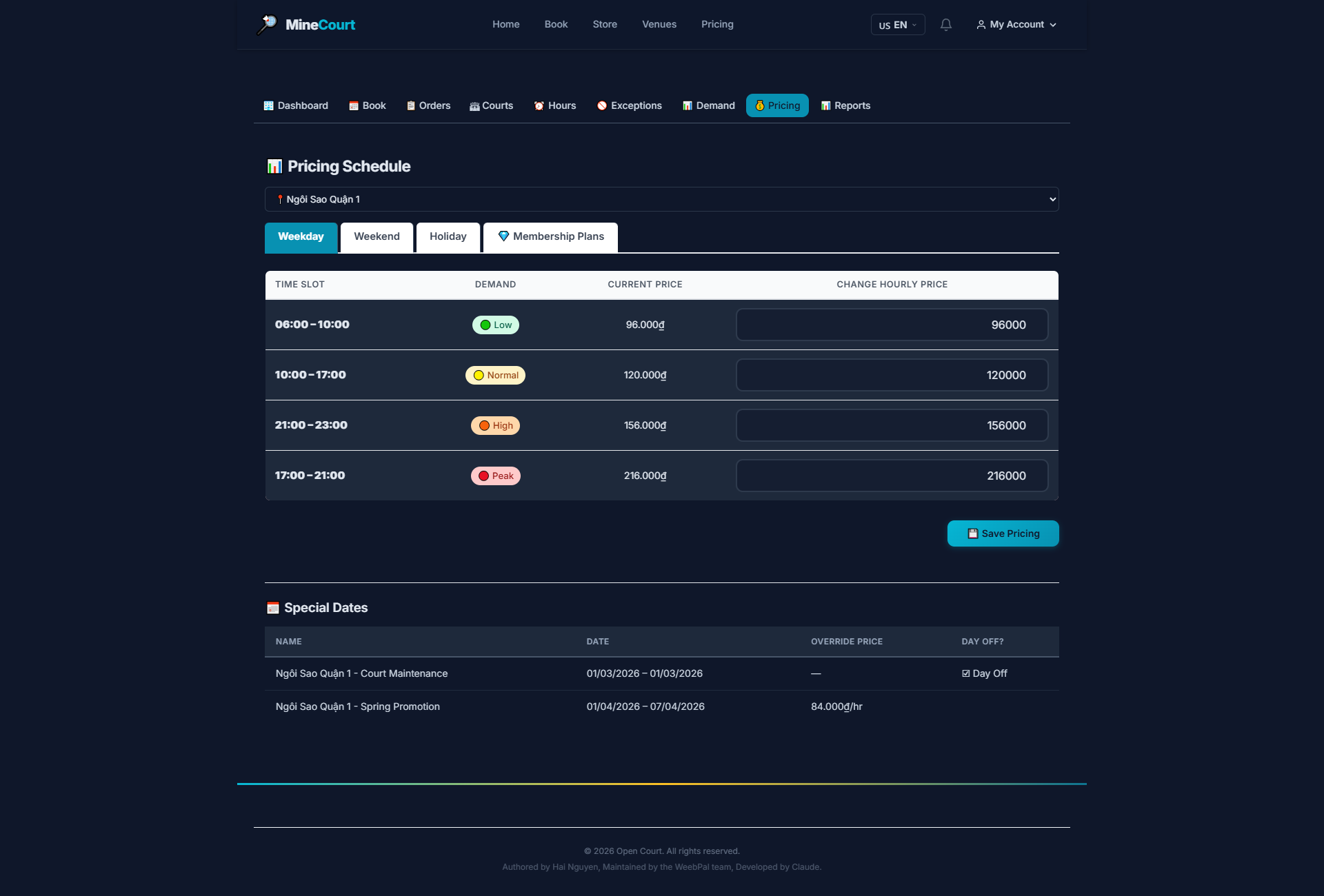
Weekday Pricing
What it shows: Configure hourly court rates for weekdays.
Navigation: Venue module → Pricing → Weekday tab
- 4 demand tiers: Low, Normal, High, Peak
- Enter new prices in the Change Hourly Price fields
- View and manage Special Dates below the pricing grid
- Click Save Pricing to apply changes
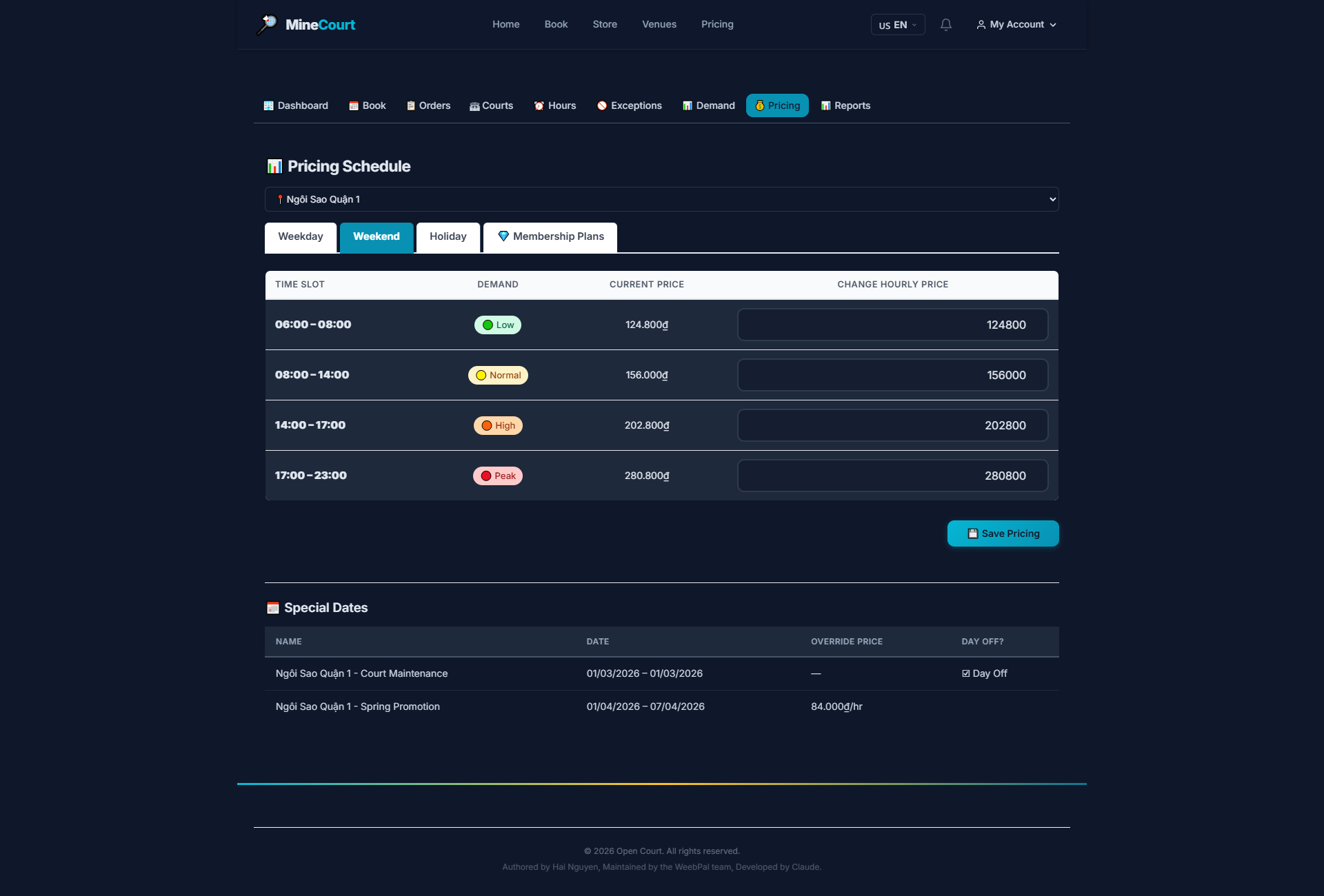
Weekend Pricing
What it shows: Set separate pricing for Saturdays and Sundays.
Navigation: Venue module → Pricing → Weekend tab
- Same structure as Weekday pricing
- Typically set higher due to elevated weekend demand
- Click Save Pricing after adjusting
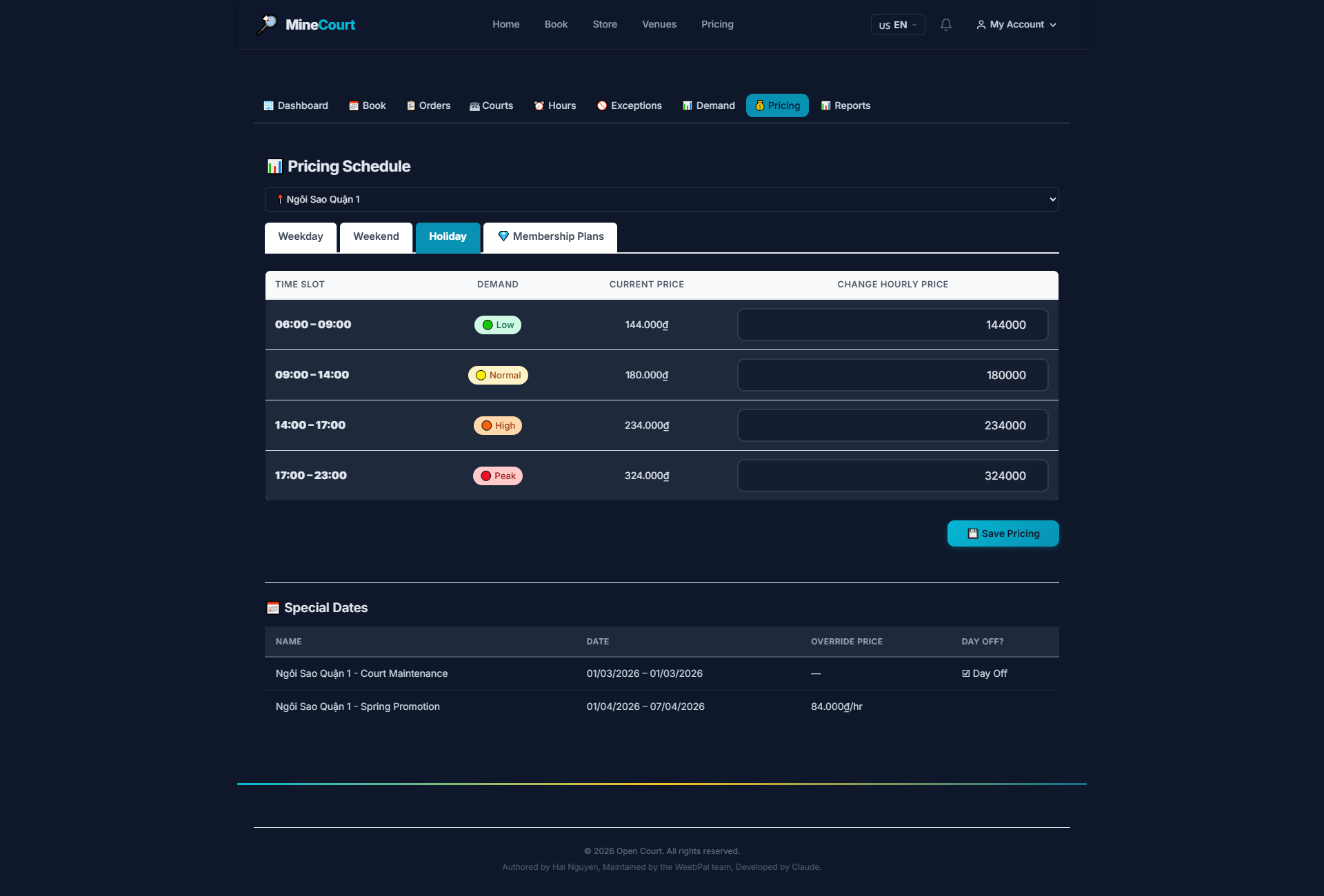
Holiday Pricing
What it shows: Set special pricing for designated holiday dates.
Navigation: Venue module → Pricing → Holiday tab
- Applies to dates flagged as Holiday in the system
- Can be set higher or lower depending on venue policy
- Click Save Pricing to save
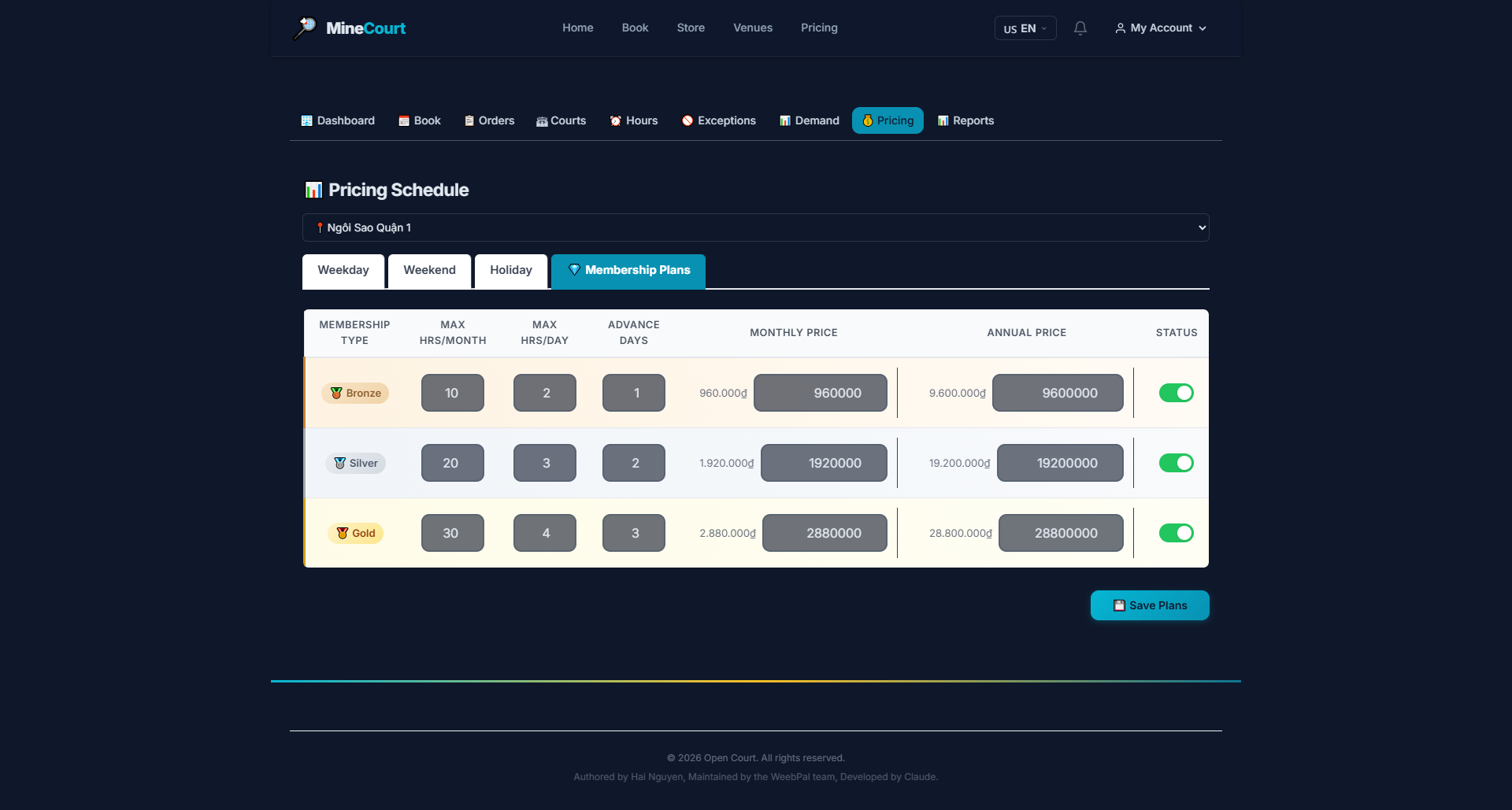
Membership Pricing
What it shows: View and configure discounted rates for Membership holders.
Navigation: Venue module → Pricing → Membership Plans tab
- List of Membership plans with their respective rates
- Each plan shows: name, monthly price, session quota, booking priority
- Click Edit to adjust terms of any plan
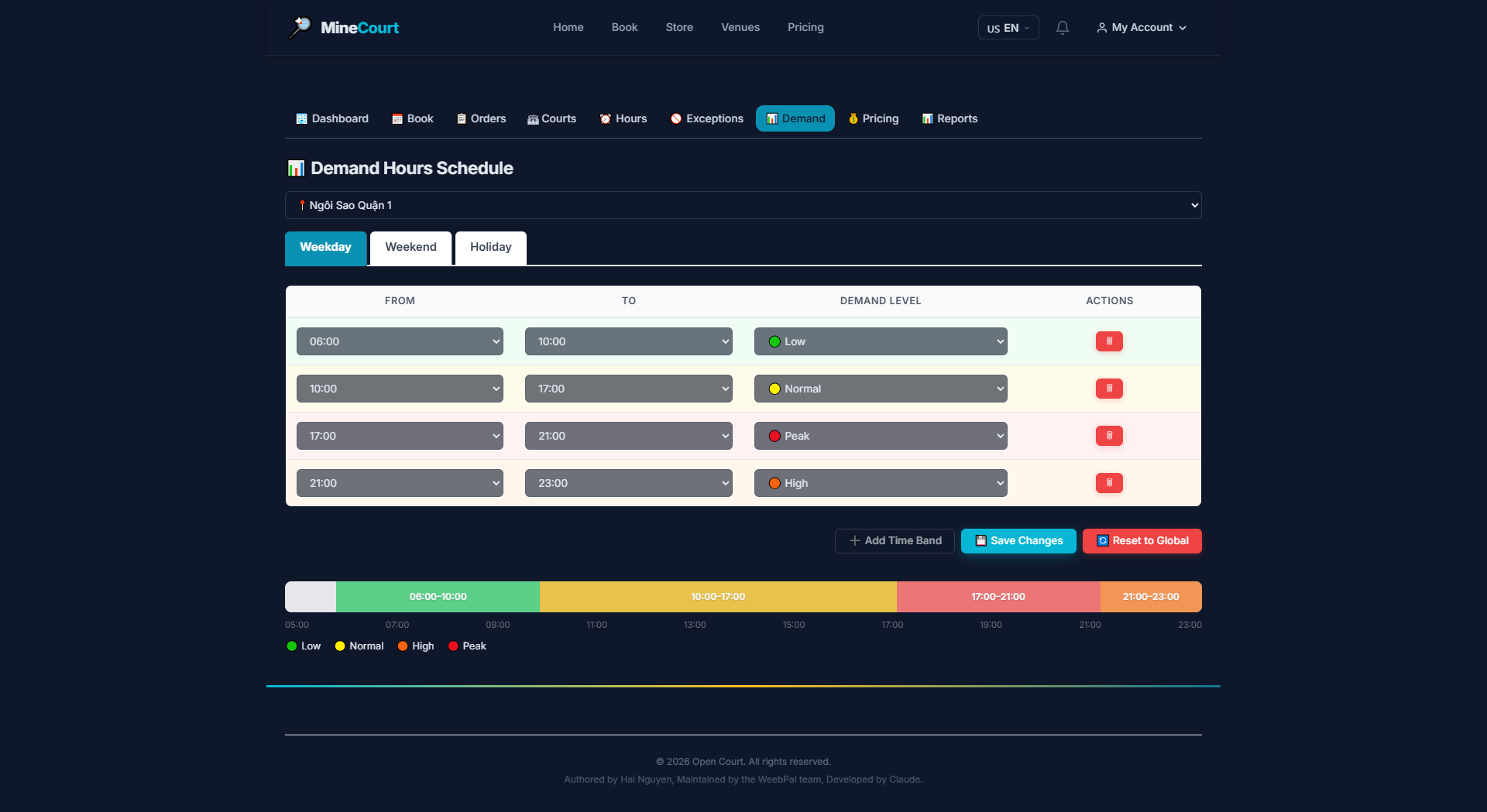
Demand Hours — Weekday
What it shows: Configure demand level by time block for weekdays.
Navigation: Venue module → Demand Hours → Weekday tab
- Assign each time block to one of 4 demand levels: Low, Normal, High, Peak
- Demand level directly determines which price tier is shown on the booking grid
- Drag handles or enter times to adjust zone boundaries
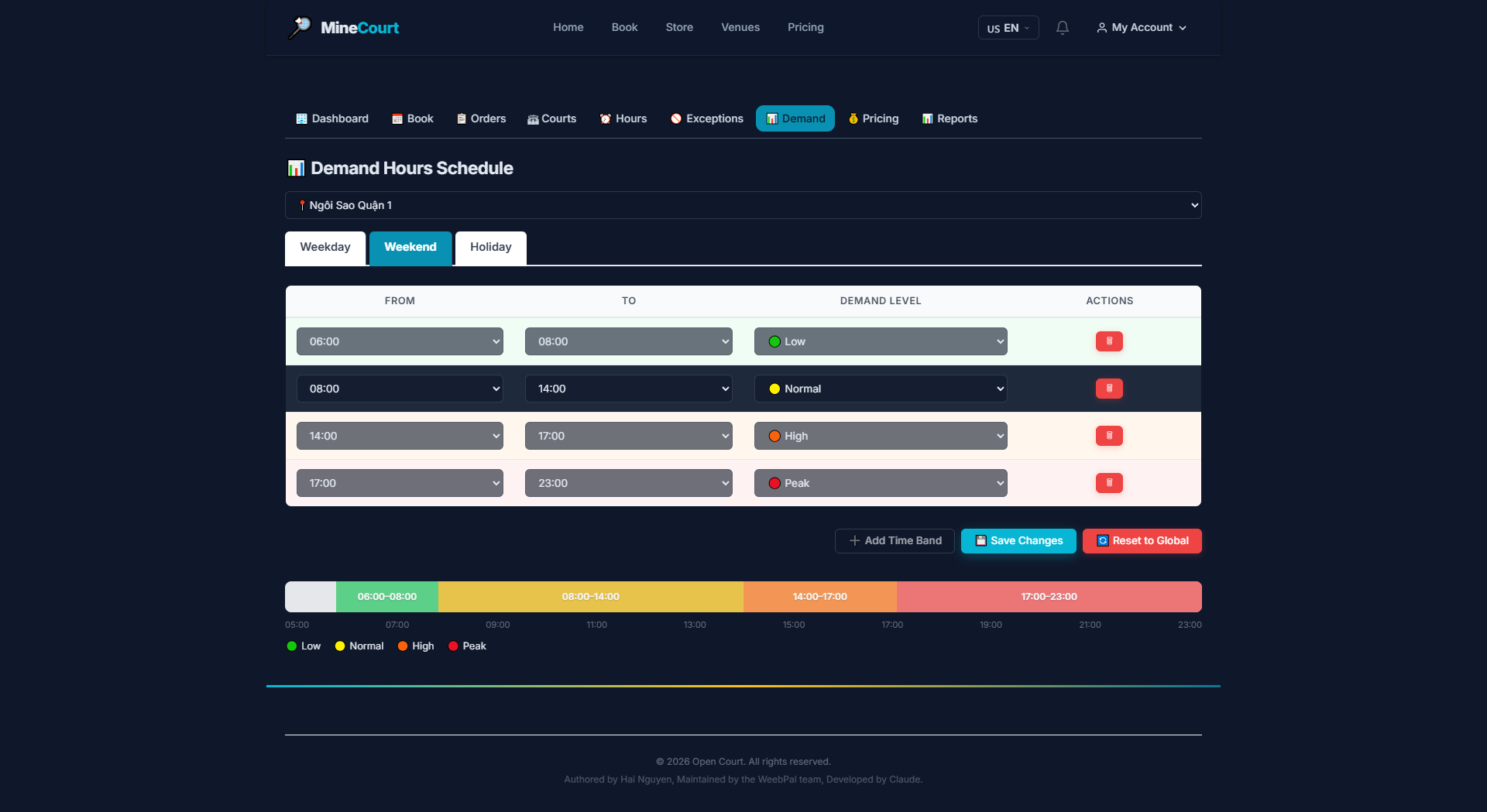
Demand Hours — Weekend
What it shows: Configure demand level by time block for weekends.
Navigation: Venue module → Demand Hours → Weekend tab
- Same structure as Weekday demand configuration
- Weekends typically have earlier Peak windows (morning and early evening)
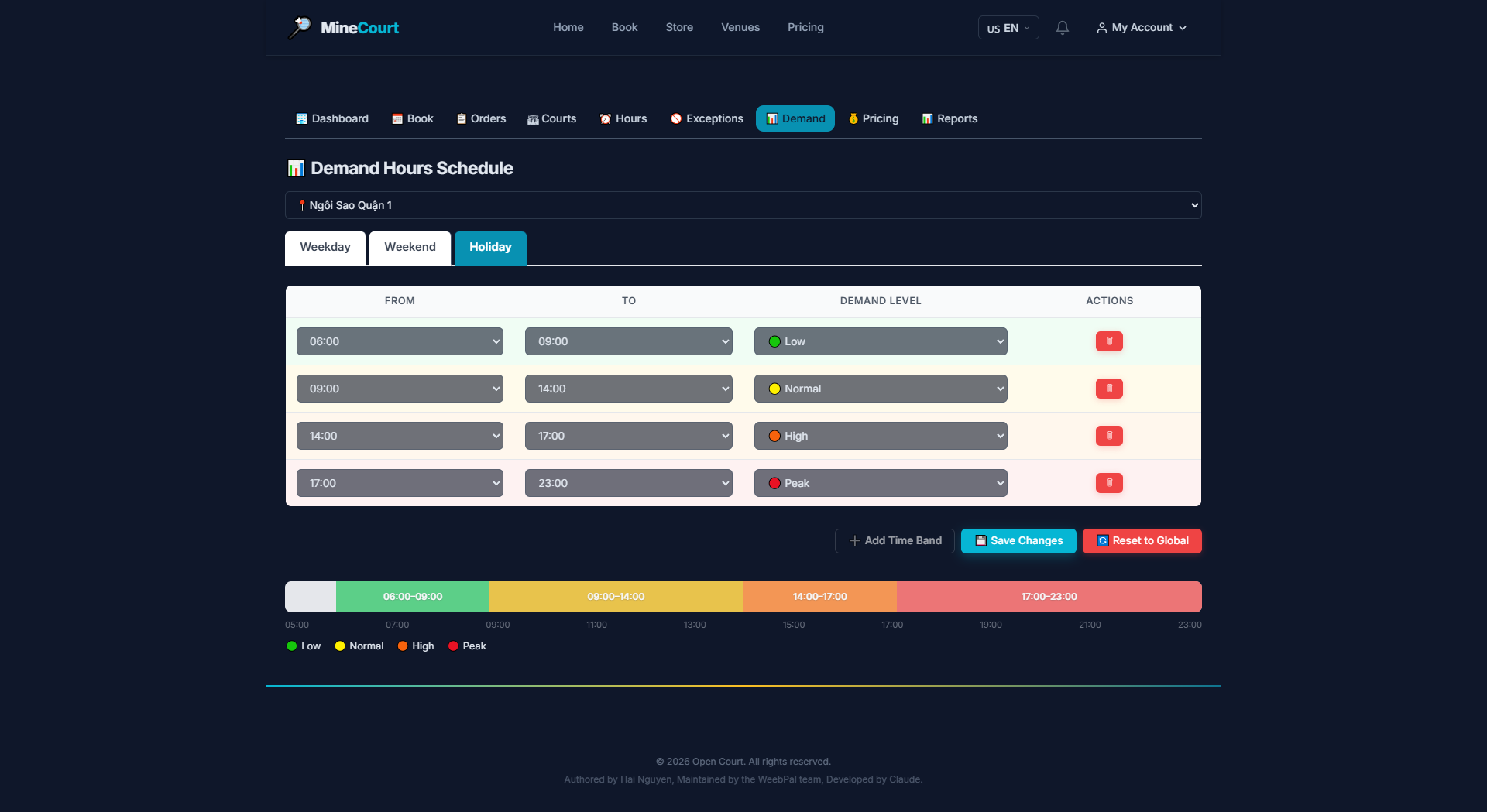
Demand Hours — Holiday
What it shows: Configure demand level per time block for holiday dates.
Navigation: Venue module → Demand Hours → Holiday tab
- Applies when booking date falls on a configured Holiday
- Holidays typically require a Full-Day Peak configuration
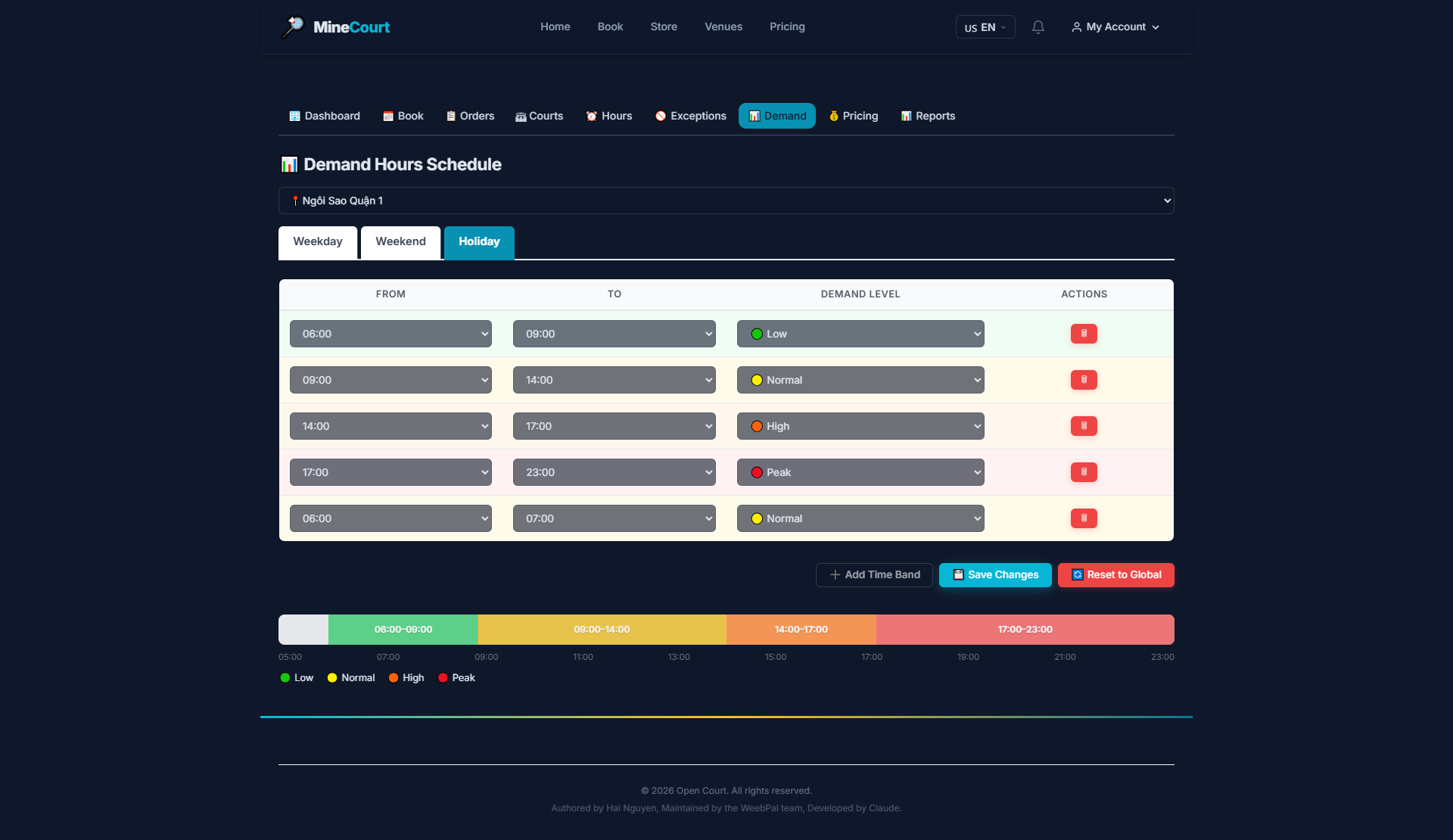
Add Time Range
What it shows: Add a custom time range entry to the demand hours schedule.
Navigation: Pricing → Demand Hours tab → Add Time Range button
- Set the Start Time and End Time for the new range
- Assign a demand level: Low, Normal, High, or Peak
- Applied to the currently selected day type (Weekday / Weekend / Holiday)
- Click Save to add the range to the schedule
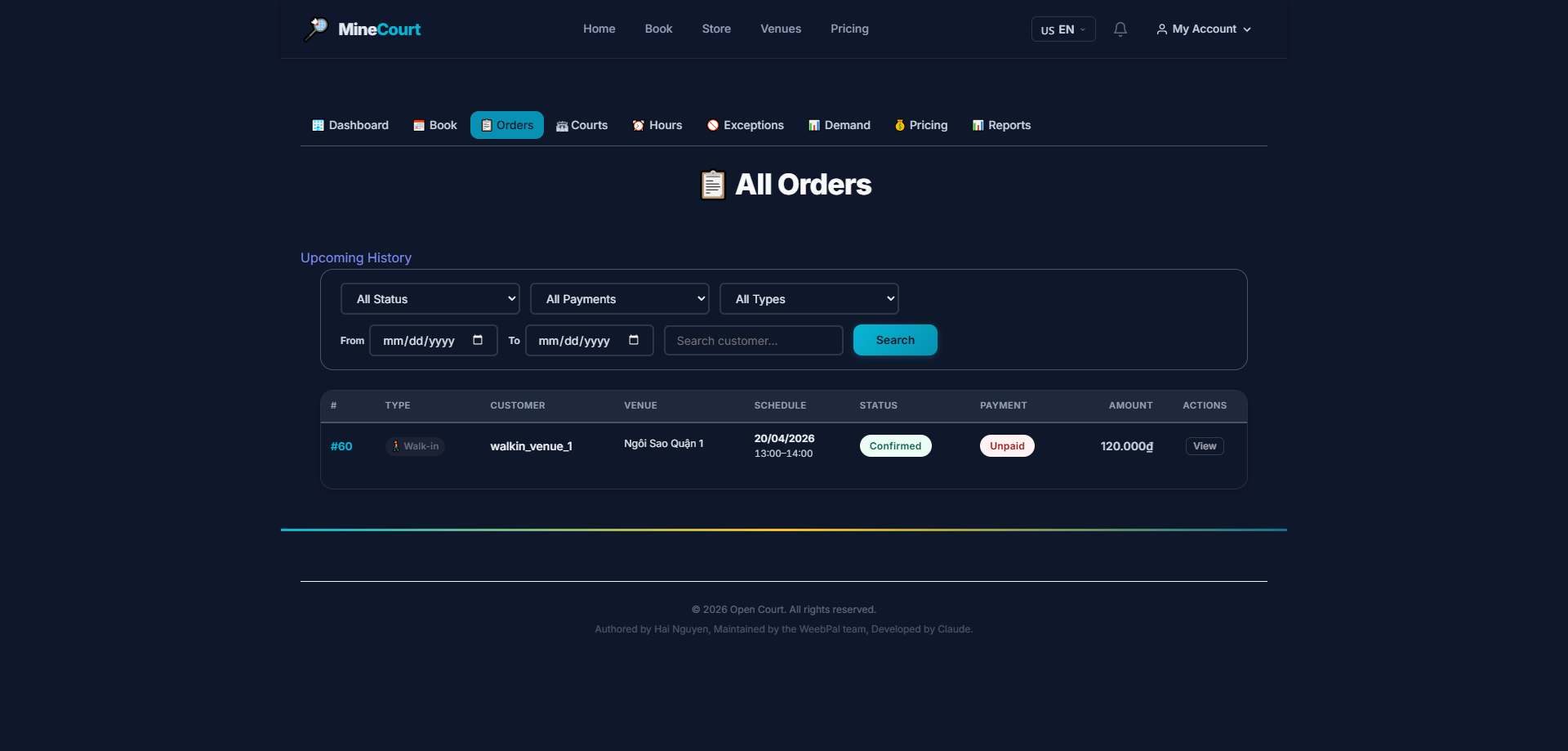
All Orders
What it shows: View all court booking orders for the venue.
Navigation: Venue module → Bookings tab
- Filter by: date, status, specific court
- Each order shows: customer, court, time slot, price, status
- Statuses: Confirmed, Completed, Cancelled, Pending
- Click any order to view full details
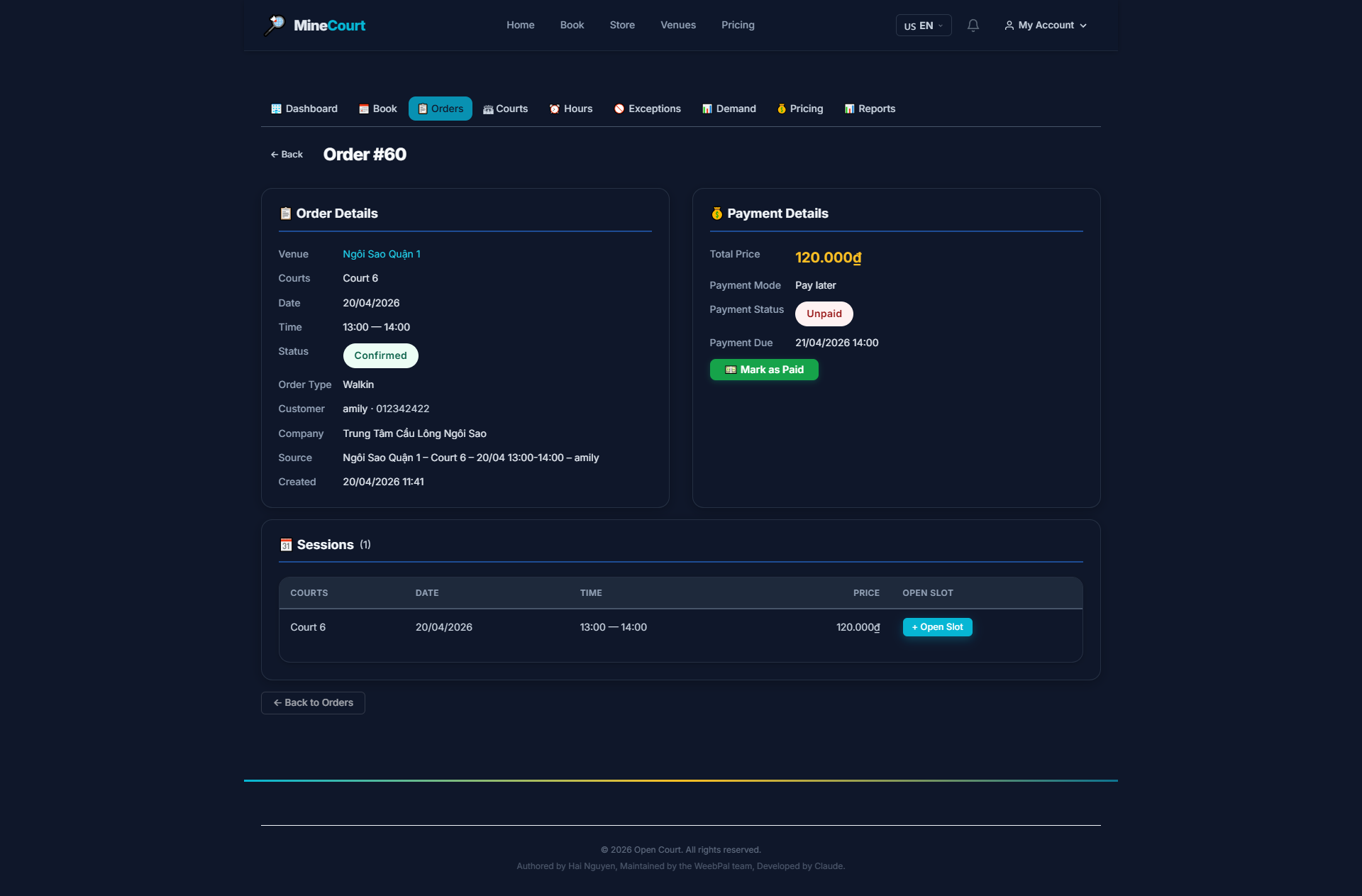
Order Detail
What it shows: View complete information for a specific booking order.
Navigation: Click any order in the Orders list
- Full details: customer, court, date/time, price, status
- Payment history and confirmation status
- Actions: Confirm, Cancel, Print Receipt
Staff Booking
What it shows: Staff creates a booking on behalf of a walk-in customer.
Navigation: Book tab in the Venue menu
- Select court, date, and available time slot from the grid
- Enter customer info (name, phone number)
- Choose payment method: Cash, Transfer, or Membership
- Click Confirm Booking to finalize
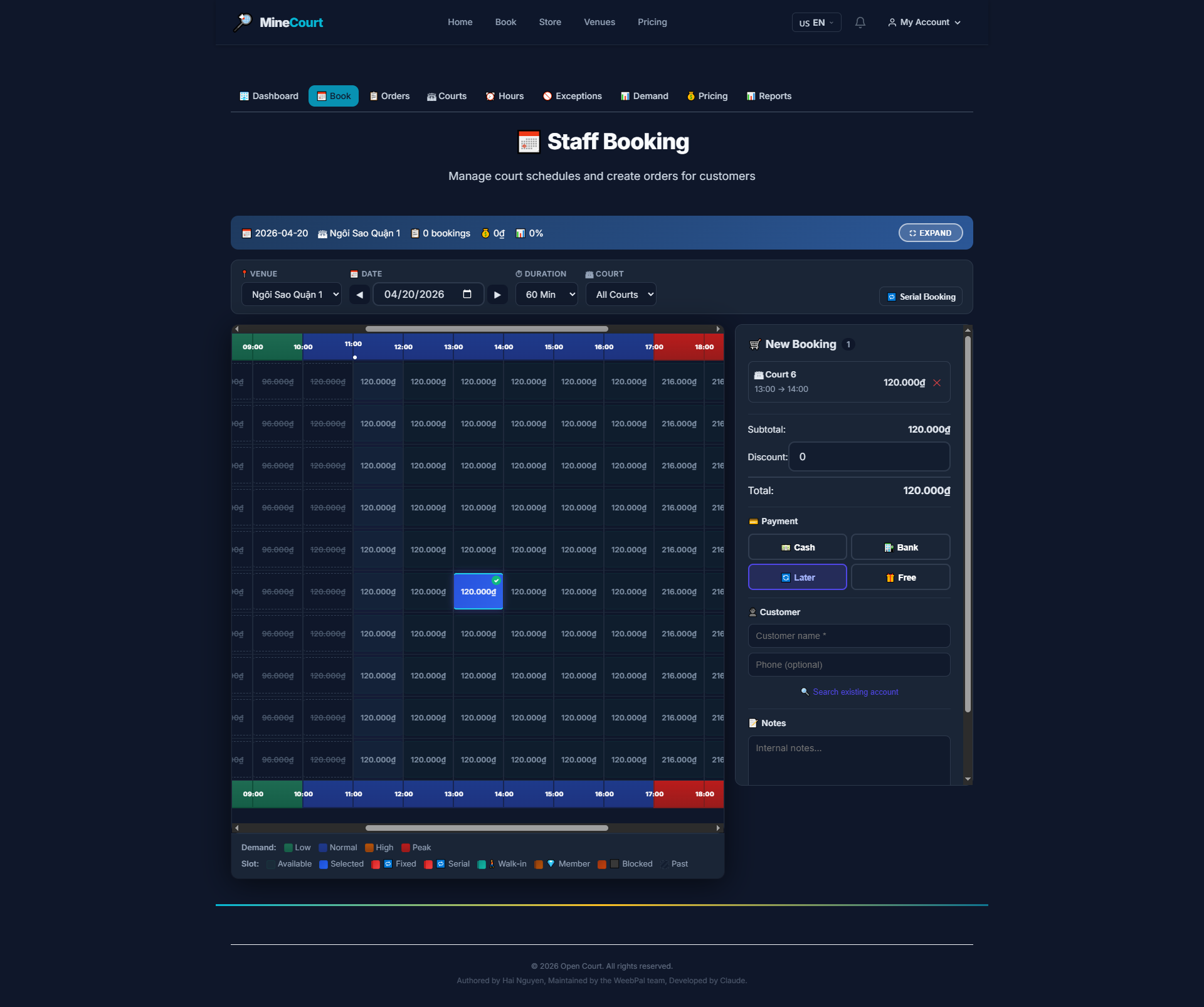
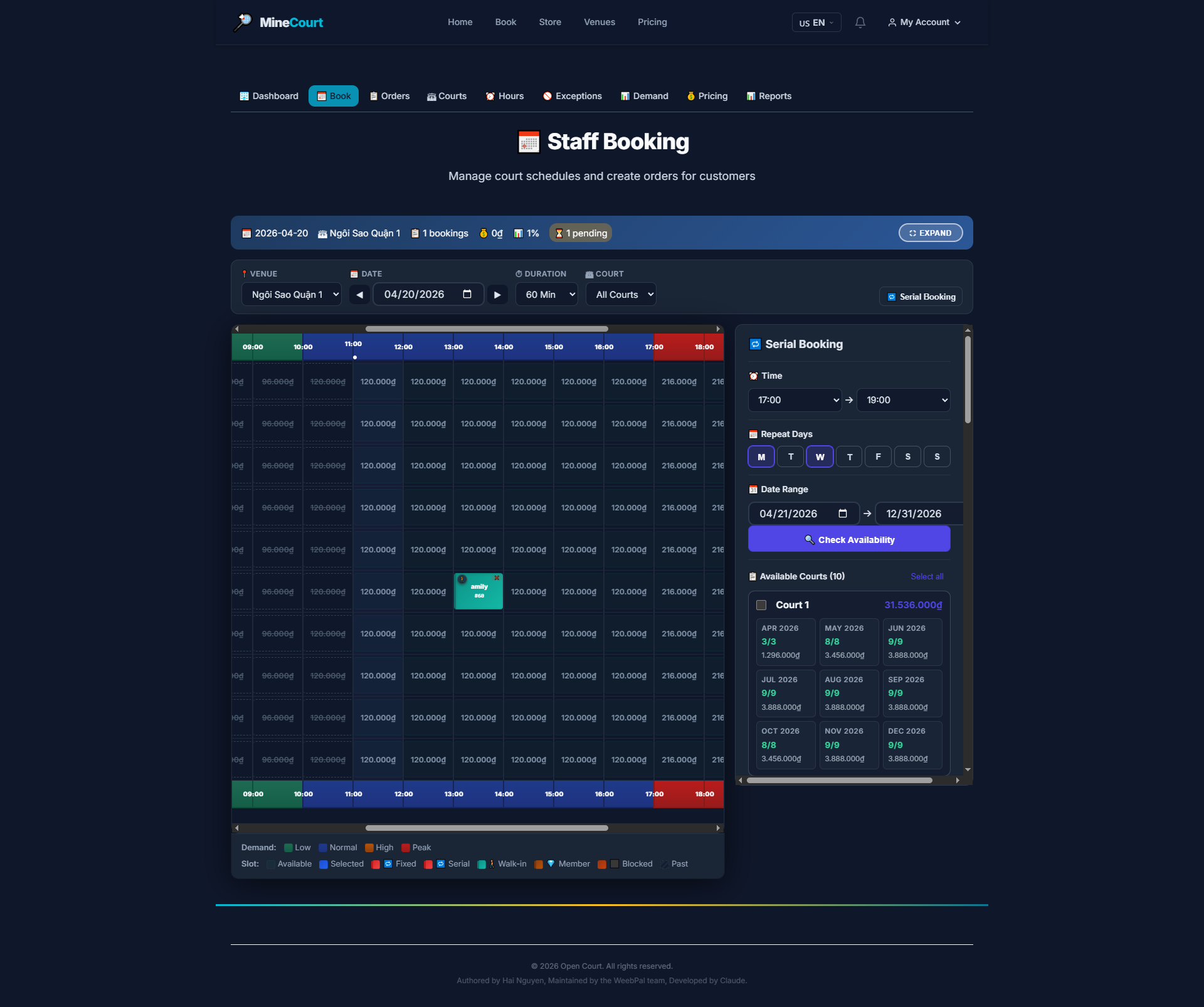
Staff — Serial Booking
What it shows: Staff creates a recurring (serial) booking on behalf of a customer.
Navigation: Book tab → Switch to Serial mode
- Set the Start Date, End Date, and recurring Day of Week
- System auto-fills all matching available slots
- Enter customer info and select payment method
- Click Confirm to lock in the entire series
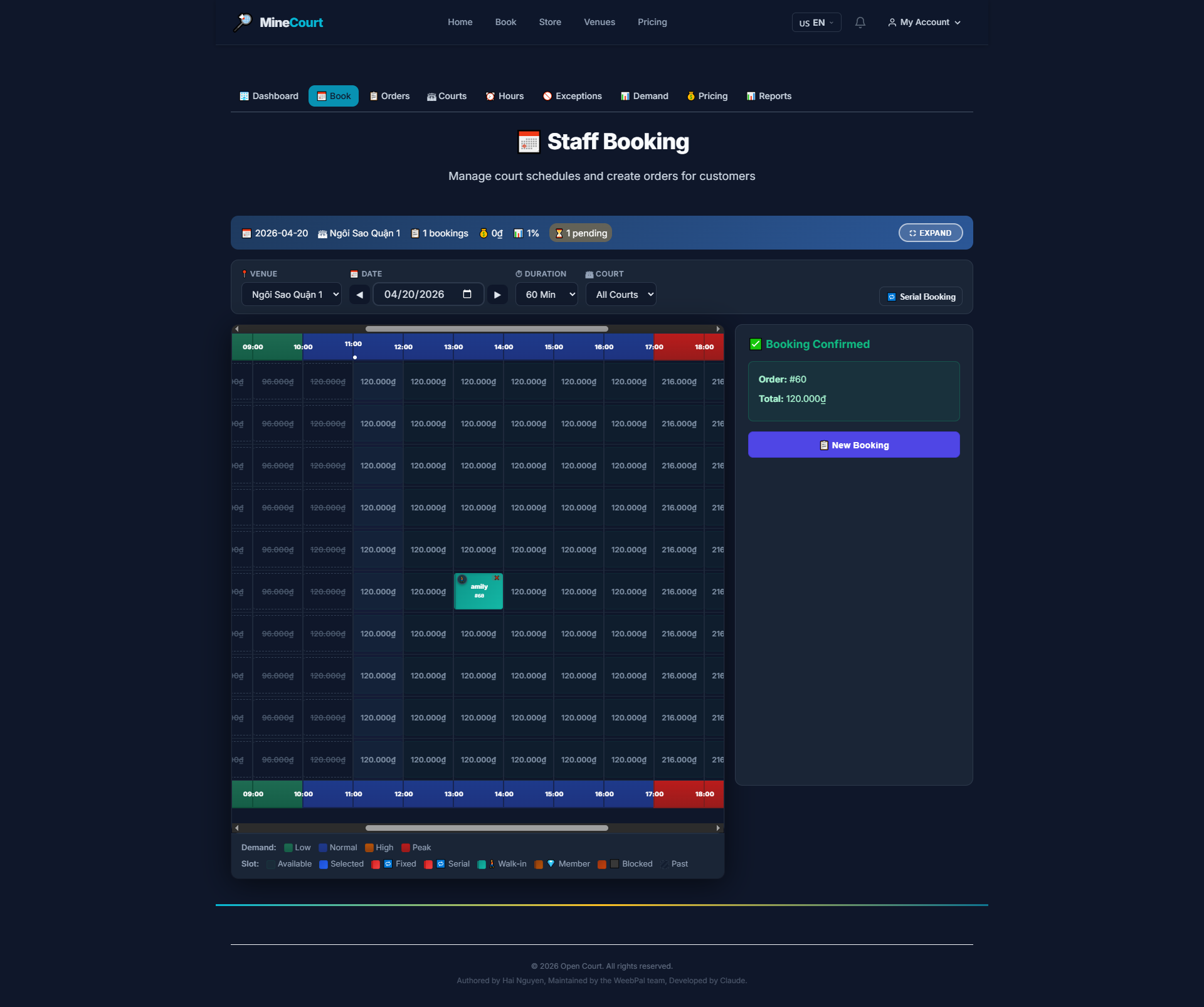
Staff — Confirm Booking
What it shows: Review and confirm booking details before finalizing the reservation.
Navigation: Staff Booking → Confirm step
- Summary shows court, customer, date/time, total price, and payment method
- Verify all details are correct before confirming
- Click Confirm Booking to create the order and deduct inventory
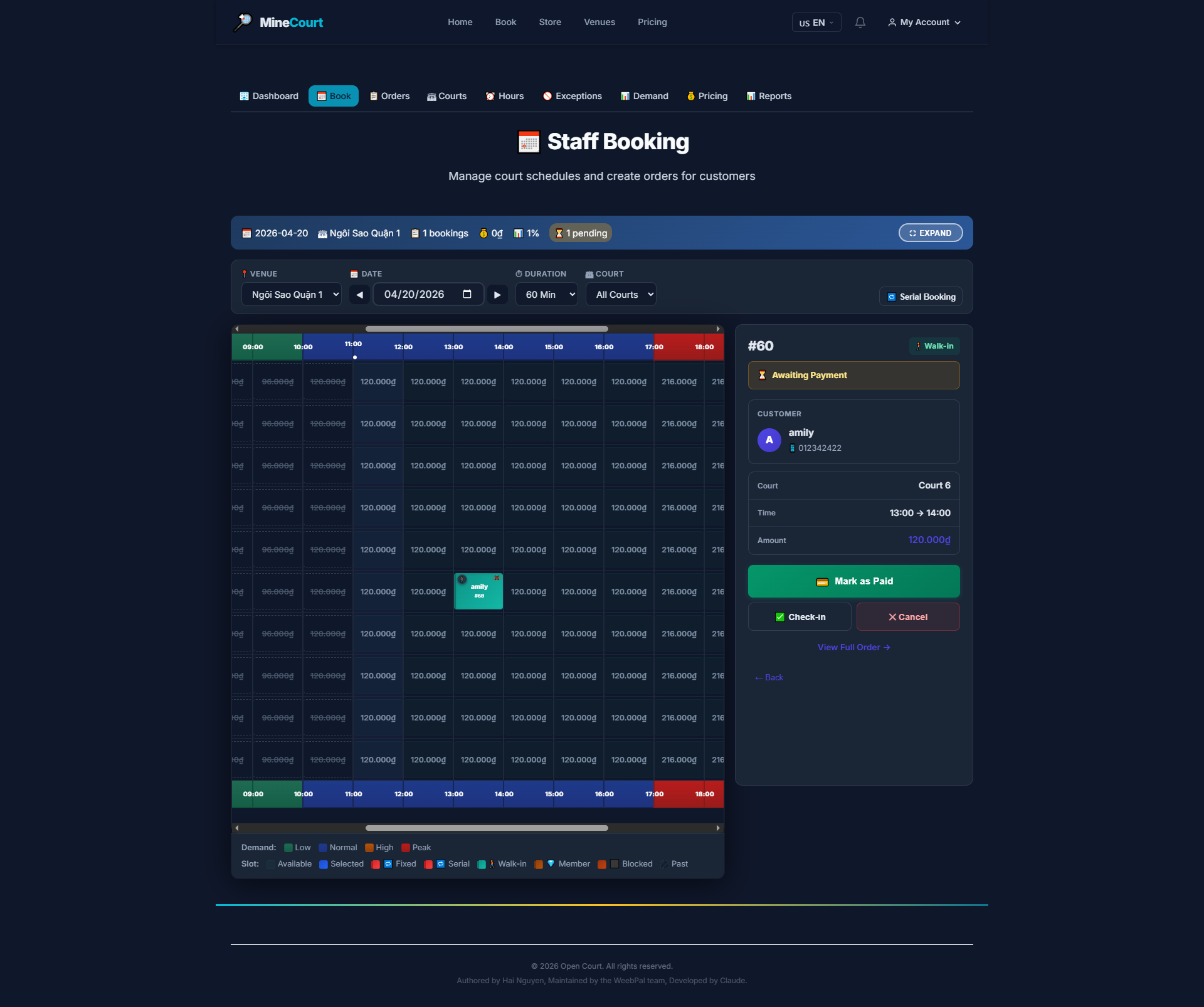
Staff — View Booking Detail
What it shows: View the full detail of a specific booking from the staff perspective.
Navigation: Orders list → Click booking order
- Shows complete customer info, court, date/time, and amount paid
- Displays payment status and booking confirmation token
- Staff can Print Receipt or Verify QR from this screen
QR Codes
What it shows: View and print unique QR codes for each court for customer table-side ordering.
Navigation: Store menu → QR Codes tab
- Customers scan → browse drink menu → order delivered to their court
- Click Print All to print every court's QR code for lamination and posting
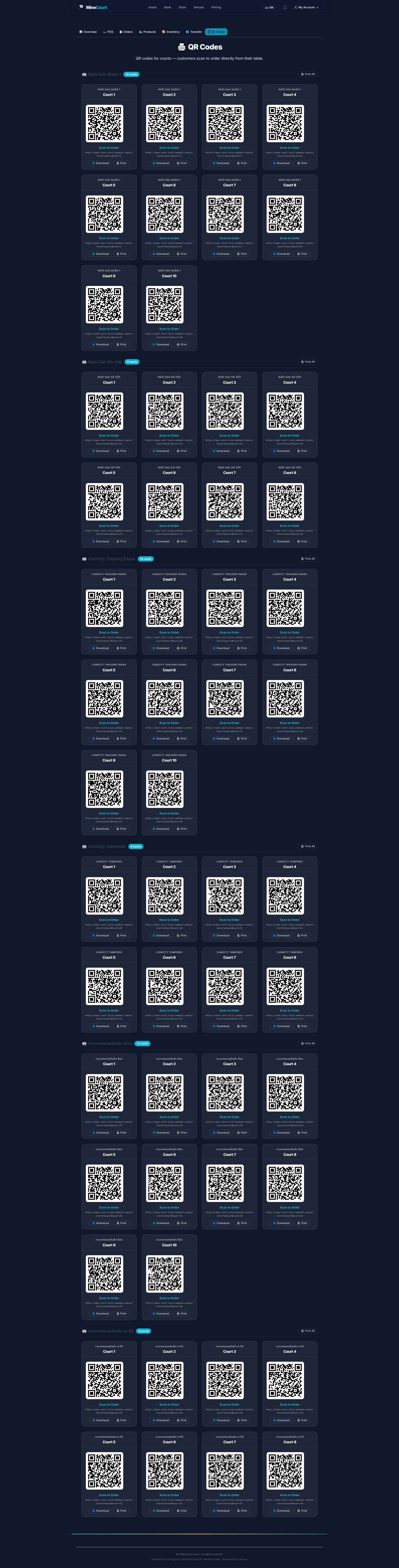
Store Dashboard
What it shows: Revenue summary and activity overview for the venue store.
Navigation: Store module (default view)
- Stats: today's revenue, order count, top-selling products
- Quick access: POS, Orders, Products, Inventory
- Daily/weekly revenue chart
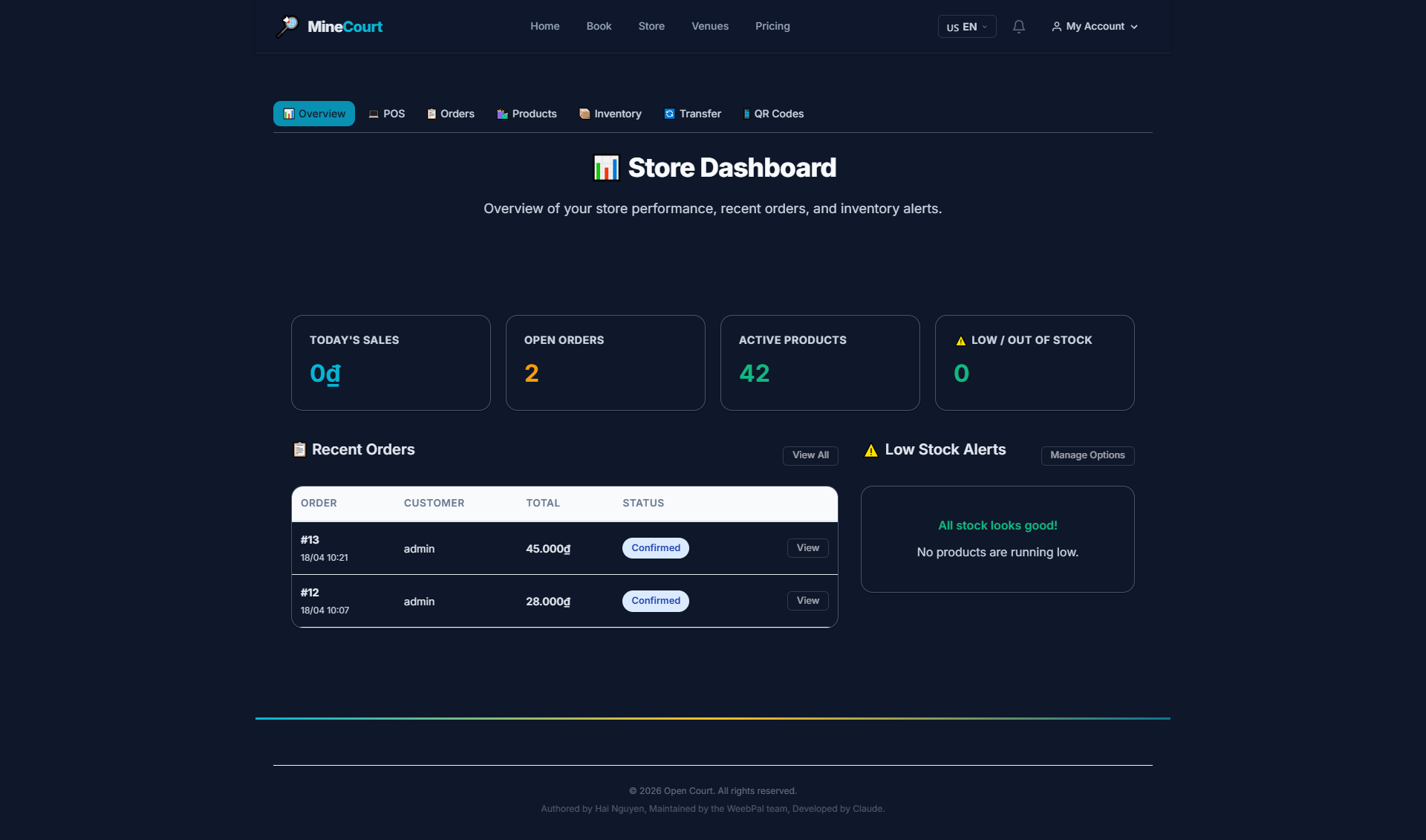
All Products
What it shows: Browse the full product catalog in the venue store.
Navigation: Store module → Products tab
- Product list across all categories
- Filter by: category, active/inactive status
- View name, price, and stock count
- Click Add Product to create a new listing
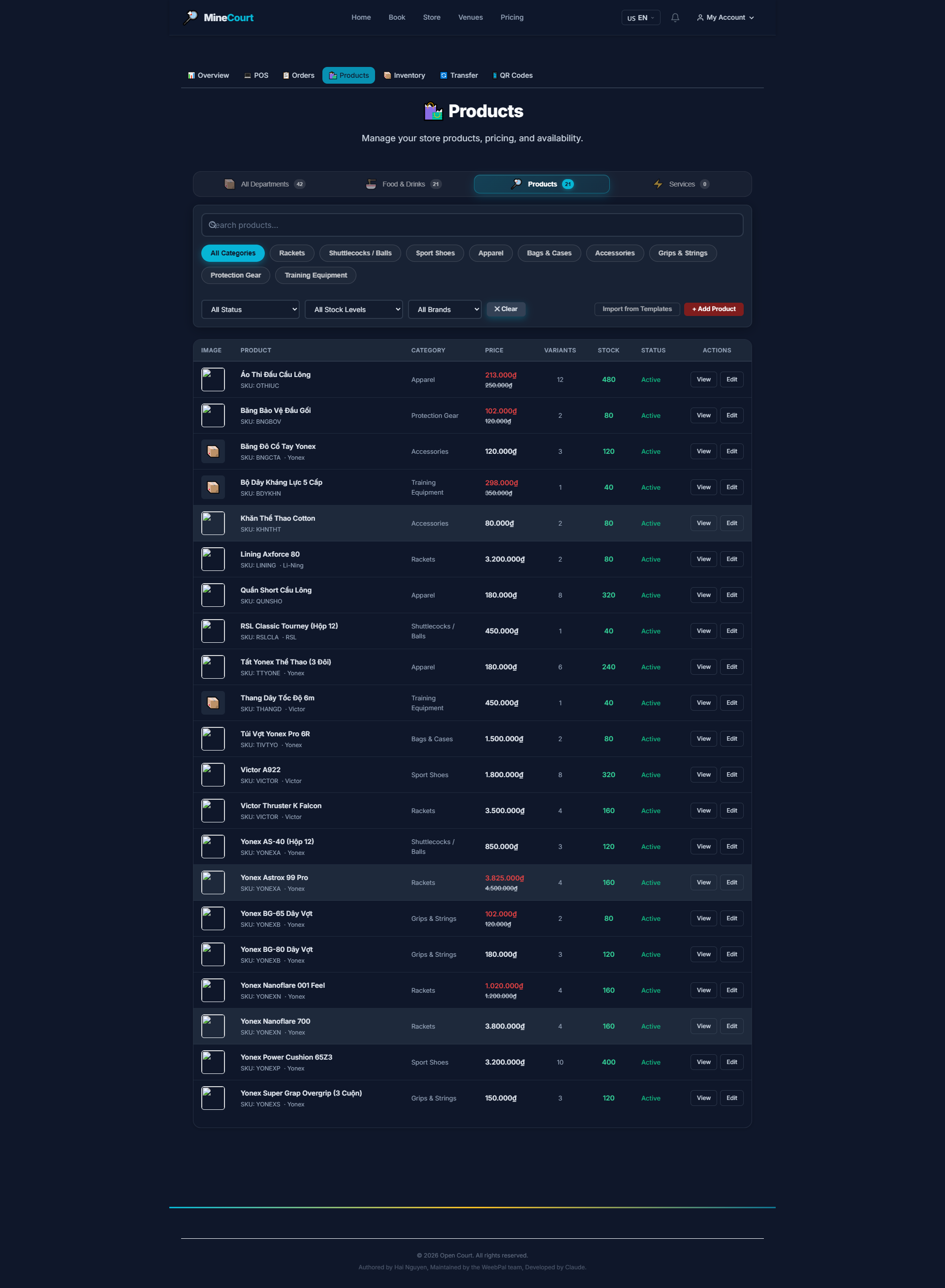
Import Products
What it shows: Bulk-import multiple products into the store catalog via a spreadsheet file.
Navigation: Store → Products → Import button
- Download the provided CSV template
- Fill in: product name, category, unit price, stock quantity, status
- Upload the completed file — system validates each row before saving
- Preview the import data; errors are flagged row-by-row for correction
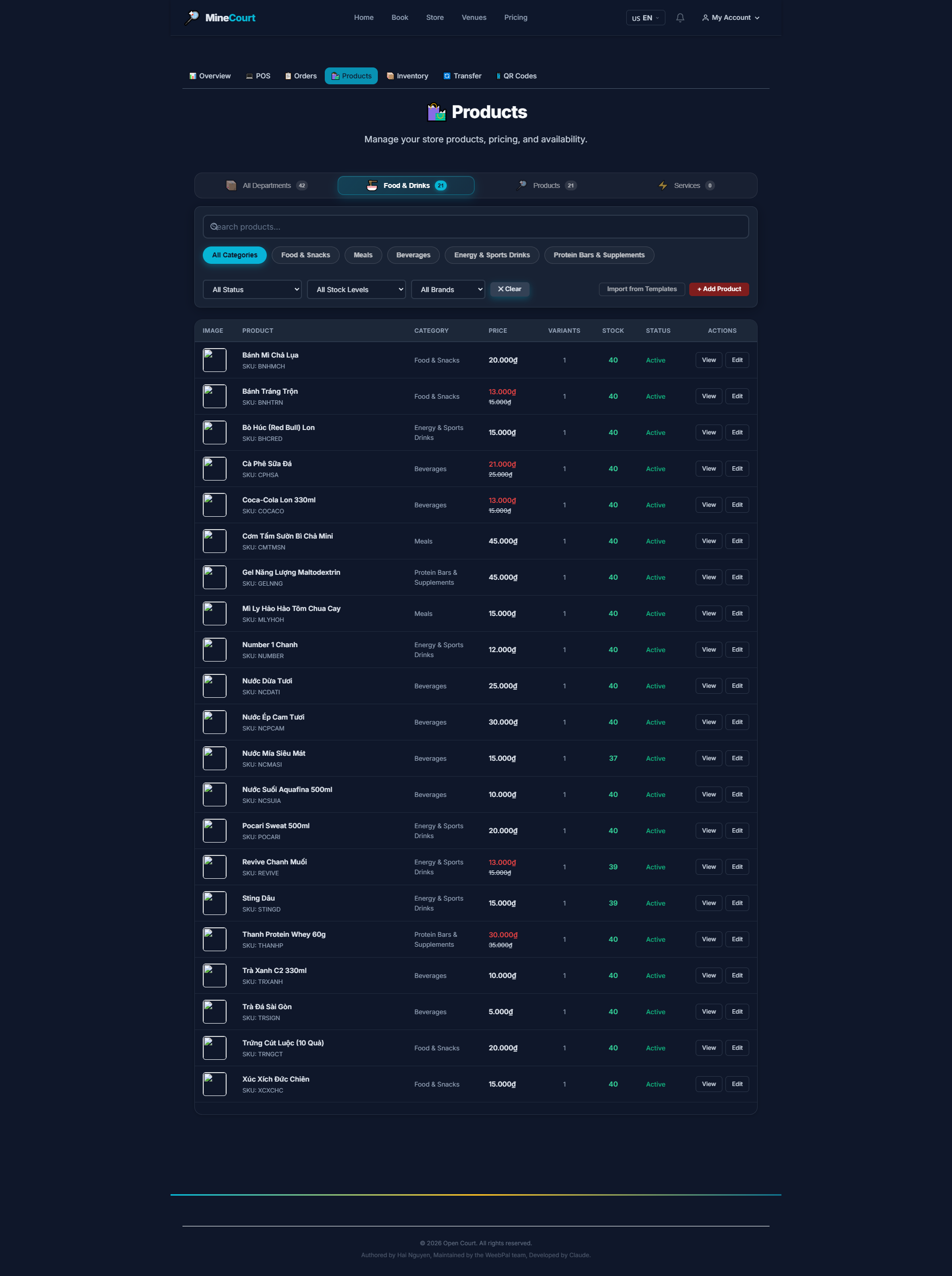
Food & Drinks (F&B)
What it shows: Manage food and beverage products at the venue.
Navigation: Store Inventory → filter by Food & Drinks
- Snacks, beverages, sports supplements
- View retail price and stock level
- Update price or status quickly from the list
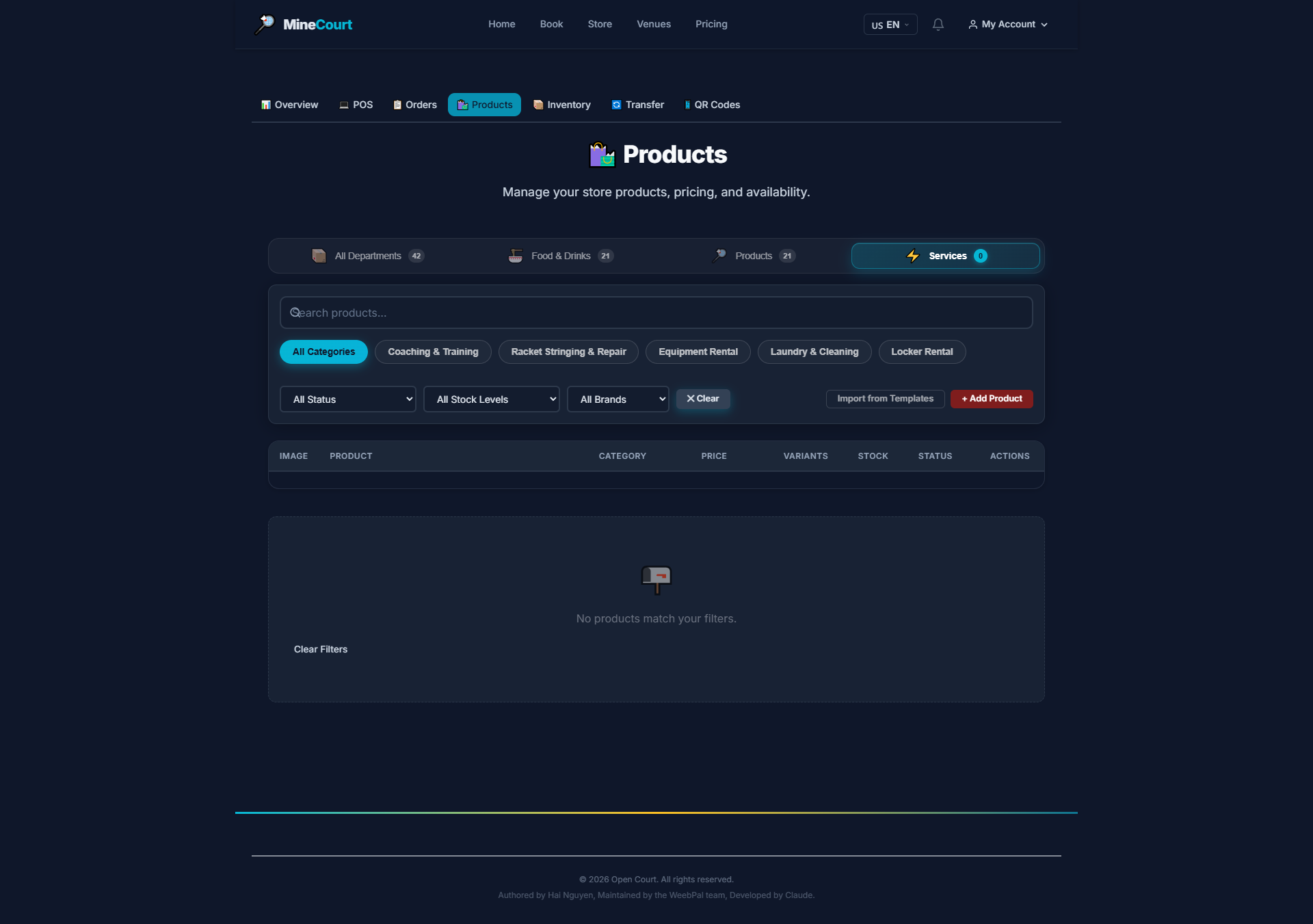
Services
What it shows: Manage the service catalog sold at the venue.
Navigation: Store Inventory → filter by Services
- Services include: racket rental, coaching, technical support
- Services have no inventory — only price and status are managed
- Click Edit to modify
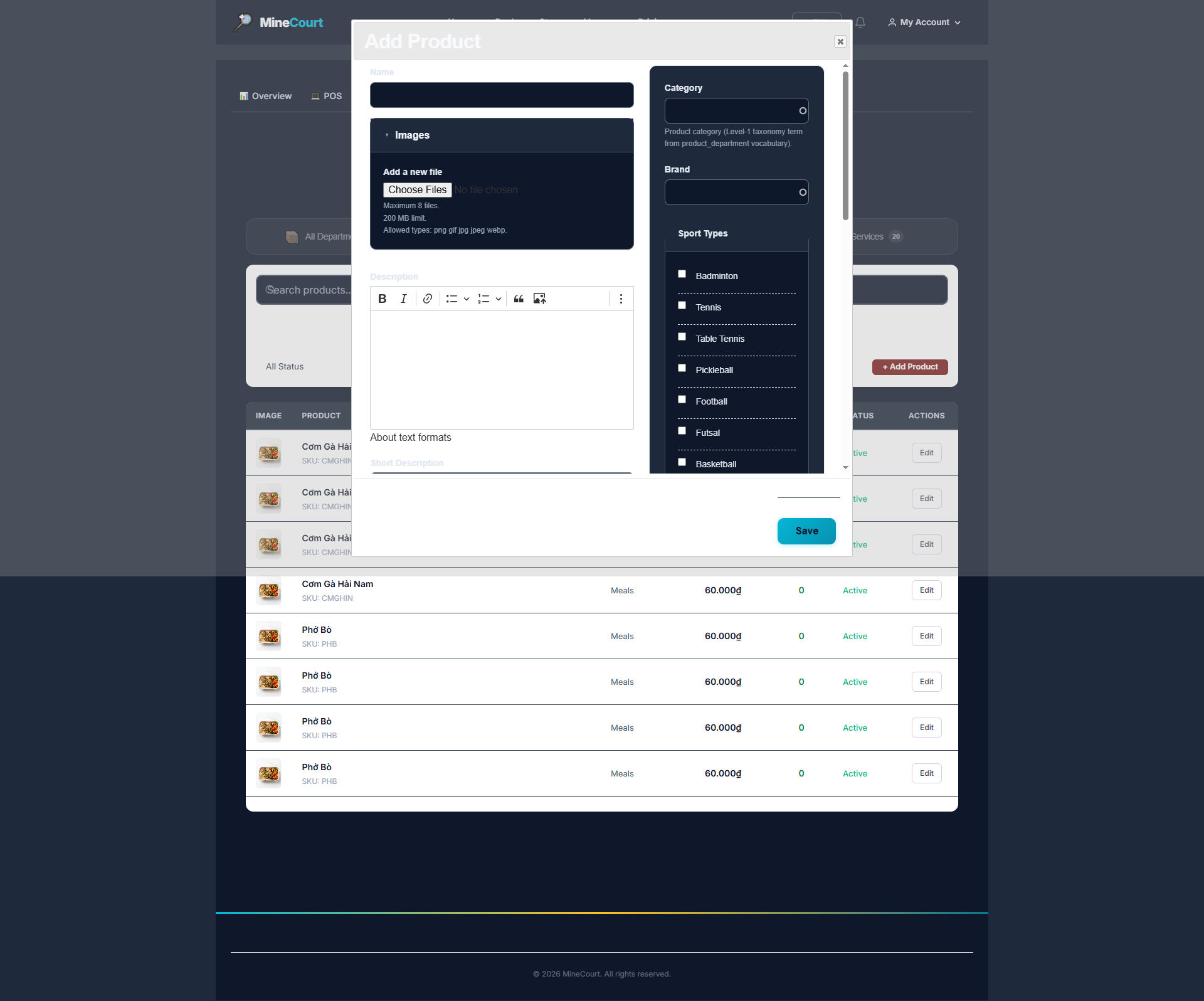
Add Product
What it shows: Create a new product or service listing in the store.
Navigation: Store Inventory → Add Product
- Enter: Product Name, Category, Retail Price
- Upload product image
- Select the applicable Venue
- Check Active to publish immediately
- Click Save
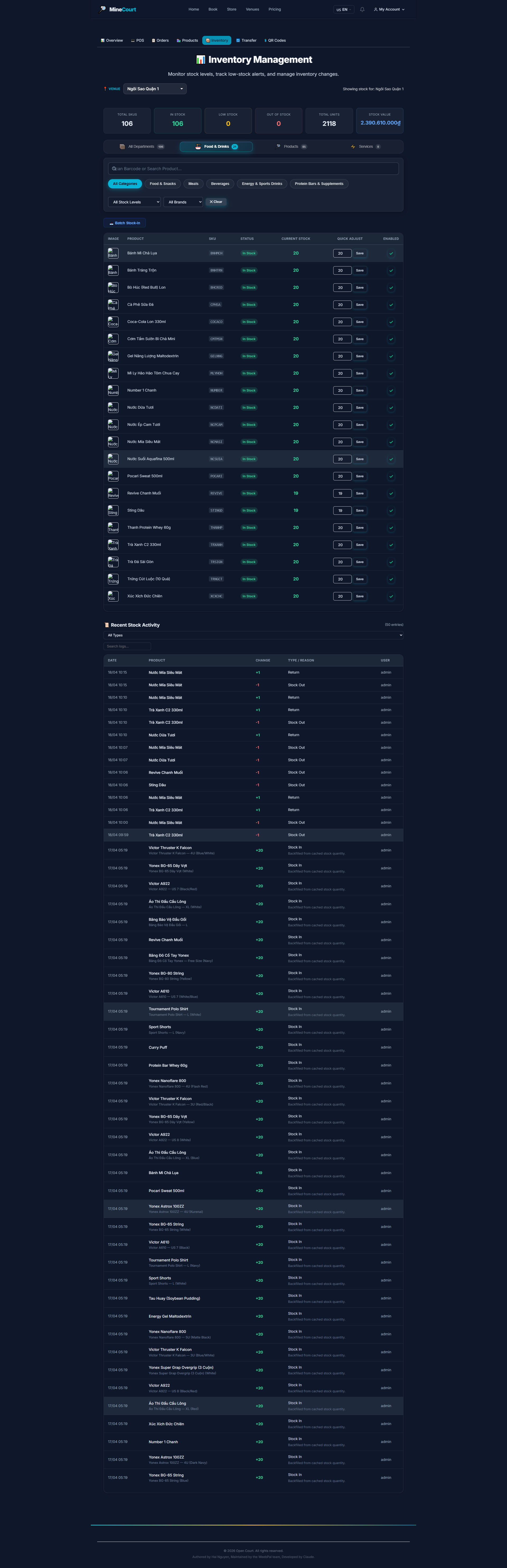
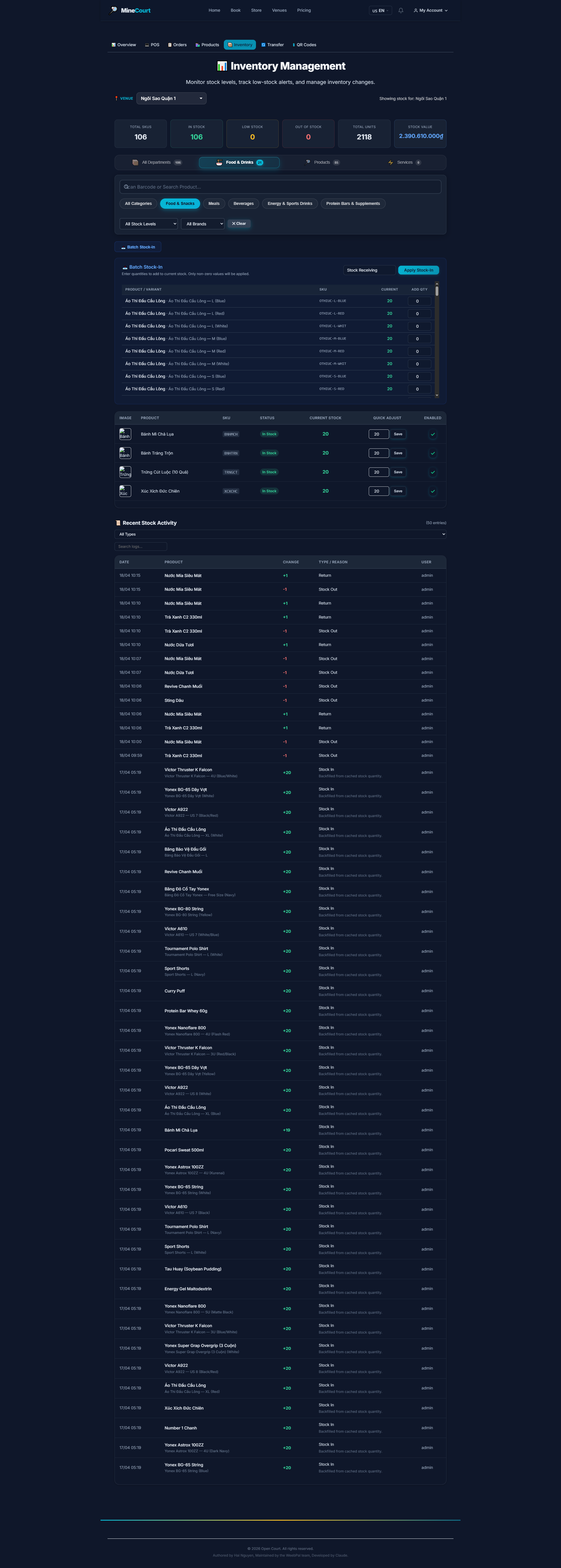
Inventory Management
What it shows: Track and update product stock levels.
Navigation: Store module → Inventory tab
- Product list with current stock quantity
- Enter new quantity when restocking
- Full inventory change history
Batch Stock In
What it shows: Add stock to multiple products at once via a single batch update.
Navigation: Store → Inventory → Batch Stock In button
- Select all products that received new stock
- Enter the received quantity for each product
- System adds the new quantity to the existing stock
- Submit the batch form — changes apply immediately
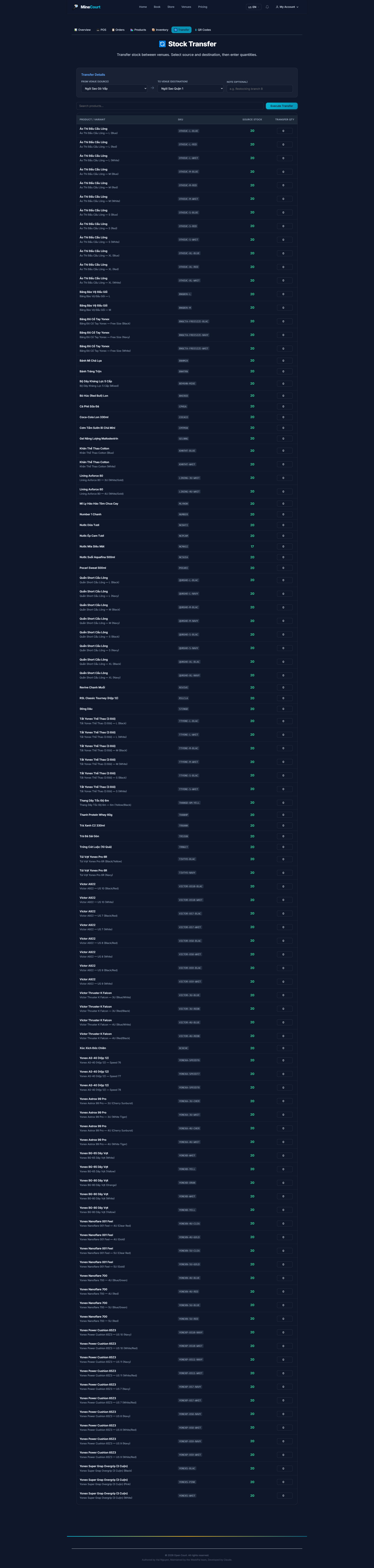
Inventory Transfer
What it shows: Move stock from one venue/store location to another.
Navigation: Store → Inventory → Transfer tab
- Select the Source venue/store and Destination venue/store
- Choose the product and quantity to transfer
- Add a Note for the transfer reason (optional)
- Submit — stock is deducted from source and added to destination instantly
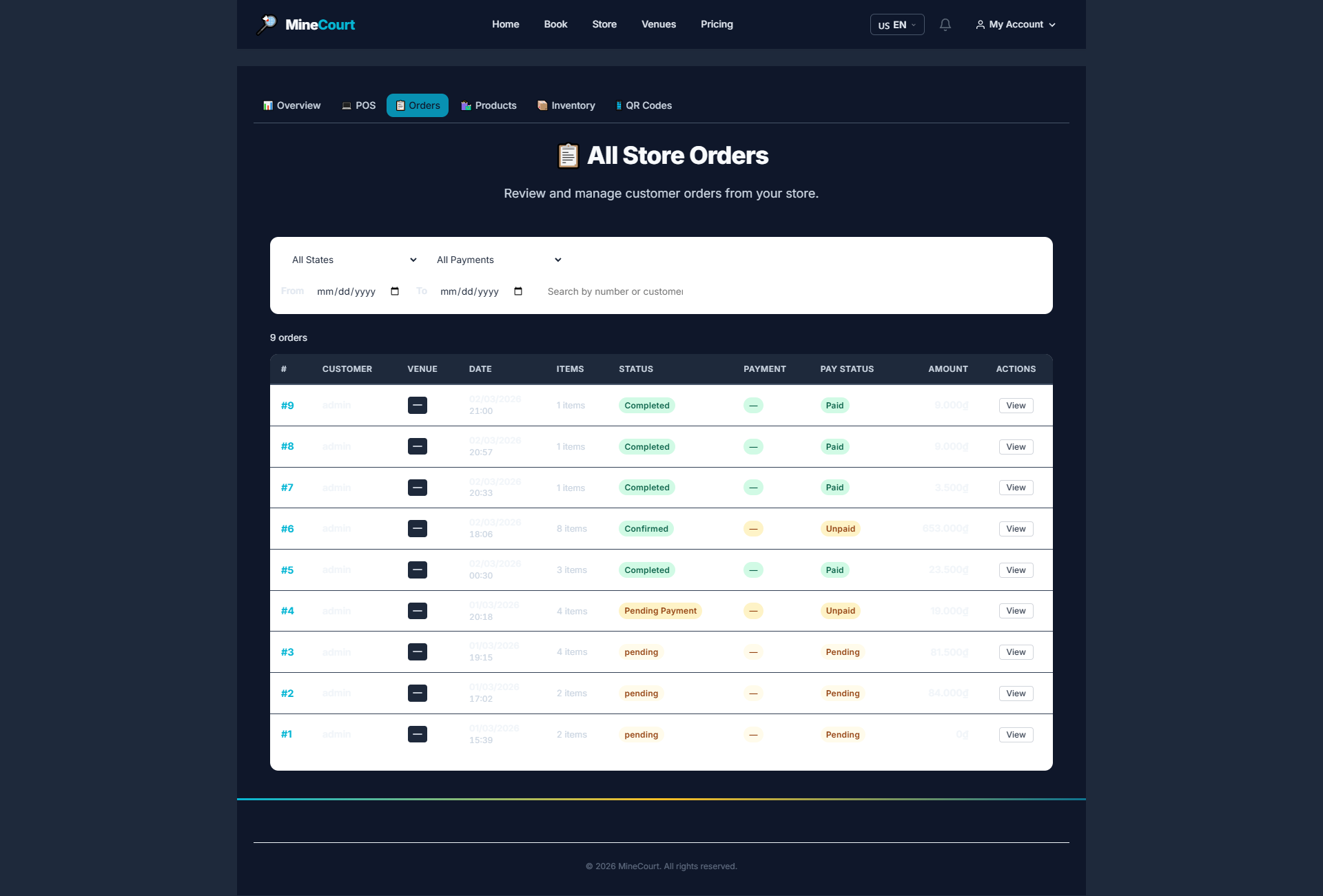
Store Orders
What it shows: View all purchase orders from the venue store (online + POS).
Navigation: Store module → Orders tab
- List of online and POS orders
- Filter by: date, status, payment method
- Statuses: Pending, Completed, Cancelled
- Click any order to view product details
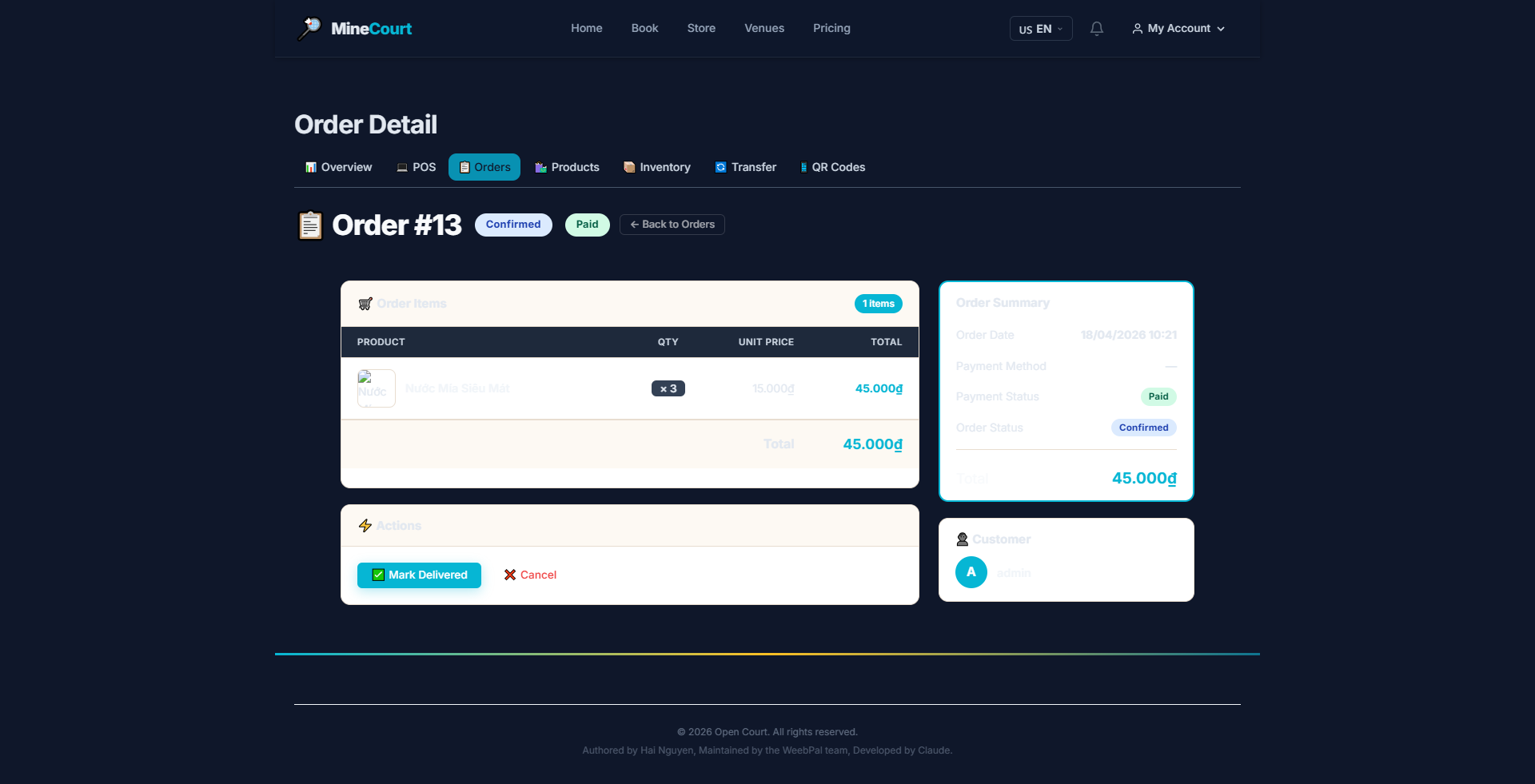
Store Order Detail
What it shows: View the full details of a specific store (product/F&B/service) order.
Navigation: Store Orders list → Click any order
- Shows: items ordered, quantities, unit prices, subtotals, and total
- Displays the payment method used (Cash, Transfer, or Card)
- Order status and timestamp for each stage (Created → Paid → Completed)
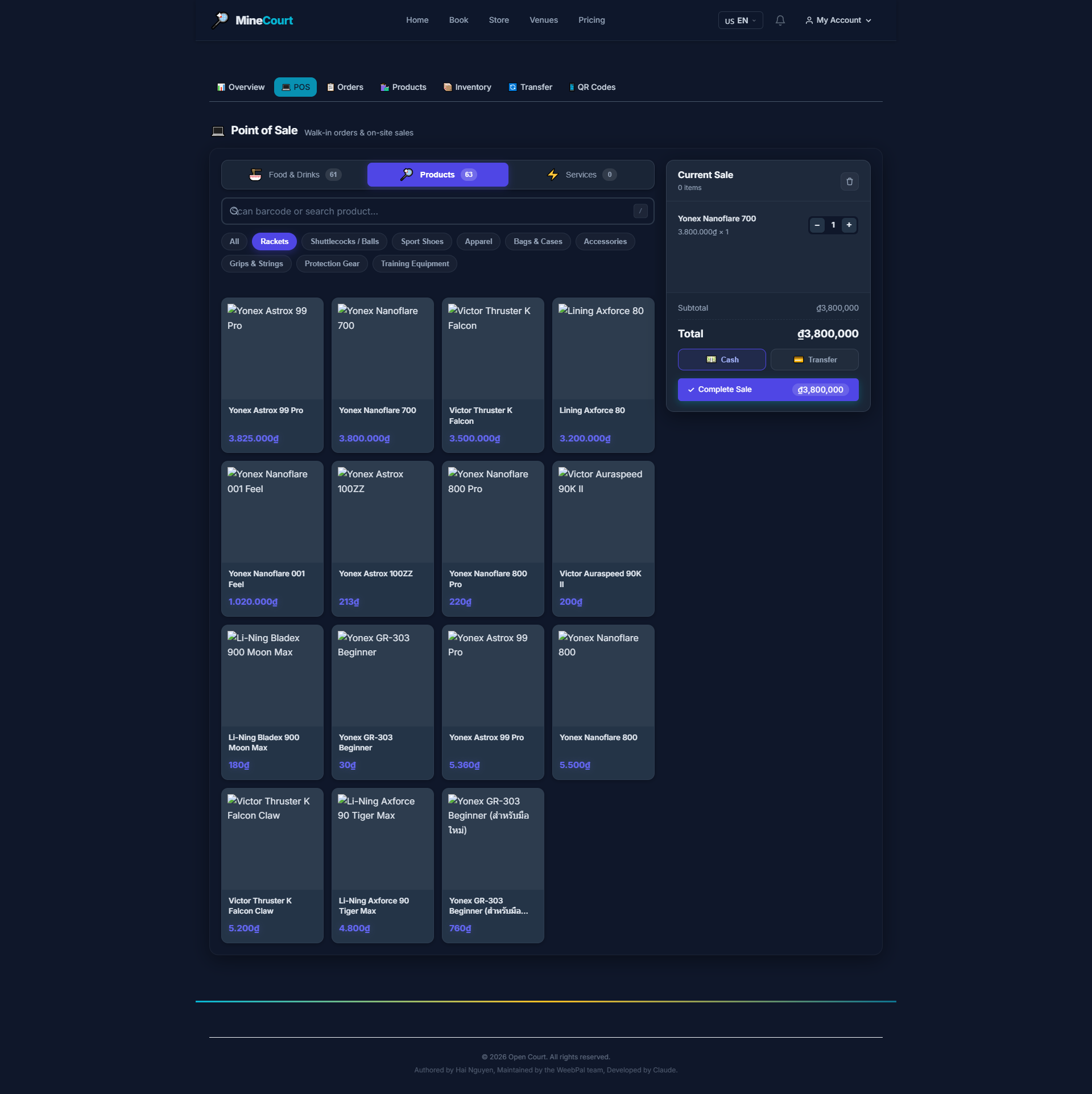
POS — Sell Products
What it shows: Counter-side POS interface for selling sports equipment.
Navigation: Store Inventory → Products tab
- Search product by name or scan barcode
- Click item to add to Current Sale cart
- Adjust quantity with
+/-controls - Select payment method: Cash or Transfer
- Click Complete Sale
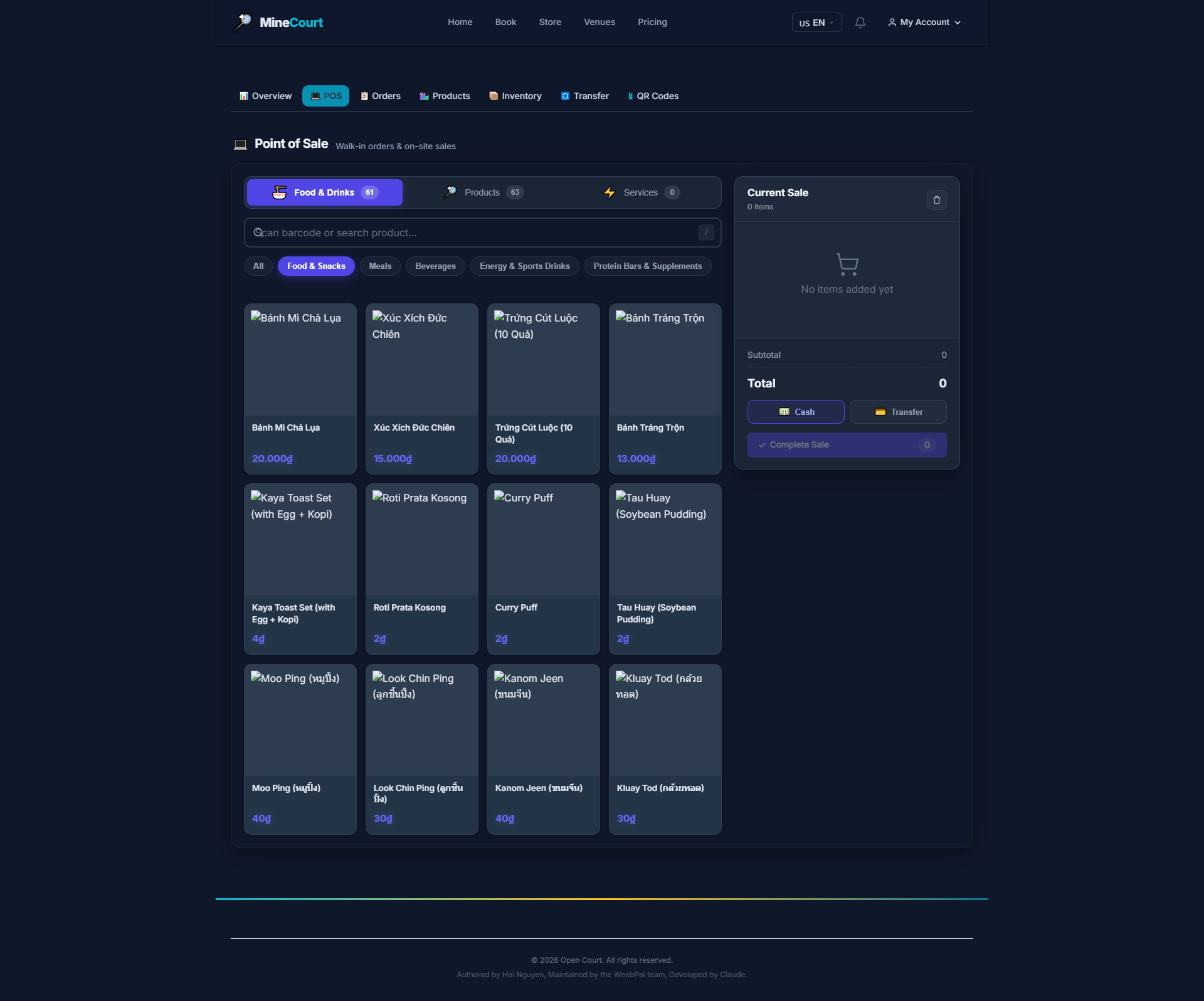
POS — Sell F&B
What it shows: POS interface for selling food and beverages at the court.
Navigation: Store Inventory → Food & Drinks tab
- Category view: Snacks, Meals, Beverages, Supplements...
- Filter by food type for fast lookup
- Add to cart and checkout same as the Products tab
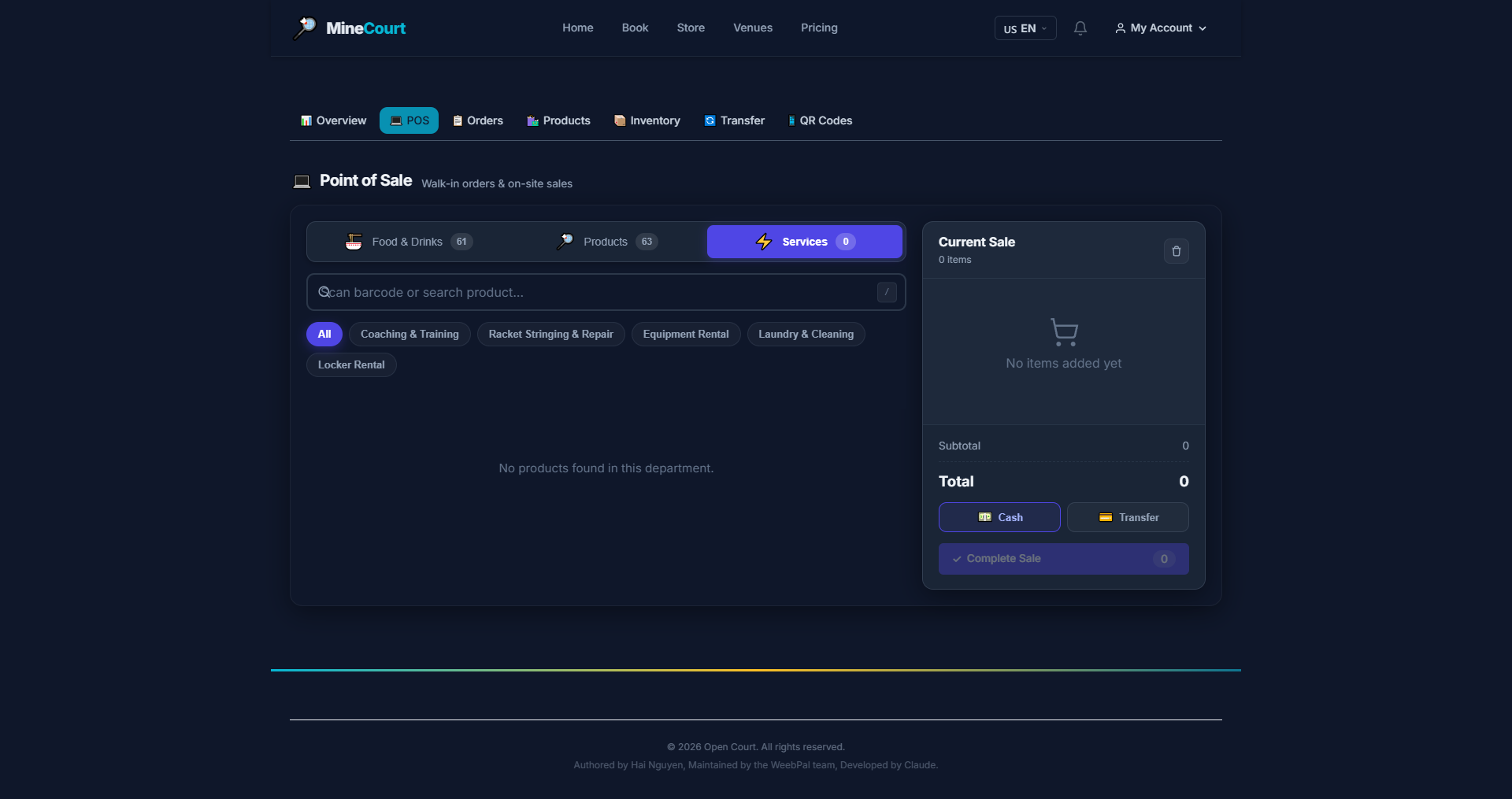
POS — Sell Services
What it shows: POS interface for selling court-side services.
Navigation: Store Inventory → Services tab
- Service list: racket rental, coaching, technical support
- Click to add to the current sale cart
- Combine services and products in a single transaction
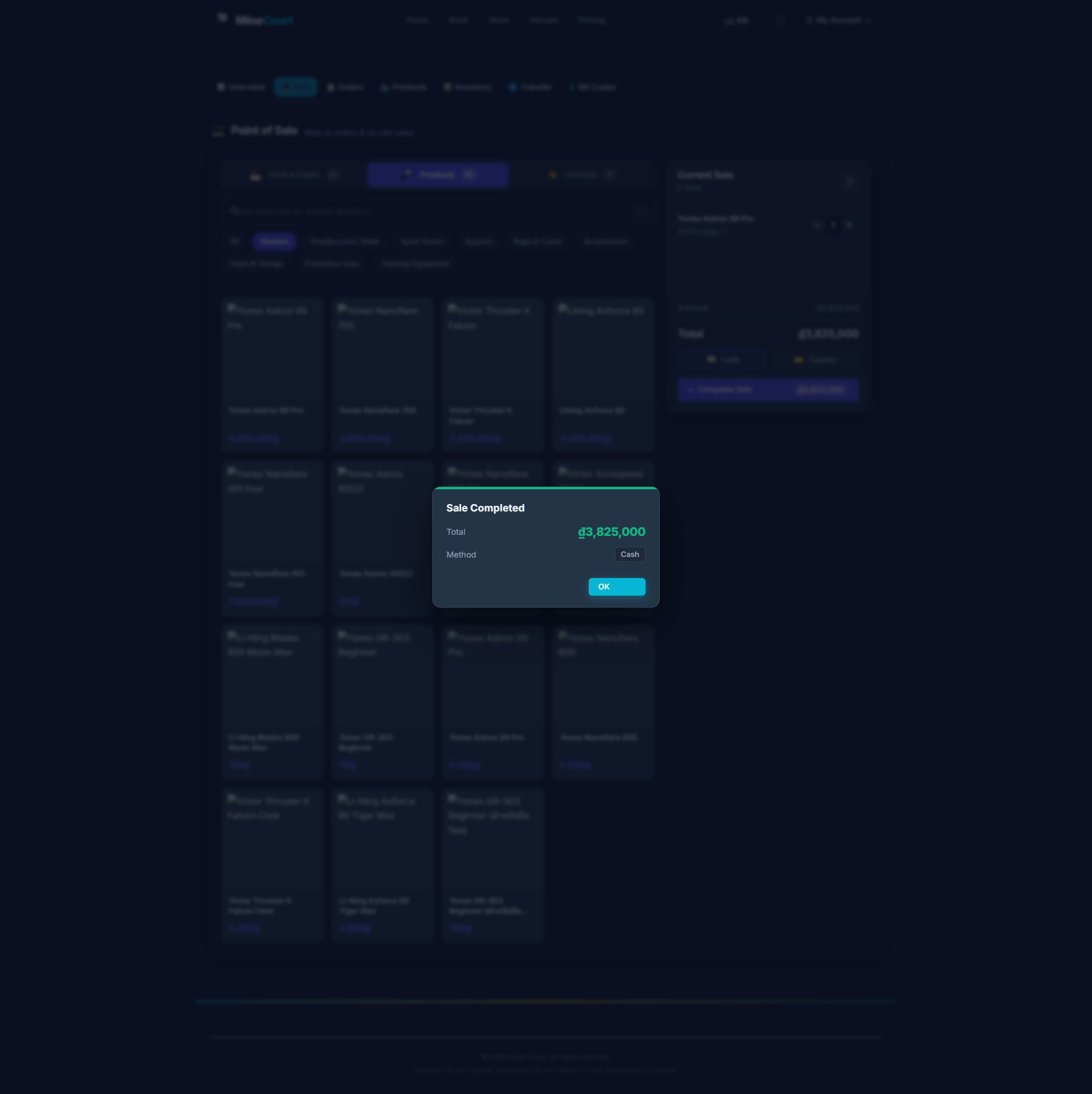
POS — Complete Sale (Cash)
What it shows: Process a cash payment and complete the POS transaction.
Navigation: POS → After adding items → Complete Sale → Cash
- Enter the Cash Received amount from the customer
- System calculates and displays the Change automatically
- Click Confirm to finalize the transaction
- A receipt is generated and can be printed or emailed
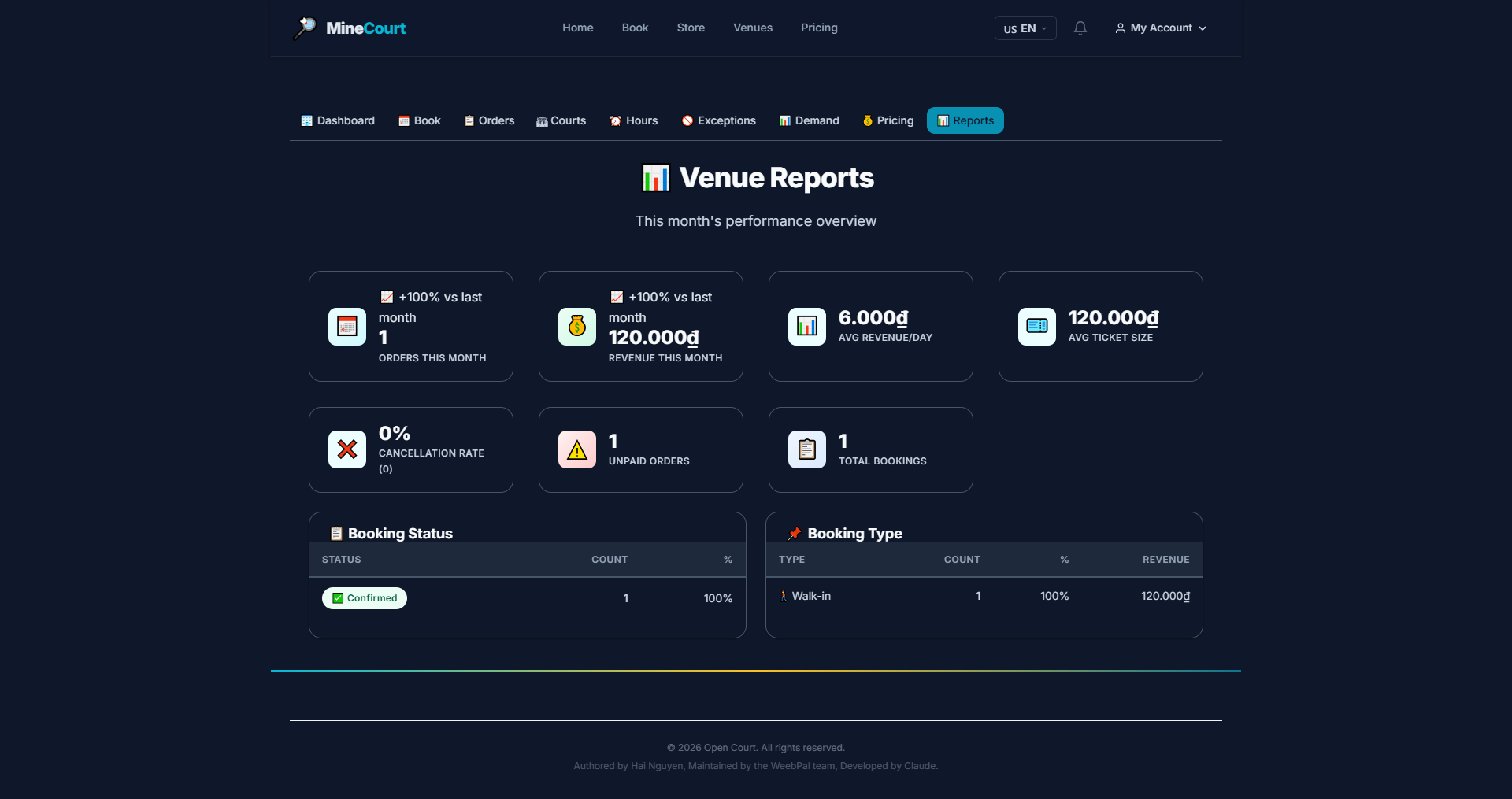
Venue Reports
What it shows: View venue performance and revenue reports.
Navigation: Reports tab in the Venue menu
- Reports by time period: day, week, month
- Stats: total orders, revenue, court occupancy rate
- Export report for detailed offline analysis