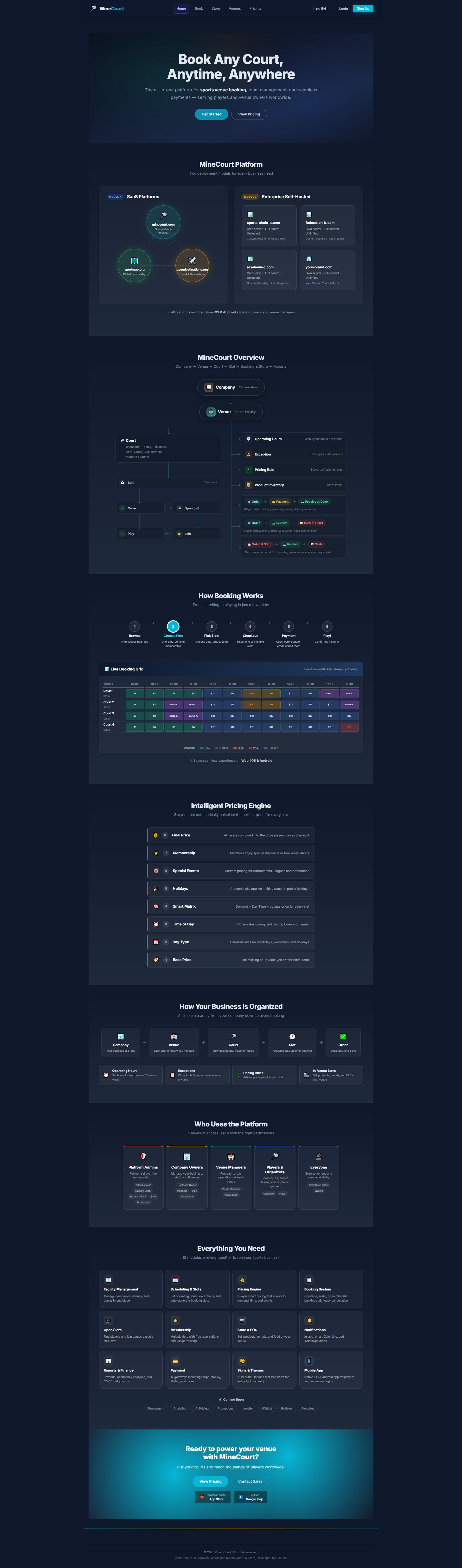
🏠 Home Page
What it shows: Platform landing page with hero banner, featured venues gallery, quick access buttons for booking/store/pricing, and promotional highlights.
Navigation: Menu → Home
- Explore court booking, shopping, and membership registration
- Quick access via menu: Book, Store, Venues, Pricing
- Tap Get Started or View Pricing to begin
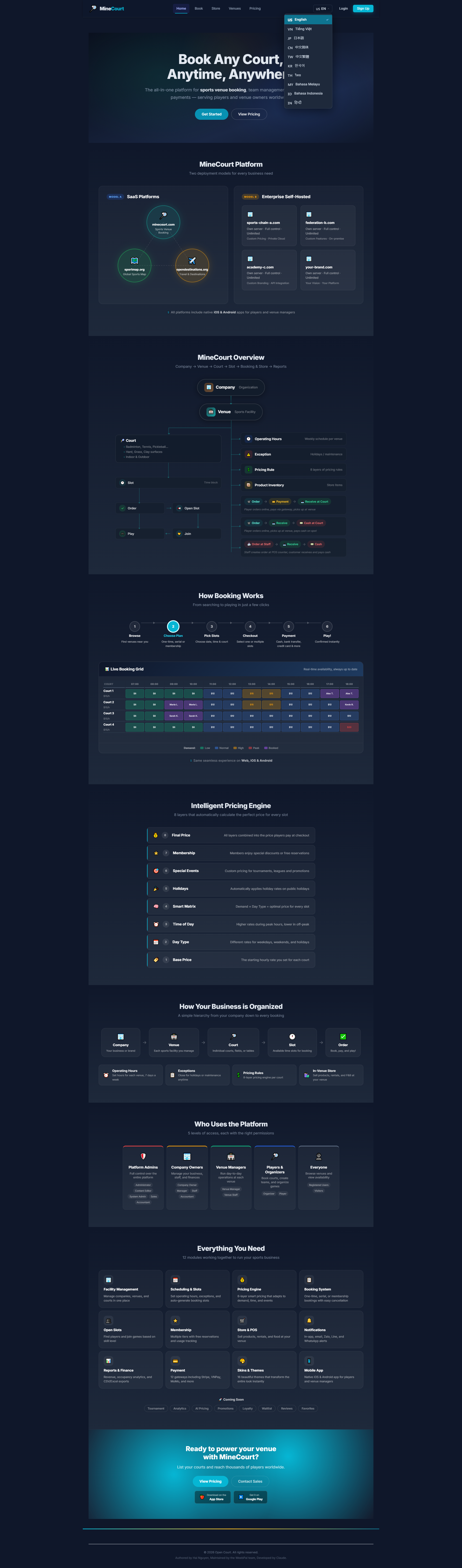
🌐 Multiple Languages
What it shows: Language selection dropdown in the navigation menu showing available language options (English, Vietnamese, etc.).
Navigation: Menu → Language
- Supports multiple languages (English, Vietnamese...) using URL prefix routing
- The interface reloads automatically in your selected language
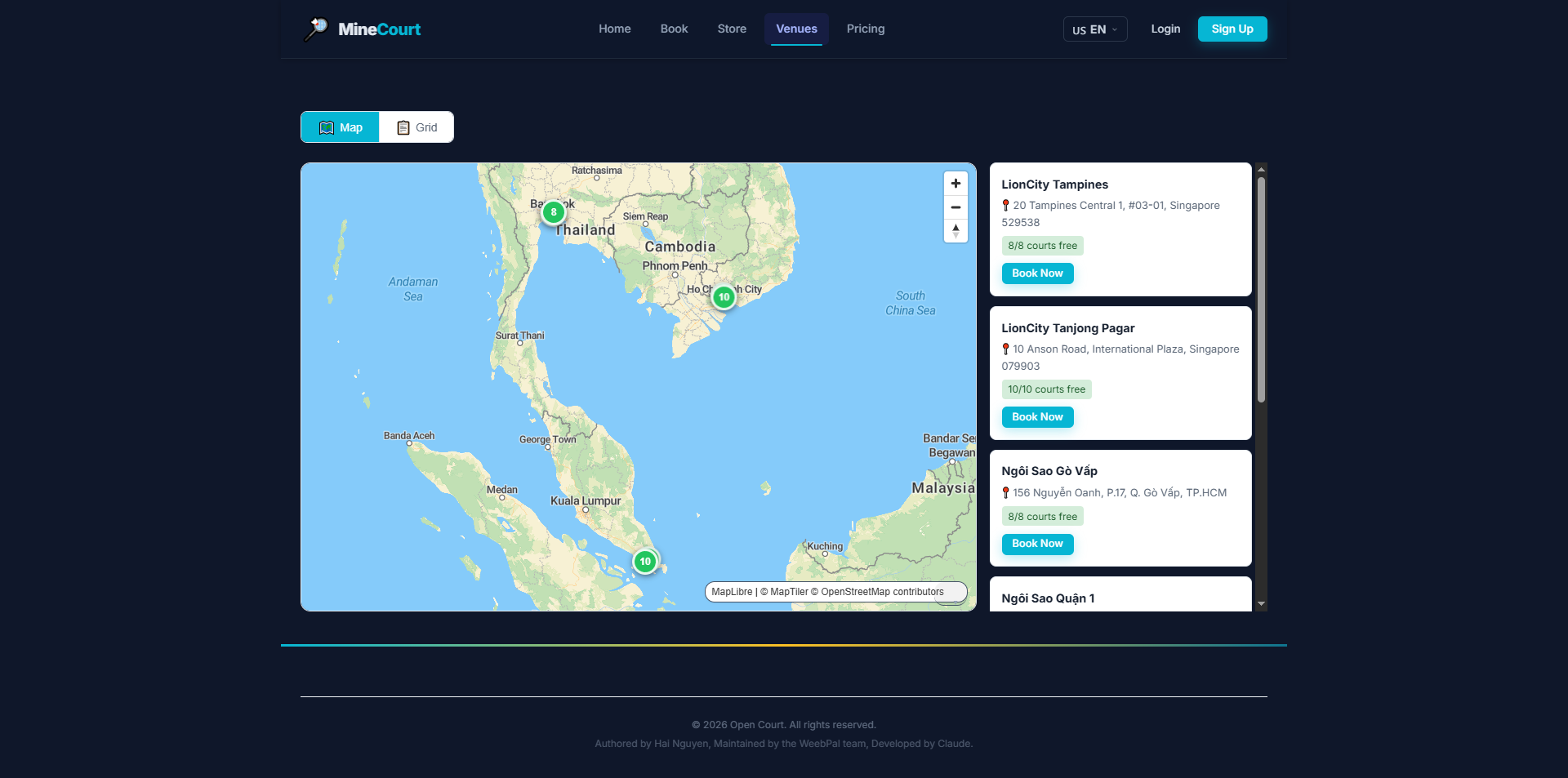
📍 Venues — Map View
What it shows: Search for venues by geographic location on the map.
Navigation: Menu → Venues → Map
- View court locations on an interactive map — tap a marker to preview
- Switch to list view by clicking the Grid tab
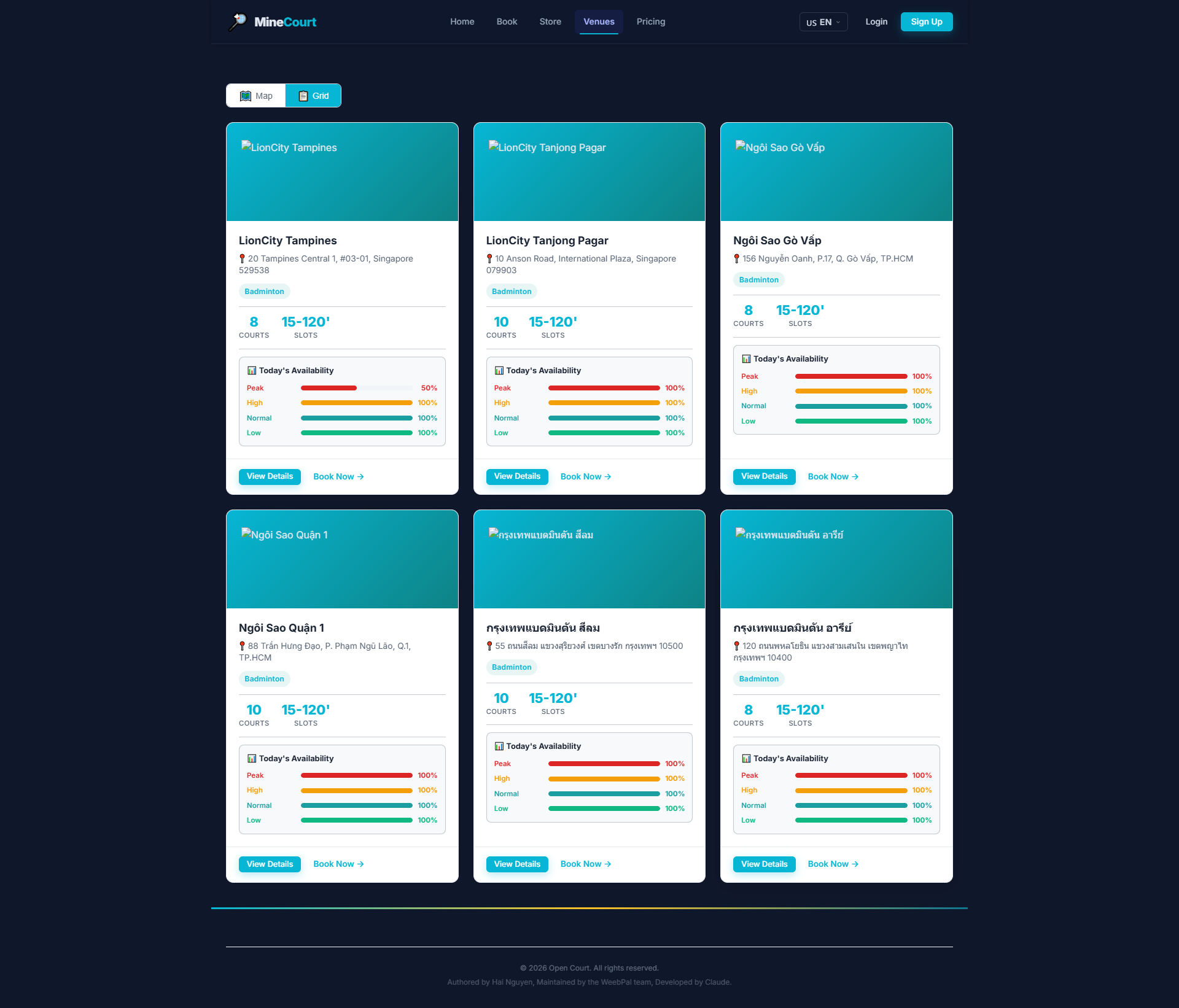
📊 Venues — Grid View
What it shows: View all available venues as cards.
Navigation: Menu → Venues → Grid
- Each card shows: venue name, area, total courts, and availability
- Tap View Details to learn more or Book Now to go straight to booking
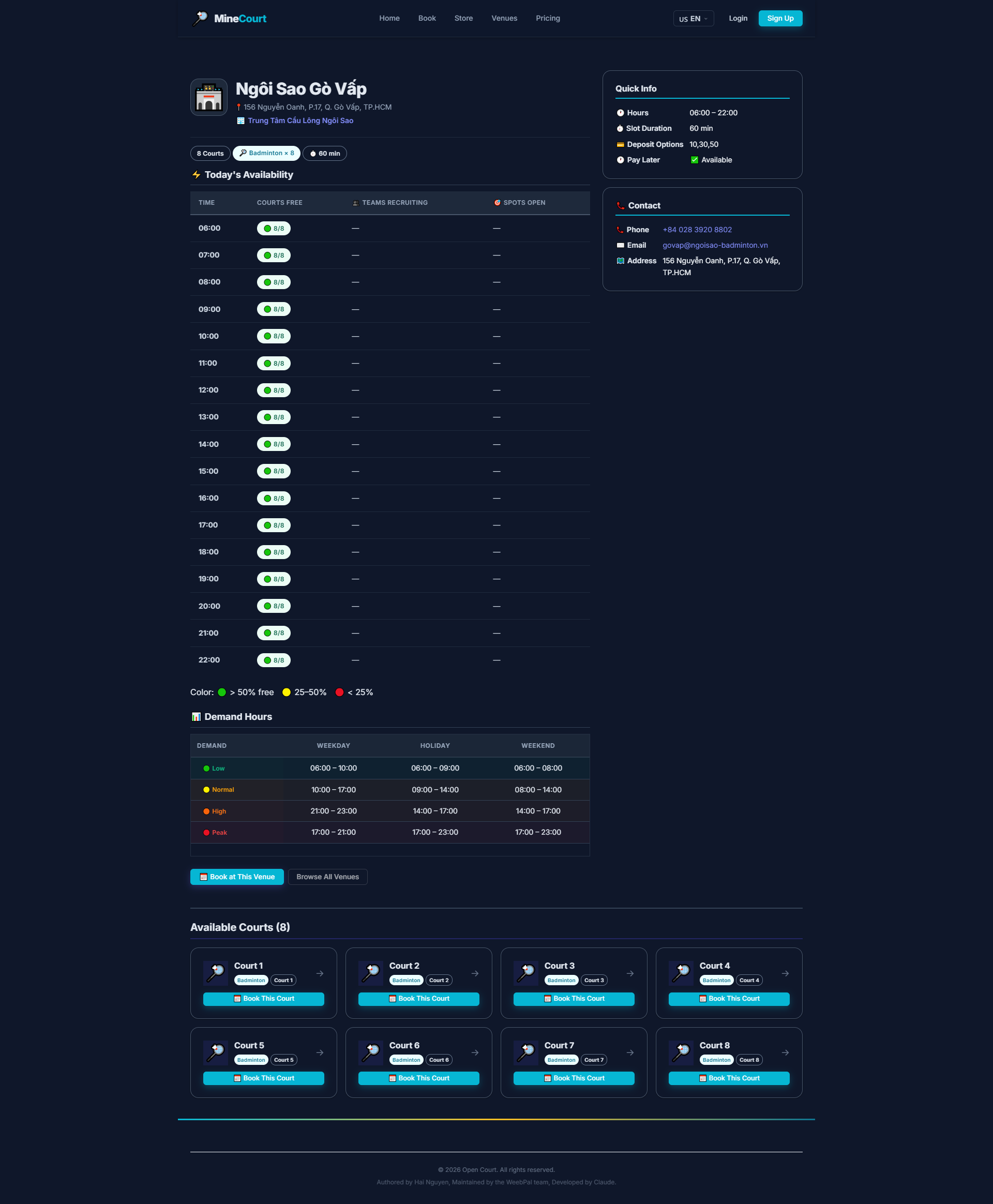
📍 Venue Detail
What it shows: View full details of a specific court venue before booking.
Navigation: Venues → Tap any venue card → View Details
- Displays: Venue name, address, open hours, available courts, and photos
- See today's available time slots at a glance
- Tap Book Now to jump directly into the booking grid for this venue
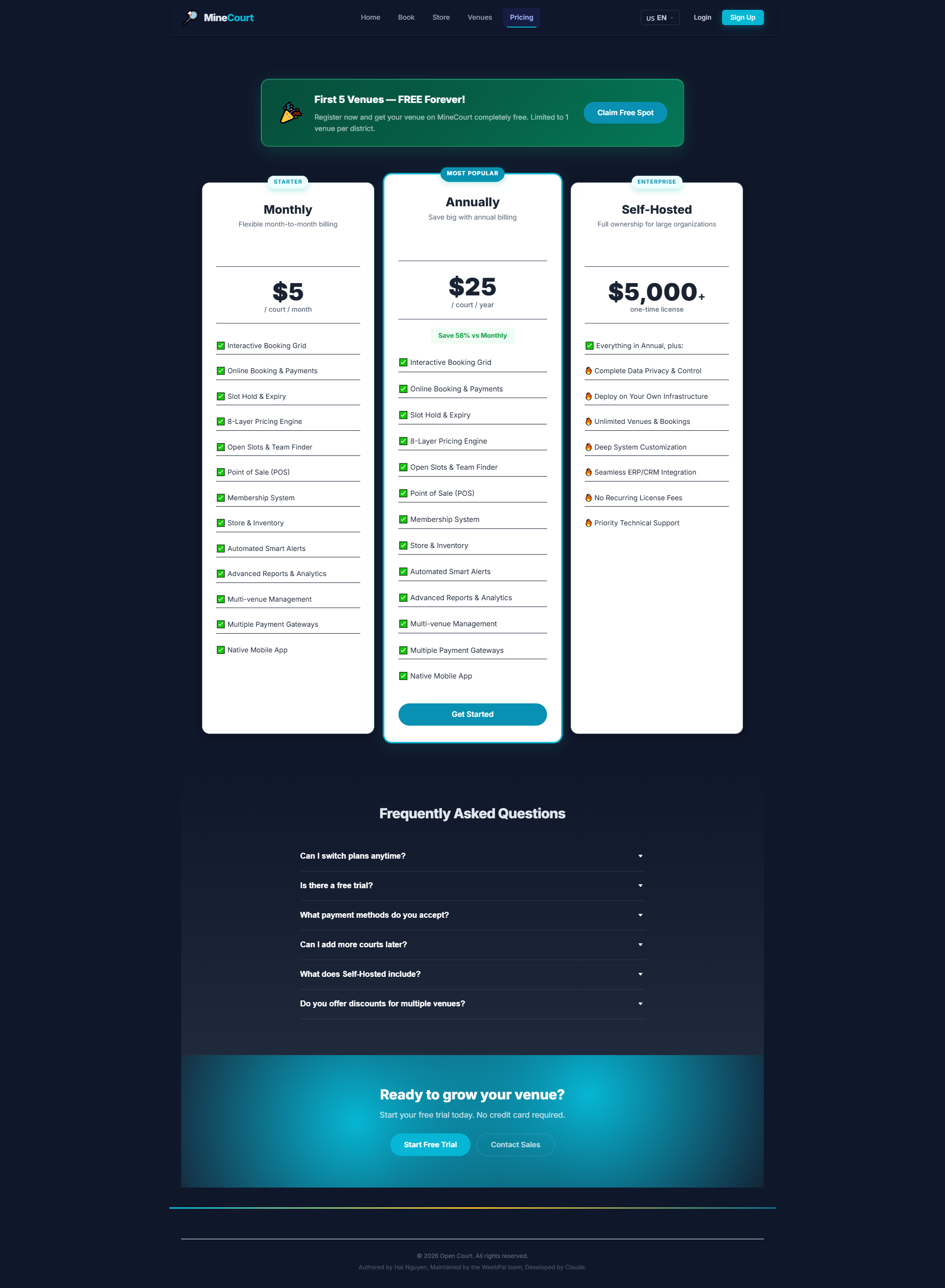
💵 Pricing
What it shows: View pricing tiers — standard, peak, and membership rates.
Navigation: Menu → Pricing
- Rates are categorized by Weekday, Weekend, and Holiday
- Membership discount pricing is calculated automatically via filter
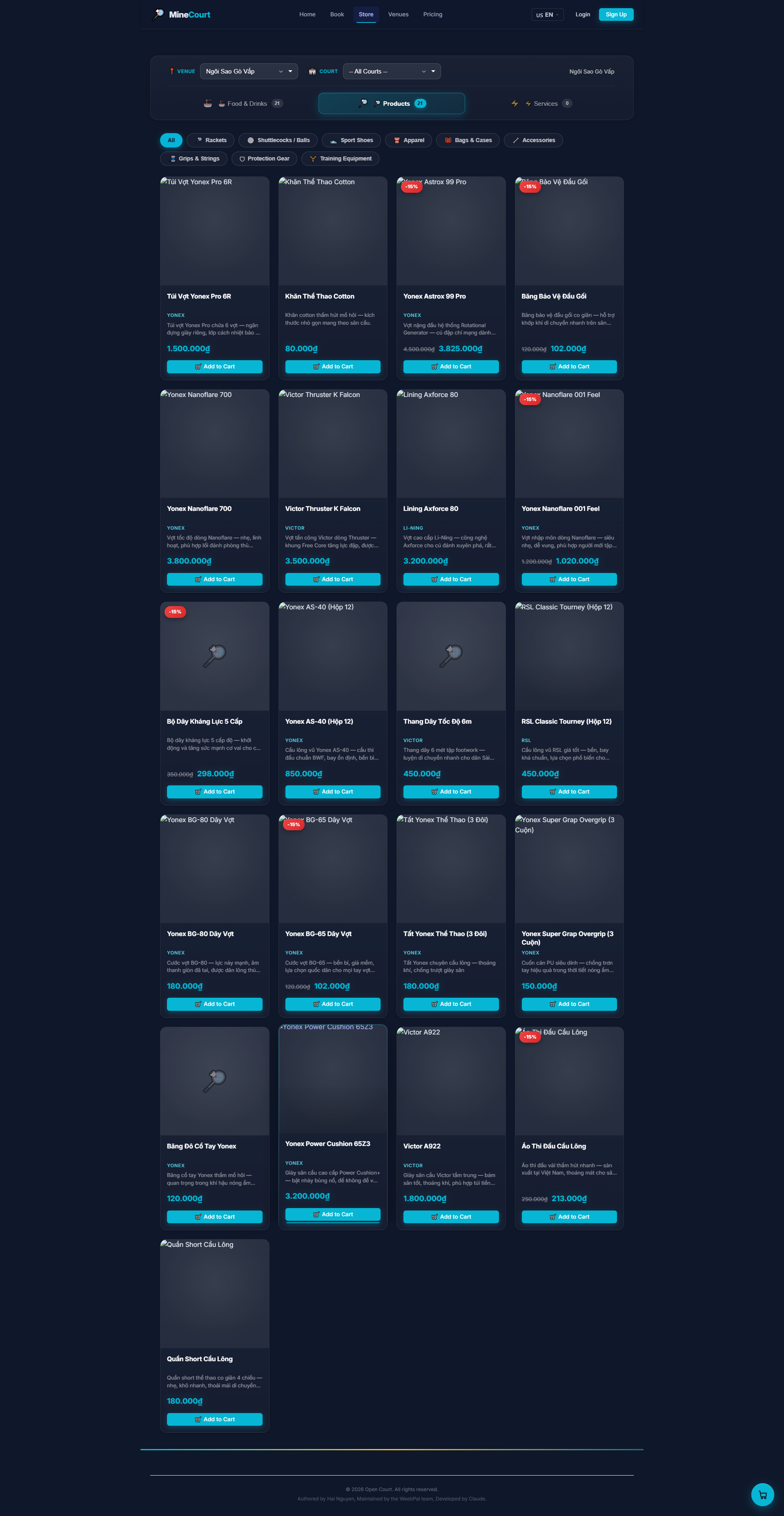
🛍️ Store — Sports Products
What it shows: Browse and purchase sports equipment online.
Navigation: Menu → Store → Products
- Browse, filter by category, and search products
- View item details and add directly to your Cart
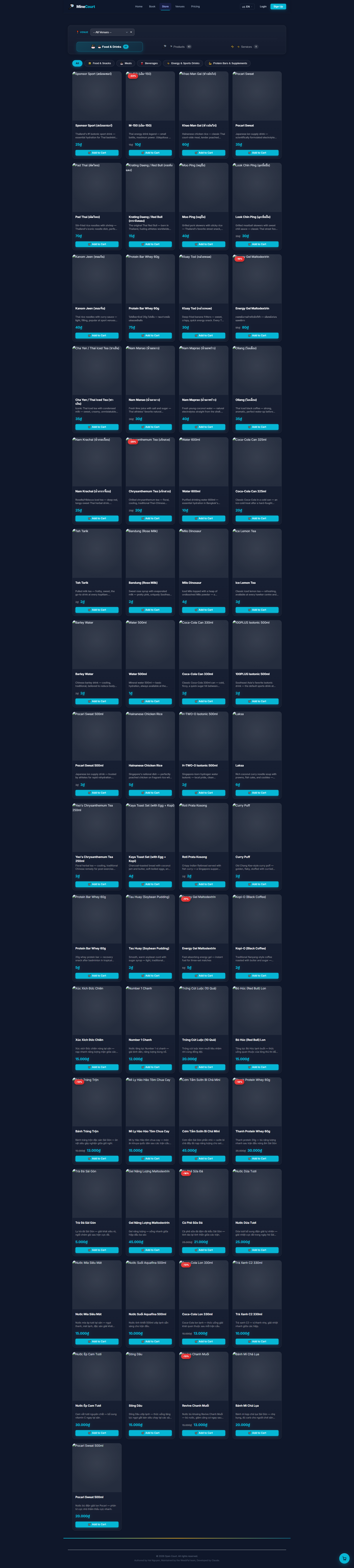
🍽️ Store — Food & Drinks
What it shows: Order food and beverages directly from the online store.
Navigation: Menu → Store → Food & Drinks
- Choose from Snacks, Meals, and Fresh Juices
- Complete checkout and your order will be ready at the court
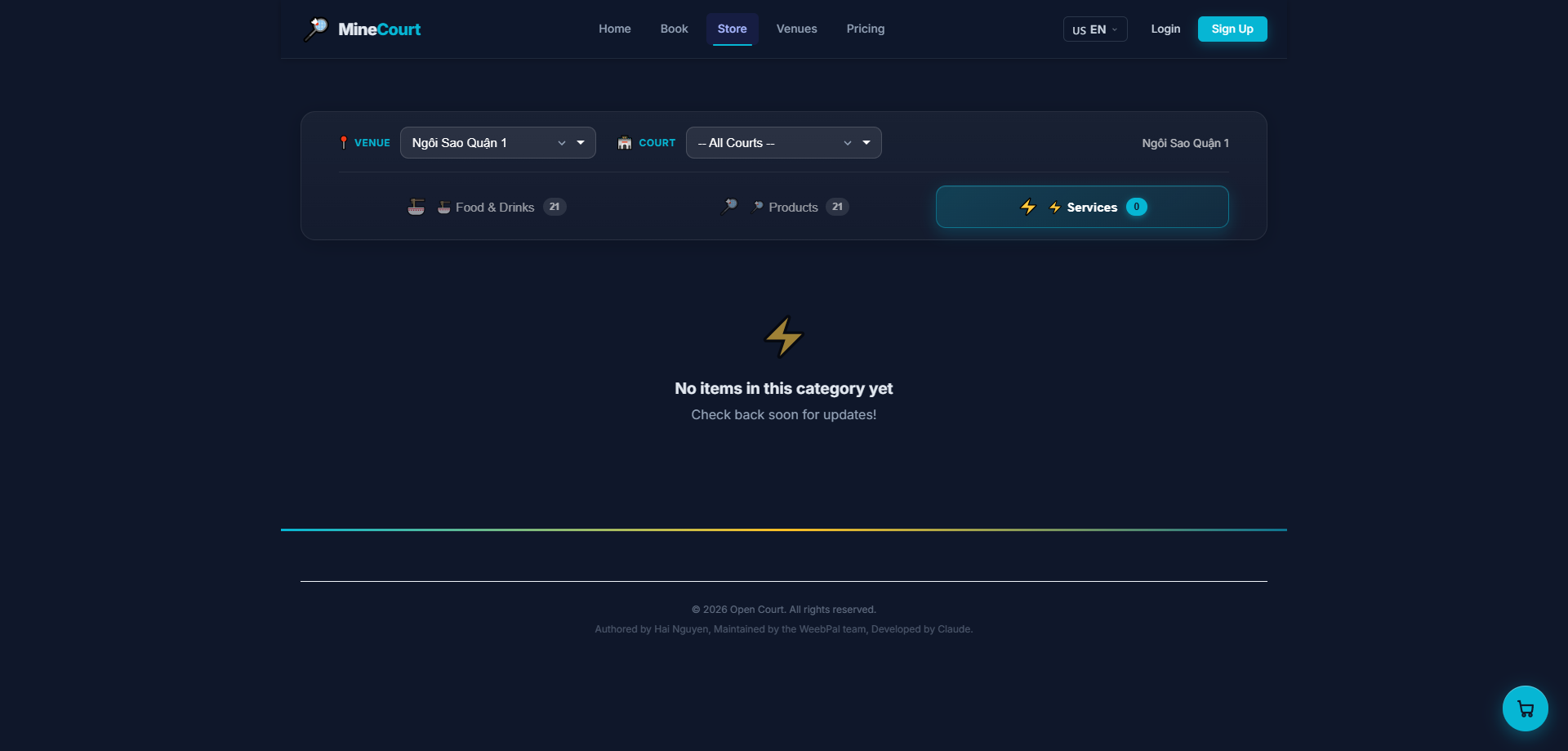
🧰 Store — Services
What it shows: Register for add-on services directly on the platform.
Navigation: Menu → Store → Services
- Services include coaching packages and ball retrieval
- Clear pricing and one-click purchase flow
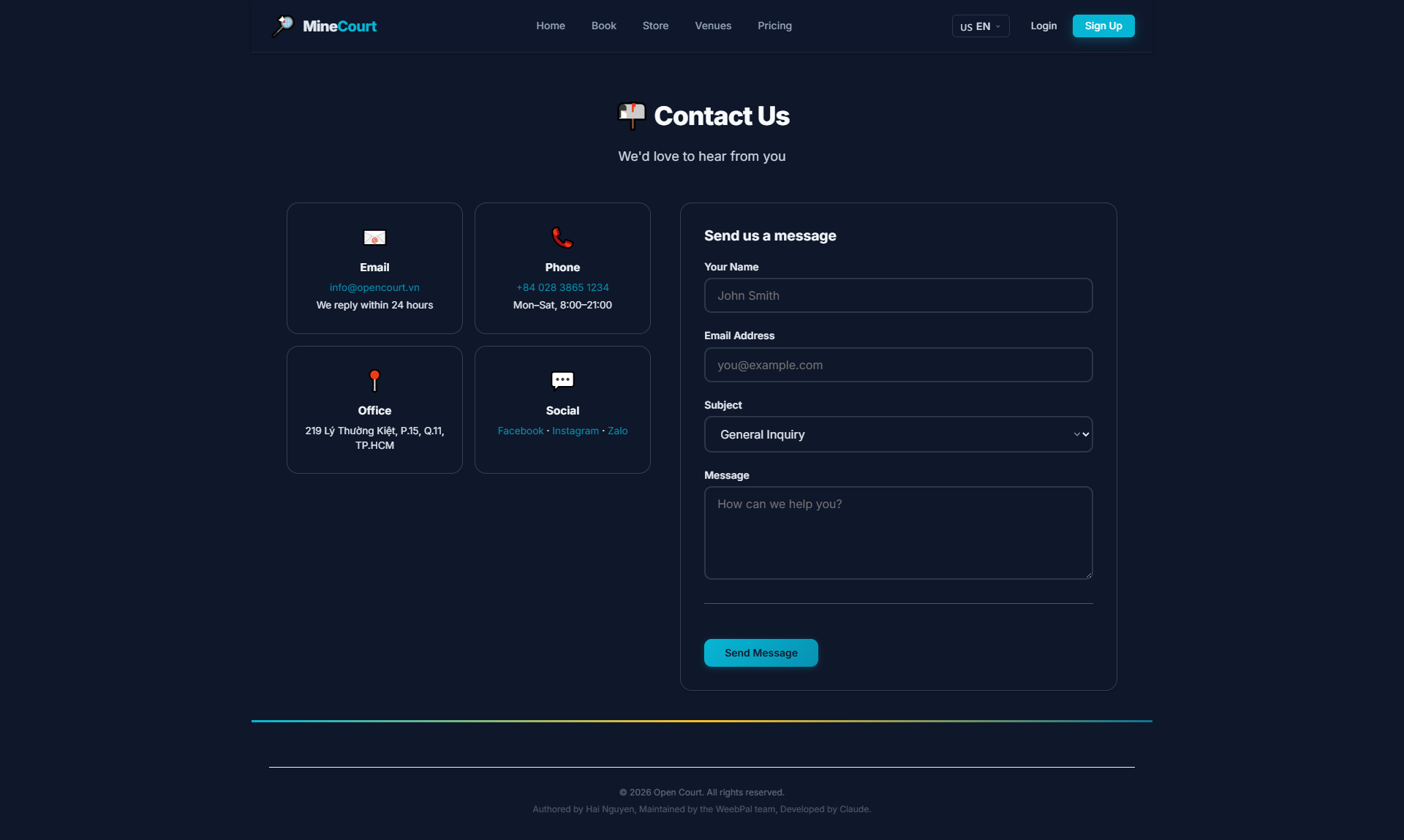
☎️ Contact Us
What it shows: Reach the Open Court support team or find venue contact information.
Navigation: Menu → Contact
- Submit an inquiry via the contact form (name, email, message)
- View direct phone numbers and email addresses for each venue
- Operating hours displayed for support availability
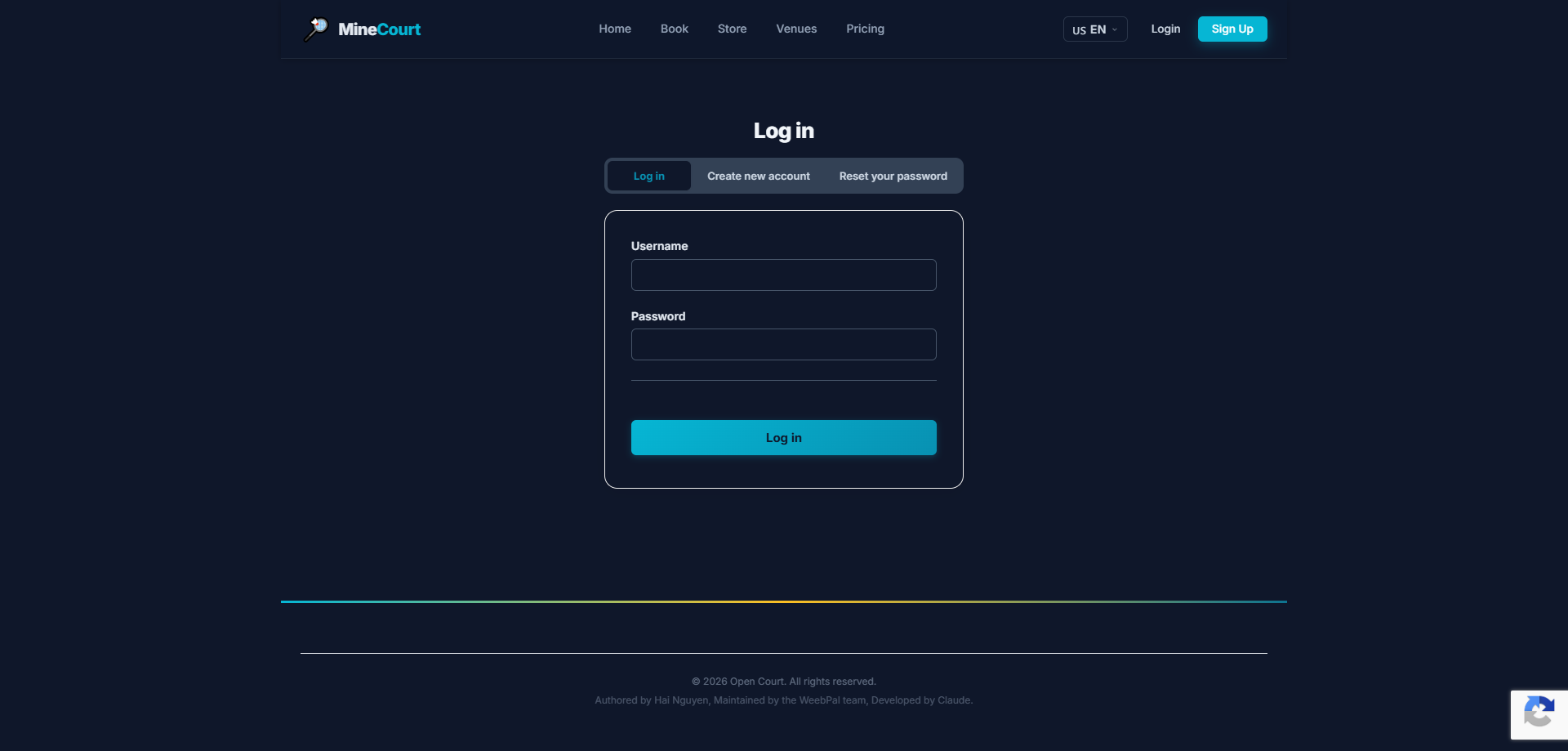
🔐 Login
What it shows: Securely sign in to your MineCourt account.
Navigation: Menu → Login
- Enter your Username and Password, then click Log in
- Alternative: tap Create new account to register
- Forgot your password? Use Reset your password
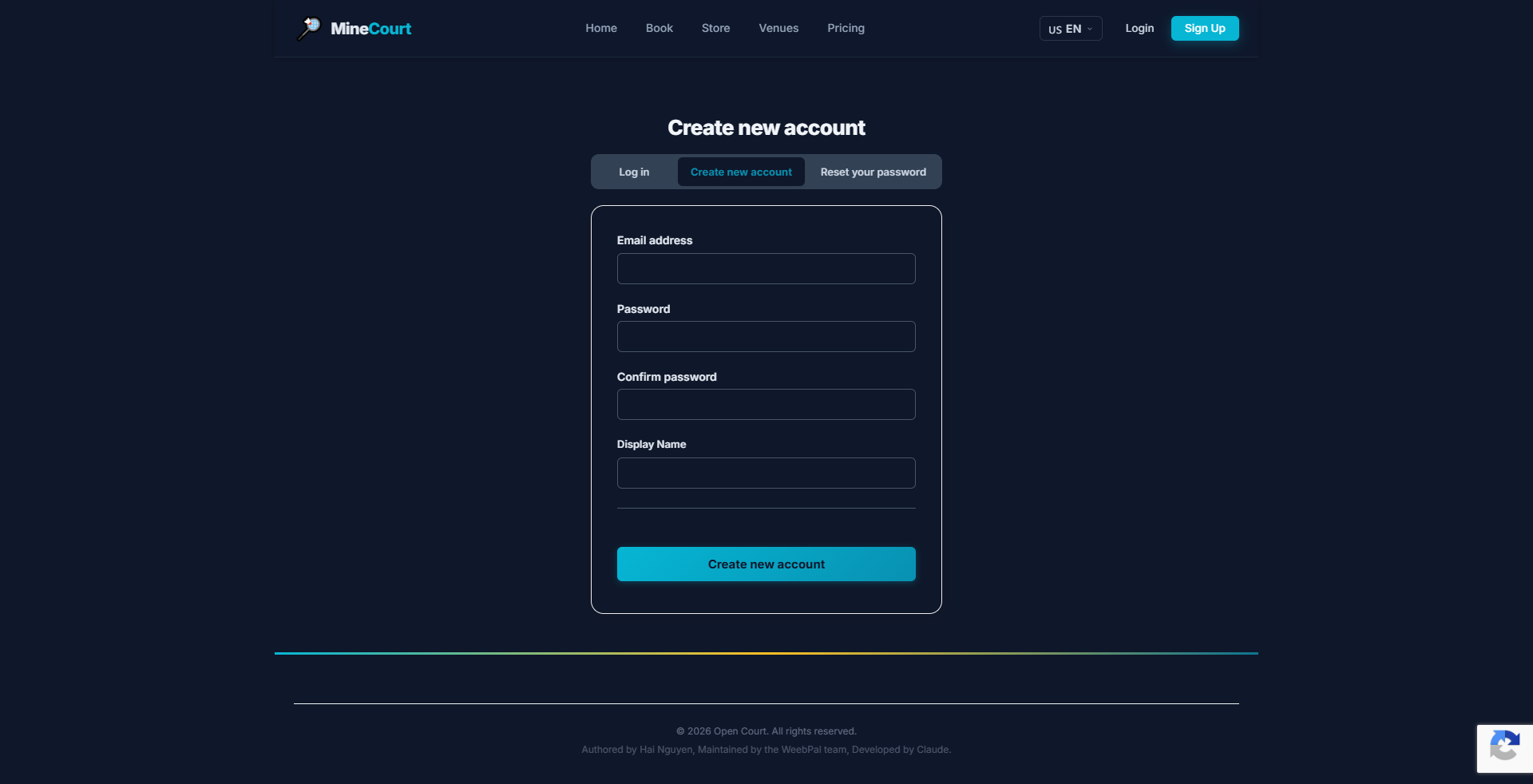
📝 Sign Up
What it shows: Create a new MineCourt account.
Navigation: Menu → Sign Up
- Fill in your name, email, phone number, and a strong password
- Click Sign Up to submit
- Verify your identity via the confirmation link sent to your email
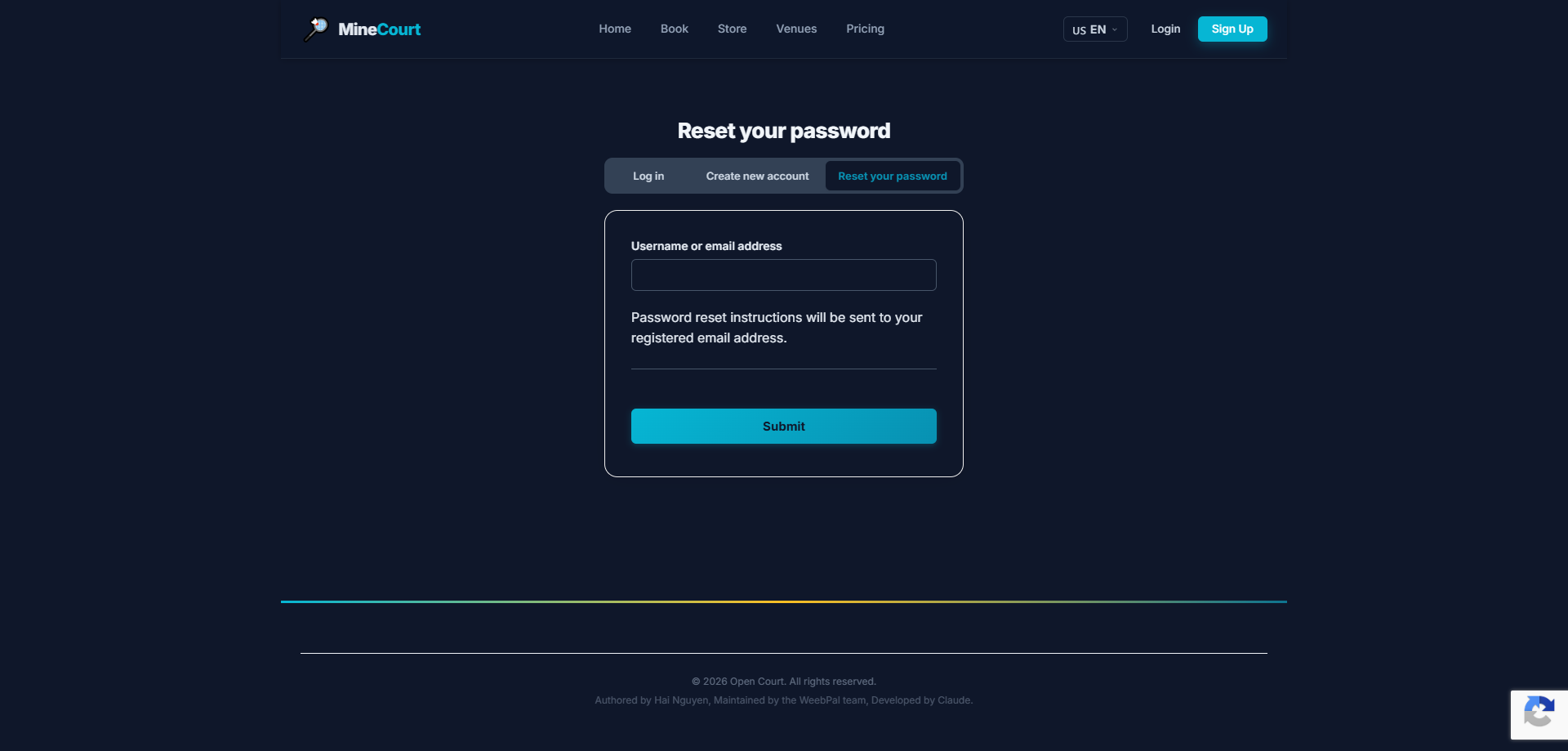
🔁 Reset Password
What it shows: Recover access when your password is lost or forgotten.
Navigation: Login → Reset Password
- Submit your registered email address
- A one-time reset link will be sent via Submit
- Follow the link in your email to set a new password
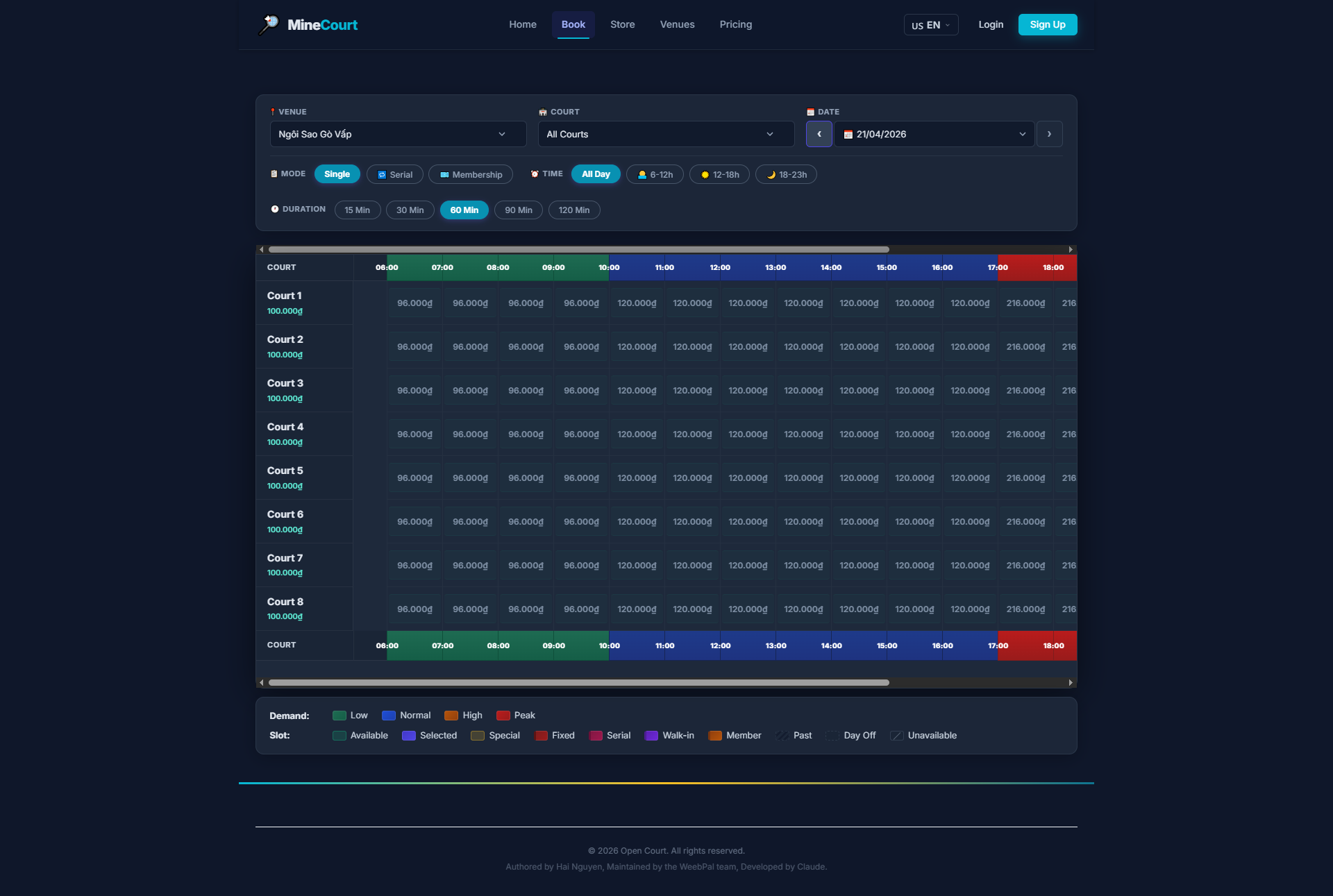
Step 1 — Select Slot
What it shows: Interactive schedule grid showing available time slots by date.
Navigation: Menu → Book
- Filter by: Venue, Court, and Date
- Switch booking mode to Single at the top
- Focus on time ranges: 6am–12pm, 12pm–6pm, 6pm–11pm
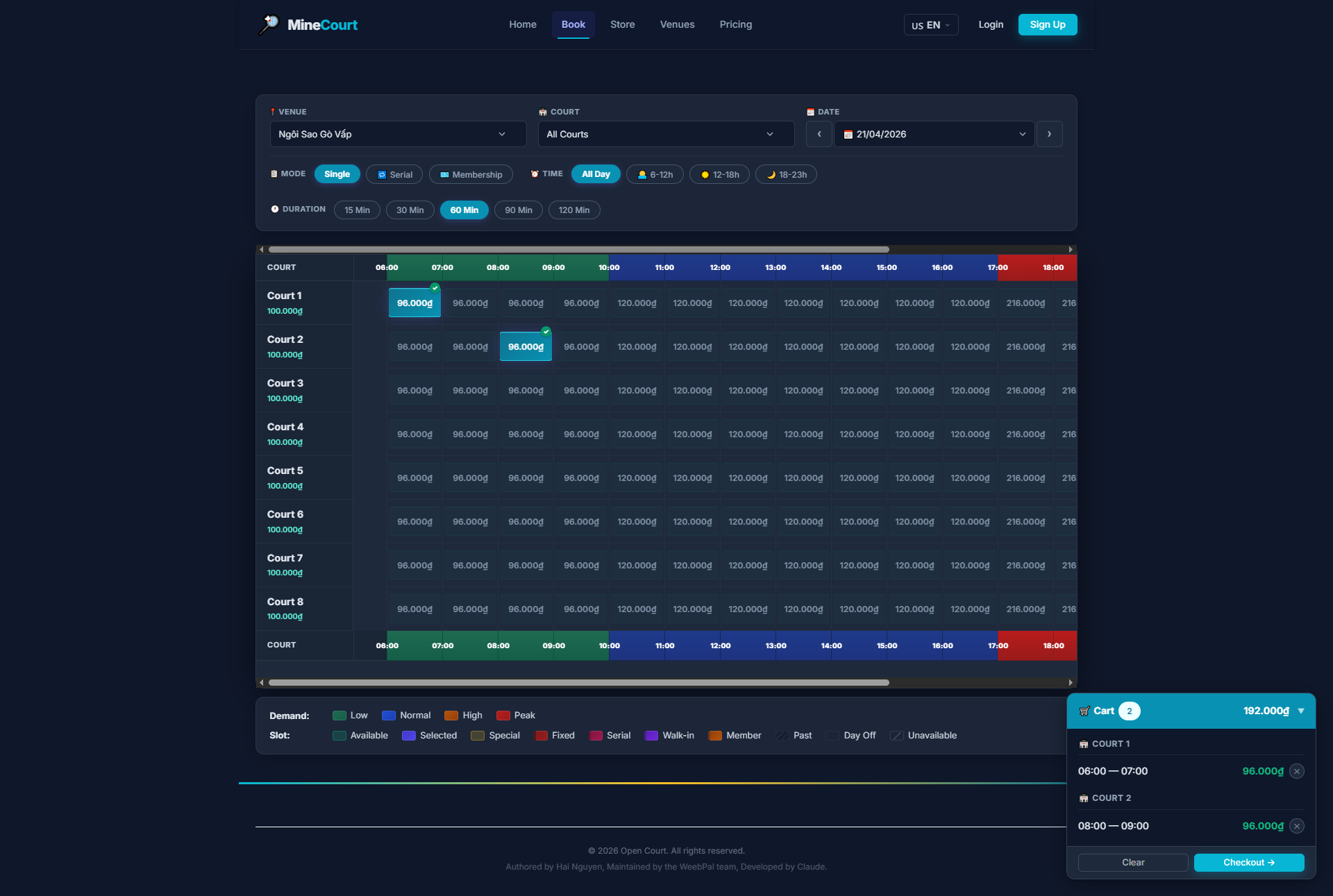
Step 2 — Add Court to Cart
What it shows: Select your preferred slot and lock it in the cart.
Navigation: Click any available cell on the booking grid
- Click or tap a time slot cell to select it — cell turns highlighted
- Multiple consecutive slots can be selected for longer sessions
- A Cart bar appears at the bottom showing total time and cost
- Click Checkout to proceed
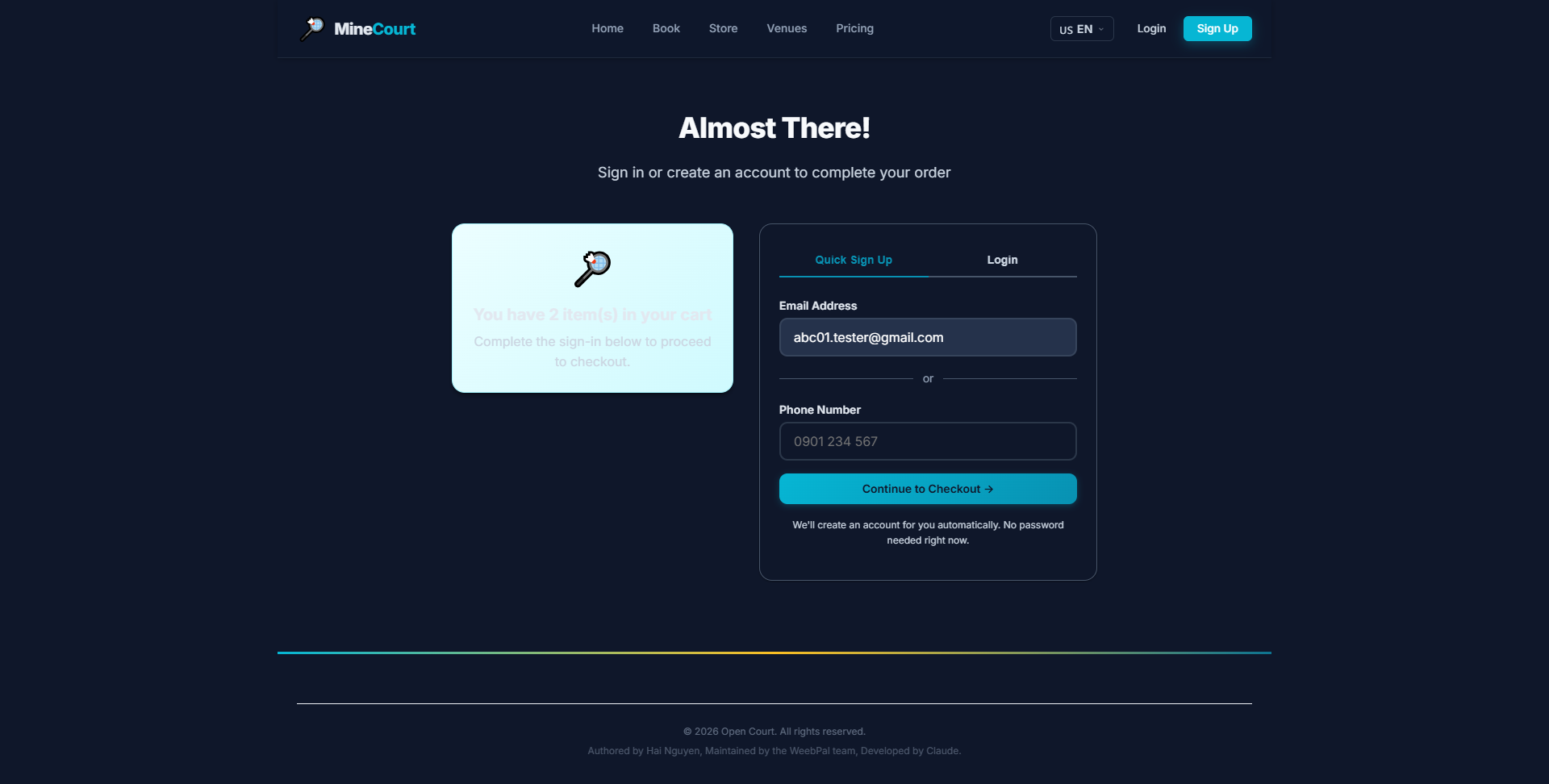
Step 3 — Sign In at Checkout
What it shows: Identity verification step — required to complete the booking.
Navigation: Cart → Checkout
- This prompt appears if you started booking without logging in
- Enter your Email or Phone and password to sign in
- Or click Create Account to register now without losing your cart
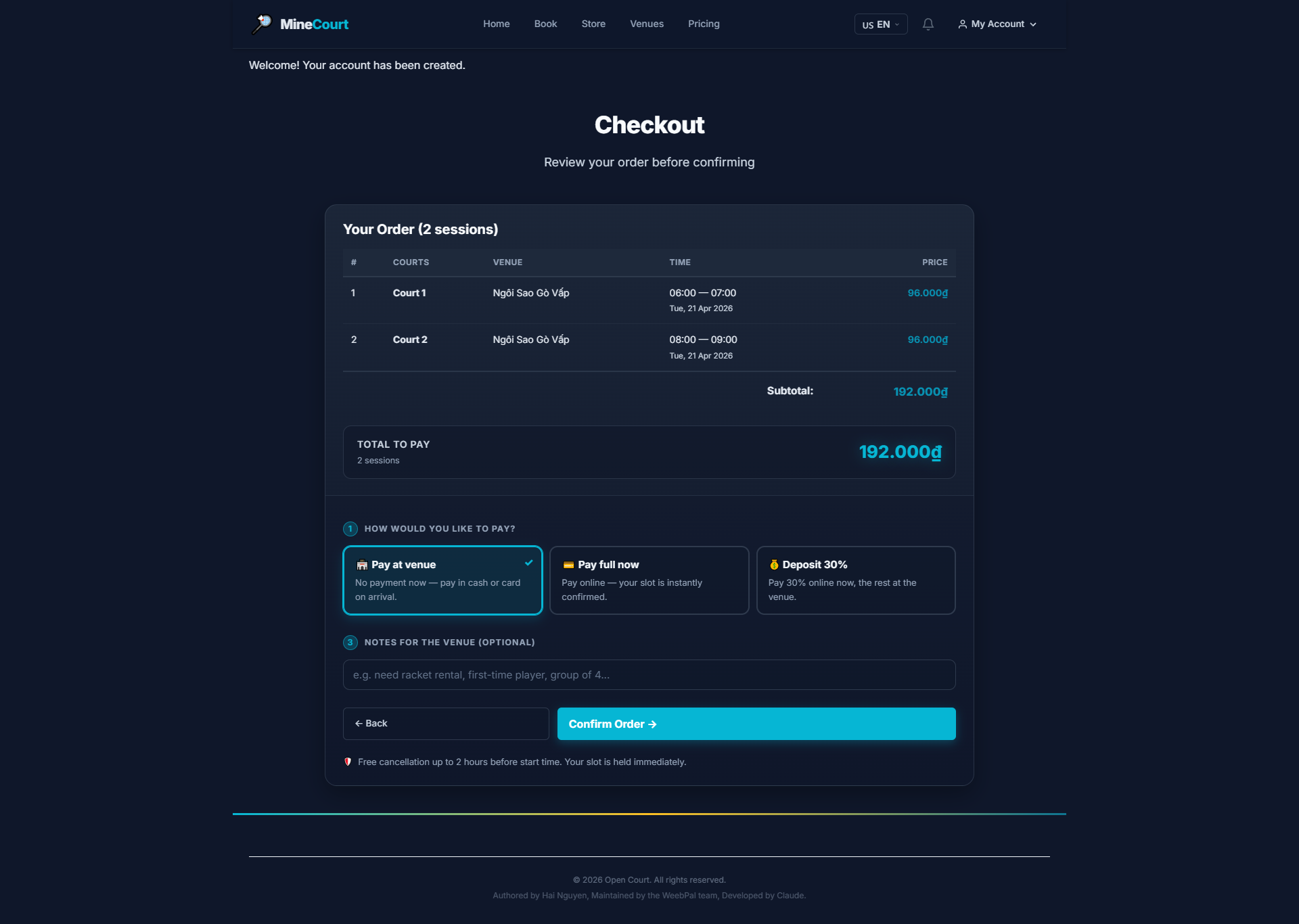
Step 4 — Checkout & Payment Mode
What it shows: Review your order and choose how you want to pay.
Navigation: After sign-in → Checkout
- Full order summary: courts, dates, times, and total price
- Select a payment mode: Pay at Venue · Pay Full Now · Deposit 30%
- Add optional notes for the venue, then click Confirm Order
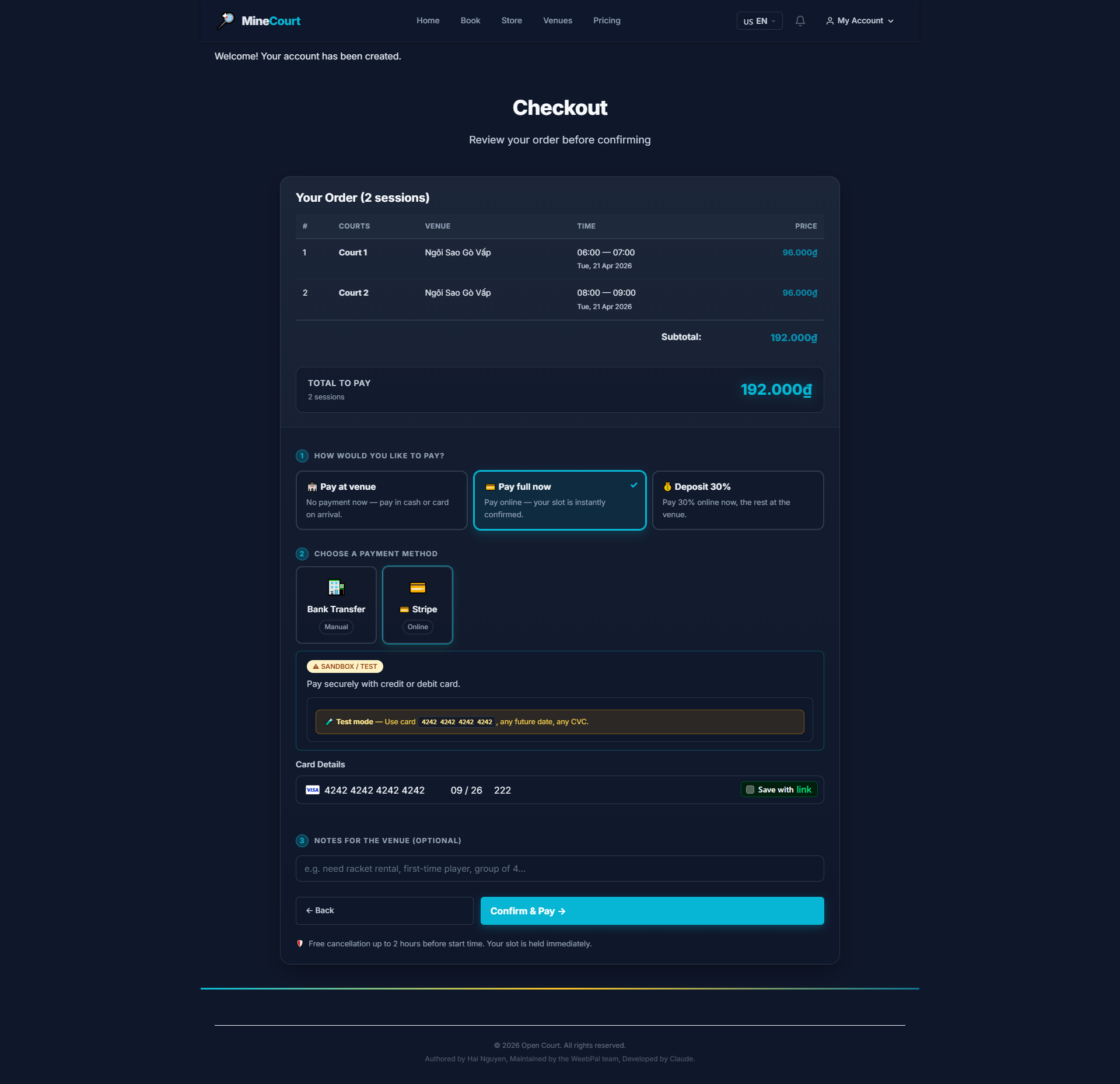
Step 5 — Select Payment Method
What it shows: Choose how to pay for your booking.
Navigation: Checkout → Select Payment
- Available options: Bank Transfer, Credit/Debit Card, E-Wallet
- If you have a wallet balance, it will appear as an option
- Select your preferred method and click Continue
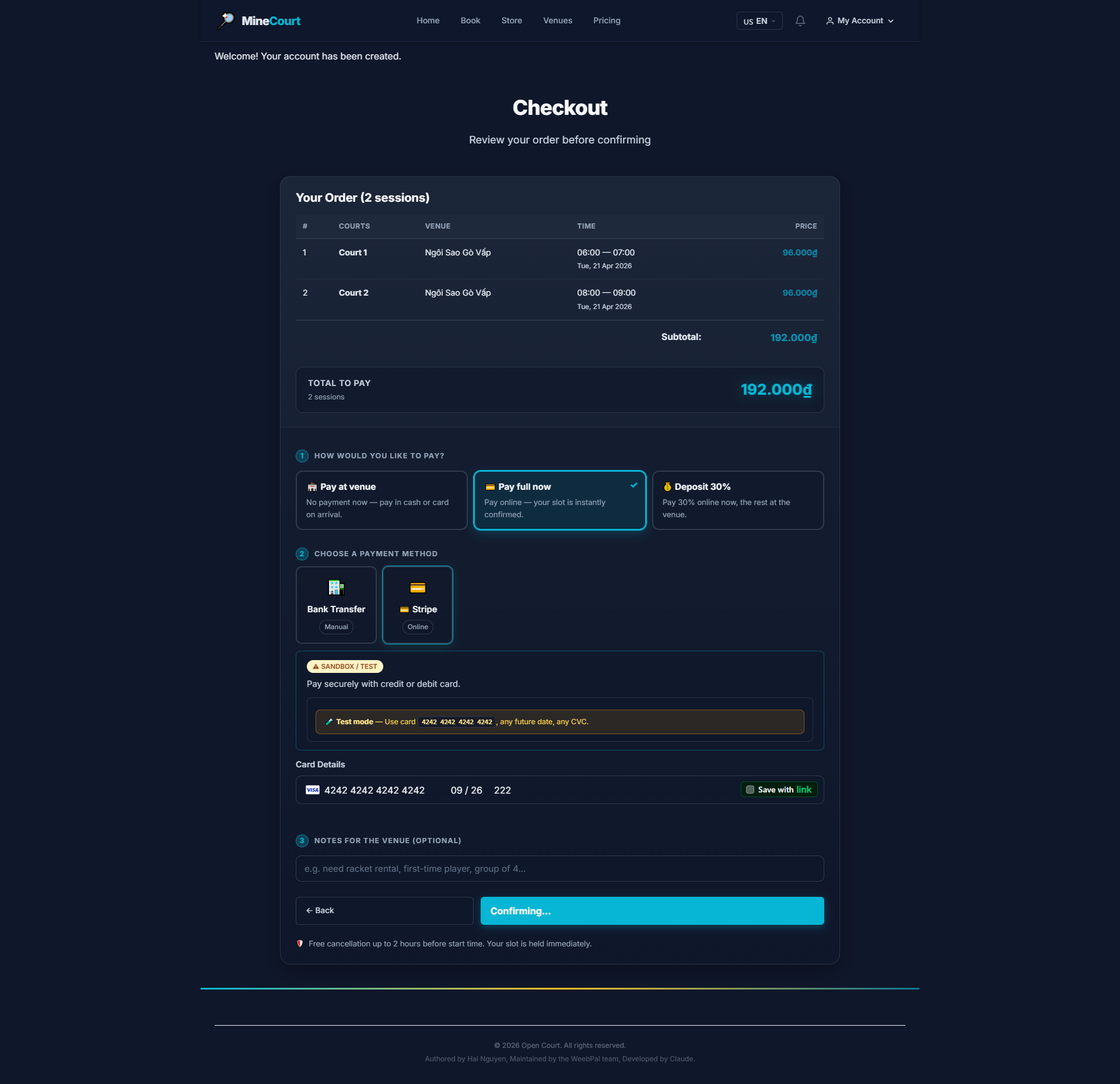
Step 6 — Review & Confirm Payment
What it shows: Final order summary before payment is processed.
Navigation: Payment → Review order
- Final line-item view: slot cost, discounts applied, and total due
- No hidden fees — final amount shown is exactly what is charged
- Click Confirm & Pay to process payment
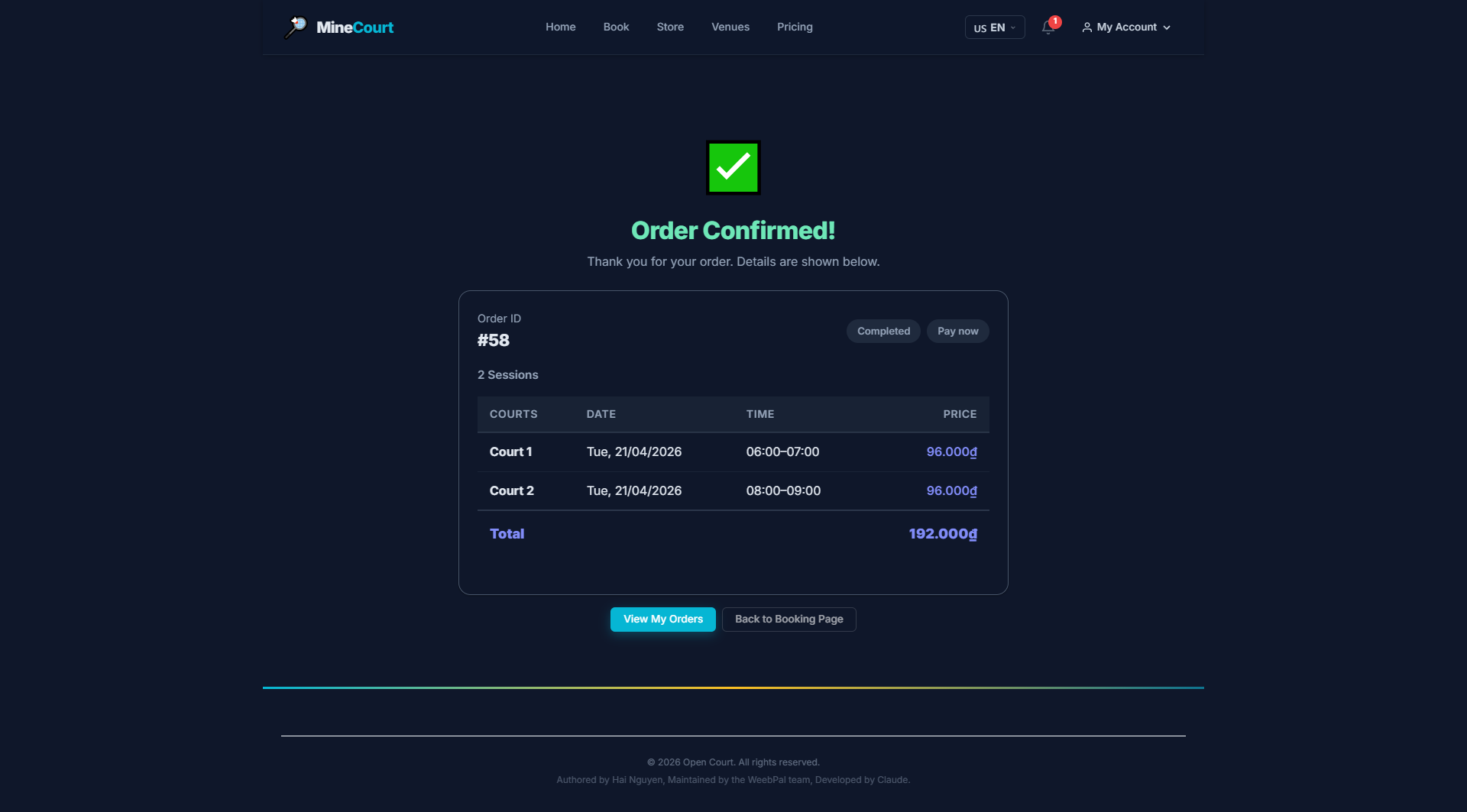
Step 7 — Booking Confirmed
What it shows: Confirmation screen with booking ID and receipt.
Navigation: After successful payment
- Your unique Booking ID is displayed for check-in reference
- Tap View My Orders to see your QR code and booking details
- A receipt and booking confirmation are emailed automatically
Serial — Select Date & Pattern
What it shows: Configure a recurring booking schedule.
Navigation: Booking → Switch to Serial mode
- Set Start Date, End Date, and select the Day of Week
- System auto-highlights matching dates in the calendar
- Preview the full schedule before committing
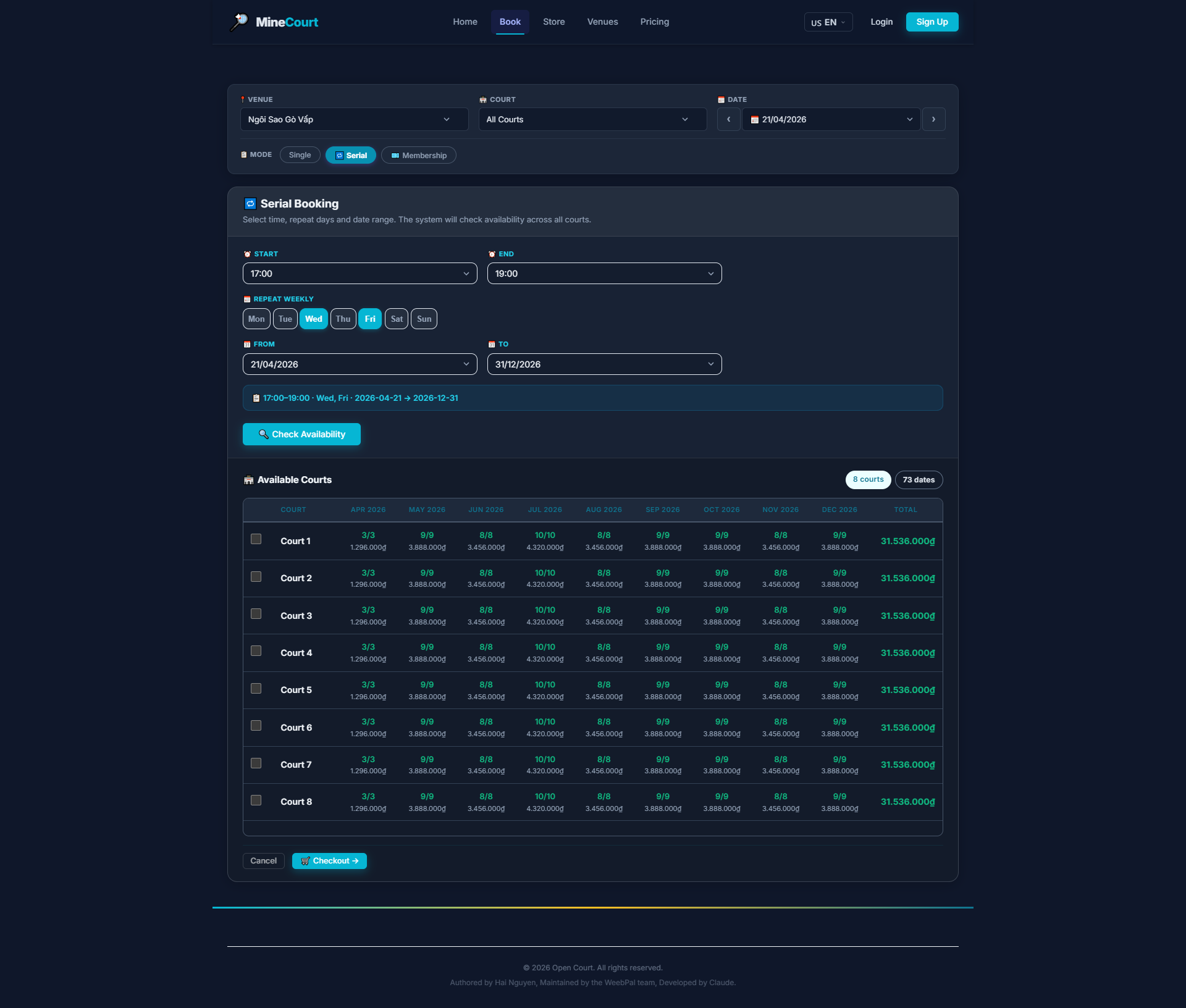
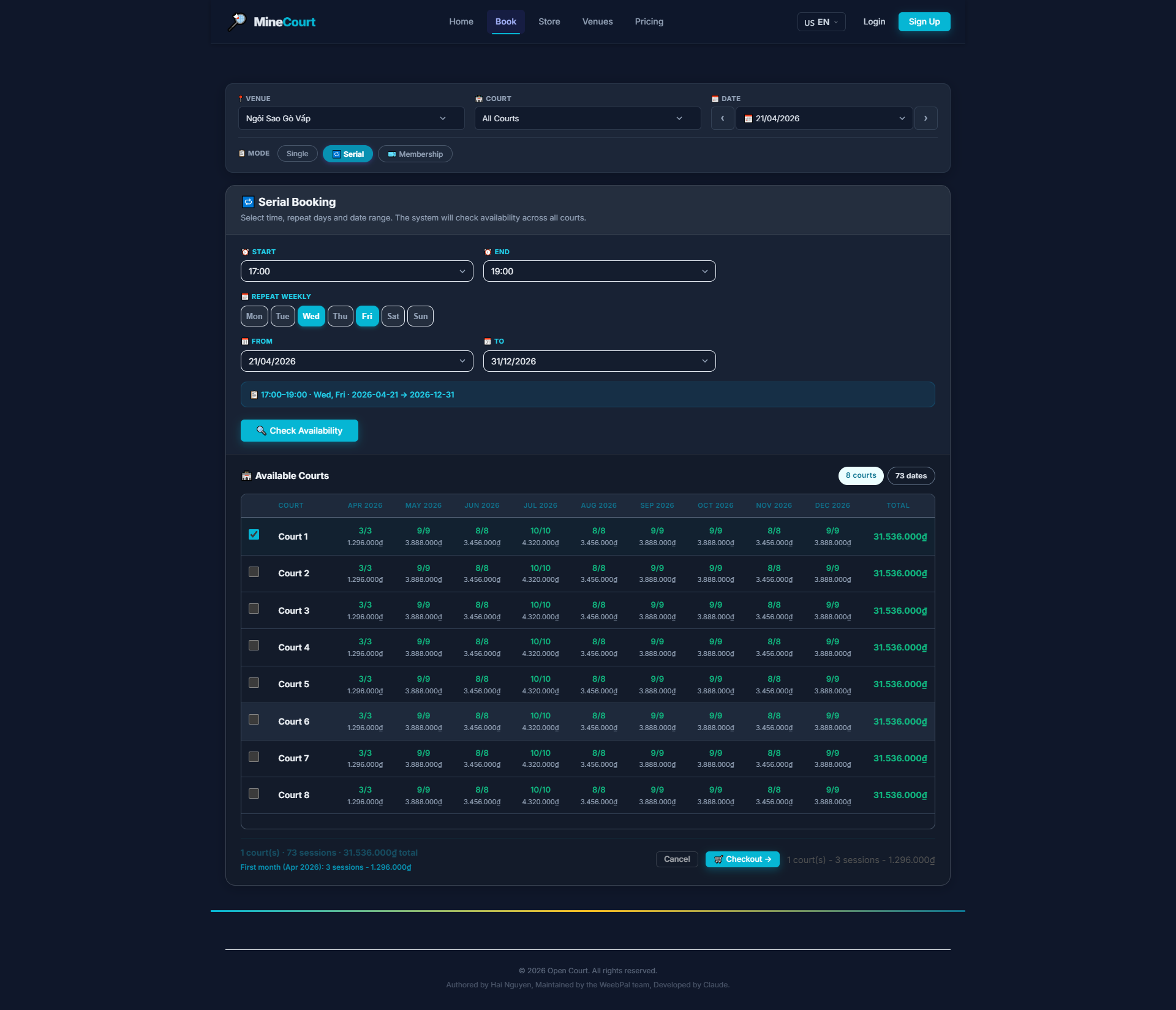
Serial — Select Courts
What it shows: Choose the time slot and court for each session in the series.
Navigation: Serial mode → Date selected → Choose slot
- Drag or click to select the time range on the grid
- Available courts are highlighted in green
- Conflicting (unavailable) dates are auto-skipped and shown in red
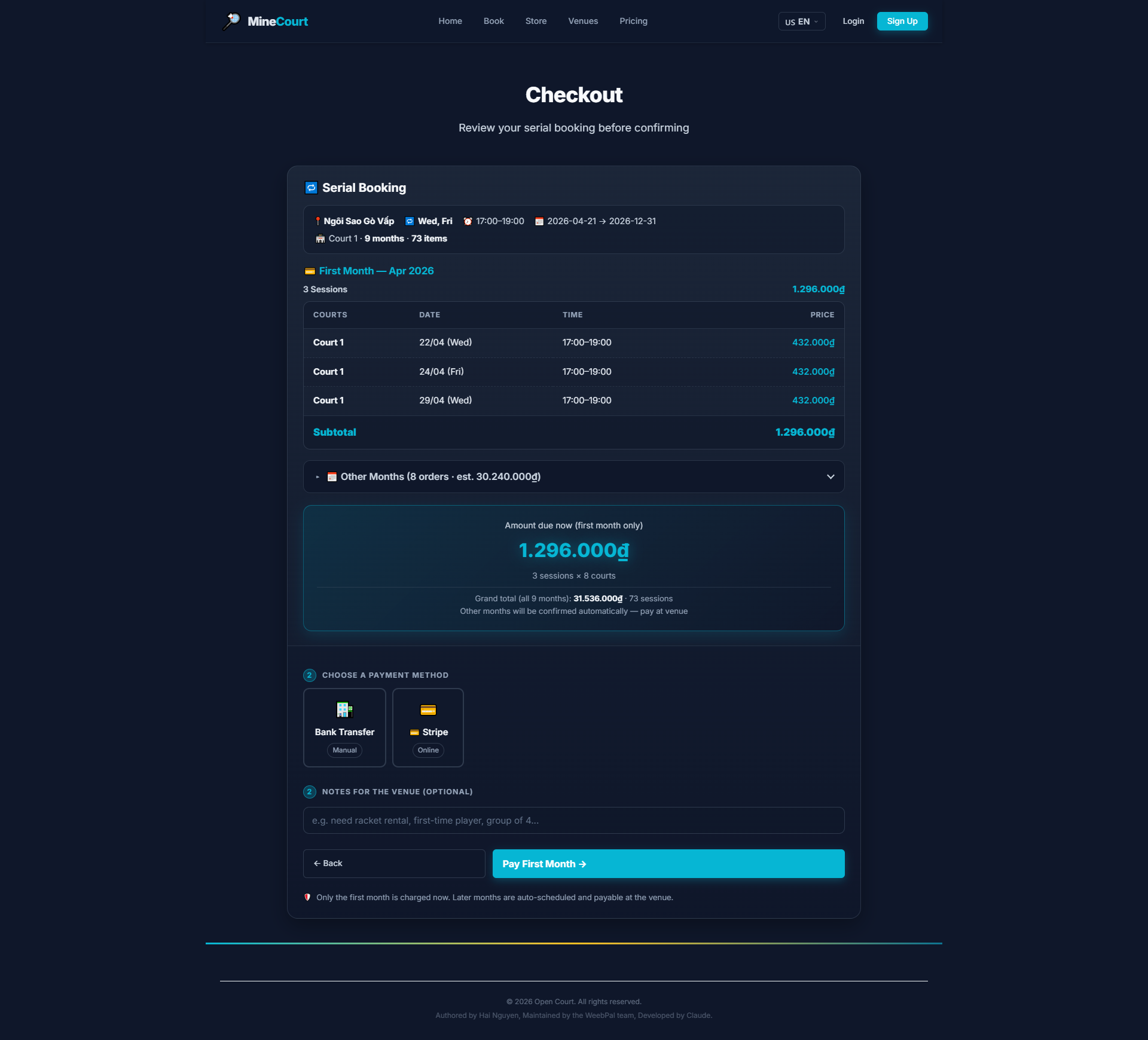
Serial — Checkout
What it shows: Review all sessions in the series before payment.
Navigation: Serial cart → Checkout
- Full list of all scheduled sessions with dates and times
- Total deposit amount to pay now vs. total series value
- Confirm your contact details before proceeding
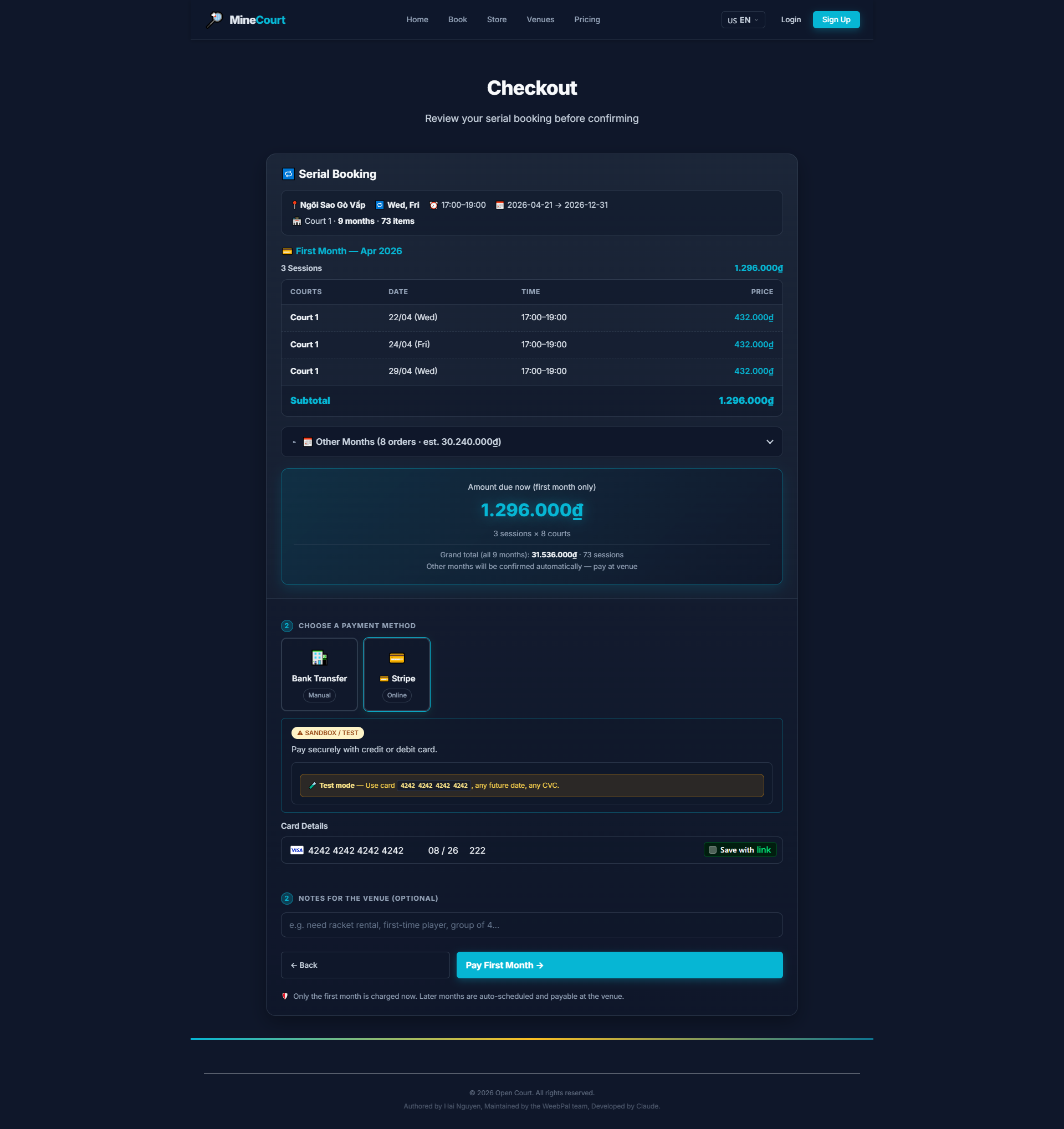
Serial — Select Payment Method
What it shows: Choose how to pay the deposit for the recurring series.
Navigation: Serial Checkout → Select Payment
- Same payment options as single booking: Bank Transfer, Card, E-Wallet
- Deposit amount is displayed clearly
- Select method and click Pay Now to lock in the series
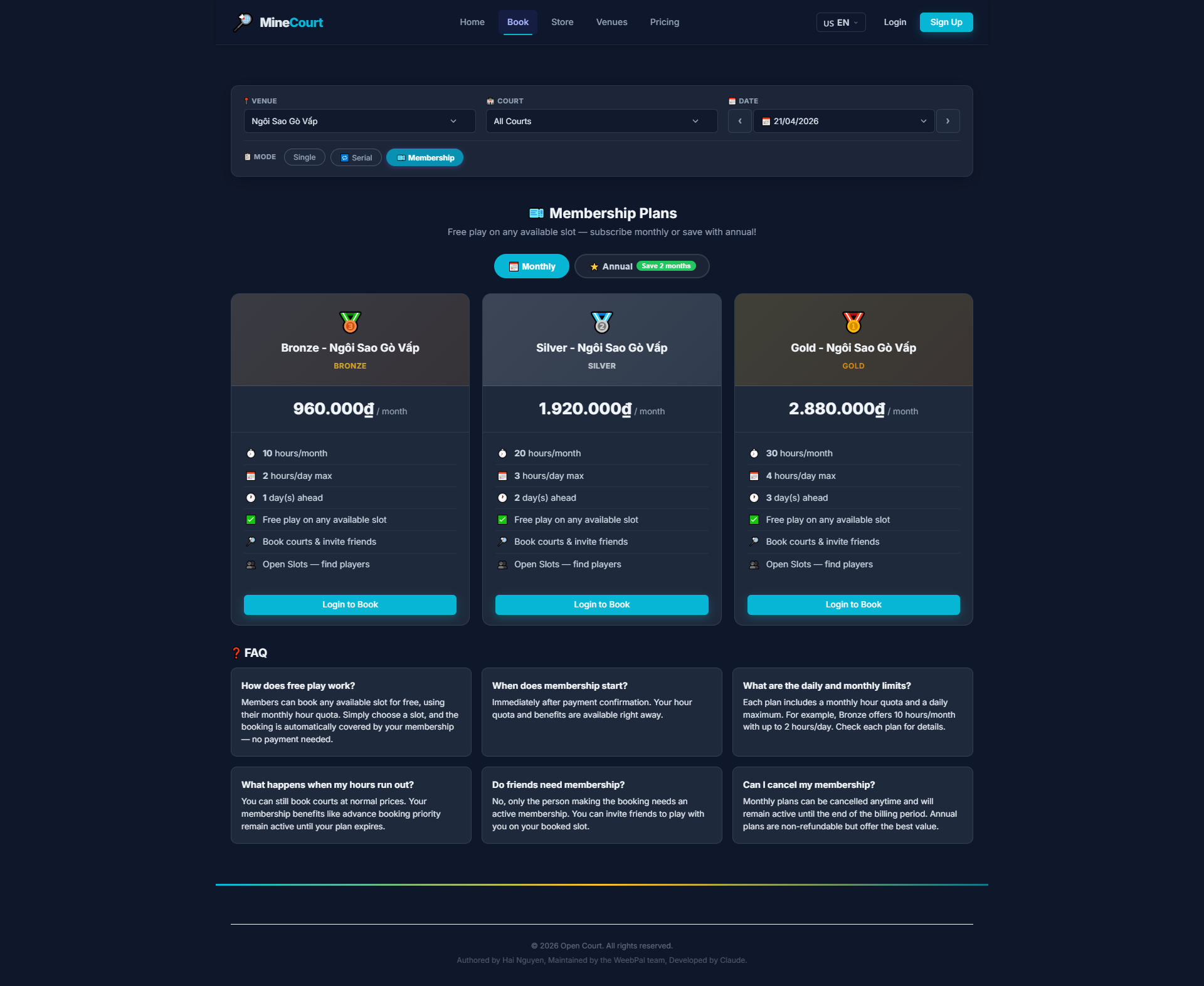
Membership — Choose a Plan
What it shows: Browse and select a membership plan that suits your play frequency.
Navigation: Menu → Book → Membership tab
- Three tiers available: Bronze, Silver, Gold — each with monthly hour quota and daily limits
- Toggle between Monthly and Annual billing (Annual saves 2 months)
- Click Login to Book on your chosen plan to proceed
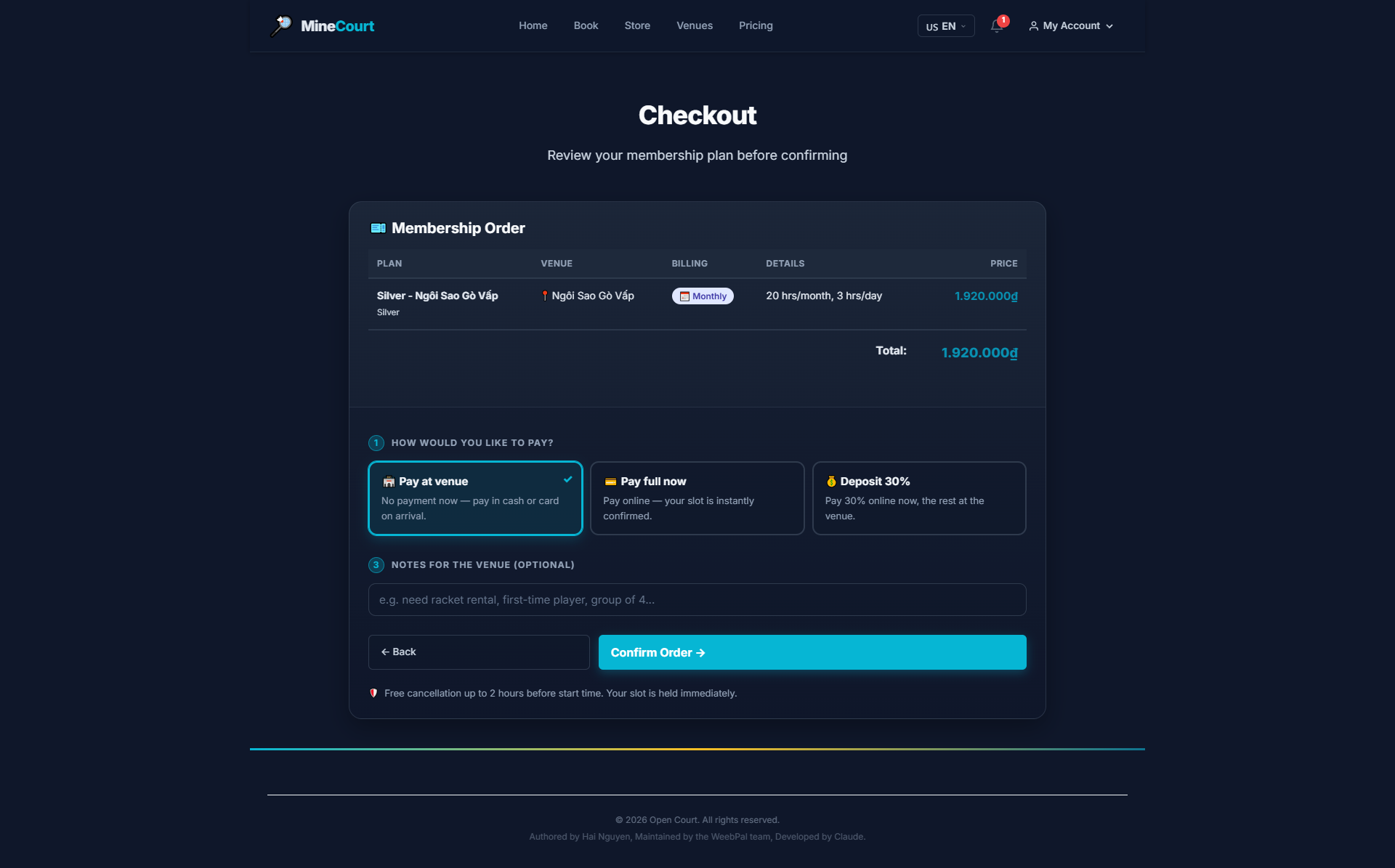
Membership — Checkout
What it shows: Review your membership order and select how you want to pay.
Navigation: Choose plan → Login → Checkout page
- Displays: Plan name, venue, billing cycle, and total price
- Choose a payment mode: Pay at Venue · Pay Full Now · Deposit 30%
- Add optional notes, then click Confirm Order
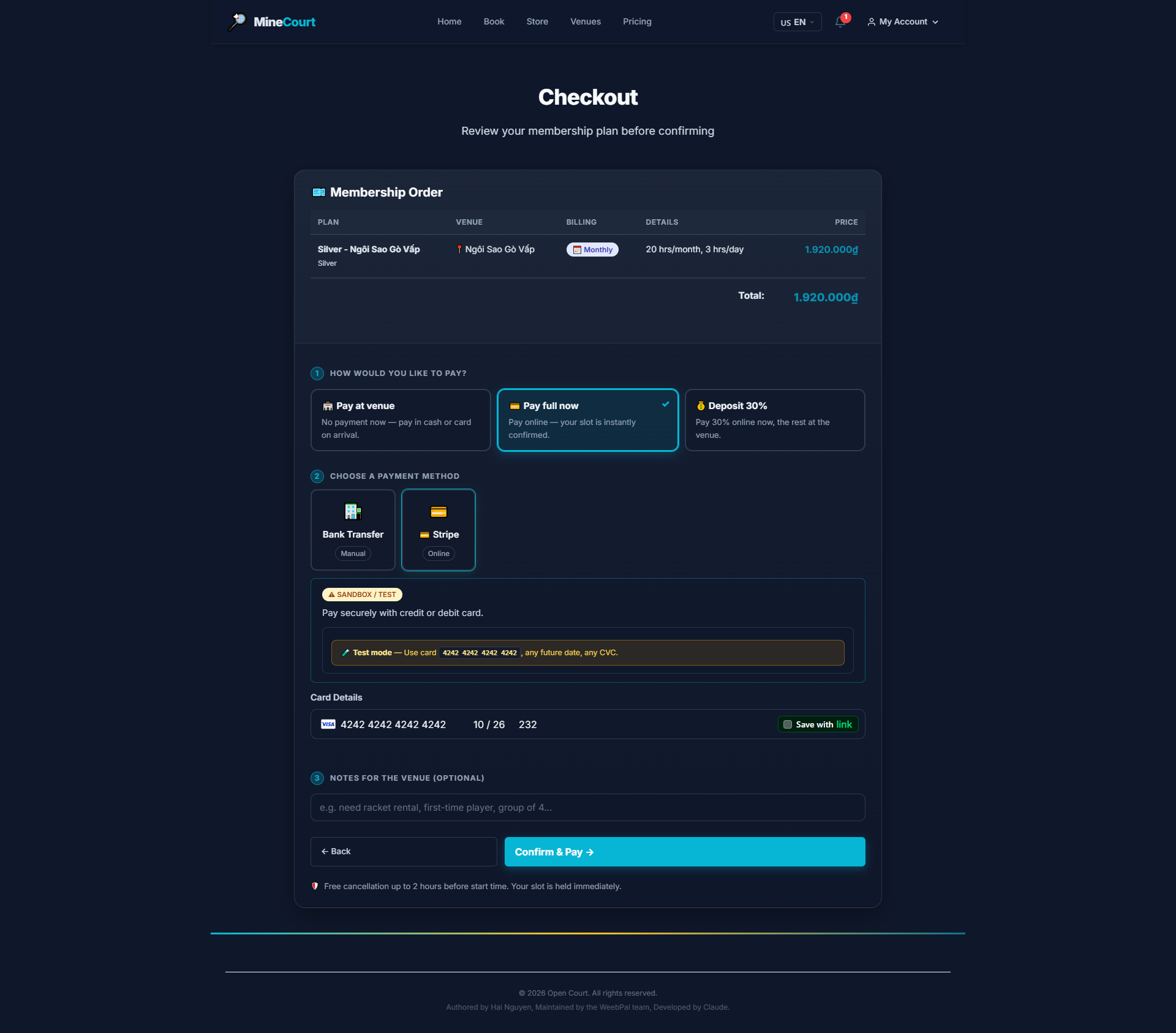
Membership — Select Payment
What it shows: Choose your payment method and complete the transaction.
Navigation: Checkout → Choose payment method → Confirm & Pay
- Select Bank Transfer (manual) or Stripe (instant card payment)
- Enter card details securely — Stripe processes payment immediately
- Click Confirm & Pay to finalize
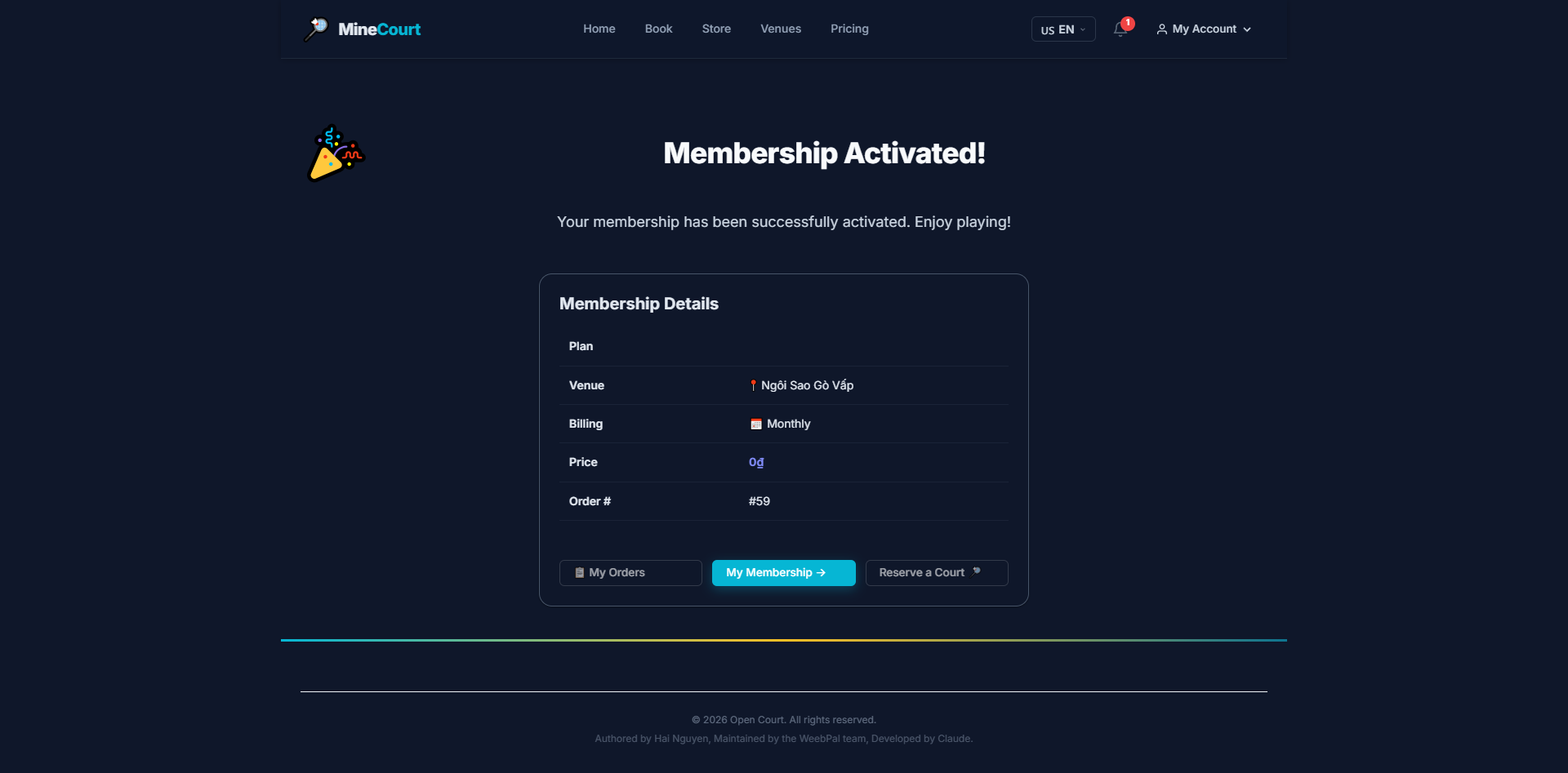
Membership — Activated
What it shows: Membership successfully purchased and quota immediately available.
Navigation: After payment → Membership Activated confirmation
- Displays plan details: venue, billing cycle, and Order number
- Quota is available instantly — start booking courts right away
- Navigate to My Membership to view remaining hours, or Reserve a Court to book now