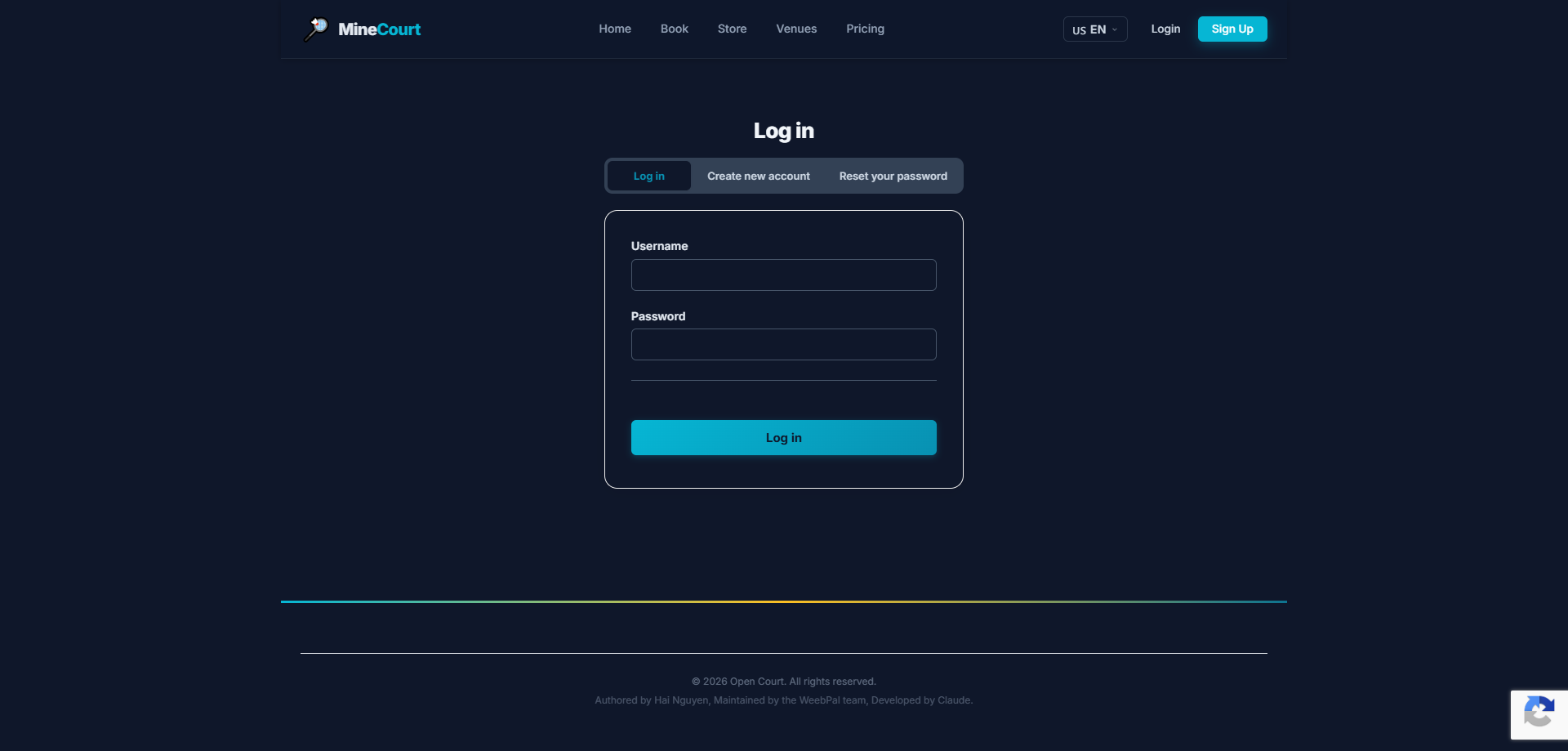
System Login
What it shows: Standard login form with username/email and password fields, plus links to create account or reset password.
Navigation: Menu → Login
- Demo access: sandbox accounts are issued on request — request a guided demo.
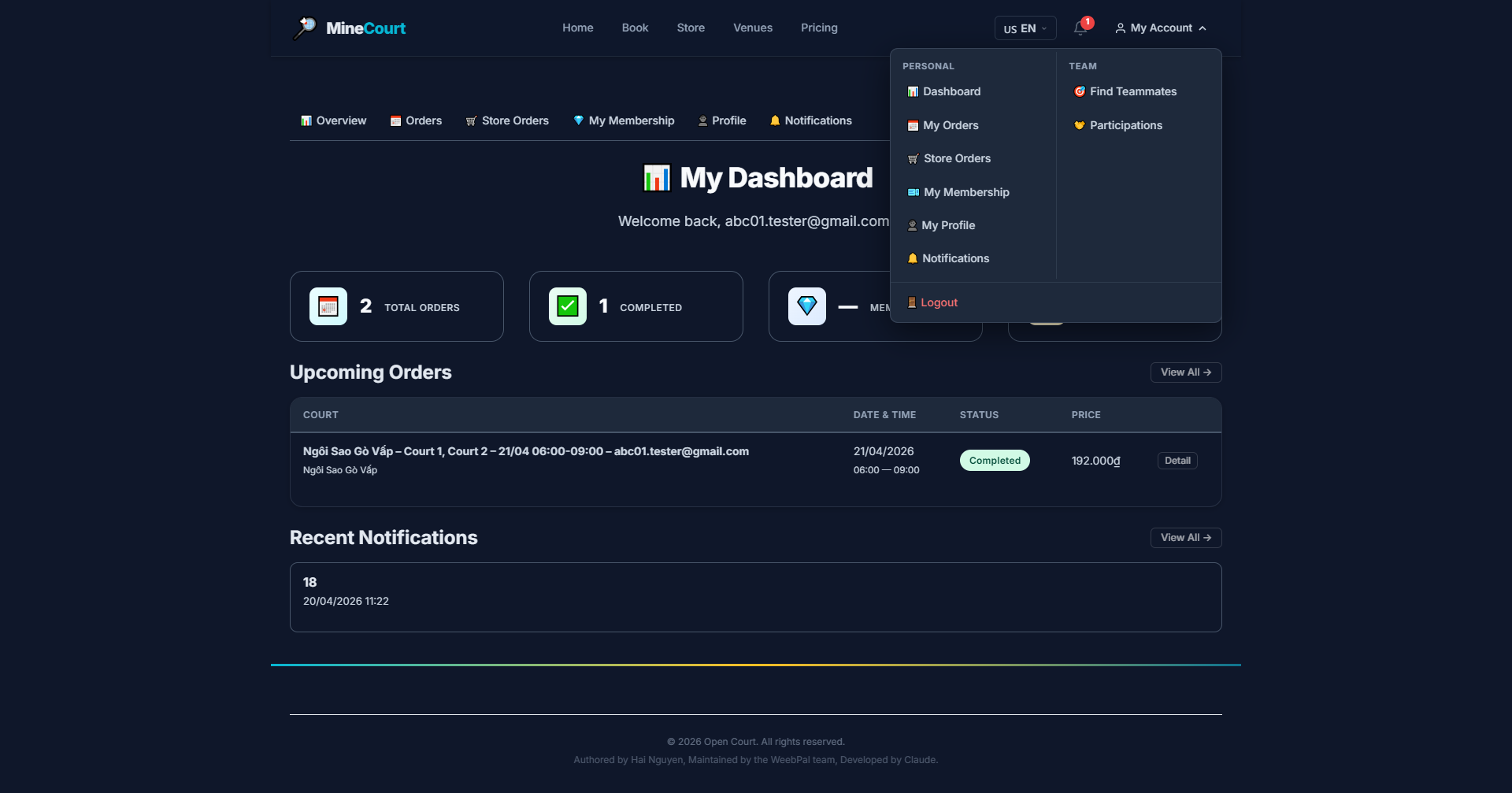
My Account Menu
What it shows: Navigation menu with tabs for Dashboard, Profile, Order History, Store Orders, Memberships, and Notifications.
Navigation: Menu → My Account
- Includes: Dashboard, Order History, and Store Orders
- Track your Membership status and check Notifications
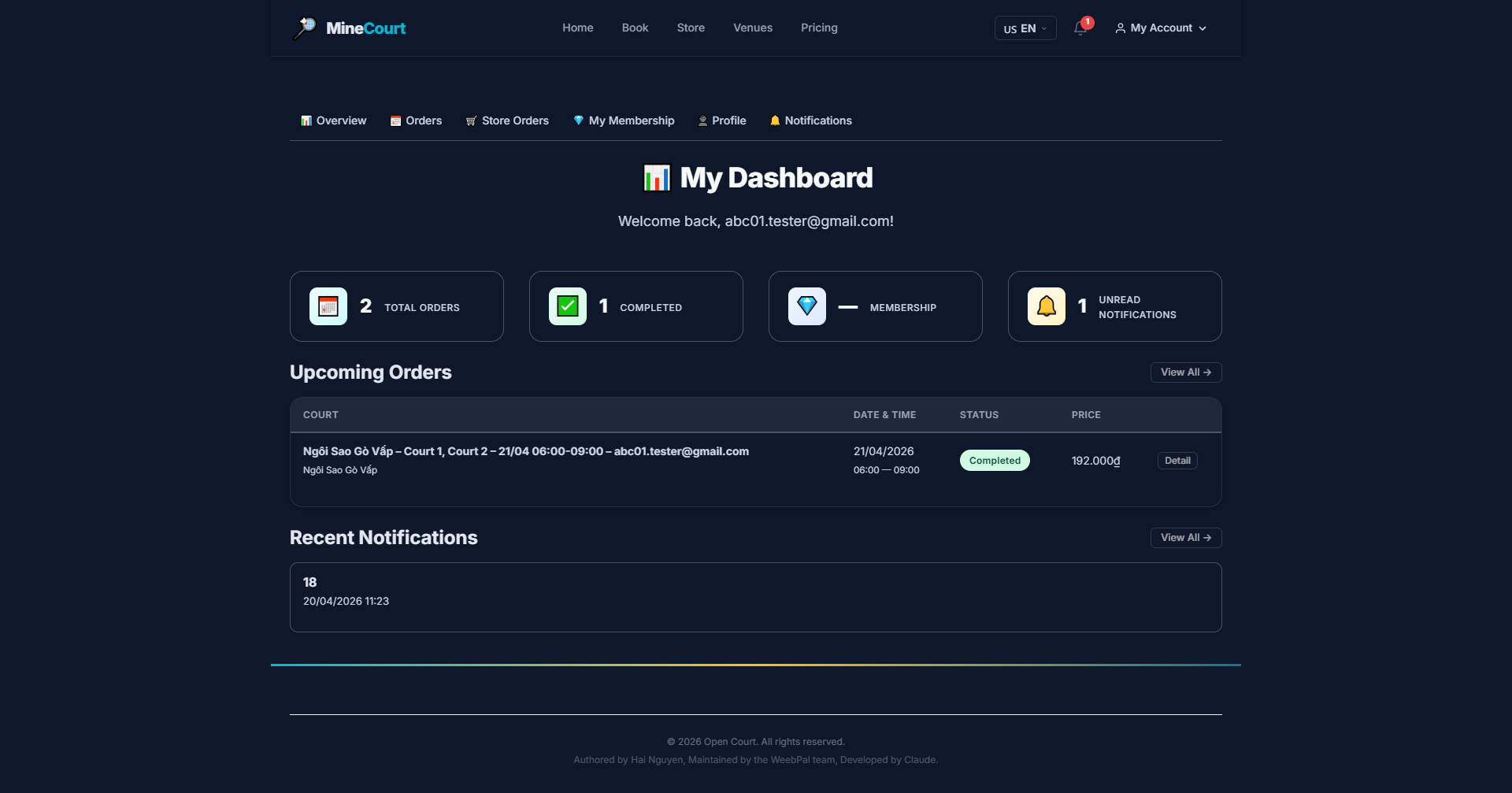
Dashboard
What it shows: Personal dashboard showing key statistics (total spent, courts visited, active memberships) and a list of upcoming bookings.
Navigation: My Account → Personal Dashboard
- Stats: Total Spent, Courts Visited, Active Memberships
- Lists upcoming bookings so you never miss a session
- Click View All → to browse full history at the bottom
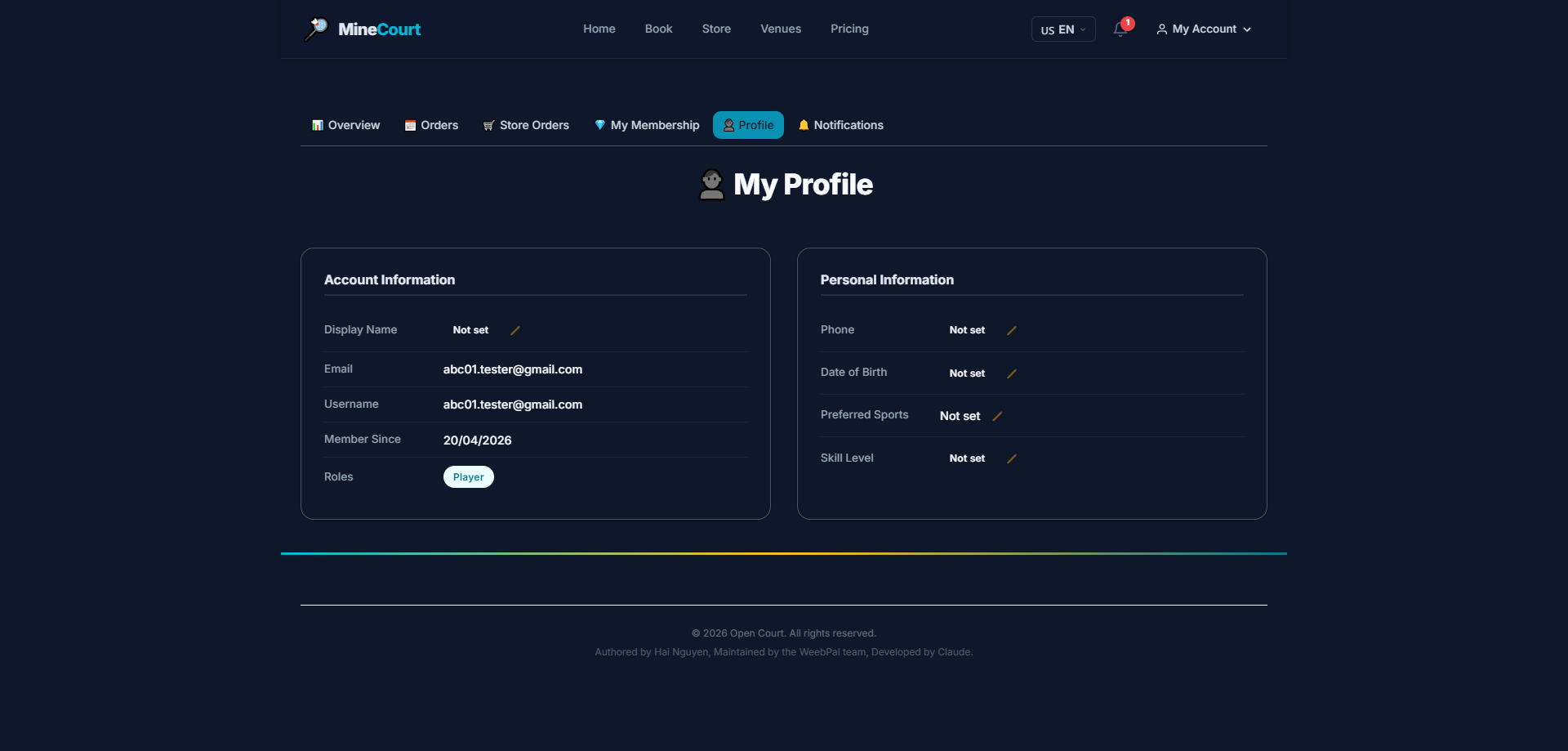
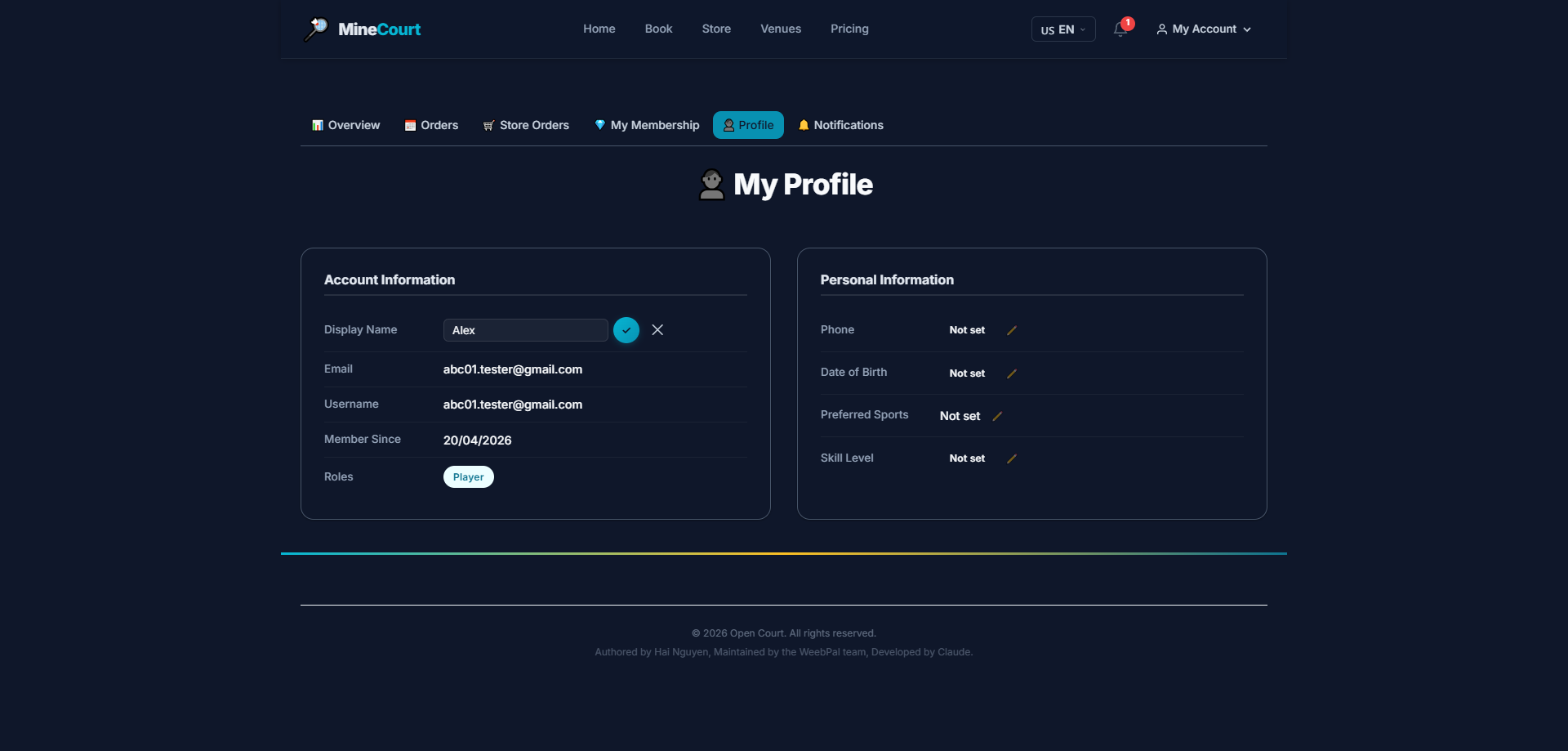
Profile
What it shows: View and update your personal contact information.
Navigation: My Account → Profile
- Shows: Full name, registered email, phone number, and avatar
- Click Edit Profile to update your details or change your photo
Sport & Skill Level
What it shows: Set your sport preferences and skill level for teammate matching.
Navigation: Profile → Edit Profile
- Choose your sport: Badminton, Tennis, or Pickleball
- Set your Skill Level from Beginner to Pro
- Click Save to apply changes
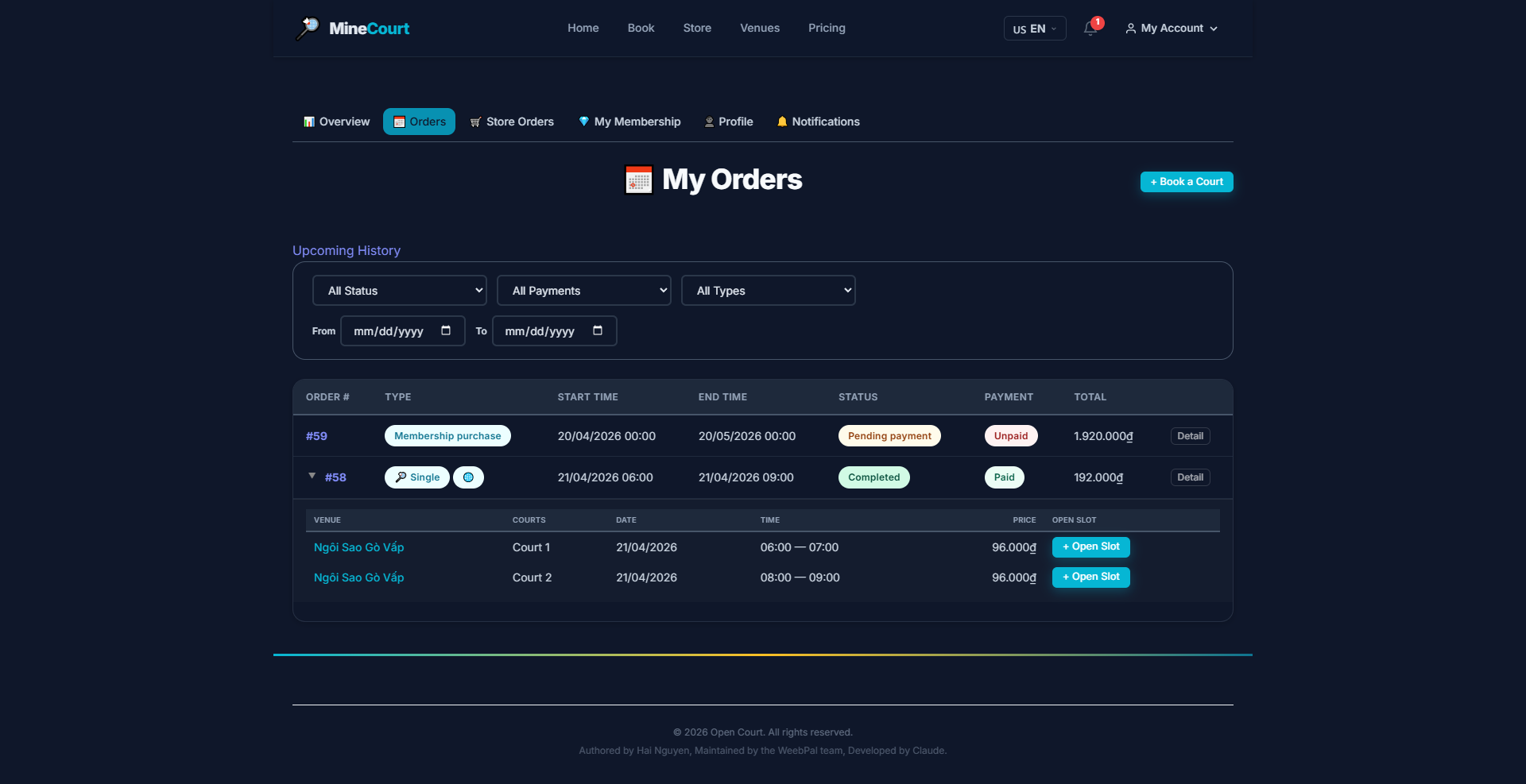
My Orders (Court Bookings)
What it shows: Full history of all court booking transactions, including serial bookings.
Navigation: My Account → Bookings
- Shows: Court name, time, status, and amount paid
- Status labels: Confirmed, Completed, or Cancelled
- Click Detail to view your check-in QR code
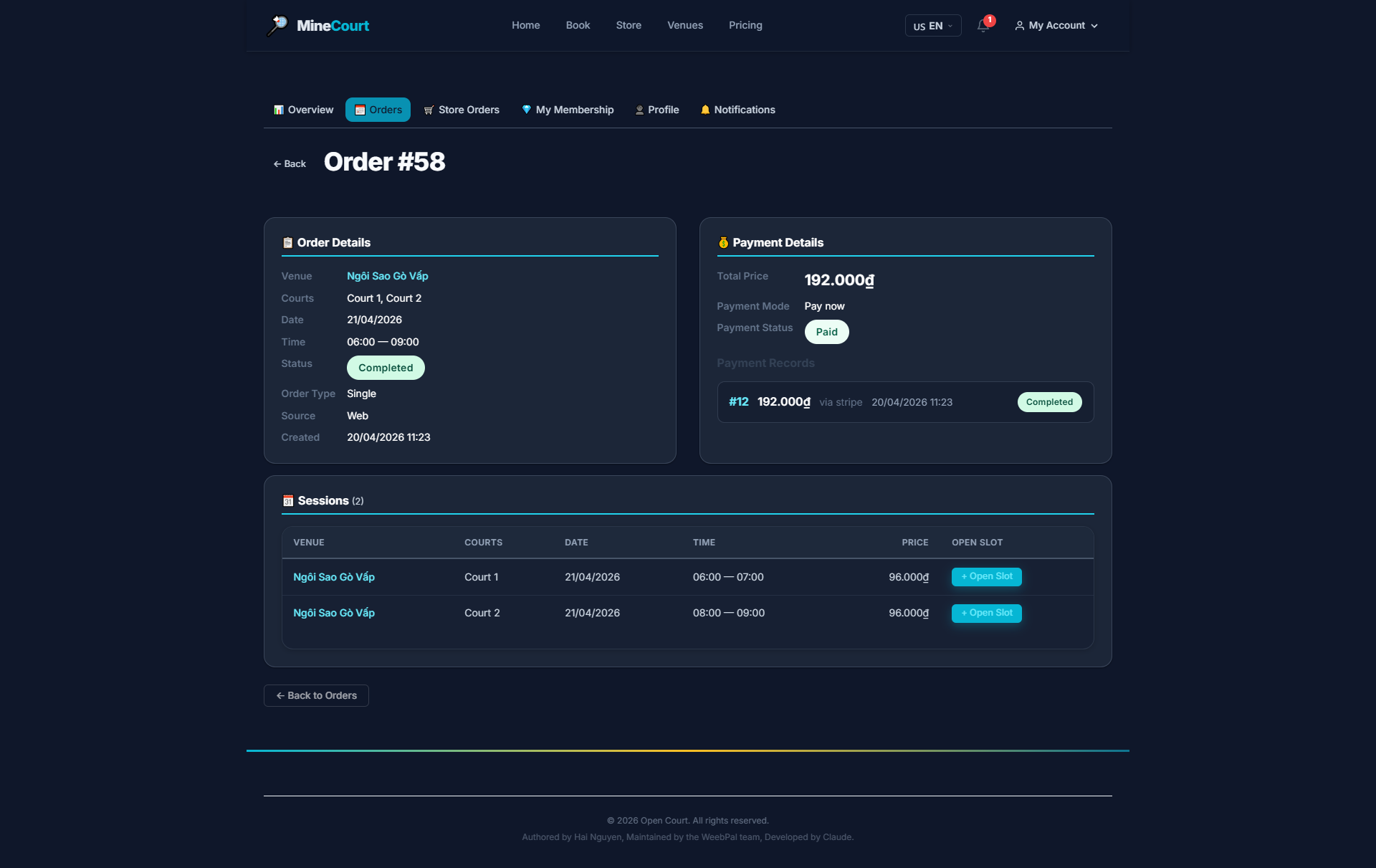
Booking Detail & QR Code
What it shows: Digital court pass with QR code for instant check-in.
Navigation: Orders → tap Detail on any booking
- Displays: Court area, check-in time, and check-out time
- QR Code on the right for instant gate scan at reception
- Cancel Booking is available within the venue's refund policy window
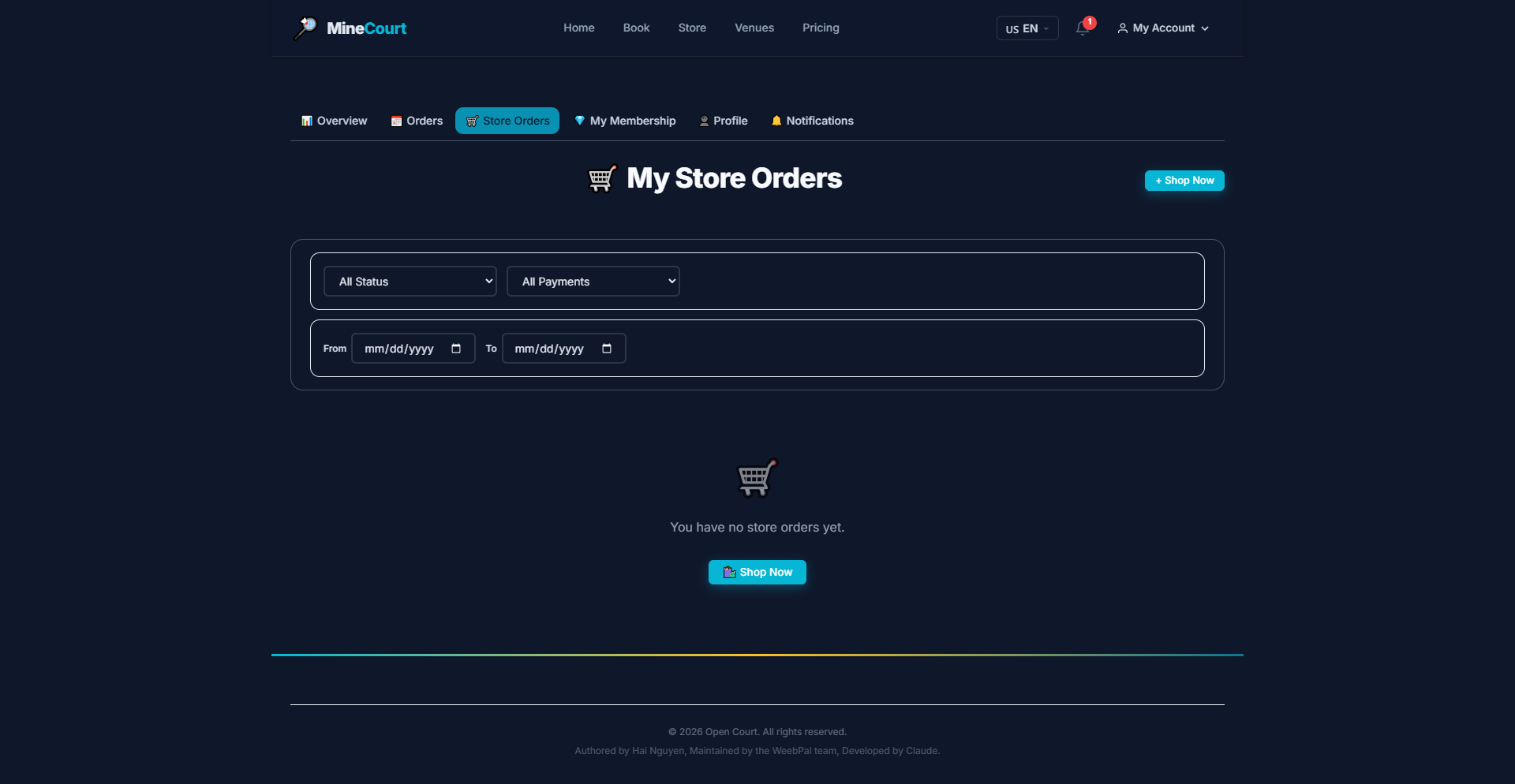
Store Orders
What it shows: Track purchases made through the MineCourt online store.
Navigation: My Account → Store Orders
- Lists all beverages, equipment rentals, and services ordered online
- Live updates from order placed through to delivery at your court seat
- Click any order to view the cost breakdown or images
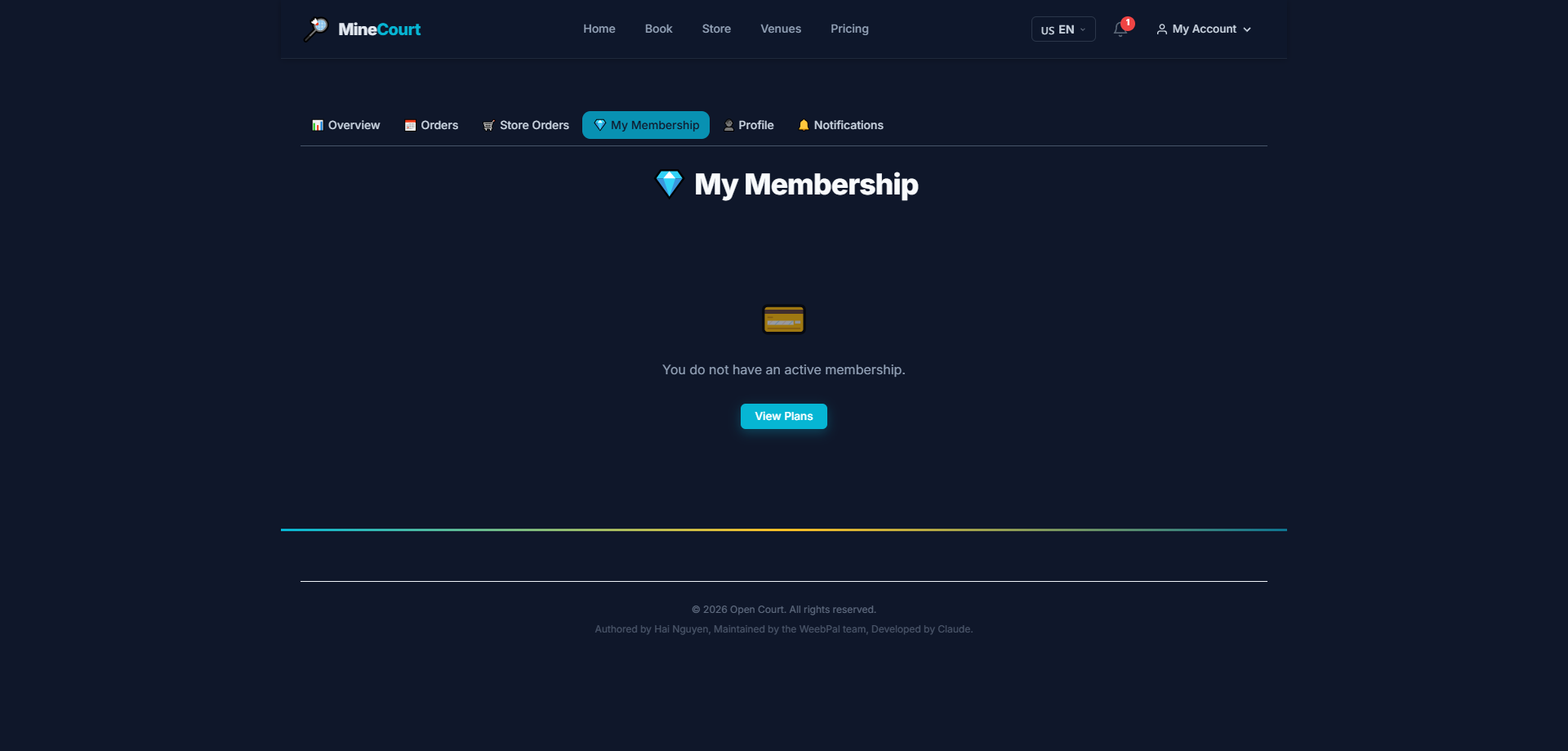
My Memberships
What it shows: View your active membership benefits, remaining quota, and usage history.
Navigation: Account icon → My Memberships
- Validity: Clearly shows the start and expiry date for each card
- Quota: Tracks remaining minutes or sessions in real time
- Usage: Log of all bookings deducted from this membership
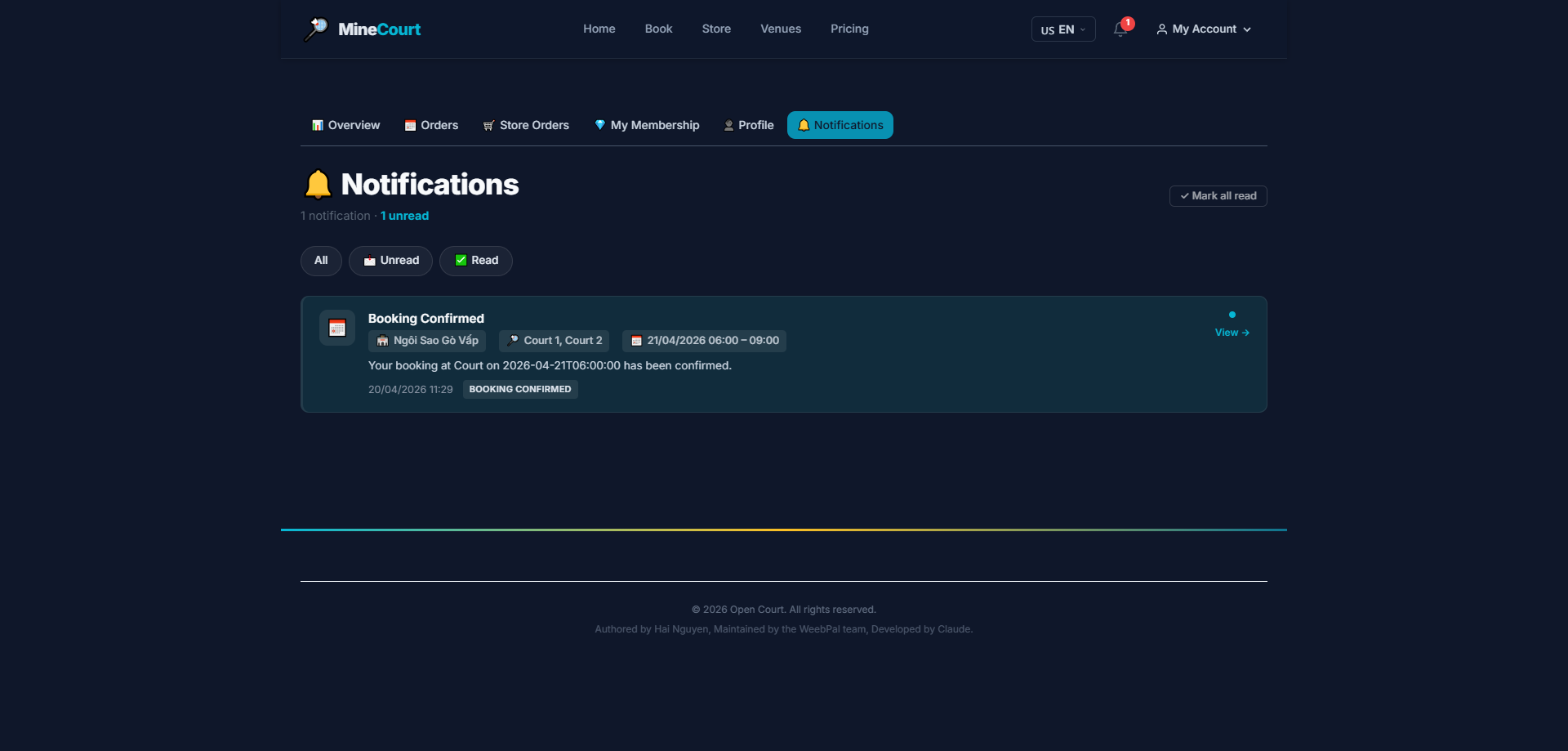
Notifications
What it shows: Central inbox for all platform activity alerts.
Navigation: My Account → Notifications
- Alerts for: successful bookings, payment errors, or weather cancellations
- Instant push for urgent cancellations from venue management
- Click any notification to jump directly to the relevant page
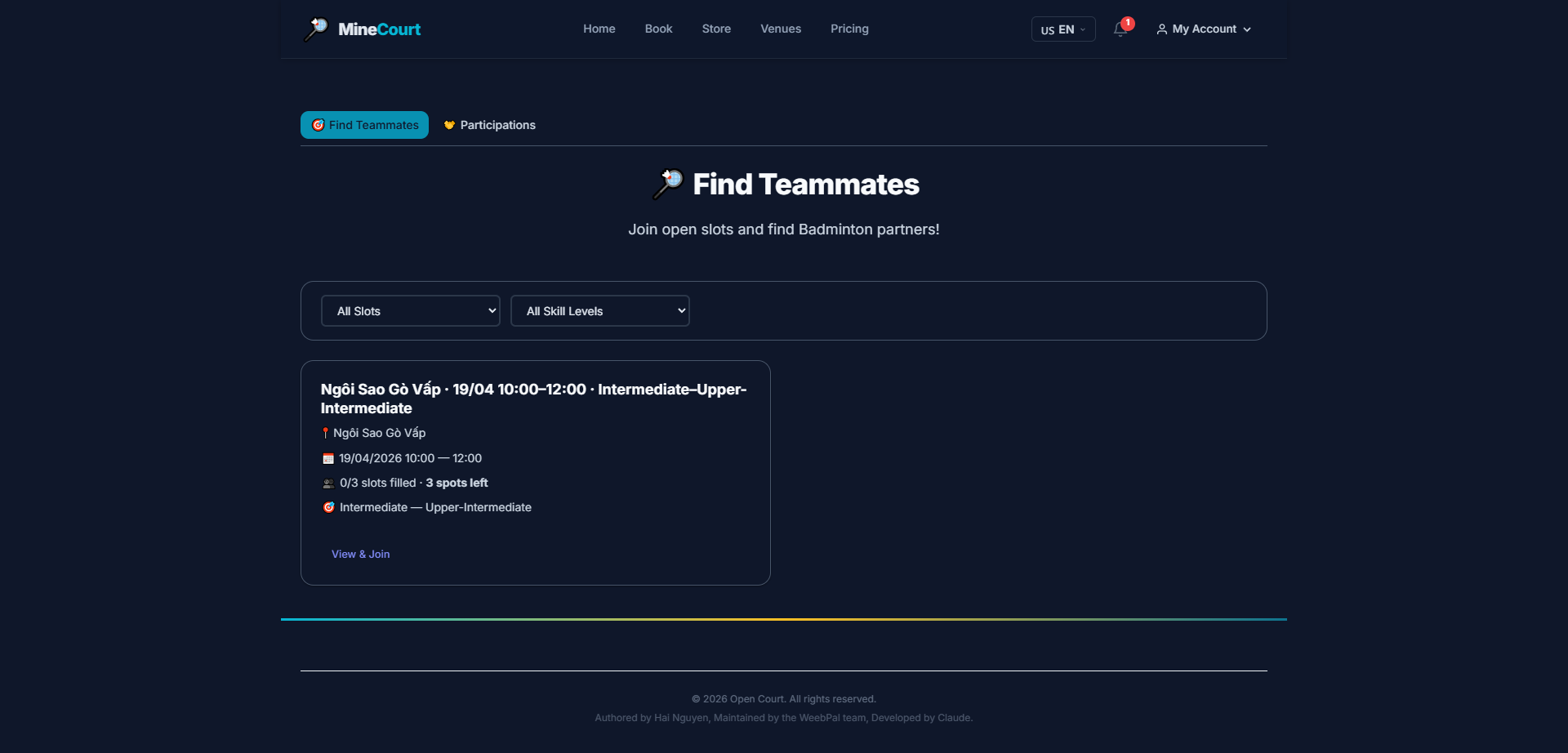
Find Teammates
What it shows: Open social board connecting players looking to fill empty court spots.
Navigation: Team → Find Teammates
- Browse a live list of Open Slots from players across the platform
- Filter by venue, date, and skill level
- Click Join to request a spot in a session
- Or post your own session by clicking Create Open Slot
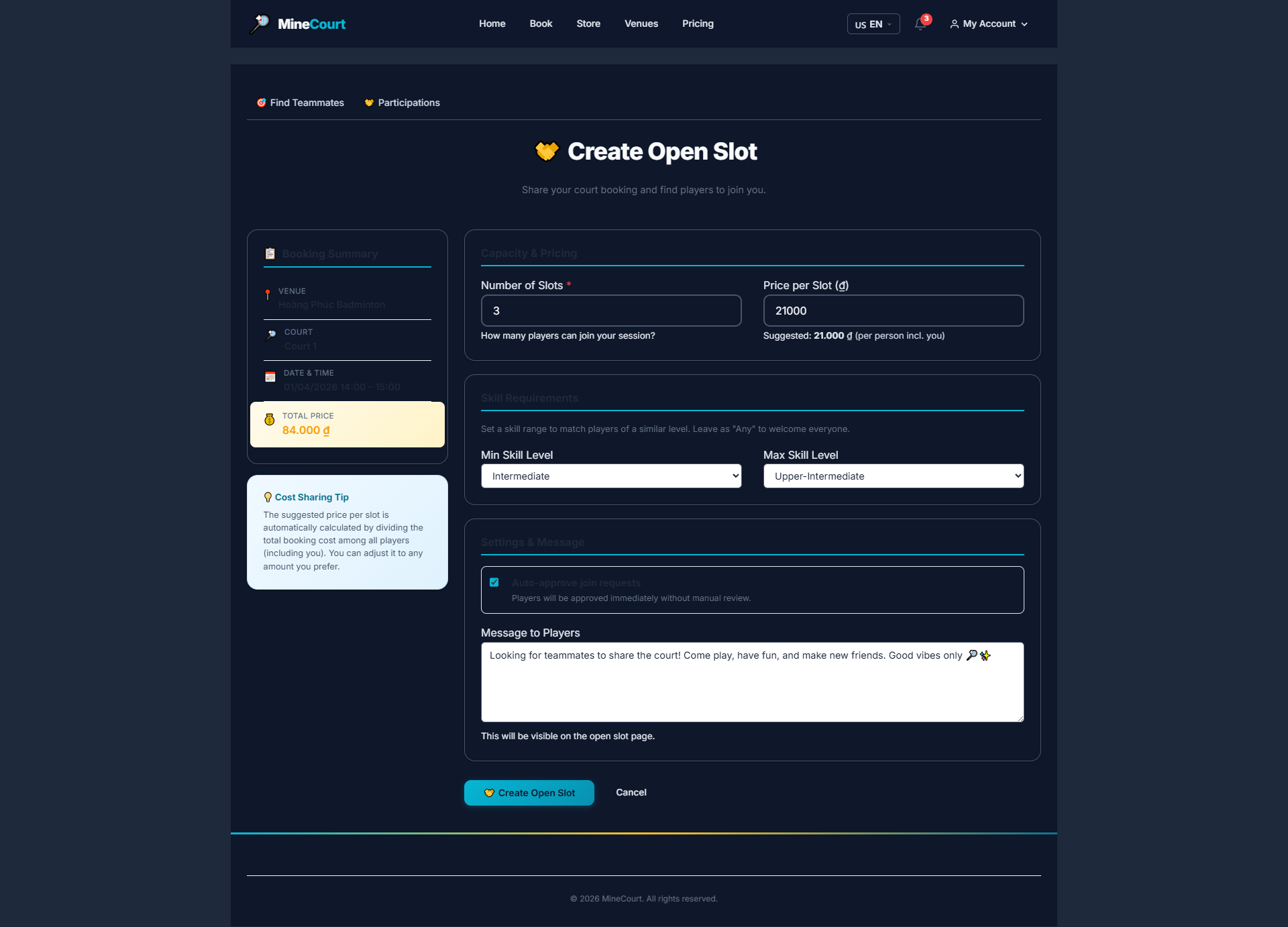
Create Open Slot
What it shows: Publish a session listing to recruit teammates for your court booking.
Navigation: My Account → Bookings → Click Detail on a booking → + Open Slot
- Select the court session and set the number of spots needed
- Define the minimum skill level required for participants
- Add custom instructions or house rules for players
- Click Create to publish your listing on the social board
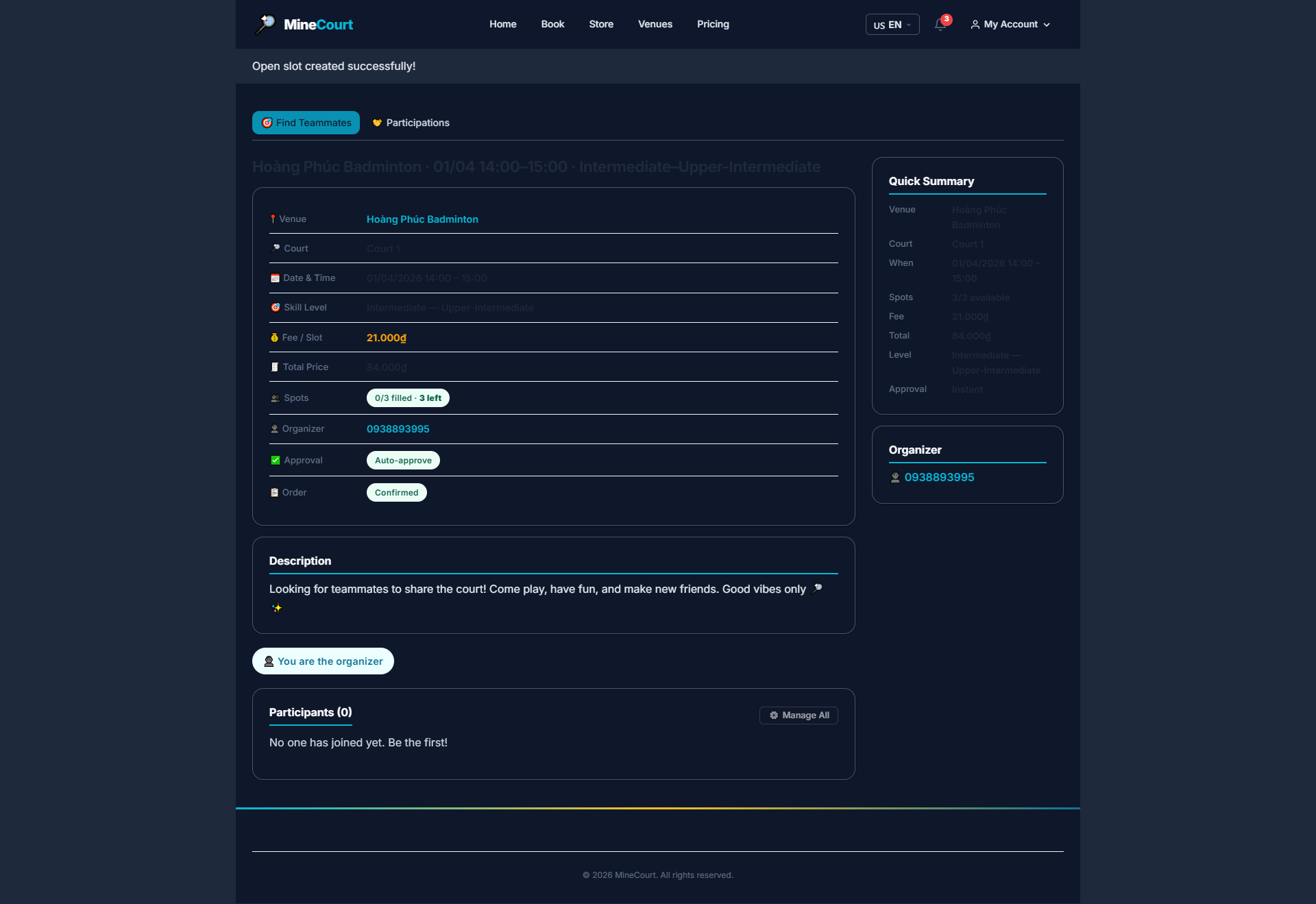
Open Slot Created
What it shows: Confirmation that your Open Slot has been published.
Navigation: After creating an Open Slot from a booking detail page
- System confirms and pushes your listing to the public board
- Your post is now visible to all MineCourt users
- A shareable link is generated to send directly to friends via chat
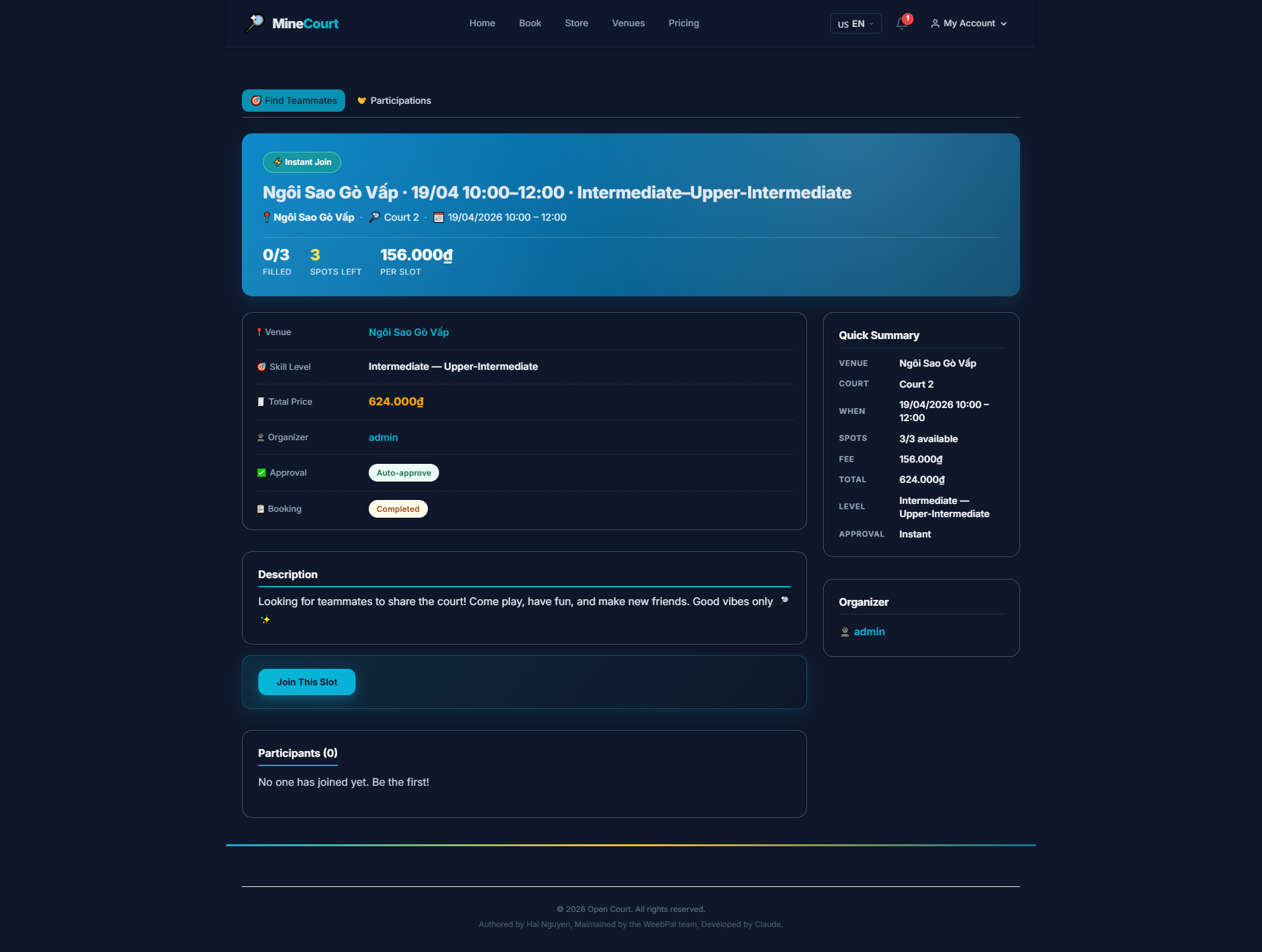
Join a Slot
What it shows: Request to join an Open Slot posted by another player.
Navigation: Click any Open Slot on the board
- Review the details: venue, time, available spots, and skill requirements
- Click Join to send your join request
- The slot host receives a notification of your request
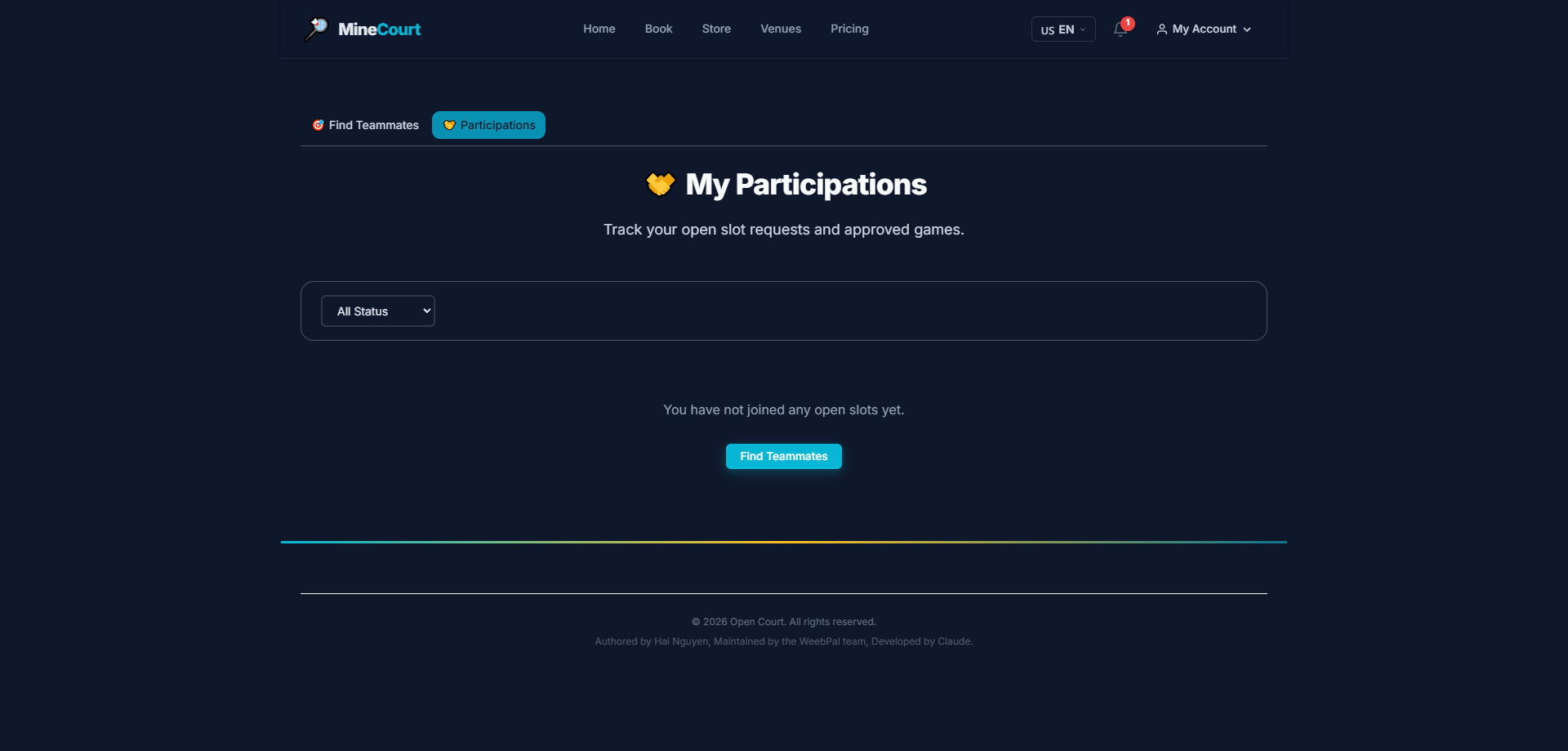
My Participations
What it shows: Track all sessions you've joined through Open Slots.
Navigation: Team → Participations
- Lists all joined sessions: venue, time, and slot status
- Cancel is available within the host's allowed window
- Tap host contact info to coordinate logistics