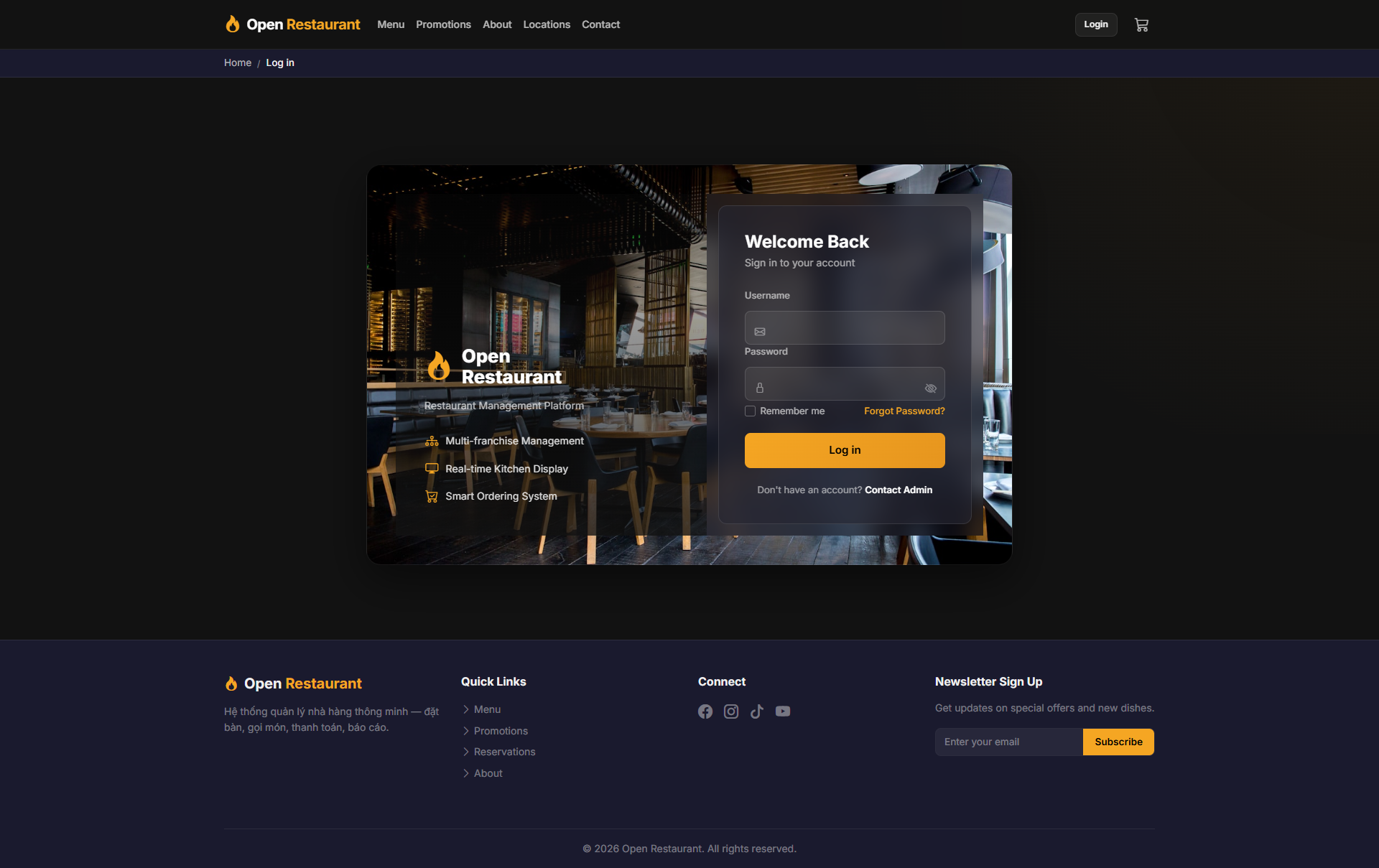
🔑 System Login
Function: Log in to access table management and order-taking features.
Navigate to:
- Demo access: sandbox accounts are issued on request — request a guided demo.
- Enter credentials → click Login → redirected to the service dashboard
- Sidebar displays: Dashboard, Tables, Orders
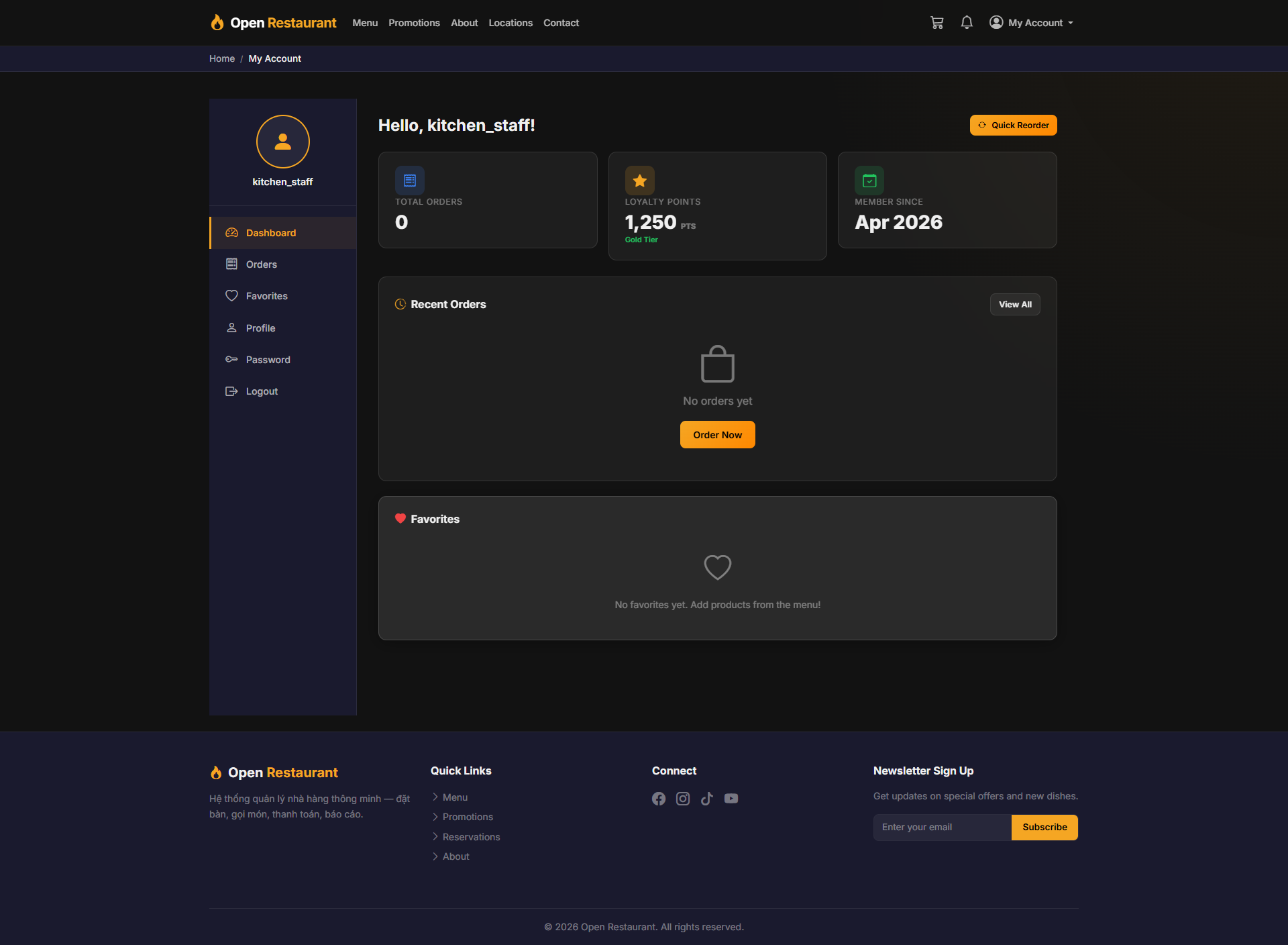
Waiter Dashboard
Function: Home screen after login — shows real-time overview of active tables and pending orders.
Navigation: Sidebar → Dashboard
- View count of occupied, available, and reserved tables
- See pending orders and current order status
- Quick access to Tables and Orders from the sidebar
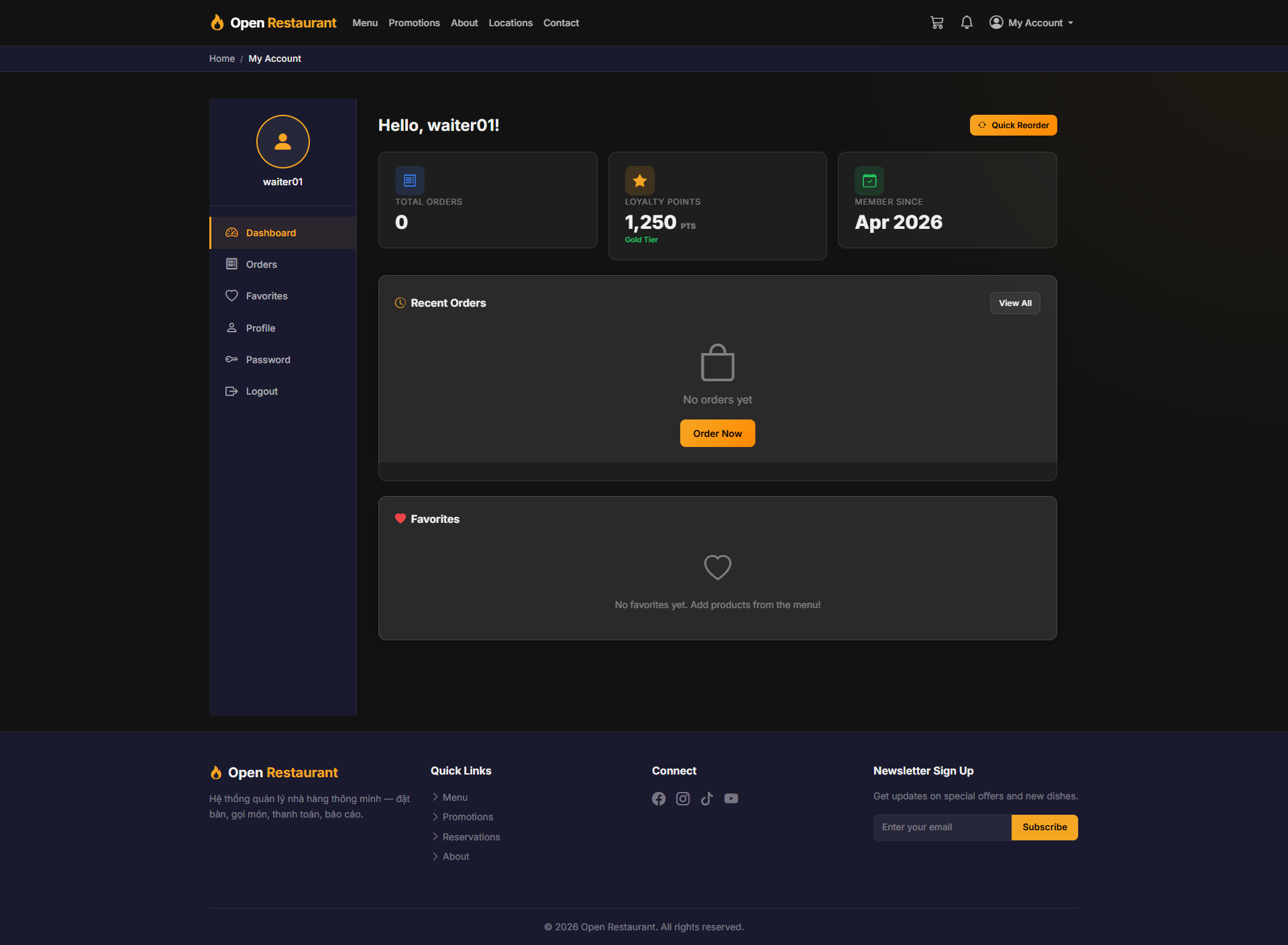
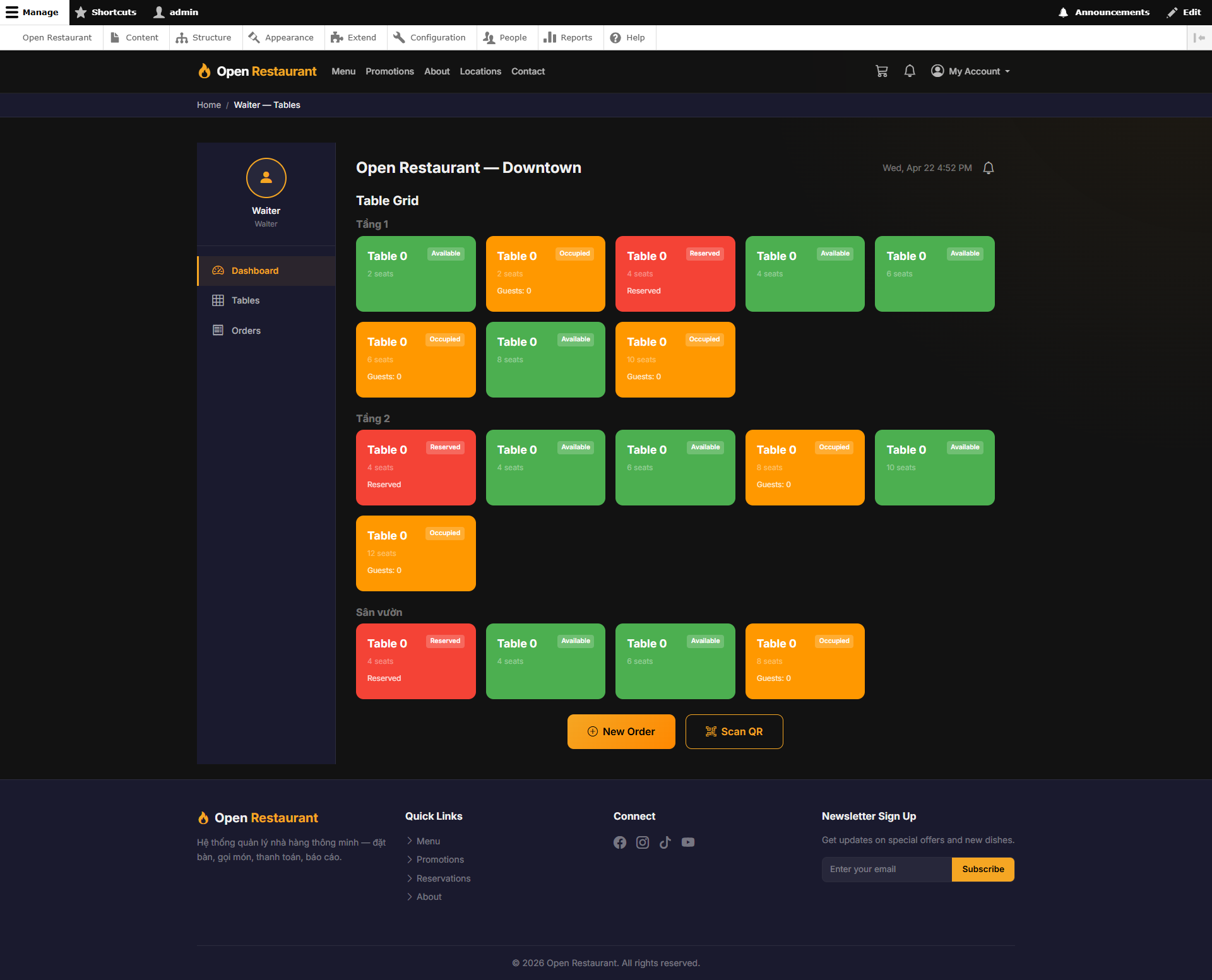
Table Grid
Function: Displays the full table layout by floor/zone with color-coded real-time status indicators.
Navigation: Sidebar → Tables
- 🟢 Available — Empty table, ready for guests
- 🟡 Occupied — Table currently in use
- 🔴 Reserved — Table pre-booked
- Click New Order to create an order for the selected table
- Click Scan QR to scan the table QR code
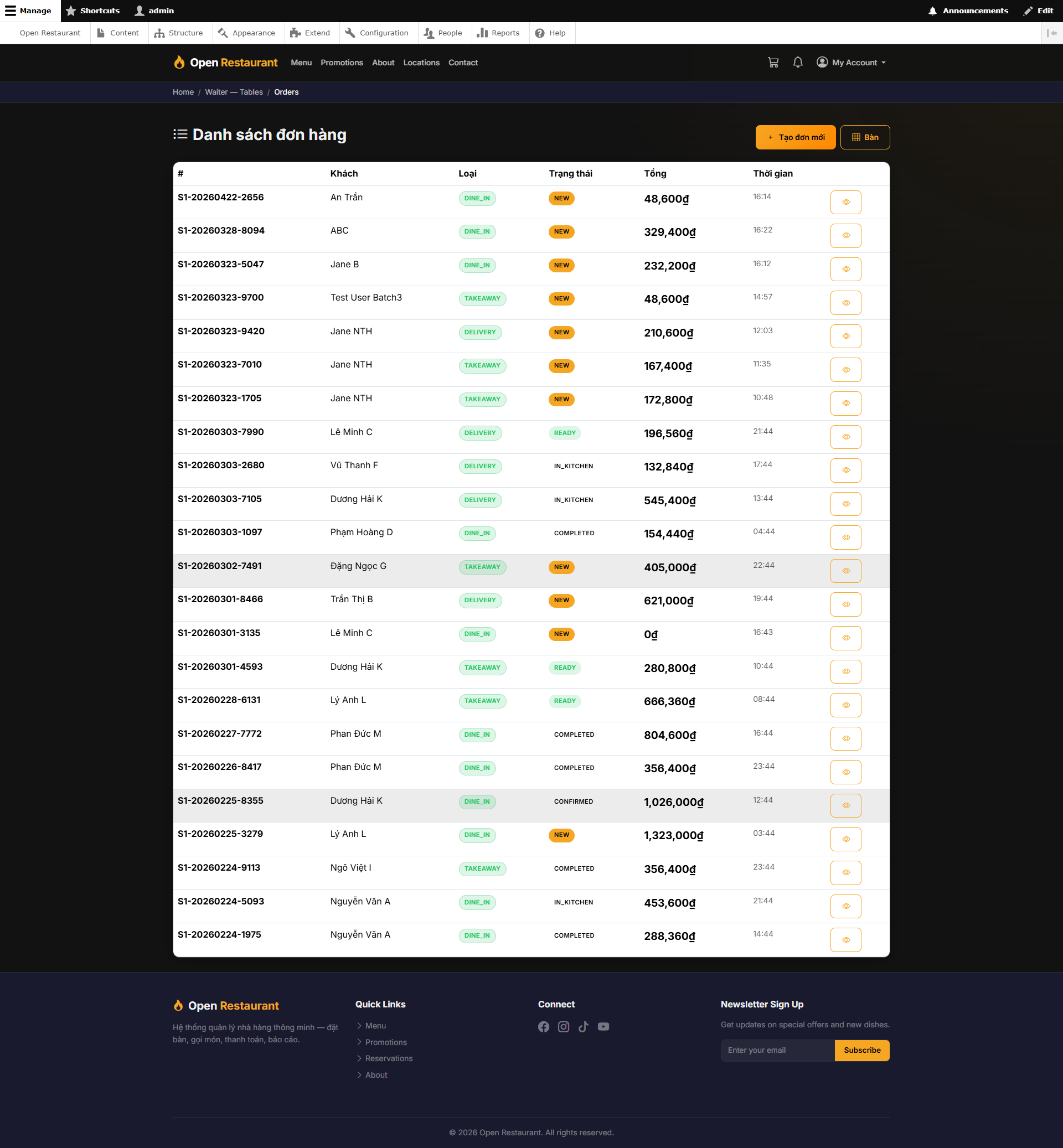
Order List
Function: Overview of all orders during the shift — filter by status to track service progress.
Navigation: Sidebar → Orders
- View all orders in real time
- Filter by status: New, In Kitchen, Ready, Completed
- Click on an order to view details or update
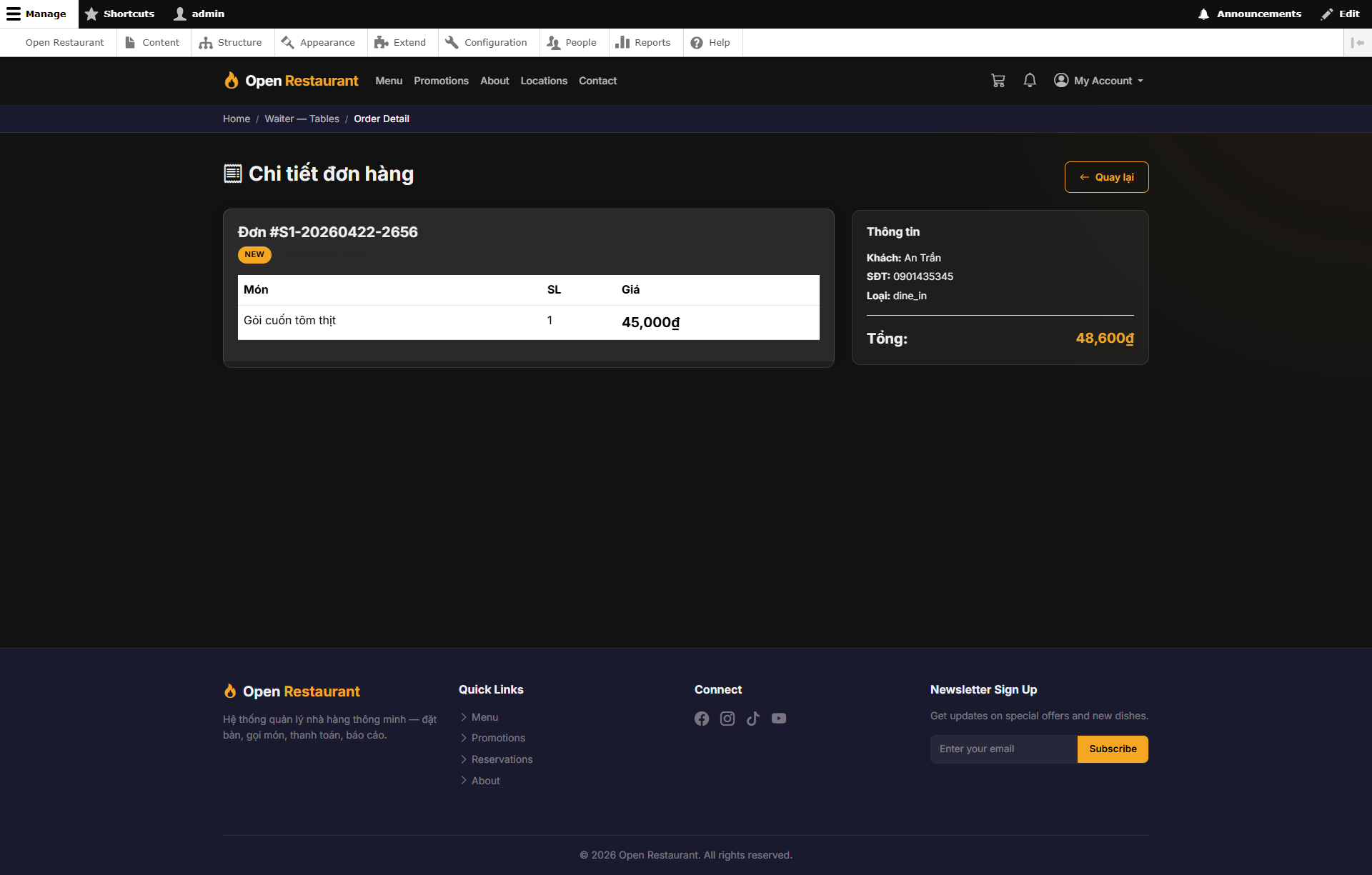
Order Detail
Function: Full detail view of a single order — all items, quantities, special notes, and total amount.
Navigation: Orders → click any order
- View the complete list of ordered items
- Check special notes from the guest (allergies, no spice, etc.)
- View total amount and payment status
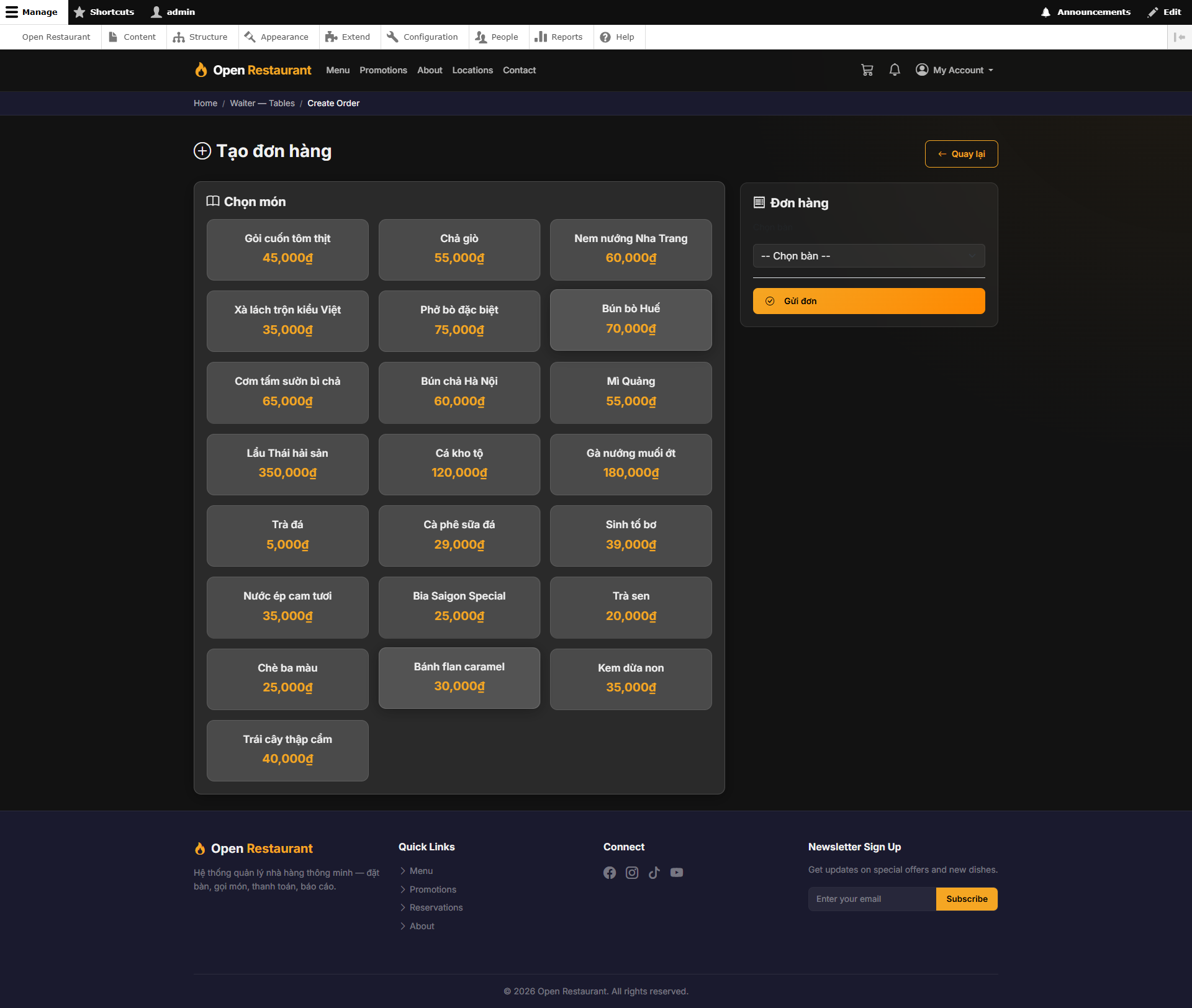
Create New Order
Function: New order creation screen — search and select dishes from the menu, add special request notes.
Navigation: Table Grid → New Order or Orders → Create New
- Select a table and enter the number of guests
- Search and add dishes from the menu
- Enter special notes for individual items
- Click Submit to send the order to the kitchen
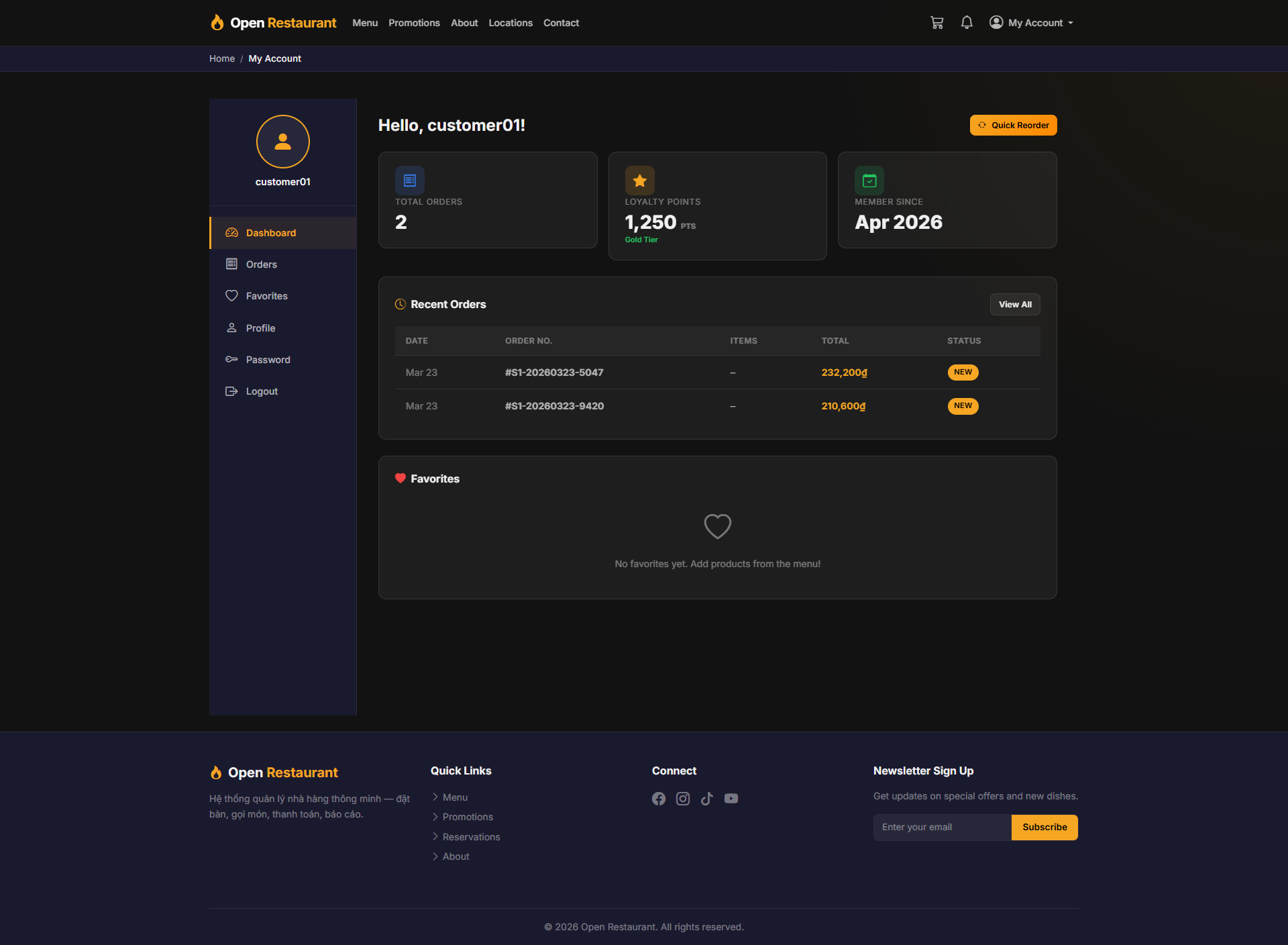
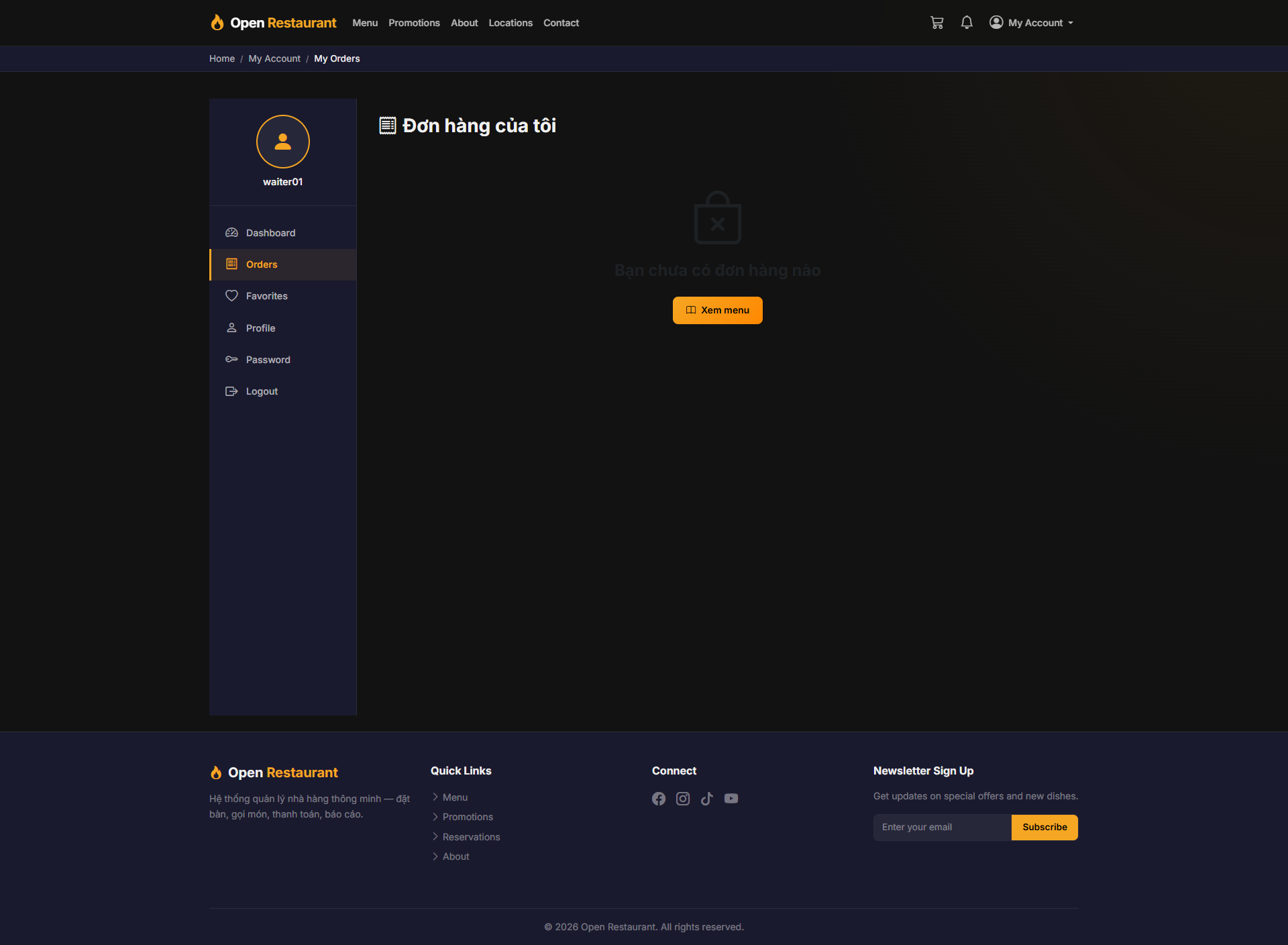
My Orders
Function: View your personal order history — orders you created during your shifts.
Navigation: My Account → My Orders
- View all orders created under your account
- Filter by date or order status
- Reference past orders for guest inquiries
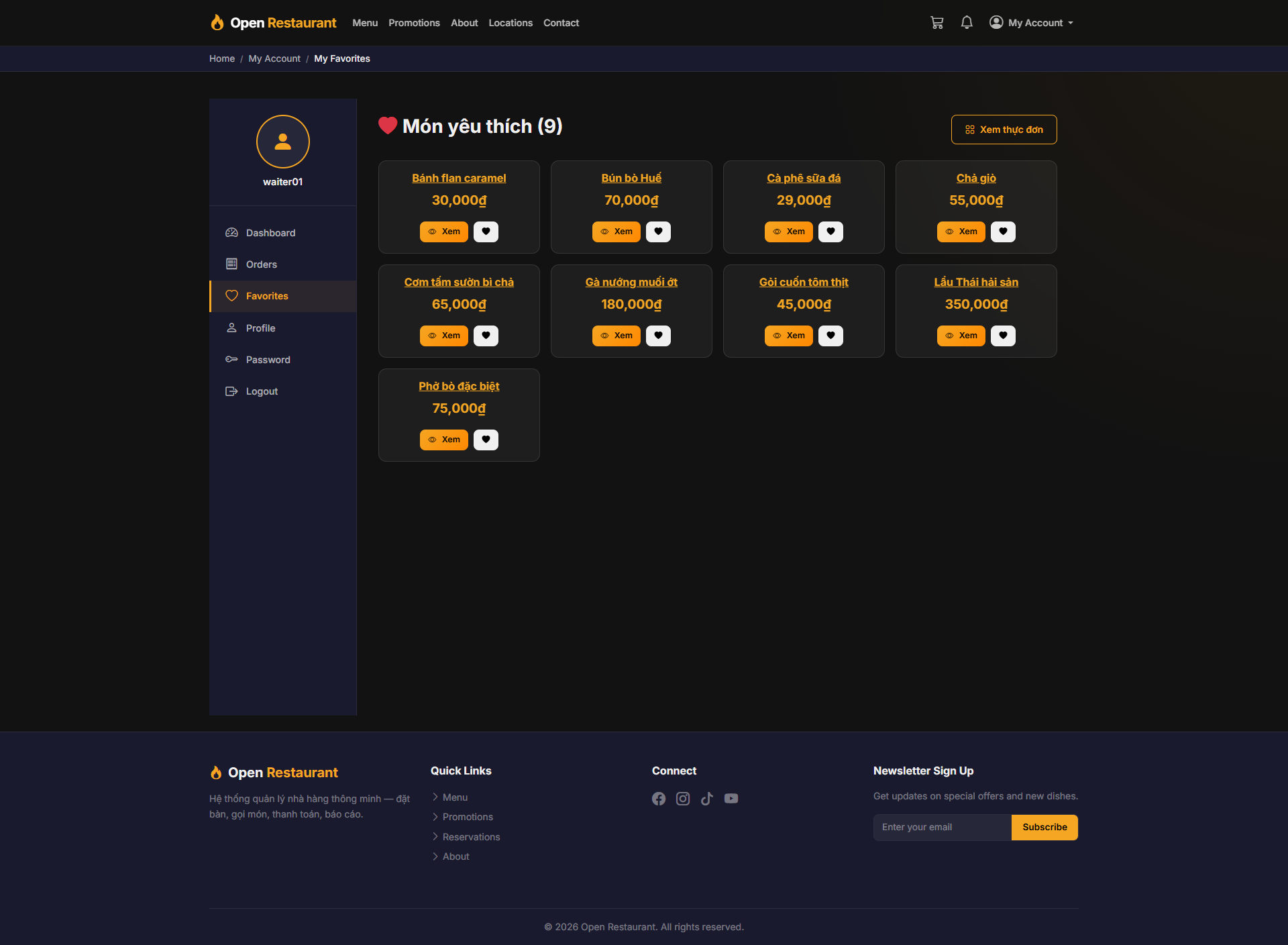
My Favorites
Function: Saved menu items — quickly add frequently ordered dishes to new orders.
Navigation: My Account → My Favorites
- Save frequently ordered items for quick access
- Click a saved item to add it directly to an order
- Manage and remove saved items as needed
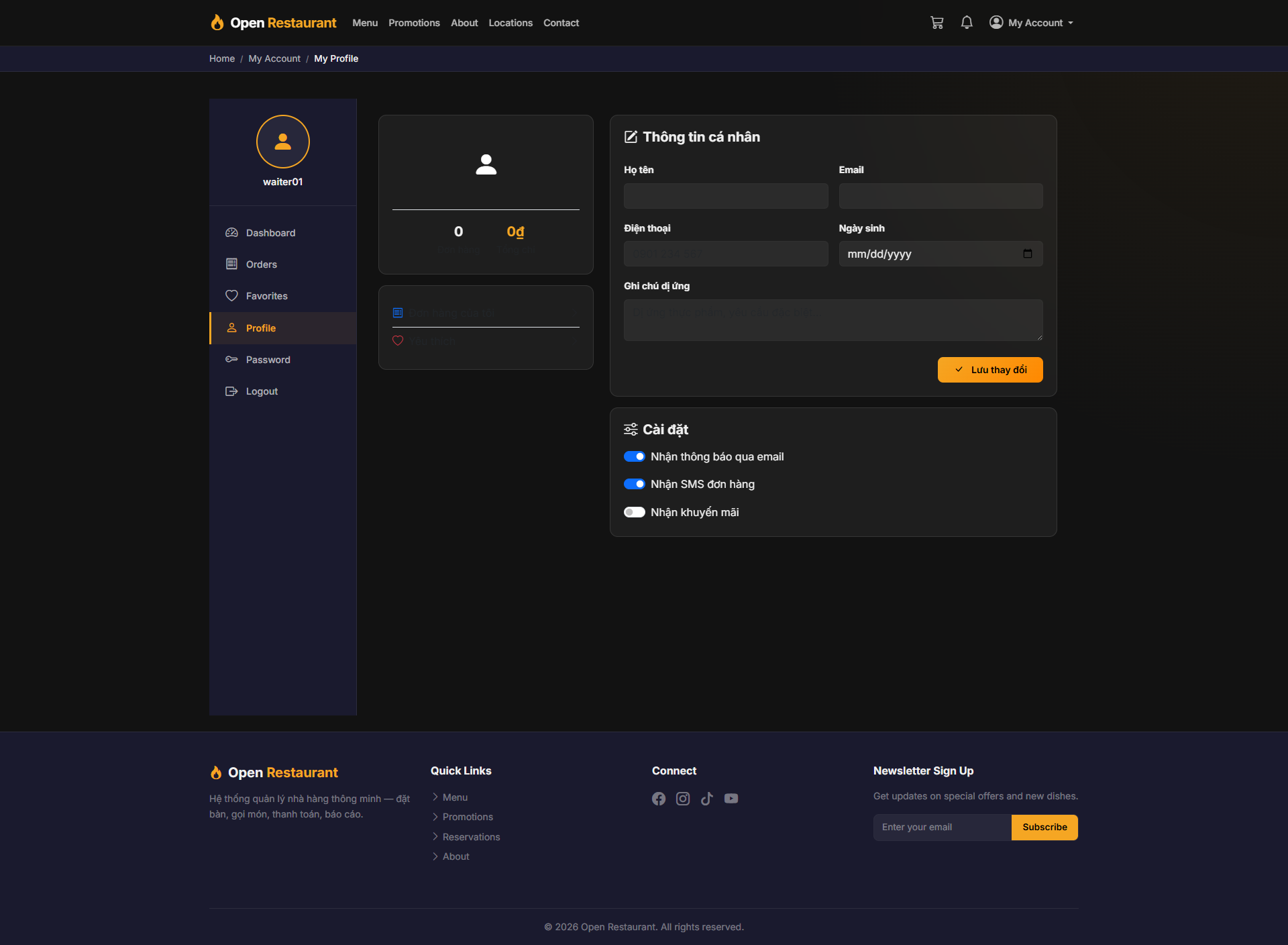
My Profile
Function: Manage your staff profile — update name, phone number, and profile picture.
Navigation: My Account → My Profile
- Update display name and phone number
- Change profile picture
- Click Save to apply changes
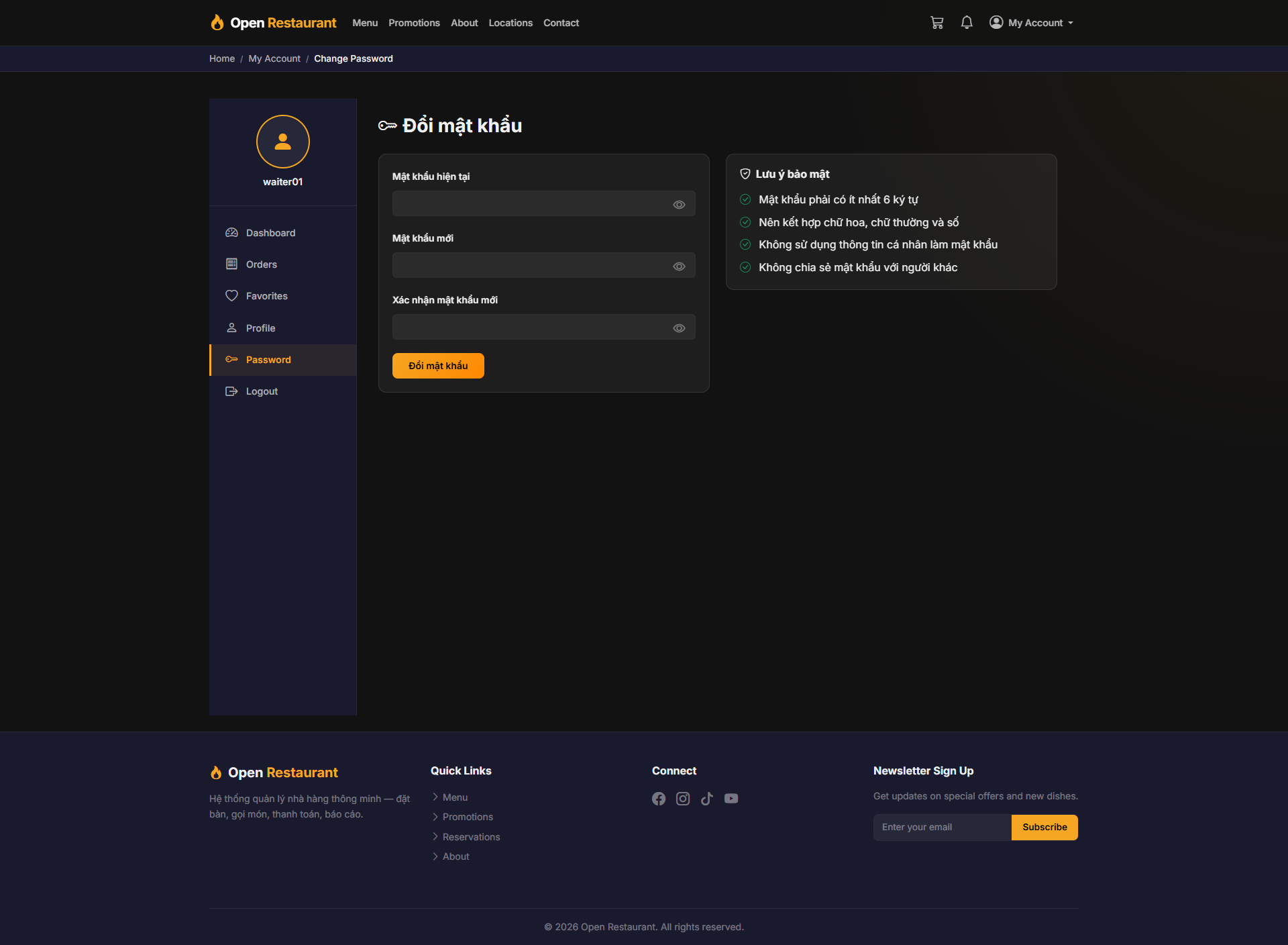
Change Password
Function: Update your account password to keep your account secure.
Navigation: My Account → Change Password
- Enter current password → new password → confirm
- Click Save to update
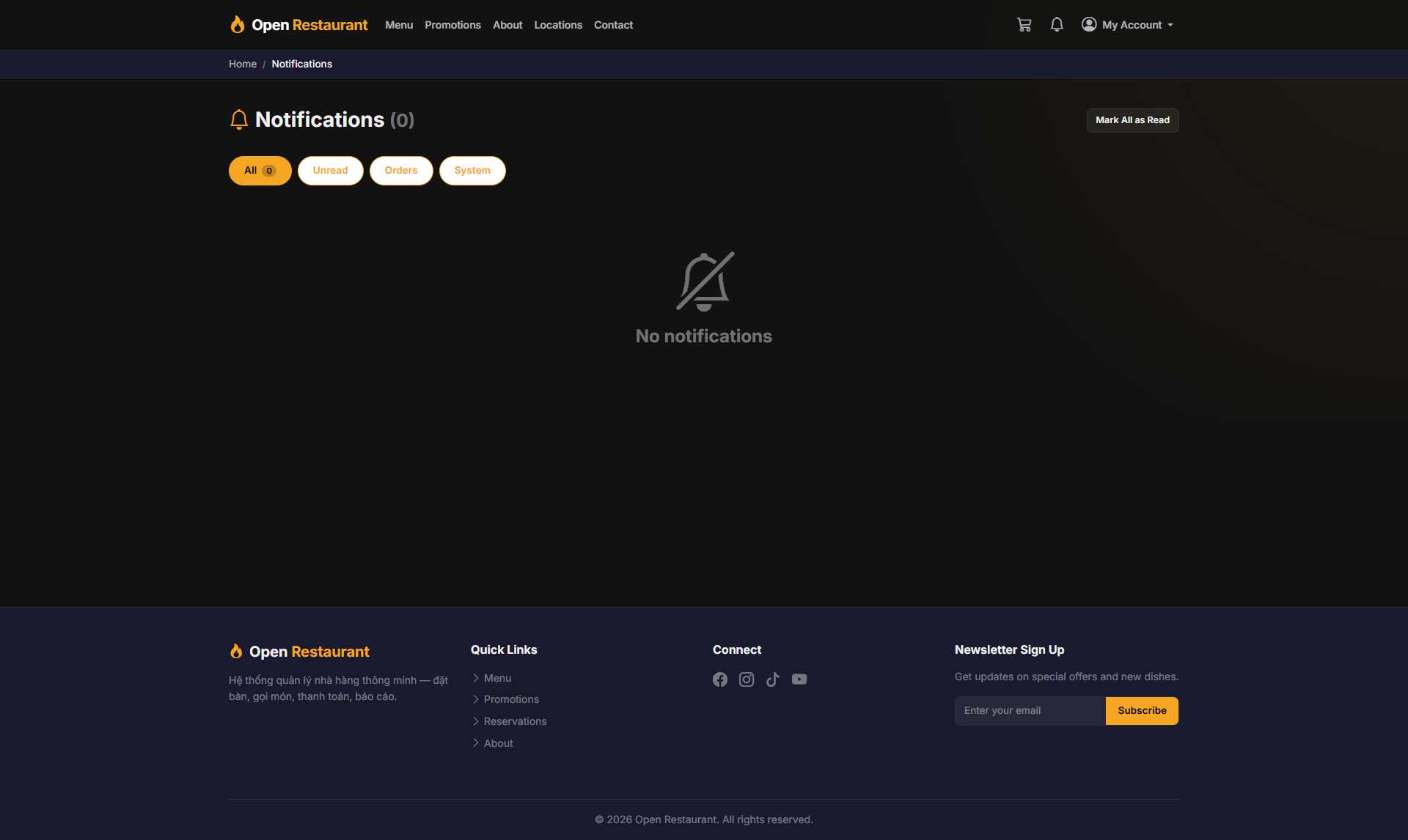
Notifications
Function: Receive real-time updates from management and the system.
Navigation: Bell icon 🔔 in the navigation bar
- Receive shift schedule and order notifications
- Updates from store management
- System alerts and announcements