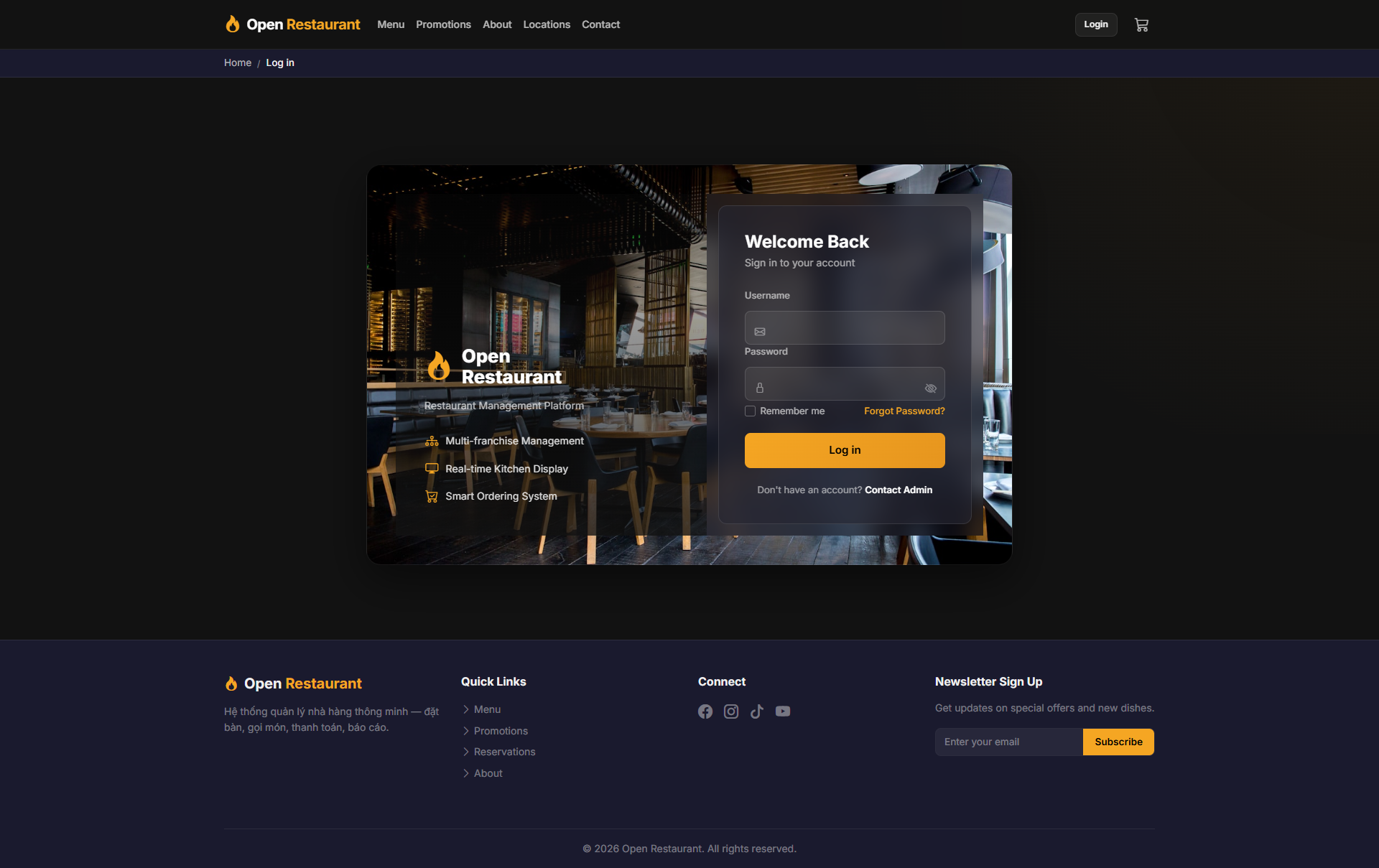
🔑 System Login
Function: Log in to access the real-time Kitchen Display.
Navigate to:
- Demo access: sandbox accounts are issued on request — request a guided demo.
- Enter credentials → click Login → redirected to Kitchen Display
- All pending orders appear in real time — no extra steps needed
Tip: Keep the Kitchen Display screen visible throughout your shift for continuous order monitoring.
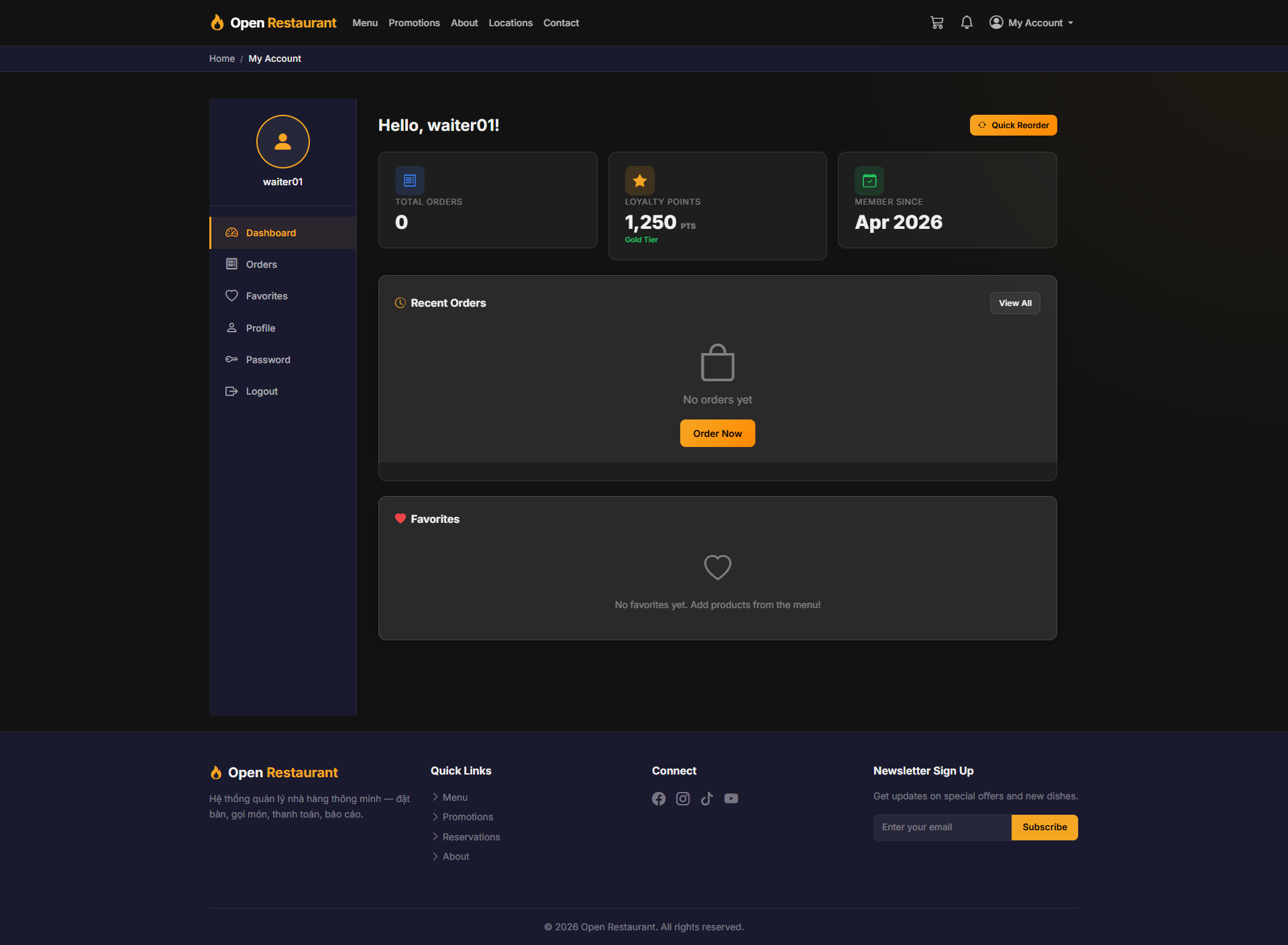
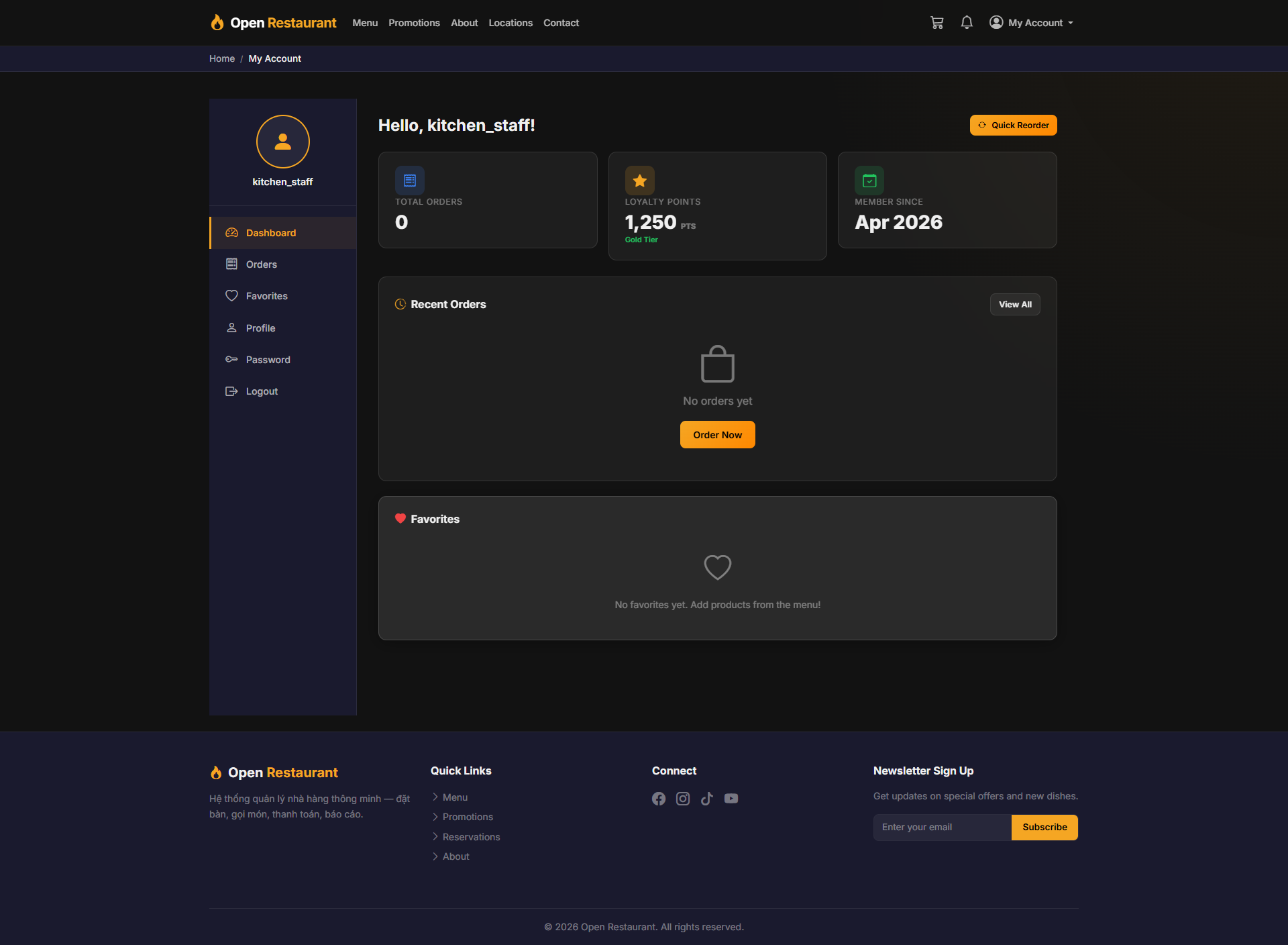
Kitchen Dashboard
Function: Home screen after login — shows kitchen statistics and quick access to key functions.
Navigation: Sidebar → Dashboard
- View today's completed orders count
- Check active items in preparation
- Quick access to Kitchen Display and Products
Tip: Start your shift by checking the Dashboard for an overview before switching to the Kitchen Display board.
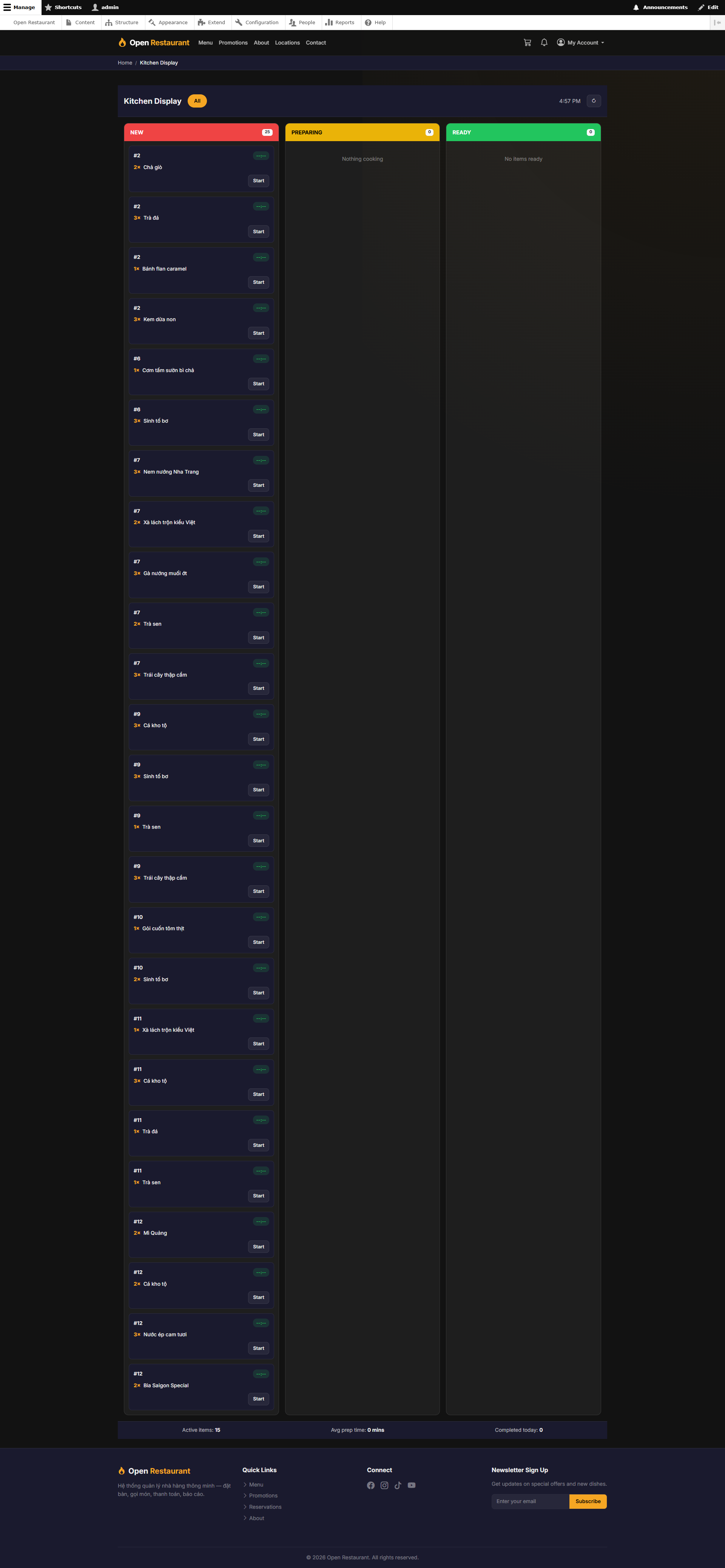
Kitchen Display
Function: Order tracking board organized by processing stage — displayed in status columns, auto-updated.
- NEW (red) — New order, not yet started
- PREPARING (yellow) — Currently being prepared
- READY (green) — Completed, waiting to be served
- Click Start to move an order to Preparing status
- Footer shows: Active Items, Avg Prep Time, Completed Today
Tip: Monitor the READY column frequently to notify the waiter to deliver dishes as soon as they are done.
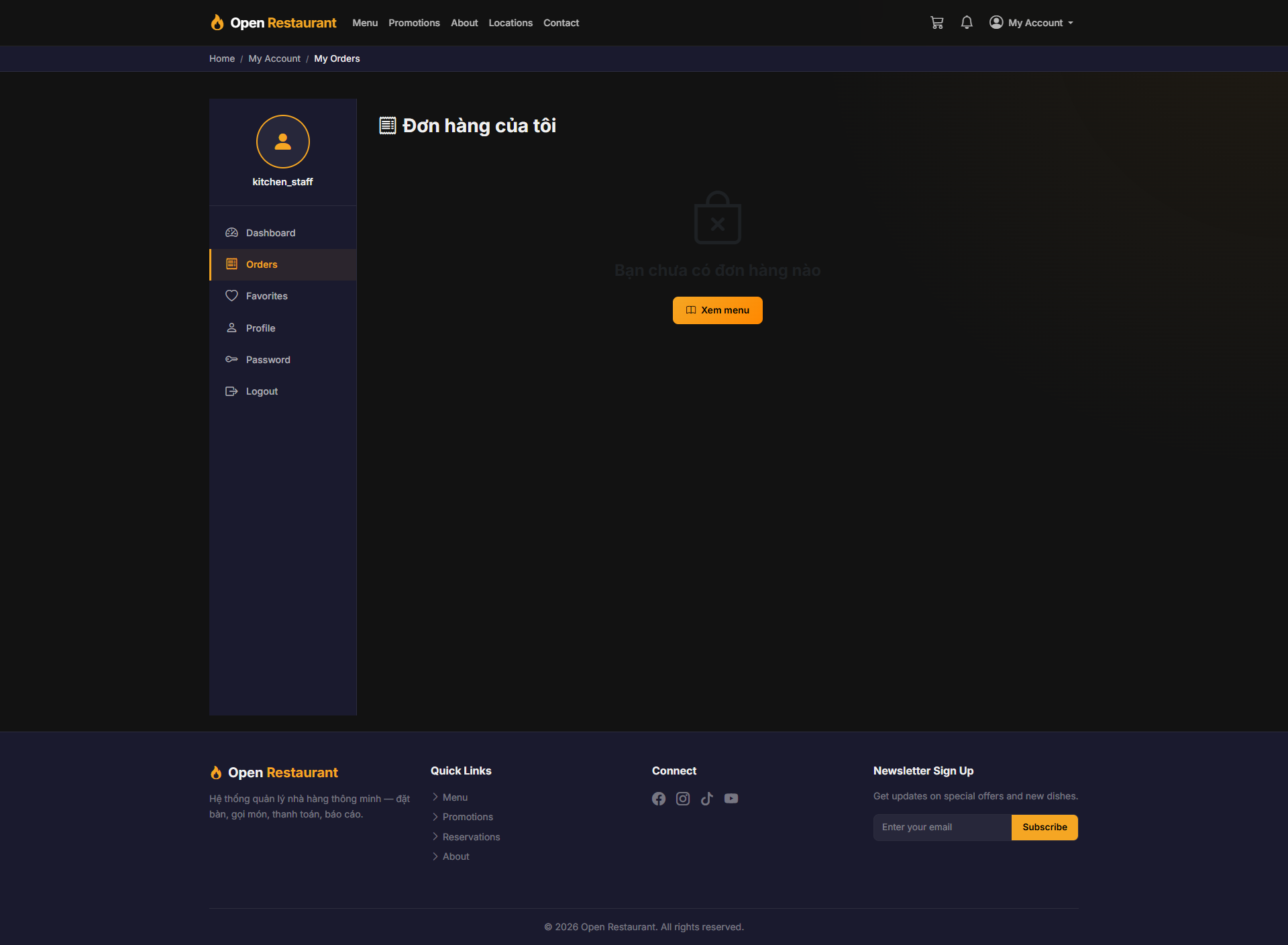
My Orders
Function: View your order processing history — track dishes you've prepared during your shifts.
Navigation: My Account → My Orders
- View all orders processed under your account
- Filter by date or order status
- Reference past orders for quality tracking
Note: This shows your personal order history — use the Kitchen Display in Sidebar for real-time active orders.
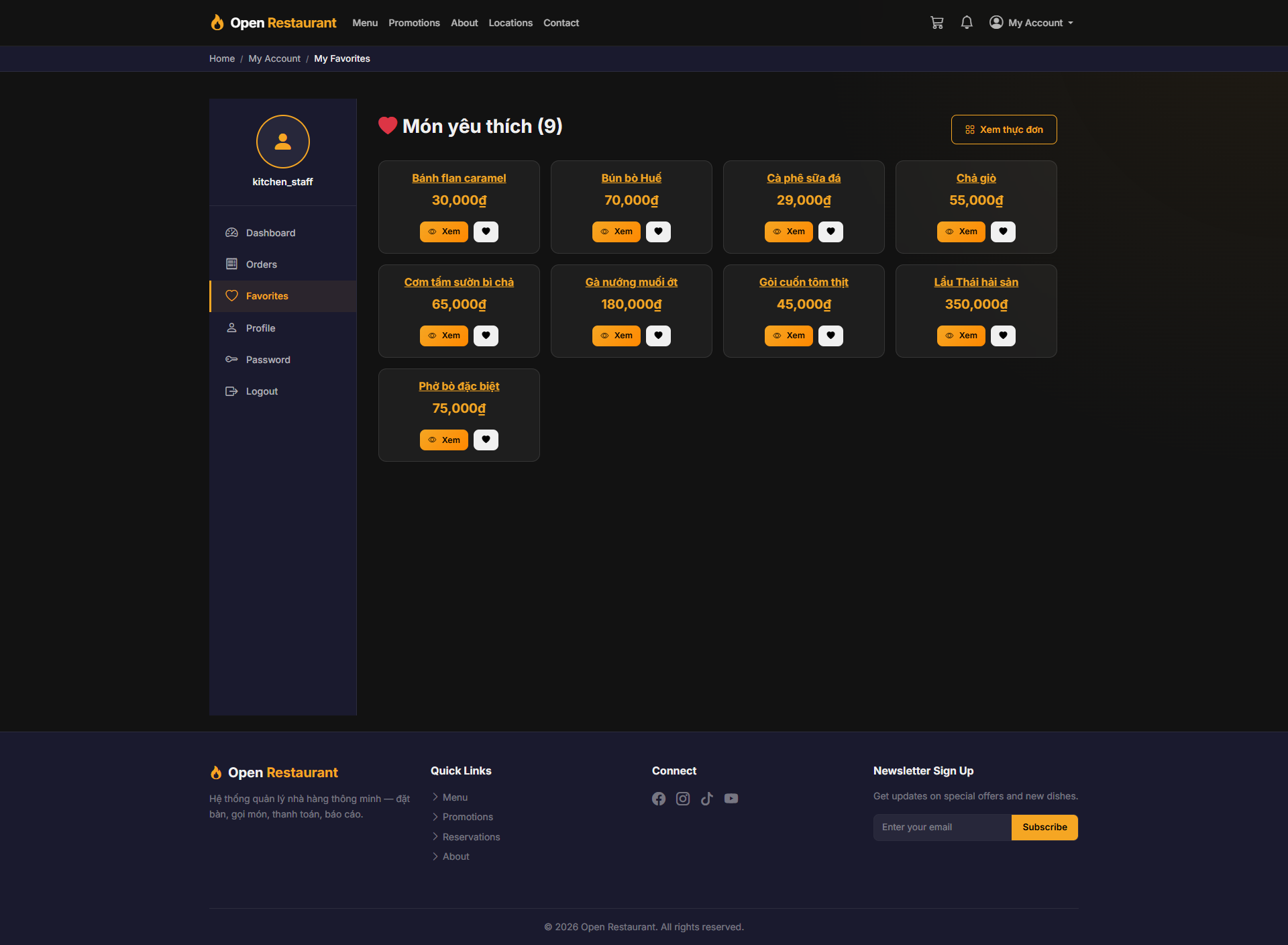
My Favorites
Function: Saved menu items for quick reference during order preparation.
Navigation: My Account → My Favorites
- View frequently referenced menu items
- Save dishes you handle most often for quick access
- Use as a reference for recipe and ingredient information
Note: Favorites are personal to your account and do not affect the main menu or order flow.
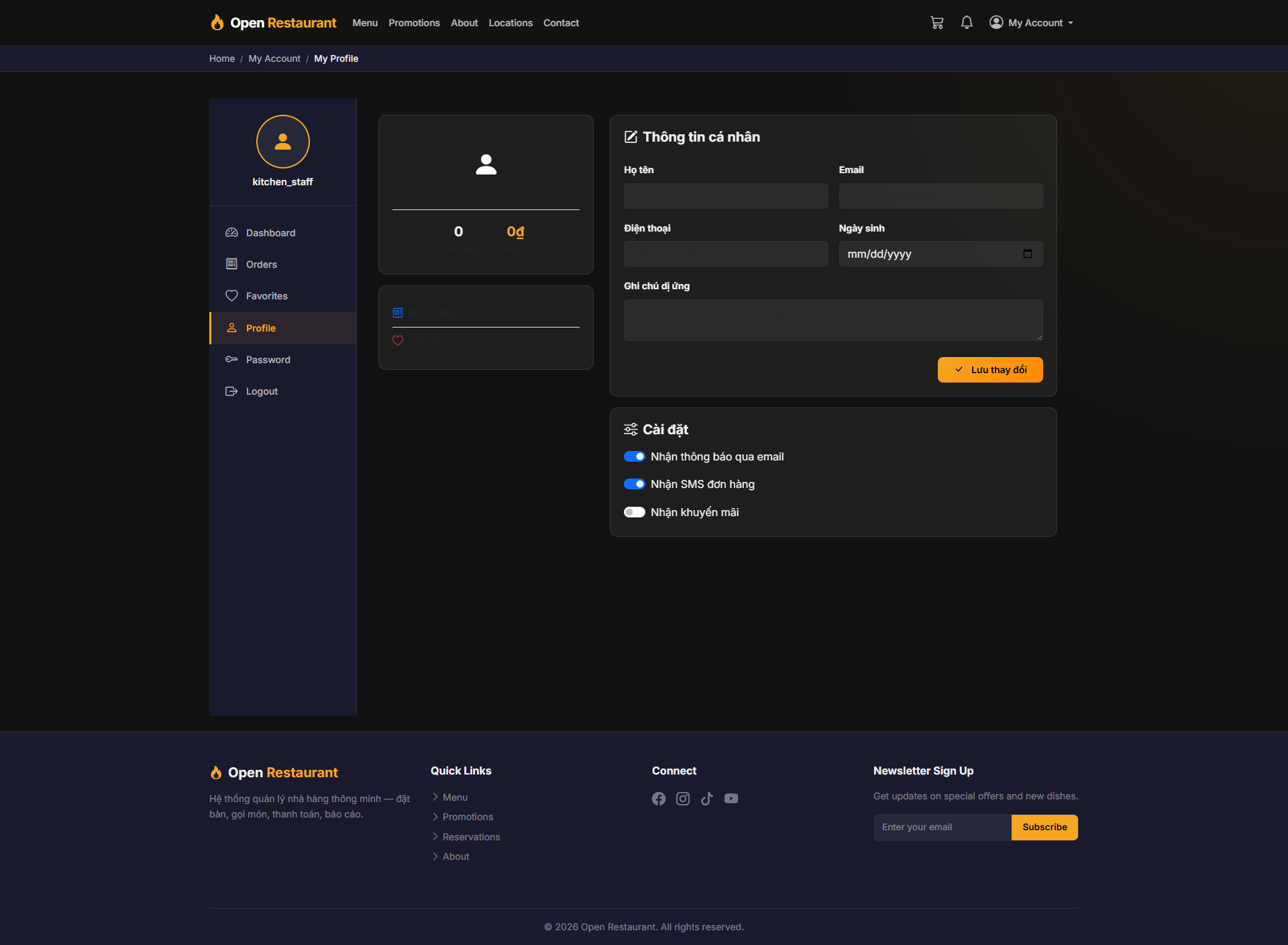
My Profile
Function: View and update your staff profile information.
Navigation: My Account → My Profile
- Update name and phone number
- Click Save to apply changes
Note: Profile information is synced with the store's staff management system.
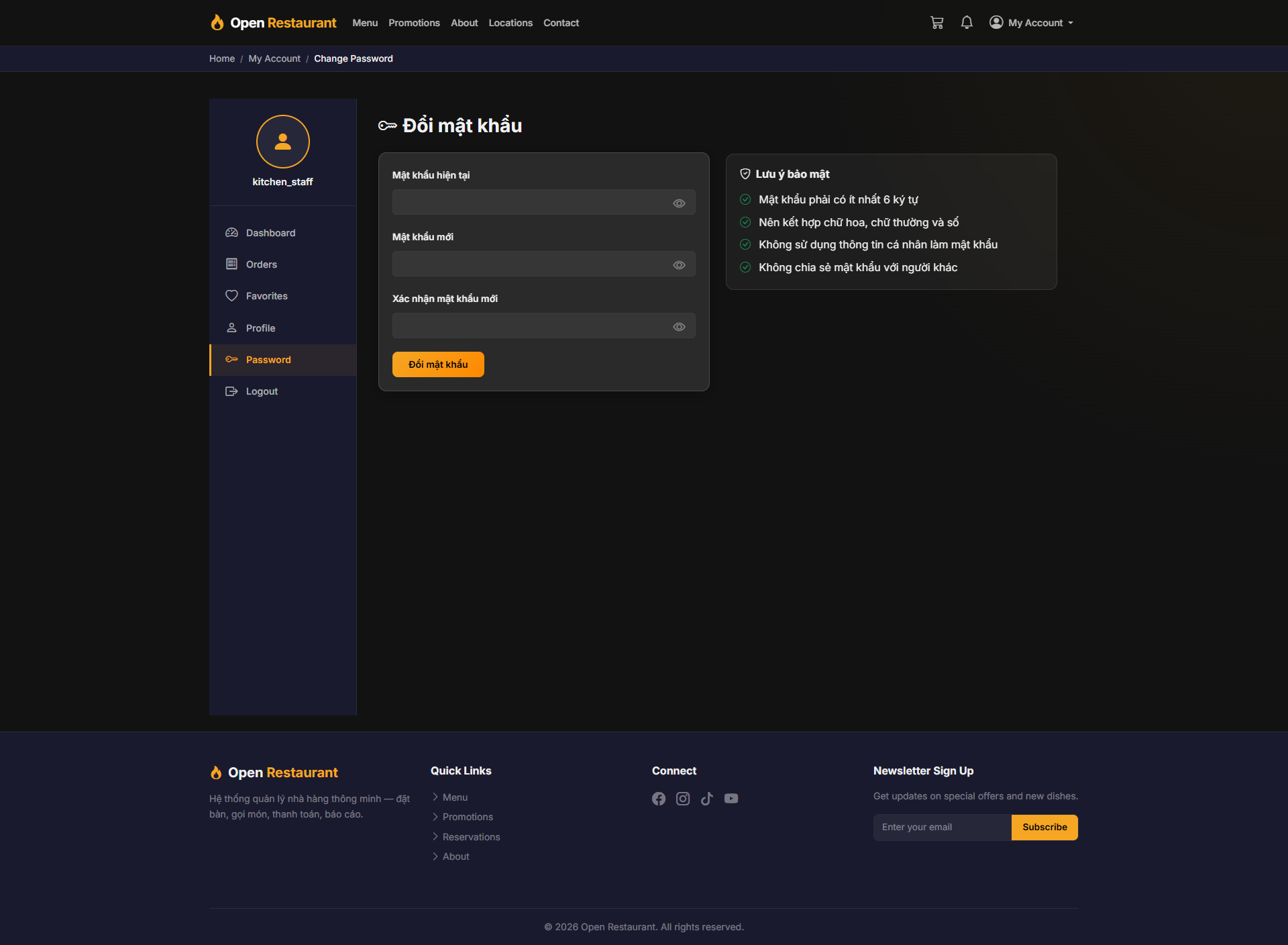
Change Password
Function: Update your account password to maintain account security.
Navigation: My Account → Change Password
- Enter current password → new password → confirm
- Click Save to update account security
Warning: Never share your account password with anyone to protect system data.