🔑 System Login
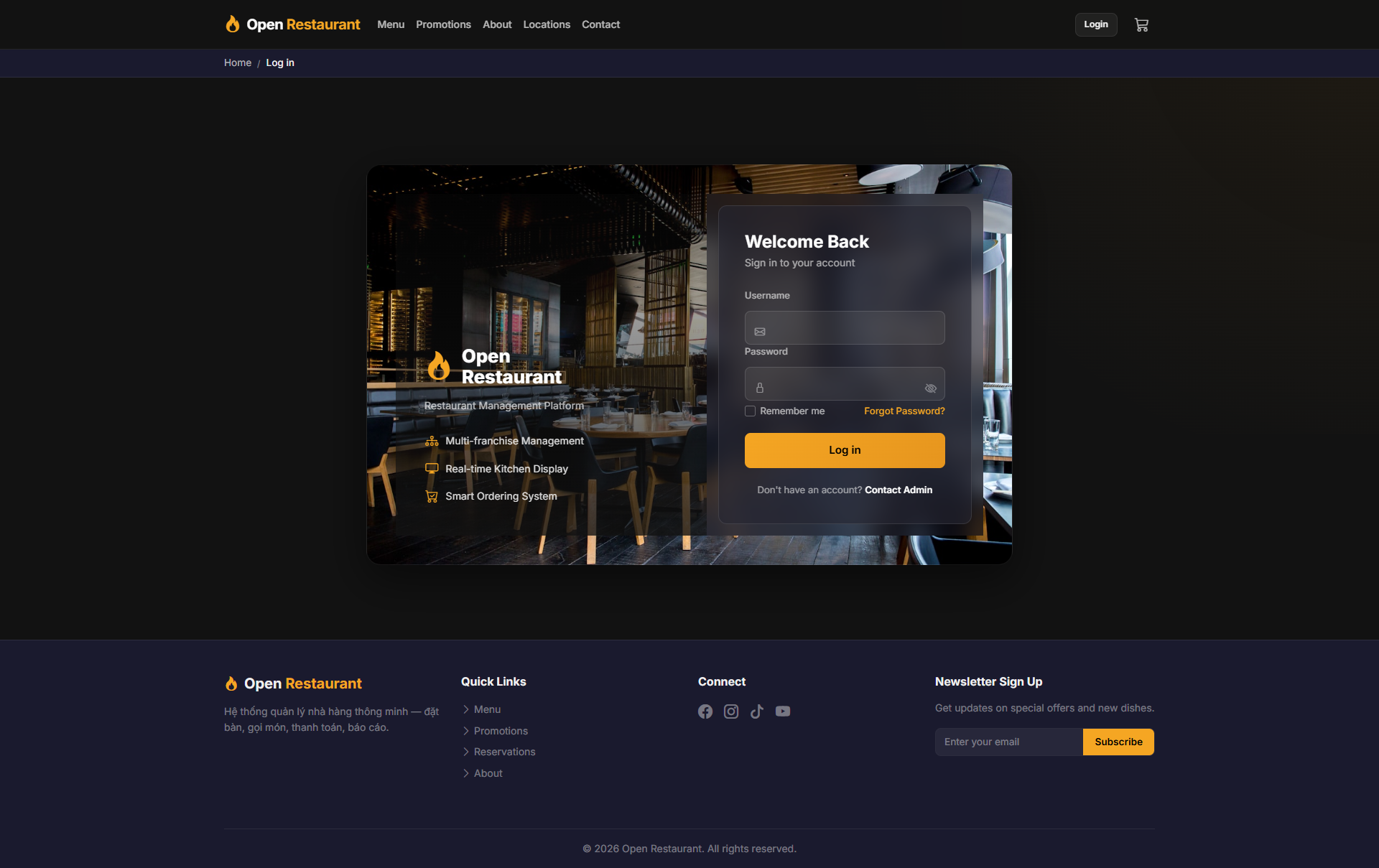
Function: Log in to access the store manager dashboard and branch operations.
Navigate to:
- Demo access: sandbox accounts are issued on request — request a guided demo.
- Enter credentials → click Login → redirected to Manager Dashboard
- Sidebar displays: Dashboard, Products, Orders, Inventory, Promotions, Delivery
- Instantly see today's revenue, order count, and revenue trends
Dashboard
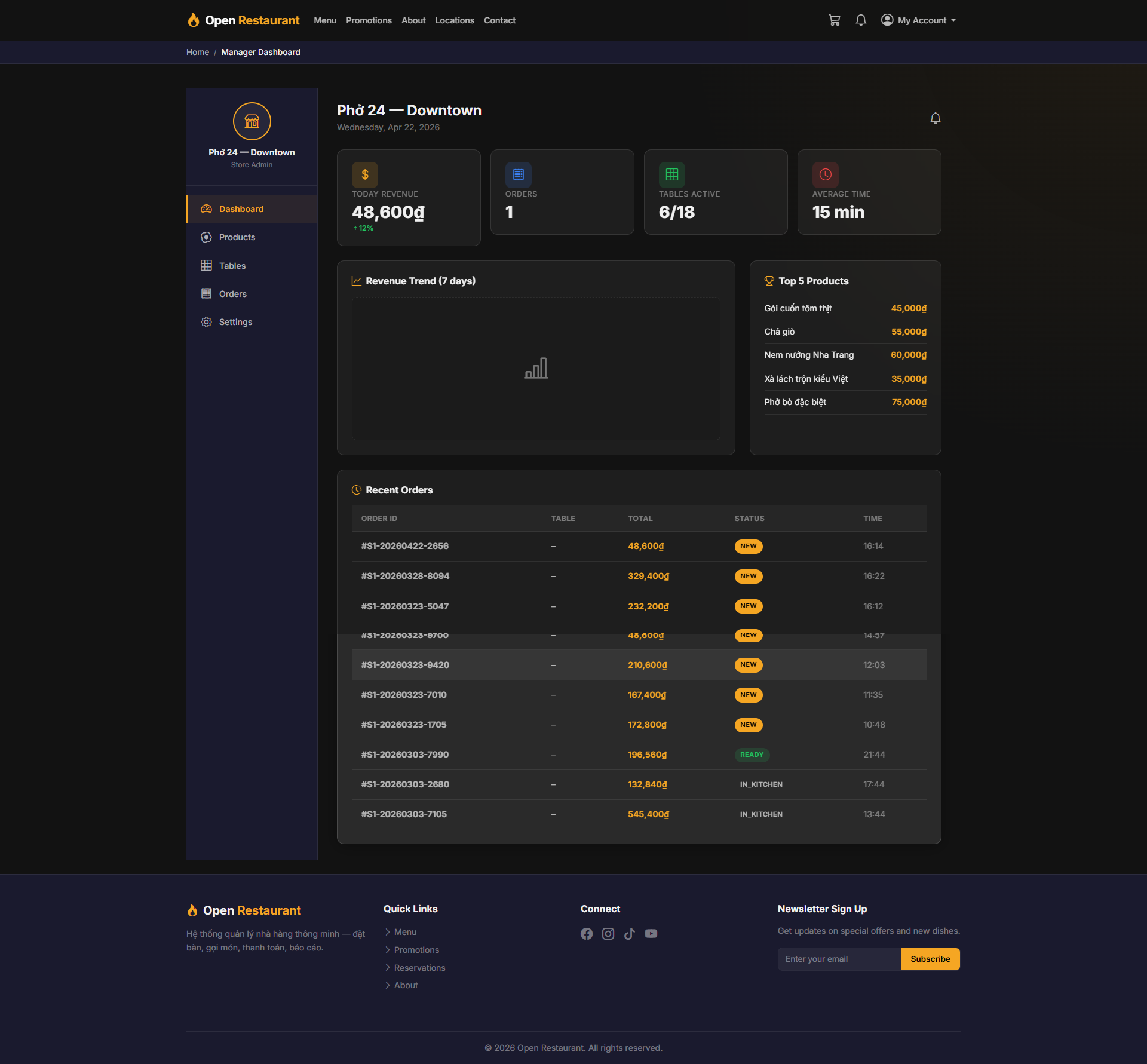
Function: Central control panel for the manager — displays real-time operational performance.
Navigation: Sidebar → Dashboard
- Today Revenue — Current day's revenue with growth percentage
- Orders — Total orders processed today
- Revenue Trend — 7-day revenue performance chart
- Quick overview of branch performance metrics
Products
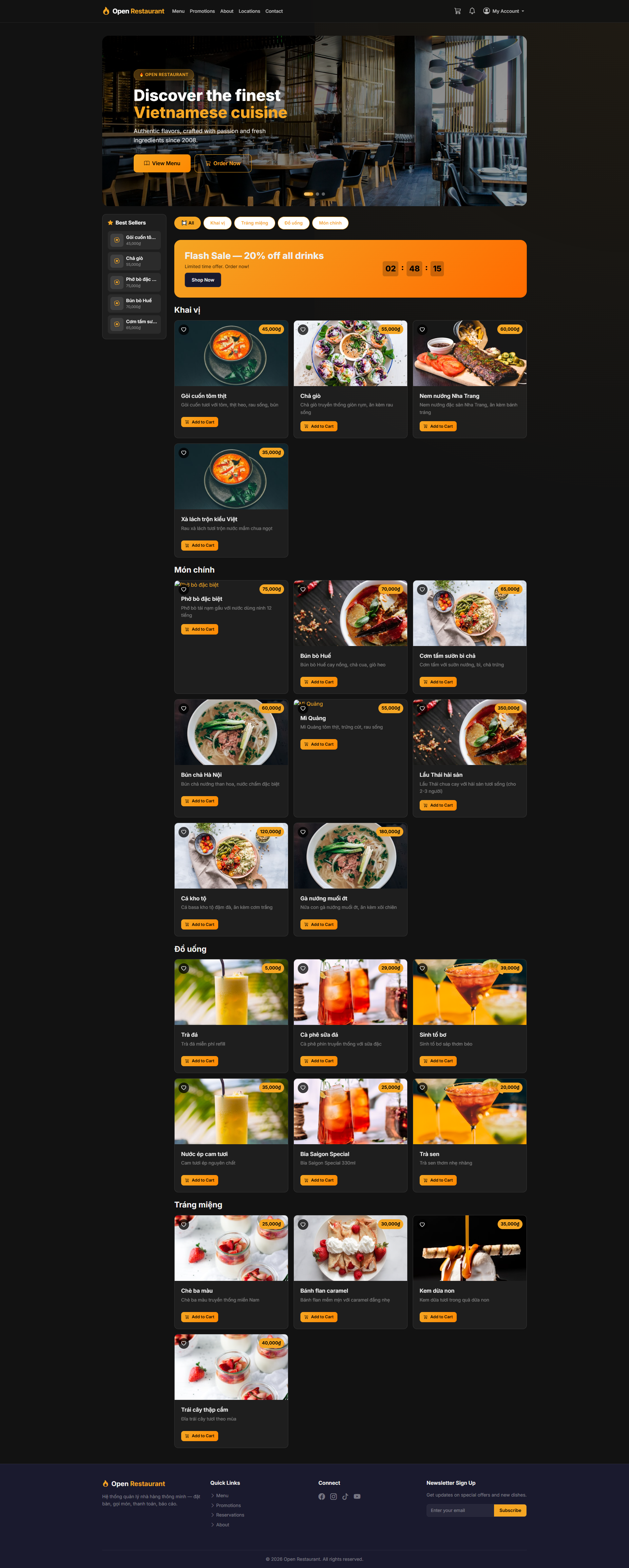
Function: Menu management page — add, edit, show/hide menu items, and update pricing.
Navigation: Sidebar → Products
- View the complete product list for the menu
- Add new items or edit existing information
- Show/hide items based on availability
- Update prices and product descriptions
Orders
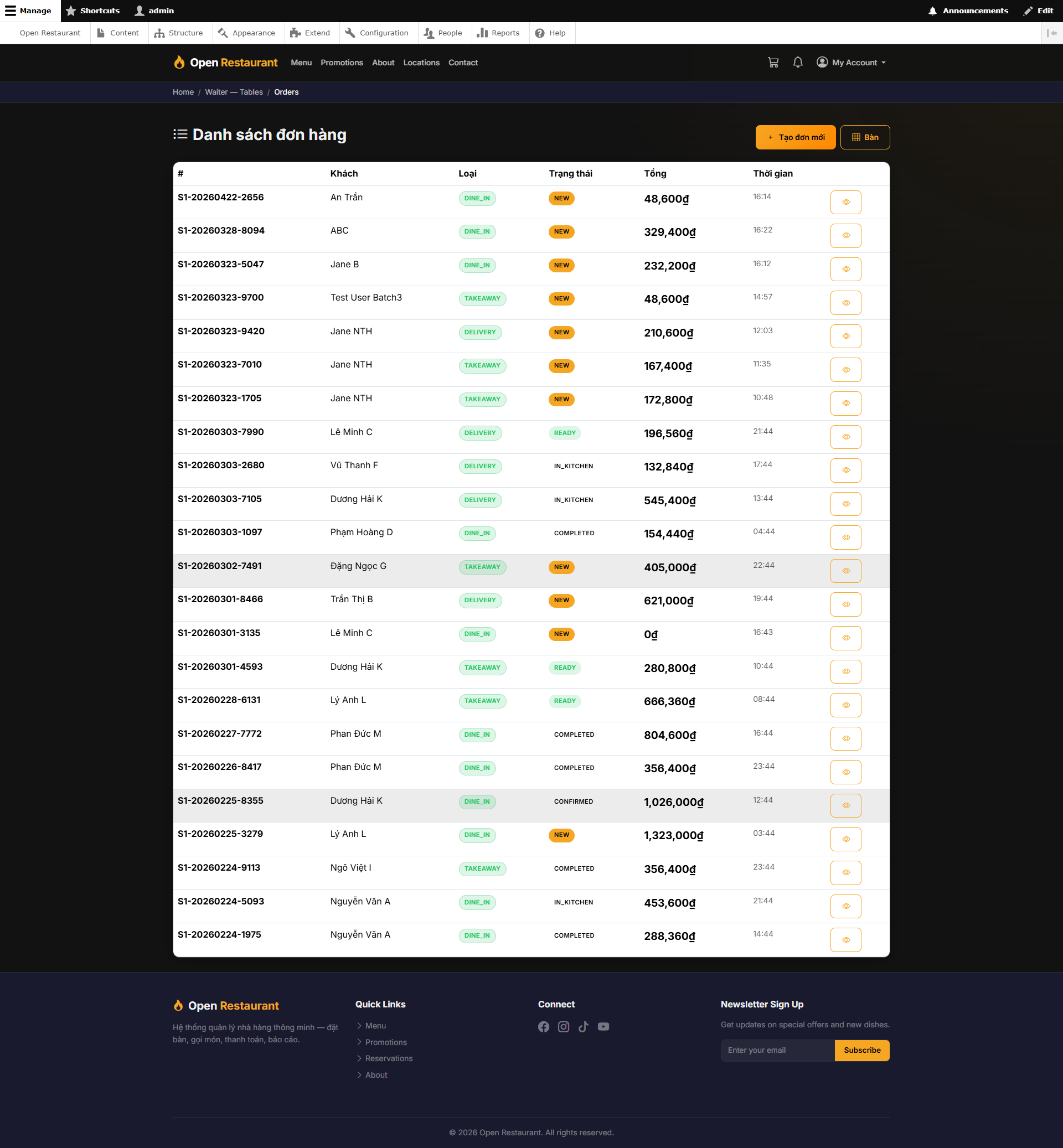
Function: Complete order tracking — view and manage all orders from placement to completion.
Navigation: Sidebar → Orders
- View all orders with status tracking
- Filter by order type: Dine-in, Take-away, Delivery
- Monitor order processing in real-time
- Track order history and performance metrics
Inventory
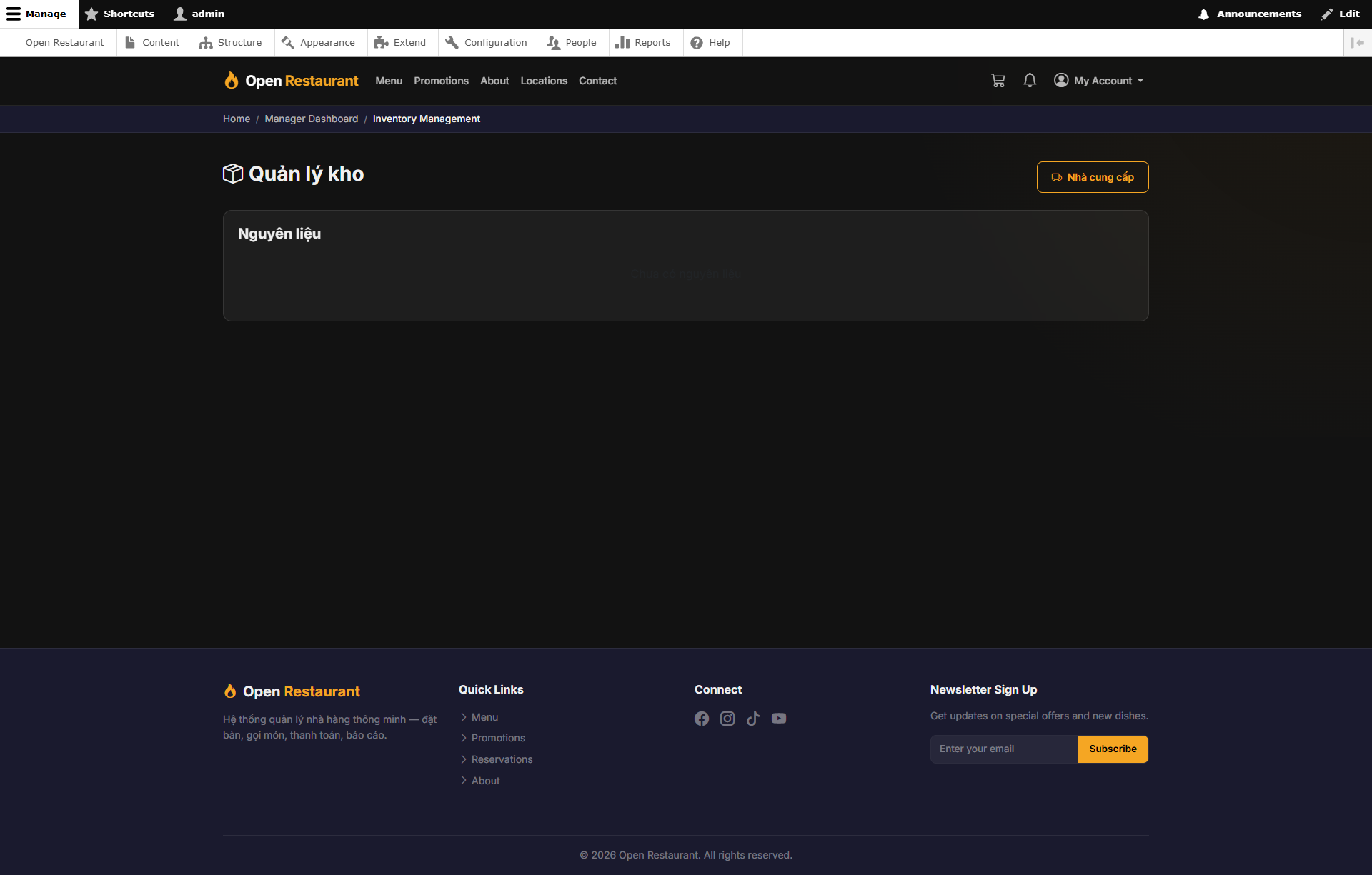
Function: Track and manage ingredient stock — update quantities and set low-stock alert thresholds.
Navigation: Sidebar → Inventory
- View ingredient list and current stock levels
- Record incoming stock quantities
- Set minimum threshold alerts for low inventory
- Track stock-in and stock-out history
Promotions
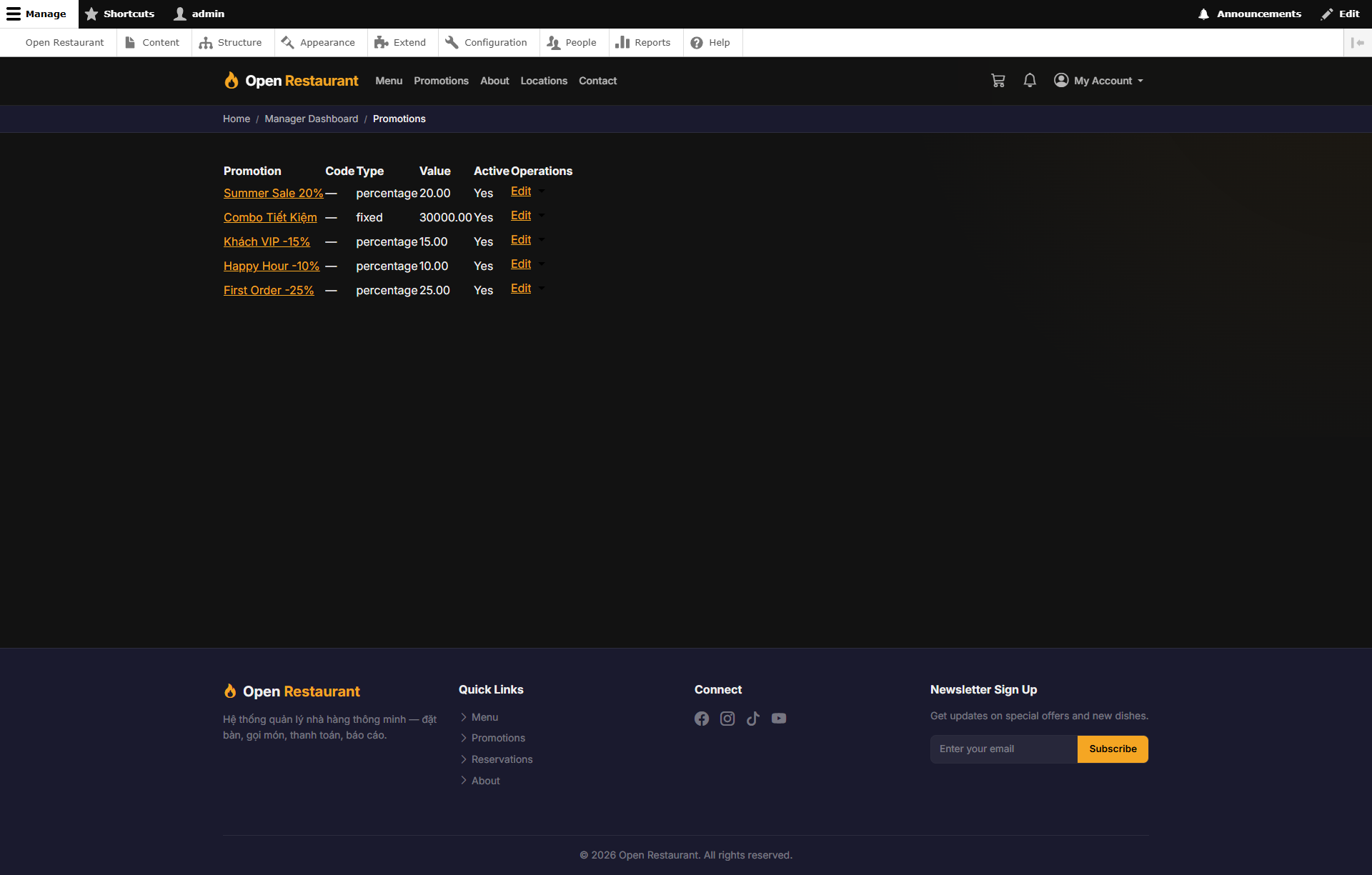
Function: Create and manage promotional campaigns and discounts for the branch.
Navigation: Sidebar → Promotions
- Create discount codes and combo deals
- Set validity periods and conditions
- View promo code usage statistics
- Enable or disable promotions as needed
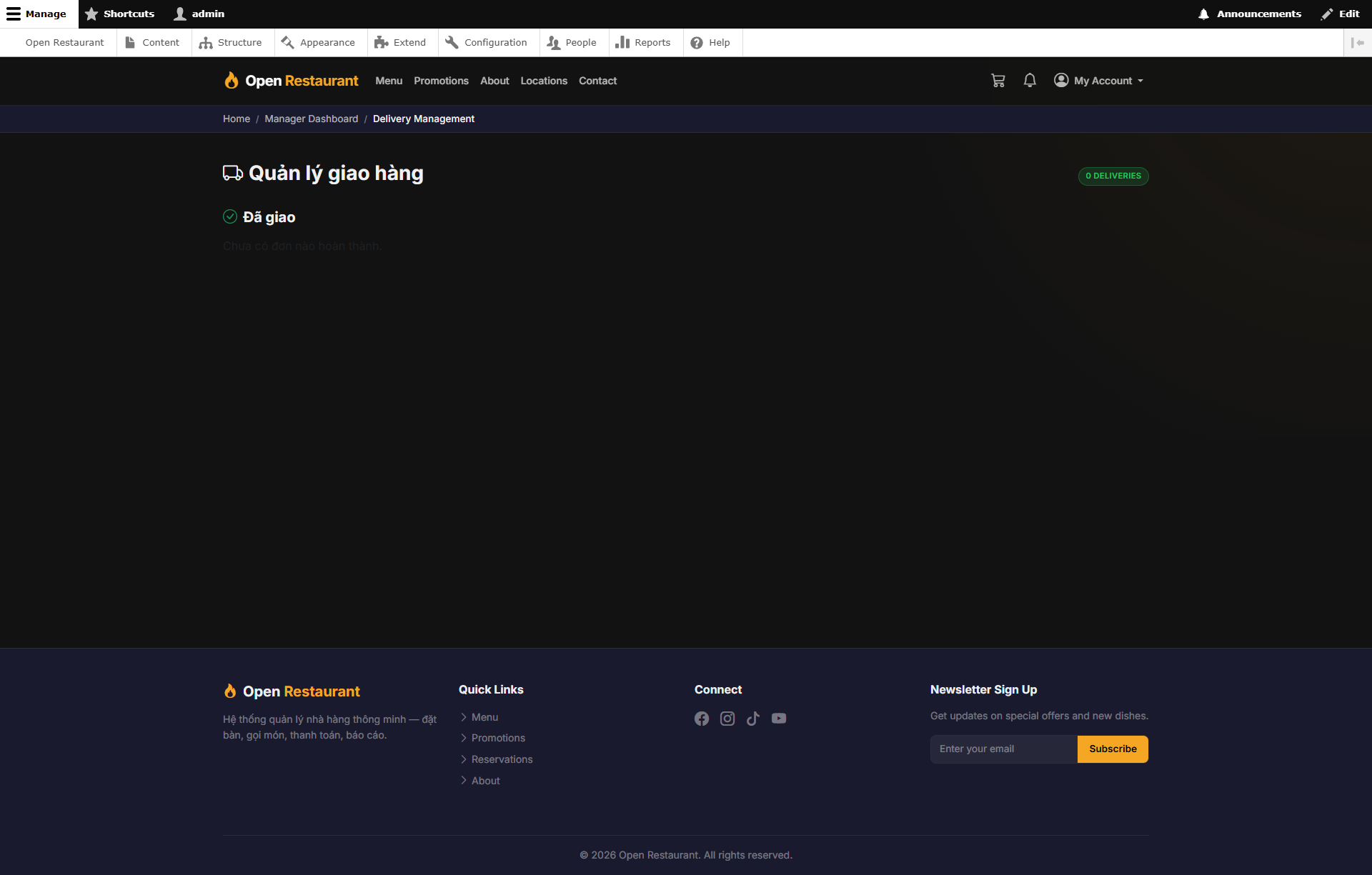
Delivery
Function: Manage and track delivery orders for the branch.
Navigation: Sidebar → Delivery
- View list of delivery orders
- Track order status and assigned drivers
- Update delivery zones and shipping fees
- Monitor delivery performance metrics