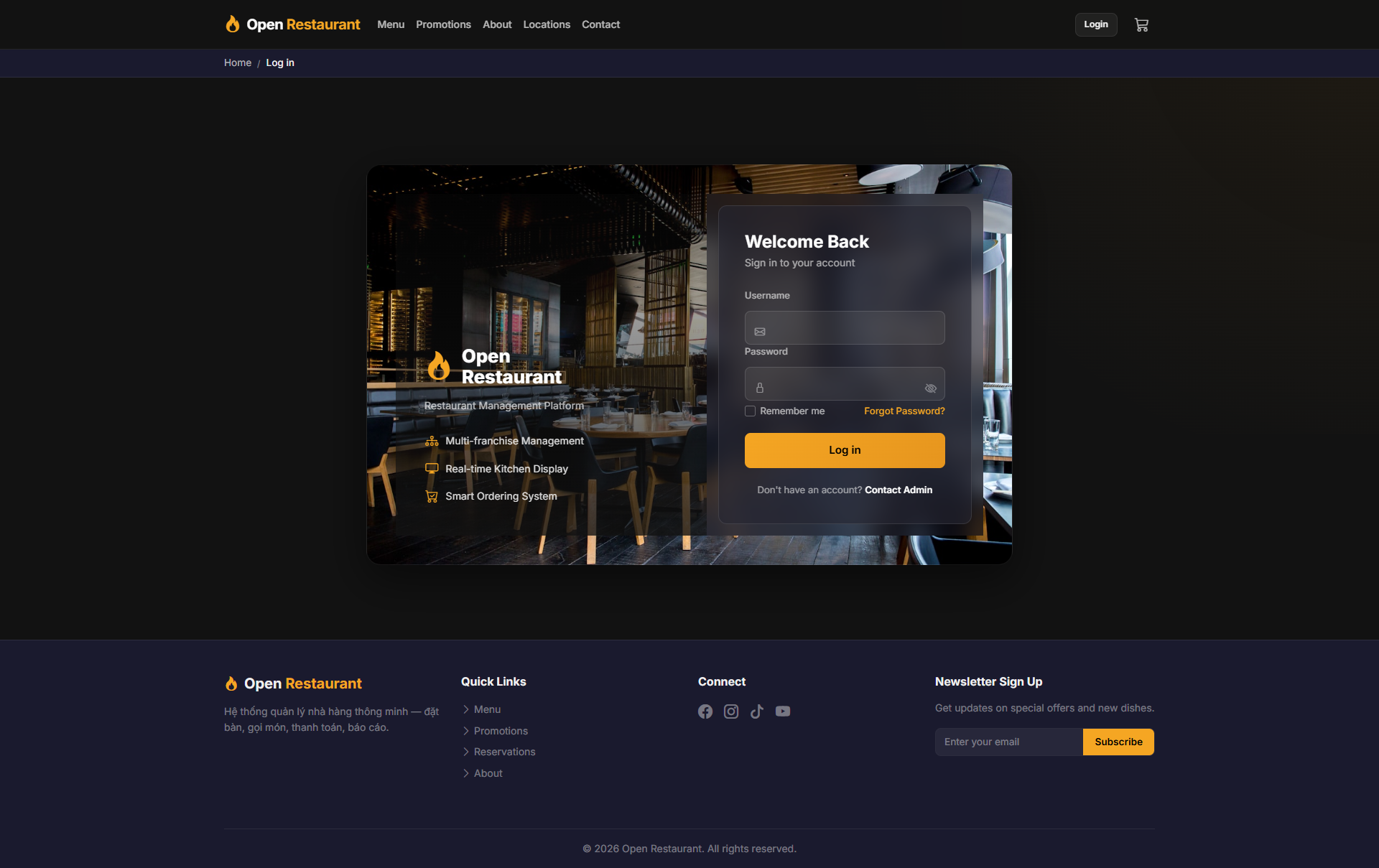
🔑 System Login
Function: Log in to access the receptionist dashboard and payment processing system.
Navigate to:
- Demo access: sandbox accounts are issued on request — request a guided demo.
- Enter credentials → click Login → redirected to Receptionist Dashboard
- Sidebar displays: Dashboard, Orders, Payments, Report
- Instantly see pending payments count and today's revenue
Tip: The dashboard updates in real time — no need to refresh the page to see the latest status.
Dashboard
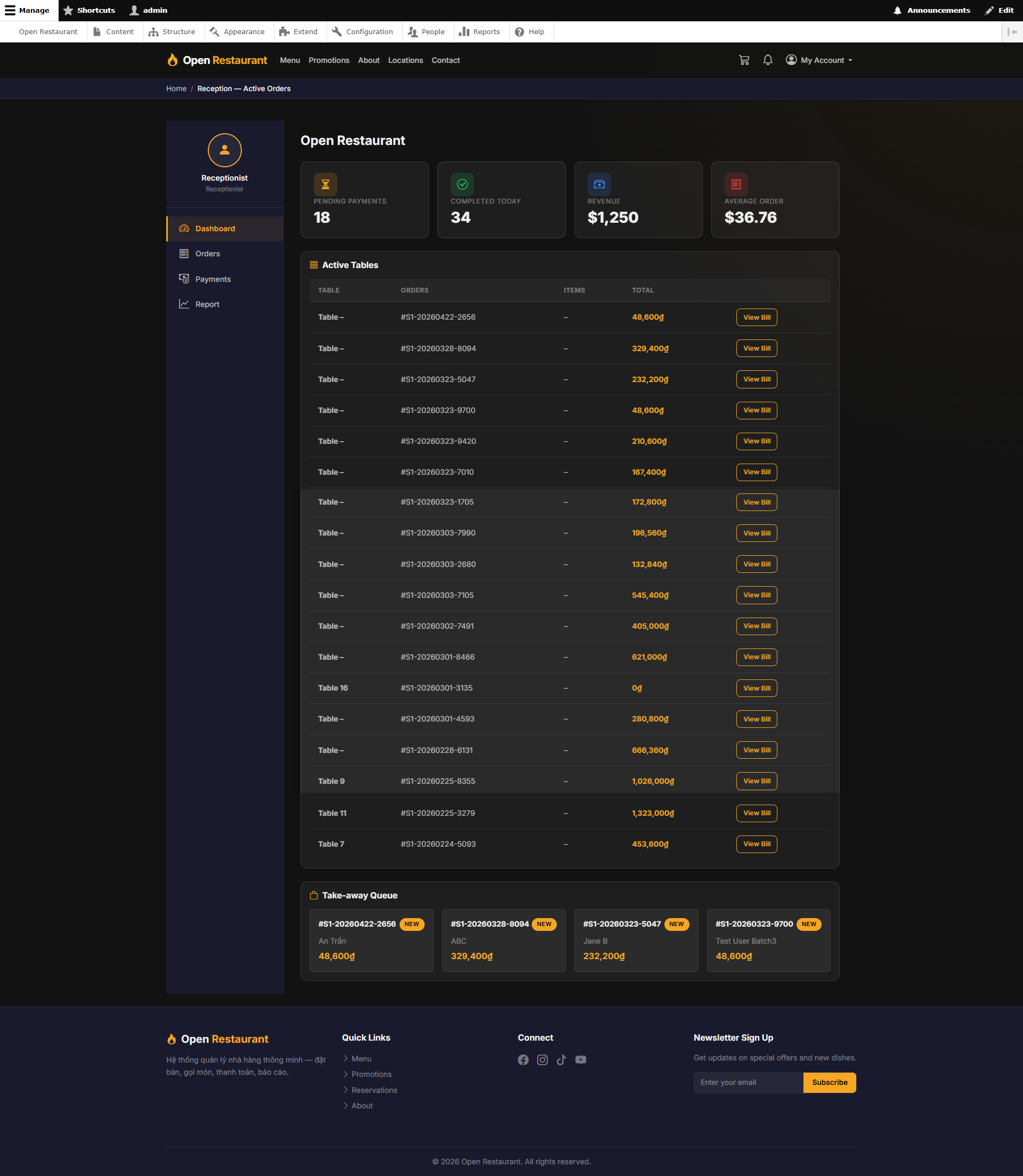
Function: Real-time overview — displays key metrics for the current shift.
Navigation: Sidebar → Dashboard
- Pending Payments — Tables awaiting payment
- Completed Today — Orders completed during this shift
- Revenue — Total current revenue
- Average Order — Average order value
- Active Tables and Take-away Queue panels below
Tip: Click View Bill in the Active Tables panel to quickly generate a bill for any table.
Orders
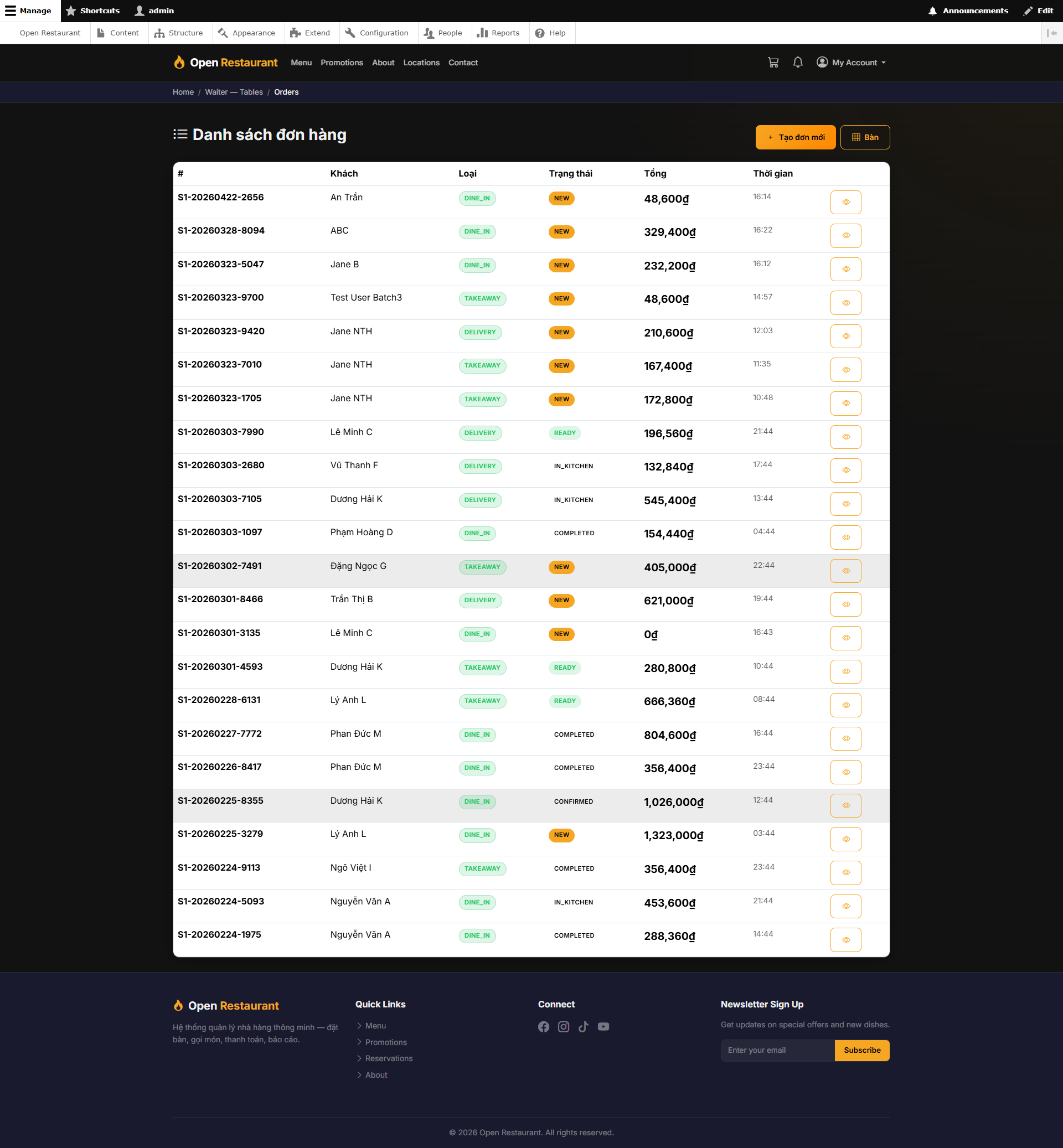
Function: Complete order list with customer details — track all orders from placement to completion.
Navigation: Sidebar → Orders
- View detailed order list: Customer name, Type (Dine-in/Take-away), Status, Amount, Time
- Filter orders by status: NEW, IN KITCHEN, TAKEAWAY, READY, COMPLETED
- Sort and search orders by customer or order details
- Click on any order to view full details and items
Note: Orders with READY status from the kitchen are cleared for billing and can be closed immediately.
Payments
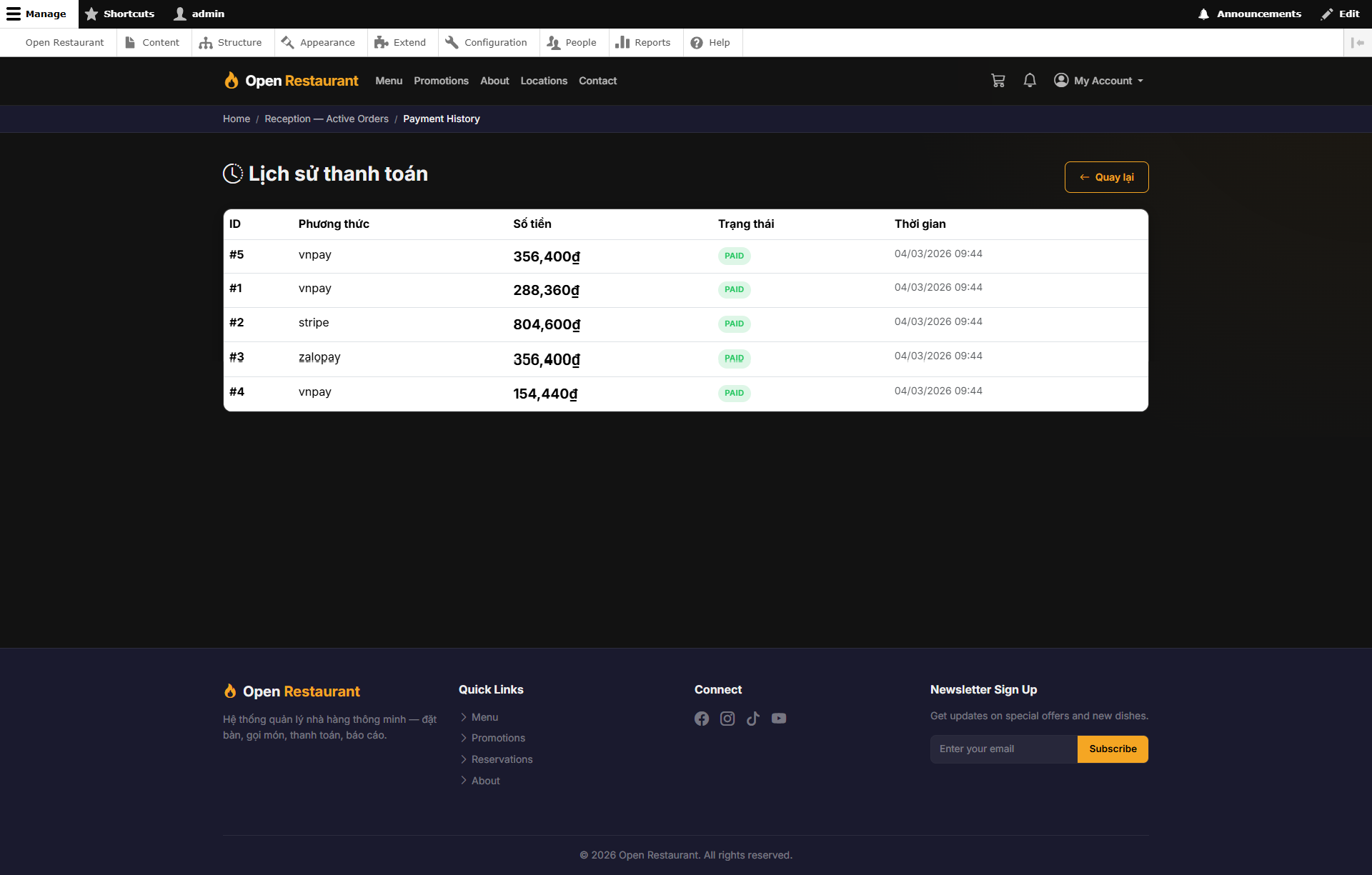
Function: Payment transaction history — view all completed payment records for reconciliation and verification.
Navigation: Sidebar → Payments
- View complete payment history with transaction IDs
- Check payment method used for each transaction
- See transaction amounts and timestamps
- Filter by date range for shift reconciliation
- All transactions show PAID status
Note: Use this payment history to verify cash drawer totals at the end of your shift.
Report
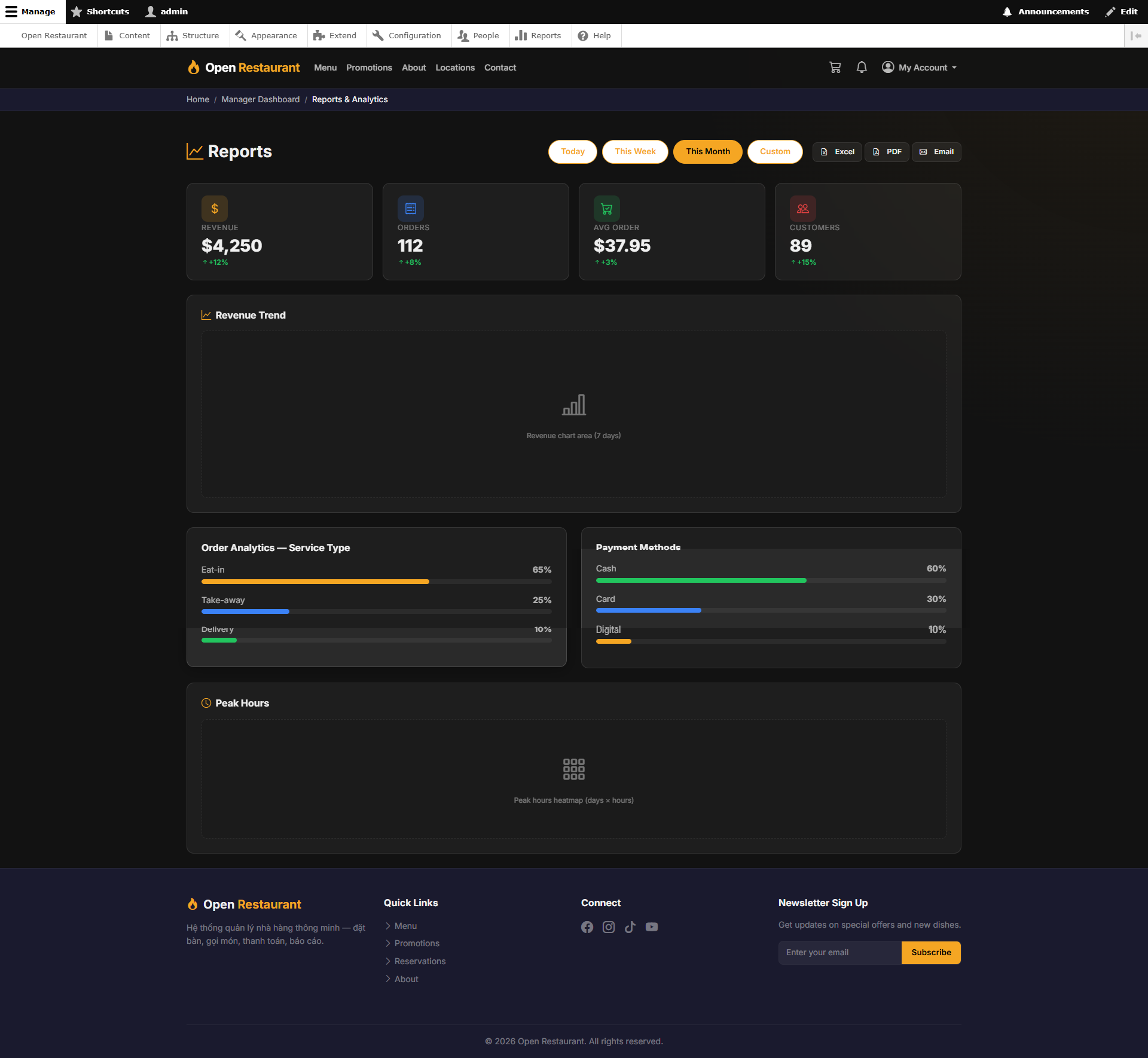
Function: View revenue and analytics reports — track performance metrics for the current shift or selected period.
Navigation: Sidebar → Report
- Revenue Trend — Track revenue over time
- Order Analytics — Service type breakdown (Dine-in, Take-away, Delivery)
- Payment Methods — View payment method distribution (Cash, Card, Digital)
- Peak Hours — Identify busiest times for better shift planning
Tip: Use the date range filter to compare performance across different shifts and identify trends.