







Payment claims

Payment claims · Draft deposit claim · Send claim

  • A customer contact with a valid email
  • Customer payment terms
Accountant

Payment claims

Accountant

Payment claims

1Step 1 of 4

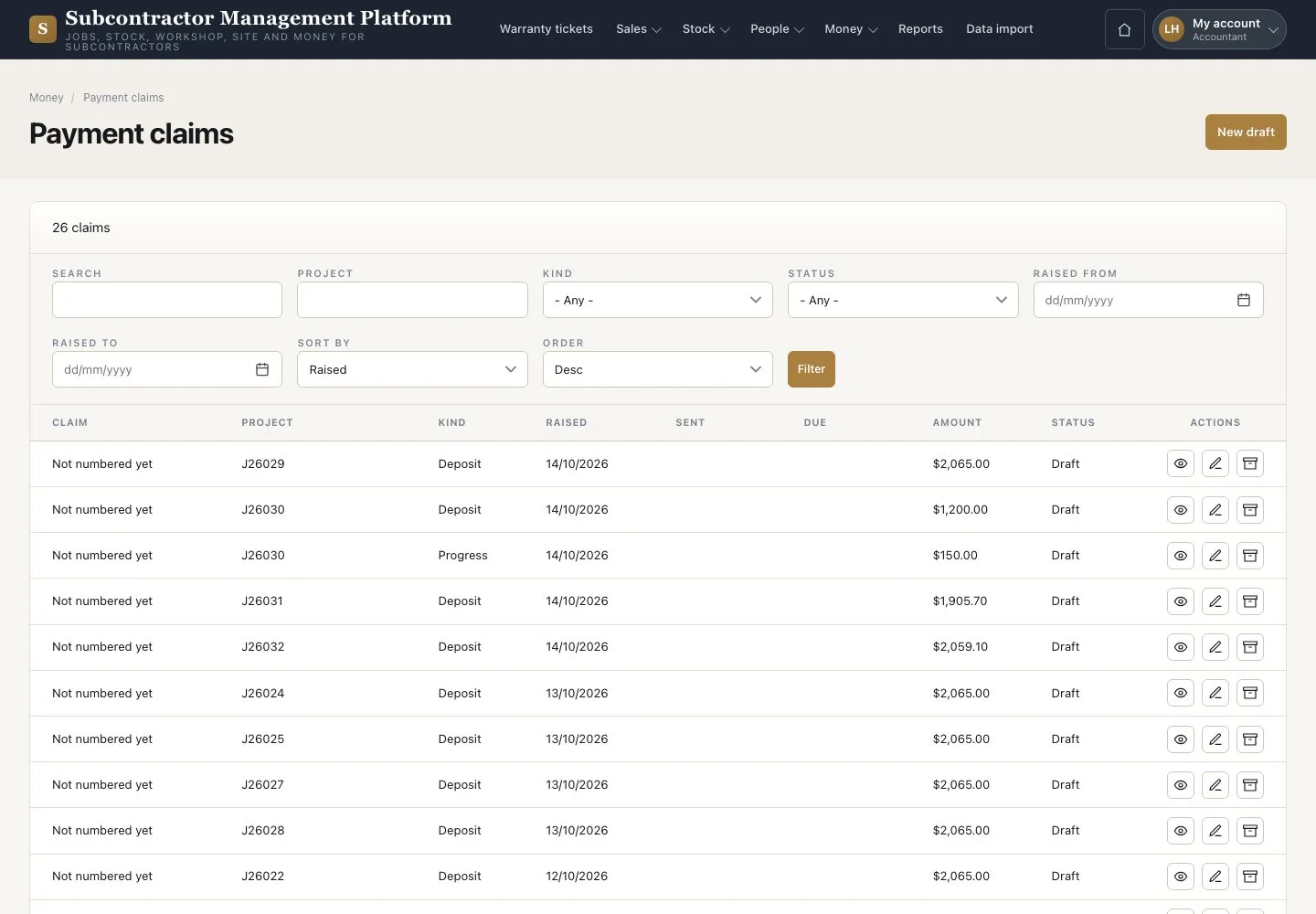
  1. Open Money → “Payment claims”
  2. Filter the claims
  3. Press “New draft” for a progress or retention release claim

Enlarge, then scroll

Open illustrated screen ↗Full image ↗

Accountant · Payment claims01

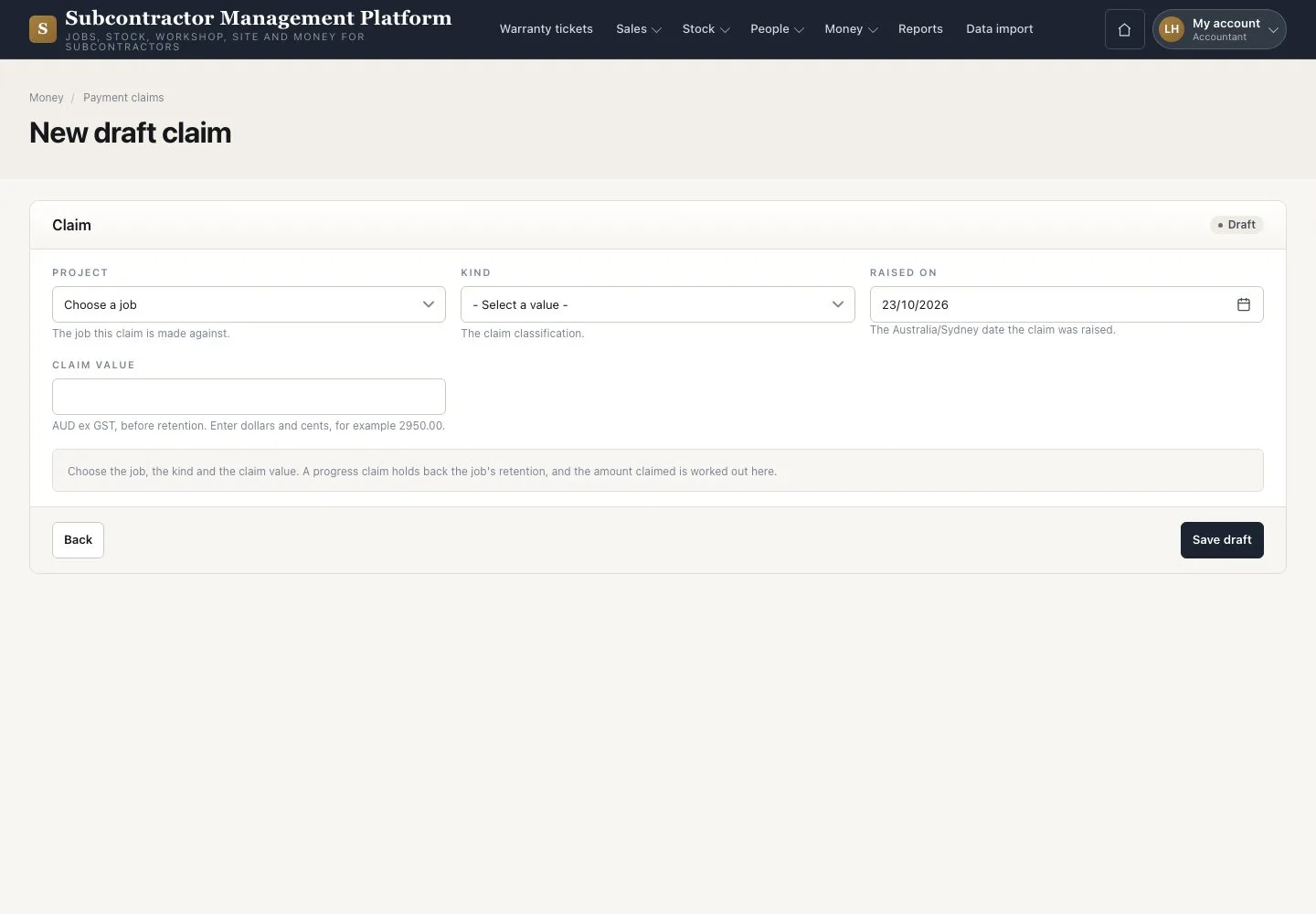
New draft claim

Accountant

New draft claim

2Step 2 of 4

  1. Choose the Project and the claim kind
  2. Enter the claim value before retention
  3. Press “Save draft”

Open illustrated screen ↗Full image ↗

Accountant · Payment claims02

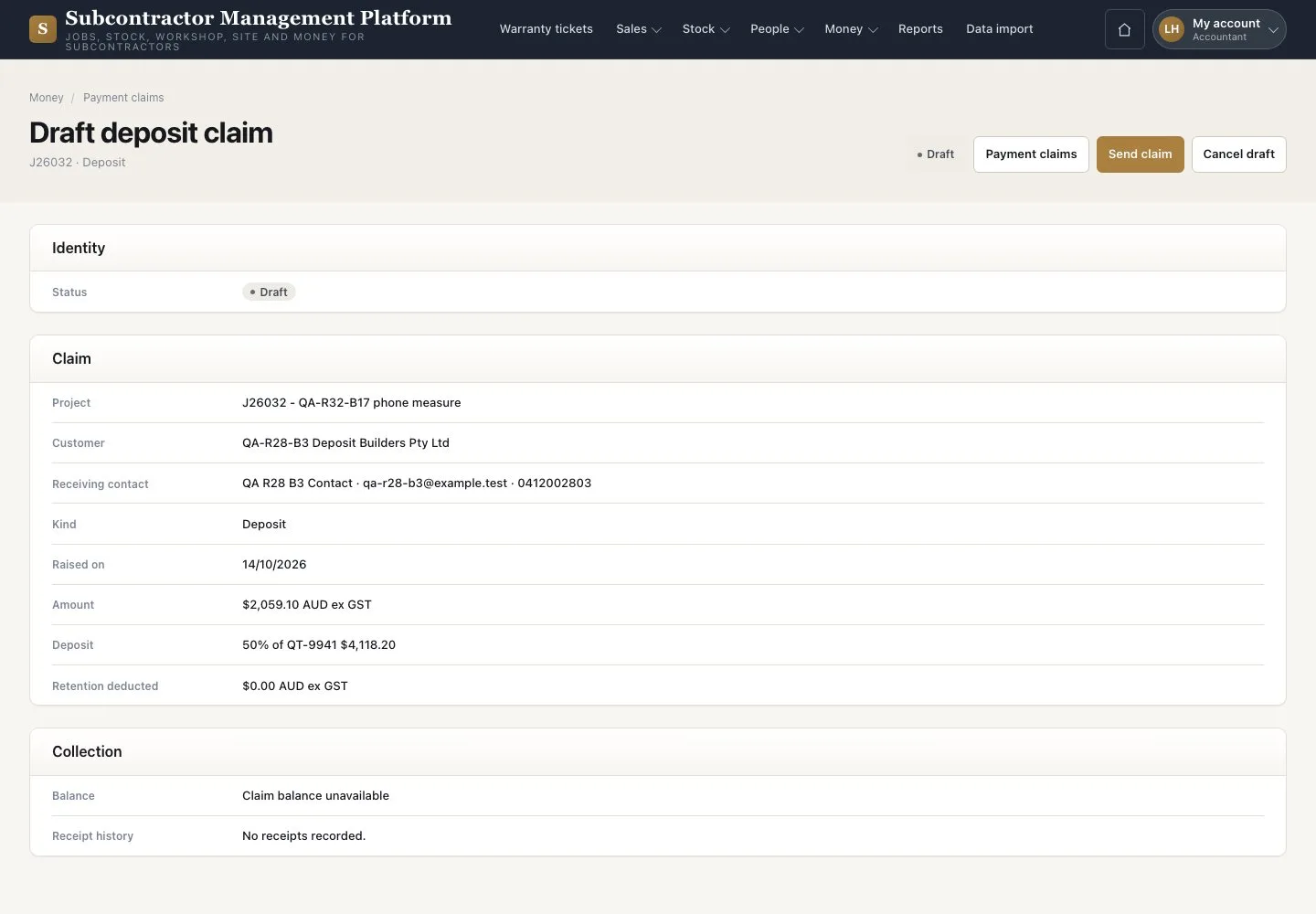
Draft deposit claim

Accountant

Draft deposit claim

3Step 3 of 4

  1. Check the amount and the remaining contract value
  2. Press “Send claim”, or “Cancel draft” with a reason

Enlarge, then scroll

Open illustrated screen ↗Full image ↗

Accountant · Payment claims03

Send payment claim

Accountant

Send payment claim

4Step 4 of 4

  1. Choose the “Recipient”
  2. Press “Send payment claim”

A payment claim is not a tax invoice. Sending mail works in the local demonstration only.

Open illustrated screen ↗Full image ↗

Check

The claim is Sent; its document opens from the claim.

Accountant · Payment claims04
1 / 5
Privacy Terms