🔐 Account Login
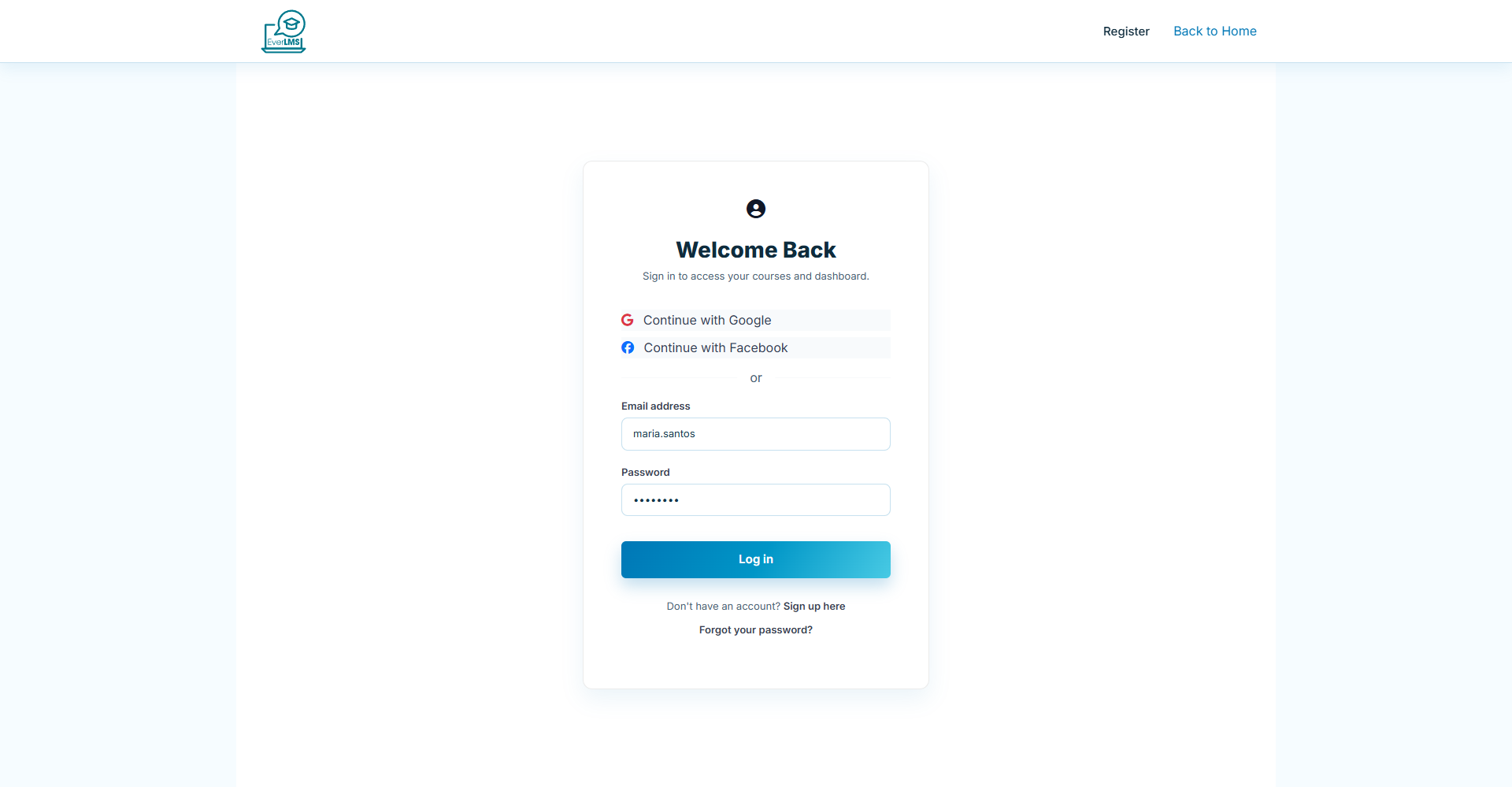
Feature: The login page allows students to start their learning journey with their assigned account.
Navigation: Homepage → Login
- Demo access: sandbox accounts are issued on request — request a guided demo.
- Check Remember me to stay logged in
- Select "Forgot your password?" to recover your account
📊 Student Dashboard
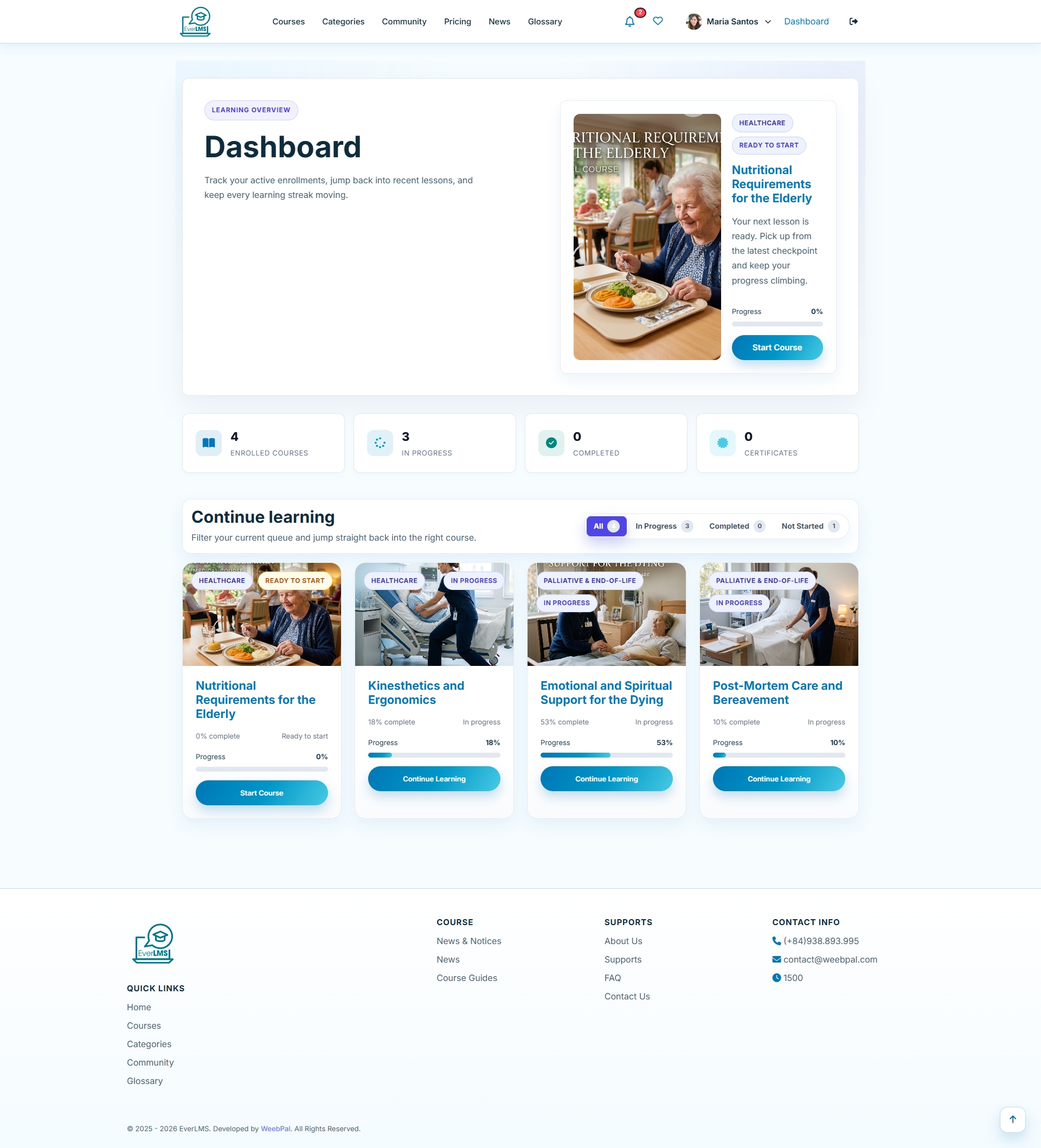
Feature: The Dashboard page displays your personal learning progress.
Navigation: Login → Dashboard
- Statistics: Enrolled, In Progress, Completed, Certificates
- Continue Learning — Resume courses in progress
- Progress bar tracking % completion for each course
- Discover more new courses from the catalog
👤 Personal Account Options
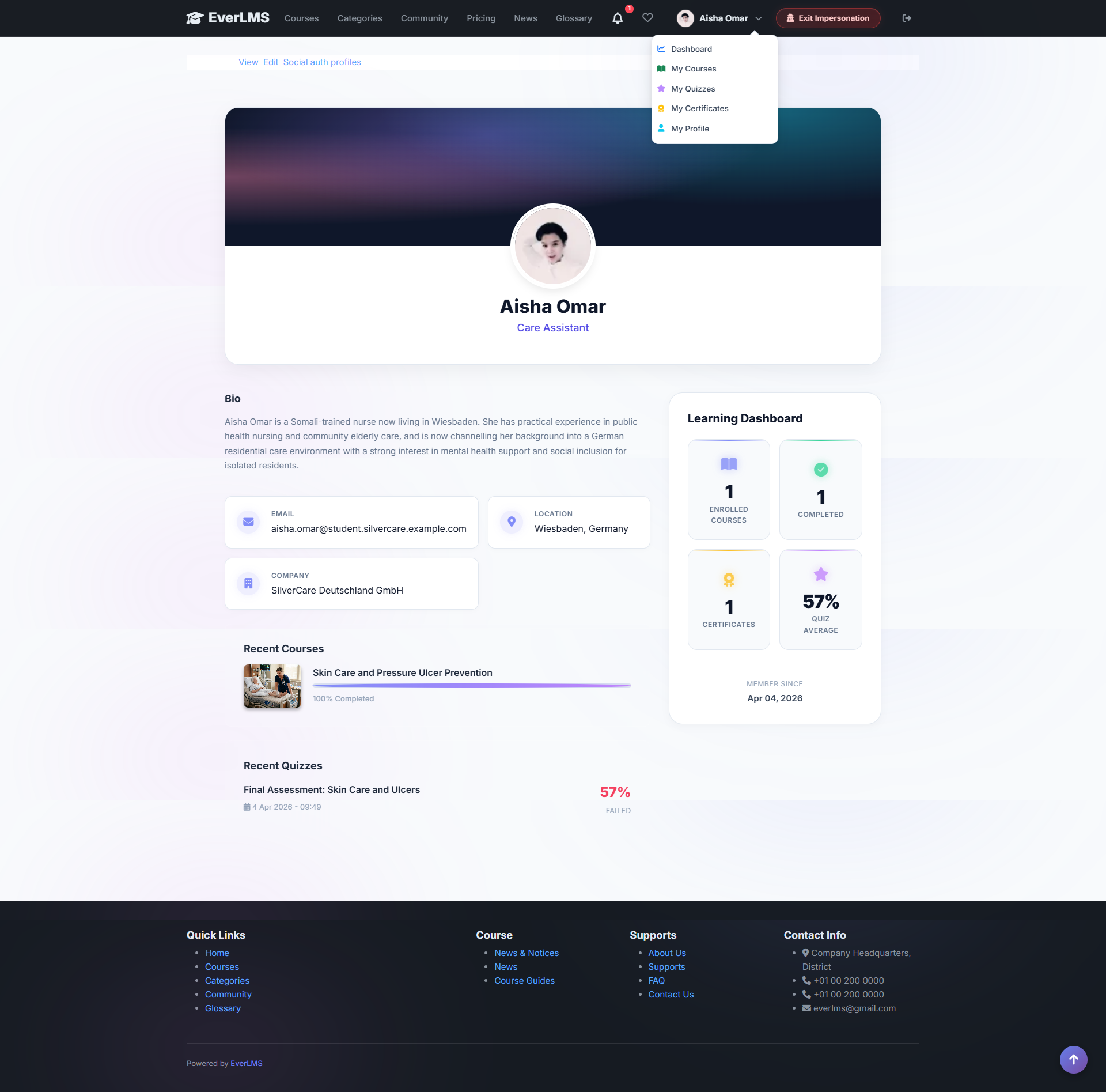
Feature: Account options provide quick links to personal settings.
Navigation: Click name/avatar in top right corner
- Dashboard — Return to the control panel
- My Courses — List of enrolled courses
- My Certificates — View earned certificates
- My Wishlist — Courses you are interested in
- My Quiz Results — Quiz history
- My Profile — Update personal information
🔍 Course Details
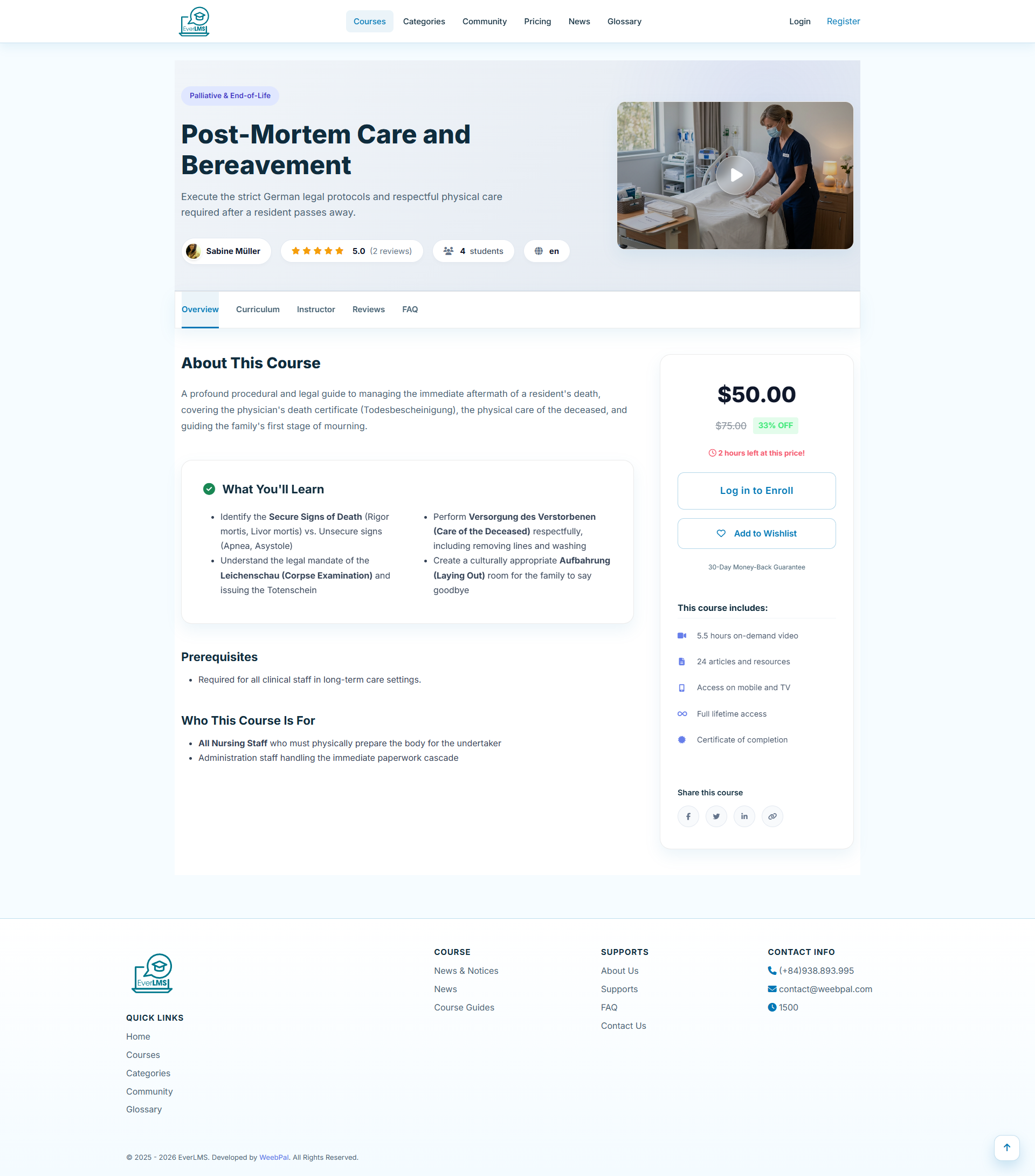
Feature: The detail page provides comprehensive course information before enrollment.
Navigation: Course list → Select a course
Information displayed:
- Overview description and learning objectives
- Instructor information and review statistics
- Course price and Enroll Now button
- Tab to preview curriculum content
🛒 Course Enrollment
Feature: From the course detail page, students can purchase or start a free course.
Navigation: Categories → Select a course → Enroll Now
- Click Enroll Now to begin enrollment
- Check the course price and conditions
- Review course information before payment
- Supports both free and paid courses
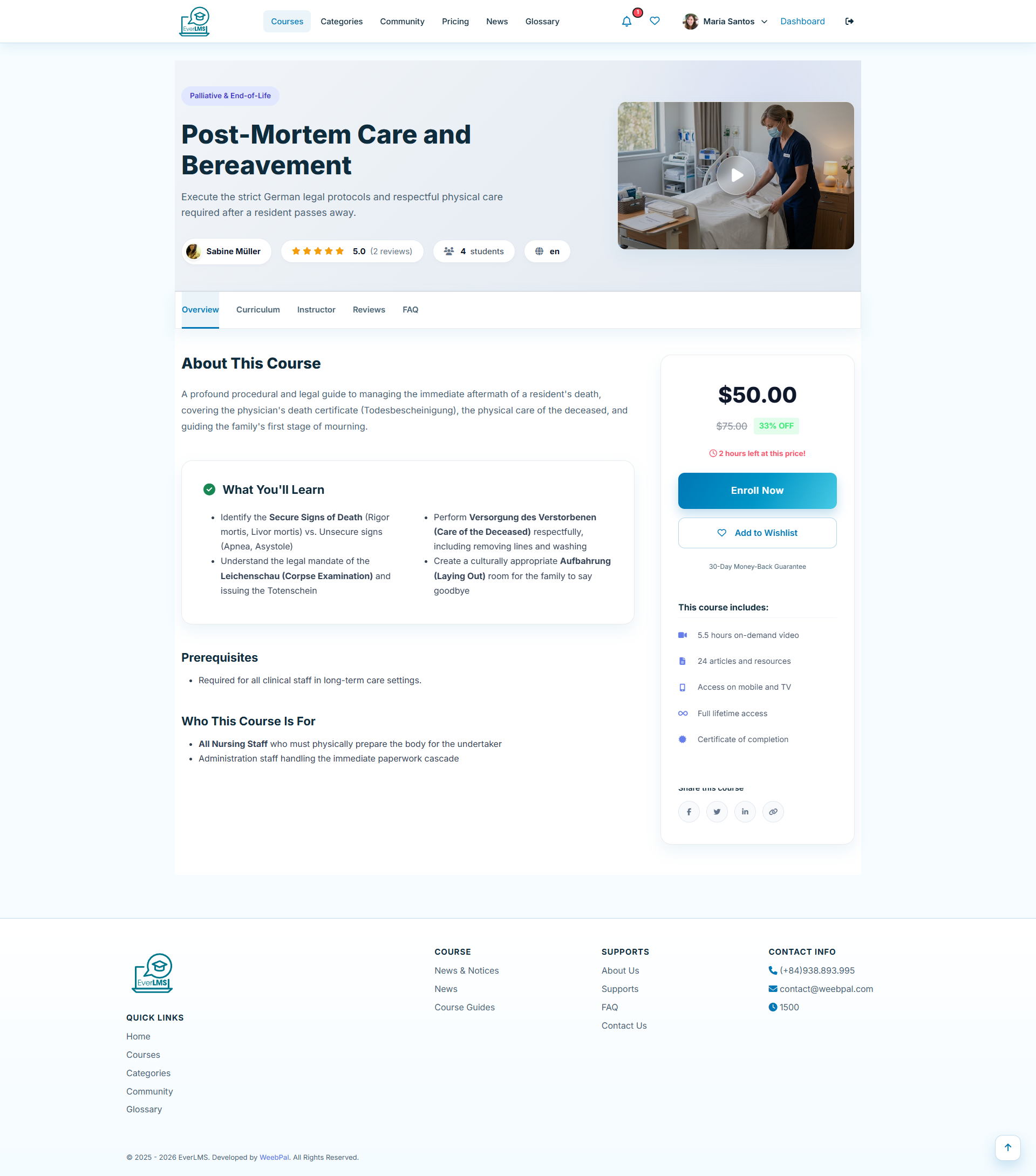
💳 Payment Confirmation
Feature: The payment confirmation page displays the order summary and payment methods.
Steps:
- Check the course name and price in the cart
- Select a suitable payment method
- Enter payment information (card / bank transfer)
- Confirm and complete the order
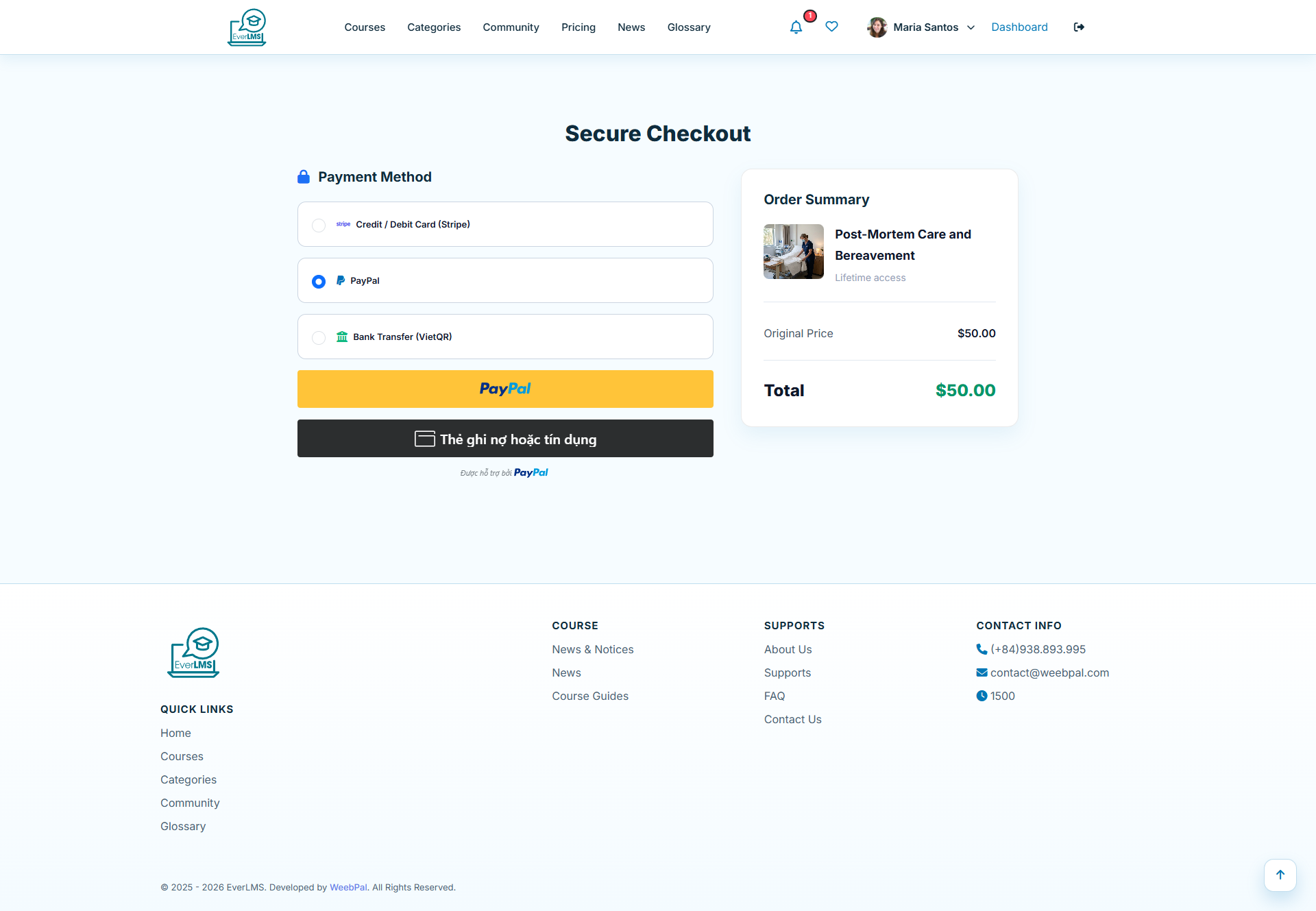
🏦 Bank Transfer
Feature: Bank transfer payment option for students who do not use cards.
How to proceed:
- Select Bank Transfer on the Checkout page
- The system displays the bank account information
- Complete the transfer with the exact transfer reference
- Wait for admin confirmation (1–2 business days)
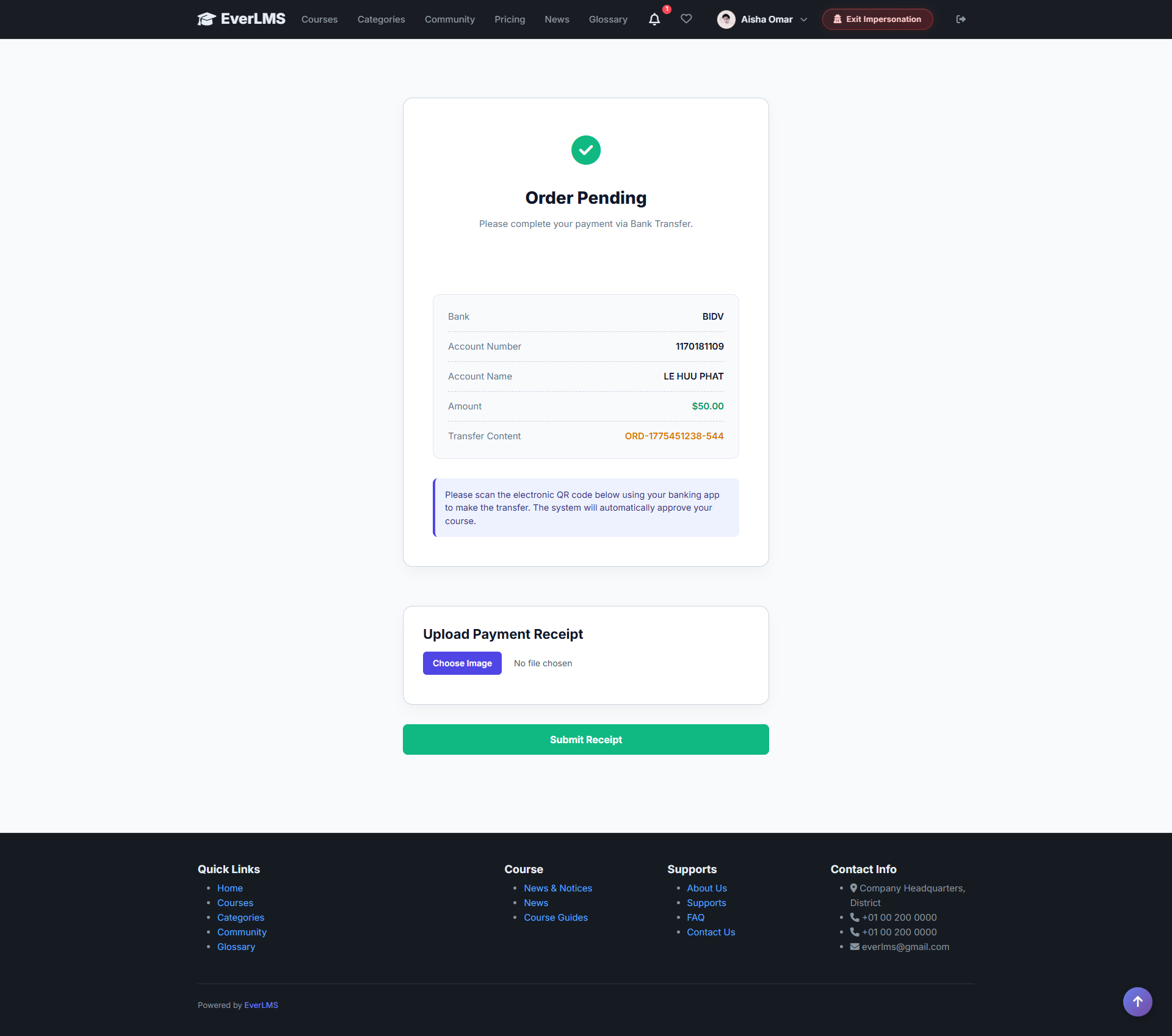
✅ Payment Successful
Feature: The confirmation page displayed after payment has been successfully processed.
Information displayed:
- Payment Successful notification confirming the transaction
- Order details and transaction code
- Go to My Courses button to start learning immediately
- Confirmation email is automatically sent to your inbox
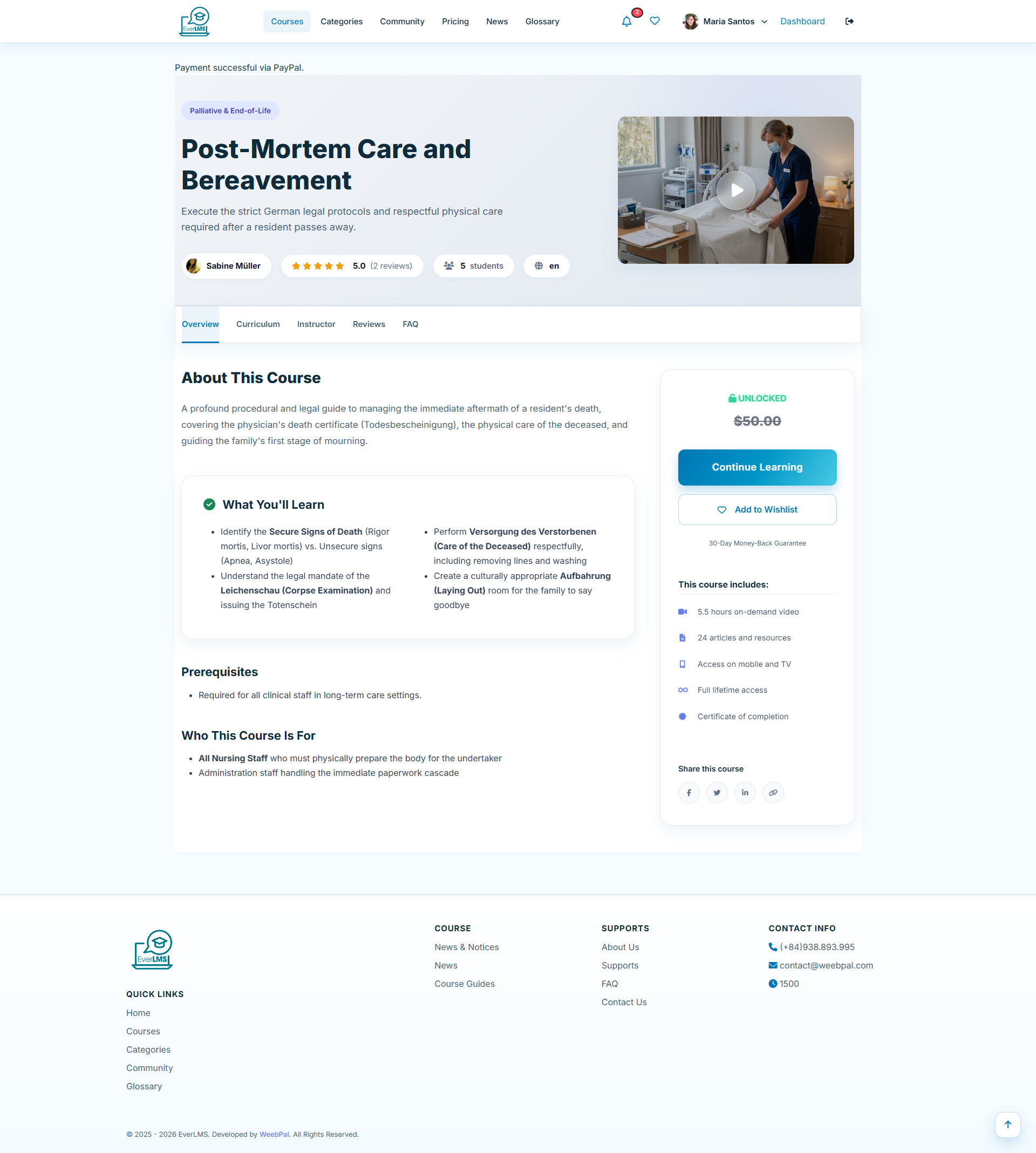
📚 My Courses
Feature: The My Courses page consolidates all enrolled courses.
Navigation: Account options → My Courses
- View courses in progress and completed courses
- Track progress (% completion) for each course
- Click Continue to resume pending lessons
- Filter by status: In Progress / Completed
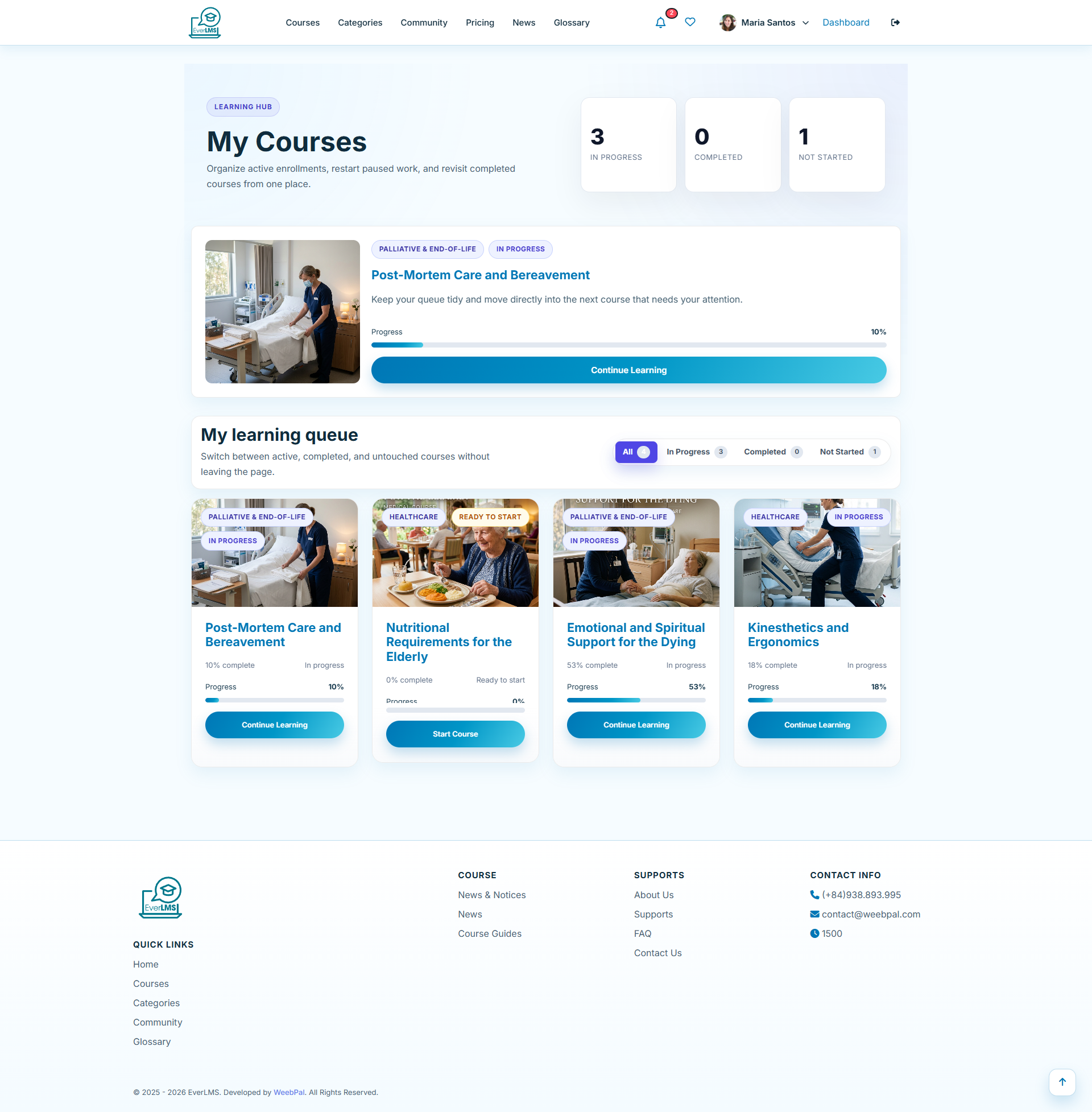
▶️ Continue Learning
Feature: The Continue Learning feature resumes exactly where you left off — no need to manually find your last lesson.
Navigation: My Courses → Click "Continue" on a course card
- The Continue button links directly to the in-progress lesson
- The system remembers your last accessed lesson and position
- Progress bar on each course card shows exact % completion
- Use the Dashboard widget to access the top 3–5 active courses at a glance
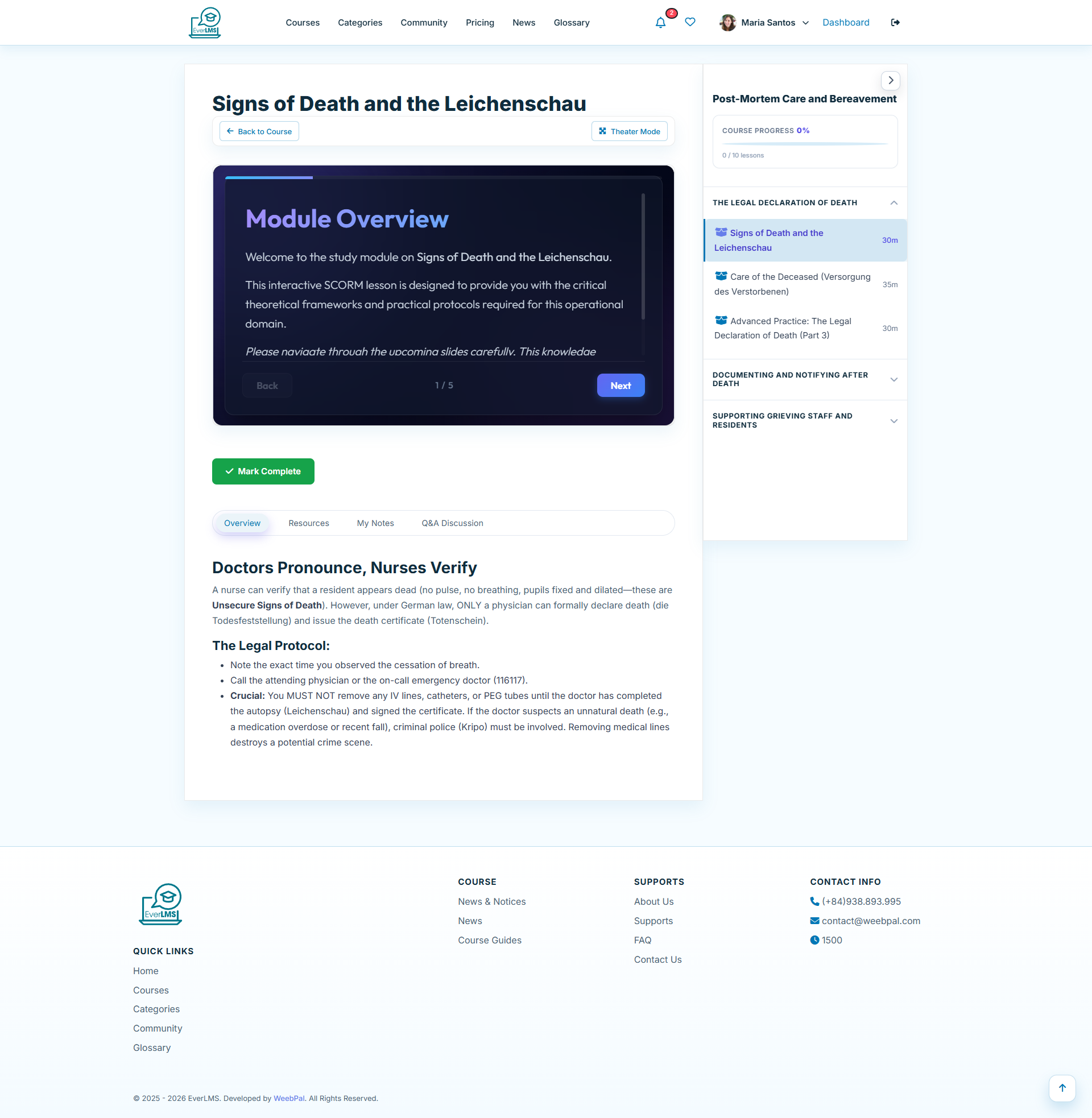
🎬 Watch Lessons & Videos
Feature: The Video Player interface allows you to watch lectures and interact with content.
Navigation: My Courses → Select a course → Select a lesson
- Integrated video player with full controls
- Sidebar displays the lesson list and progress
- Video playback speed can be adjusted (0.5x–2x)
- Supports subtitles and fullscreen mode
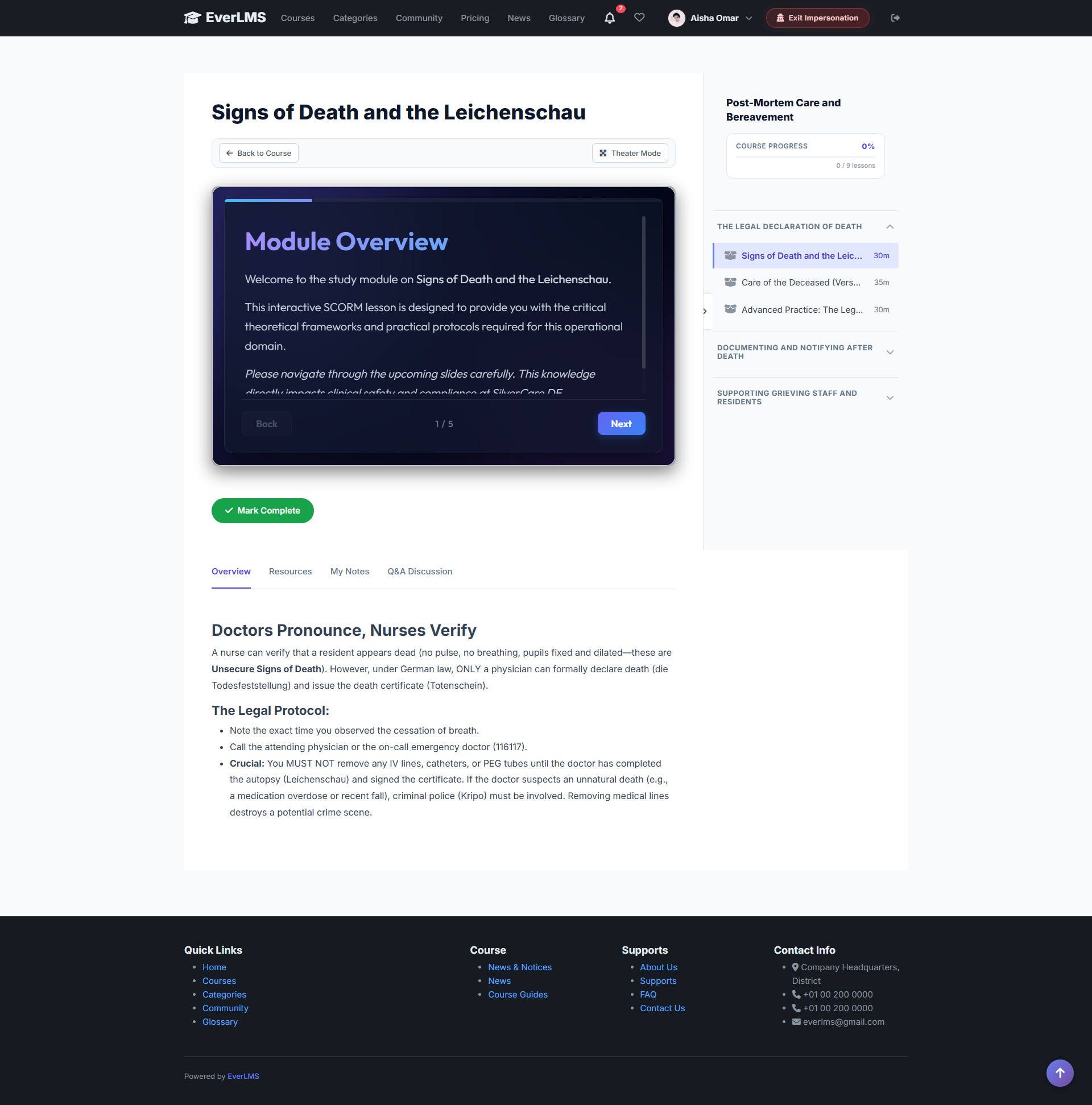
📋 Lesson Overview
Feature: The Overview tab in the lesson player displays a summary of the current lesson's objectives and description.
How to access: Lesson Player → Overview Tab
- Read the lesson summary and learning objectives
- Review key concepts before watching the video
- Check prerequisites for the current lesson
- Understand what skills you will gain
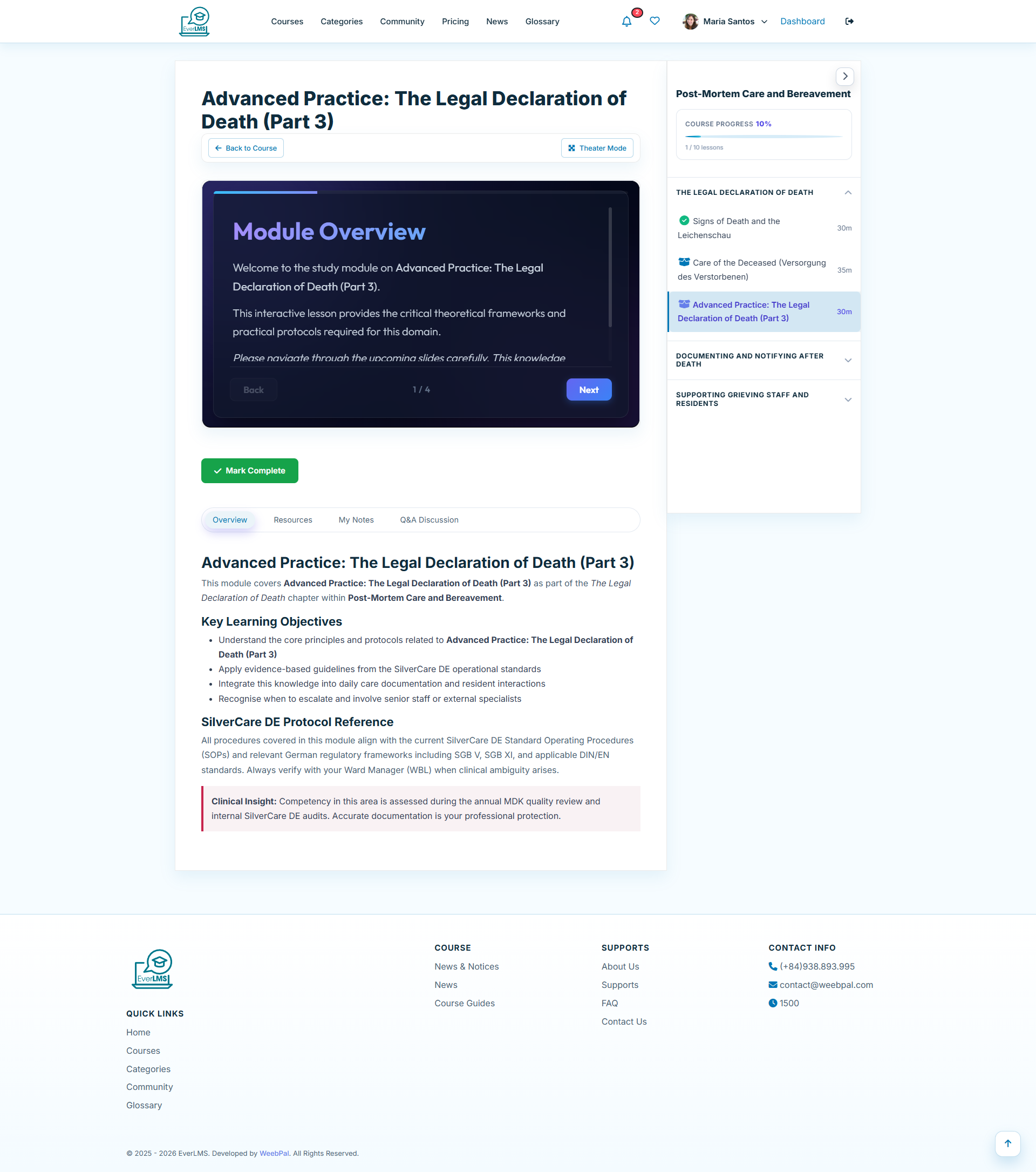
🎭 Theater Mode
Feature: Theater mode expands the video viewing area for better learning focus.
How to activate: Video Player → Theater Mode Icon
- Expands the video player to full horizontal width
- Hides surrounding menus and content
- Ideal for large screens or TVs
- Click the icon again to exit Theater Mode
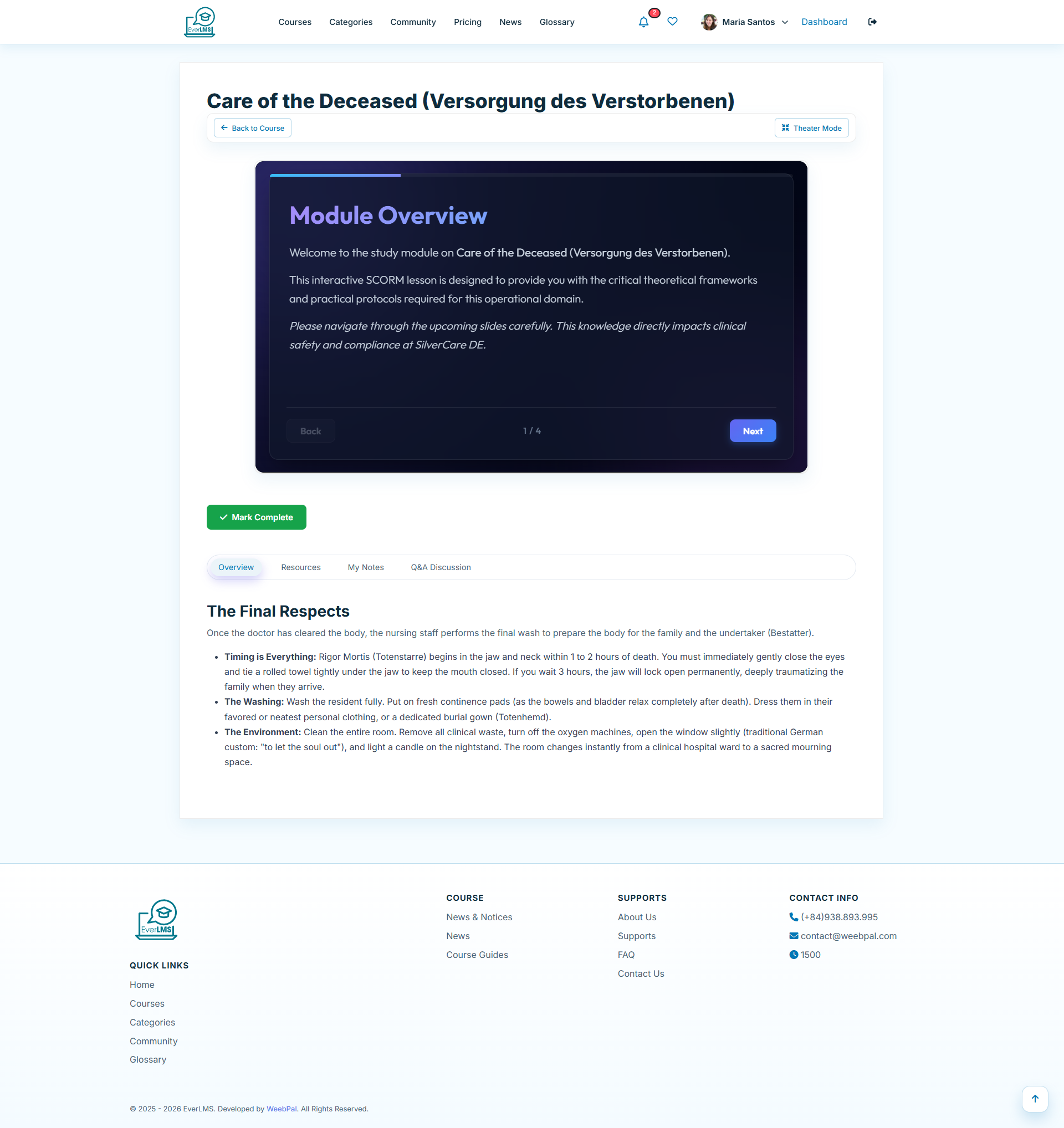
☑️ Mark Lesson Complete
Feature: Students can mark lessons as complete to track their progress.
How to do it: End of lesson → Mark Complete
- Click Mark Complete after finishing the lesson
- The system automatically updates the course progress %
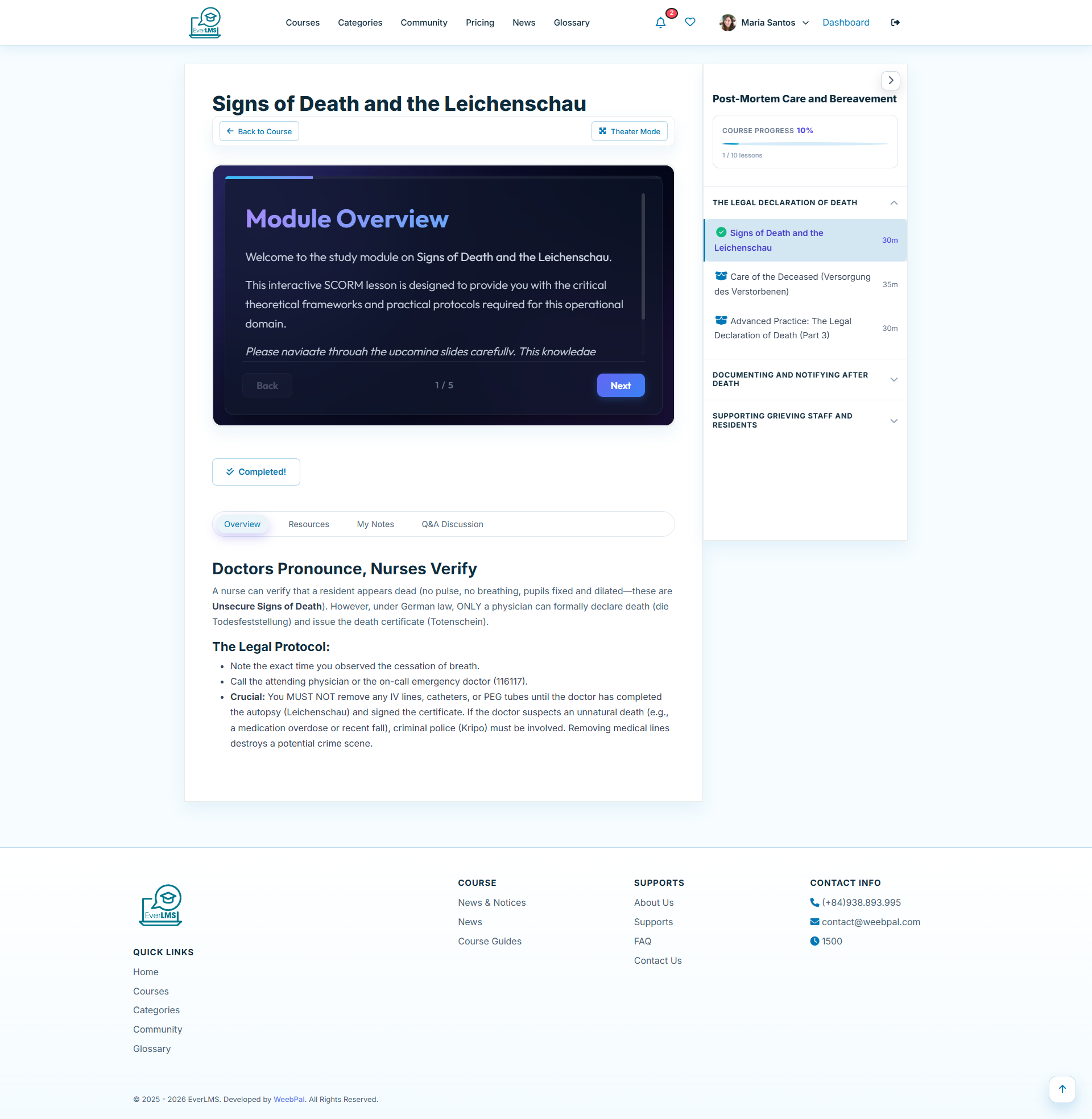
- Completed lessons show a ✓ checkmark in the sidebar
- Complete all lessons to receive your certificate
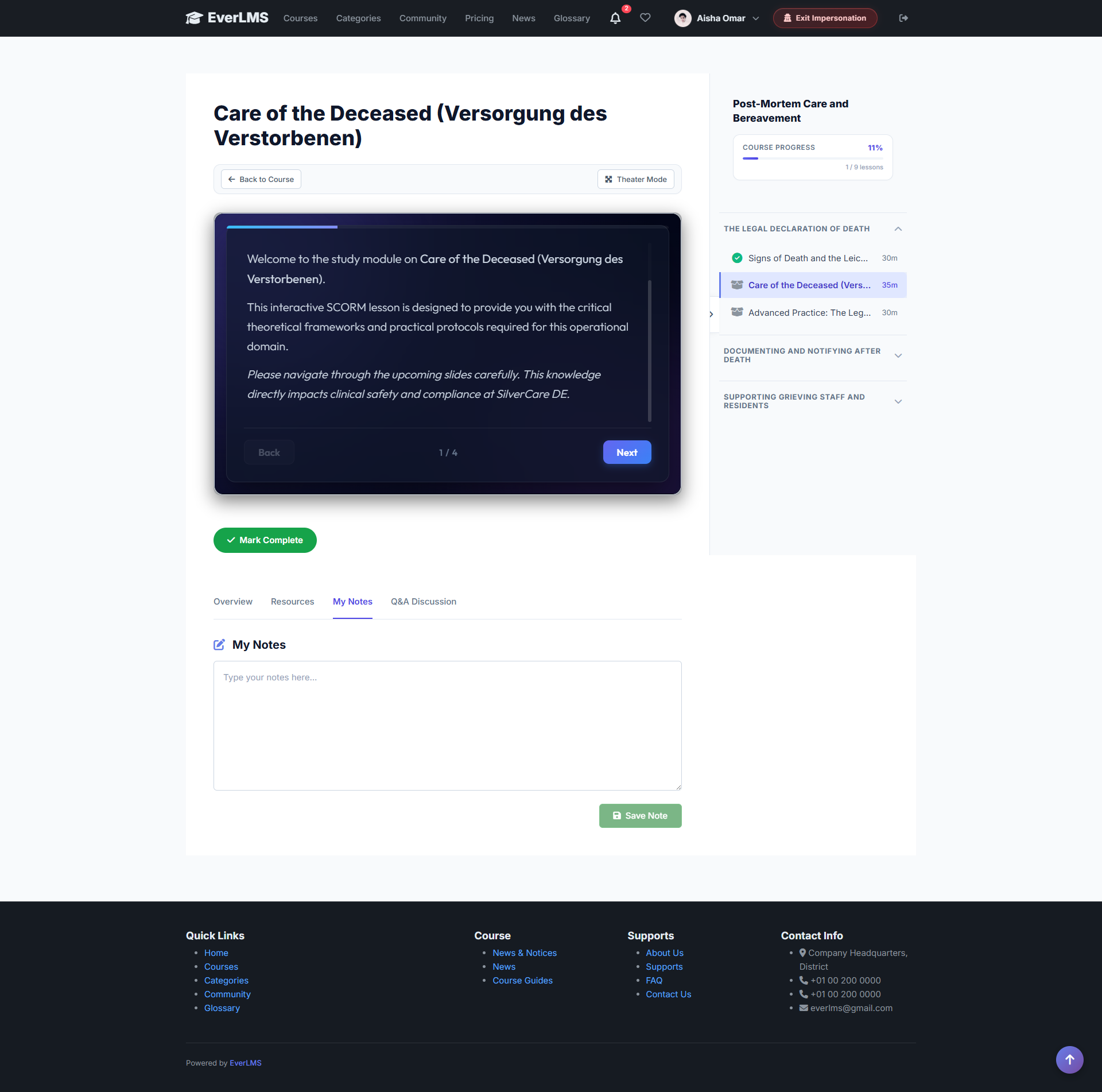
📝 Lesson Notes
Feature: The note-taking feature allows you to take notes directly while watching lessons.
How to use: Video Player → Notes Tab
- Notes are saved automatically for each lesson
- Notes include timestamps (time markers in the video)
- Click a timestamp to jump back to that point in the video
- Export notes to a file for later review
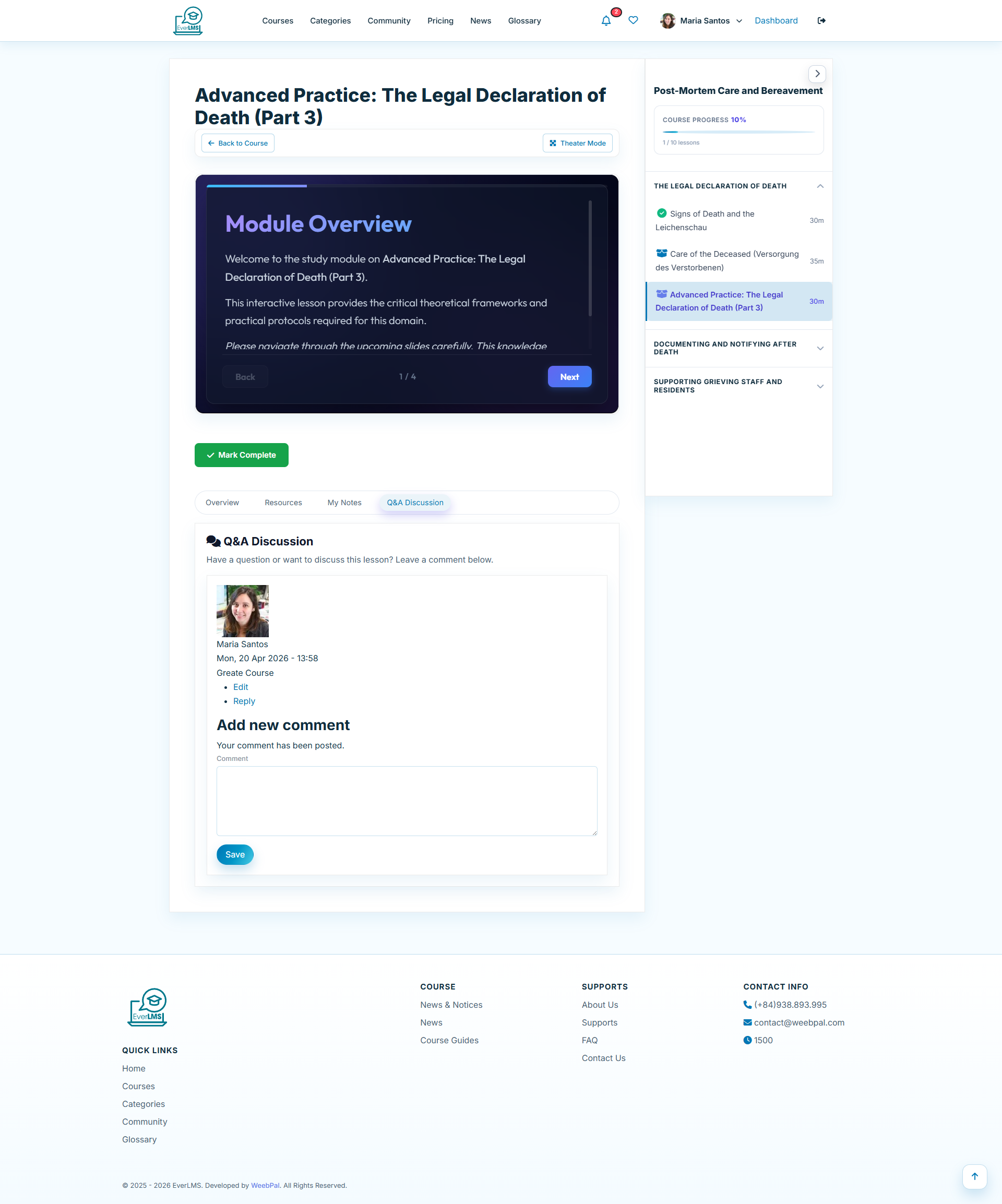
💬 Q&A — Lesson Discussion
Feature: The Q&A tab lets students ask questions and discuss lesson content directly within the lesson player.
How to access: Lesson Player → Q&A Tab
- Post questions about the lesson content
- View and upvote questions from other students
- Instructors respond to questions directly in the thread
- Search existing Q&A to find answers quickly
📁 Lesson Resources
Feature: The Resources tab displays downloadable materials attached to the lesson, accessible directly in the player.
How to access: Lesson Player → Resources Tab
- Download attached files: PDF, slides, workbooks
- Materials are organized per lesson
- Study offline using downloaded resources
- Only enrolled students can access lesson materials
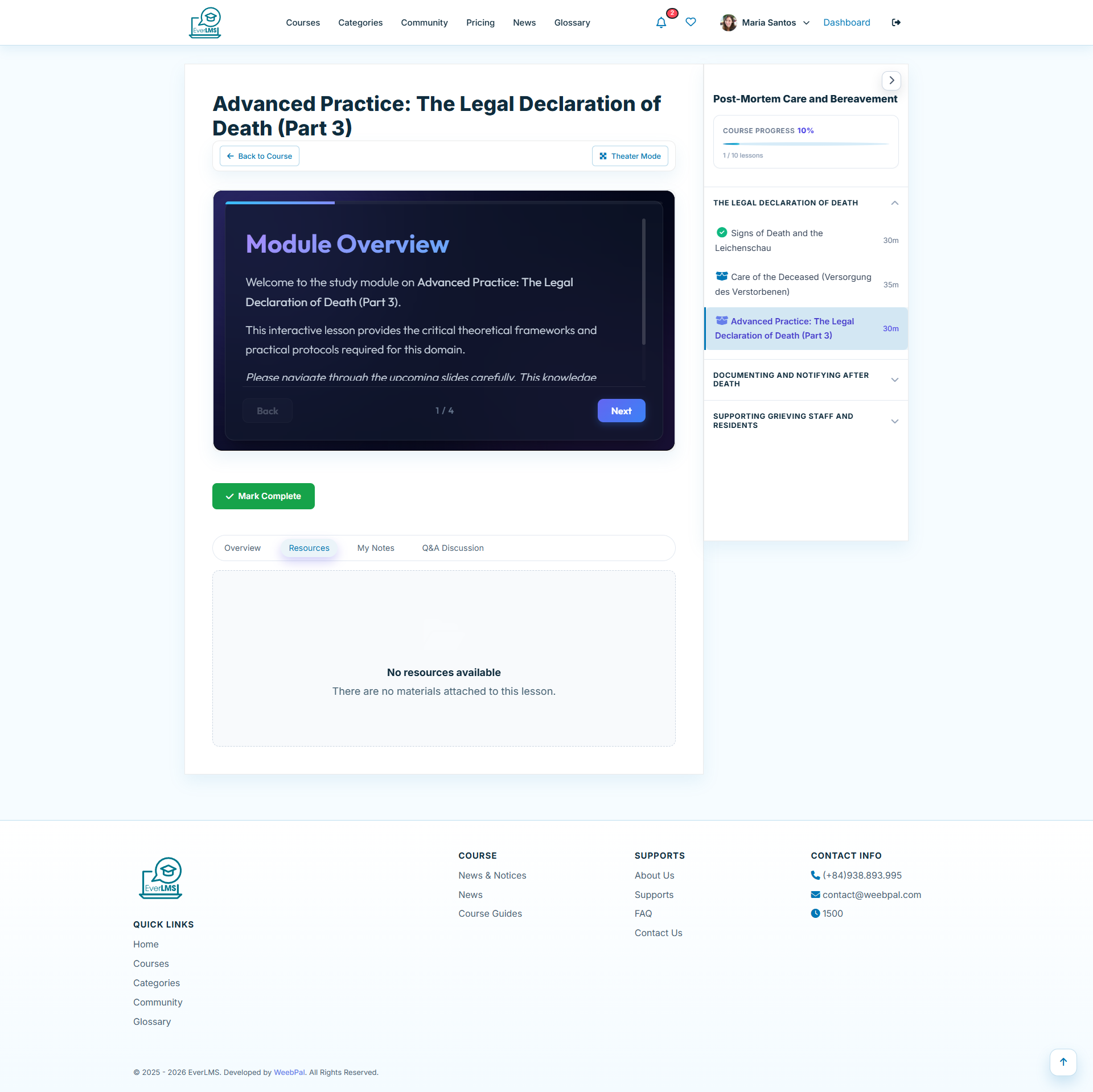
🎮 Quiz in Lesson
Feature: When a lesson is of type Quiz, the lesson player shows the quiz card inline — students click to enter the full quiz experience.
Navigation: My Courses → Continue → Quiz Lesson
- The lesson sidebar marks quiz lessons with a quiz icon distinct from video/text lessons
- Click Start Quiz to enter the quiz attempt screen
- Quiz progress is tracked the same as other lesson types
- Completing the quiz marks the lesson done and unlocks the next content
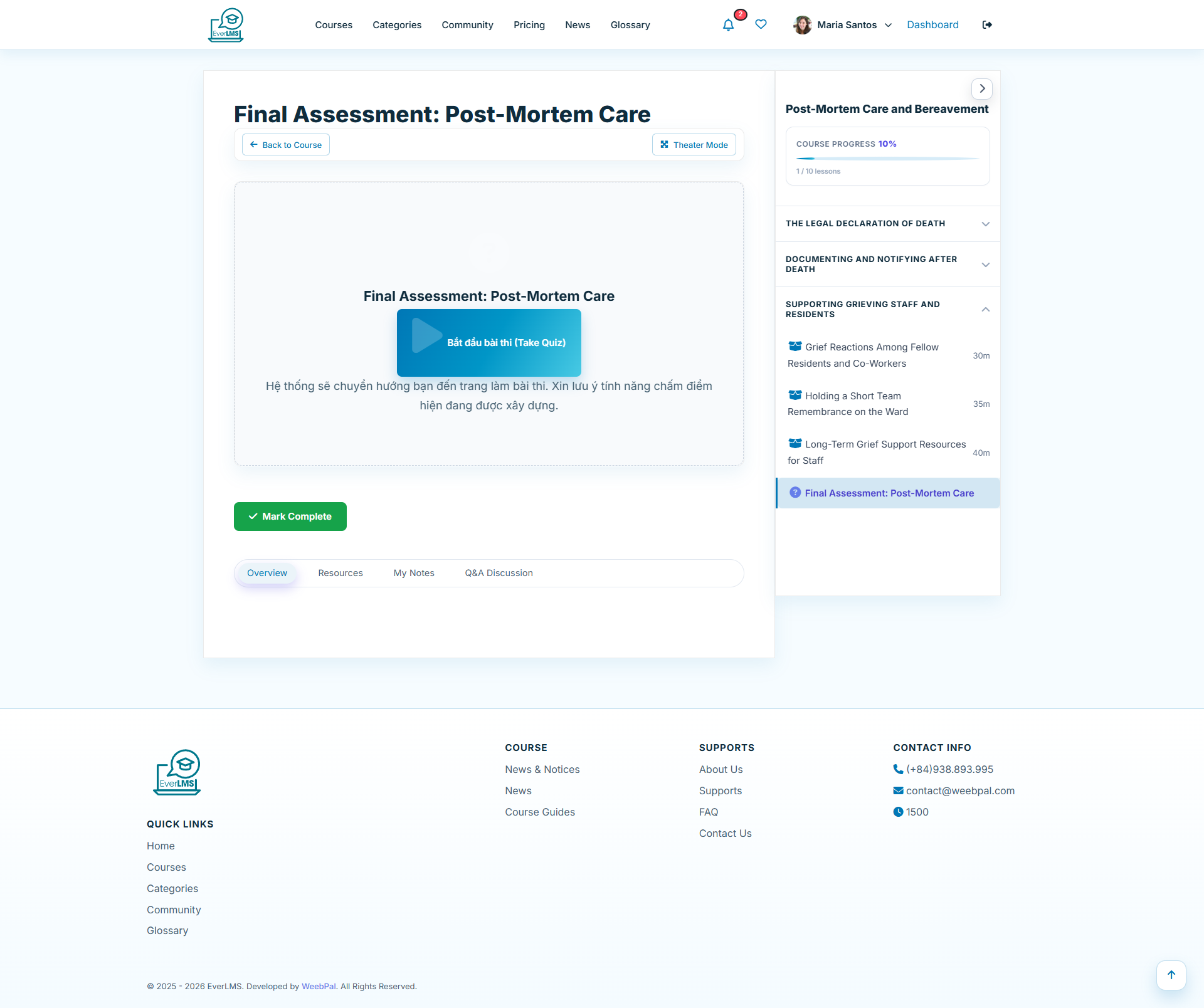
📋 Take a Quiz
Feature: The integrated quiz system within courses evaluates your knowledge retention.
How to do it: Quiz lesson → Start Quiz
- Read each question carefully before selecting an answer
- The system supports multiple question types (multiple choice, true/false)
- You can go back to previous questions within the same quiz
- Click Submit when finished to submit your quiz
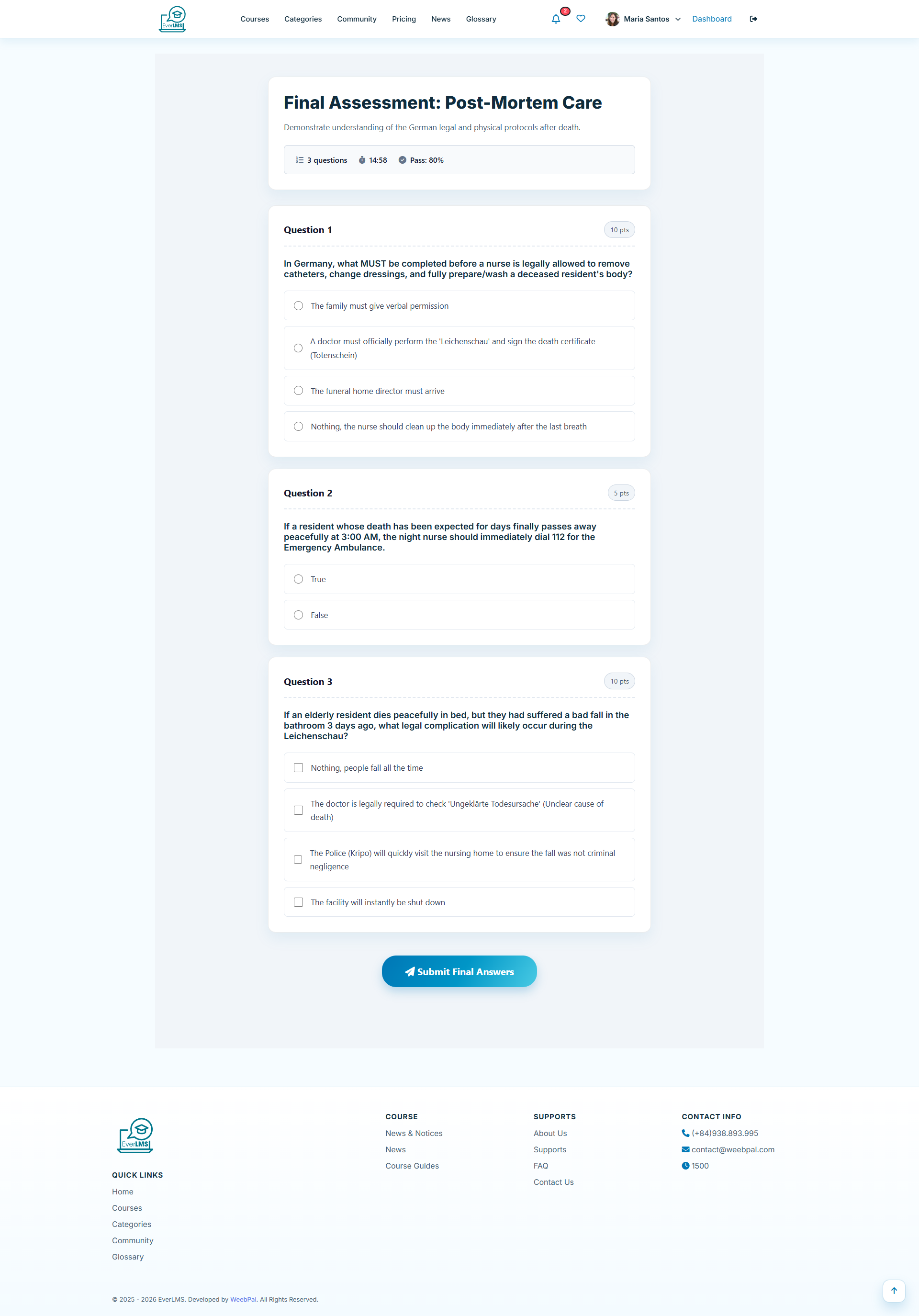
📤 Submit Quiz
Feature: After completing all questions, the submission step confirms your answers and sends the quiz for grading.
How to do it: Quiz → Answer all questions → Submit Quiz
- Review a summary of your answers before final submission
- The system shows unanswered questions — go back to complete them
- Click Submit Quiz to confirm — the quiz is locked after submission
- Results are calculated and displayed immediately after submission
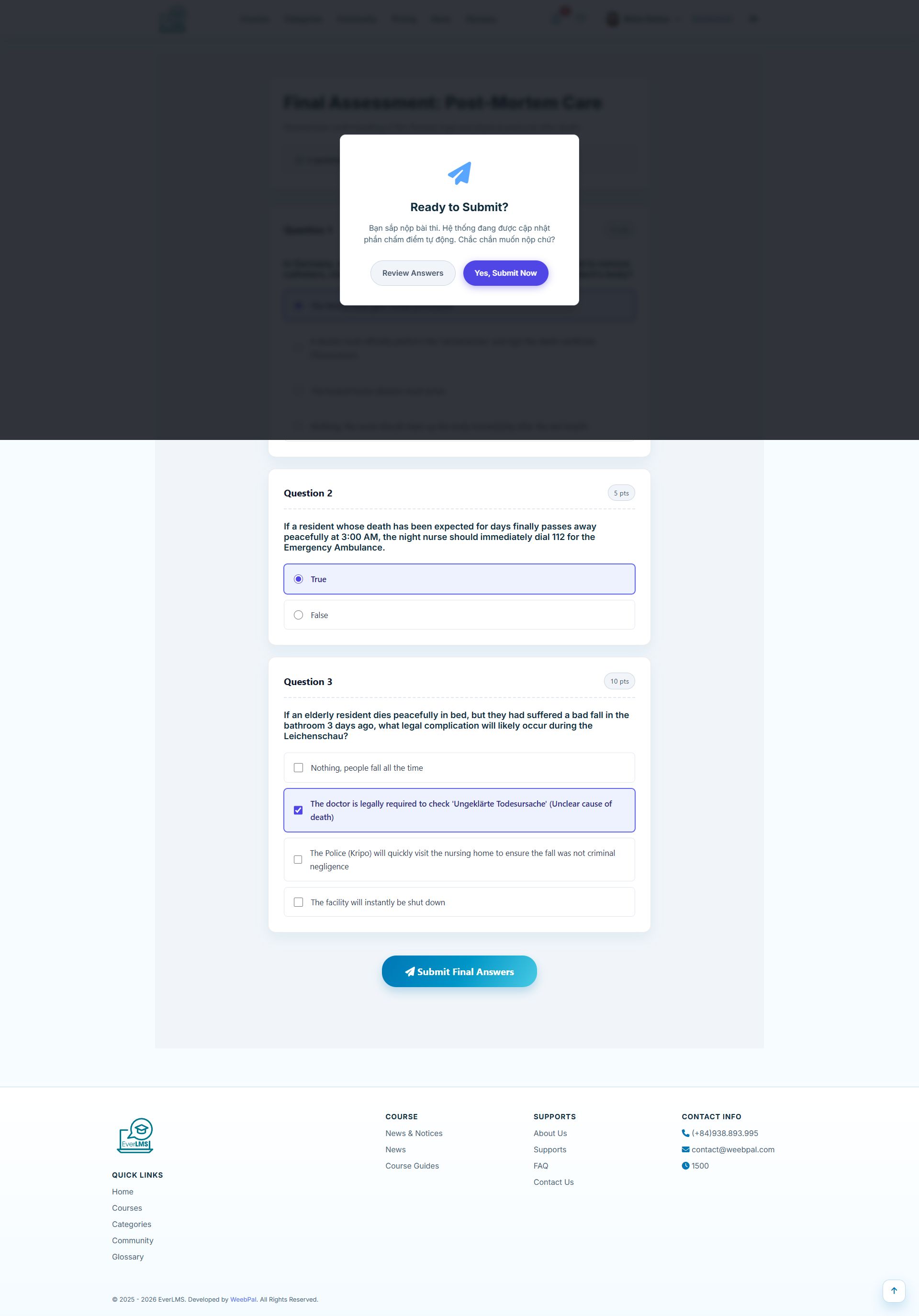
📊 Quiz Results
Feature: The results page displays your score and allows you to review answers after submission.
Navigation: Account options → Quiz Results
- View your score and correct answer percentage
- Compare results with the minimum passing score
- Review each question and the correct answer
- Retake the quiz if you didn't pass (if allowed)
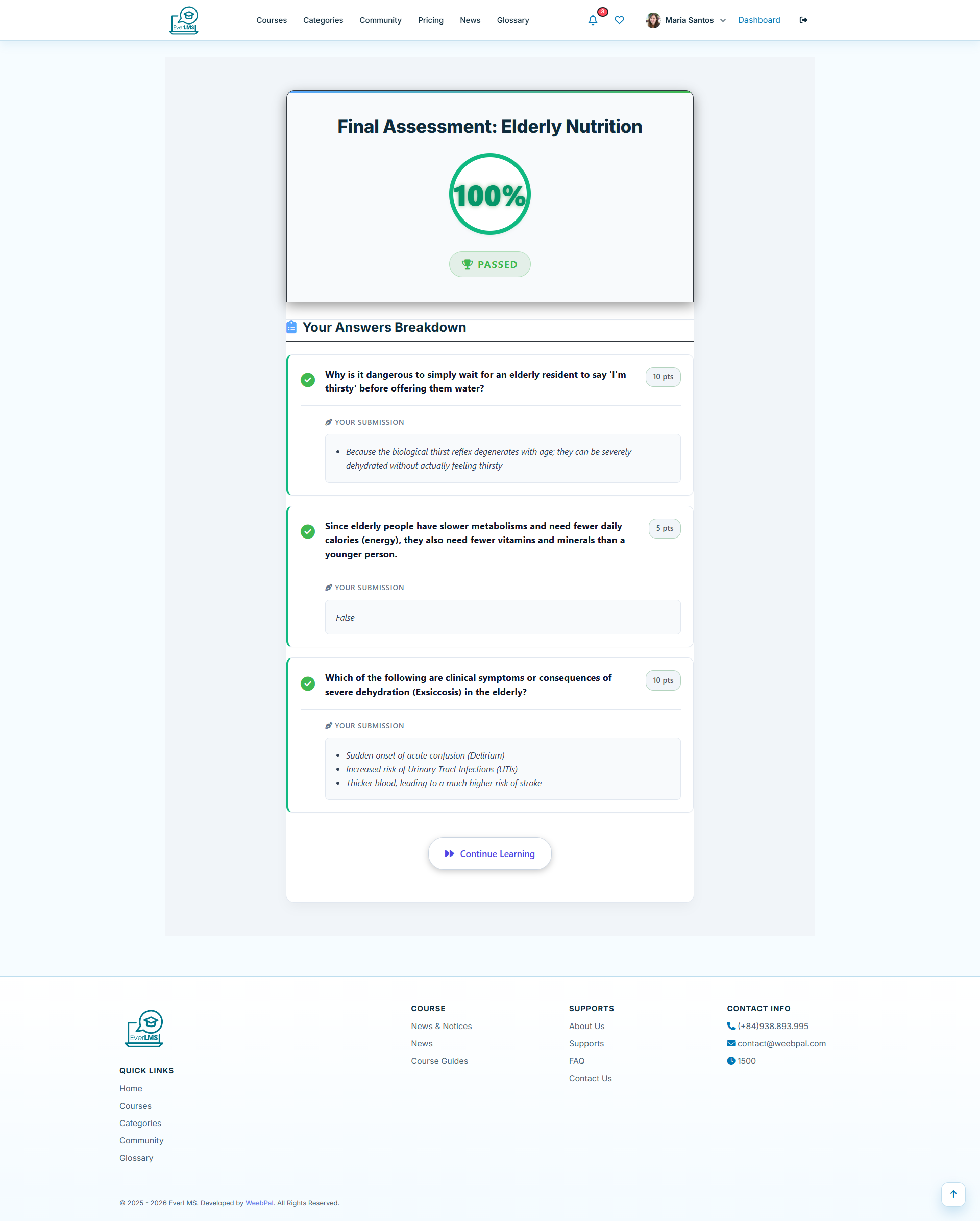
✅ Passing a Quiz
Feature: The pass result screen confirms you have achieved the required score to advance.
After submitting: Quiz → Submit → Pass Result
- Your final score and Pass status are confirmed
- View the number of correct vs incorrect answers
- Course progress automatically advances to the next lesson
- If this is the final quiz, a certificate may be issued
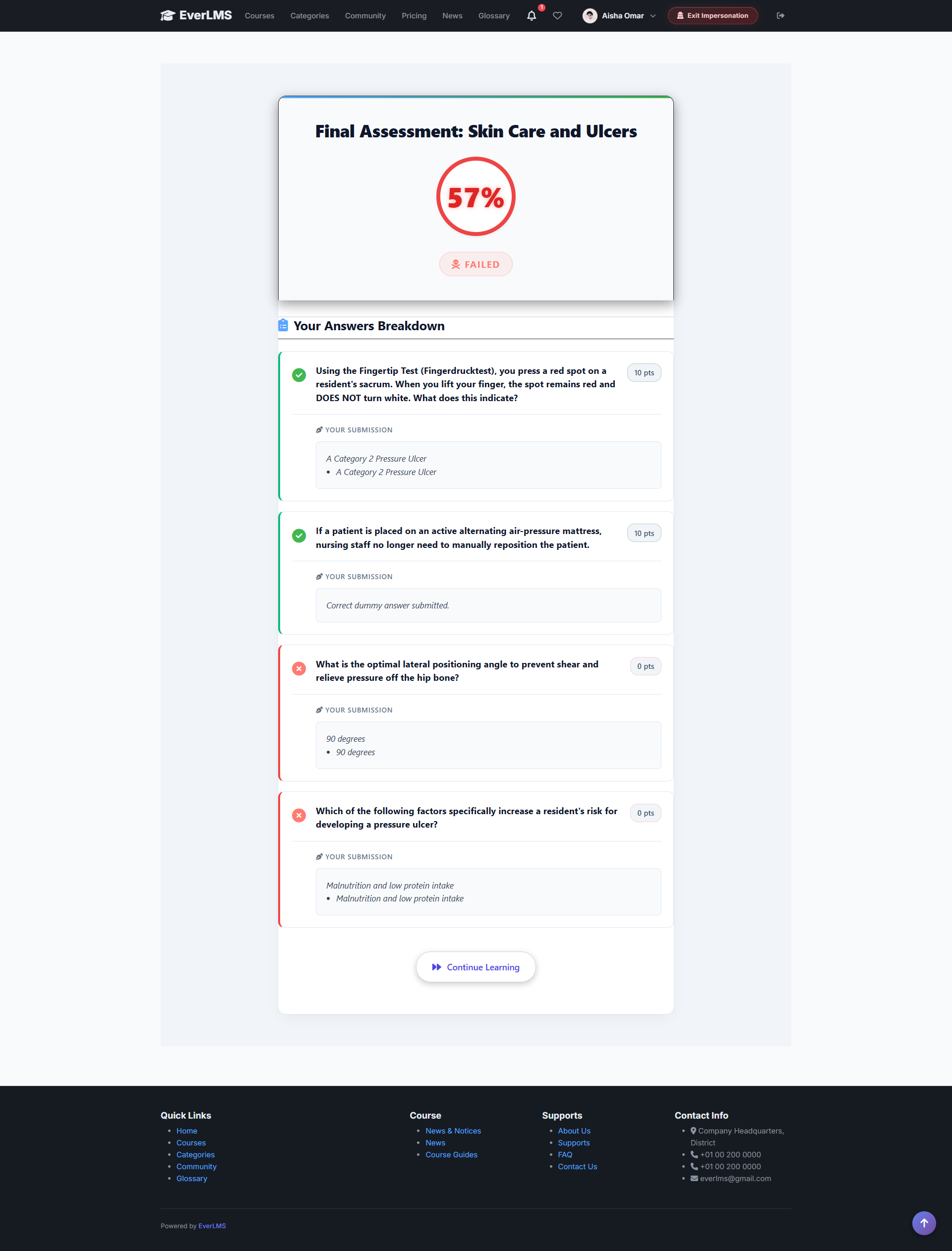
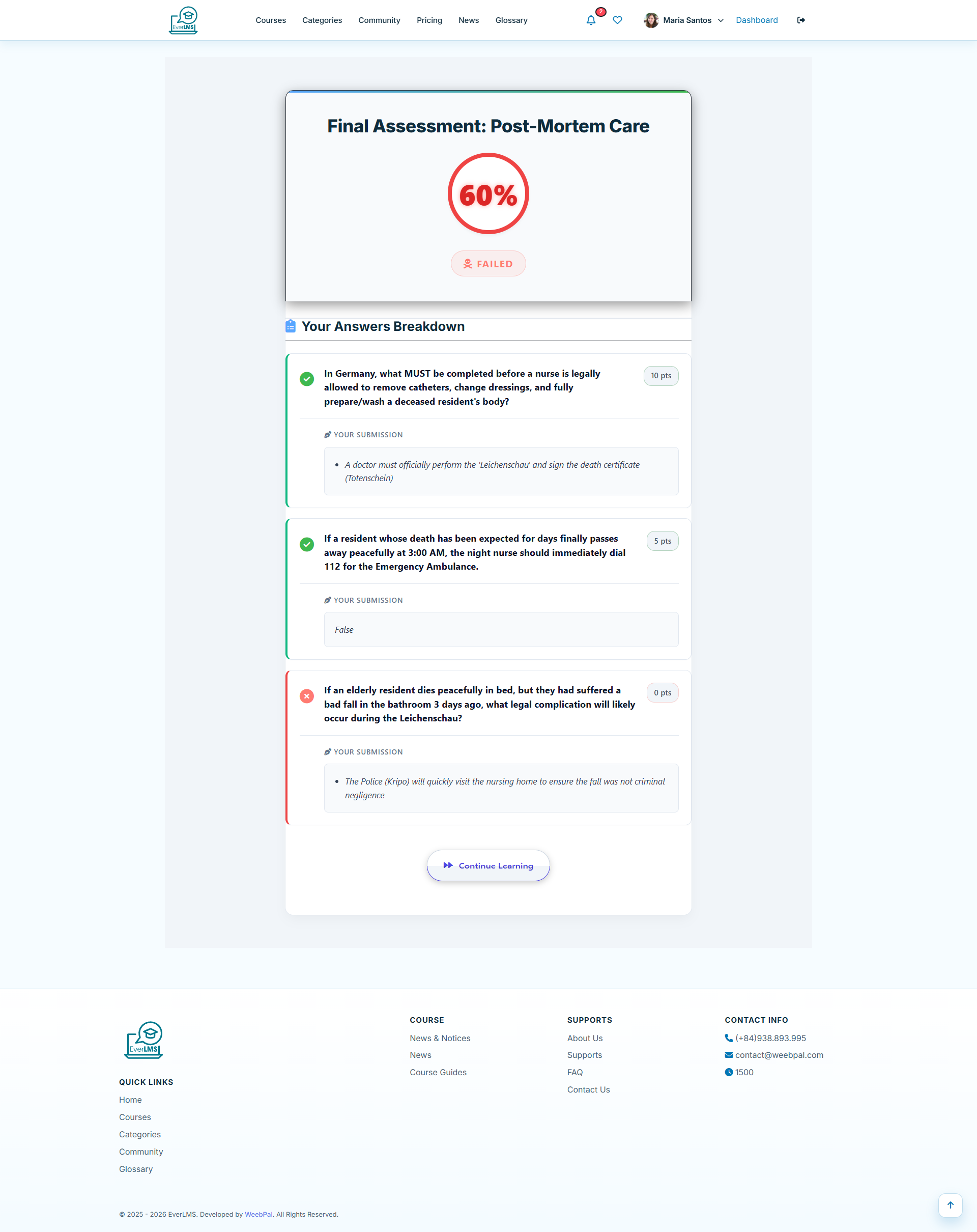
🔄 Retaking a Failed Quiz
Feature: If you do not reach the passing score, the system shows a fail screen with a retry option.
After submitting: Quiz → Submit → Fail Result → Retake
- See your score and Fail status with the required passing score shown
- Review which questions were answered incorrectly
- Click Retake Quiz to attempt again (if retakes are allowed)
- Study the weak areas before retrying
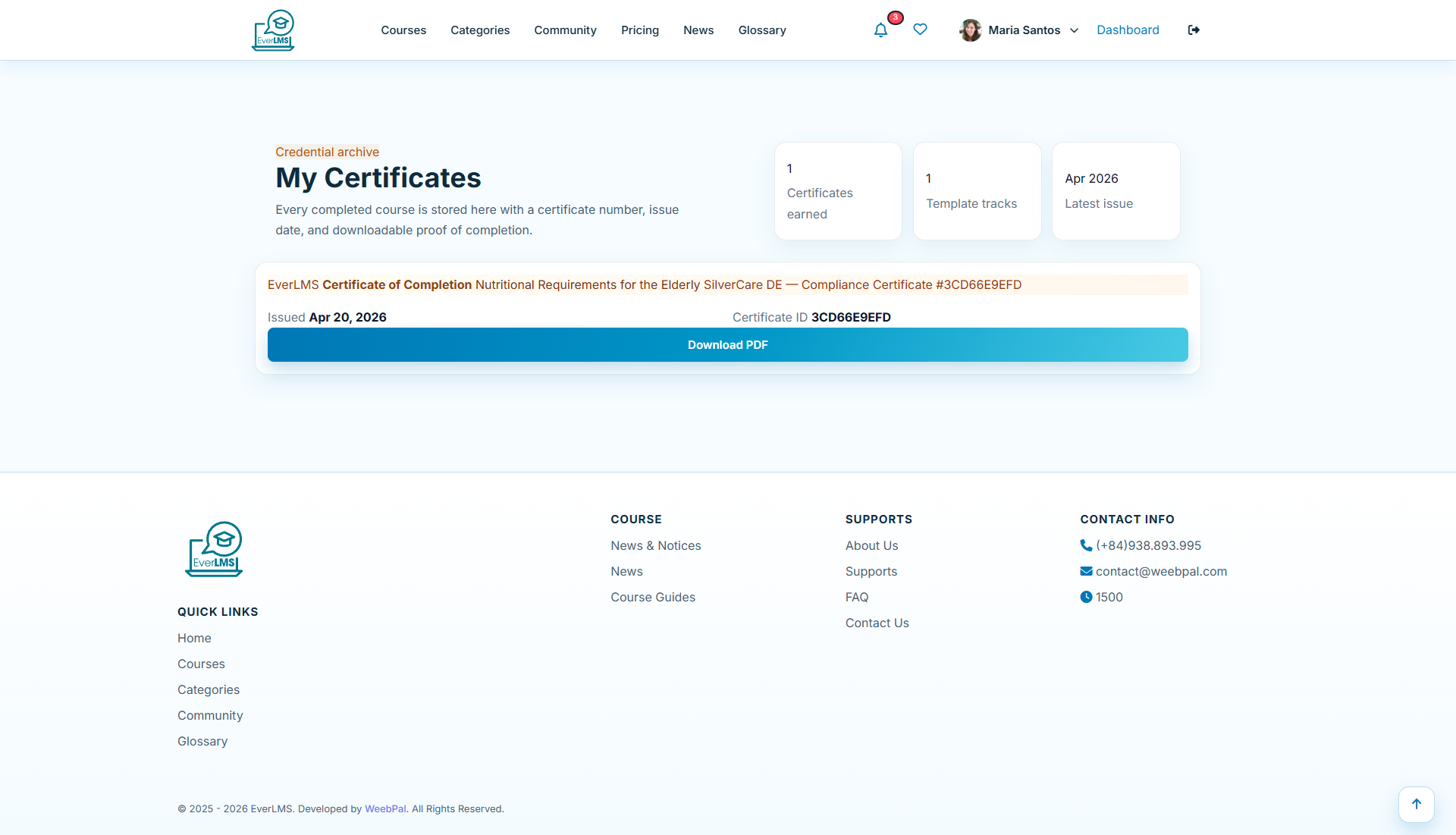
🏆 My Certificates
Feature: The My Certificates page displays all certificates earned after completing courses.
Navigation: Account options → My Certificates
- View the list of certificates received
- Download certificates in PDF or image format
- Each certificate has a unique verification code
- Share certificates on LinkedIn or social media
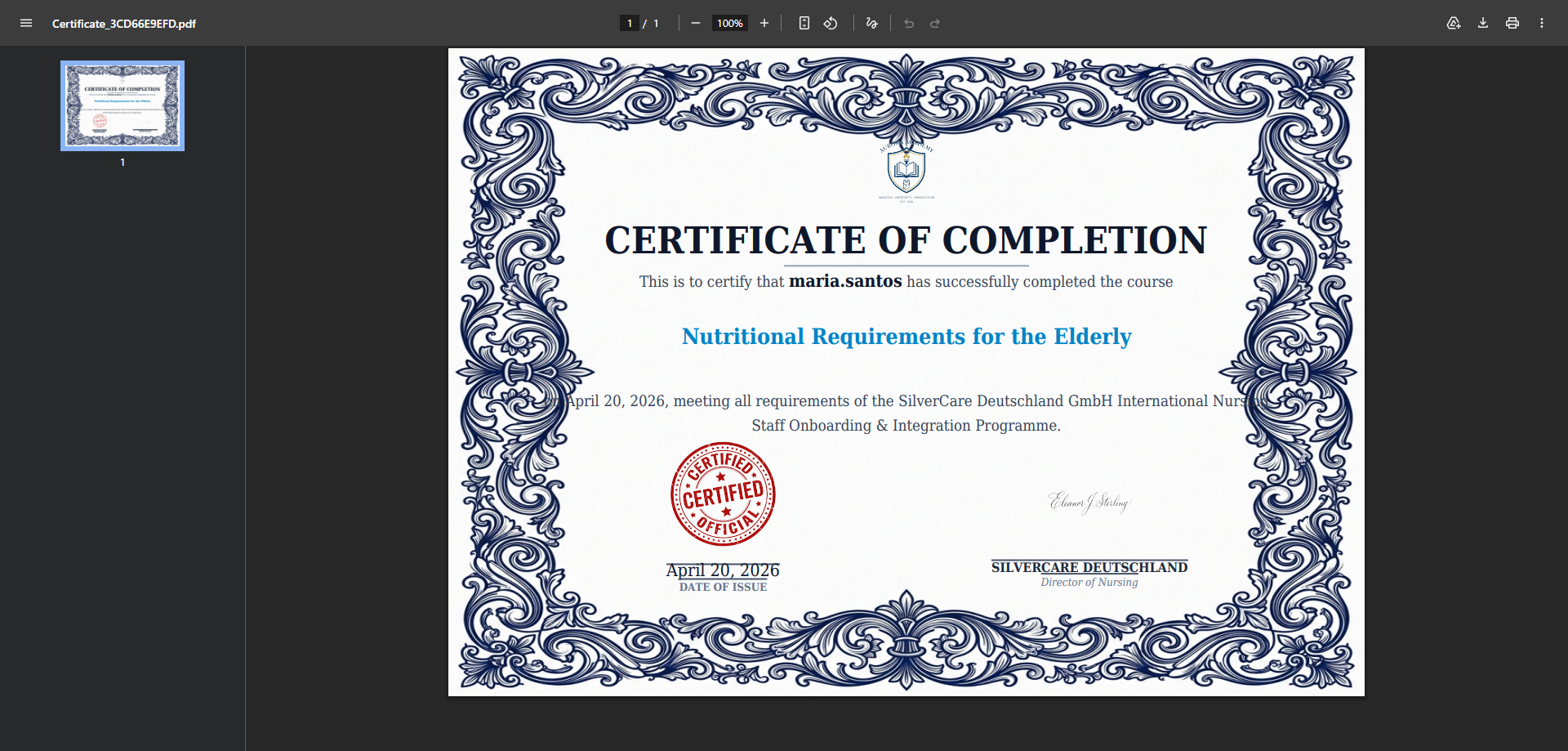
📄 Download Certificate
Feature: Download your earned certificate as a PDF directly from the My Certificates page.
Navigation: Account options → My Certificates → Download
- Click Download on the certificate card
- Certificate is exported as a PDF file
- Contains your name, course title, issue date, and verification code
- Print or share on LinkedIn to showcase your achievement
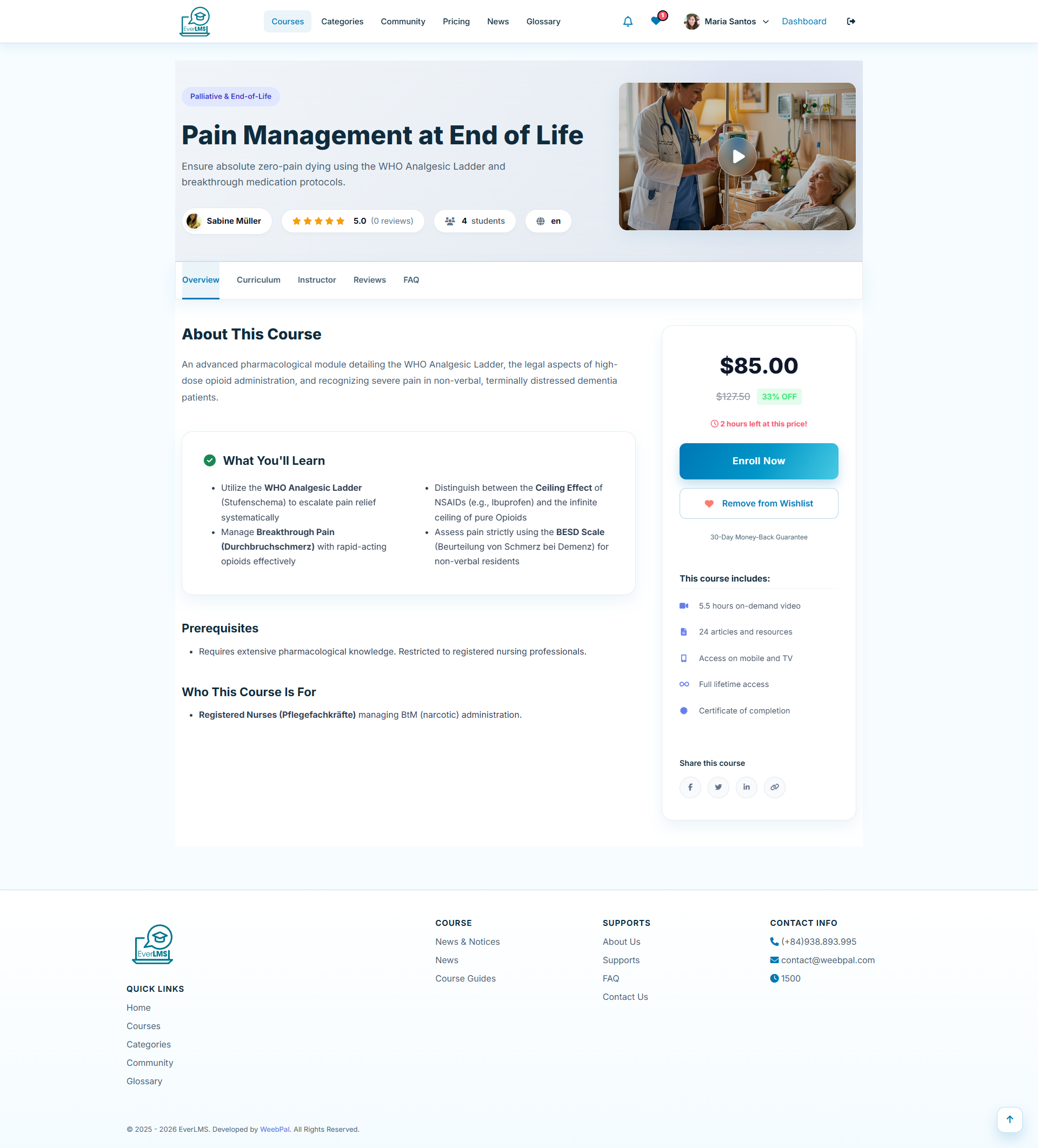
❤️ Add to Wishlist
Feature: Save any course to your personal wishlist directly from the course detail page.
Navigation: Courses → Course Details → ❤️ Heart Icon
- Click the ❤️ heart icon on the course card or detail page
- Course is instantly saved — heart turns red to confirm
- Access your full list via My Wishlist in the account menu
- Remove courses from the list when no longer interested
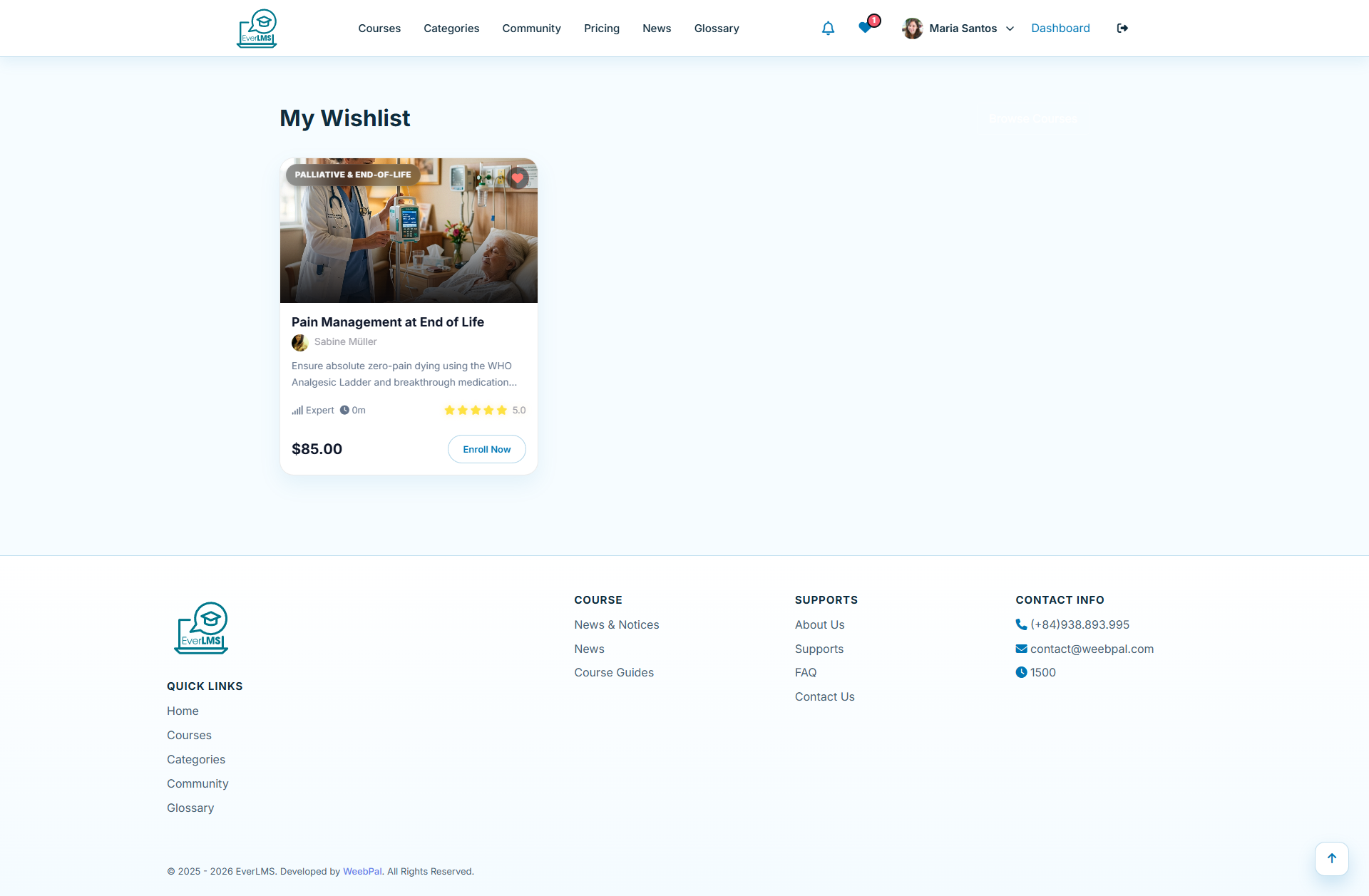
📋 My Wishlist
Feature: The My Wishlist page displays all courses you have saved for future enrollment.
Navigation: Account menu → My Wishlist
- View all saved courses in one place
- Click Enroll Now to purchase or enroll directly
- Remove courses no longer of interest
- Compare and decide which course to start next
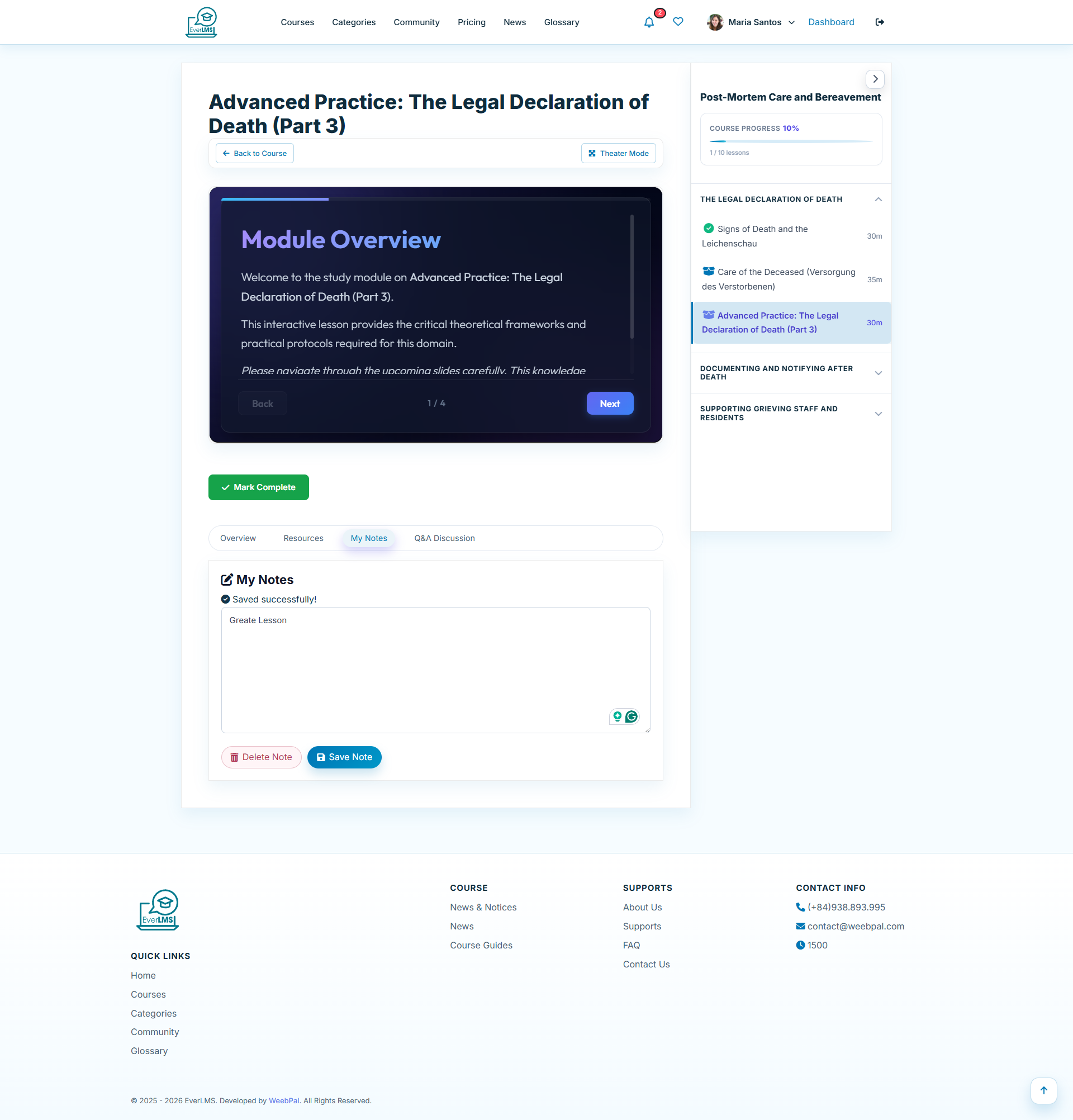
📒 My Notes
Feature: My Notes aggregates all lesson notes written across every enrolled course into one searchable list.
Navigation: Account menu → My Notes
- View all notes organised by course and lesson
- Search notes by keyword to find information quickly
- Click any entry to jump directly to the lesson it was written in
- Edit or delete individual notes from this page
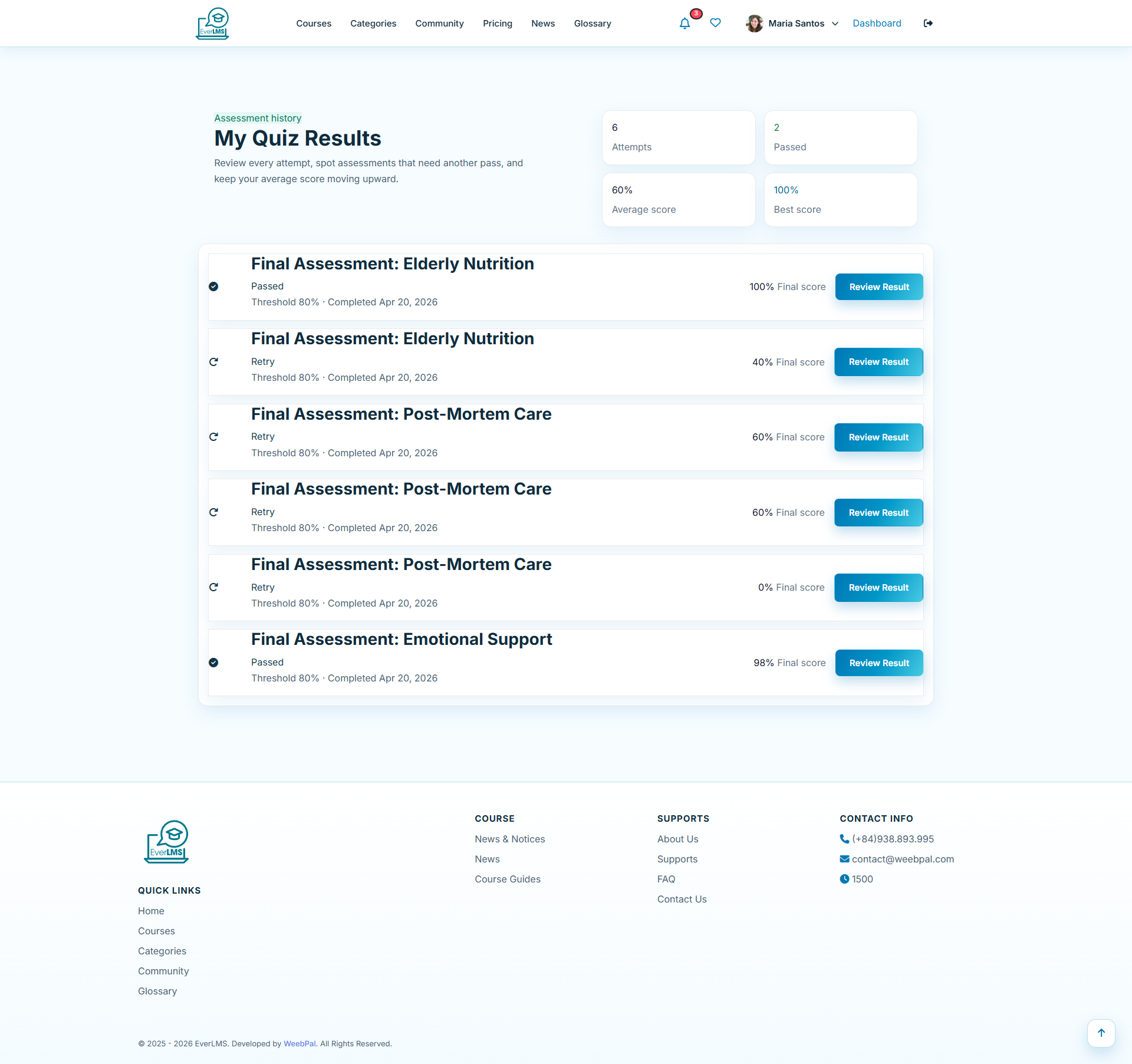
📋 My Quiz Results
Feature: The My Quiz Results page provides a historical record of all quiz attempts across every enrolled course.
Navigation: Account menu → My Quiz Results
- View all past quiz attempts with date, score, and pass/fail status
- Filter by course or quiz name
- Click any entry to see the detailed answer review for that attempt
- Track your improvement trend across multiple retakes
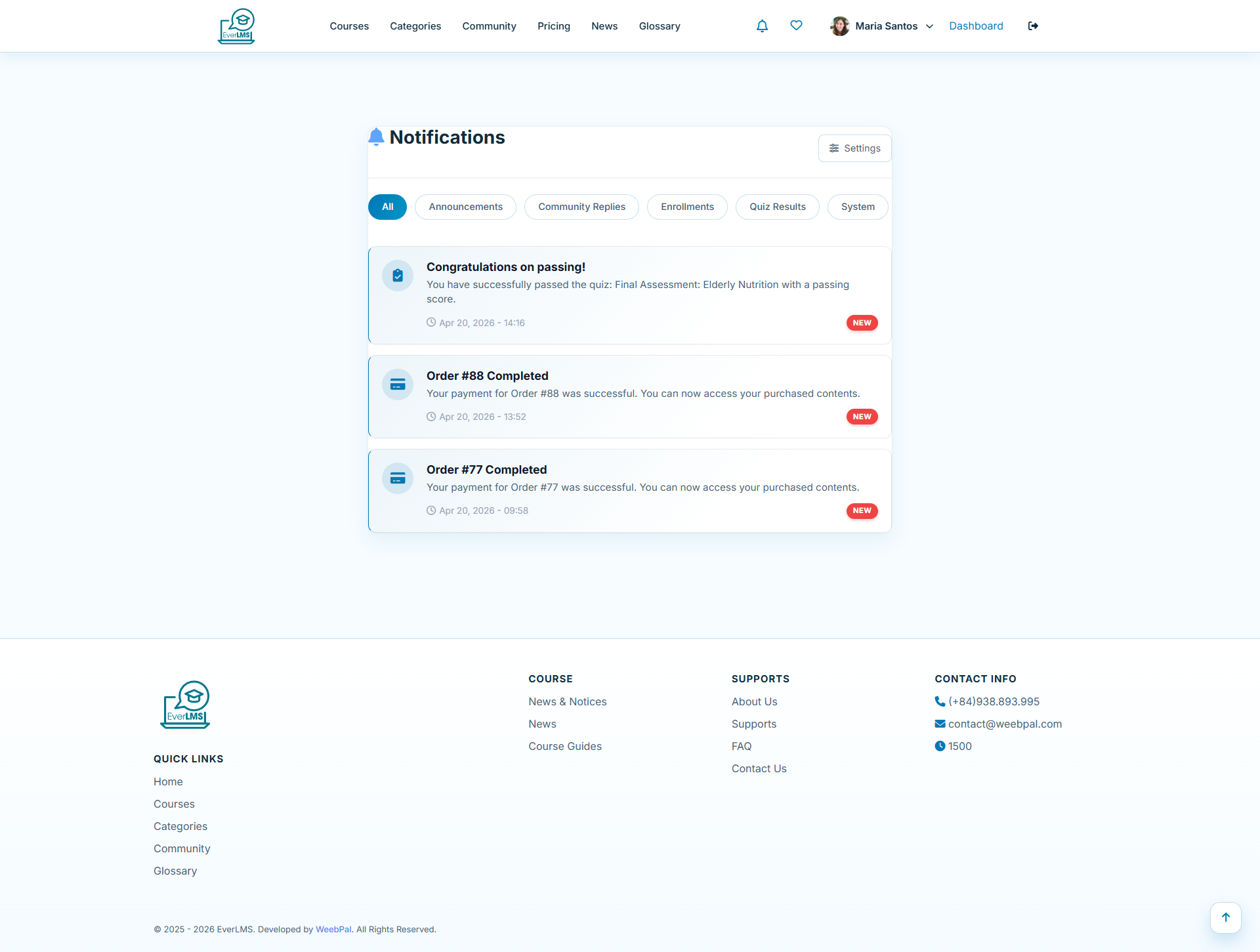
�🔔 Notifications
Feature: The notification system provides updates on activities related to your account and courses.
Navigation: 🔔 Icon on the navigation bar
- Notifications about new courses, promotions
- Learning progress updates and reminders
- Quiz results and certificate notifications
- Read/delete notifications to keep your inbox clean
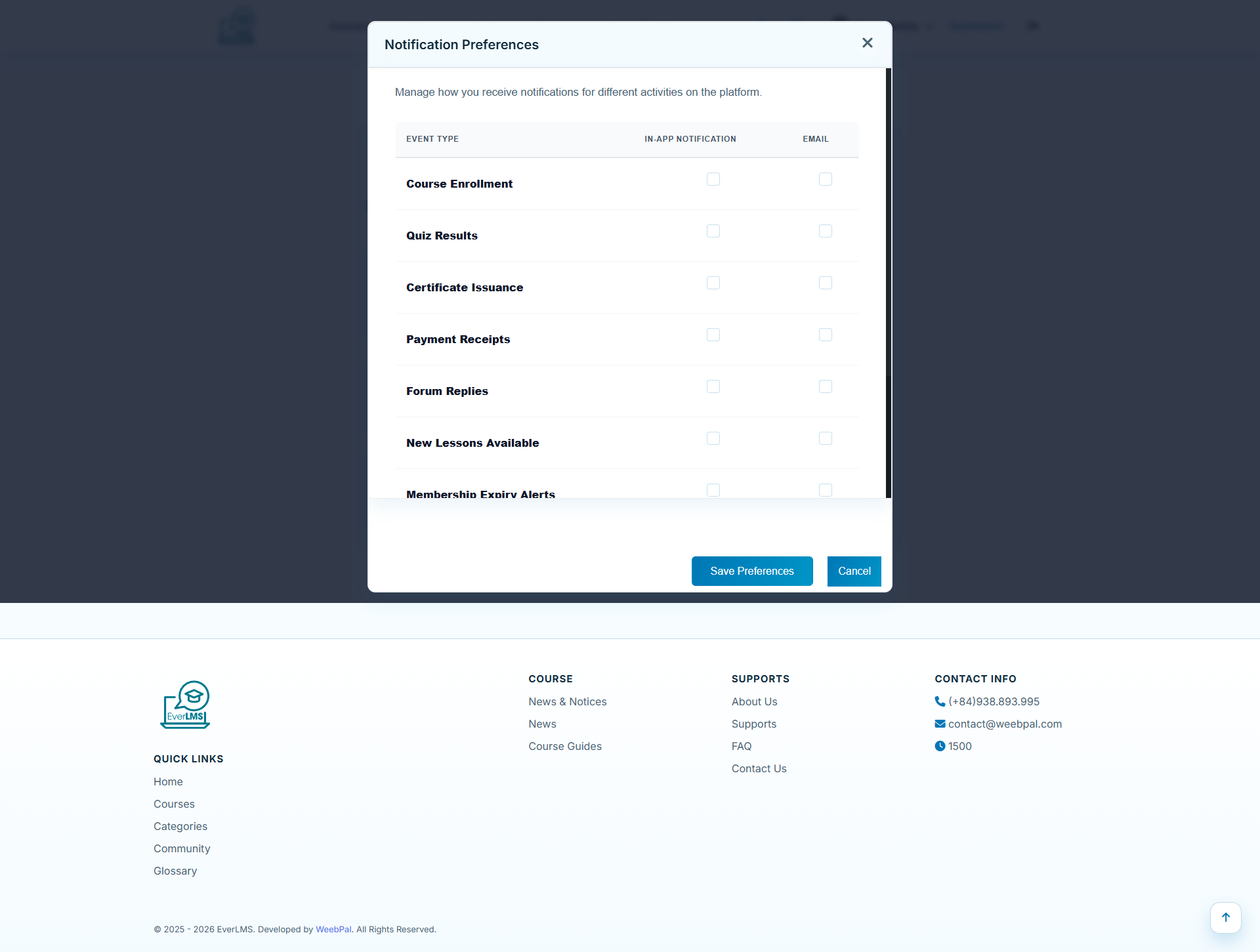
⚙️ Notification Settings
Feature: The Notification Settings page allows students to customize the types of notifications they receive.
Navigation: Profile → Notification Settings
- Toggle email notifications for each event type
- Customize the frequency of summary emails
- Choose to receive in-app notifications
- Disable marketing notifications entirely if desired
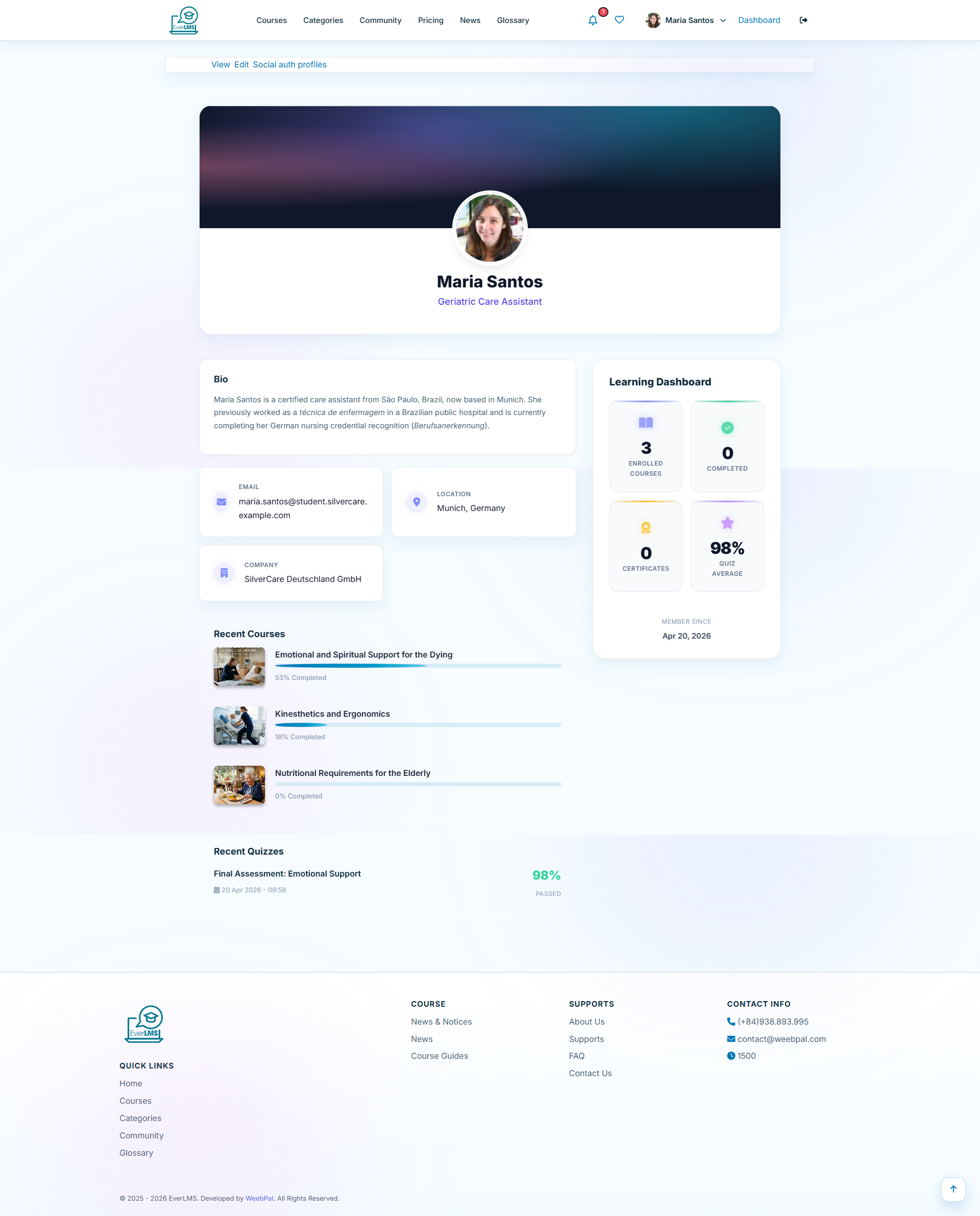
👤 Profile & Account
Feature: The Profile page allows you to update personal information and profile picture.
Navigation: Account options → My Profile
- Update display name, bio, and personal information
- Change your profile picture
- Update password and linked email
- View activity history and learning statistics
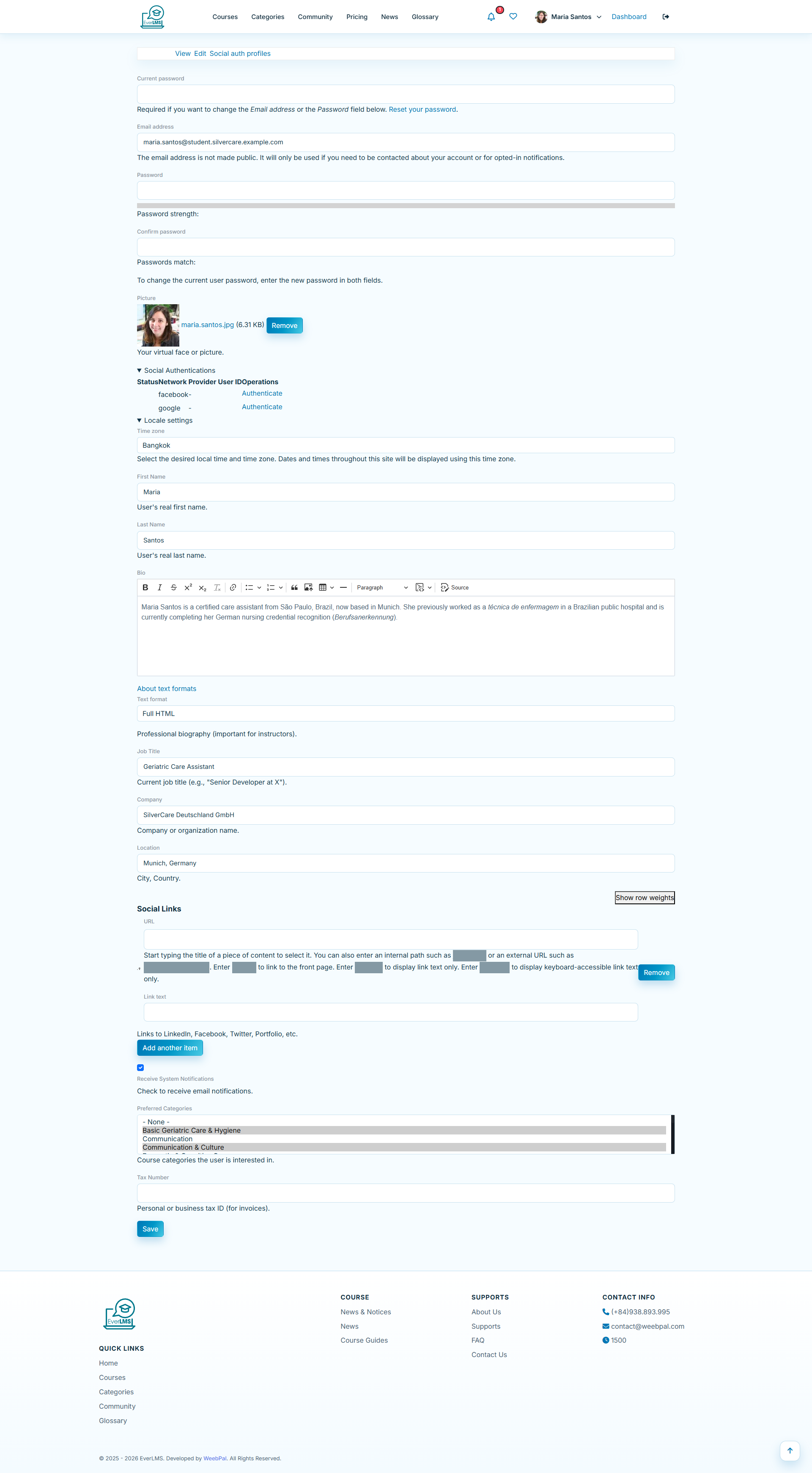
✏️ Edit Profile
Feature: The Edit Profile page lets students update personal information, avatar, and account preferences.
Navigation: Account menu → Edit Profile
- Update display name, bio, and profile picture (avatar)
- Change email address and contact details
- Set language preference and timezone
- Update password for account security