

Brand site enquiry and routing

Workflow 03 · Find your local team · Enquiry form · Routing · Enquiry review

Customers do not know which local team to call. They give their home address on the brand site, and the enquiry goes to the franchise whose territory covers it.

When no territory covers the address, or two do, Head Office allocates the enquiry by hand, so none is lost.

  • A visitor on the brand site; no account needed
Public (anonymous)

Find your local team

Visitor

Find your local team

1Step 1 of 9 · workflow step 01

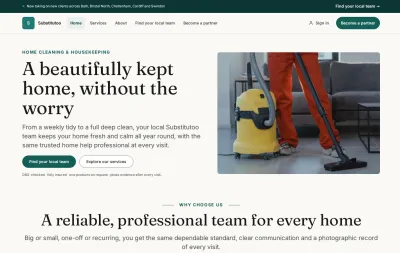
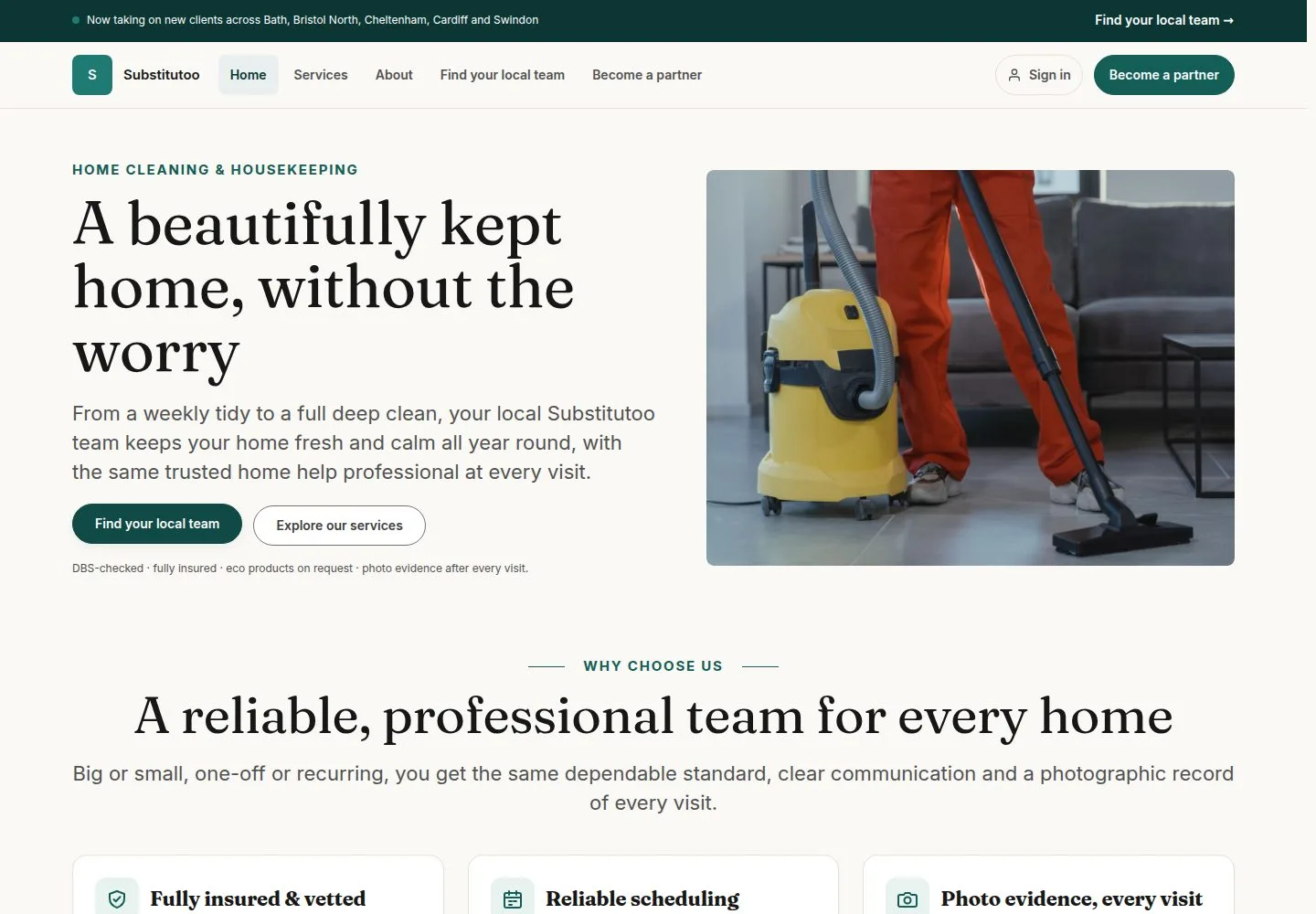
  1. Find your local team

It is in the menu, the top banner and on the home page; there is no list of franchises to pick from.

Enlarge, then scroll

Open illustrated screen ↗Full image ↗

Public (anonymous) · Brand site enquiry and routing01

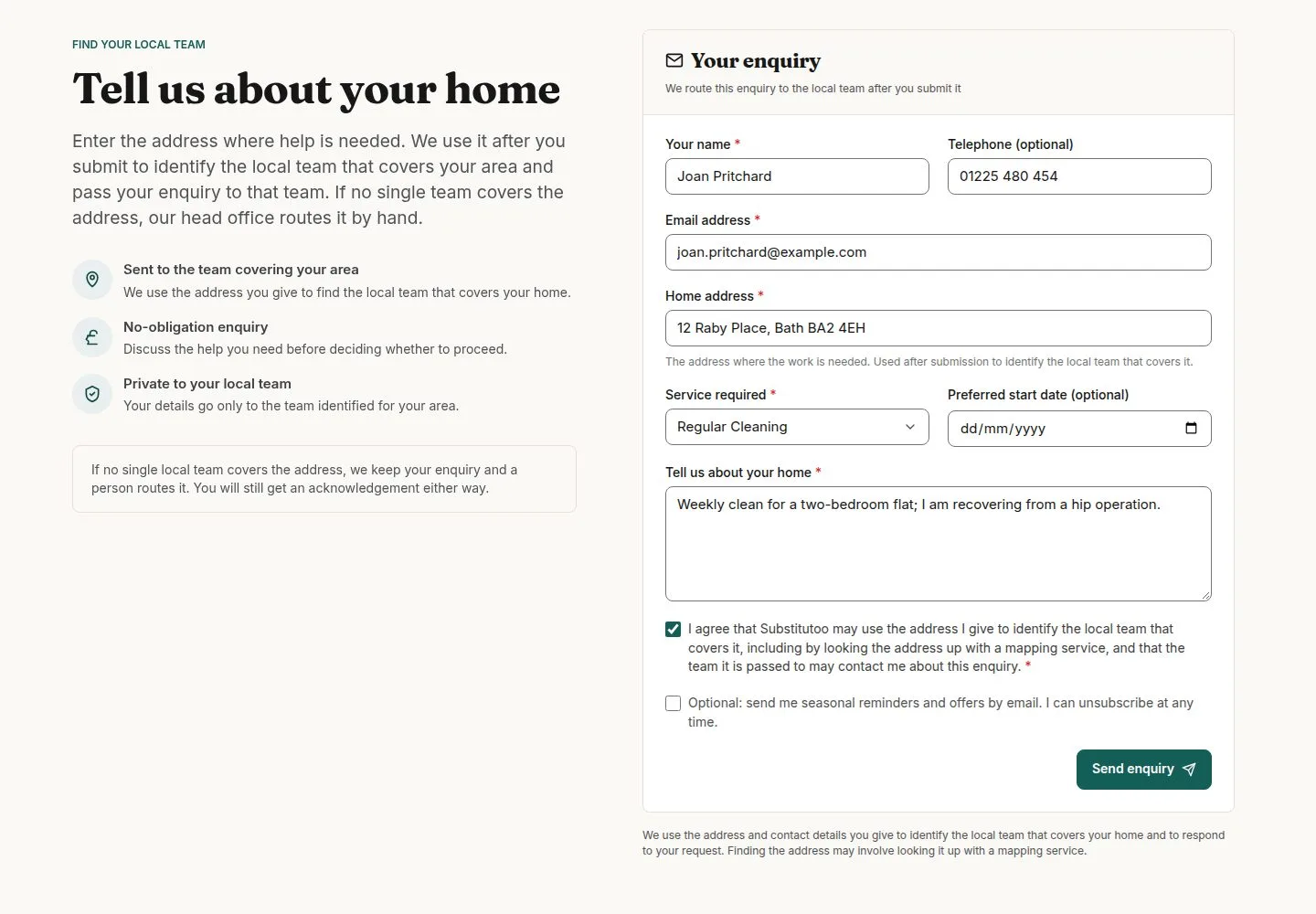
Fill in the enquiry form

Visitor

Fill in the enquiry form

2Step 2 of 9 · workflow step 02

  1. Name and contact
  2. Home address
  3. Service
  4. Consent

Contact consent is required; marketing emails are a separate, optional tick.

Enlarge, then scroll

Open illustrated screen ↗Full image ↗

Public (anonymous) · Brand site enquiry and routing02

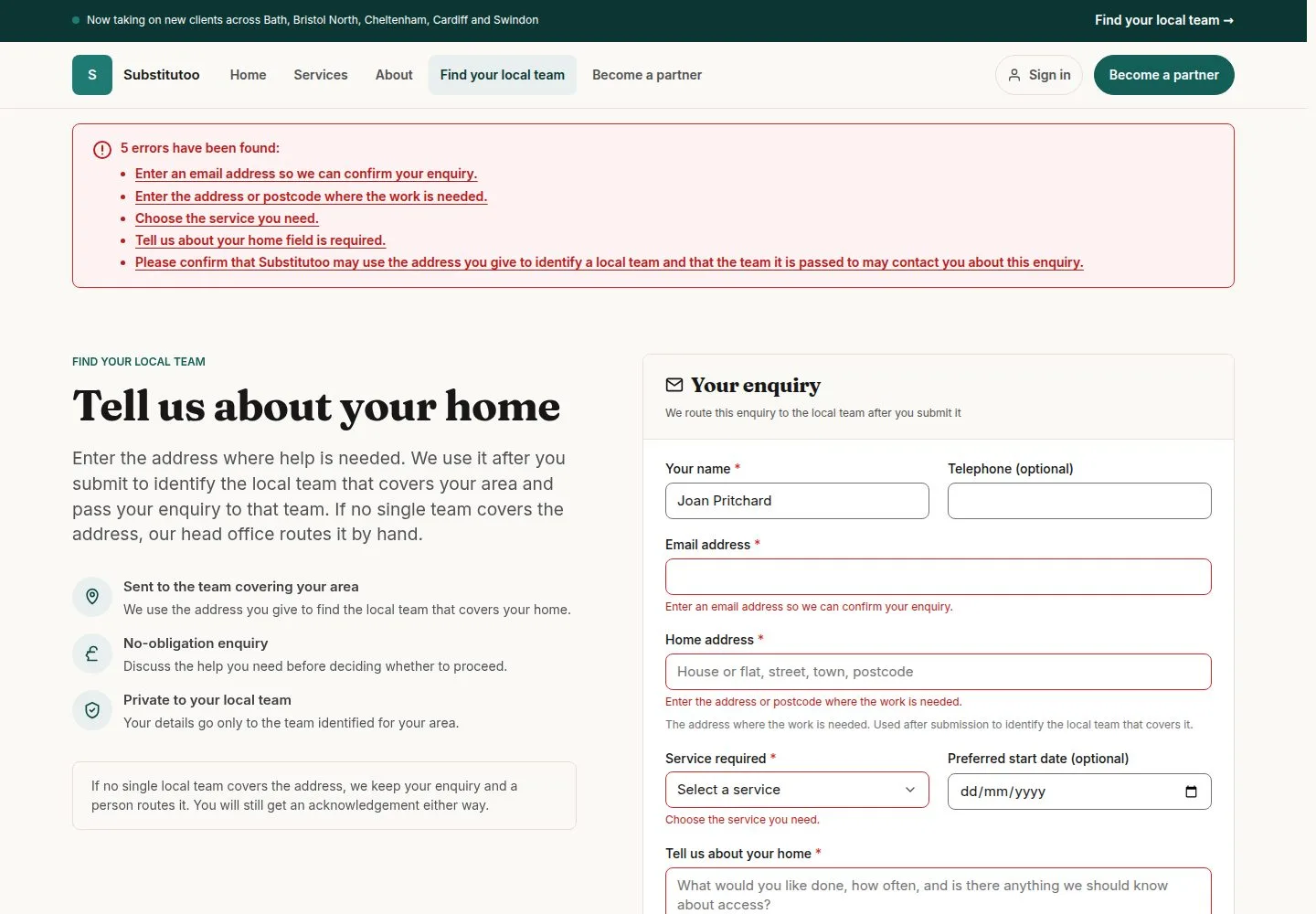
Fix what is missing

Visitor

Fix what is missing

3Step 3 of 9 · workflow step 02.1

  1. Complete each named field

Nothing is saved until the form is complete.

Enlarge, then scroll

Open illustrated screen ↗Full image ↗

Public (anonymous) · Brand site enquiry and routing03

Send the enquiry

Visitor

Send the enquiry

4Step 4 of 9 · workflow step 03

  1. Send enquiry
  2. What happens next

The page names the local team when one franchise takes the enquiry; it never repeats what was typed.

Enlarge, then scroll

Full image ↗

The system does this
  • Save the enquiry with Website as its source and email the visitor an acknowledgement
  • Match the address to a territory by its postcode district (Bath covers BA1 and BA2)
  • One match: put the enquiry in that franchise's pipeline as New and tell its office
  • No match, or more than one: keep it in Head Office's Enquiry review
Public (anonymous) · Brand site enquiry and routing04

Enquiry review

Head Office

Enquiry review

5Step 5 of 9 · workflow step 05

  1. Enquiry review
  2. No match or Ambiguous

Each enquiry shows why it waits, its address and the territories that could take it.

Enlarge, then scroll

Open illustrated screen ↗Full image ↗

Public (anonymous) · Brand site enquiry and routing05

Allocate to a franchise

Head Office

Allocate to a franchise

6Step 6 of 9 · workflow step 06

  1. Allocate
  2. Franchise
  3. Reason

Ambiguous offers the candidate franchises, No match every Active one; a reason is needed when the territory does not cover the address.

Enlarge, then scroll

Open illustrated screen ↗Full image ↗

Public (anonymous) · Brand site enquiry and routing06

Review and allocate

Head Office

Review and allocate

7Step 7 of 9 · workflow step 06

  1. Review this allocation
  2. Allocate enquiry

The allocation is final and goes to the audit log with the reason.

Enlarge, then scroll

Full image ↗

The system does this
  • Put the enquiry in the franchise's pipeline as New, with nobody assigned; it leaves Enquiry review
Public (anonymous) · Brand site enquiry and routing07

Find it under New

Office Administrator

Find it under New

8Step 8 of 9 · workflow step 08

  1. Enquiry pipeline
  2. New column

Enlarge, then scroll

Open illustrated screen ↗Full image ↗

Public (anonymous) · Brand site enquiry and routing08

Read what the visitor sent

Office Administrator

Read what the visitor sent

9Step 9 of 9 · workflow step 08

  1. Open the card
  2. What the visitor sent

The office works it from here on (workflow 05).

Enlarge, then scroll

Open illustrated screen ↗Full image ↗

The system does this
  • Keep the matched territory on the enquiry once it is won: redrawing a boundary later changes nothing
Check

The enquiry is in the right franchise's pipeline: routed by its address, or allocated by Head Office

Public (anonymous) · Brand site enquiry and routing09
1 / 10
Privacy Terms