

Quote lifecycle

Workflow 07 · Quote builder · Send · Customer decides · First visit

A quote goes from draft to a signed yes without printing, posting or a follow-up phone call.

The customer gets a link of their own and needs no account; their decision, with the exact total they agreed to, is kept on the quote for good.

  • A converted enquiry with a client and a home
  • Office Administrator; Franchise Owner for offline decisions
Office Administrator

Quotes

Office Administrator

Quotes

1Step 1 of 16 · workflow step 01

  1. Every quote and version
  2. Status filter
  3. Quote number

Enlarge, then scroll

Open illustrated screen ↗Full image ↗

Office Administrator · Quote lifecycle01

Quote builder

Office Administrator

Quote builder

2Step 2 of 16 · workflow step 02

  1. Prefilled client, home, contact
  2. Valid until
  3. Message to the customer

Offered on an enquiry once it has a client and a home.

Enlarge, then scroll

Open illustrated screen ↗Full image ↗

Office Administrator · Quote lifecycle02

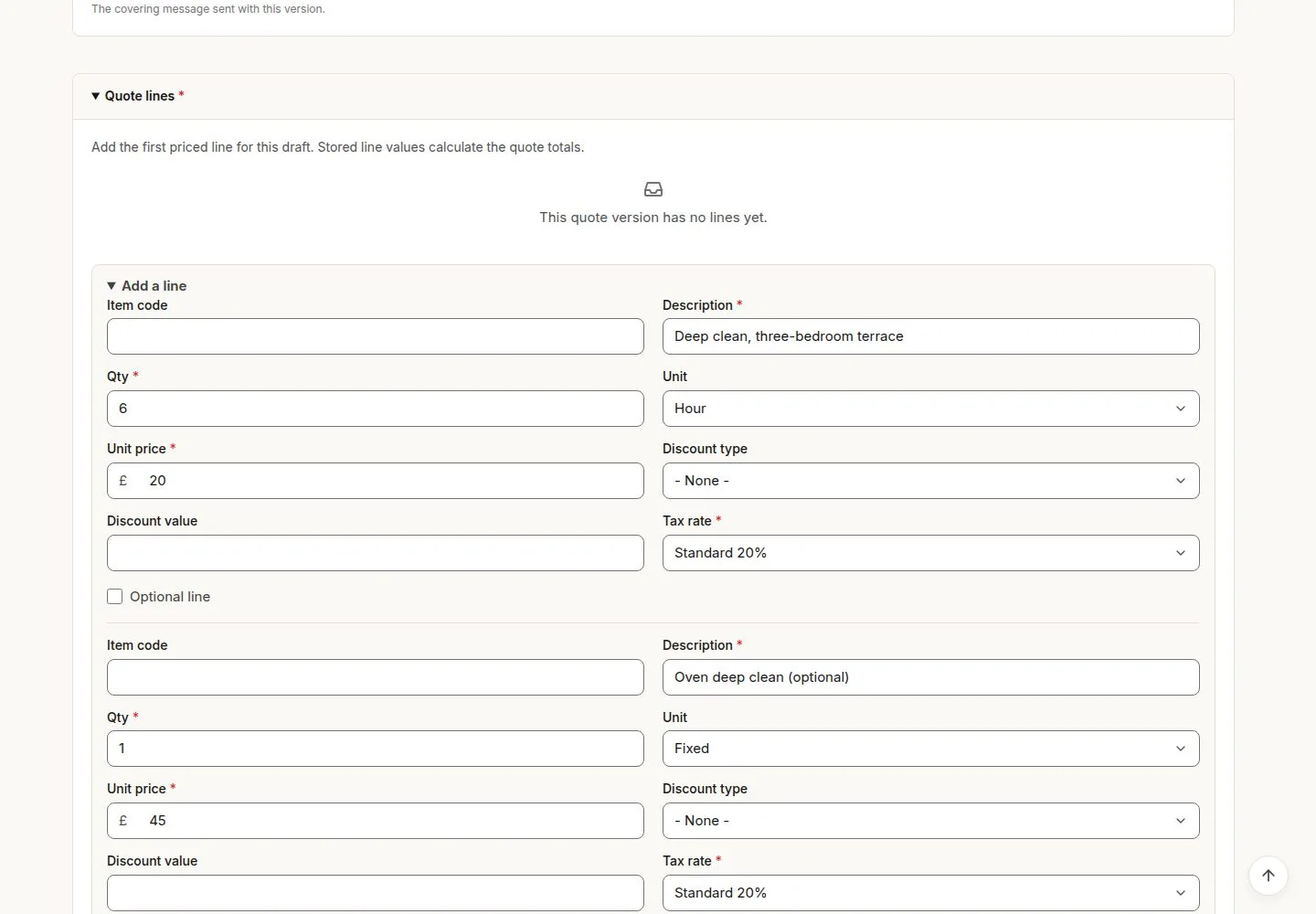
Add the priced lines

Office Administrator

Add the priced lines

3Step 3 of 16 · workflow step 03

  1. Add a line
  2. Quantity, unit, price, VAT
  3. Optional line
  4. Save

A discount above the line value is refused, never capped.

Enlarge, then scroll

Open illustrated screen ↗Full image ↗

Office Administrator · Quote lifecycle03

Saved as Draft

Office Administrator

Saved as Draft

4Step 4 of 16 · workflow step 03

  1. Quote number given
  2. Draft

Enlarge, then scroll

Open illustrated screen ↗Full image ↗

Office Administrator · Quote lifecycle04

Optional internal review

Office Administrator

Optional internal review

5Step 5 of 16 · workflow step 04

  1. Submit for review
  2. Send to client or Return to draft

Comments from a return stay on the quote until the version is sent.

Enlarge, then scroll

Open illustrated screen ↗Full image ↗

Office Administrator · Quote lifecycle05

Send to client

Office Administrator

Send to client

6Step 6 of 16 · workflow step 05

  1. Send to client
  2. Checks before sending

No line, no active contact, no service window or an expired date: nothing is sent and the reason is named.

Enlarge, then scroll

Open illustrated screen ↗Full image ↗

Office Administrator · Quote lifecycle06

Sent: the version is locked

Office Administrator

Sent: the version is locked

7Step 7 of 16 · workflow step 06

  1. Sent
  2. Download PDF
  3. Cancel quote or Re-quote

Enlarge, then scroll

Open illustrated screen ↗Full image ↗

Office Administrator · Quote lifecycle07

The quote email

Customer

The quote email

8Step 8 of 16 · workflow step 06

  1. Personal decision link
  2. Used once

In the demo, emails arrive in the Mailpit mailbox.

Enlarge, then scroll

Full image ↗

Office Administrator · Quote lifecycle08

The decision page

Customer

The decision page

9Step 9 of 16 · workflow step 07

  1. Lines and total
  2. Tick optional items
  3. Accept or Decline

No account or password. An expired, used or wrong link shows one identical refusal.

Enlarge, then scroll

Full image ↗

Office Administrator · Quote lifecycle09

Accept this quote

Customer

Accept this quote

10Step 10 of 16 · workflow step 08

  1. Accept this quote
  2. Receipt

Here the optional oven clean is left out: £144.00 of the £198.00 quoted is accepted.

Enlarge, then scroll

Full image ↗

The system does this
  • Make the client Active and the enquiry Won, and book exactly one first visit in the earliest service window after the acceptance
  • Tell the office the quote was accepted
  • Email the customer "Your clean on … is booked" with the date and time of that first visit
Office Administrator · Quote lifecycle10

Accepted, with its first visit

Office Administrator

Accepted, with its first visit

11Step 11 of 16 · workflow step 09

  1. Decision and contact
  2. Accepted lines and total
  3. First visit

Enlarge, then scroll

Open illustrated screen ↗Full image ↗

Office Administrator · Quote lifecycle11

The booking email

Customer

The booking email

12Step 12 of 16 · workflow step 09.1

  1. Date and time
  2. Home address

The customer is emailed again if the visit moves or is cancelled; an email that cannot be delivered shows on the visit with Resend.

Enlarge, then scroll

Full image ↗

Office Administrator · Quote lifecycle12

Re-quote after a change

Office Administrator

Re-quote after a change

13Step 13 of 16 · workflow step 10

  1. Re-quote
  2. Reason for the new version

A new Draft version; the old link stops working and the version the customer saw is kept. An accepted quote is not re-quoted: a later change is a new enquiry.

Enlarge, then scroll

Open illustrated screen ↗Full image ↗

Office Administrator · Quote lifecycle13

Cancel quote

Office Administrator

Cancel quote

14Step 14 of 16 · workflow step 11

  1. Cancel quote
  2. Cancellation reason

Enlarge, then scroll

Open illustrated screen ↗Full image ↗

Office Administrator · Quote lifecycle14

Expired after its date

Office Administrator

Expired after its date

15Step 15 of 16 · workflow step 12

  1. Expired
  2. Link no longer works

Enlarge, then scroll

Open illustrated screen ↗Full image ↗

Office Administrator · Quote lifecycle15

Decision by phone or post

Franchise Owner

Decision by phone or post

16Step 16 of 16 · workflow step 13

  1. Record offline decision
  2. Decision note

Franchise Owner only; an acceptance books the first visit as the link does.

Enlarge, then scroll

Open illustrated screen ↗Full image ↗

Check

Quote accepted; first visit booked in the service window

Office Administrator · Quote lifecycle16
1 / 17
Privacy Terms