








Visit on the day

Workflow 11 · My Day · Brief of Works · Start work · Complete visit

On the day the operative's phone shows today's visits in order, the Brief of Works for each home, and three big buttons: Start work, Evidence, Complete visit.

Times are stamped as they happen, and a visit cannot be completed without a photograph the server has received.

  • Operative assigned to today's visit
  • Phone signed in to the field app
Operative
My Day

Operative

My Day

1Step 1 of 7 · workflow step 01

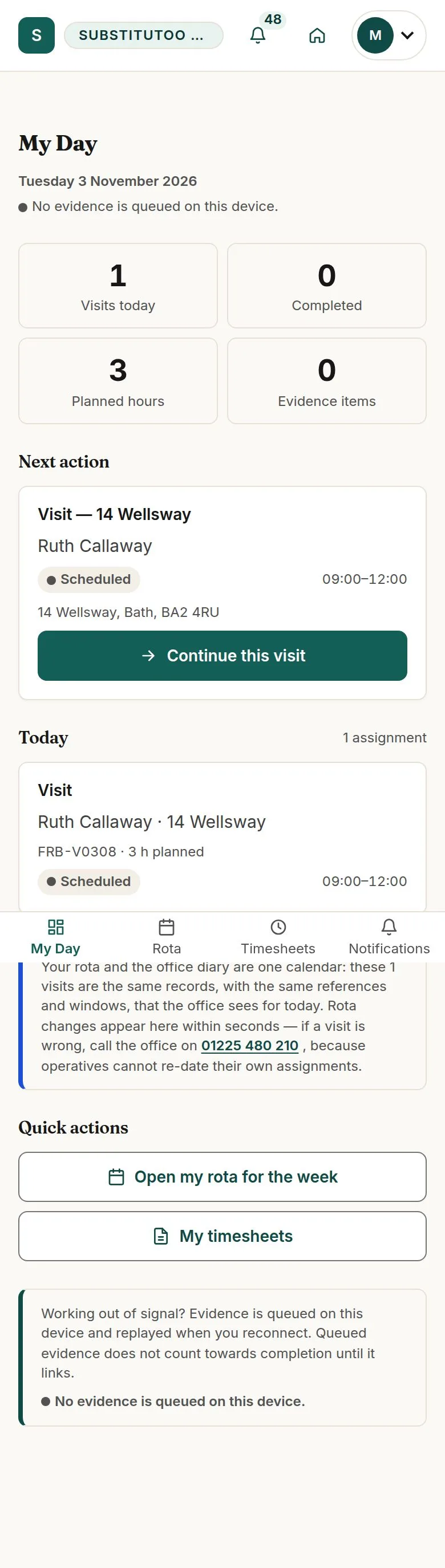
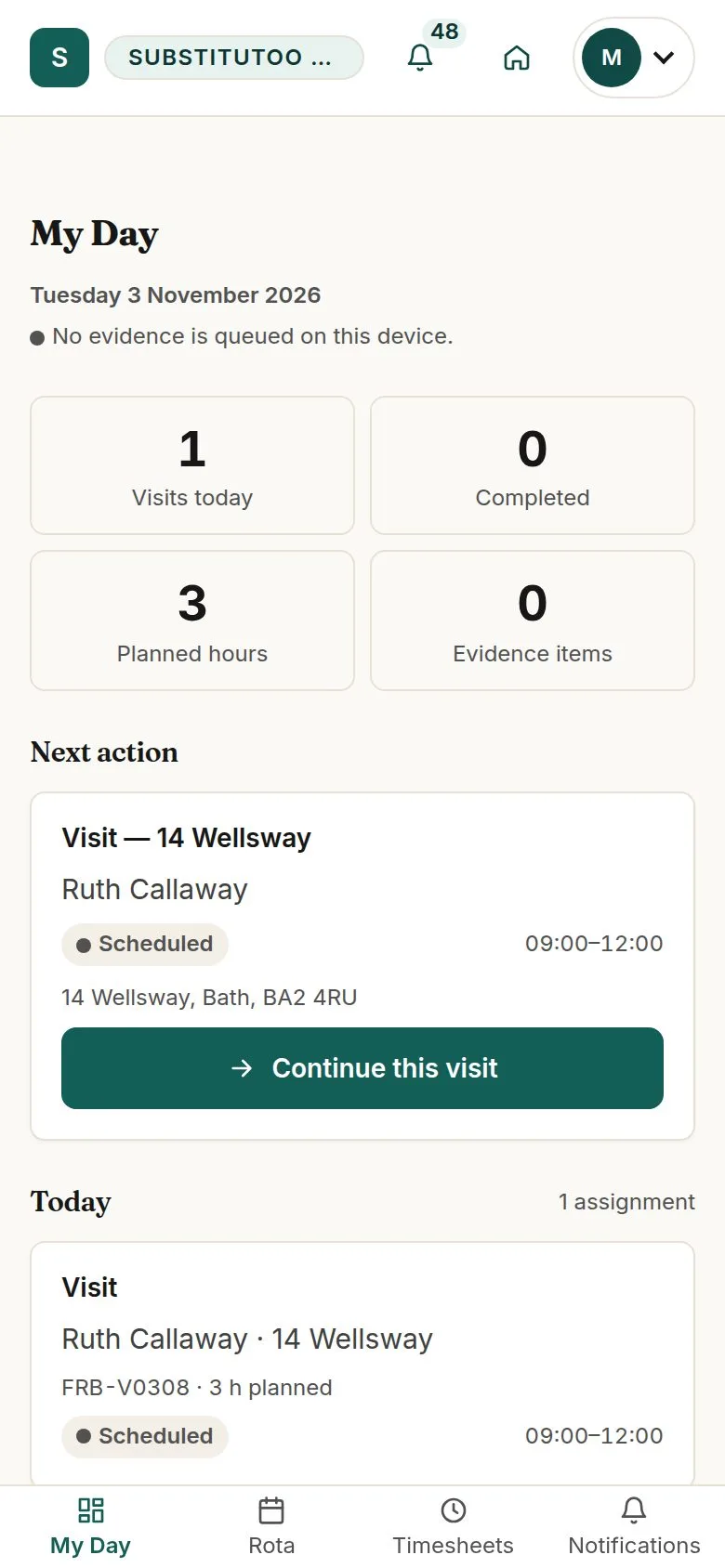
  1. Today's visits in order
  2. Next action
  3. Counters

Enlarge, then scroll

Open illustrated screen ↗Full image ↗

Operative · Visit on the day01

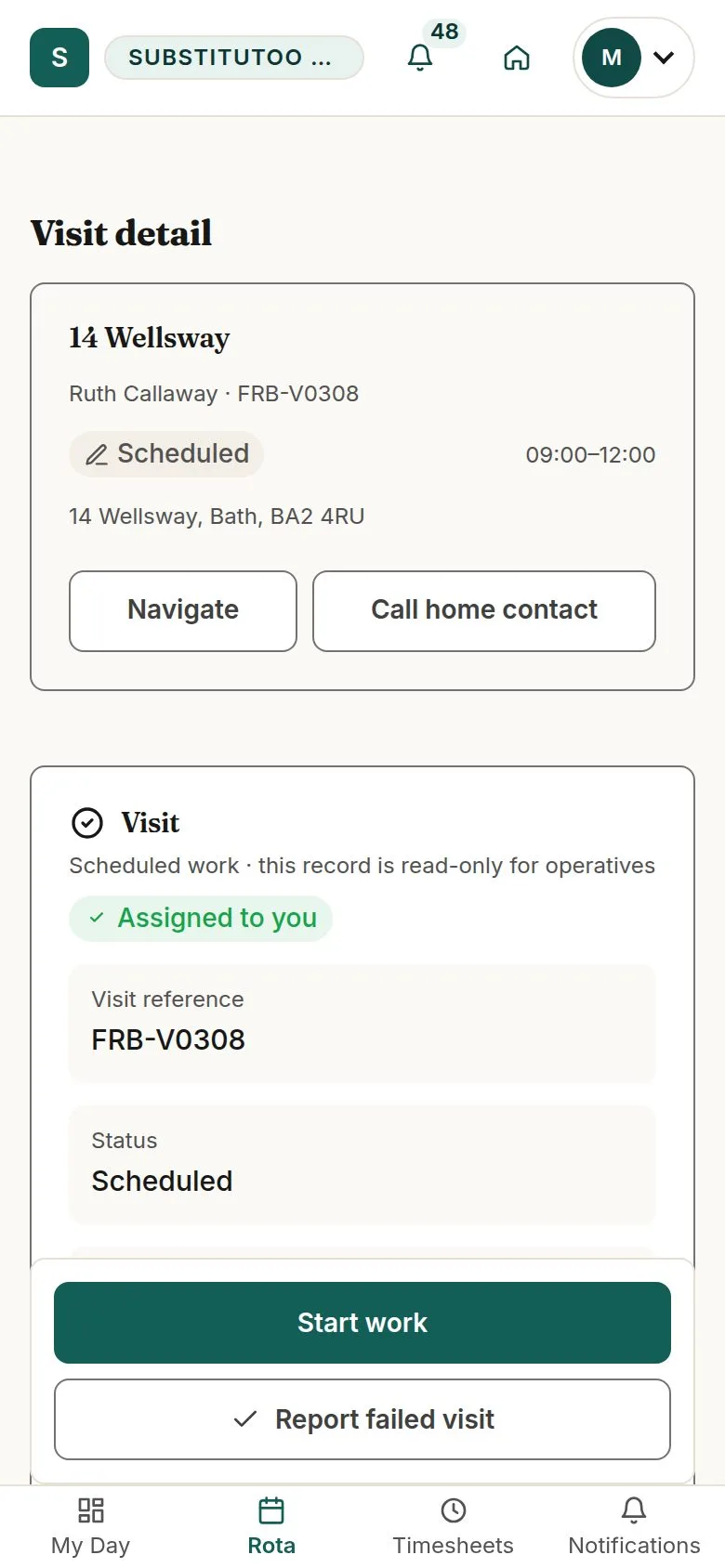
Open the visit

Operative

Open the visit

2Step 2 of 7 · workflow step 02

  1. Brief of Works
  2. Access and risks
  3. Navigate, Call home contact

Only their own visits; never the full client record or any money.

Enlarge, then scroll

Open illustrated screen ↗Full image ↗

Operative · Visit on the day02

Start work

Operative

Start work

3Step 3 of 7 · workflow step 03

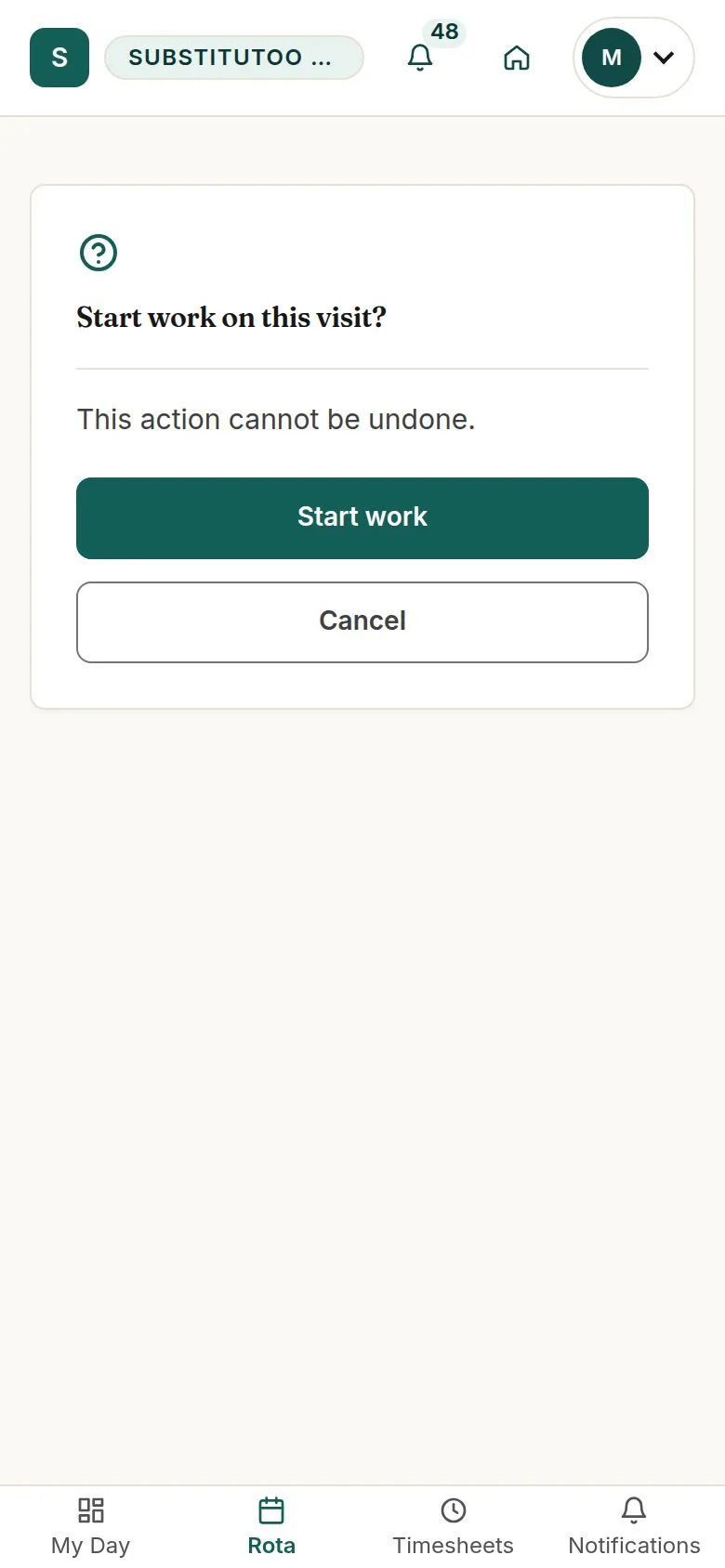
  1. Start work
  2. Confirm

The start time is stamped and the Brief of Works is locked. A second tap keeps one start time.

Enlarge, then scroll

Open illustrated screen ↗Full image ↗

Operative · Visit on the day03

In progress

Operative

In progress

4Step 4 of 7 · workflow step 03

  1. Evidence
  2. Complete visit

Enlarge, then scroll

Open illustrated screen ↗Full image ↗

Operative · Visit on the day04

Photographs as you work

Operative

Photographs as you work

5Step 5 of 7 · workflow step 04

  1. Category Before / During / After
  2. Take a photo
  3. Save evidence

JPG, PNG, WEBP, HEIC or HEIF, up to 12 MB; up to 5 photos per visit (workflow 12).

Enlarge, then scroll

Open illustrated screen ↗Full image ↗

Operative · Visit on the day05

Complete visit

Operative

Complete visit

6Step 6 of 7 · workflow step 05

  1. Successful or Partial
  2. Work undertaken
  3. Recommendations, observations

Save draft keeps the visit In progress. Without a received photograph the visit cannot be completed.

Enlarge, then scroll

Open illustrated screen ↗Full image ↗

Operative · Visit on the day06

Completed

Operative

Completed

7Step 7 of 7 · workflow step 06

  1. End time stamped
  2. Start timesheet

Enlarge, then scroll

Open illustrated screen ↗Full image ↗

The system does this
  • Tell the office that the visit waits for approval
  • A visit that cannot go ahead is reported with Report failed visit and a reason (no access, cancelled on arrival or other); Failed is final and the office books a replacement
Check

Visit Completed with photographs and notes; the office notified

Operative · Visit on the day07
1 / 8
Privacy Terms